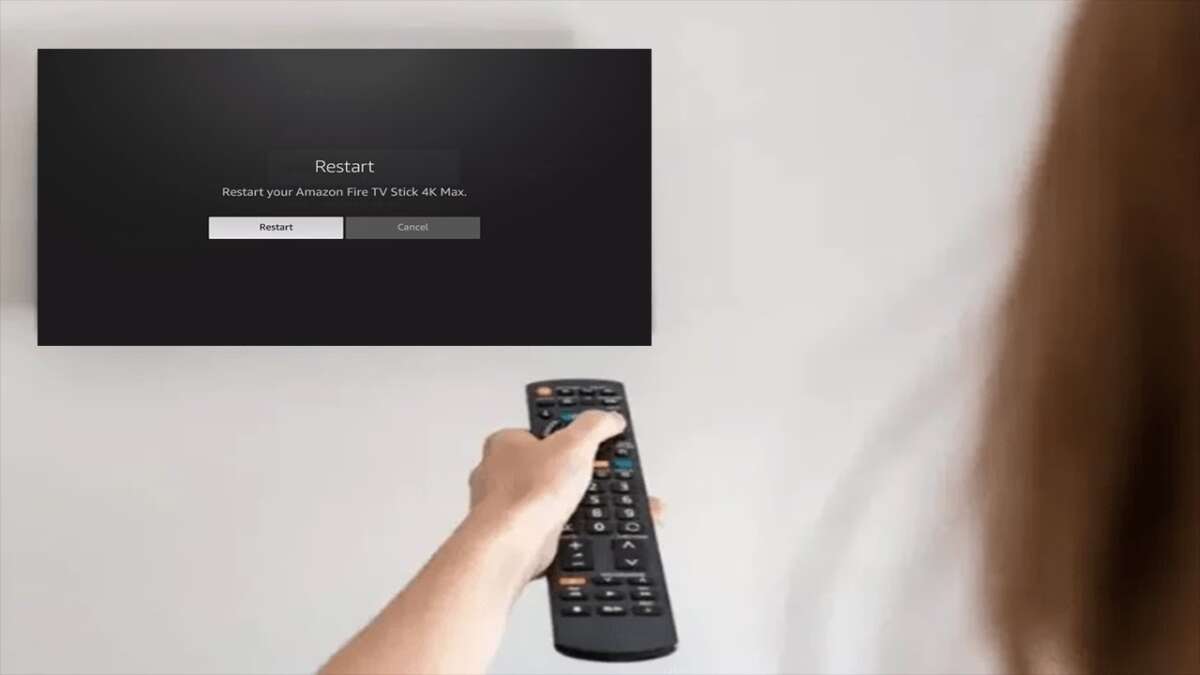
Press Select and Play/Pause together for ten seconds to restart most Fire TV devices.
Learning how to restart a Fire TV can fix freezing, slow menus, app errors, sound problems, and connection issues in less than a minute. This guide explains every safe restart method, including what to do when the remote does not respond, so you can restore your streaming device without losing apps or settings.
Why Restarting a Fire TV Helps
A restart gives your Fire TV a clean start. It closes running apps, clears temporary memory, and reloads the Fire OS software. Think of it as giving the device a short rest instead of forcing it to work through a problem.
You may need to restart your Fire TV when:
• Apps freeze or close without warning
• The home screen loads slowly
• Videos buffer even with a strong internet connection
• The remote appears delayed
• Audio or video stops working
• The Fire TV Stick shows a blank screen
• A recent app or system update causes errors
Restarting is not the same as resetting. A restart keeps your apps, accounts, Wi-Fi details, and personal settings. A factory reset removes that information, so it should only be used as a last resort.

How to Restart a Fire TV With the Remote
The fastest method for how to restart a Fire TV uses two buttons on the remote. It works on most Fire TV Stick models, Fire TV Cube devices, and Fire TV smart televisions.
- Turn on your Fire TV and point the remote toward it.
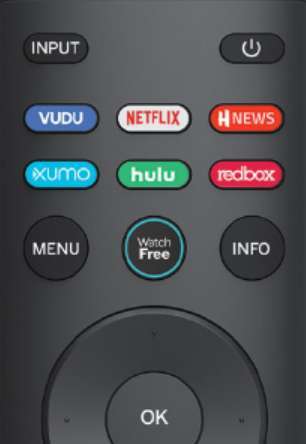
- Press and hold the Select button and the Play/Pause button at the same time.
- Keep holding both buttons for about 10 seconds.
- Wait for the Fire TV logo to appear.
- Allow the device to start fully before opening an app.
The Select button is the round button in the center of the navigation ring. The Play/Pause button usually sits below the ring. If the restart does not begin, hold both buttons for a few extra seconds.
This method does not erase any data. It simply forces the device to reboot, which makes it useful when the screen is frozen or the menu is difficult to use.

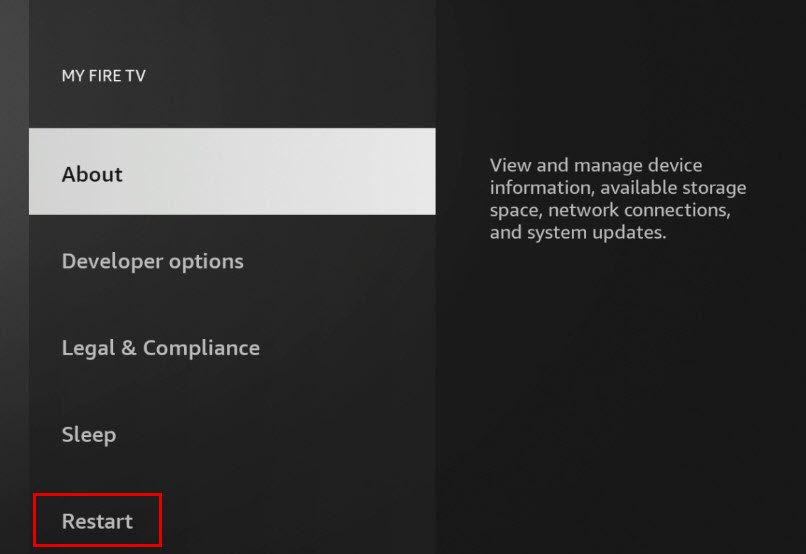
How to Restart a Fire TV From the Settings Menu
If the remote works normally, the Settings menu offers a simple and controlled way to restart your Fire TV. This method is ideal when the device responds but feels slow or unstable.
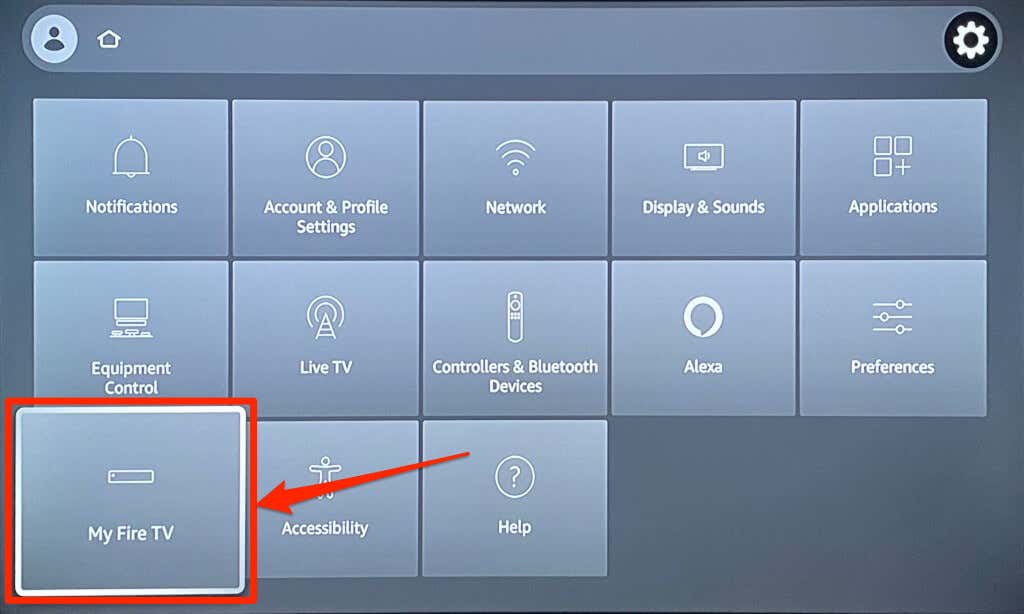
- From the Fire TV home screen, select the gear icon.
- Open My Fire TV.
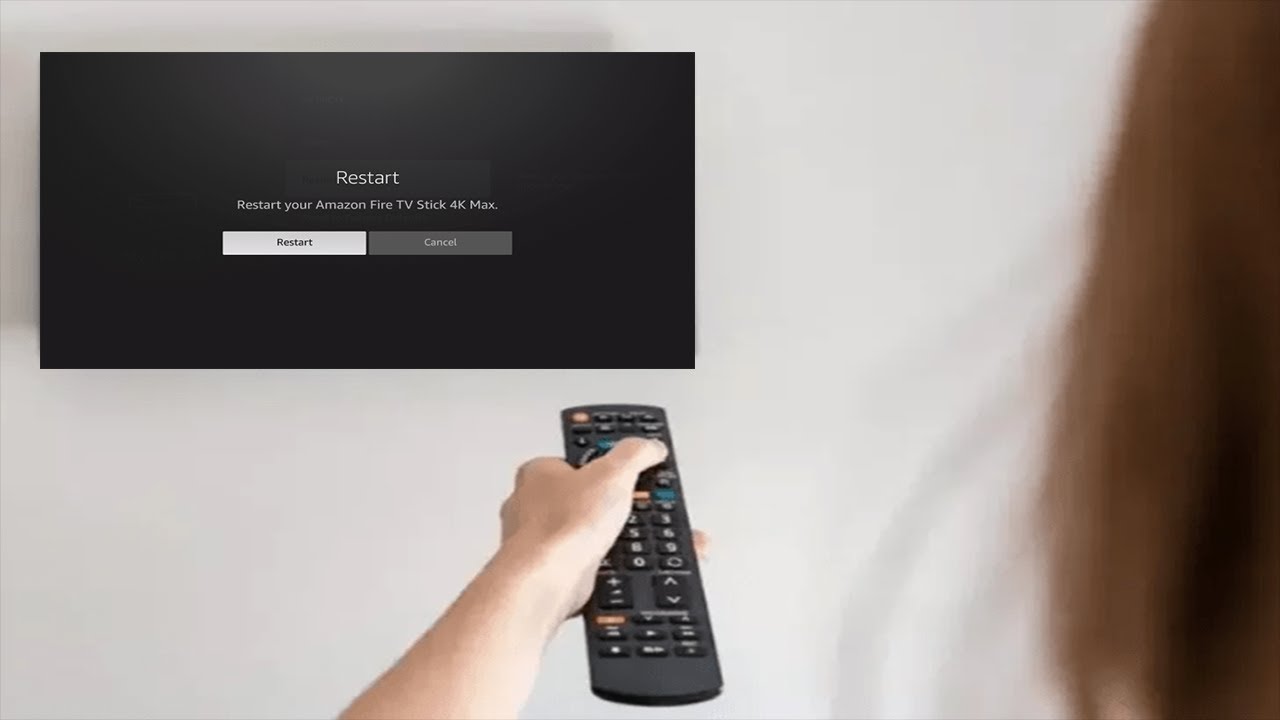
- Choose Restart.
- Select Restart again when the confirmation message appears.
- Wait for the Fire TV logo and home screen to return.
On some Fire OS versions, the menu may show Device & Software instead of My Fire TV. Select that option, then choose Restart.
The menu names can vary slightly by model and software version. The basic path remains similar: open Settings, find the device options, and select Restart.
How to Restart a Fire TV When the Remote Does Not Work
A remote may stop responding because of weak batteries, interference, or a temporary software problem. Before trying a more advanced fix, replace both batteries with fresh ones and move objects away from the Fire TV Stick.
If the remote still does not work, use one of these options:
• Unplug the Fire TV power adapter from the outlet.
• Disconnect the power cable from the Fire TV Stick.
• Wait at least 60 seconds.
• Plug the power cable back into a wall outlet.
• Wait for the device to start.
Using a wall outlet is often better than a television USB port. Some TV USB ports do not provide steady power, especially when the television is turned off or in standby mode.
If you have the Fire TV app on a phone, connect the phone to the same Wi-Fi network as the Fire TV. Open the app, select your device, and use the on-screen remote to open Settings and restart the device.

How to Restart a Fire TV Stick by Unplugging It
Unplugging the Fire TV Stick is a safe restart method when the screen is frozen or the remote cannot connect. It is different from pulling the power while the device is installing an update, so avoid unplugging it if you see an update message.
Follow these steps:
- Remove the Fire TV power cable from the wall adapter or device.
- Leave it disconnected for 60 seconds.
- Reconnect the cable to a reliable power source.
- Turn on the TV and select the correct HDMI input.
- Wait several minutes for the home screen to load.
Do not repeatedly unplug the device within a few seconds. A full minute gives the hardware and temporary memory time to shut down properly.
In my troubleshooting work, a weak power source has often looked like a software failure. If your Fire TV restarts on its own, freezes during streaming, or shows a black screen, try the original power adapter and cable before changing other settings.

How to Restart a Fire TV When the Screen Is Black
A black screen does not always mean the Fire TV has failed. The television may be on the wrong HDMI input, or the Fire TV may not be receiving enough power.
Try these steps in order:
- Confirm that the television is powered on.
- Use the TV remote to check each HDMI input.
- Disconnect and reconnect the Fire TV from the HDMI port.
- Restart the Fire TV using the Select and Play/Pause buttons.
- Unplug the Fire TV power cable for 60 seconds.
- Connect the Fire TV directly to the television instead of using an HDMI hub.
- Try another HDMI port if one is available.
If the screen remains black, check whether the Fire TV indicator light appears. Also make sure the television is set to the same HDMI input where the device is connected.
A damaged HDMI extender, loose cable, or low-power USB port can cause the same symptoms as a frozen Fire TV. Testing one part at a time helps you find the real cause.
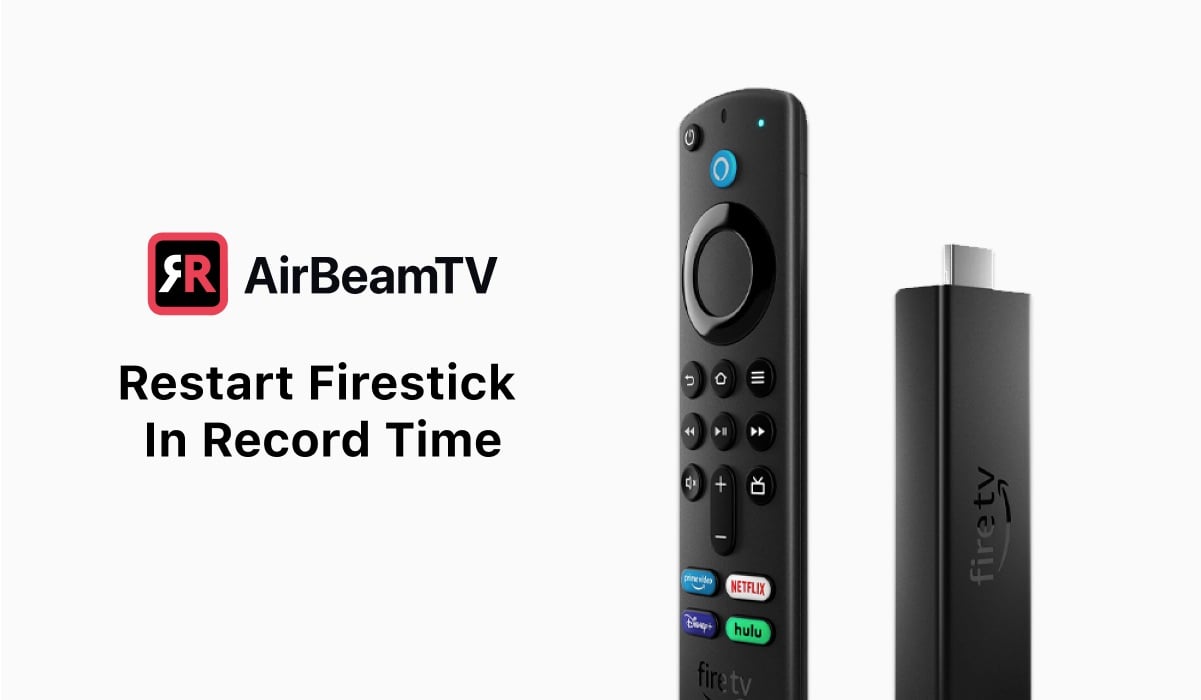
How to Restart a Fire TV Cube
The Fire TV Cube has the same basic restart options as a Fire TV Stick. You can use the Settings menu, the remote shortcut, or a power cycle.
To restart a Fire TV Cube with the remote:
- Press and hold Select and Play/Pause.
- Keep both buttons pressed for about 10 seconds.
- Release the buttons when the device begins restarting.
You can also say, “Alexa, restart Fire TV,” if voice control is working. If Alexa does not respond, use the remote or unplug the power cable for one minute.
Keep the Fire TV Cube in an open area. Heat can affect performance, especially when the device sits inside a closed cabinet or near another warm electronic device.
What to Do After Restarting Your Fire TV
After you restart your Fire TV, give it time to load all services. Opening several apps at once can make the device seem slow during the first minute.
Use this quick check:
• Open one streaming app.
• Play a video for a few minutes.
• Check whether sound and picture match.
• Test the remote buttons.
• Confirm that Wi-Fi stays connected.
If the original problem returns, update Fire OS and the affected app. You can check for system updates under Settings, My Fire TV, About, and Check for Updates. Menu labels may differ slightly on newer software versions.
You can also clear an app’s cache by opening Settings, Applications, Manage Installed Applications, selecting the app, and choosing Clear cache. Avoid choosing Clear data unless you are prepared to sign in again.
Restarting a Fire TV Versus Resetting It
A restart is a temporary reboot. It keeps your account, apps, downloaded content, network details, and preferences.
A factory reset returns the Fire TV to its original setup state. It removes:
• Amazon account information
• Installed apps
• Saved Wi-Fi networks
• App logins
• Device preferences
• Some downloaded content
Use a factory reset only when normal restarts, updates, cache clearing, and network checks fail. Before resetting, make sure you know your account password and understand that you will need to set up the device again.
The reset option is usually under Settings, My Fire TV, Reset to Factory Defaults. Do not select it simply because the Fire TV is slow. In most cases, learning how to restart a Fire TV is enough to solve a short-term problem.

Common Mistakes to Avoid
Restarting a Fire TV is simple, but a few mistakes can create new problems.
• Do not unplug the device during a software update.
• Do not use a damaged or loose power cable.
• Do not rely on a weak television USB port when streaming problems continue.
• Do not press random remote buttons while the Fire TV is restarting.
• Do not factory reset the device before trying a normal restart.
• Do not place the Fire TV Stick where heat cannot escape.
One common mistake is restarting the device but ignoring the power source. If the Fire TV keeps freezing after every restart, the issue may involve power, Wi-Fi, overheating, storage, or a faulty app.
Another lesson is to wait. The device may need several minutes after a restart to reconnect to Wi-Fi and reload services. Checking the result too quickly can make a successful restart seem unsuccessful.
How to Prevent Fire TV Problems
A restart fixes many short-term issues, but good maintenance can reduce how often you need one.
Keep your Fire TV reliable by following these habits:
• Install Fire OS updates when they become available.
• Update streaming apps through the app store.
• Remove apps you no longer use.
• Clear the cache of apps that often freeze.
• Keep the device away from heat and direct sunlight.
• Use the recommended power adapter.
• Restart the device occasionally if it becomes sluggish.
Streaming quality also depends on your network. Place the Wi-Fi router in an open area, reduce heavy downloads during streaming, and test another app before blaming the Fire TV.
If only one app has trouble, the app is likely the cause. If every app freezes, examine the power source, internet connection, device storage, and Fire OS version.
How long does it take to restart a Fire TV?
Most Fire TV devices restart within one to three minutes. The first start after an update may take longer, so wait several minutes before unplugging the device again.
Does restarting a Fire TV erase everything?
No. A normal restart does not erase apps, accounts, Wi-Fi details, or settings. Only a factory reset removes your stored information.
Can I restart a Fire TV without a remote?
Yes. Unplug the Fire TV power cable for about 60 seconds, then reconnect it. You can also use the Fire TV mobile app if your phone and device are connected to the same Wi-Fi network.
Why will my Fire TV not restart?
The problem may come from weak power, a frozen system, a faulty cable, overheating, or a software issue. Try the remote shortcut, then power-cycle the device with a reliable wall adapter.
Is it safe to unplug a Fire TV?
Yes, unplugging is generally safe when the device is not installing an update. Disconnect it for about 60 seconds before reconnecting the power.
How often should I restart my Fire TV?
There is no required schedule. Restart your Fire TV when it becomes slow, freezes, loses sound, or has trouble loading apps.
Conclusion
Knowing how to restart a Fire TV gives you a quick way to solve many everyday streaming problems. Start with the Select and Play/Pause shortcut, use the Settings menu when possible, and unplug the device for 60 seconds if the remote or screen does not respond.
A restart will not delete your data, but a factory reset will. Use the simple methods first, check the power supply and HDMI connection, and keep the device updated. Try these steps the next time your Fire TV acts up, then explore more device guides or share your experience in the comments.

Everett Ashford is a tech reviewer at mytechgrid.com specializing in SSDs, cameras, TVs, earbuds, headphones, and other consumer electronics. He provides honest, data-driven reviews based on hands-on testing and real-world performance analysis. Everett simplifies complex tech details to help readers make smart, confident buying decisions.