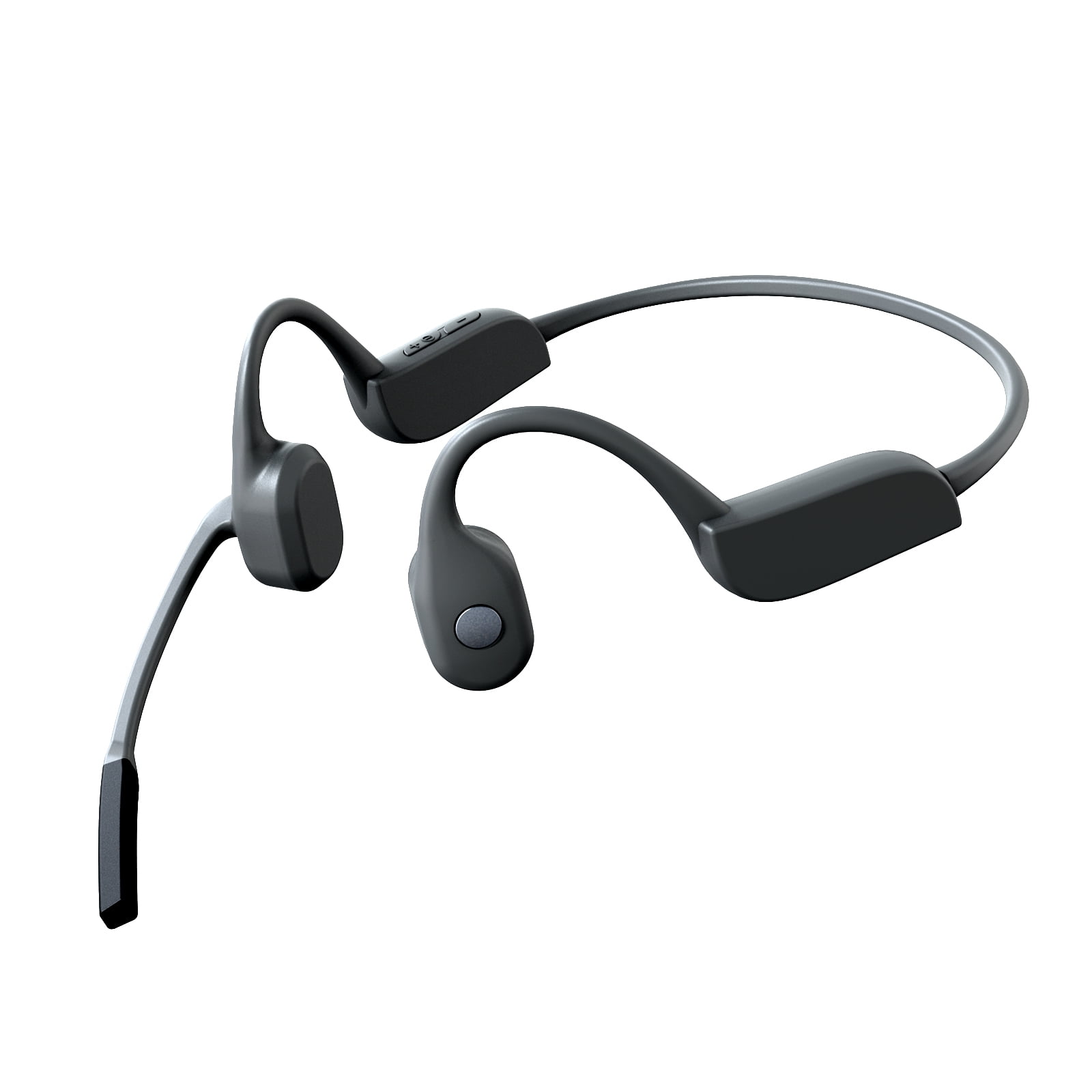
To turn on most onn. bone conduction headphones sold in the United States, press and hold the Power or Multifunction button for about 3 seconds. Release it when the status light turns on or you hear a voice prompt.
If the headphones do not respond, charge them first. Then try the power button again while holding it for up to 5 seconds. Button names, light colors, and charging ports can vary by onn. model, so check the label or manual that came with your pair.
What You Need Before Turning Them On
You need three things:
- The onn. bone conduction headphones
- A working USB charging cable
- A phone, tablet, computer, or other Bluetooth device for pairing
Most onn. bone conduction headphones use Bluetooth. They do not need a special app for basic use.
Before the first use, remove any protective film from the charging contacts or buttons. Make sure the headphones are dry. Water near the charging port can cause damage.
If the headphones are new, charge them before setup. A low battery may stop the headphones from turning on, even if the power light flashes briefly.
How to Turn On Onn Bone Conduction Headphones
Follow these steps in order.
1. Find the Power Button
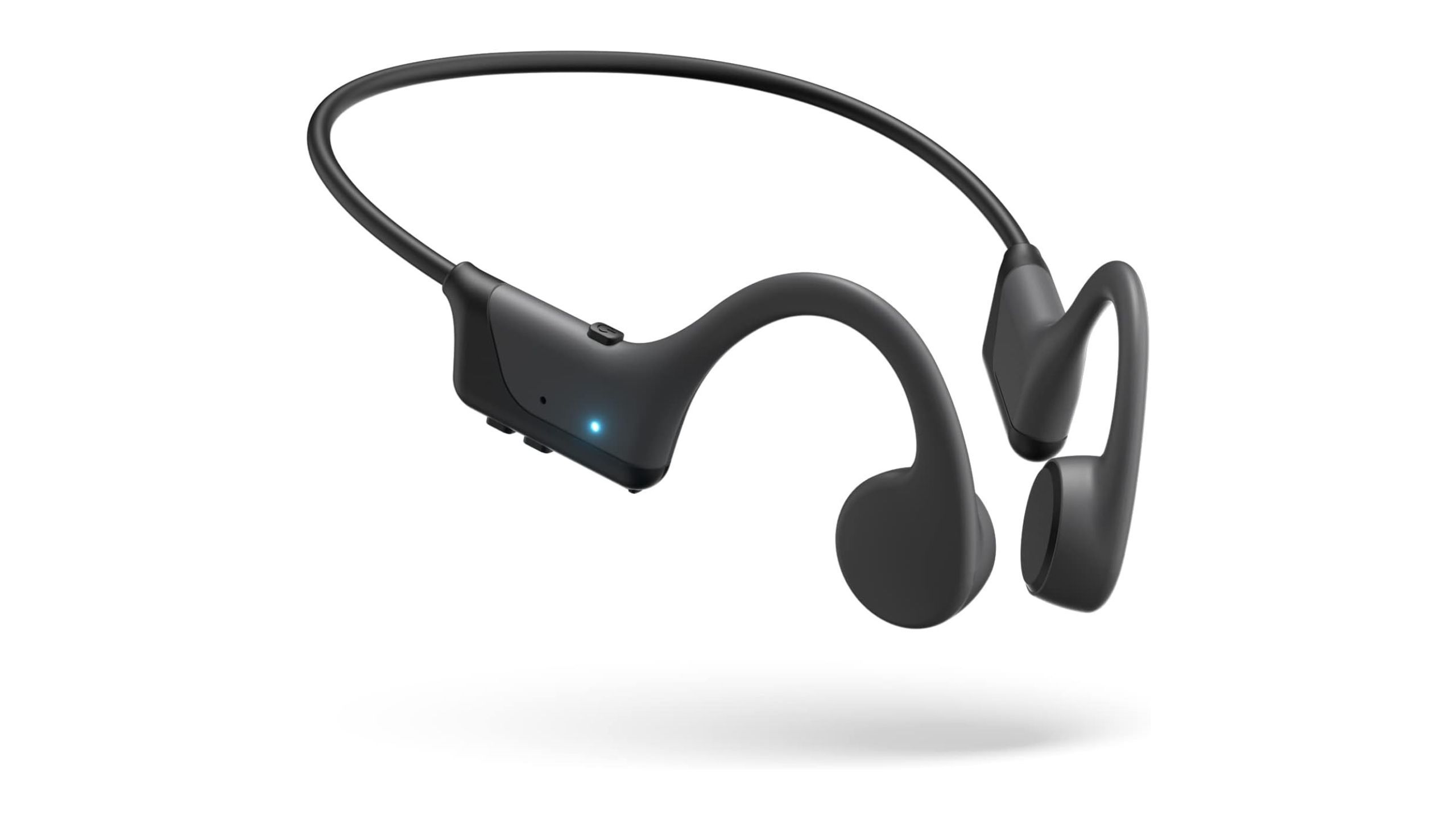
Look along the side of the headphone band or near the control buttons. The button may have one of these labels:
- Power
- On/Off
- M
- Multifunction
- A circle with a line through it
Some models use one button for power, play, calls, and Bluetooth pairing. This is often called the multifunction button.
2. Press and Hold the Button
Press and hold the Power or Multifunction button for about 3 seconds.
Do not tap the button once. A quick press may pause music or answer a call when the headphones are already on.
3. Watch for a Sign That the Headphones Are On
The headphones may:
- Play a start-up tone
- Say “Power on”
- Show a flashing LED
- Show a blue or white light
- Enter Bluetooth pairing mode automatically
The exact light pattern depends on the onn. model. A flashing light often means the headphones are ready to connect.
4. Turn On Bluetooth on Your Device
On an iPhone or iPad:
- Open Settings.
- Tap Bluetooth.
- Turn Bluetooth on.
- Wait for the onn. headphones to appear.
On an Android phone:
- Open Settings.
- Tap Connected devices, Connections, or Bluetooth.
- Turn Bluetooth on.
- Select the onn. headphones from the list.
On a Windows PC:
- Open Settings.
- Select Bluetooth & devices.
- Turn Bluetooth on.
- Choose Add device.
- Select Bluetooth.
- Choose the onn. headphones.
The name may appear as onn., ONN, onn Bone Conduction, or a model number.
5. Confirm the Connection
The headphones may announce that they are connected. The LED may also stop flashing or change to a steady light.
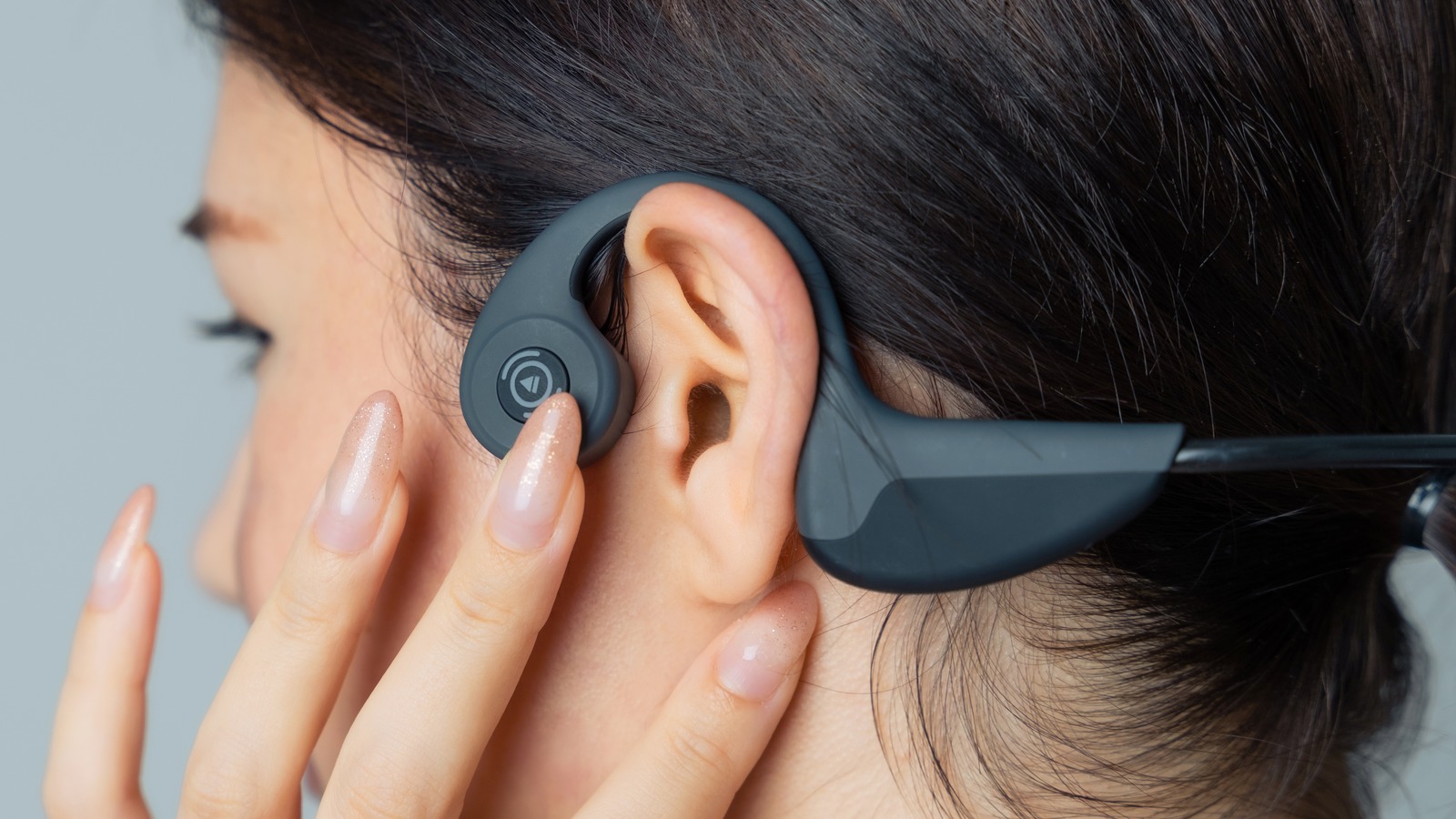
Play a short song or video to test them. Bone conduction headphones should sit in front of your ears, with the sound pads resting on your cheekbones. They should not cover your ear canals.
How to Turn On Pairing Mode
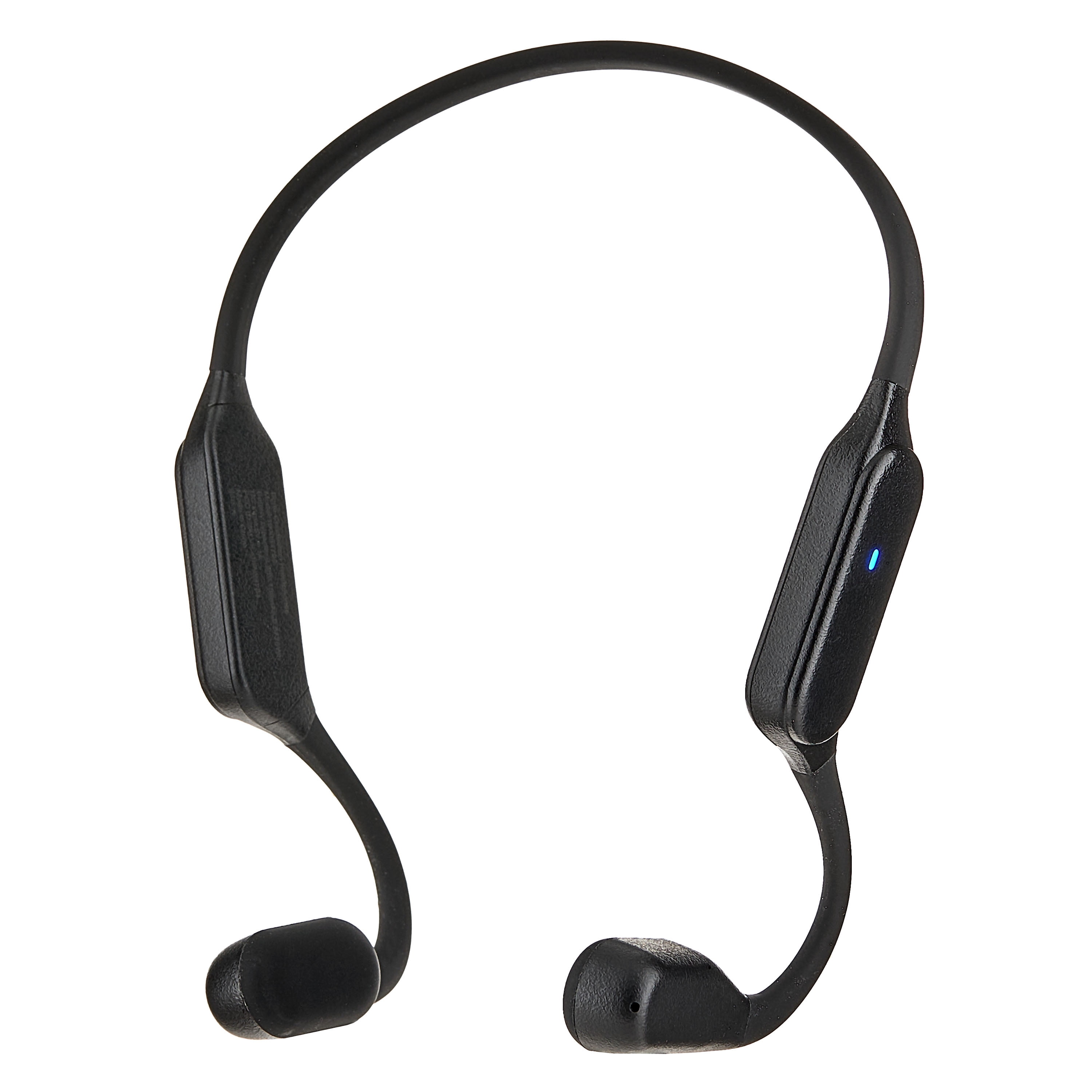
If the headphones turn on but do not appear in your device’s Bluetooth list, place them in pairing mode.
First, turn the headphones off. Then press and hold the Power or Multifunction button for about 5 seconds, or until the LED flashes in two colors or the headphones announce pairing mode.
Next, open your device’s Bluetooth settings and look for the onn. headphones.
A pair of headphones may connect to the last device used. If that device is nearby, turn off its Bluetooth temporarily. This can help the headphones become available to a new phone or computer.
Do not choose a different device with a similar name unless you know it belongs to your headphones. Connecting to the wrong device can make troubleshooting harder.
What the Status Light Usually Means
LED patterns are not identical on every onn. model. Use this table as a general guide, not as a replacement for your model’s manual.
| Light or sound | Likely meaning | What to do |
|---|---|---|
| No light or sound | Headphones are off or battery is empty | Charge them, then try again |
| Flashing blue or white | Pairing or searching for a device | Open Bluetooth settings |
| Steady blue or white | Connected or powered on | Play audio to test |
| Red light while plugged in | Charging | Leave them connected |
| Light turns off while charging | Charging may be complete, or the model may use no full-charge light | Check the battery on your device |
| Start-up voice prompt | Headphones have powered on | Continue with Bluetooth setup |
| Repeated red flashes | Low battery or a charging problem | Charge with another cable or adapter |
Colors can change between model versions. The product manual is the best source for a specific light code.
What to Do If Onn Bone Conduction Headphones Will Not Turn On
Start with the safest and simplest checks. Most power problems come from a drained battery, a poor cable connection, or a button that was not held long enough.
Charge the Headphones
Connect the headphones to a compatible USB power source. Leave them charging for at least 30 minutes before trying again.
Use a known-working charging cable. If the cable feels loose, try another cable that fits the port. Do not force a plug into the charging port.
If the headphones use a magnetic charging cable, make sure the contacts line up correctly. Some magnetic cables only work in one position.
Check the Charging Light
A charging light usually shows that power is reaching the headphones. If there is no light:
- Try another USB port.
- Try another compatible cable.
- Check for dust or moisture near the port.
- Confirm that the power source works with another device.
- Make sure the connector is fully inserted.
Do not charge wet headphones. Wipe them with a dry, soft cloth and let them dry fully before connecting a cable.
Hold the Button Longer
Press and hold the Power button for 5 seconds. Some models need a longer press than others.
Keep the button pressed without tapping other controls. Release it when you hear a tone or see the LED.
Disconnect the Old Bluetooth Connection
If the headphones turn on but seem unresponsive, they may still be linked to another device.
Turn Bluetooth off on nearby phones, tablets, and computers. Then turn the headphones off and back on. Open Bluetooth settings on the device you want to use and select the headphones.
Remove and Re-Pair the Headphones
If your phone lists the headphones but will not connect:
- Open Bluetooth settings.
- Tap the settings icon beside the onn. headphones.
- Choose Forget, Remove, or Unpair.
- Turn Bluetooth off and back on.
- Put the headphones into pairing mode.
- Select them again.
This removes the old connection record. It does not repair physical damage or a dead battery.
Check the Controls for Damage
If the Power button feels stuck, loose, or sunken, stop pressing it repeatedly. A damaged button may need warranty service or replacement.
Do not open the headphones. Internal batteries can be damaged by punctures, heat, or incorrect repair work.
Common Reasons Onn Headphones Stay Off
| Symptom | Most likely cause | Best next step |
|---|---|---|
| No light while charging | Bad cable, power source, or port | Try another cable and USB port |
| Light appears but headphones will not start | Button press is too short or battery is very low | Charge longer, then hold Power for 5 seconds |
| Headphones turn on but do not appear | They are connected to another device | Turn off nearby Bluetooth devices and enter pairing mode |
| Headphones connect but no sound plays | Wrong audio output is selected | Choose the onn. headphones as the sound output |
| One side has weak sound | Poor fit or blocked sound path | Adjust the pads on your cheekbones and check the audio source |
| Headphones shut off quickly | Low battery or battery fault | Fully charge them and test again |
| Controls do not respond | Software issue or physical damage | Power cycle them; seek support if the issue continues |
How to Turn Them Off
Press and hold the same Power or Multifunction button for about 3 seconds.
Wait for a power-off tone, voice prompt, or the LED to turn off. If the headphones do not shut down, hold the button for up to 5 seconds.
Do not leave the headphones powered on inside a bag. They can continue searching for Bluetooth devices and use battery power.
If the headphones remain stuck on, disconnect them from Bluetooth and try the Power button again. Avoid using unverified button combinations unless the manual lists them for your exact model.
How to Use Onn Bone Conduction Headphones Safely
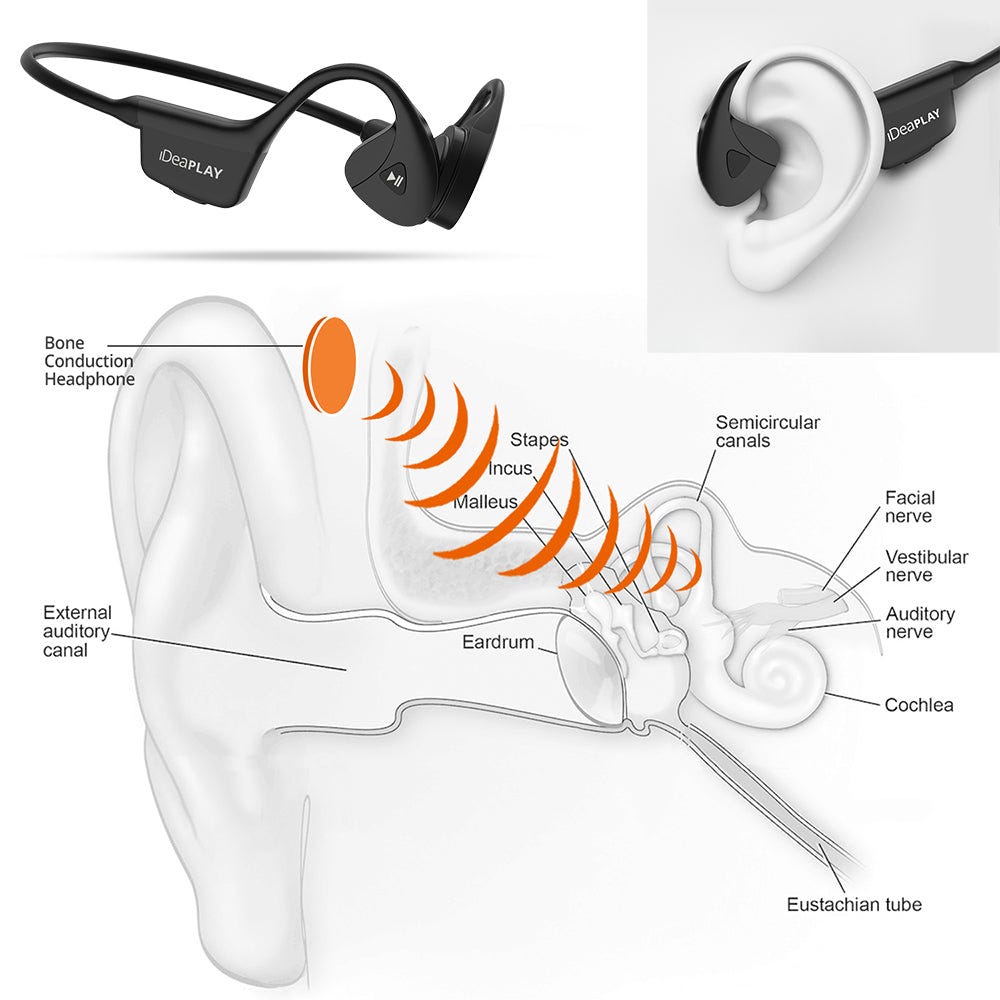
Bone conduction headphones send sound through vibrations near the cheekbones. They leave the ear canals open, but they still produce sound that may be loud enough to harm hearing.
Keep the volume at a comfortable level. If you hear ringing, muffled sound, or pain, lower the volume or stop using the headphones.
Open-ear design does not block outside sound completely. Stay alert near roads, driveways, bike lanes, trains, and other hazards. Do not use the headphones as a substitute for traffic awareness.
Keep the charging port dry. Many models may resist sweat or light splashes, but that does not mean they are safe to submerge. Do not wear them while swimming unless the exact model is rated for swimming.
A Quick Setup Example
Suppose you want to connect the headphones to an Android phone:
- Charge the headphones for at least 30 minutes.
- Hold the Power button for 3 seconds.
- Keep holding it until the LED flashes or a voice prompt sounds.
- Open Settings on the phone.
- Select Bluetooth.
- Tap the onn. headphones.
- Play a short video.
- Adjust the position and volume.
If the headphones do not appear, turn them off, hold the Power button for about 5 seconds to enter pairing mode, and search again.

Key Takeaways
- Hold the Power or Multifunction button for about 3 seconds.
- Charge the headphones first if there is no light or sound.
- Hold the button longer to enter Bluetooth pairing mode.
- Turn off Bluetooth on nearby devices if the headphones connect elsewhere.
- Forget and re-pair the headphones if your phone lists them but will not connect.
- Keep the charging port dry and use a safe listening volume.
- Check the exact onn. manual when the light pattern or button controls differ.
FAQs
How long should I hold the power button on onn. bone conduction headphones?
Start with about 3 seconds. If nothing happens, hold the button for up to 5 seconds. If there is still no response, charge the headphones before trying again.
Why are my onn. bone conduction headphones not showing in Bluetooth?
They may be connected to another nearby device or may not be in pairing mode. Turn off Bluetooth on nearby devices, power the headphones off, then hold the Power button until the pairing light flashes.
Can I use onn. bone conduction headphones while they are charging?
Do not assume they support listening while charging. The safest approach is to use them after charging is complete, unless the manual for your exact model says otherwise.
How do I know when the headphones are fully charged?
Many models change or turn off the charging light when the battery is full. The exact signal varies, so check the manual or the battery indicator shown on your connected phone.
What should I do if my headphones still will not turn on?
Try a different compatible cable and USB port, charge the headphones for at least 30 minutes, and hold the Power button for 5 seconds. If there is no light, sound, or response after these checks, contact onn. support or the retailer if the headphones are still covered by a return or warranty policy.
Conclusion
To turn on onn. bone conduction headphones, press and hold the Power or Multifunction button for about 3 seconds. Then open Bluetooth settings and select the headphones.
If they do not turn on, charge them, test another cable and USB port, and try a longer button press. If the exact light pattern or control differs, use the manual for your model rather than forcing a reset or opening the device.

Everett Ashford is a tech reviewer at mytechgrid.com specializing in SSDs, cameras, TVs, earbuds, headphones, and other consumer electronics. He provides honest, data-driven reviews based on hands-on testing and real-world performance analysis. Everett simplifies complex tech details to help readers make smart, confident buying decisions.