Update Vizio TV firmware through the TV’s settings, or use an approved USB file when automatic updates are unavailable.
Knowing how to update Vizio TV firmware can fix bugs, improve app support, strengthen security, and make your TV more stable. The steps vary by model and SmartCast version, so this guide explains the safest method, what to do when an update fails, and how to avoid common mistakes that can damage the TV.
What Is Vizio TV Firmware?
Firmware is the built-in software that controls your Vizio television. It helps manage the display, sound, remote control, HDMI ports, SmartCast platform, streaming apps, network features, and other internal functions.
Think of firmware as the TV’s operating instructions. When Vizio releases new firmware, it may include:


• Bug fixes for picture, sound, or menu problems
• Better compatibility with streaming apps and devices
• Improvements to Wi-Fi and SmartCast performance
• Security updates
• New features or changes to the user interface
• Fixes for HDMI, audio, remote, or power issues


Firmware updates are different from app updates. An app such as Netflix may update through the SmartCast platform, while firmware updates the TV itself.
Before You Update Vizio TV Firmware
A little preparation can prevent most update problems. The update process is usually simple, but interrupting it can leave the TV stuck or unable to start correctly.
Before you begin, check these points:
• Connect the TV to a reliable Wi-Fi network or wired internet connection.
• Keep the TV plugged directly into a stable wall outlet.
• Remove any unnecessary USB devices from the TV.
• Make sure you know the TV’s exact model number.
• Leave the remote nearby and avoid pressing buttons during the update.
• Allow enough time for the process to finish.
Your TV may restart more than once. The screen can also go black for a short time. This is normal during many firmware updates.
Do not unplug the TV while the update is running. Treat the process like a system restart on a computer. Turning off the power at the wrong moment can cause more trouble than the original issue.
How to Update Vizio TV Firmware Automatically
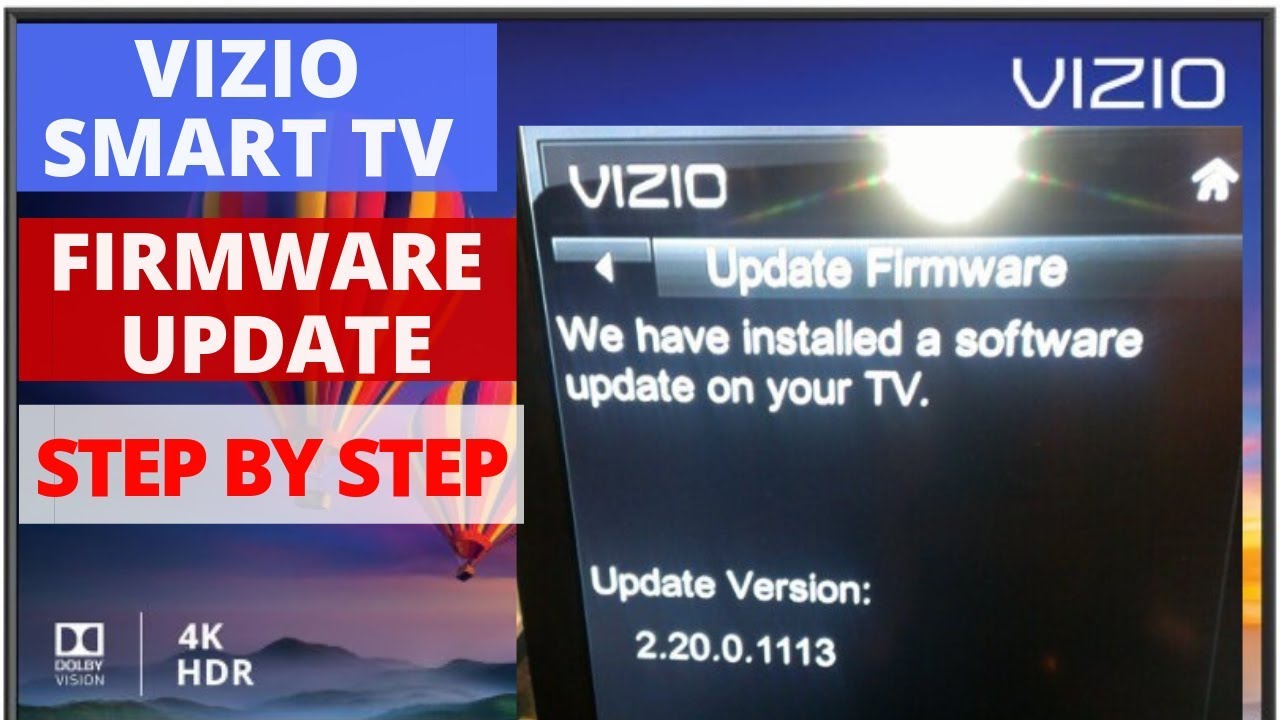
Most newer Vizio Smart TVs update through the internet. In many cases, the TV checks for firmware updates automatically when it is connected to the internet and in standby mode.
Use these steps for a manual check:


-
Turn on your Vizio TV.
-
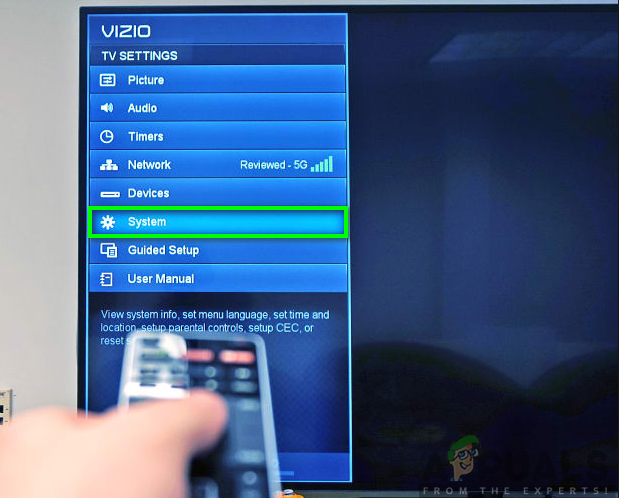
Press the Menu or V button on the Vizio remote.
-
Open Settings or System.
-
Select Admin & Privacy, System Information, or a similar option.
-
Choose Check for Updates.
-
Confirm the update if one is available.
-
Wait while the TV downloads and installs the firmware.
The menu name depends on the model and software version. Some televisions show the update option under System, while older models may place it under Help or Check for Updates.
Common menu paths include:
• Settings > Admin & Privacy > Check for Updates
• Menu > System > Check for Updates
• Menu > Help > Check for Updates
If the TV says that no update is available, it may already have the newest firmware for that model. It may also mean that Vizio has not released a newer version for your region or television series.
This is the main method to update Vizio TV firmware. It is safer than downloading random files from third-party websites.


How to Update Vizio TV Firmware Using Wi-Fi
A strong Wi-Fi connection is important because the TV must download the correct firmware package. A weak connection can cause slow downloads, error messages, or failed installation.
To improve the process:
• Move the router closer to the TV if possible.
• Pause large downloads on other devices.
• Restart the router before checking for updates.
• Use a 5 GHz network if the TV supports it and the signal is strong.
• Try a wired Ethernet connection if your TV has an Ethernet port.
If the TV cannot connect to Wi-Fi, open the network settings and reconnect to your home network. Enter the Wi-Fi password carefully, then test the connection before checking for firmware.
I have found that restarting both the router and TV solves many update errors. The simple power cycle clears temporary network problems and gives the TV a clean connection to Vizio’s update service.
Avoid using a mobile hotspot unless it is your only option. A hotspot may disconnect, use a large amount of mobile data, or block certain connections needed during the update.

How to Update Vizio TV Firmware With a USB Drive
USB installation is an alternative for some Vizio models. It should only be used when Vizio provides a firmware file for your exact TV model and gives USB update instructions.
The wrong firmware can cause serious problems. A file for a similar-looking model may not work on your TV.
Follow this general process:
-
Find the exact model number on the TV label, original box, receipt, or system information screen.
-
Visit the official Vizio support page.
-
Search for your exact model.
-
Download the firmware file only if Vizio provides one.
-
Read the model-specific installation instructions.
-
Format a compatible USB drive as instructed.
-
Copy the firmware file to the correct location on the USB drive.
-
Turn off the TV.
-
Insert the USB drive into the correct USB port.
-
Turn on the TV and follow the on-screen instructions.
-
Wait until the installation finishes before removing the USB drive.


Some Vizio models do not support USB firmware installation. Others may require a specific file name, folder structure, or USB format. Because of these differences, never guess the USB steps.
If the official instructions do not mention USB installation for your model, use the internet update method or contact Vizio support.

How to Check Your Vizio TV Firmware Version
Checking the current version helps you confirm whether the update worked. It also gives support agents useful information if you need help.
Try one of these menu paths:
• Settings > Admin & Privacy > System Information
• Menu > System > System Information
• Menu > Help > System Information
Look for details such as:
• Firmware version
• Software version
• TV model number
• Serial number
Write down the version before updating if you want to compare it later. After the update, return to the same screen and check whether the version changed.
Some firmware updates install in the background and do not show a large confirmation message. A new version number is often the clearest proof that the process finished.
If the version remains the same, restart the TV and check again. If it still does not change, the TV may have rejected the update, or the downloaded package may already match the installed version.

How Long Does a Vizio Firmware Update Take?
A typical Vizio firmware update may take several minutes, but the total time depends on the file size, internet speed, TV model, and server traffic.
The process often includes these stages:
• Checking for available firmware
• Downloading the update
• Verifying the file
• Installing the software
• Restarting the TV
Do not worry if the screen goes black during installation. The TV may display a progress bar, show the Vizio logo, or restart without much information.
A good rule is to wait at least 20 to 30 minutes before assuming something went wrong. Do not repeatedly press the remote buttons or disconnect the power during this period.
One common mistake is thinking that a black screen means the TV has frozen. In many cases, it is simply moving from download mode to installation mode.

What to Do If a Vizio Firmware Update Fails
A failed update can result from a weak network, temporary server issues, low storage, incorrect USB files, or a software error. Start with simple steps before trying anything advanced.
Try the following:
-
Wait several minutes if the TV is still showing an update screen.
-
Restart the TV using the remote.
-
Unplug the TV from the wall for 60 seconds.
-
Restart your router.
-
Reconnect the TV to Wi-Fi.
-
Check for updates again.
-
Remove USB devices that are not needed.
-
Confirm that the TV model number is correct.
If the TV remains stuck on the logo, unplug it for one minute, then reconnect it directly to a wall outlet. Avoid using a power strip during troubleshooting if you suspect a power issue.
Do not perform a factory reset as your first step. A reset erases network details, app settings, picture settings, and other personal preferences. Use it only when recommended by Vizio support or when other troubleshooting steps fail.
If the TV will not start, repeatedly restarts, or shows an update error every time, contact Vizio support. Give them the model number, firmware version, error message, and steps you already tried.

Common Problems After a Vizio Firmware Update
Firmware updates can change settings or affect how connected devices communicate with the TV. Most problems are temporary, but a few may require adjustment.
Picture settings changed
An update may reset picture settings or switch the picture mode. Check Picture Mode, Brightness, Contrast, Color, and related settings.
Sound stopped working
Confirm that the TV is not muted. Then check the audio output setting and make sure the correct sound device is selected. If you use a soundbar, restart both the soundbar and TV.
HDMI devices are not detected
Disconnect the HDMI cable, turn off both devices, and reconnect them. You can also test another HDMI port or cable.
Apps are missing or slow
Restart the TV and check the network connection. Some apps may need time to reload after a SmartCast update.
The remote is not responding
Replace the batteries and restart the TV. If the remote uses Bluetooth, it may need to pair with the TV again.
Updates can feel disruptive, especially when the TV worked well before the installation. In most cases, the changes come from refreshed settings or a temporary connection issue rather than permanent damage.
Benefits and Limitations of Updating Vizio TV Firmware
Updating firmware has clear benefits, but it is not a cure for every television problem.
Benefits
• It can fix known software bugs.
• It may improve SmartCast stability.
• It can improve compatibility with streaming services.
• It may resolve HDMI and audio problems.
• It can add support for newer devices or features.
• It may improve security and network performance.
Limitations
• It cannot repair a broken panel or damaged backlight.
• It cannot fix a faulty power board.
• It may not improve picture quality on every model.
• Older TVs may no longer receive regular updates.
• Some updates may change menus or remove outdated features.
• A poor internet connection can prevent installation.
Firmware support varies by model and age. A TV released several years ago may receive fewer updates than a newer model. If Vizio does not list a newer firmware file for your television, that does not automatically mean the TV is broken.
Mistakes to Avoid When Updating Vizio TV Firmware
Many update problems come from using the wrong method rather than from the TV itself.
Avoid these mistakes:
• Downloading firmware from unofficial websites
• Using a file for a different model
• Turning off the TV during installation
• Removing a USB drive too soon
• Using an unstable Wi-Fi connection
• Repeating the update many times in a short period
• Resetting the TV before checking basic connections
• Assuming every Vizio model has the same menu
The most important lesson is to confirm the model number first. Two Vizio TVs can look nearly identical but use different firmware packages.
Also, do not trust a video or forum post that tells you to install a file made for another series. Community advice can be useful, but official model-specific instructions should always take priority.
Tips for a Smooth Vizio Firmware Update
Use this short checklist before starting:
• Check the exact TV model.
• Test the internet connection.
• Close or pause heavy network activity.
• Keep the remote within reach.
• Remove unneeded USB devices.
• Start the update when you do not need the TV.
• Keep the TV connected to power.
• Wait patiently through black screens and restarts.
• Check the firmware version afterward.
If you are updating an older Vizio TV, take a photo of your picture and audio settings first. This makes it easier to restore your preferred setup if the update changes anything.
It is also helpful to write down the date of the update and the new firmware version. This small record can save time if you later need technical support.
Frequently Asked Questions About How to Update Vizio TV Firmware
How do I update Vizio TV firmware?
Open the TV menu and select Settings or System. Choose Check for Updates, then follow the on-screen instructions while keeping the TV connected to power and the internet.
Does Vizio update firmware automatically?
Many Vizio Smart TVs check for updates automatically when connected to the internet and placed in standby mode. Automatic updates may not happen immediately, so you can use the manual Check for Updates option.
Can I update Vizio TV firmware without Wi-Fi?
Some models support USB firmware installation, but not every Vizio TV does. Use a USB file only when official instructions provide one for your exact model.
Why does my Vizio TV say no update is available?
The TV may already have the newest firmware available for its model. It can also mean that Vizio has not released a newer version for your region or television series.
What should I do if my Vizio TV freezes during an update?
Wait at least 20 to 30 minutes before taking action because installation can include long black-screen periods. If it remains frozen, unplug the TV for 60 seconds, reconnect it, and contact Vizio support if the issue continues.
Will updating Vizio TV firmware delete my settings?
A normal firmware update usually keeps your settings, apps, and network details. However, settings can sometimes change, so record important picture and audio settings before starting.
Conclusion
Updating Vizio TV firmware is usually a safe and useful maintenance task. The best approach is to connect the TV to a stable network, open the system settings, select Check for Updates, and let the television finish without interruption.
Use USB installation only when Vizio provides exact instructions for your model. If an update fails, restart the TV and router, verify the model number, and avoid unofficial firmware files.
Check your TV’s firmware version today, then update it when a compatible release is available. For more help, review Vizio’s official support guidance or share your model and update experience in the comments.

Everett Ashford is a tech reviewer at mytechgrid.com specializing in SSDs, cameras, TVs, earbuds, headphones, and other consumer electronics. He provides honest, data-driven reviews based on hands-on testing and real-world performance analysis. Everett simplifies complex tech details to help readers make smart, confident buying decisions.