Yes — for most everyday tasks and modern workflows, an SSD outperforms an HDD in speed, reliability, and user experience.
I’ve spent years building and troubleshooting PCs, laptops, and storage arrays, and I’ll walk you through exactly why people ask "is ssd better than hdd" so often. This article breaks down the technical differences, real-world benefits, trade-offs, upgrade tips, and buying guidance. Read on if you want clear, practical advice so you can choose the right drive for your needs and budget.

Understanding the difference: what SSDs and HDDs are and how they work
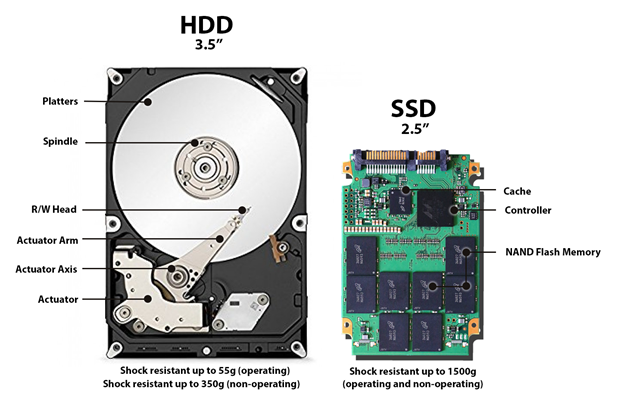
Solid state drives (SSDs) store data on flash memory chips. They have no moving parts. Hard disk drives (HDDs) store data on spinning magnetic platters and use a read/write head that moves. This core design gap explains most differences.
Key technical contrasts:
- Speed: SSDs access data almost instantly. HDDs need time for the platter to spin and the head to seek.
- Durability: SSDs resist shock better because they lack moving parts.
- Power draw: SSDs use less power, which helps battery life in laptops.
- Noise: SSDs are silent. HDDs can be audible when spinning or seeking.
- Cost per gigabyte: HDDs are cheaper for large capacity.
When people ask "is ssd better than hdd," they usually mean performance and reliability. For those, the answer favors SSDs. For raw cost and very large archive storage, HDDs still have a place. I’ve used both in servers and personal machines and seen these differences play out in day-to-day use.

Performance comparison: speed, latency, and real-world impact
Speed is where SSDs shine. They deliver much faster boot times, app launches, and file transfers. The difference is not just numbers; it changes how your machine feels.
Real-world examples:
- Boot and resume: Systems with SSDs boot in seconds. HDD systems can take minutes.
- App open times: Large applications and editors open far quicker on SSDs.
- File transfer: SSD-to-SSD copies complete fast. HDD transfers are slower and often CPU-bound.
- Multitasking: SSDs handle many simultaneous reads/writes better than HDDs.
People often ask, "is ssd better than hdd for gaming?" Yes — SSDs cut load times and speed up level streaming. For professional work like video editing and databases, SSDs reduce render and query times. For archiving movies or backups, HDDs still work fine due to their cost advantage.
PAA-style questions:
Will an SSD make my PC feel faster?
Yes. An SSD reduces wait time for loading files and programs, making the system feel snappier and more responsive.
Is an SSD necessary for gaming?
Not strictly necessary, but it shortens load times and improves texture streaming. Many modern games benefit noticeably from SSDs.
Do SSDs help with video editing?
Yes. SSDs speed up source file access and export tasks, especially when working with high-resolution or many simultaneous files.
Reliability and lifespan: wear, durability, and data retention
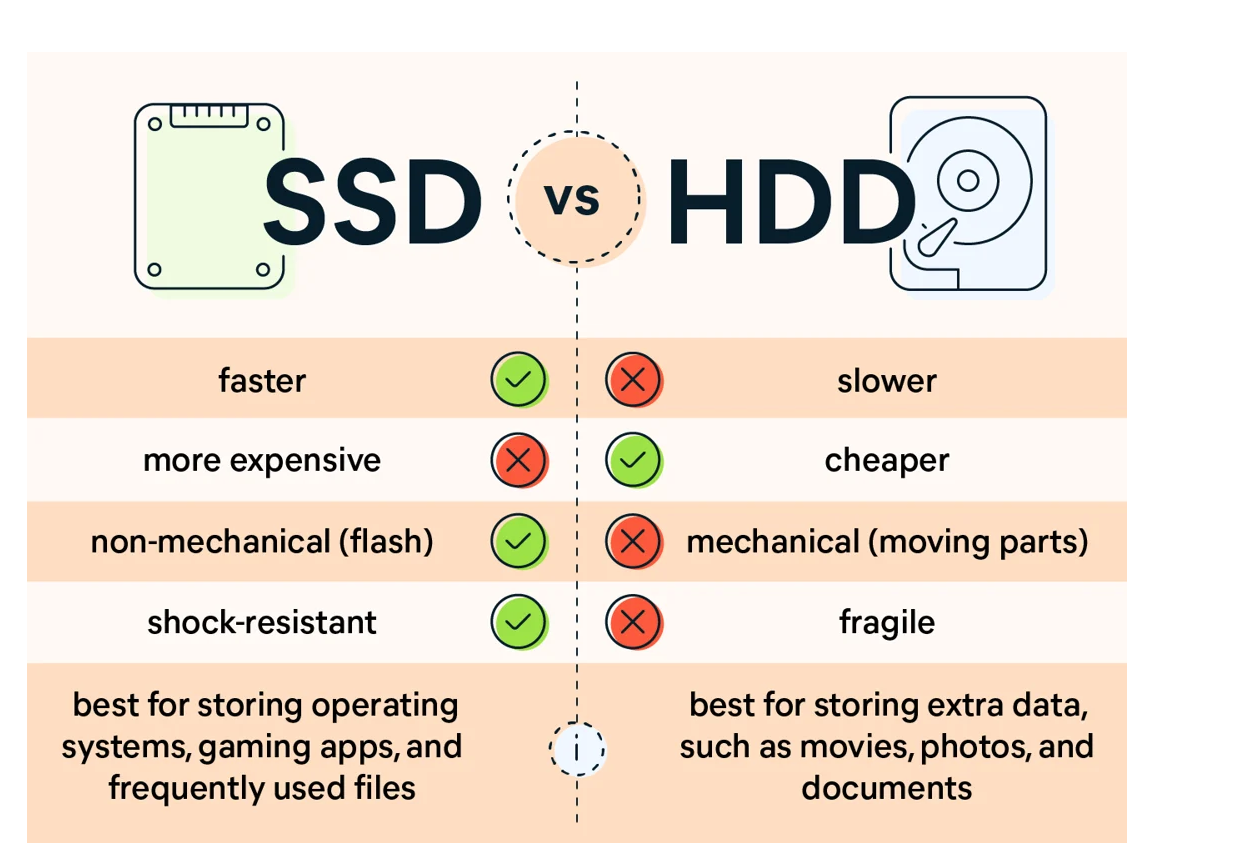
SSDs use flash cells that wear with writes. HDDs wear mechanically and can fail from shock, heat, or age. Both have pros and cons.
What to know:
- Write endurance: SSDs have finite write cycles, but modern drives offer endurance ratings that cover years of typical use.
- Failure modes: SSD failures can be sudden, while HDD failures often show warning signs like noise or slow performance.
- Data retention: HDDs may retain data longer when powered off, but environmental factors matter.
- Backups: Regardless of drive type, backups are essential.
From my experience, a mainstream SATA SSD in a laptop lasted many years under heavy use with no problems. For archival backups, I still use HDDs plus redundancy because they offer cheaper large storage.

Capacity and cost: which is more economical?
HDDs win on raw gigabytes per dollar. SSDs cost more per gigabyte, though prices have fallen steadily.
Practical points:
- Desktop users: If you need multiple terabytes for media or backups, HDDs are a cost-effective choice.
- Laptop users: For performance and battery life, a smaller SSD paired with cloud or external HDD storage often works well.
- Hybrid approach: Many people use an SSD for the OS and apps and an HDD for bulk storage.
When deciding "is ssd better than hdd" for your budget, consider how you use storage. For fast access and daily use, SSDs are worth the price. For mass storage and long-term archives, HDDs remain economical.
Use cases: choosing between SSD and HDD
Which drive is best depends on the task. Here are common scenarios and recommendations.
Recommendations:
- Primary system drive (OS and apps): SSD is better for speed and responsiveness.
- Gaming rig: SSD for games you play often; HDD for your large collection of rarely-played titles.
- Video editing and creative work: SSD or NVMe SSD for active projects; HDDs for archives.
- Backups and cold storage: HDDs or tape for large, infrequent access backups.
- Servers: Mix of SSDs for hot data and HDDs for cold storage provides best cost-to-performance balance.
I once converted an office fleet from HDDs to SSDs. Productivity went up because daily tasks and software updates took less time. The investment paid off quickly in saved time.

Upgrading and installation tips: practical advice
Switching from HDD to SSD can breathe new life into an older machine. Here’s how to make the upgrade smooth.
Upgrade steps:
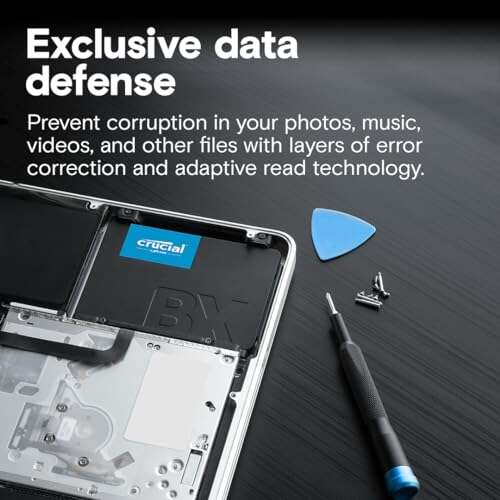
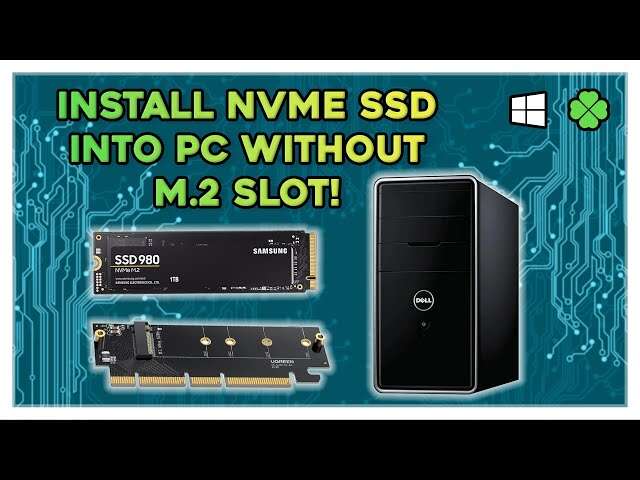
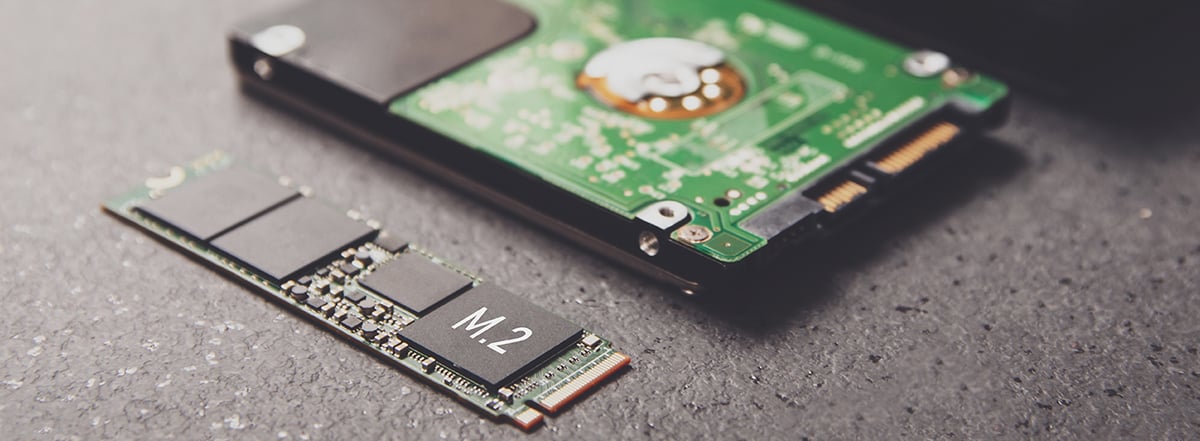
- Check compatibility: Confirm drive size (2.5" vs M.2) and interface (SATA vs NVMe).
- Backup first: Always create a full backup before swapping drives.
- Clone or clean install: Cloning copies your system; a fresh install reduces clutter.
- Enable TRIM: TRIM helps SSDs maintain performance over time.
- Use correct mounting and cooling: Some NVMe drives run hot and may need heatsinks.
Personal tip: I cloned a laptop HDD to an SSD using free tools and then wiped the old drive for extra storage. The system felt like a new machine the same day.
Common misconceptions and limitations
There are myths about SSDs and HDDs. Let’s clear them up.
Myths vs reality:
- Myth: SSDs never fail. Reality: SSDs can and do fail, but failure modes differ.
- Myth: HDDs are obsolete. Reality: HDDs still make sense for cheap bulk storage.
- Myth: All SSDs are equally fast. Reality: NVMe SSDs can be several times faster than SATA SSDs.
- Myth: SSDs wear out in months. Reality: Modern SSDs have endurance ratings that last years under normal use.
Be aware of manufacturer warranties and endurance ratings. Check reviews and credible benchmarks when choosing a model.
Frequently Asked Questions of is ssd better than hdd
Is SSD better than HDD for general use?
Yes. For everyday tasks like web browsing, office work, and media playback, SSDs make systems feel faster and more responsive.
Can I upgrade an old laptop from HDD to SSD?
Yes. Most laptops that use a 2.5" SATA drive can accept an SSD. Check your model and use a cloning tool or fresh OS install.
Are SSDs more reliable than HDDs?
SSDs are more resistant to shock and have no moving parts, which often makes them more reliable in portable devices, though both can fail and need backups.
How much SSD capacity do I need?
For most users, 256–512 GB is enough for the OS and apps. Creative professionals and gamers may need 1 TB or more depending on project and game libraries.
Is NVMe SSD worth the extra cost over SATA SSD?
Yes for heavy workloads. NVMe offers much higher speeds than SATA and is worth it for editing, large file transfers, or improved system responsiveness.
Conclusion
SSDs are better than HDDs for speed, responsiveness, durability, and everyday use for most people. HDDs still have value for cheap, large-capacity storage and backups. Choose an SSD for your OS and active projects, and use HDDs when you need many terabytes on a budget.
Make your next upgrade count: back up your data, pick the right interface (SATA or NVMe), and match capacity to your needs. Try an SSD in your primary system and notice how much faster your workflow becomes. If this helped you, leave a comment about your setup or subscribe for more practical hardware tips.

Jamie Lee is a seasoned tech analyst and writer at MyTechGrid.com, known for making the rapidly evolving world of technology accessible to all. Jamie’s work focuses on emerging technologies, product deep-dives, and industry trends—translating complex concepts into engaging, easy-to-understand content. When not researching the latest breakthroughs, Jamie enjoys exploring new tools, testing gadgets, and helping readers navigate the digital world with confidence.