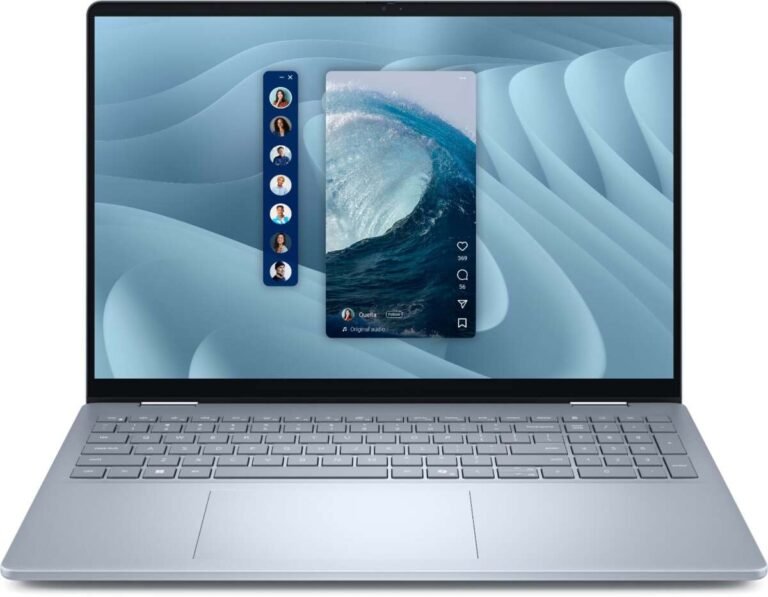
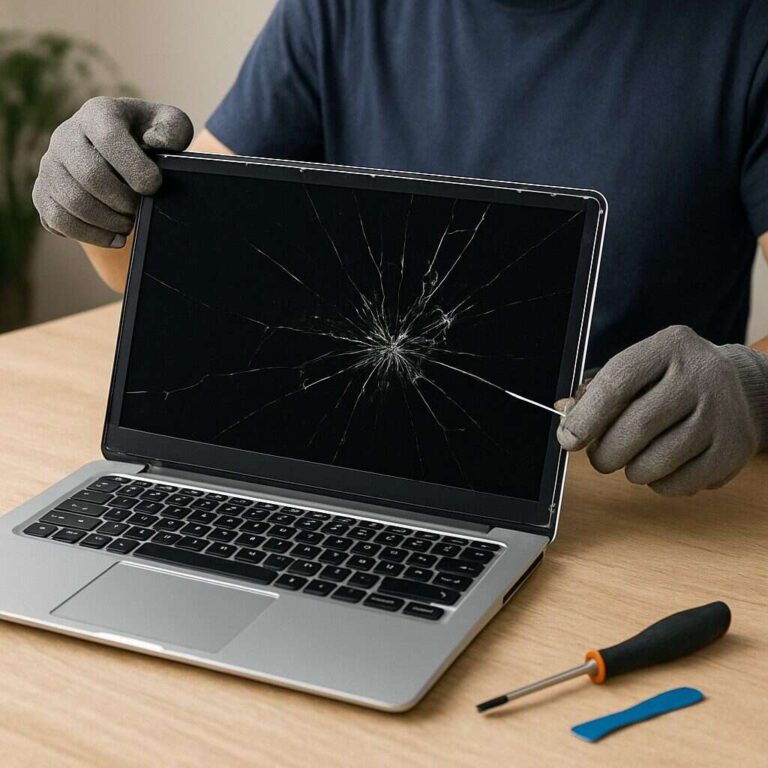
Laptop RAM and desktop RAM do the same basic job: they hold data that your computer is using right now. The main difference is their size and shape. Laptops usually use small SO-DIMM memory modules, while desktop PCs usually use longer DIMM modules.
They also differ in upgrade options, cooling, capacity, and sometimes power use. A laptop RAM stick normally cannot fit into a standard desktop memory slot, even when both use the same DDR generation.
This guide explains the differences for computer buyers and upgraders in the United States.
Quick Answer: Laptop RAM vs. Desktop RAM
Laptop RAM is smaller and uses a SO-DIMM design. Desktop RAM is longer and usually uses a UDIMM design.
| Feature | Laptop RAM | Desktop RAM |
|---|---|---|
| Common module type | SO-DIMM | DIMM or UDIMM |
| Physical size | Short and compact | Longer |
| Typical use | Laptops, mini PCs, some small PCs | Desktop towers and workstations |
| Power needs | Often lower | Often higher |
| Cooling | Limited space | More room for heat spreaders |
| Upgrade access | May be easy, difficult, or impossible | Usually easier |
| Maximum capacity | Often lower, but varies | Often higher, but varies |
| Compatibility | Must match laptop limits | Must match motherboard limits |
The most important rule is simple: buy memory that matches the device’s slot, DDR generation, speed limits, and maximum capacity.

What Is Laptop RAM?
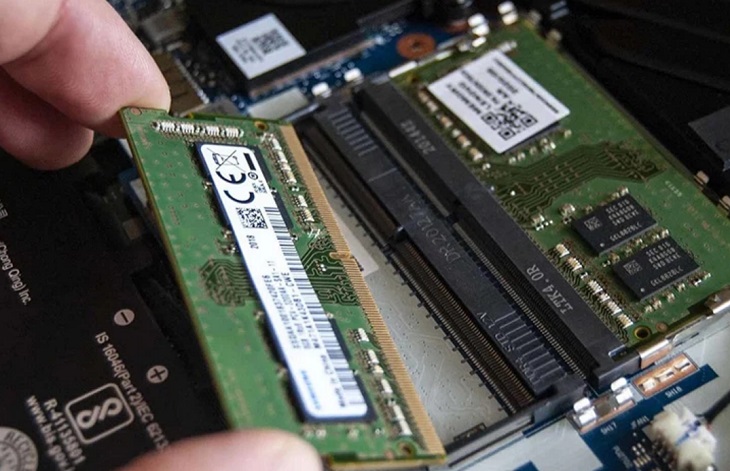
Laptop RAM is memory made for the small space inside a notebook computer. Most upgradeable laptops use SO-DIMM modules. SO-DIMM means “small outline dual in-line memory module.”
A SO-DIMM is shorter than desktop RAM. This lets it fit inside a thin laptop chassis. The smaller size does not mean it is automatically slower or less capable. A modern laptop SO-DIMM can use the same DDR4 or DDR5 memory technology found in desktop computers.
Laptop memory may also be soldered to the motherboard. Soldered RAM has no removable slot. If the laptop has soldered memory only, you cannot replace or expand it with a normal RAM stick.
Some laptops use a mix of both designs:
- Part of the memory is soldered.
- One or more SO-DIMM slots are available.
- The system may support only certain module sizes.
- Adding a module may reduce performance if memory runs in an uneven configuration.
Always check the exact laptop model. A product family may have several versions with different memory layouts.
Laptop RAM power use
Laptop makers often design memory systems around battery life. Low-power DDR memory, such as LPDDR4X or LPDDR5X, is commonly soldered to the motherboard. It may use less power than standard removable memory.
That design can improve battery life and save space. The trade-off is repair and upgrade limits. A laptop with soldered LPDDR memory usually cannot accept a standard SO-DIMM module.

What Is Desktop RAM?
Desktop RAM is usually a full-size DIMM. Most standard desktop PCs use unbuffered DIMMs, often called UDIMMs.
A desktop DIMM is longer because a desktop case has more room. The larger module can support more chips and may allow higher capacity. Desktop computers also have more space for cooling parts, such as heat spreaders.
Desktop memory is common in:
- Home and office computers
- Gaming PCs
- Workstations
- Media editing systems
- Some servers, with different memory types
Standard consumer desktop RAM is usually non-ECC memory. Workstations and servers may use ECC, registered, or load-reduced memory. These types are not interchangeable with ordinary desktop RAM in every system.
Desktop motherboards often have two or four memory slots. Some high-end boards have more. The motherboard manual states the supported memory type, maximum capacity, and slot arrangement.
Desktop RAM and overclocking
Some desktop memory kits support memory profiles such as Intel XMP or AMD EXPO. These profiles can make it easier to run memory above the system’s basic default settings.
This does not mean every computer will reach the advertised speed. The final result depends on:
- The processor’s memory controller
- The motherboard
- The BIOS or UEFI
- The number of installed modules
- The memory kit itself
A stable lower speed is often better than an unstable advertised setting.

The Main Physical Difference: SO-DIMM vs. DIMM
The clearest difference between laptop and desktop RAM is the module’s physical design.
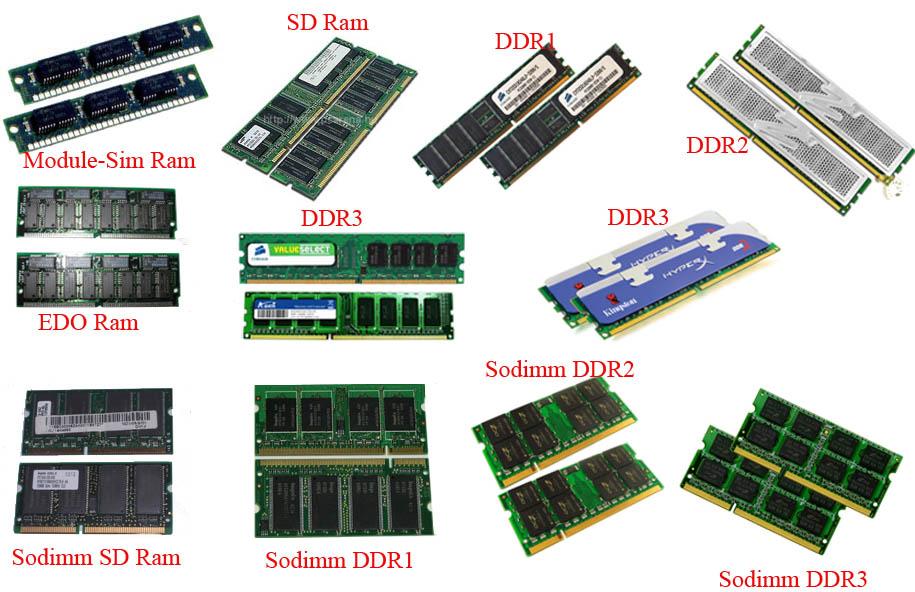
A laptop SO-DIMM is short. A desktop DIMM is long. Their edge connectors and notches also differ. The notch helps prevent users from installing a module into an incompatible slot.
Do not force a RAM module into a slot. A module that looks close but does not fit may use a different design or DDR generation. Pressure can damage the memory, slot, or motherboard.
Can laptop RAM work in a desktop?
Usually, no. A standard desktop motherboard has long DIMM slots. A laptop SO-DIMM is too short and uses a different physical layout.
Some small desktop PCs and mini PCs are designed for SO-DIMM memory. Those systems are an exception. The computer’s manual must specifically list SO-DIMM support.
Adapters exist in some cases, but they are not a general solution. They may create clearance problems, compatibility limits, or unstable operation. Use the memory type listed by the device maker.
Can desktop RAM work in a laptop?
Usually, no. Desktop DIMMs are too long for standard laptop memory slots.
A laptop needs SO-DIMM memory if it has removable memory. Some laptops use soldered memory instead, so neither desktop DIMMs nor SO-DIMMs will work.

DDR Generation Matters More Than the Computer Type
Laptop and desktop RAM must use the correct DDR generation. DDR means “double data rate.” Common generations include DDR3, DDR4, and DDR5.
DDR generations are not backward compatible in normal use. For example:
- DDR4 memory does not belong in a DDR5 slot.
- DDR5 memory does not belong in a DDR4 slot.
- DDR3 memory does not replace DDR4 memory.
- A DDR4 SO-DIMM and DDR4 desktop DIMM still have different physical sizes.
The memory type must match both the device and the generation.
Common DDR differences
| Memory type | Common module forms | General note |
|---|---|---|
| DDR3 | DIMM and SO-DIMM | Older systems |
| DDR4 | DIMM and SO-DIMM | Common in many PCs |
| DDR5 | DIMM and SO-DIMM | Newer systems with different electrical design |
| LPDDR4X or LPDDR5X | Usually soldered | Common in thin laptops |
The label on a module may show the DDR generation. You can also find it in the laptop or motherboard manual, BIOS, or a trusted system information tool.
Do not select memory based only on the speed number. A module can have the right speed label but still use the wrong DDR generation or form factor.
Speed, Capacity, and Timing: What Else Is Different?
Laptop and desktop RAM can share similar speed ratings, but their actual performance depends on the whole system.
Capacity
Capacity is the amount of memory installed. It is measured in gigabytes, or GB.
More RAM can help when you:
- Keep many browser tabs open
- Edit photos or video
- Run virtual machines
- Use large spreadsheets
- Play games while running other apps
- Work with large creative projects
More RAM does not automatically make every task faster. If your system already has enough memory, adding more may have little effect.
The maximum supported capacity depends on the laptop or motherboard. The processor and BIOS may also impose limits.
Speed
RAM speed is often shown in MT/s for DDR memory. Some retailers and older tools use MHz in product names. These terms are often used loosely, so check the full specification.
A computer may run memory below the kit’s advertised speed. This can happen when:
- The processor has a lower official memory limit.
- The motherboard has a lower limit.
- Several modules are installed.
- The BIOS selects a safe default.
- The system does not support the memory profile.
Timing and latency
Memory timing describes how quickly the RAM responds to certain requests. Lower timing can help in some workloads, but timing should not be compared without considering memory speed and DDR generation.
For most laptop upgrades, capacity and compatibility matter more than small timing differences. For a desktop gaming build, speed and timing can matter more after the basic capacity needs are met.

Does Laptop RAM Perform Worse Than Desktop RAM?
No. Laptop RAM is not automatically slower because it is smaller.
Performance depends on the specific memory and system. A laptop with fast DDR5 SO-DIMMs may outperform a desktop with older DDR4 DIMMs. The reverse can also be true.
Desktop computers often have advantages in sustained performance because they may offer:
- More powerful processors
- Better cooling
- More memory slots
- Higher total capacity
- More room for faster memory kits
- Better support for manual tuning
The RAM form factor alone does not determine speed.
Laptop performance can also be affected by integrated graphics. Many laptops use system RAM for graphics memory. In that case, memory bandwidth and dual-channel operation may affect gaming and graphics work more than they would on a desktop with a separate graphics card.
Single-Channel and Dual-Channel Memory
Using two matching memory modules can allow dual-channel operation on systems that support it. Dual-channel memory increases the data path between the processor and RAM.
For example, two compatible 8 GB modules may operate differently from one 16 GB module. The total capacity is the same, but the memory layout can change performance.
The result depends on the computer and workload. Integrated graphics often benefit more from extra memory bandwidth than many ordinary office tasks.
A mixed set may still work, but it can have limits:
- The system may run at the slower module’s speed.
- Some memory may operate in a different channel mode.
- The computer may become less stable.
- The upgrade may not use the full advertised profile.
A matched kit is the safer choice for a new desktop build. For a laptop upgrade, matching the existing module’s capacity, speed, voltage, and specifications can reduce risk.
How to Choose the Right RAM for a Laptop or Desktop
Use this sequence before buying memory.
1. Identify the exact computer model
Find the full model number. “Dell Inspiron” or “HP Pavilion” is not specific enough because each product line may have many versions.
For a desktop, identify the exact motherboard model. A prebuilt desktop may also have system-specific memory limits.
2. Check the memory form factor
Look for one of these terms:
- SO-DIMM for most removable laptop memory
- DIMM or UDIMM for most standard desktop memory
- LPDDR for memory that is usually soldered
- CAMM2 for some newer systems using a different compact memory design
Do not assume a laptop always uses SO-DIMMs. Check the manual.
3. Check the DDR generation
Confirm whether the system uses DDR3, DDR4, or DDR5. The generation must match.
4. Check the maximum capacity
Find the total maximum memory and the limit for each slot. Some systems support less memory than the processor or memory modules might theoretically allow.
5. Check the supported speed
A faster module may work at a lower supported speed, but this is not guaranteed. The safest choice is a module listed by the computer maker or a reputable memory compatibility tool.
6. Check the number of slots
A laptop may have:
- Two removable slots
- One removable slot
- Soldered memory plus one slot
- Soldered memory only
A desktop may have two, four, or more slots. The motherboard manual often recommends specific slots for two-module installations.
7. Check installation limits
Turn the computer off before opening it. Disconnect the power cable. For laptops, follow the service manual and disconnect the battery when the instructions require it.
Do not work inside a computer on carpet while wearing clothing that creates static. Hold the module by its edges. Avoid touching the gold contacts.

Common Mistakes to Avoid
Buying by capacity alone
A 16 GB module is not automatically compatible. It must also match the form factor, DDR generation, speed, voltage, rank support, and device limits.
Confusing storage with RAM
RAM is working memory. Storage is where files and programs stay when the computer is off.
A solid-state drive can improve startup and file loading. It does not replace RAM. If a system lacks enough RAM, it may use storage as virtual memory, but that is much slower.
Mixing DDR generations
DDR4 and DDR5 are not interchangeable. Similar labels or capacities do not make them compatible.
Assuming all laptop RAM is removable
Thin laptops often use soldered memory. Opening the case will not create an upgrade path if no memory slot exists.
Installing unmatched modules without checking limits
Different modules may work together, but the system can fall back to lower speed or fail to boot. Check the manual before mixing memory.
Trusting a speed label without checking the system
The computer controls the final memory speed. A high-rated kit may run at a lower setting or require a supported BIOS profile.

How Much RAM Do You Need?
The right amount depends on the work, not just the computer type.
| Use case | A practical starting point |
|---|---|
| Basic web, email, and office work | 8 GB |
| General home and school use | 16 GB |
| Modern gaming and heavier multitasking | 16–32 GB |
| Photo and video work | 32 GB or more |
| Virtual machines and large professional projects | 32 GB or more |
These are planning ranges, not universal requirements. A particular game or application may list a higher or lower minimum.
For a new computer in the United States, 16 GB is a useful general target for many users. If the laptop has soldered memory, choose carefully because you may not be able to add more later.
Frequently Asked Questions
Is laptop RAM cheaper than desktop RAM?
Not always. Price depends on the DDR generation, capacity, speed, brand, and market supply. SO-DIMM memory may cost more or less than a similar desktop module at different times.
Compare modules with the same capacity, DDR generation, speed, and warranty before comparing price.
Can I use two different RAM brands together?
It may work, but there is no universal guarantee. The modules should match in type, generation, voltage, capacity, and supported speed. A matched kit usually reduces compatibility risk.
Is 16 GB of laptop RAM the same as 16 GB of desktop RAM?
The capacity is the same: both provide 16 GB of memory. Performance can differ because of memory speed, channel mode, processor design, cooling, and graphics architecture.
Can I upgrade soldered laptop RAM?
Usually, no. Soldered RAM is attached to the motherboard. Replacing it requires specialized board-level work and is not a normal user upgrade.
What should I do if the computer will not boot after a RAM upgrade?
Turn the computer off and disconnect power. Reinstall the original memory if possible. Then check that the new module is fully seated, installed in the correct slot, and listed as compatible.
If the computer still fails to start, test one module at a time and follow the motherboard or laptop diagnostic steps. Stop if the system shows signs of physical damage.
Final Takeaway
Laptop RAM and desktop RAM perform the same basic function, but they usually use different physical formats. Laptops commonly use short SO-DIMMs or soldered memory. Desktop PCs usually use longer DIMMs.
Before buying, confirm the exact device model, memory form factor, DDR generation, supported capacity, speed, and slot layout. The safest upgrade is the one listed in the computer’s service manual or a reliable compatibility guide—not simply the module with the highest speed or capacity.
For further checking, use the official support page for your laptop or motherboard. Manufacturer manuals provide the final word when retailer listings and third-party tools disagree.

Everett Ashford is a tech reviewer at mytechgrid.com specializing in SSDs, cameras, TVs, earbuds, headphones, and other consumer electronics. He provides honest, data-driven reviews based on hands-on testing and real-world performance analysis. Everett simplifies complex tech details to help readers make smart, confident buying decisions.