For shoppers in the United States, a touchscreen laptop can look like a useful upgrade, especially for Windows 11, schoolwork, travel, and creative tasks. But the touch layer also adds cost, weight, power use, and possible repair issues. For many people, a standard laptop with a good trackpad is faster, lighter, and easier to maintain.
The main disadvantages of a touchscreen laptop are:
- Higher purchase price
- Shorter battery life in some models
- More weight and thickness
- Screen glare and fingerprints
- Less comfortable use during long work sessions
- Higher repair costs
- Accidental touches
- Limited value on traditional clamshell laptops
- Possible issues with stylus support and touch accuracy
The effect depends on the laptop design, screen quality, operating system, and how you work. A touchscreen can be useful, but it is not automatically better.


1. Touchscreen laptops usually cost more
The touch panel, glass cover, digitizer, display controller, and related parts add to the manufacturing cost. As a result, two laptops with similar processors, memory, storage, and screen size may have different prices when one includes touch input.
This price gap is often larger when the laptop also includes:
- A 360-degree hinge
- Stylus support
- A high-resolution display
- A brighter screen
- A premium metal body
- A pen stored inside the chassis
For example, a buyer may pay extra for a 2-in-1 laptop even when they rarely use tablet mode. That money might provide more practical value when spent on additional RAM, a larger solid-state drive, a better processor, or a brighter non-touch display.
The touch feature can make sense for drawing, note-taking, reading recipes, signing documents, or using a laptop in tablet mode. It has less value if you mainly type, use spreadsheets, edit code, or work with a mouse.
2. A touchscreen can reduce battery life
A touchscreen laptop has more hardware to power than a comparable non-touch model. The touch sensor and display digitizer use energy, and touch models often include a brighter glass display. Those factors can reduce battery life under some conditions.
The battery effect is not the same on every laptop. Processor efficiency, screen brightness, battery capacity, refresh rate, wireless use, and software often have a larger effect than touch input alone. A well-designed touchscreen laptop may last longer than a poorly designed non-touch laptop.


Still, the touch display creates extra power demand. The difference becomes more noticeable when you:
- Keep screen brightness high
- Use a 120 Hz or higher refresh rate
- Stream video for many hours
- Draw with an active pen
- Run demanding apps
- Use the laptop away from an outlet
A manufacturer’s battery estimate is a useful comparison point, but it is not a guarantee. Battery tests use set conditions. Real battery life varies with apps, settings, temperature, and network use.
3. Touchscreen laptops can be heavier and thicker
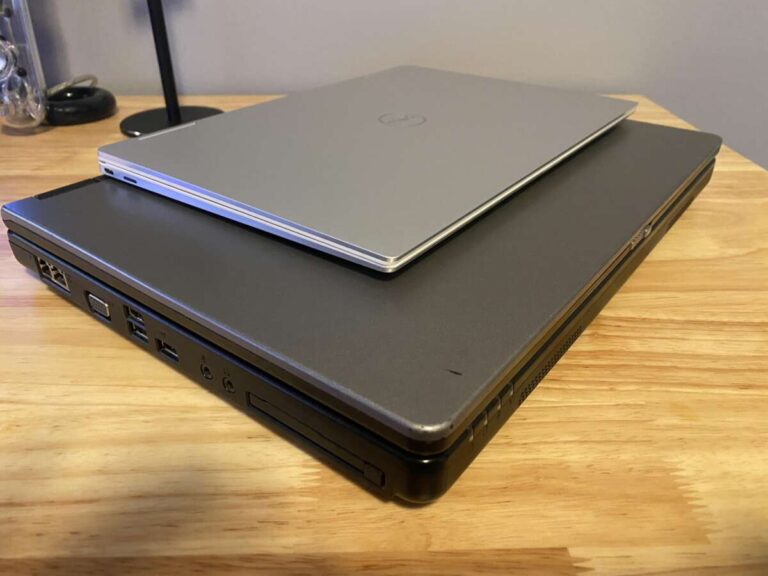
Touch displays often use a glass surface instead of the lighter matte panels found in some traditional laptops. A 2-in-1 also needs a stronger hinge and a chassis that can handle movement between laptop, tent, stand, and tablet modes.
That design can add weight and thickness. The difference may seem small on a product page, but it matters when you carry the laptop through an american college campus, an airport, an office, or a long commute.
A heavier laptop can also be less comfortable to hold in tablet mode. Ten minutes of reading may feel fine. Holding the same device for an hour can strain your hands and wrists.
Check these specifications before buying:
| Feature | Why it matters |
|---|---|
| Weight | Affects daily carrying and tablet use |
| Thickness | Affects bag space and handling |
| Hinge design | Affects how easily the screen changes position |
| Charger weight | Adds to your travel load |
| Tablet-mode comfort | Depends on edge shape and balance |
A large 15-inch or 16-inch touchscreen laptop can be especially awkward in tablet mode. A smaller 13-inch or 14-inch model is often easier to hold, but it may provide less screen space for work.

4. Glossy screens create glare
Most touchscreen laptops use a smooth glass surface. Glass helps the display feel responsive and makes it easier for a finger or stylus to move across the screen. It also reflects light.
Glare can make the screen harder to see near:
- Office windows
- Bright classroom lights
- Outdoor seating
- Overhead lamps
- Sunny car or train windows
You can raise the brightness to overcome reflections, but that may increase eye strain and use more battery power. A matte screen can reduce reflections, although it may not have the same smooth touch feel.
Screen brightness matters here. A dim touchscreen may be difficult to use in a bright room. A bright screen can improve visibility but may cost more and consume more energy.
A simple test helps: view the laptop under the lighting conditions where you plan to use it. A display that looks clear in a dark store may be frustrating beside a bright window.
5. Fingerprints and smudges require regular cleaning
Touchscreens collect fingerprints by design. Oil from your skin can leave visible marks, especially on dark screens. Smudges can reduce clarity and make glare more distracting.
Cleaning is easy when done correctly, but the need is ongoing. Use a soft, lint-free microfiber cloth. If the manufacturer permits it, lightly dampen the cloth with water or a screen-safe cleaner. Do not spray liquid directly onto the display.


Avoid:
- Paper towels
- Abrasive cloths
- Household glass cleaner
- Strong solvents
- Excess liquid
- Pressing hard on the panel
The screen is not the only surface that gets dirty. Frequent touch use can also leave marks around the palm rest, keyboard, and hinge area.
6. Touch input is often less precise than a trackpad or mouse
A touchscreen is convenient for large buttons, scrolling, zooming, and quick taps. It is less precise for small controls, detailed editing, and long pointer movements.
Your finger is much wider than a mouse pointer. That creates problems when you need to:
- Select a small spreadsheet cell
- Drag a file into a narrow folder
- Place a text cursor between letters
- Edit a photo at a fine level
- Click a small menu item
- Work with dense desktop software
A stylus can improve precision, but it adds another item to carry and may cost extra. The laptop must also support the right pen technology. A basic capacitive pen may not offer pressure sensitivity, palm rejection, tilt support, or low-latency writing.
Touch input works best as a second method. It does not always replace a keyboard, trackpad, or mouse.
7. Long typing sessions can become uncomfortable
Touchscreens encourage users to reach forward and tap the display. That movement may be fine for a short task. Repeating it for hours can cause shoulder, neck, or arm fatigue.
This issue comes from laptop ergonomics. When the screen and keyboard are connected, you cannot place the display at eye level while keeping the keyboard in an ideal position. Reaching toward a touchscreen can make the problem worse.
For long work sessions:
- Place the laptop on a stable surface.
- Keep the screen near eye level when possible.
- Use an external keyboard and mouse.
- Take regular breaks.
- Avoid holding your arm out to tap the screen for extended periods.
A touchscreen may improve quick interaction but reduce comfort during sustained work. This is one reason many office users still prefer a trackpad or mouse.
8. Accidental touches can interrupt your work
A touch display responds to contact. That includes useful taps and unwanted contact from your hand, sleeve, cable, or another object.
Accidental touches may:
- Move the cursor
- Open a menu
- Change a document
- Scroll a page
- Select text
- Close a window
- Trigger a command in a game or app
Modern operating systems attempt to distinguish touch, pen, and palm input. The results can still vary by laptop, app, and driver.
Accidental input is more common when:
- You rest your hand on the display
- You use the laptop in a cramped space
- You carry it while it is awake
- You fold the display into tablet mode
- You use a poorly supported stylus
- The screen bezel is narrow
You can turn off the touchscreen in Windows Device Manager when you do not need it. However, that is a workaround, not a reason to pay extra for a feature you plan to disable.


9. Repairs can cost more
A touchscreen display is more complex than a basic non-touch panel. The glass, digitizer, display, cables, and bezel may be joined into one assembly. If one part fails, a repair shop may need to replace the full display assembly.
Possible failure points include:
- Cracked glass
- Dead touch zones
- Ghost touches
- Display cable damage
- Hinge damage
- Pen input failure
- Backlight problems
- Software or driver errors
The final repair price depends on the model, parts availability, warranty status, and labor rates in your area. A premium 2-in-1 can be expensive to repair after a drop or hinge failure.
Before buying, check:
- The manufacturer’s warranty
- Accidental-damage coverage
- The cost of a replacement display
- Whether parts are available in the United States
- Whether the laptop has a repair guide
- Whether an authorized service center handles the model
Do not assume that a cracked touchscreen can be repaired cheaply. The touch layer may be bonded to the LCD or OLED panel, which can raise the parts cost.
10. The hinge may face more wear in a 2-in-1 laptop
A traditional laptop usually stays open at one angle. A convertible touchscreen laptop may move through laptop, tent, stand, and tablet positions many times each week.
That repeated movement places more demand on the hinges, display cables, bezel, and chassis. A strong hinge can handle regular use, but no hinge is immune to damage.
Use both hands when opening a 2-in-1 laptop. Lift from the center of the display rather than pulling one corner. Do not force the screen past its intended range.
A touchscreen without a convertible hinge does not have this specific tablet-mode issue. This is an important distinction: the disadvantages of a touchscreen and the disadvantages of a 2-in-1 overlap, but they are not identical.
11. Desktop software may not be designed for touch
Touch works well in apps built for large buttons and gestures. Many Windows desktop programs were designed around a mouse and keyboard.
Touch can feel awkward in:
- Professional photo and video editors
- Computer-aided design software
- Accounting programs
- Large spreadsheet workbooks
- Developer tools
- Remote desktop sessions
- File management windows
- Older business software
Windows supports touch gestures and touch-aware features, but the operating system cannot redesign every third-party app. Some menus remain small. Some controls work only with a mouse. Others respond differently to a finger and a stylus.
Before buying a touchscreen laptop for work, check the exact apps you use. Look for touch controls, pen support, and palm rejection. A laptop can have excellent touch hardware while the software remains inconvenient.
12. Touchscreens can be less ideal for privacy
A touchscreen can make it easier for someone nearby to see what you are doing because you may hold the display closer or use it in tablet mode. Touch also leaves visible marks that can reveal where you interact with the screen.


These are not unique security flaws, and a touchscreen does not automatically make your data unsafe. The concern is practical privacy in places such as:
- Airplane seats
- Coffee shops
- Libraries
- Shared offices
- Classrooms
- Public transit
Use a privacy screen when appropriate, lock the laptop when you walk away, and avoid entering sensitive information where others can watch. A touchscreen does not replace basic account security, device encryption, or safe public Wi-Fi habits.
13. Touch features may become outdated or unused
Laptop hardware often lasts for years. Your need for touch input may not.
Some buyers use the feature during the first week and then return to the trackpad. Others find that the laptop is too heavy to hold like a tablet. A stylus may remain in a drawer. If the feature does not change your daily tasks, the extra cost has little return.
Ask yourself:
- Will I write notes by hand?
- Do I draw or mark up documents?
- Will I use tablet mode at least weekly?
- Do my main apps support touch?
- Am I comfortable carrying the added weight?
- Would I rather have longer battery life or a better keyboard?
If the answer to most questions is no, a non-touch laptop may be the better fit.

Touchscreen laptop versus non-touch laptop
The following table shows the main trade-offs. It compares common design tendencies, not every model on the market.
| Factor | Touchscreen laptop | Non-touch laptop |
|---|---|---|
| Price | Often higher | Often lower |
| Weight | Often higher, especially for 2-in-1 models | Often lower |
| Glare | More likely with glass panels | More matte options |
| Fingerprints | Common | Less common |
| Input methods | Finger, stylus, trackpad, keyboard | Trackpad, mouse, keyboard |
| Battery demand | May be higher | May be lower |
| Tablet use | Possible on convertible models | Usually not available |
| Repair complexity | Often higher | Often simpler |
| Long typing comfort | Depends on the keyboard and setup | Usually better for desk work |
| Precision | Good for large controls | Trackpad or mouse is better for fine work |
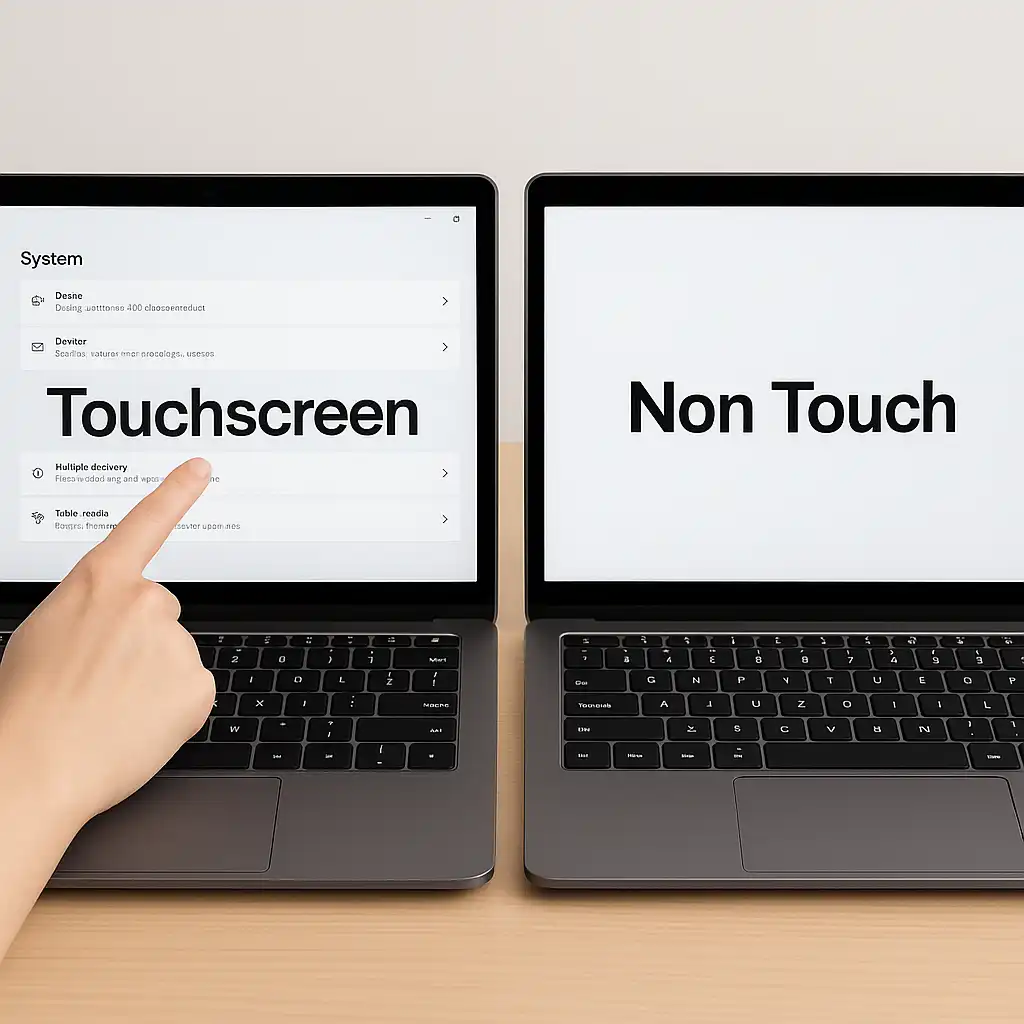
The best option depends on your priorities. Touch is more useful for interaction and flexibility. Non-touch designs often win on simplicity, price, weight, and desk comfort.
Are touchscreen laptops bad for students?
Touchscreen laptops are not automatically bad for students. They can help with handwritten notes, PDF markup, diagrams, presentations, and reading.
The disadvantages become clearer when students carry the laptop all day. A heavier chassis, glossy display, short battery life, or fragile hinge can matter more than touch capability.
For school, compare:
- Total weight with the charger
- Battery test results from independent reviews
- Screen brightness and glare
- Keyboard comfort
- Warranty terms
- Pen cost and compatibility
- Repair options near your school
- The requirements of your major
A student in art, architecture, nursing, or design may gain more from touch and pen input. A student who mainly writes papers, browses the web, and uses spreadsheets may prefer a lighter non-touch model.
Are touchscreen laptops worth it for work?
A touchscreen laptop can be worth the cost when touch removes a real barrier in your workflow. It may help with signatures, diagrams, inventory tools, field forms, presentations, and creative work.
It is less useful when your day consists mostly of typing, coding, email, spreadsheets, or database work. In those cases, a comfortable keyboard, accurate trackpad, high-quality monitor support, and strong battery life usually matter more.
A practical rule is simple: buy touch for a task, not for the possibility of using it. If you cannot name several tasks that benefit from touch, compare non-touch models before making a decision.
How to reduce the disadvantages of a touchscreen laptop
You cannot remove every drawback, but you can limit many of them.
Choose the right display
Look for a bright screen with good viewing angles and a surface that works in your environment. If you work near windows, glare control matters more than touch capability.
Compare real battery tests
Do not rely only on the advertised battery number. Look for tests that describe screen brightness, video playback, web browsing, and performance settings.
Check the complete weight
Include the charger, stylus, protective case, and other accessories. A laptop that weighs 3.5 pounds on its own may be much heavier in daily use.
Confirm pen support
Check the exact pen protocol and features. Confirm whether the pen is included. Do not assume that every touchscreen supports an active stylus.
Review repair coverage
Read the warranty terms before purchase. Accidental drops and cracked displays may not be covered by the standard limited warranty.
Use an external setup for long sessions
An external keyboard, mouse, and monitor can improve posture and reduce repeated reaching. This is especially useful when using a touchscreen laptop at a desk.
Keep the screen clean
Use a microfiber cloth and follow the manufacturer’s cleaning instructions. Avoid abrasive materials and direct sprays.
Test touch in your actual apps
If possible, try the programs you use most. Touch performance in a browser may not predict the experience in accounting, design, or business software.
Who should avoid a touchscreen laptop?
You may want to avoid a touchscreen laptop if you:
- Want the lowest possible price
- Carry your laptop for long periods
- Work outdoors or near bright windows
- Type for most of the day
- Prefer a matte screen
- Rarely use tablet features
- Need the simplest and cheapest repairs
- Use software that depends on precise mouse control
- Want maximum battery life within a fixed budget
A non-touch laptop is often the more practical choice for office work, programming, writing, and basic home use.
Who should consider a touchscreen laptop?
A touchscreen model may be worth considering if you:
- Take handwritten notes
- Draw or annotate documents
- Use tablet mode often
- Need quick tap and swipe controls
- Work with touch-optimized apps
- Present information from the screen
- Use a compatible active pen
- Value flexibility more than minimum weight
The strongest case is for a convertible laptop with reliable pen support and a comfortable tablet mode. The weakest case is a heavy clamshell laptop where touch adds cost but does not change how you work.
Common mistakes when buying a touchscreen laptop
Mistake 1: Paying for touch without checking app support
A display can respond perfectly while your main software remains mouse-focused. Check the apps before buying.
Mistake 2: Ignoring glare
A glossy screen may look bright and sharp indoors but become difficult to view beside a window. Think about your normal workspace.
Mistake 3: Forgetting the pen
Some laptops support an active pen but do not include one. Add the pen price to the total cost.
Mistake 4: Comparing only laptop weight
Include the charger and accessories. Also consider whether you will actually use tablet mode.
Mistake 5: Assuming every 2-in-1 is durable
A convertible hinge is built for movement, but careless handling can still cause damage. Review warranty and repair terms.
Mistake 6: Treating advertised battery life as a promise
Battery estimates use controlled tests. Compare independent results under similar conditions.

Key Takeaways
- A touchscreen laptop usually costs more than a comparable non-touch model.
- Touch hardware and bright glass displays may reduce battery life, though the size of the effect varies.
- Glass screens can create glare and collect fingerprints.
- Touch input is useful for quick taps, drawing, notes, and tablet mode, but a mouse or trackpad is often better for precise work.
- Touchscreen repairs can be more complex and expensive.
- Convertible models may add hinge wear, weight, and thickness.
- The feature is most valuable when it supports tasks you perform often.
- If you mainly type, code, browse, or use spreadsheets, a non-touch laptop may offer better value.
Frequently Asked Questions
Does using a touchscreen damage a laptop screen?
Normal tapping should not damage a properly designed touchscreen. Excessive pressure, sharp objects, drops, and unsuitable cleaning products can damage the glass or touch layer. Use your finger or a compatible stylus, and avoid pressing hard.
Do touchscreen laptops use more electricity?
They can use more power because the touch digitizer and display hardware require energy. However, screen brightness, processor load, refresh rate, battery size, and software can have a larger effect on actual battery life.
Is a touchscreen laptop better than an iPad?
Neither is always better. A touchscreen laptop can run full desktop software and provide a built-in keyboard. An iPad may be lighter and easier to use as a tablet. The right choice depends on your apps, typing needs, file workflow, and accessory budget.
Can you turn off a touchscreen laptop’s touch function?
On many Windows laptops, you can disable the touchscreen through Device Manager. The exact steps can vary by Windows version and manufacturer. Disabling touch does not remove the added cost, weight, glass surface, or repair complexity.
Are touchscreen laptops harder to repair?
They can be. The display, glass, digitizer, and cables may be integrated into one assembly. Repair difficulty and cost depend on the exact model, parts availability, warranty, and damage type.
Conclusion
The main disadvantages of a touchscreen laptop are higher cost, added weight, glare, fingerprints, possible battery trade-offs, and more complex repairs. Touch input can also feel less precise than a trackpad or mouse during detailed work.
A touchscreen laptop makes the most sense when you will regularly use tablet mode, handwritten notes, drawing, document markup, or touch-focused software. If you mainly type and work at a desk, a non-touch laptop may give you better value, comfort, and simplicity.
Before buying, compare the full weight, battery test results, screen finish, pen support, warranty, repair options, and software compatibility. Choose the feature because it solves a real need—not simply because it appears on the specification sheet.

Everett Ashford is a tech reviewer at mytechgrid.com specializing in SSDs, cameras, TVs, earbuds, headphones, and other consumer electronics. He provides honest, data-driven reviews based on hands-on testing and real-world performance analysis. Everett simplifies complex tech details to help readers make smart, confident buying decisions.