An SSD on a computer is a fast, flash-based storage drive that replaces traditional hard disks.
I’ve worked with PCs and laptops for years, building rigs and upgrading slow machines. I’ll walk you through what is ssd on a computer with clear facts, real examples, and practical tips. Expect plain language, hands-on advice, and enough detail to choose, install, and maintain an SSD with confidence.

What is an SSD on a computer?
An SSD on a computer is short for solid-state drive. It stores your files and programs using flash memory instead of spinning disks. That makes it much faster at reading and writing data than a traditional hard disk drive. When people ask what is ssd on a computer, they usually want to know how it changes speed and reliability.
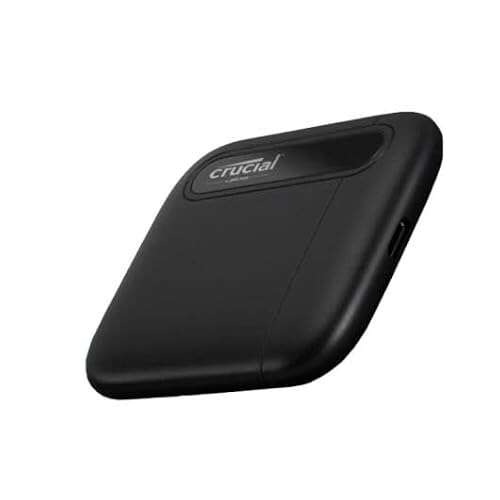
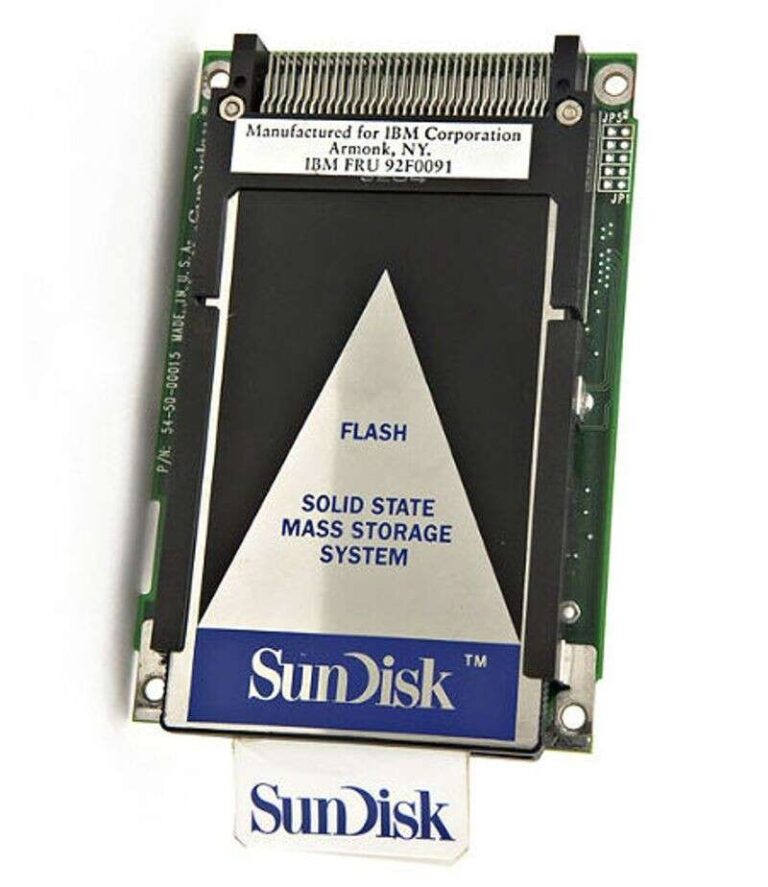
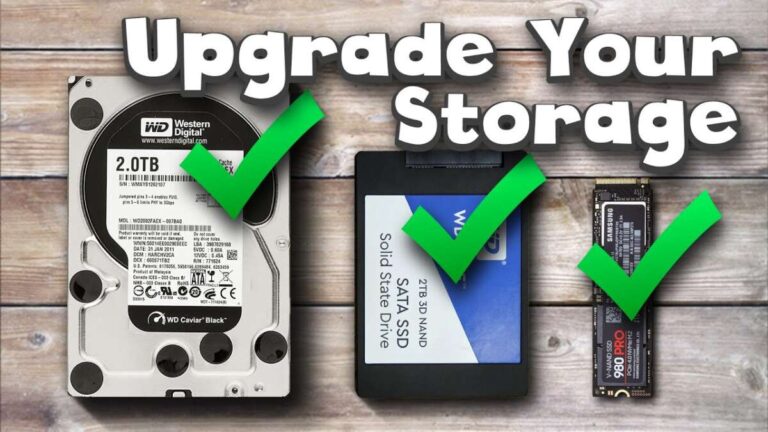
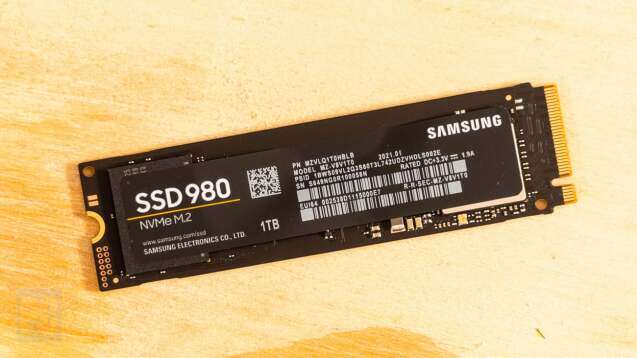
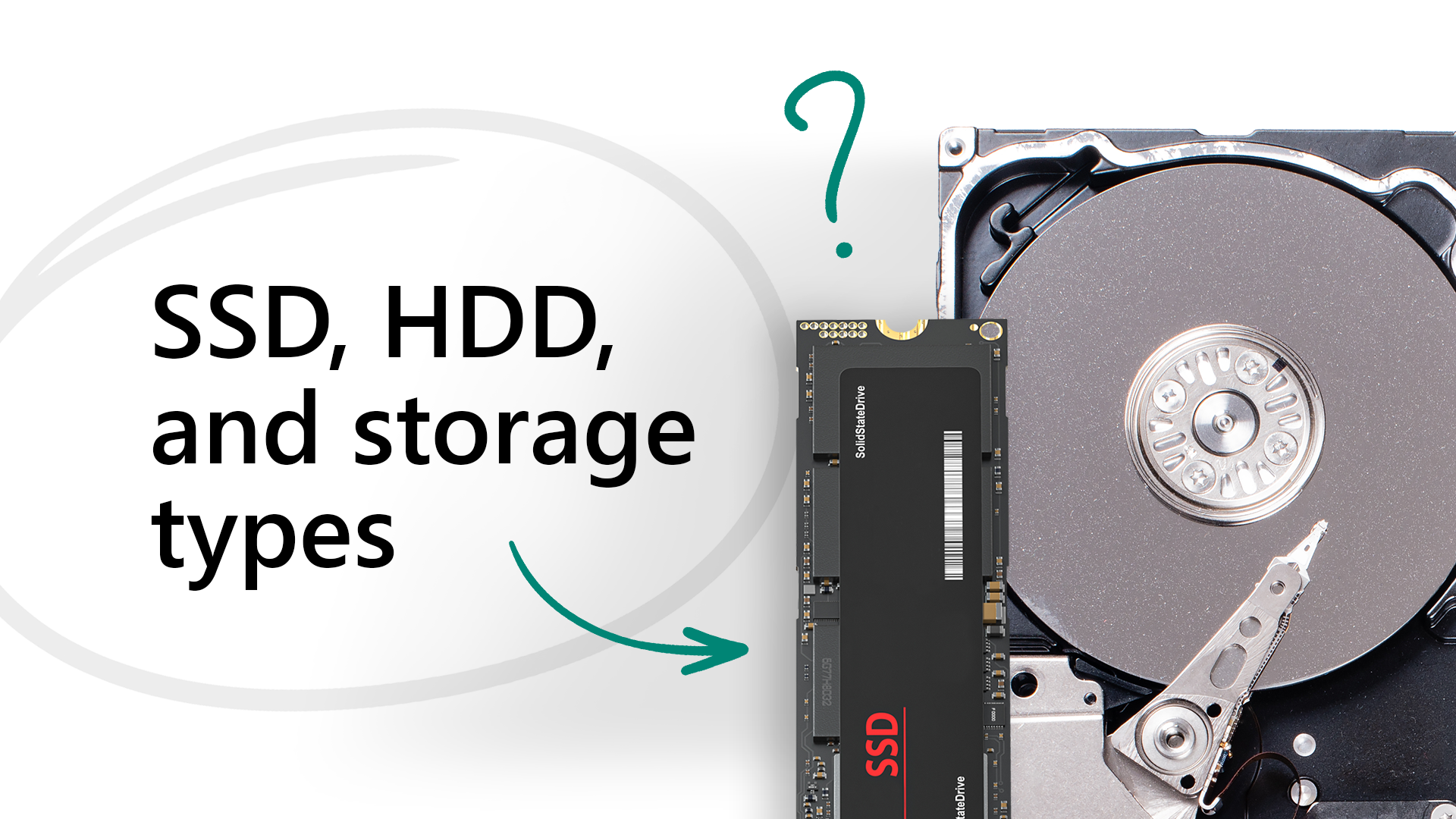
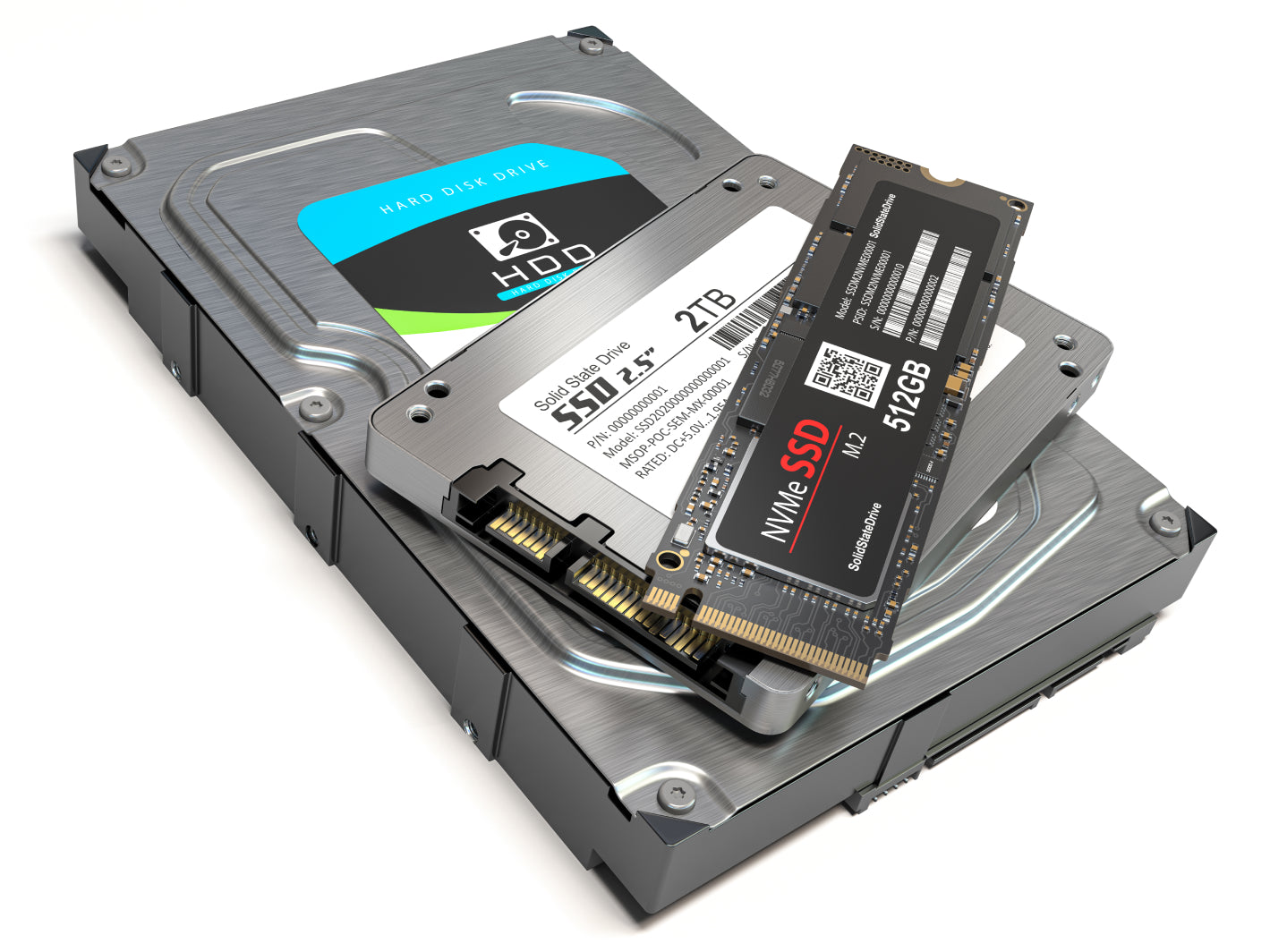
SSDs come in many shapes and form factors. You will see them as 2.5-inch SATA drives, M.2 sticks, and PCIe add-in cards. Each type fits different machines and offers different performance.
How SSDs work (simple explanation)
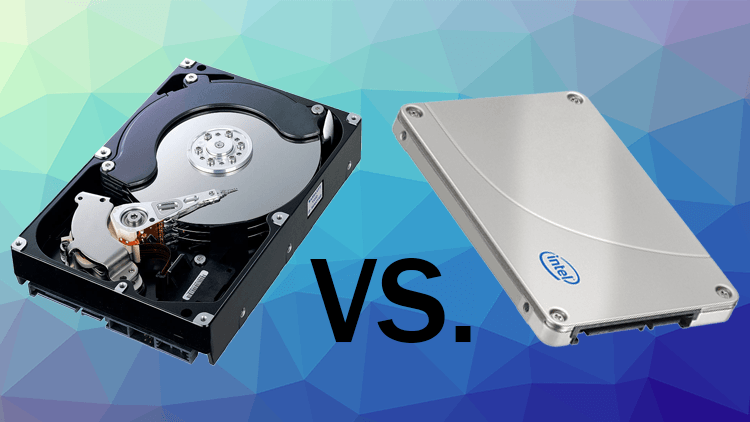
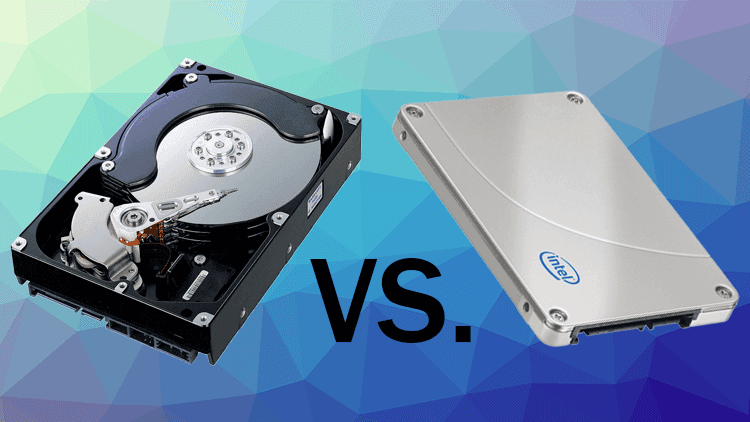
An SSD stores data in memory cells. These cells hold electrical charges that represent bits. There are no moving parts. That lack of moving parts is why SSDs are faster and less fragile.
The drive uses a controller to manage reads, writes, and the wearing of cells. Modern controllers also do error correction and encryption. These features help the SSD stay fast and reliable over time.
Types of SSDs and common form factors
When you learn what is ssd on a computer, you should know the common types. Here are the main ones:
- 2.5-inch SATA SSD: Fits many laptops and desktops. Uses the SATA interface. Offers solid speed upgrades over HDDs.
- M.2 SATA SSD: Small stick form factor. Uses SATA signals but in an M.2 slot.
- M.2 NVMe SSD: Uses PCIe lanes for much higher speed than SATA. Very common in modern laptops.
- PCIe add-in card SSD: Plugs into a desktop PCIe slot. Used for very high performance.
Pick the type that fits your device and budget. Not all M.2 slots support NVMe. Check your motherboard specifications before buying.
Benefits of using an SSD on a computer
Understanding what is ssd on a computer includes knowing the benefits. Here are the main advantages:
- Faster boot and load times: Apps and the OS open much quicker.
- Better responsiveness: Multitasking feels smoother.
- Lower power use: Good for laptops and battery life.
- More durable: No moving parts means less risk from drops.
- Quieter operation: No spindle noise or vibration.
In day-to-day use, an SSD makes old computers feel new. I upgraded an aging laptop with an SSD and cut boot time from two minutes to under twenty seconds.
Limitations and common myths
Knowing what is ssd on a computer also means knowing limits. SSDs have strengths and trade-offs:
- Limited write cycles: Flash cells wear over time. Modern drives last years for normal users.
- Cost per gigabyte: SSDs are pricier than HDDs for the same capacity.
- Data recovery: Recovering deleted data can be harder than with HDDs due to how SSDs erase blocks.
Myth: SSDs fail instantly. Reality: Most fail gradually and with warning signs. Myth: SSDs cannot be used for long-term storage. Reality: Proper backups keep data safe regardless of drive type.
Performance metrics you should know
When you compare SSDs or ask what is ssd on a computer in terms of speed, check these metrics:
- Sequential read/write speeds: Good for large files and transfers.
- Random read/write IOPS: Important for app and OS responsiveness.
- Latency: Lower latency means faster response.
- TBW (Terabytes Written): Indicator of endurance.
- NVMe PCIe generation and lane count: More lanes mean higher peak speeds.
Benchmarks show NVMe drives outperform SATA by large margins in sequential and random tests. But real-world gains depend on your tasks.
How to choose the right SSD for your needs
Picking an SSD depends on use and budget. Here is a simple decision path:
- If you want a big speed boost on an older laptop, choose a 2.5-inch SATA SSD.
- If you have a recent laptop or desktop with M.2 NVMe support, pick an NVMe M.2 drive for top speed.
- If you do video editing or heavy data work, favor high TBW and higher capacity.
- If you need secure storage, look for hardware encryption and drive-level security.
Also compare warranty length and real-world reviews. A longer warranty often signals more durable components.
Installing and migrating to an SSD — practical steps
Moving from an HDD to an SSD is common. Here is a simple plan I’ve used many times:
- Back up your files to an external drive or cloud.
- Clone the existing drive using cloning software if you want the same setup.
- Physically install the SSD into the laptop or desktop.
- Set the SSD as the primary boot drive in BIOS/UEFI.
- Check that TRIM is enabled and run updates for your OS.
If you prefer a fresh start, do a clean OS install for best performance. I once cloned a 1 TB HDD to a 500 GB SSD and removed unused files first to fit capacity. It worked smoothly after trimming partitions.
Maintenance, lifespan, and best practices
Caring for an SSD helps it last longer. Keep these tips in mind:
- Enable TRIM to help the drive manage space and performance.
- Avoid filling the drive to capacity; keep 10–20 percent free.
- Use firmware updates from the manufacturer when available.
- Back up regularly. SSDs can fail like any device.
- Use drive health tools to monitor TBW and SMART data.
For most users, an SSD will last 5–10 years under normal use. Heavy writes shorten that span.
Cost, capacity, and future trends
Cost and capacity shape buying choices when asking what is ssd on a computer. Storage prices drop over time. Capacities grow. Here’s what to expect:
- Value segment: Affordable SATA SSDs in 256–1,024 GB range.
- Performance segment: NVMe drives with higher read/write figures.
- Enterprise and high-end: Drives with higher endurance ratings and features.
In the near future, expect cheaper high-capacity NVMe drives. New flash types also push density higher.
Real-world examples and personal experience
I upgraded a work laptop with a 1 TB NVMe SSD. The edit workflow improved noticeably. Export times dropped and multitasking was effortless. I also used a SATA SSD in an older office PC. The user reported daily tasks felt snappier and complaints stopped.
Lessons learned:
- Always back up before cloning.
- Check the physical size and interface before ordering.
- Budget for a larger drive if you store media or games.
If you think about what is ssd on a computer, remember the best improvements come from matching the drive to your needs.
Frequently Asked Questions of what is ssd on a computer
What exactly does SSD mean?
SSD stands for solid-state drive. It stores data using flash memory chips instead of spinning disks. This design gives faster access and fewer mechanical failures.
Is an SSD better than an HDD?
For speed, durability, and power use, SSDs are better. For raw cost per gigabyte, HDDs still win. Choose based on what matters most to you.
How long will an SSD last?
Most consumer SSDs last between five and ten years under normal use. Endurance is measured in TBW and depends on how much you write to the drive.
Can I install Windows on an SSD?
Yes. You can install Windows on an SSD via clean install or cloning the existing system. Boot times and app launches will be much faster.
Do I need to enable TRIM on my SSD?
Yes. TRIM helps maintain SSD performance over time by allowing the OS to inform the drive which data blocks are unused. Most modern OSes enable TRIM automatically.
Conclusion
You now have a clear, practical view of what is ssd on a computer. SSDs replace spinning disks with fast flash memory. They speed up boot times, improve responsiveness, and last well with proper care. If you want a faster computer, upgrading to an SSD is one of the most impactful moves you can make. Try one in your machine, back up your data, and enjoy the speed. Leave a comment about your SSD experience or subscribe for more hardware guides.

Jamie Lee is a seasoned tech analyst and writer at MyTechGrid.com, known for making the rapidly evolving world of technology accessible to all. Jamie’s work focuses on emerging technologies, product deep-dives, and industry trends—translating complex concepts into engaging, easy-to-understand content. When not researching the latest breakthroughs, Jamie enjoys exploring new tools, testing gadgets, and helping readers navigate the digital world with confidence.