For most buyers in the United States, the Dell XPS 16 with its 4K+ OLED display is the best all-around laptop with a true 4K-class screen. It combines a sharp 16-inch panel, strong Intel Core Ultra performance, modern graphics options, and a premium build.
The best choice changes by use:
- Best overall: Dell XPS 16 with the 3840 × 2400 OLED display
- Best for professional work: Lenovo ThinkPad P1 or HP ZBook Studio with a 4K OLED option
- Best for creative work: ASUS ProArt Studiobook 16 with its high-resolution OLED display
- Best for gaming: A gaming laptop with a 4K or 4K-class screen and a powerful NVIDIA GeForce RTX GPU
- Best value: A laptop with a 2.8K or 3.2K OLED display, rather than true 4K
A 4K screen gives you crisp text, fine detail, and more room for editing work. But it can also cost more, use more battery power, and require display scaling in Windows.

Quick answer: Which 4K laptop should you buy?
The Dell XPS 16 is the strongest general recommendation when you want a premium Windows laptop with a true 4K-class display.
Its 16-inch OLED panel uses a 3840 × 2400 resolution. That is a 16:10 version of 4K UHD. It has more vertical pixels than the common 3840 × 2160 format, which helps with documents, web pages, and creative software.
The XPS 16 is a good fit for:
- Photo and video editing
- Office work with sharp text
- Coding and research
- Watching high-resolution video
- Users who want a premium, modern Windows laptop
It is not the best fit for everyone. The high-resolution OLED screen can reduce battery life compared with a lower-resolution LCD panel. The XPS 16 also favors USB-C ports, so some users may need a hub or dock.
If you need certified workstation drivers, ISV support, or reliable performance in demanding engineering software, choose a Lenovo ThinkPad P1 or HP ZBook Studio instead.
What counts as a 4K laptop display?
A true 4K laptop display usually has about 4,000 pixels across its width. The two formats you will see most often are:
| Display label | Common resolution | Aspect ratio | What it means |
|---|---|---|---|
| 4K UHD | 3840 × 2160 | 16:9 | The standard consumer 4K format |
| 4K+ | 3840 × 2400 | 16:10 | A taller 4K-class format |
| 3.2K | 3200 × 2000 | 16:10 | Very sharp, but not true 4K |
| 2.8K | 2880 × 1800 | 16:10 | Sharp and often more efficient |
| QHD | 2560 × 1440 | 16:9 | Lower than 4K, but easier to drive |
Many current premium laptops use a 16:10 aspect ratio. That is why manufacturers may call a 3840 × 2400 panel “4K+” rather than simply “4K.”
Resolution is only one part of image quality. Panel type, brightness, contrast, color coverage, refresh rate, and factory calibration also matter.
OLED versus LCD
An OLED screen can turn off individual pixels. This gives it very deep blacks and high contrast. OLED panels are often a strong choice for movies, photos, and video editing.
An LCD screen uses a backlight. It may not produce the same black levels, but it can offer better battery life, lower cost, and less concern about permanent image retention.
OLED can also show temporary image retention. Permanent burn-in is less common with normal mixed use, but static elements such as taskbars and editing tool panels can create more risk over long periods.
Brightness and color
For indoor work, a screen with roughly 400 nits or more is usually easier to use than a dim panel. Outdoor work needs more, especially when sunlight hits the display.
Creative users should check:
- sRGB coverage for web and general content
- DCI-P3 coverage for modern video and media work
- Adobe RGB coverage for some print workflows
- Factory calibration data
- Support for a color profile or calibration tool
A manufacturer’s claimed color coverage is not the same as an independent measurement. Actual results can vary by panel and laptop configuration.
The best 4K laptops for different users
There is no single best 4K laptop for every buyer. The right model depends on software, graphics needs, portability, and budget.
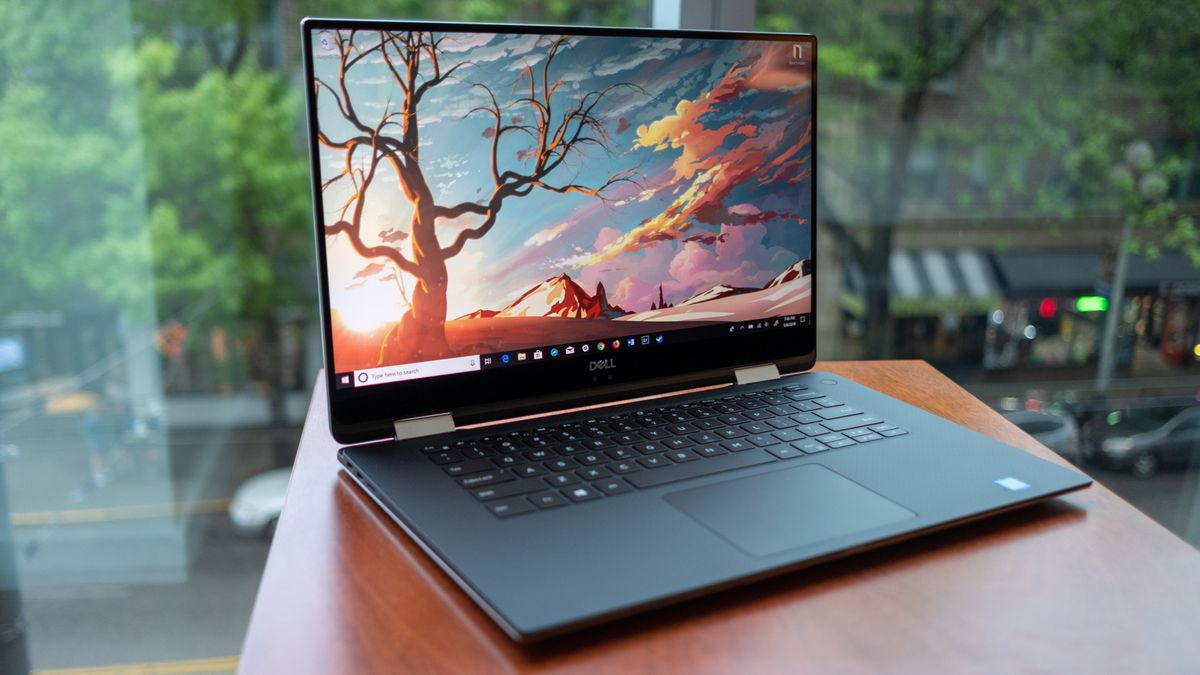
Best overall: Dell XPS 16
The Dell XPS 16 is the best broad choice for people who want a premium Windows laptop with a large, sharp display.
Key strengths include:
- 16-inch 16:10 display options
- 3840 × 2400 OLED configuration
- Intel Core Ultra processor options
- Dedicated NVIDIA GeForce RTX graphics on selected models
- Premium aluminum design
- Strong fit for creative and office work
The 4K+ OLED version is especially useful for photo editing, timeline work, and detailed design tasks. The tall 16:10 screen also gives documents more room than a 16:9 panel.
The main limits are its price, weight, and port selection. Some configurations may also use more power than lower-resolution versions. Check the exact GPU, memory, storage, and display before ordering.
Best for: professionals, creators, students in demanding programs, and buyers who want one premium laptop for many tasks.
Best for business and engineering: Lenovo ThinkPad P1
The Lenovo ThinkPad P1 is a mobile workstation rather than a general consumer laptop. Some configurations include a 4K-class OLED display, professional NVIDIA RTX graphics, and powerful Intel processors.
Its advantages include:
- ThinkPad keyboard and business features
- Professional graphics options
- Support for workstation-focused software
- Upgrade and service options that may be better than on thin consumer laptops
- Strong fit for CAD, 3D work, data analysis, and development
The price can rise quickly with more memory, storage, and professional graphics. Battery life also depends heavily on the processor, GPU, and display selected.
Best for: engineers, architects, developers, researchers, and business users who need workstation features.
Best mobile workstation alternative: HP ZBook Studio
The HP ZBook Studio is designed for professional creative and technical workloads. Select versions offer high-resolution OLED displays and NVIDIA RTX graphics.
It can make sense when you need:
- A professional Windows workstation
- ISV-certified drivers for supported applications
- A color-focused display
- Strong CPU and GPU performance in a portable body
- Business support options
Workstation certification does not automatically make every ZBook faster than every consumer laptop. It mainly addresses software support, driver validation, and professional workflows.
Best for: design studios, engineering teams, media professionals, and organizations that need business support.
Best for creative users: ASUS ProArt Studiobook 16
The ASUS ProArt Studiobook 16 line focuses on creators. Depending on the model, it may offer a high-resolution OLED display, dedicated NVIDIA graphics, and controls designed for creative applications.
Useful features may include:
- High color coverage
- A large 16:10 screen
- Strong GPU options
- A physical control dial on selected models
- Support for demanding editing and 3D applications
The exact screen resolution varies by model. Some versions use 3.2K rather than true 4K. That does not make them poor displays, but buyers should read the full specification instead of relying on the “ProArt” name.
Best for: photographers, video editors, digital artists, and 3D creators.
Best for gaming: a 4K gaming laptop with a powerful GPU
A 4K gaming laptop needs more than a high-resolution panel. It also needs a powerful graphics processor.
For modern games, look for:
- NVIDIA GeForce RTX 4070, RTX 4080, or RTX 4090 class graphics, depending on the game and settings
- A suitable GPU power limit
- At least 16GB of RAM, with 32GB preferable for demanding use
- A fast SSD
- Effective cooling
- A display with a useful refresh rate
A laptop may technically have a 4K display but still struggle to run new games at native resolution. Upscaling technologies such as NVIDIA DLSS can improve performance, but they do not remove the need for a capable GPU.
Many gaming buyers are better served by a 2560 × 1600 or 2560 × 1440 screen with a high refresh rate. It may look less sharp than 4K, but games can run more smoothly.
Best for: gamers who value image detail and can accept higher cost, weight, and power use.

How to choose the right 4K laptop
Start with the work you will do. Do not begin with the screen resolution alone.
1. Choose the software first
A laptop for Microsoft 365 and web work has different needs from one for DaVinci Resolve, Adobe Premiere Pro, AutoCAD, Blender, or SolidWorks.
Use this guide:
| Main task | Recommended hardware |
|---|---|
| Office, web, and study | Modern Core Ultra 5 or Ryzen 5, 16GB RAM |
| Photo editing | Modern Core Ultra 7 or Ryzen 7, 16GB to 32GB RAM |
| 4K video editing | Strong Core Ultra 7, Ryzen 7, or better; 32GB RAM; dedicated GPU |
| 3D rendering | High-end CPU, dedicated RTX GPU, 32GB or more RAM |
| CAD and engineering | Certified workstation GPU may be useful |
| 4K gaming | High-power RTX GPU, strong cooling, 16GB to 32GB RAM |
These are broad guidelines. The exact application, project size, and plug-ins can change the requirement.
2. Check the graphics processor
The GPU drives the screen and handles many creative tasks. A dedicated GPU is usually important for video editing, 3D design, and gaming.
Integrated graphics can handle office work, streaming, and light photo editing. They may struggle with complex 3D scenes or demanding effects.
Do not judge a GPU only by its name. Laptop versions can have different power limits. A high-power RTX 4060 can perform differently from a low-power RTX 4060 in a thin laptop.
3. Pick enough memory and storage
For a 4K laptop, 16GB of RAM is a practical starting point. Choose 32GB if you edit video, work with large photos, use virtual machines, or keep many large apps open.
Storage affects how comfortably you work:
- 512GB is enough for basic use
- 1TB is a better starting point for creative work
- 2TB or more helps with video libraries and large project files
A fast SSD improves app loading and file access. It does not make a weak CPU or GPU perform like a high-end system.
4. Check the battery trade-off
A 4K display has more pixels to power. OLED screens can also use more energy when showing bright content.
Battery life depends on more than resolution:
- Screen brightness
- OLED or LCD panel type
- Processor efficiency
- Dedicated GPU use
- Battery capacity
- Background apps
- Wireless activity
- Video playback settings
Manufacturers often list battery estimates under controlled conditions. Those figures are useful for comparison, but they are not a guarantee of your daily runtime.
5. Confirm ports and connectivity
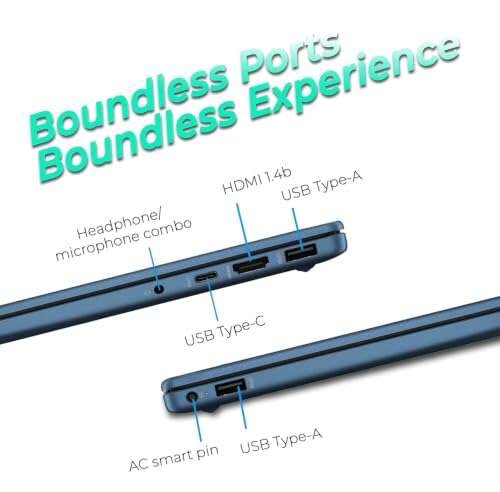
Many thin 4K laptops use USB-C and Thunderbolt or USB4 ports. That can be useful, but you may need a dock for:
- HDMI
- USB-A devices
- Ethernet
- SD or microSD cards
- Multiple external monitors
Photographers should check for a full-size SD card slot. Gamers should check HDMI support and external display limits. Office users may want a simple dock for a desk setup.
6. Check repair and upgrade options
Some premium laptops have memory soldered to the motherboard. Others allow upgrades to the SSD or memory.
Before buying, check:
- Whether the RAM is replaceable
- Whether the SSD can be replaced
- Battery replacement options
- Parts availability in the United States
- Warranty length and coverage
- The manufacturer’s repair documentation
A slightly less compact laptop may be a better long-term choice if it can be serviced more easily.
Is a 4K laptop worth it?
A 4K laptop is worth the extra cost when you can see a clear benefit from fine detail or color quality.
It is a strong choice for:
- High-resolution photo editing
- 4K video editing
- Graphic design
- CAD and 3D work
- Reading small text and detailed documents
- Watching high-resolution media
It may not be worth it for:
- Basic office work
- Long travel days
- Students who mainly use a browser and documents
- Gaming at high frame rates
- Buyers with a strict budget
A 2.8K or 3.2K OLED screen can look very sharp at normal laptop sizes. It may also offer better battery life and cost less than a true 4K panel.
Why Windows scaling matters
A 16-inch 4K display packs many pixels into a small area. At 100% scaling, text and interface controls may look too small.
Windows may use 150% or 200% scaling. This makes text easier to read, but it reduces the amount of content that fits on the screen.
Scaling is not a flaw. It is a normal way to balance sharpness and comfort. A 4K display can still make text look smoother even when the interface is scaled.
A simple pixel-density comparison
Pixel density describes how many pixels fit into each inch of the screen.
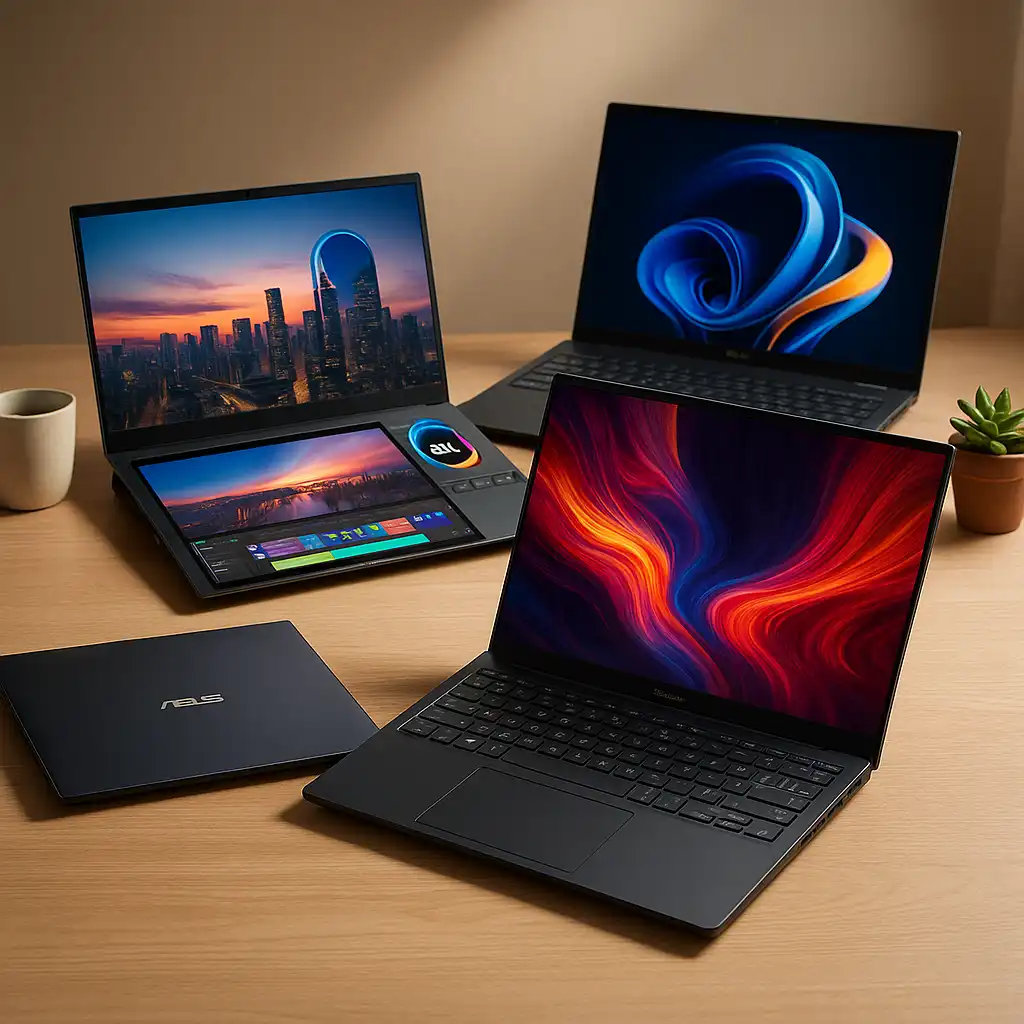
A 16-inch 3840 × 2400 display has about 283 pixels per inch. A 16-inch 2560 × 1600 display has about 189 pixels per inch.
That difference can make small text, fine lines, and high-resolution photos look cleaner. The benefit is easier to see up close than from across a room.
Common mistakes when buying a 4K laptop
Mistake 1: Trusting “4K” without checking the resolution
Some product pages use “4K” loosely. Read the exact pixel count.
A 3200 × 2000 display is sharp, but it is not the same as 3840 × 2160 or 3840 × 2400.
Mistake 2: Ignoring the GPU
A 4K screen does not improve game performance. In fact, it makes the GPU work harder.
If gaming or 3D work matters, compare the GPU model, power limit, cooling system, and real test results.
Mistake 3: Choosing the brightest mode all day
High brightness uses more power. OLED HDR modes can also increase energy use.
Use a comfortable brightness level indoors and turn down the display when you do not need maximum brightness.
Mistake 4: Assuming OLED is always better
OLED usually offers better contrast. LCD may offer longer battery life and lower cost.
Choose based on your work, not just the panel label.
Mistake 5: Buying too little RAM
A 4K screen does not require extra RAM by itself. But the people who buy 4K laptops often run demanding creative apps.
For serious editing, 32GB is safer than 16GB. Check whether the memory can be upgraded later.
Mistake 6: Overlooking glare
Glossy OLED screens can look rich indoors but reflect windows and overhead lights. If you work near bright windows, compare the coating and consider where you will use the laptop.

How to verify a 4K laptop before buying
Use the manufacturer’s page for the exact model and configuration. Retail listings can combine several screen and hardware options under one product name.
Check these details:
- Resolution: Look for 3840 × 2160 or 3840 × 2400.
- Panel type: Confirm OLED or LCD.
- Brightness: Check the stated brightness and whether it applies to SDR or HDR.
- Color coverage: Look for sRGB, DCI-P3, or Adobe RGB data.
- Refresh rate: Confirm whether the panel runs at 60Hz, 120Hz, or higher.
- CPU and GPU: Read the exact chip names.
- Memory: Check capacity and upgrade limits.
- Storage: Confirm the SSD size and replacement options.
- Ports: Check Thunderbolt, USB4, HDMI, and card-reader support.
- Warranty: Review US warranty terms and accidental-damage options.
Look for independent testing when you need information about battery life, fan noise, screen accuracy, sustained performance, or gaming frame rates. Manufacturer specifications establish what a laptop is designed to include. They do not prove how every unit performs in real use.
Frequently asked questions
Is a 4K laptop better than a 2.8K OLED laptop?
Not always. A 4K panel is sharper, but a 2.8K OLED screen may provide better battery life, lower cost, and a higher refresh rate. For most office work, both can look very clear.
Can a laptop run 4K games?
Yes, but the result depends on the GPU, game, graphics settings, and cooling system. A powerful RTX GPU is usually needed for demanding games at native 4K resolution.
Does a 4K screen drain the battery faster?
It can. More pixels require more display processing, and bright OLED content can use substantial power. Battery size and processor efficiency also matter.
Is 4K useful on a 15- or 16-inch laptop?
Yes, especially for photos, video, design, and small text. The improvement is less important for basic web and office work, where a good 2560 × 1600 or 2880 × 1800 screen may be enough.
Is OLED safe for long hours of laptop use?
OLED is commonly used for long work sessions, but glare, brightness, and static images still matter. Use a comfortable brightness, vary static content, and follow the laptop maker’s panel-care settings.
Should I buy a 4K laptop or a 4K external monitor?
Buy a 4K laptop if you need high resolution while traveling. Choose a laptop with a lower-resolution display and a 4K monitor if most of your work happens at a desk. The second option can provide a larger screen and easier upgrades.
Final recommendation
The Dell XPS 16 with its 3840 × 2400 OLED display is the best overall 4K laptop choice for many US buyers who want a premium Windows system for work, media, and creative tasks.
Choose the Lenovo ThinkPad P1 or HP ZBook Studio when professional software support and workstation features matter more than price. Choose the ASUS ProArt Studiobook 16 when your workflow centers on creative apps and color-sensitive work.
Before buying, confirm the exact resolution, GPU, RAM, battery size, ports, and warranty. If you do not need true 4K, a sharp 2.8K or 3.2K OLED laptop may give you a better balance of image quality, speed, battery life, and cost.

Everett Ashford is a tech reviewer at mytechgrid.com specializing in SSDs, cameras, TVs, earbuds, headphones, and other consumer electronics. He provides honest, data-driven reviews based on hands-on testing and real-world performance analysis. Everett simplifies complex tech details to help readers make smart, confident buying decisions.