Introduction
A Gen 5 SSD is a solid-state drive that uses PCI Express 5.0, also called PCIe 5.0, to move data between the drive and a computer. In the United States, these drives are mainly used in newer desktop PCs, gaming systems, and workstations with compatible AMD or Intel platforms.
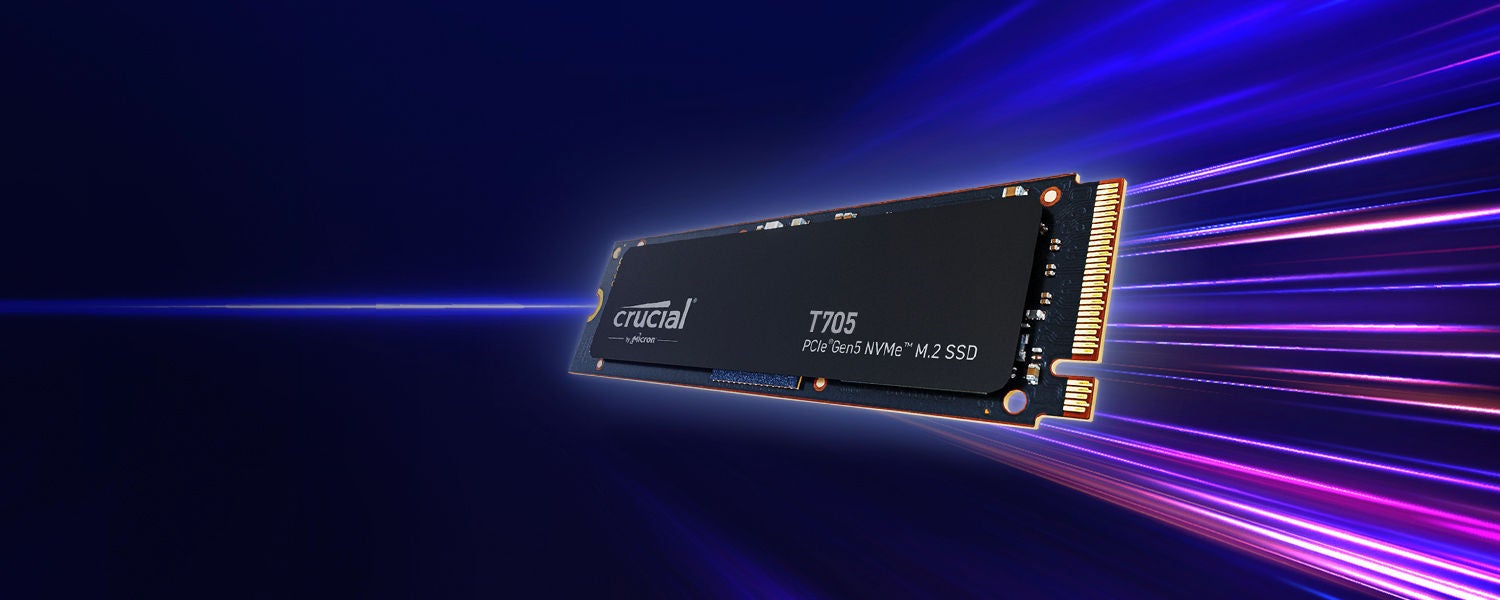
Gen 5 SSDs can deliver much higher sequential speeds than Gen 4 SSDs. Some models reach about 10,000 to 14,000 MB/s, while many Gen 4 drives top out near 7,000 to 7,500 MB/s under ideal conditions.
That extra speed does not help every user. A Gen 5 SSD can be useful for large file work, video editing, software development, and some demanding games. For normal web use, office work, and most game loading, a good Gen 4 SSD may feel nearly the same.

What does Gen 5 SSD mean?
A Gen 5 SSD is an NVMe storage drive that uses the PCIe 5.0 interface. “Gen 5” refers to the generation of the PCI Express connection, not the age or quality of the NAND flash memory inside the drive.
Here is the simple breakdown:
- SSD means solid-state drive.
- NVMe is a storage protocol made for fast PCIe drives.
- PCIe 5.0 is the connection standard.
- x4 means the drive uses four PCIe data lanes.
- M.2 2280 describes the common physical size used in desktop and laptop PCs.
Most consumer Gen 5 SSDs use an M.2 2280 design and connect through four PCIe 5.0 lanes. This gives the drive a much wider data path than PCIe 4.0.
PCIe 5.0 doubles the per-lane bandwidth of PCIe 4.0. A four-lane PCIe 5.0 connection provides roughly 15.8 GB/s of raw one-way bandwidth before protocol overhead. The drive itself usually cannot use all of that bandwidth, so real product ratings are lower.
Gen 5 SSD compared with SATA SSD
A SATA SSD uses the older SATA interface. SATA 3 has a practical ceiling of about 550 MB/s. A Gen 5 NVMe SSD may advertise more than 10,000 MB/s for sequential reads.
That is a large technical difference:
| Drive type | Common interface | Typical sequential read range |
|---|---|---|
| SATA SSD | SATA 3 | About 500–550 MB/s |
| Gen 3 NVMe SSD | PCIe 3.0 x4 | About 3,000–3,500 MB/s |
| Gen 4 NVMe SSD | PCIe 4.0 x4 | About 5,000–7,500 MB/s |
| Gen 5 NVMe SSD | PCIe 5.0 x4 | About 10,000–14,000 MB/s |
These figures are broad ranges. Exact results depend on the controller, NAND type, firmware, capacity, temperature, and test method.
A faster interface does not make every computer faster. The motherboard, processor, operating system, and drive must all support the needed features.
How fast is a Gen 5 SSD?
A Gen 5 SSD is usually about twice as fast as a Gen 4 SSD in sequential transfers, at least on a specification sheet. High-end models often list sequential read speeds above 10,000 MB/s, while newer designs may reach roughly 12,000 to 14,000 MB/s.
Sequential speed measures large, continuous transfers. For example, it can describe copying a large video file or reading a large project file.
Random performance is different. It measures many small requests placed in different parts of the drive. This matters more for:
- Starting programs
- Loading operating system files
- Opening many small files
- Running databases
- Compiling software
- Managing game assets
A Gen 5 SSD may also have stronger random performance than an older SSD, but the improvement is not always as dramatic as the sequential number suggests. System responsiveness depends on latency, queue depth, software behavior, CPU speed, and background tasks.
Why advertised speeds may not appear on your PC
A drive rated at 14,000 MB/s may show lower results when:
- It is installed in a PCIe 4.0 slot.
- The slot shares bandwidth with another device.
- The drive is nearly full.
- The test uses small files.
- The drive becomes hot and reduces speed.
- The test runs after the cache is full.
- The motherboard firmware or storage driver is outdated.
- The drive is installed under the chipset rather than the fastest CPU-connected slot.
Manufacturers normally test under controlled conditions. Those results are useful for comparison, but they are not a guarantee of everyday performance.
How does a Gen 5 SSD work?
A Gen 5 SSD stores data in NAND flash memory. It has no moving parts. A controller manages the flash cells, error correction, wear leveling, caching, and connection to the host computer.
The main parts are:
NAND flash
NAND flash stores the actual user data. Consumer drives may use:
- TLC NAND, which stores three bits per cell
- QLC NAND, which stores four bits per cell
TLC usually offers a stronger balance of speed, endurance, and cost. QLC can provide more capacity at a lower price, but sustained write speed and endurance may be lower in some designs.
SSD controller
The controller acts like the drive’s traffic manager. It handles:
- Data placement
- Error correction
- Flash management
- Garbage collection
- Wear leveling
- Host commands
- Thermal behavior
Gen 5 controllers can move data very quickly, but that speed can produce more heat and use more power than older designs.
DRAM and host memory buffer
Some SSDs include dedicated DRAM. DRAM can help the drive map file locations and manage heavy workloads.
Other drives use host memory buffer, or HMB. HMB allows the SSD to use a small amount of system memory for mapping information. HMB can reduce cost, but it is not the same as having full onboard DRAM.
Dynamic SLC cache
Many modern SSDs use part of their TLC or QLC flash as a faster temporary cache. Small and medium transfers may complete quickly while the cache is available.
After a long write fills the cache, speed can fall. This is why a drive may copy a 20 GB file quickly but slow down during a much larger transfer.
Do you need a Gen 5 SSD?
You may benefit from a Gen 5 SSD if you often move large files, work with high-resolution video, build software, run virtual machines, or want a high-end platform with maximum storage bandwidth.
You may not need one if your main tasks are browsing, email, office apps, streaming, and ordinary gaming. A reliable Gen 4 SSD can be a better value for those uses.
| Your workload | Is Gen 5 useful? | Why |
|---|---|---|
| Web and office work | Usually no | These tasks rarely use maximum storage bandwidth |
| Game storage | Sometimes | It may help with large installs and future asset streaming |
| 4K or 8K video work | Often | Large media files can benefit from high sustained transfer rates |
| Software development | Sometimes | Large builds and virtual machines can use fast storage |
| 3D work and content creation | Often | Large project files can move faster |
| General home PC use | Usually no | Lower-cost Gen 4 storage is often enough |
| Workstation or server use | Depends | Queue depth, endurance, and sustained speed matter more |
The key question is not “Is Gen 5 faster?” It is. The better question is whether your software can use that speed often enough to justify the price, heat, and cooling requirements.

Is a Gen 5 SSD compatible with your computer?
A Gen 5 SSD works at its full speed only when the computer provides a PCIe 5.0 x4 M.2 slot. A Gen 5 drive can usually work in an older PCIe slot, but it will run at the speed of that slot.
For example:
- A Gen 5 SSD in a PCIe 5.0 x4 slot can use its intended interface.
- A Gen 5 SSD in a PCIe 4.0 x4 slot operates as a Gen 4 drive.
- A Gen 5 SSD in a PCIe 3.0 x4 slot operates as a Gen 3 drive.
This backward compatibility comes from PCIe’s link negotiation. The drive and host agree on the fastest standard both support.
How to check compatibility
Before buying, check these items in your motherboard manual:
-
M.2 slot generation
Confirm that the slot supports PCIe 5.0, not only PCIe 4.0 or PCIe 3.0. -
Lane width
Look for PCIe 5.0 x4 support. A slot with fewer lanes may limit performance. -
Physical size
Most consumer drives use M.2 2280, but confirm the board supports that length. -
CPU support
Some systems connect the primary M.2 slot to the processor. Others route it through the chipset. The manual shows the difference. -
Shared lanes
Installing an SSD may disable or reduce the speed of a SATA port, expansion slot, or second M.2 slot. -
Operating system support
Modern versions of Windows and Linux support NVMe storage. A very old system may need updated installation media or drivers. -
Firmware and BIOS
A motherboard BIOS update may improve PCIe 5.0 stability or storage compatibility.
Do not rely only on the product name. Confirm the slot specification for your exact motherboard model.
Does a Gen 5 SSD need a heatsink?
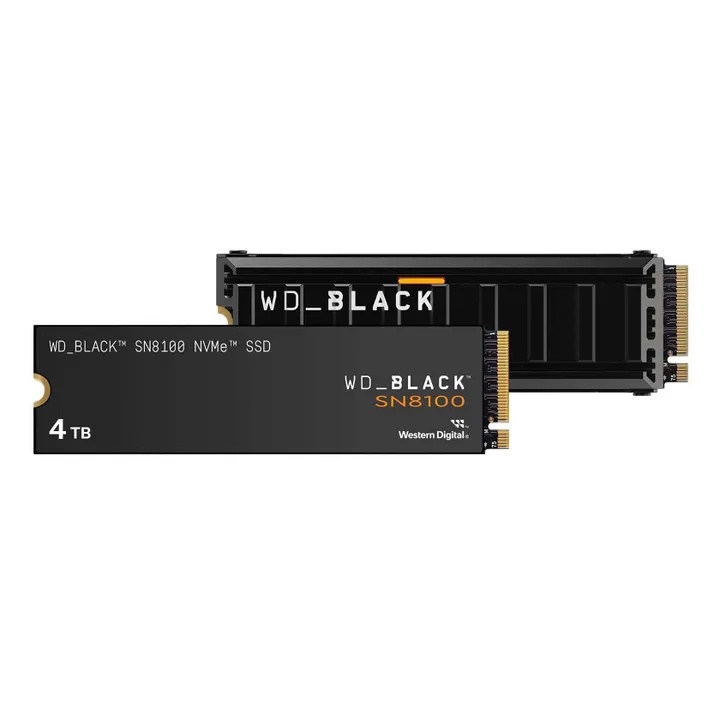
Most high-speed Gen 5 SSDs should use a suitable heatsink. Some require one for normal operation, while others include a heatsink in the box.
Gen 5 drives produce more heat because the controller and NAND move data at a higher rate. When the temperature rises too far, the drive may use thermal throttling. Thermal throttling reduces speed to protect the hardware.
A motherboard’s built-in M.2 heatsink may be enough. If the drive does not include one, check whether the motherboard has:
- A top and bottom thermal pad
- A cover that fits the M.2 drive
- Correct pad thickness
- A clear installation path
- Enough space near the graphics card
Do not stack a second heatsink on top of an existing one. Too much pressure can damage the drive or motherboard.
Signs of a cooling problem
Possible signs include:
- Benchmark speed drops during a long test.
- Large file copies start fast and then slow sharply.
- The SSD disappears under heavy load.
- The system reports storage errors.
- Drive temperatures rise well above the manufacturer’s stated operating range.
A short speed dip can also come from a full cache. Check temperature, cache behavior, and drive capacity before blaming the heatsink.
Gen 5 SSD power use and cooling
A Gen 5 SSD can use more power than a comparable Gen 4 model. The exact amount depends on the controller, flash type, workload, firmware, and power state.
Desktop users usually have fewer power limits, but laptop users must consider:
- Battery drain
- Surface temperature
- Internal airflow
- M.2 slot clearance
- Manufacturer firmware limits
- Whether the laptop supports double-sided drives
A high-performance desktop Gen 5 SSD may be a poor fit for a thin laptop if the laptop cannot provide enough cooling. Always check the computer maker’s storage list before replacing a laptop drive.
Power use also matters in small-form-factor PCs. A compact case may need direct airflow across the M.2 heatsink.
Gen 5 SSD endurance and reliability
Endurance describes how much data a drive is designed to write over its useful service life. Manufacturers often express this as TBW, or terabytes written.
TBW is a specification, not a promise that the drive will fail immediately after reaching the stated number. It is also not a complete reliability rating. Reliability depends on NAND quality, controller design, firmware, temperature, power protection, and workload.
When comparing drives, check:
- TBW rating
- Warranty length
- NAND type
- Controller design
- Presence of DRAM
- Power-loss protection
- Manufacturer support
- Firmware update process
Consumer SSDs often lack the full power-loss protection found in enterprise drives. If a computer handles critical business data, use a backup plan and consider storage designed for that workload.
No SSD should be the only copy of important files. A fast drive can still fail, be corrupted, lost, or damaged by malware.

Gen 5 SSD versus Gen 4 SSD
The main difference is interface bandwidth. Gen 5 provides more room for high transfer rates, but Gen 4 may offer better value and easier cooling.
| Feature | Gen 4 SSD | Gen 5 SSD |
|---|---|---|
| PCIe interface | PCIe 4.0 | PCIe 5.0 |
| Typical top read speed | About 7,000–7,500 MB/s | About 10,000–14,000 MB/s |
| Heat output | Usually lower | Usually higher |
| Cooling needs | Often modest | Heatsink is commonly important |
| Price | Often lower | Often higher |
| Compatibility | Works in many newer PCs | Needs PCIe 5.0 for full speed |
| Best fit | Most users and gamers | Heavy transfers and high-end workstations |
A Gen 5 SSD is not automatically better in every way. A well-designed Gen 4 model may have better efficiency, lower heat, or stronger value than an entry-level Gen 5 model.
When comparing two drives, look beyond the interface generation. Sustained write performance, random I/O, warranty, endurance, and thermal behavior may matter more than the largest read-speed number.
Does a Gen 5 SSD make games load faster?
A Gen 5 SSD can reduce storage transfer time, but game loading does not always improve in proportion to benchmark speed.
A game load can involve:
- CPU work
- File decompression
- Shader compilation
- Memory allocation
- Asset processing
- Network checks
- Game engine delays
If the game is limited by the CPU or decompression process, moving from Gen 4 to Gen 5 may produce only a small change.
Microsoft’s DirectStorage technology is designed to improve how supported games load assets from fast NVMe storage. However, the game must support the relevant technology, and the complete system still includes the CPU, GPU, memory, and software.
For most PC gamers, it is usually better to choose a good-quality SSD with enough capacity than to spend extra money on the highest sequential speed.
How to install a Gen 5 SSD
Install the drive only when the computer is powered off and unplugged. If you are not comfortable working inside a PC, use the motherboard manual or ask a qualified technician.
Installation steps
-
Back up important files.
Do not begin a hardware change without a current backup. -
Confirm the correct M.2 slot.
Use the slot labeled for PCIe 5.0 or the slot recommended by the motherboard manual. -
Update the BIOS if needed.
Do this before installation when the manufacturer lists a storage or PCIe compatibility fix. -
Shut down and disconnect power.
Turn off the power supply and remove the power cable. -
Remove the M.2 heatsink.
Keep the screws safe. Remove any protective film from thermal pads only when ready to install the drive. -
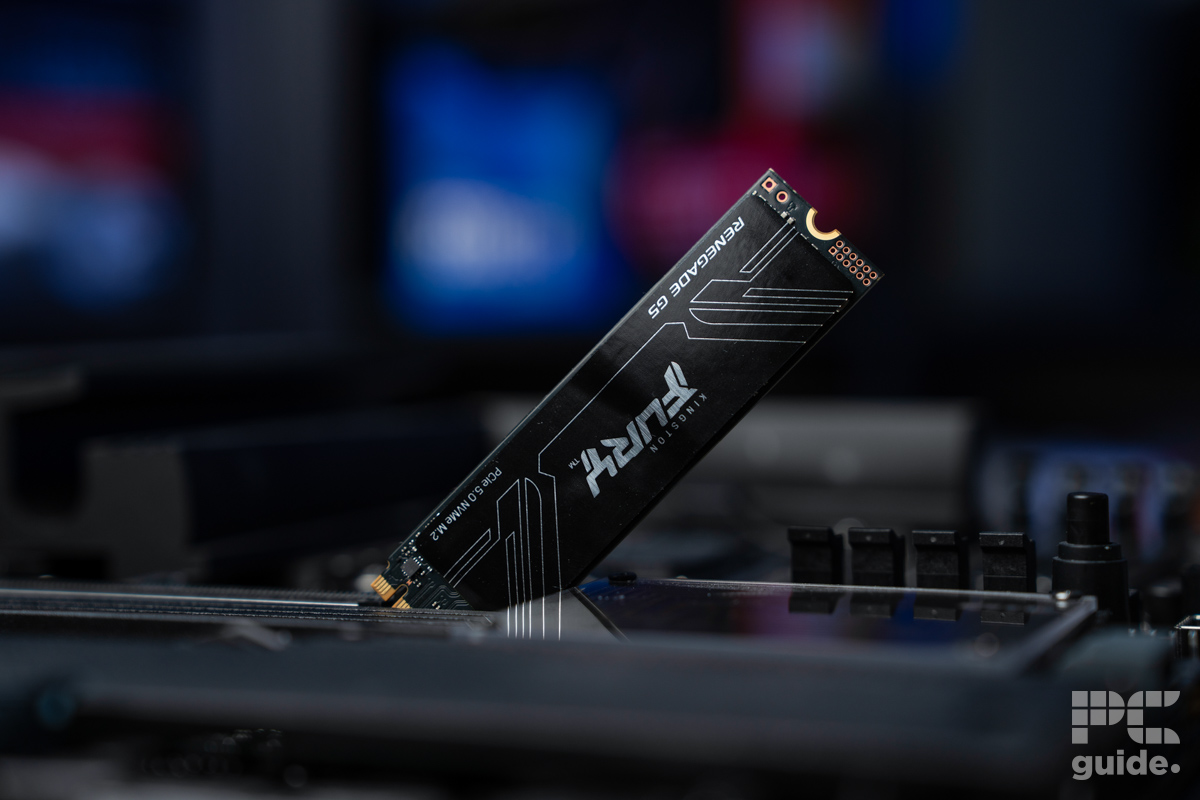
Insert the SSD at an angle.
Align the connector notch with the slot. Do not force it. -
Secure the drive.
Press the free end down and attach the correct screw or latch. -
Replace the heatsink.
Make sure the thermal pad touches the controller and other areas specified by the drive maker. -
Enter the BIOS.
Confirm that the motherboard detects the SSD. -
Initialize or clone the drive.
In Windows, a new drive may need partitioning and formatting in Disk Management. If it will hold the operating system, use a proper cloning or installation process. -
Check performance and temperature.
Use a trusted benchmark and monitor temperature during a sustained test.
Signs that installation worked
The SSD should appear in the BIOS and operating system. A benchmark should show performance that fits the connection type and drive model.
If a Gen 5 SSD runs at Gen 4 speed, check whether it is installed in the correct M.2 slot. If it is missing entirely, shut down the PC and reseat the drive before checking firmware and lane-sharing settings.

Common Gen 5 SSD mistakes
Buying a Gen 5 drive for a Gen 4 slot
The drive may work, but it will not reach Gen 5 speeds. If the price is higher, you may pay for performance your computer cannot use.
Ignoring the heatsink
High-speed storage can throttle when it gets hot. Use the motherboard heatsink or a compatible SSD heatsink with the correct thermal pad.
Trusting only sequential read speed
A large read number does not describe every workload. Check random performance, sustained writes, endurance, and power use.
Filling the drive completely
SSDs need free space for background management and performance. A nearly full drive can write more slowly and make maintenance harder.
Using the wrong M.2 slot
Many motherboards have multiple M.2 slots with different speeds and lane connections. Read the manual before installation.
Treating an SSD as a backup
An SSD is primary storage, not a backup by itself. Keep important files in at least one separate location.
Interrupting firmware updates
A failed firmware update can make a drive unusable. Follow the maker’s instructions and avoid shutting down the PC during the process.
How to choose a Gen 5 SSD
Choose a Gen 5 SSD by matching the drive to the computer and workload, not by selecting the biggest speed number.
Use this checklist:
- Confirm PCIe 5.0 x4 support.
- Select the right capacity.
A 1 TB drive may suit a basic system. A 2 TB drive gives more room for games and media. - Check the heatsink plan.
- Compare sustained write behavior.
- Review TBW and warranty terms.
- Check NAND type and controller information.
- Look for firmware support.
- Consider power use.
- Leave room in the budget for a backup drive.
For a gaming PC, capacity and consistent performance may matter more than reaching the highest benchmark score. For video production or large data work, sustained write speed and endurance deserve more weight.
A simple buying rule is:
Buy Gen 5 when your system supports it and your workload moves enough data to use it. Otherwise, choose a quality Gen 4 SSD and spend the difference on capacity, memory, or backup storage.
Key takeaways
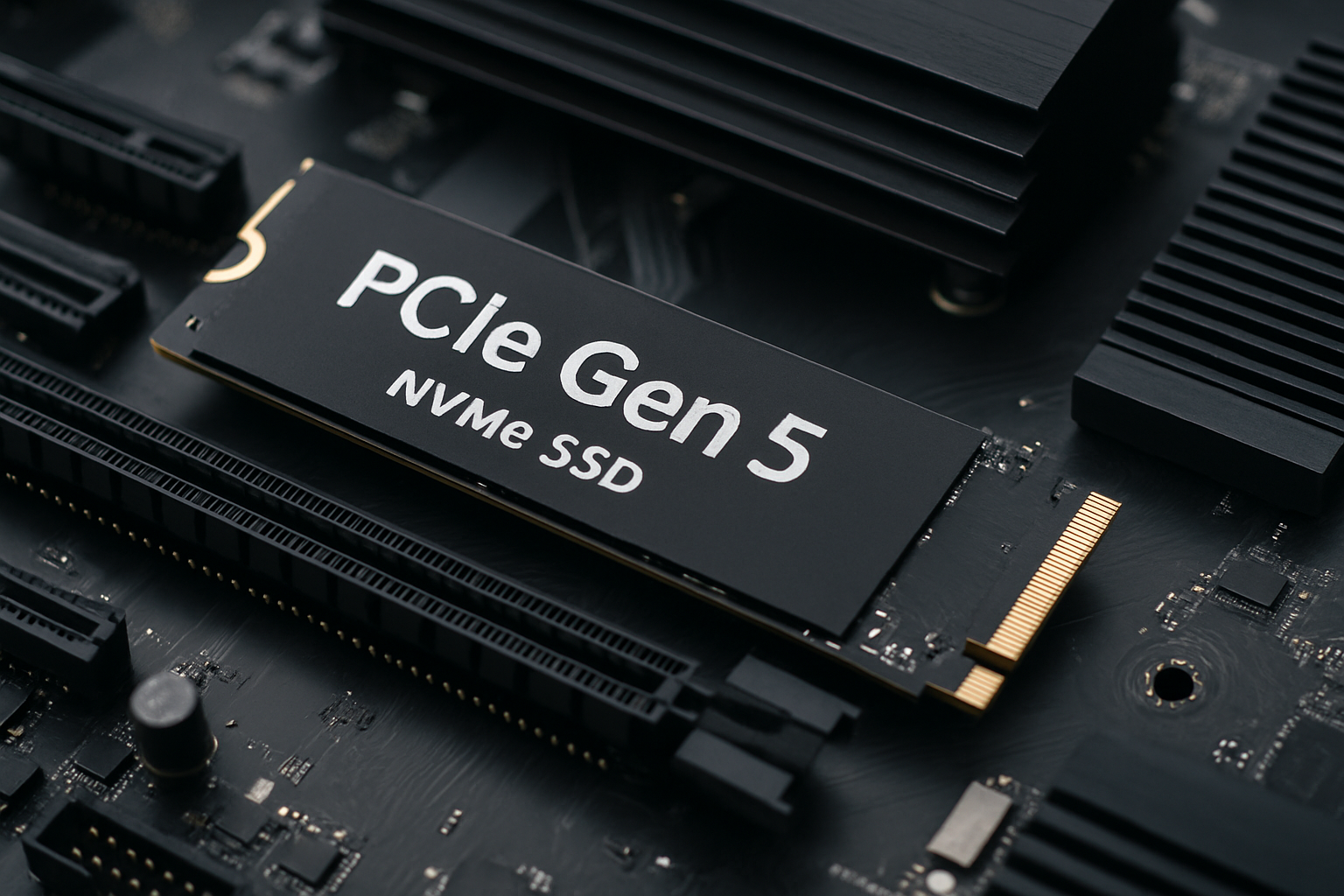
- A Gen 5 SSD is an NVMe SSD that uses the PCIe 5.0 interface.
- It can reach roughly 10,000–14,000 MB/s in sequential read tests.
- It needs a compatible PCIe 5.0 x4 slot to run at full speed.
- It usually benefits from a proper heatsink.
- It may help with large file transfers, video work, virtual machines, and some professional workloads.
- Most everyday users can use a good Gen 4 SSD without a major loss in real-world comfort.
- A high speed rating does not replace endurance, cooling, firmware support, and backups.
Frequently asked questions
Can I use a Gen 5 SSD in a Gen 4 motherboard?
Yes, in most cases. The drive should operate at PCIe 4.0 speeds when installed in a compatible PCIe 4.0 M.2 slot. Check the motherboard manual for physical support, lane limits, and BIOS requirements.
Will a Gen 5 SSD work in a PCIe 3.0 slot?
Many Gen 5 NVMe drives are backward compatible with PCIe 3.0, but they will run at PCIe 3.0 speeds. The computer may also have limits related to boot support, slot design, or firmware.
Is Gen 5 SSD storage worth it for gaming?
It can be worthwhile in a new high-end gaming PC, but it is not essential for most games. A quality Gen 4 SSD usually provides fast loading, and the benefit of Gen 5 depends on game support and the rest of the system.
Why does my Gen 5 SSD run slower than advertised?
The drive may be in a slower slot, operating at a lower PCIe generation, throttling from heat, running with a full cache, or being tested with a workload that differs from the manufacturer’s test. Check the link speed, temperature, free space, and test conditions.
Does a Gen 5 SSD improve boot time?
It may improve boot performance in some systems, but the change from a good Gen 4 SSD is often small. Boot time also depends on firmware checks, drivers, startup apps, memory, and the operating system.
How much free space should I leave on a Gen 5 SSD?
There is no single rule for every model, but leaving meaningful free space helps the drive manage writes and temporary data. Keep more free space if you perform large, sustained writes or use the drive for video projects.
Conclusion
A Gen 5 SSD is a high-bandwidth NVMe drive built for PCIe 5.0. It can deliver very high transfer speeds, but it also brings greater heat, higher power demands, and a higher purchase cost than many Gen 4 drives.
The best choice depends on your computer and your work. Confirm the M.2 slot, plan for cooling, and compare sustained performance and endurance—not just the headline read speed. For most people, a quality Gen 4 SSD remains enough. For large files and demanding workstation tasks, Gen 5 can provide useful extra headroom.
The next step is simple: check your motherboard manual for PCIe 5.0 x4 support, then match the drive’s capacity, cooling, endurance, and price to the way you use your PC.

Everett Ashford is a tech reviewer at mytechgrid.com specializing in SSDs, cameras, TVs, earbuds, headphones, and other consumer electronics. He provides honest, data-driven reviews based on hands-on testing and real-world performance analysis. Everett simplifies complex tech details to help readers make smart, confident buying decisions.