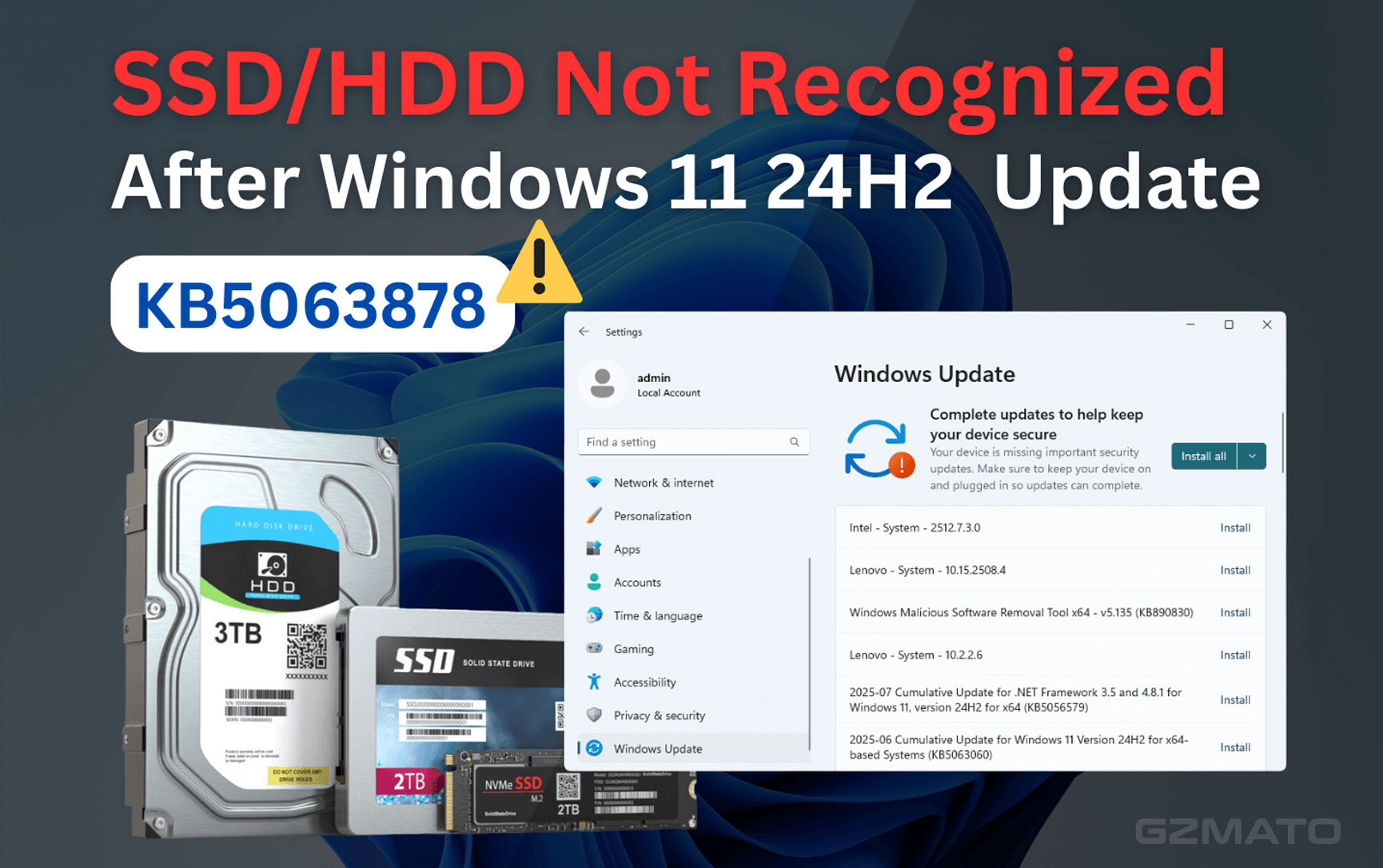
For Windows 11 PCs in the United States, the update most often linked to recent SSD failure reports is kb5063878, released in August 2025 for Windows 11 version 24H2. Some users reported that SSDs or NVMe drives disappeared during heavy file writes after installing it.
However, Microsoft has not confirmed that KB5063878 causes widespread SSD damage. The reports remain disputed. A missing drive can also point to an SSD firmware bug, overheating, a loose connection, a failing drive, or a storage-controller problem.
If your SSD began failing soon after a Windows update, protect your files first. Then check the update history, back up important data, review SSD health, and remove the update only if the timing and symptoms match.
Quick answer
The Windows update connected to the latest major SSD reports is KB5063878, a Windows 11 24H2 security update.
Reported symptoms include:
- An NVMe SSD vanishing during large file transfers
- File Explorer freezing during heavy writes
- Games or applications reporting missing files
- Disk Management showing the drive as offline or absent
- A drive returning after a restart
- Storage errors in Event Viewer
These reports do not prove that KB5063878 damages every SSD. They show a possible link reported by some users. Microsoft’s official documentation and update notes should guide any final decision.
What is KB5063878?
KB5063878 is a cumulative security update for Windows 11 version 24H2. Microsoft released it through Windows Update as part of its regular monthly security cycle.
A cumulative update contains security fixes, bug fixes, and changes from earlier updates. It can affect many parts of Windows, including:
- The Windows storage stack
- File-system services
- NVMe communication
- Device drivers
- Power management
- Security controls
- Windows servicing components
The update was not officially labeled an “SSD failure” update. The concern came from user reports that appeared after installation.
What users reported
The most common reports involved a drive disappearing while the computer performed a large write task. Examples included:
- Installing a large game
- Copying hundreds of gigabytes
- Extracting a large archive
- Recording video to an NVMe drive
- Building software or virtual machines
- Running storage benchmarks
Some reports claimed that the problem appeared when a drive was nearly full or when a sustained write load was high. These details are user observations, not a confirmed Microsoft requirement or failure threshold.
What has not been proven
There is no reliable evidence that KB5063878 permanently destroys all affected SSDs. A Windows update can expose an existing weakness without physically damaging NAND memory.
For example, an update may trigger a driver or controller error. That can make a healthy drive disappear until the system restarts. It can also reveal a firmware problem that was already present.
That difference matters. If the SSD still appears in the firmware setup or works in another computer, the issue may be software or driver related. If it is absent everywhere, hardware failure becomes more likely.
How to tell whether Windows Update caused the problem
The timing of the problem is useful, but it is not proof by itself. Check several signs before blaming an update.
1. Check the update installation date
Open:
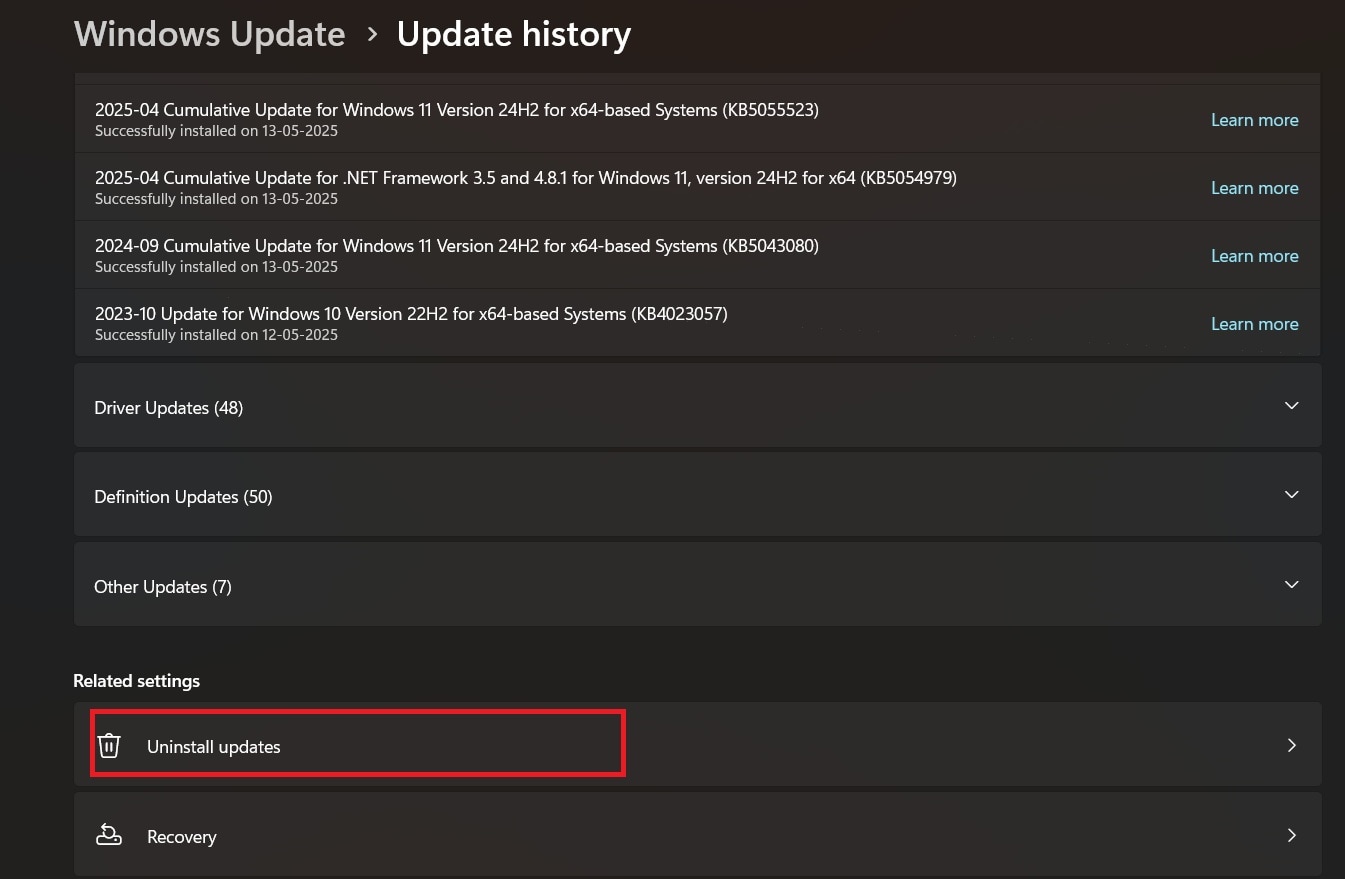
Settings > Windows Update > Update history
Look for KB5063878 or another update installed shortly before the SSD problem began.
You can also use PowerShell:
Get-HotFix | Sort-Object InstalledOn -Descending
This lists installed hotfixes and their installation dates.
2. Compare the symptoms
An update may be involved if:
- The SSD worked normally before the update.
- The problem began soon after the update.
- The issue occurs during heavy file writes.
- The drive returns after a restart.
- Other users report the same issue with the same Windows version.
- Removing the update stops the problem.
An update is less likely to be the cause if:
- The SSD is missing in the computer’s UEFI or BIOS.
- The drive has rising error counts.
- The computer has suffered power loss or overheating.
- The issue occurs on another operating system.
- The drive fails during light use and heavy use.
- The SSD is old, nearly full, or running outdated firmware.
3. Check Event Viewer
Press Windows + X, then select Event Viewer.
Go to:
Windows Logs > System
Look for events from:
- Disk
- stornvme
- storahci
- Ntfs
- volmgr
Common warning or error messages may mention:
- Reset to device
- Device not migrated
- Bad blocks
- I/O errors
- File-system corruption
- The device disappeared or was unexpectedly removed
Event Viewer can show what Windows saw. It cannot always identify the root cause. A storage reset may come from the SSD, motherboard, firmware, driver, heat, or power delivery.
4. Check whether the drive appears in UEFI or BIOS
Restart the computer and enter its firmware setup. The key is often Delete, F2, F10, or F12, depending on the computer maker.
If the SSD appears in UEFI but not in Windows, investigate Windows drivers, partitions, and the storage stack.
If it does not appear in UEFI either, do not assume that Windows Update caused the failure. Check the physical installation, motherboard slot, firmware, and drive health.
What to do before uninstalling the update
Back up your data before making changes. If the drive is unstable, copy the most important files first.
Use this order:
- Save documents, photos, work files, and recovery keys.
- Stop large downloads and disk-heavy tasks.
- Avoid repeated restarts if the SSD is making unusual sounds or vanishing.
- Check the SSD’s health with the drive maker’s tool.
- Record the update number and the time the problem began.
- Disconnect nonessential external storage devices.
- Then test whether the update is involved.
For an SSD that is failing, a full clone may be safer than copying files one at a time. If the drive repeatedly disconnects, professional data recovery may be safer than continued use.
Do not run a destructive format, initialize the disk, or use a “repair” tool that writes heavily to the drive before securing your files.
How to uninstall the suspected Windows update
Remove the update only when the symptoms began after installation and you have a backup.
Method 1: Use Windows Settings
- Open Settings.
- Select Windows Update.
- Choose Update history.
- Select Uninstall updates.
- Find the update that matches the installation date.
- Select Uninstall.
- Restart the computer.
Windows may prevent removal of some security updates. A cumulative update may also include fixes that protect the system, so do not leave it removed longer than needed.
Method 2: Use the Control Panel
- Press Windows + R.
- Type
appwiz.cpl. - Press Enter.
- Select View installed updates.
- Find the relevant KB number.
- Right-click it.
- Select Uninstall.
Method 3: Use Windows Recovery Environment
Use this method if Windows cannot start normally.
- Turn the computer on and interrupt startup two or three times.
- Windows should open the recovery screen.
- Select Troubleshoot.
- Select Advanced options.
- Select Uninstall Updates.
- Choose Uninstall latest quality update.
- Follow the prompts.
The exact menu names may vary by Windows build and computer maker.
What success looks like
The update may be involved if the SSD remains stable after removal, especially during the same file-copy task that caused the problem.
That result is useful, but it is not conclusive. Removing an update can also change the driver state or reset a service. Test again with a small, noncritical file transfer before returning to normal use.
What to do if uninstalling fails
If Windows will not remove the update:
- Check for a newer cumulative update.
- Install the latest SSD firmware.
- Update the motherboard chipset and storage drivers.
- Test the drive in another compatible slot or computer.
- Use System Restore if a restore point exists.
- Contact the SSD maker if health data shows errors.
- Contact Microsoft Support if the issue affects multiple systems.
Do not download random “Windows update remover” programs. They can damage the operating system or install unwanted software.

Other causes that can look like an SSD problem
A Windows update is only one possible cause. These checks can prevent a wrong diagnosis.
SSD firmware
SSD firmware controls the drive’s internal behavior. A firmware bug can cause resets, slowdowns, or temporary disconnections.
Check the SSD maker’s official support tool. Read the release notes before updating. Keep the computer on reliable power, and do not interrupt a firmware update.
Heat
NVMe drives can become hot during long writes. Some drives reduce speed when hot. Others may reset or disconnect if the controller becomes unstable.
Check temperatures with a trusted hardware tool. Improve airflow and confirm that the motherboard’s heat spreader is installed correctly.
Loose hardware
For a 2.5-inch SATA SSD, check:
- SATA data cable
- SATA power cable
- Motherboard SATA port
- Power-supply connections
For an M.2 NVMe drive, check:
- Screw and mounting position
- M.2 slot
- Contact alignment
- Motherboard firmware
- Heatsink pressure
Turn off the computer and disconnect power before reseating internal hardware.
Drive health
Use the SSD manufacturer’s diagnostic tool when possible. Review:
- Overall health status
- Percentage used
- Available spare capacity
- Media and data integrity errors
- Unsafe shutdown count
- Critical warnings
- Temperature
- Total bytes written
A “good” health label does not guarantee that the drive is perfect. Some failures happen in the controller or connection before SMART data changes.
File-system damage
If the SSD is stable and backed up, Windows may report file-system errors. You can scan the volume with:
chkdsk C: /scan
Replace C: with the correct drive letter.
Avoid starting with chkdsk /f or chkdsk /r on an unstable drive. Those commands can make changes or perform long reads. Secure important data first.
Drivers and motherboard firmware
Storage behavior can depend on more than the Windows update itself. Check the computer or motherboard maker for:
- BIOS or UEFI updates
- Chipset drivers
- Intel or AMD storage drivers
- NVMe firmware
- Power-management fixes
Use official manufacturer websites. Do not replace a working driver with a generic one without a reason.

Should you pause Windows updates?
Pause updates briefly while you diagnose an unstable system. This can prevent another restart during testing.
Go to:
Settings > Windows Update > Pause updates
A pause is not a permanent fix. Security updates help protect Windows, so install a later replacement update when Microsoft provides one or when the cause is known.
Do not disable Windows Update with registry hacks or unknown scripts. Those changes can create security and servicing problems.
If you manage several business PCs, test updates on a small group first. Confirm backups, restore methods, and storage health before broad deployment.
A practical diagnosis table
Use the symptom pattern to choose the next safe check.
| Symptom | More likely causes | First action |
|---|---|---|
| SSD is missing in UEFI and Windows | Hardware, power, slot, or drive failure | Power down and check hardware |
| SSD appears in UEFI but not Windows | Driver, partition, storage service, or Windows issue | Check Disk Management and Event Viewer |
| SSD disappears only during long writes | Heat, firmware, controller reset, or reported update conflict | Back up data and check temperature and firmware |
| Drive works after every restart | Driver, power state, controller reset, or loose connection | Review storage events and connections |
| File errors occur but the drive stays visible | File-system damage or failing media | Back up, then run a cautious scan |
| Problem began months after the update | Timing is weak evidence | Check health, firmware, heat, and hardware first |
| Several identical PCs fail after the same update | Possible software or driver regression | Pause deployment and compare update history |
The table is a decision aid, not a diagnosis. A failing SSD can produce several of these patterns at once.

Common mistakes to avoid
Do not treat a social media report as proof
A post can reveal a real symptom, but it does not establish the cause. Users may have different SSD models, firmware, Windows builds, motherboards, and workloads.
Do not keep using an unstable drive
Repeated write tests can worsen data loss. Back up first, then test with small files.
Do not format the SSD too soon
Formatting may remove access to recoverable data. It also does not repair a failing controller or bad connection.
Do not install unofficial drivers
Driver sites that offer automatic installers may provide incorrect or modified files. Start with Windows Update and the hardware maker’s support page.
Do not confuse a missing partition with a dead SSD
The drive may appear in Disk Management without a drive letter. Do not initialize or format it until you know whether it contains needed data.
Do not assume rollback is a permanent solution
Removing a security update can reduce protection. Use rollback as a diagnostic step, then look for a fixed update or a confirmed hardware solution.
Frequently asked questions
Is KB5063878 definitely damaging SSDs?
No. KB5063878 is the update linked to reports of SSDs disappearing during heavy writes, but widespread permanent SSD damage has not been established by the available reports. Check the exact Windows version, SSD model, firmware, and event logs before drawing a conclusion.
Does uninstalling KB5063878 fix the SSD?
It may fix a software-related symptom if the update is involved. It will not repair physical NAND wear, a failed controller, overheating, a bad cable, or a damaged motherboard slot.
Can Windows Update make an SSD disappear?
Yes, a Windows update can potentially trigger a driver, power-management, or storage-stack problem that makes a drive temporarily unavailable. A drive that vanishes in UEFI as well as Windows points more strongly to hardware or firmware.
Should I update my SSD firmware?
Check for an official firmware update, especially if the maker lists stability or NVMe fixes. Back up your data first and follow the maker’s instructions. Do not interrupt the process.
How can I check whether my SSD is failing?
Use the SSD manufacturer’s diagnostic tool and review SMART or health data. Also check Event Viewer, temperature, connection stability, and whether the drive works in another compatible system. A clean health report does not rule out every failure.
When should I replace the SSD?
Replace it when the maker’s tool reports a critical warning, errors keep increasing, the drive disconnects across systems, or it cannot hold data reliably. If the files matter, recover or copy them before replacement.
Bottom line
KB5063878 is the Windows update most associated with recent SSD-disappearance reports, but it has not been proven to cause widespread permanent SSD damage.
Treat the timing as a clue, not a verdict. Back up your files, check whether the drive appears in UEFI, review Event Viewer, inspect SSD health and temperature, and then consider uninstalling the update. If the SSD fails in more than one system, the drive or its firmware is the stronger suspect.
Sources for verification
- Microsoft Support: Windows 11 update history
- Microsoft Support: Uninstall a Windows update
- Microsoft Support: Windows Recovery options
- Microsoft Learn: Get-HotFix PowerShell command
- Microsoft Learn: CHKDSK command

Everett Ashford is a tech reviewer at mytechgrid.com specializing in SSDs, cameras, TVs, earbuds, headphones, and other consumer electronics. He provides honest, data-driven reviews based on hands-on testing and real-world performance analysis. Everett simplifies complex tech details to help readers make smart, confident buying decisions.