You can check SSD temperature with a monitoring app, SMART data, BIOS tools, or built-in operating system commands.
Knowing how to check SSD temperature helps you spot heat problems before they cause slow speeds, crashes, or reduced drive life. I have seen many systems run well during light tasks but slow down during large file transfers because the SSD became too hot. This guide explains how to check SSD temperature on Windows, macOS, and Linux, how to read the results, and what to do when temperatures rise.
Why SSD temperature matters
Solid-state drives create heat when they read and write data. The controller, NAND flash chips, and cache all work harder during tasks such as gaming, video editing, backups, and operating system updates.
A warm SSD is not always a problem. Modern drives can protect themselves by reducing speed when they reach a high temperature. This process is called thermal throttling.
Common signs of an overheating SSD include:
• Slower file transfers
• Game stuttering or longer loading times
• System freezes during heavy storage tasks
• A sharp drop in benchmark results
• A warning from the SSD monitoring software
Learning how to check SSD temperature gives you a clear view of what happens inside your computer. It is similar to checking a car’s oil temperature before assuming the engine has a fault.
What is a normal SSD temperature?
Most SSDs work well between 30°C and 50°C during light use. Temperatures between 50°C and 70°C are common during heavy workloads, especially in laptops or small desktop cases.
The exact safe range depends on the model. Always check the specifications for your SSD because one drive may have a different operating limit from another.
As a general guide:
• 20°C to 40°C: Cool or normal at idle
• 40°C to 60°C: Normal during regular use
• 60°C to 70°C: Warm during heavy activity
• 70°C to 80°C: High and worth investigating
• Above 80°C: Potentially unsafe for sustained use
Some high-speed PCIe 4.0 and PCIe 5.0 NVMe drives run hotter than older SATA SSDs. A laptop SSD may also show higher readings because it has less airflow around it.
Temperature readings can vary by sensor. Some SSDs report the controller temperature, while others report a composite value from several internal sensors. This is one reason why two monitoring programs may show slightly different numbers.
How to check SSD temperature on Windows
Windows does not always show SSD temperature in a simple settings window. However, you can use several reliable methods.
Use a drive monitoring tool
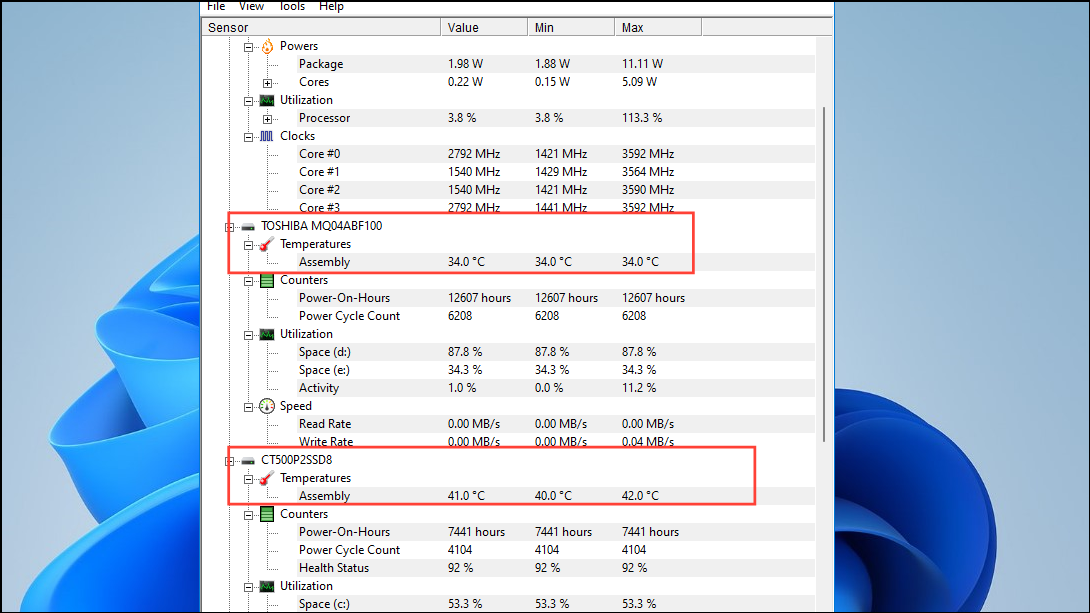
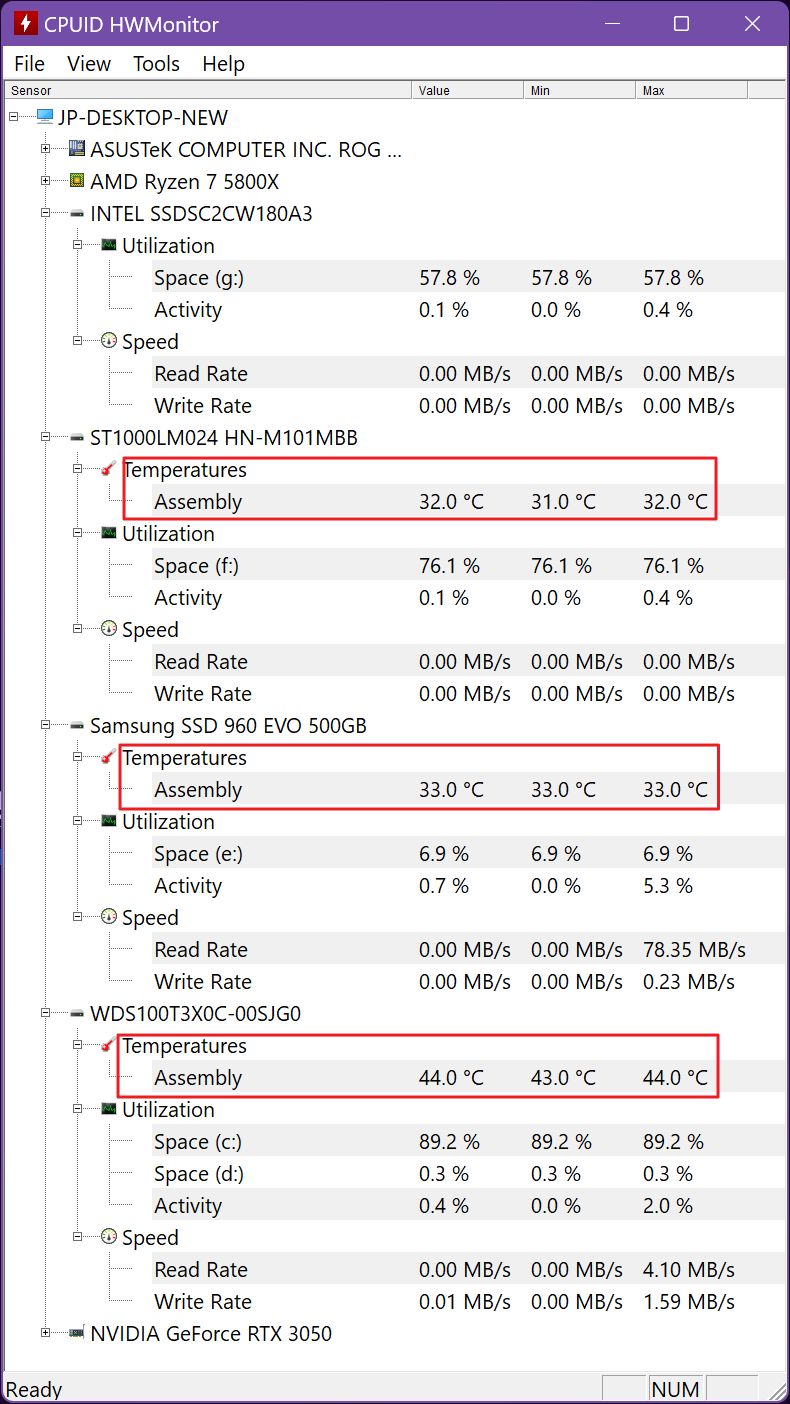
The easiest way to learn how to check SSD temperature on Windows is to use a trusted hardware monitoring program. These tools read the SSD’s S.M.A.R.T. data and display the temperature.
The process usually looks like this:
-
Download a reputable SSD or hardware monitoring tool.
-
Install and open the program.
-
Find the storage or drive section.
-
Look for a temperature value in degrees Celsius.
-
Check whether the reading is listed as current, minimum, or maximum.
You may see more than one temperature value. On an NVMe drive, one value may represent the main controller, while another may represent a secondary sensor.
Avoid installing several monitoring tools at once. They may read the same sensor in different ways and make the results confusing.
Check temperature with CrystalDiskInfo
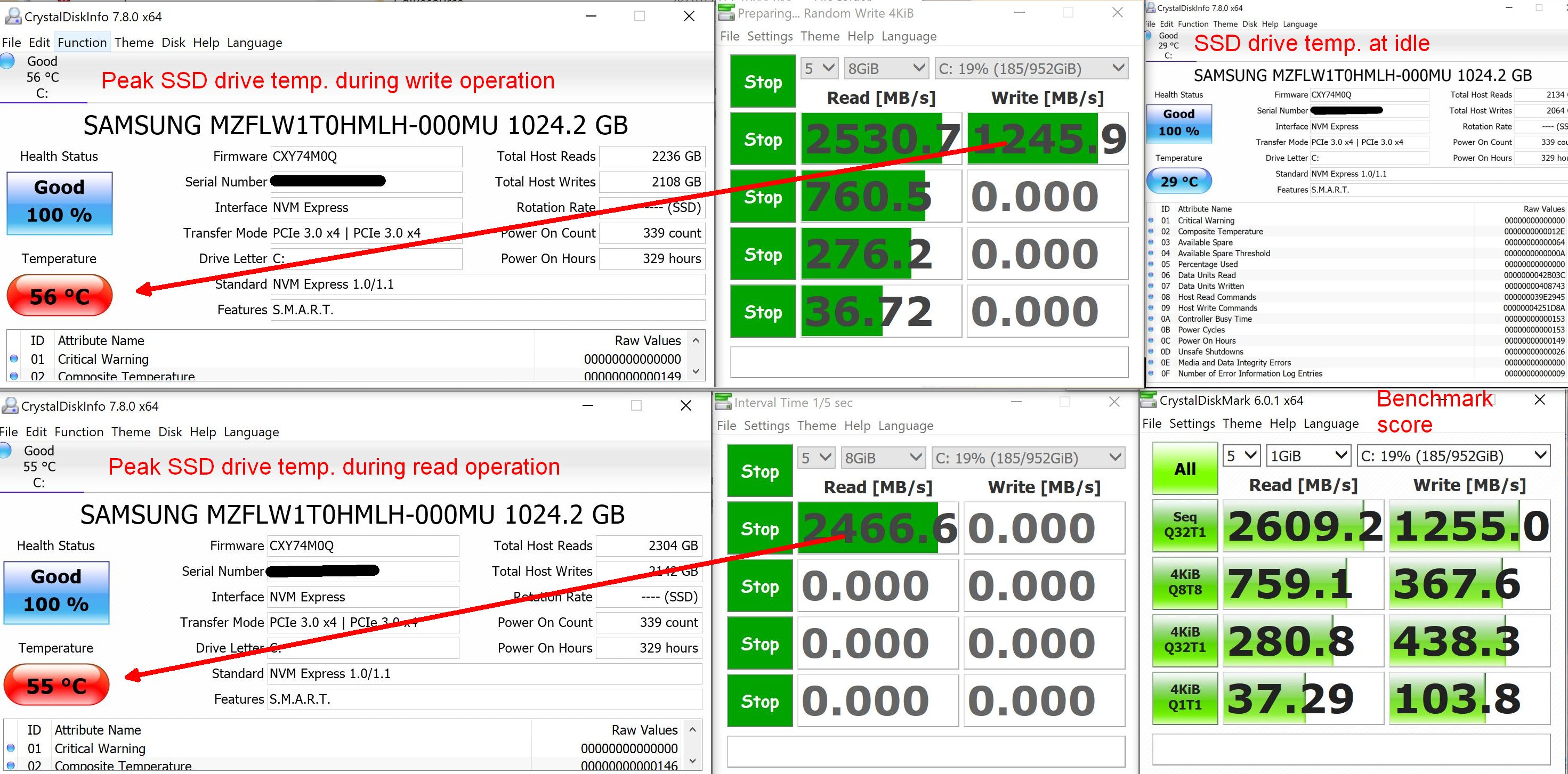
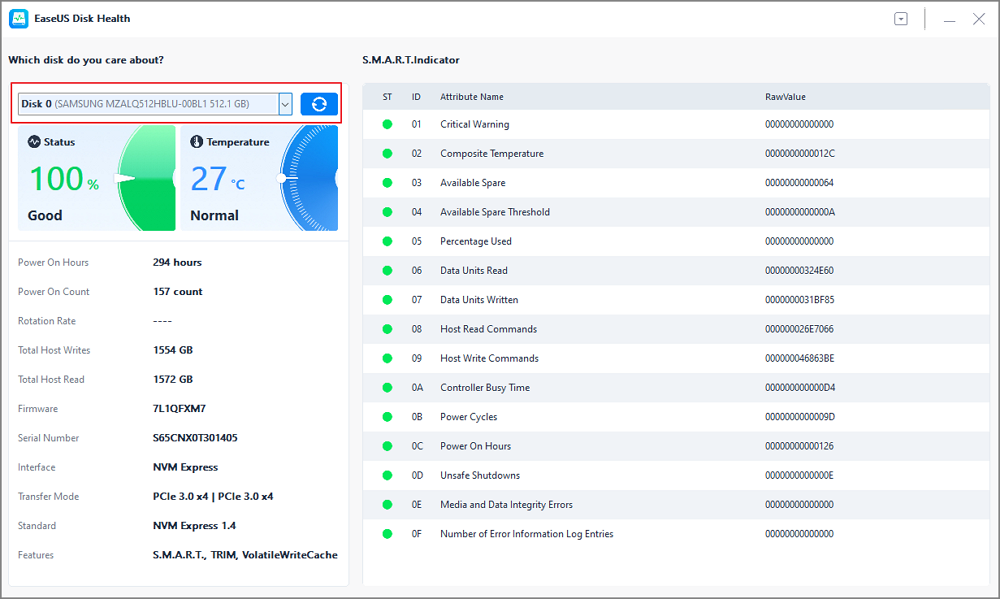
CrystalDiskInfo is a popular Windows utility for viewing S.M.A.R.T. information. It commonly displays the current temperature near the top of the drive information panel.
To use it:
-
Install and launch the application.
-
Select the SSD from the drive list.
-
Find the temperature field.
-
Record the reading during idle use.
-
Start a demanding task and check the temperature again.
This method is useful because it also shows drive health, power-on hours, total host writes, and warning attributes. The exact information depends on the SSD model and its firmware.
Use the SSD manufacturer’s software
Many SSD brands provide their own management software. These applications may show temperature, firmware updates, drive health, and remaining life.
Manufacturer software can be useful when a general monitoring tool does not detect a sensor correctly. It may also provide the most accurate interpretation of the drive’s health data.
Still, do not update firmware during an important task or power interruption. Back up valuable files first, even when the update tool claims the process is safe.

How to check SSD temperature without installing software
Some users want to know how to check SSD temperature without adding another program. Your options depend on the SSD, motherboard, Windows version, and available firmware support.
Use Windows PowerShell
Windows PowerShell can sometimes report storage temperature through health information. Open PowerShell as an administrator and try:
Get-PhysicalDisk | Get-StorageReliabilityCounter | Select-Object Temperature, Wear, PowerOnHours
If supported, the command may show the drive temperature in degrees Celsius. Some systems return a blank value because the SSD or storage driver does not expose this sensor to Windows.
You can also try:
Get-PhysicalDisk
This command identifies connected physical drives but may not show temperature by itself.
Check the BIOS or UEFI
Some motherboards display NVMe drive temperature in the BIOS or UEFI hardware monitor.
To check:
-
Restart the computer.
-
Press the BIOS key during startup. Common keys include Delete, F2, or F10.
-
Open the hardware monitor or system information page.
-
Look for an NVMe, M.2, or storage temperature reading.
This reading is useful, but it shows the temperature at startup or while the system is idle. It does not show the highest temperature reached during gaming or file transfers.
Use Windows Event Viewer for warnings
Event Viewer usually does not provide a live SSD temperature reading. It may, however, show storage errors or warnings linked to overheating, controller problems, or communication issues.
Look under Windows Logs and System. Search for storage-related errors, but do not assume every disk error means the SSD is too hot. Loose cables, outdated drivers, power problems, and failing hardware can create similar messages.
How to check SSD temperature on macOS
Mac computers may not display SSD temperature in a standard system menu. This is especially true for Apple’s built-in storage, where sensor access can vary by model and macOS version.
Third-party Mac monitoring tools can read available thermal sensors. After installing one, look for entries such as:
• Apple SSD temperature
• Internal storage temperature
• NVMe temperature
• Drive temperature
External SSDs may report temperature only if their USB or Thunderbolt enclosure passes the sensor data to macOS. Some enclosures do not expose this information at all.
If an external SSD shows no temperature, that does not always indicate a fault. It may simply mean the enclosure does not support sensor reporting.
For Mac users, how to check SSD temperature often depends more on the enclosure and interface than on the SSD itself. A Thunderbolt enclosure may provide better monitoring support than a basic USB adapter.
How to check SSD temperature on Linux
Linux offers several useful tools for checking storage temperature. The best method depends on whether the drive uses SATA or NVMe.
Check an NVMe SSD with nvme-cli
Install the appropriate package for your Linux distribution, then run:
sudo nvme smart-log /dev/nvme0
Look for a line labeled temperature. The device name may differ if you have more than one NVMe drive.
You can list available NVMe devices with:
sudo nvme list
The S.M.A.R.T. log may also show warning levels, critical warnings, power cycles, and total data written.
Check a SATA SSD with smartctl
For SATA drives, the smartmontools package is commonly used. Run:
sudo smartctl -a /dev/sda
Find the temperature entry in the output. Your SSD may appear as a different device, such as /dev/sdb.
If the command does not work, you may need to identify the correct device first. Be careful when using storage commands because selecting the wrong device for a write operation can destroy data.
Monitor temperature continuously
For longer testing, use a system monitor that supports sensors. This can help you see whether the temperature rises slowly or jumps during a specific task.
Continuous monitoring is useful when diagnosing:
• Thermal throttling
• Poor case airflow
• A missing M.2 heatsink
• A faulty enclosure
• Heat buildup in a laptop
Linux users have strong tools for how to check SSD temperature, but the output may look technical at first. Focus on the current temperature, warning status, and maximum reading.

How to check SSD temperature during heavy use
An idle temperature does not tell the full story. An SSD may sit at 35°C on the desktop and reach 75°C during a large file transfer.
To get a useful reading, follow this simple test:
-
Check the SSD temperature after the computer has been idle for 10 minutes.
-
Start a demanding task, such as copying a large folder.
-
Continue monitoring the temperature for 5 to 15 minutes.
-
Record the highest temperature.
-
Stop the task if the drive reaches an unsafe level or the system becomes unstable.
You can test with a large game installation, a video export, a disk benchmark, or a backup. Do not use a benchmark on a drive that contains important files unless you have a current backup.
When I test an SSD, I check the temperature before, during, and after the workload. The most useful number is often the peak temperature, not the idle reading.
A brief spike is less concerning than a drive that stays near its thermal limit for hours. Heat that remains high can cause performance loss and may increase long-term wear.
How to understand SSD temperature readings
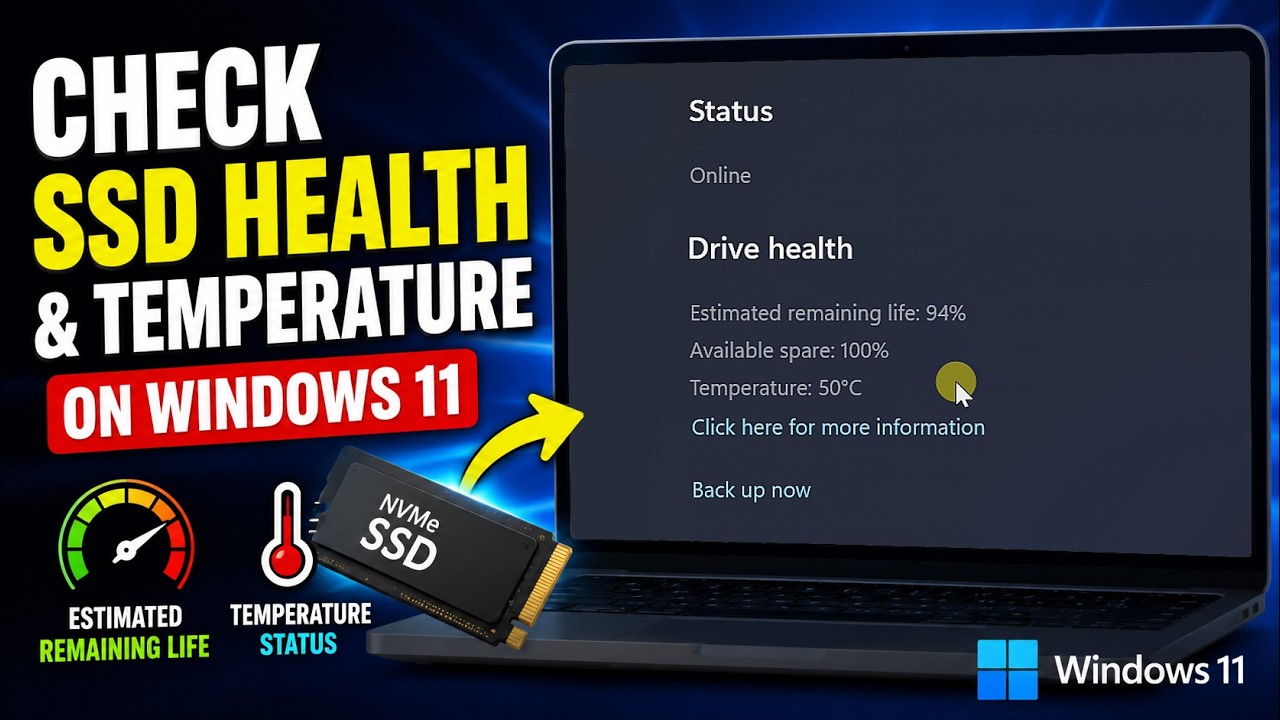
Temperature alone does not prove that an SSD is failing. You should compare the reading with the drive’s rated limits, workload, airflow, and performance.
Check these details:
• Current temperature: The reading at this moment
• Peak temperature: The highest recorded value
• Warning temperature: The level where the drive may reduce performance
• Critical temperature: The level where protection measures may begin
• Thermal throttling: Automatic speed reduction caused by heat
A drive that reports 65°C during a long write may be working normally. Another drive that reaches 65°C at idle may need better airflow.
Also check whether the drive temperature changes when you remove the computer’s side panel. If the temperature drops sharply, case airflow may be the main issue.
S.M.A.R.T. data can provide valuable clues, but it is not perfect. Some tools may show a stale reading, use a different sensor, or fail to detect a temperature value through an external adapter.
What causes high SSD temperature?
Several factors can make an SSD run hotter than expected.
Limited airflow
An M.2 SSD may sit beneath a graphics card, where warm air collects. Small laptop compartments can create a similar problem.
Heavy workloads
Large file transfers, video editing, virtual machines, and game installations can produce sustained heat. PCIe 4.0 and PCIe 5.0 drives often produce more heat than SATA models.
Missing or poor heatsink contact
Some motherboards include an M.2 heatsink. If the thermal pad does not touch the SSD correctly, the heatsink cannot move heat away.
Dust and blocked vents
Dust can reduce airflow through desktop cases and laptops. Blocked vents may raise the temperature of every internal component.
High room temperature
A computer in a hot room starts with less cooling capacity. An SSD at 45°C in a cool room may reach a much higher temperature during summer.
External enclosures
A compact USB enclosure can trap heat around the SSD. The USB controller may also add heat, especially during long transfers.
How to lower SSD temperature
If your SSD is too hot, start with simple changes before buying new hardware.
• Improve case airflow by clearing blocked intake and exhaust fans.
• Clean dust from filters and vents.
• Move an M.2 SSD away from a hot graphics card if your motherboard allows it.
• Install the correct M.2 heatsink and thermal pad.
• Confirm that the thermal pad has protective film removed.
• Update the motherboard BIOS and SSD firmware when appropriate.
• Use a better-ventilated external enclosure.
• Avoid placing a laptop on a bed, blanket, or soft surface.
• Reduce long, unnecessary benchmark runs.
• Keep the computer in a cooler room during heavy workloads.
I once found an SSD running far hotter than expected because the thin plastic film was still covering the thermal pad. Removing it fixed the contact problem immediately. This is an easy mistake to make, especially when building a computer in a hurry.
Do not place a random thermal pad on the SSD without checking its thickness. A pad that is too thick may prevent the heatsink from sitting flat. A pad that is too thin may not touch the drive at all.
Common mistakes when checking SSD temperature
Knowing how to check SSD temperature is useful, but the result can be misleading if you use the wrong method.
Avoid these mistakes:
• Checking only the idle temperature
• Confusing CPU temperature with SSD temperature
• Comparing a controller sensor with a composite sensor
• Assuming a high reading always means the drive is failing
• Running a benchmark without backing up important files
• Trusting a single application when readings seem unusual
• Ignoring laptop and enclosure airflow
• Treating a short temperature spike as a constant condition
Another mistake is focusing only on temperature while ignoring drive health. Check the S.M.A.R.T. status, error counts, remaining life, and firmware alerts as well.
If one tool reports 55°C and another reports 60°C, the difference may be normal. Compare readings over time and use the manufacturer’s specifications as the final reference.
When should you replace an SSD?
High temperature alone does not always mean you need a new drive. First, improve airflow and confirm the reading with another tool.
Consider replacement when high temperatures occur with other warning signs, such as:
• Repeated read or write errors
• A failing or critical S.M.A.R.T. status
• Frequent system freezes
• Missing files or corrupted data
• Sudden capacity changes
• Severe performance drops after cooling improvements
• Firmware warnings from the manufacturer
Back up your data before testing a drive that shows serious warnings. If the SSD contains important work, photos, or business files, use a second drive or cloud backup.
Temperature monitoring is a preventive step. It cannot repair damaged flash memory or reverse data loss. It simply helps you identify problems sooner.
Frequently Asked Questions About How to Check SSD Temperature
How do I check my SSD temperature quickly?
Use a trusted drive monitoring tool and open the storage or S.M.A.R.T. section. Select the SSD and read the current temperature in degrees Celsius.
What temperature is too hot for an SSD?
A sustained temperature above 70°C deserves attention, while temperatures above 80°C may be unsafe for many drives. Always compare the reading with the SSD manufacturer’s rated operating range.
Can I check SSD temperature in Windows without software?
Sometimes. PowerShell and BIOS or UEFI may show the temperature, but support varies by drive, motherboard, and driver. A dedicated monitoring tool usually provides more complete information.
Why does my SSD temperature change so much?
Temperature changes with workload, airflow, room temperature, and sensor type. Large file transfers and benchmarks can make an SSD much hotter than normal desktop use.
Does an M.2 SSD need a heatsink?
Not every M.2 SSD needs one, but a heatsink can help during long, heavy workloads. High-speed PCIe 4.0 and PCIe 5.0 drives benefit most from proper cooling.
Can high SSD temperature damage my data?
High heat may reduce performance and contribute to long-term wear, but it does not automatically mean data is damaged. Keep current backups and investigate any temperature warning combined with read, write, or S.M.A.R.T. errors.
Why is my external SSD not showing a temperature?
The USB or Thunderbolt enclosure may not pass temperature data to the operating system. The SSD can still work normally even when its sensor is unavailable.
Conclusion
Checking SSD temperature is a simple way to protect performance and catch cooling problems early. Use a monitoring tool, PowerShell, BIOS, smartctl, or nvme-cli, then compare idle and peak readings with the manufacturer’s specifications.
Remember that how to check SSD temperature is only the first step. If the drive runs hot, inspect airflow, heatsink contact, room temperature, and workload before assuming the SSD has failed. Check your drive today, record its normal temperature, and use that baseline to spot future changes. Share your experience or explore more storage guides to keep your system fast and reliable.

Everett Ashford is a tech reviewer at mytechgrid.com specializing in SSDs, cameras, TVs, earbuds, headphones, and other consumer electronics. He provides honest, data-driven reviews based on hands-on testing and real-world performance analysis. Everett simplifies complex tech details to help readers make smart, confident buying decisions.