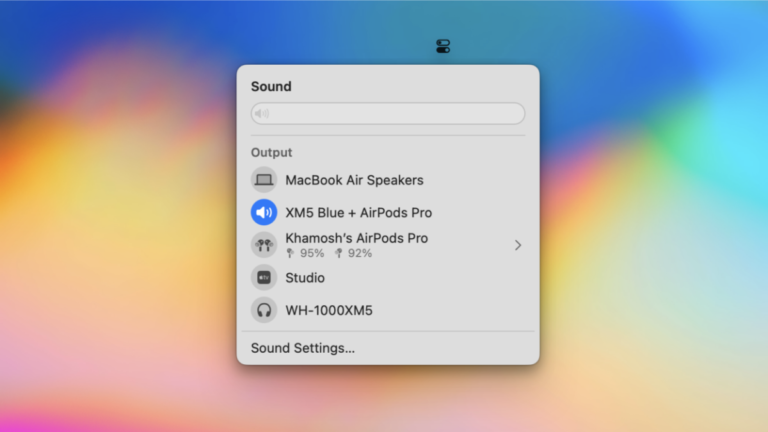
Pair via Bluetooth: put WH-1000XM5 in pairing mode and connect from macOS Bluetooth.
I’ve paired many headphones to Macs over the years, and I’ll walk you through exactly how to connect Sony headphones to Mac WH-1000XM5. This guide covers step-by-step pairing, selecting the WH-1000XM5 as your Mac audio device, wired options, codec and quality notes, troubleshooting tips I’ve learned the hard way, and practical settings to get the best sound and battery life. Read on for clear, tested instructions and simple fixes so your WH-1000XM5 works smoothly with your Mac.
Why connect your WH-1000XM5 to a Mac?
Connecting the WH-1000XM5 to a Mac gives you great noise canceling for focus, clear audio for calls, and solid music quality. The headphones pair fast and work well for video, music, and remote meetings. Knowing how to connect Sony headphones to Mac WH-1000XM5 saves time and avoids common glitches that can interrupt work or play.

Step-by-step: How to connect Sony headphones to Mac WH-1000XM5
Follow these short steps. They work on most recent macOS versions.
- Prepare the headphones
- Charge the WH-1000XM5 so they have battery.
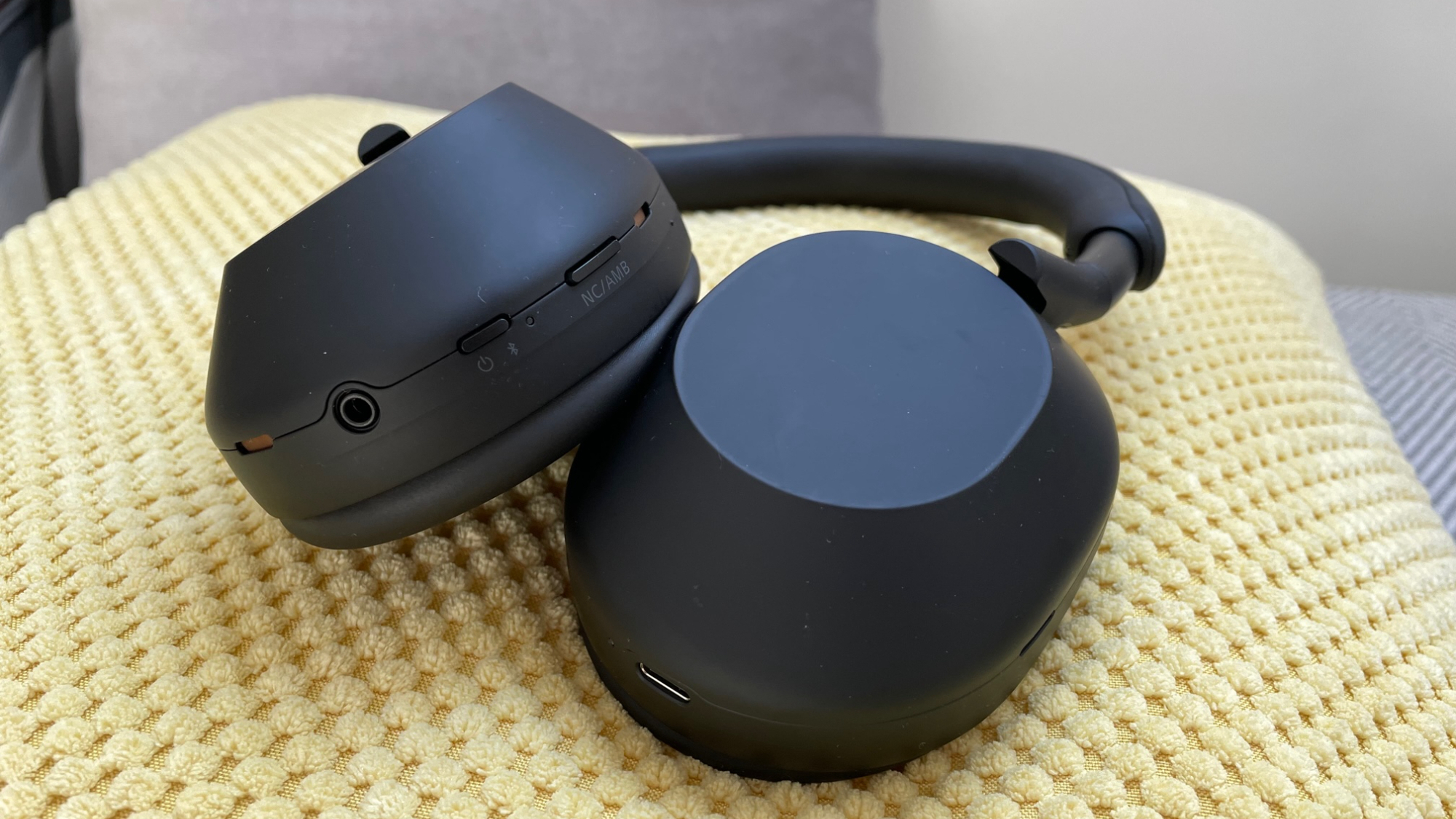
- Turn them off first. Then press and hold the power button for about 7 seconds until the voice says “Bluetooth pairing” and the LED flashes blue.
- Open Bluetooth on your Mac
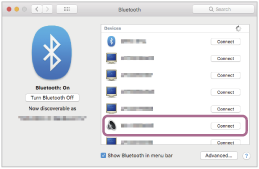
- On macOS Ventura or later, open System Settings, then Bluetooth. Turn Bluetooth on.
- On older macOS, open System Preferences, then Bluetooth.
- Pair the WH-1000XM5
- Look for “WH-1000XM5” in the device list.
- Click Connect next to the device name. Wait for the confirmation.
- Confirm audio routing
- Once connected, select the headphones as output. Use System Settings > Sound or the Control Center > Sound to pick WH-1000XM5.
- Test audio and mic
- Play music and run a mic test in System Settings > Sound > Input to confirm the mic (if you need it) works.
If you need to re-pair later, remove the device in Bluetooth settings and repeat the pairing steps.
Selecting the WH-1000XM5 as your Mac audio device
After pairing, you may need to choose the headphones for output and input.
- Use the menu bar Control Center to quickly pick Output and Input.
- Or go to System Settings > Sound and choose WH-1000XM5 for Output and Input.
- For apps like Zoom, choose WH-1000XM5 inside the app’s audio settings to ensure the app uses the correct device.
Note that macOS may list the device twice (one for headset mode, one for stereo). For best music quality, pick the stereo output entry. For calls, apps may switch to the headset entry automatically.
Using a wired connection and adapters
If Bluetooth quality or latency is an issue, a wired link can help.
- USB-C to USB-C
- Connect the WH-1000XM5 to a Mac with a USB-C cable. The Mac should detect them as a USB audio device. This lowers latency and avoids codec limits.
- 3.5mm analog (if you have a cable and jack)
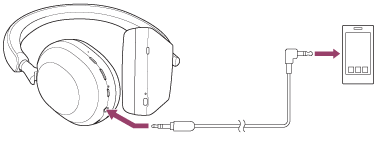
- If your Mac has a headphone jack, and you have an analog cable, plug in for a simple wired connection.
- Adapters
- For older Macs, use a USB-C to USB-A adapter or a USB audio interface if needed.
Wired use is great for video editing, gaming, or when you need zero Bluetooth interruptions.

Troubleshooting common issues when connecting WH-1000XM5 to a Mac
These quick fixes cover most pairing problems I’ve seen.
- Headphones not showing in Bluetooth
- Turn Bluetooth off and on. Restart your Mac and try pairing again.
- Audio stutters or drops
- Move closer to the Mac and remove interference. Re-pair if problem persists.
- Low audio quality or wrong codec
- macOS mainly uses SBC or AAC. For higher quality codecs like LDAC, use a wired link or an external transmitter.
- Mic not working
- In System Settings > Sound, set WH-1000XM5 as the Input device. Restart the app after switching.
- Multiple devices cause connection confusion
- Remove old pairings from Bluetooth list on the Mac and on the headphones if you have too many devices stored.
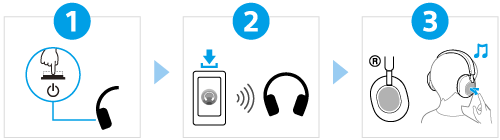
I often fix stubborn issues by updating the headphone firmware with the Sony Headphones Connect app on a phone and then retrying pairing.
Tips to get the best audio and battery life
Small changes make a big difference.
- Update firmware
- Keep headphone firmware current via the Sony Headphones Connect app for better stability and features.
- Use AAC when possible
- macOS works well with AAC. If your track sounds better on AAC, prefer that connection mode on macOS.
- Enable noise canceling only when needed
- Turn off active noise canceling when you don’t need it to save battery.
- Use multipoint wisely
- The WH-1000XM5 supports multipoint with two devices. If you have trouble, disconnect one device and re-pair the other.
- Close conflicting apps
- Apps that access audio can block changes. Quit apps you aren’t using when you switch devices.
From my own use, I learned to update firmware first, then pair. This cut my pairing time from minutes to seconds.

Frequently Asked Questions of how to connect sony headphones to mac wh-1000xm5
How do I put my WH-1000XM5 in pairing mode?
Press and hold the power button for about 7 seconds until the voice says “Bluetooth pairing” and the LED flashes blue. Then open Bluetooth on your Mac and select the device.
Why is my WH-1000XM5 not showing sound on Mac?
Check that the WH-1000XM5 is selected as the output in System Settings > Sound or via the Control Center. If selected and still silent, reconnect or restart the Mac and headphones.
Can I use LDAC with my Mac when I connect WH-1000XM5?
Macs do not natively support LDAC over Bluetooth. For LDAC, use a wired connection or a compatible external transmitter instead.
How do I update the headphone firmware for WH-1000XM5?
Use the Sony Headphones Connect app on an iPhone or Android device to download and install firmware updates. Firmware updates improve stability and pairing.
How do I reset pairing on the WH-1000XM5?
Remove the WH-1000XM5 from your Mac Bluetooth list, then re-initiate pairing mode on the headphones and connect again. If needed, use the Sony app for deeper reset options.
Conclusion
You can get your WH-1000XM5 working with a Mac in minutes by using pairing mode, opening macOS Bluetooth, and selecting the headphones as your audio device. If quality or stability is important, use a wired USB-C link or keep firmware updated. Try the steps now—pair, test audio, and tweak sound settings for the best experience. If this guide helped, leave a comment or subscribe for more clear, hands-on tech tips.

Jamie Lee is a seasoned tech analyst and writer at MyTechGrid.com, known for making the rapidly evolving world of technology accessible to all. Jamie’s work focuses on emerging technologies, product deep-dives, and industry trends—translating complex concepts into engaging, easy-to-understand content. When not researching the latest breakthroughs, Jamie enjoys exploring new tools, testing gadgets, and helping readers navigate the digital world with confidence.