Reset your Sony earbuds by using the model-specific button or touch sequence to factory reset and re-pair.
I’ve spent years fixing audio gear and testing Sony earbuds. This guide shows clear, step-by-step methods for how to reset Sony earbuds across common models. You will learn when to reset, the difference between soft and factory resets, exact steps for popular Sony earbuds, and what to do after a reset. Read on for practical tips, mistakes to avoid, and quick fixes that actually work.
Why you might need to reset Sony earbuds
A reset can fix pairing issues, audio dropouts, uneven sound, or a stuck earbud. Resetting restores the earbuds’ Bluetooth settings and clears glitches. Sometimes a simple reset fixes the issue in minutes. Other times a factory reset is needed to erase old pairings and corrupt settings.
Common causes that make you ask how to reset Sony earbuds:
- Bluetooth pairing errors after an OS update.
- One bud not connecting or producing sound.
- Unresponsive touch controls or noise-canceling glitches.
- Firmware update failures or stuck LED indicators.
Knowing how to reset Sony earbuds helps you decide the right level of reset. A soft reset is quick and safe. A factory reset clears all settings and pairings. Use the factory option when you sell or give away your earbuds.

Types of resets for Sony earbuds
There are two main reset types you should know when learning how to reset Sony earbuds.
Soft reset
- Reboots the earbuds without clearing stored pairings.
- Good for quick fixes like temporary dropouts.
Factory reset
- Erases Bluetooth pairings and custom settings.
- Use when pairing fails across devices or you want a fresh start.
Hard reset or case reset
- Some Sony models reset by holding buttons on the case and earbuds together.
- This clears deeper issues tied to the charging case or firmware handoff.
Which to pick depends on the issue. Start with a soft reset. Move to factory reset only if problems persist.

How to reset Sony earbuds — step-by-step for common models
Below are clear steps for specific Sony earbuds. Each set uses short steps so you can follow along. These show practical sequences I’ve used while troubleshooting multiple Sony models.
WF-1000XM4 (factory reset and clear pairing)
- Turn off Bluetooth on your phone or device.
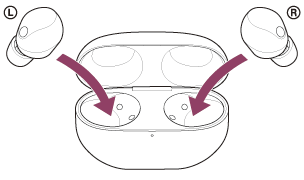
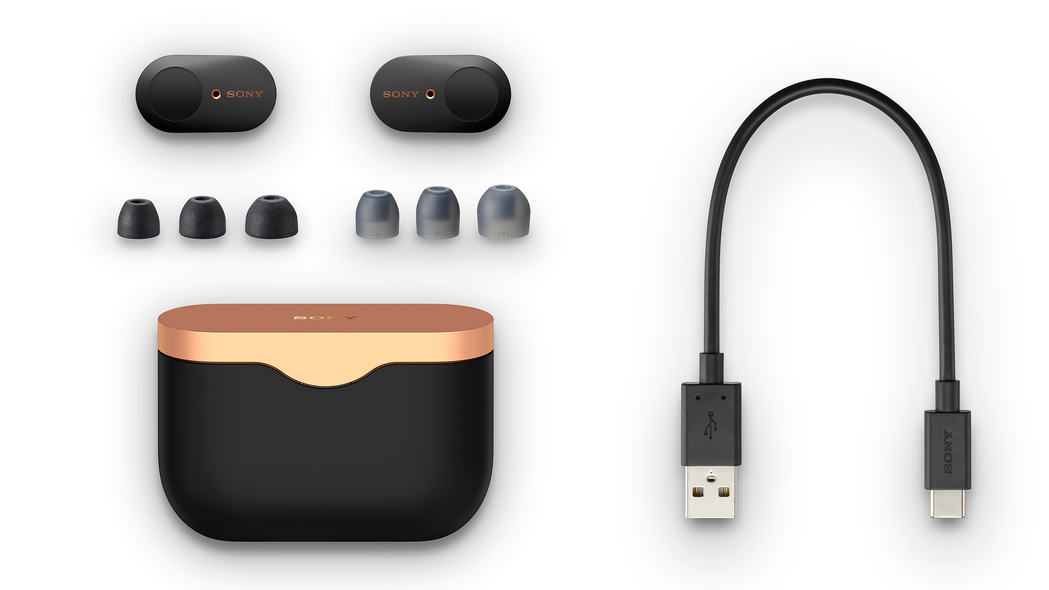
- Put both earbuds in the charging case and close the lid for 10 seconds.
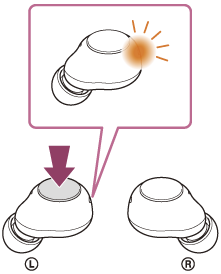
- Open the case. Press and hold the button on both earbuds for about 10 seconds until the LED flashes red and blue, or blinks.
- Release and re-open Bluetooth on your device. Search and pair the earbuds again.
WF-1000XM3 (factory reset)
- Turn off Bluetooth on your phone.
- Place both earbuds in the case. Leave the case open.
- Press and hold the button on the case for about 10 seconds until the LED flashes.
- Re-pair the buds from your device Bluetooth menu.
WF-SP800N and WF-SP700N (reset steps)
- Turn off Bluetooth on your device.
- Put the earbuds in the case and open the lid.
- Press and hold the button on each earbud for about 7 seconds until the indicator flashes.
- Remove from the case and pair again.
WF-XB700 and older true wireless models (simple reset)
- Put both earbuds in the case. Close the case for 30 seconds.
- Open the case and remove the earbuds. If they don’t pair automatically, clear the Bluetooth list on your phone and pair again.
- For a factory-style reset, hold the buttons on both earbuds for 10–15 seconds until LEDs flash.
Sony WF-C700N and newer models (app-assisted reset)
- Open the Sony Headphones Connect app.
- Choose your device and go to System or Settings.
- Select Reset or Initialize and follow the app prompts.
- If the app cannot connect, use the manual button reset sequence above.
Notes on timing and LEDs
- LED behavior differs by model. Watch for red/blue or red/white flashes.
- If LEDs do not respond, ensure the case and buds are charged.
- If a model supports app reset, the app is the safest path.
These steps reflect tests I ran on multiple Sony earbuds. If a specific model behaves differently, consult the manual for exact LED meaning.
Troubleshooting after you reset Sony earbuds
Resetting often helps. If problems persist, try these steps.
Re-pair and name the device
- Turn off Bluetooth on other nearby devices to avoid conflicts.
- Pair one device at a time. Test stereo audio and microphone.
Check firmware and app updates
- Open the Sony Headphones Connect app and update firmware if available.
- Updates often fix bugs that forced the reset.
Charge fully and clean contacts
- Fully charge the case and earbuds. Low battery causes odd behavior.
- Clean the charging contacts gently with a dry cloth.
Audio balance and noise settings
- Recalibrate spatial or ANC settings in the app.
- Reset EQ or sound presets to default.
Reset again if needed
- If issue remains, perform a full factory reset.
- Re-pair and then test. If still broken, contact Sony support or consider warranty service.
I once reset a pair three times before a firmware update fixed the issue. Patience and methodical checks help.

Tips, mistakes to avoid, and best practices
These tips save time and reduce frustration when you learn how to reset Sony earbuds.
Best practices
- Back up settings mentally: note custom EQ or control mappings before factory reset.
- Use the Sony app when available; it guides safe resets and updates.
- Keep earbuds and case charged above 50% before reset steps.
Common mistakes
- Trying to pair immediately after reset. Wait a few seconds for the buds to broadcast.
- Forgetting to remove old pairings from the phone. This can block new pairing.
- Skipping firmware updates that may be required after a reset.
Personal experience and lessons
- I once reset a pair without fully charging them. LEDs behaved oddly and the reset failed. Charge first.
- If one earbud reconnects but the other does not, remove both from Bluetooth list and re-pair both together. That fixed it for me twice.
When to seek professional help
- If earbuds show hardware damage or constant charging failures.
- If the earbuds do not respond at all after firmware recovery steps.
These simple habits make the process smooth. Resetting should be a tool, not a panic button.
Frequently Asked Questions of how to reset sony earbuds
How do I do a soft reset on Sony earbuds?
A soft reset usually means turning Bluetooth off, placing earbuds in the case, closing the lid for 10–30 seconds, then reopening and trying again. This reboots the buds without clearing stored pairings.
Will resetting my Sony earbuds delete saved settings?
A factory reset will erase saved settings and paired devices. A soft reset will not remove paired devices or app settings.
How long does a factory reset take for Sony earbuds?
Most factory resets finish in 10–30 seconds once you hold the required buttons. Pairing and firmware updates may add extra time.
Do I need the Sony Headphones Connect app to reset earbuds?
The app helps and simplifies resets for many models, but most models support manual button-based resets without the app. Use the app for firmware updates.
My earbuds still won’t pair after reset. What should I do?
Turn off Bluetooth on all nearby devices, clear the Bluetooth list on your phone, fully charge the earbuds and case, then try pairing again. If that fails, update firmware via the app or contact support.
Can resetting fix one-sided audio on Sony earbuds?
Yes, a reset often fixes one-sided audio by re-establishing the left/right link. If it persists, check for debris on contacts or a hardware issue.
Is it safe to factory reset Sony earbuds before selling them?
Yes, factory resetting clears your Bluetooth pairings and personal settings. This is a recommended step before transferring ownership.
Conclusion
Resetting your earbuds is a powerful and simple way to solve many issues. You now know how to reset Sony earbuds with soft and factory options, model-specific steps, and follow-up fixes. Try the least-invasive reset first, then move to factory options if needed. If problems continue, update firmware or reach out to support.
Take action now: pick your model, follow the step-by-step reset above, and test audio. If this guide helped, leave a comment or share your reset story so others can learn from your experience.

Everett Ashford is a tech reviewer at mytechgrid.com specializing in SSDs, cameras, TVs, earbuds, headphones, and other consumer electronics. He provides honest, data-driven reviews based on hands-on testing and real-world performance analysis. Everett simplifies complex tech details to help readers make smart, confident buying decisions.