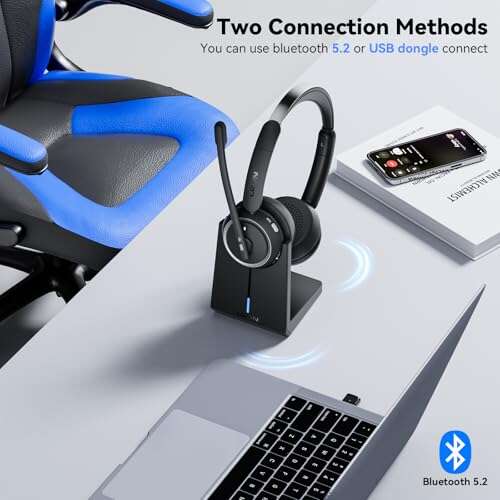
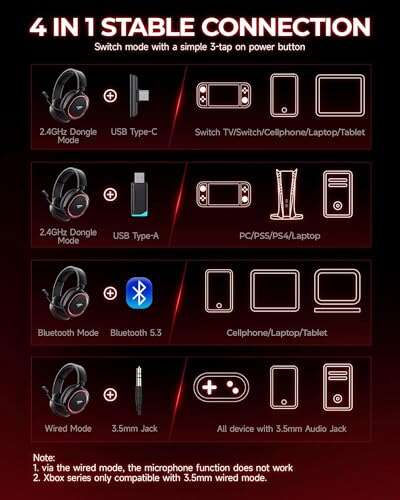
Press and hold the power button until the LED flashes; enable Bluetooth and select iClever.
I’ve paired dozens of earbuds and headphones in field tests and at home. In this guide I explain how to pair iClever headphones step by step. You’ll get clear setup steps for iPhone, Android, Windows, and Mac. I also share fixes for common pairing problems and tips I learned from real use. Read on and you’ll pair your iClever headphones fast and with no stress.

Why pairing matters for iClever headphones
Pairing connects your iClever headphones to a device. It sets up a secure link for audio and calls. Good pairing gives stable sound and low lag. Poor pairing causes dropouts and frustration. Knowing how to pair iClever headphones helps you avoid those issues and get the best sound quickly.
Prepare before pairing
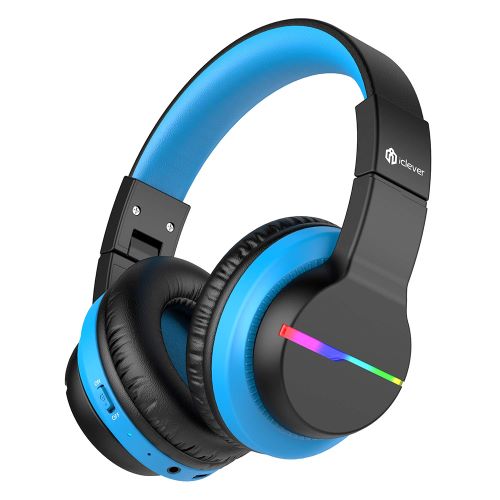
Prepare first. This saves time and avoids errors. Check these items before you begin:
- Charge both earbuds and case to at least 50 percent.
- Turn off other Bluetooth gear nearby to avoid interference.
- Make sure the device you pair with has Bluetooth enabled.
- Read the quick start guide for your iClever model for any model-specific steps.

Step-by-step pairing guide
Below are clear steps to pair iClever headphones with common devices. Use the method that fits your gear. The steps cover typical iClever models and true wireless earbuds.
General pairing steps for iClever headphones
- Turn off the headphones.
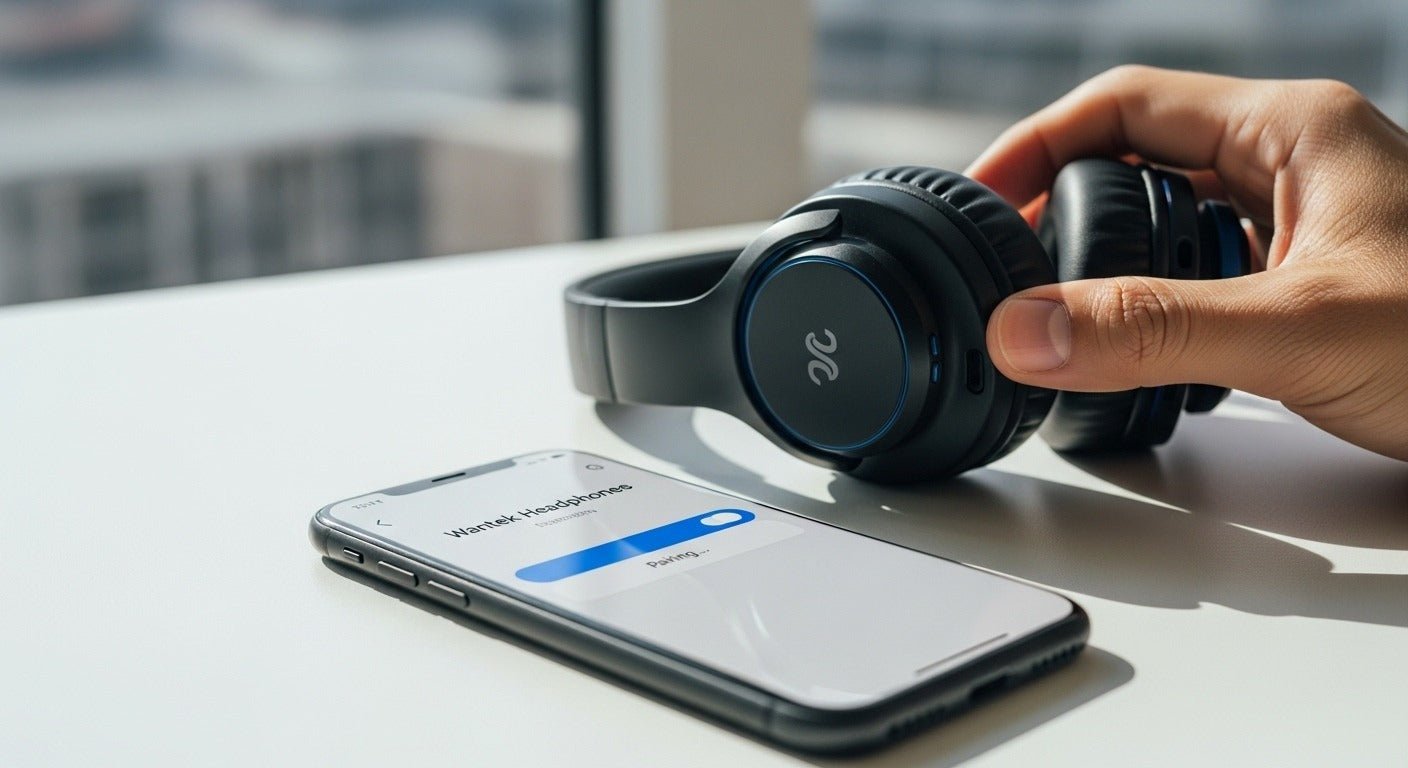
- Press and hold the power button for about 5–8 seconds until the LED flashes quickly or alternates colors. This puts the headphones in pairing mode.
- Open Bluetooth settings on your phone or computer.
- Scan for devices and select the iClever name shown.
- Accept any pairing prompts. You may hear a voice cue or see a steady LED when connected.
How to pair iClever headphones often only differs by LED color or button location. If one bud doesn’t connect, reinsert it into the case and retry.
Pairing with iPhone and iPad
- Open Settings > Bluetooth.
- Make sure Bluetooth is on.
- Put your iClever headphones in pairing mode.
- Tap the iClever listing under Other Devices.
- Confirm connection when prompted.
iOS may show headphone controls and battery level. If not, toggle Bluetooth off and on and retry.
Pairing with Android phones
- Open Settings > Connected devices or Bluetooth.
- Tap Pair new device or Scan.
- Enter pairing mode on the iClever headphones.
- Tap the iClever name in the list.
- Grant any permissions if requested.
Some Android skins place Bluetooth under different labels. Use the system search if needed.
Pairing with Windows PC
- Open Settings > Bluetooth & devices.
- Turn on Bluetooth and click Add device.
- Choose Bluetooth and then select the iClever name.
- Wait for Windows to show Connected voice or audio device.
If Windows refuses, remove any old iClever entries under Devices and try again.
Pairing with Mac
- Open System Settings or System Preferences > Bluetooth.
- Turn on Bluetooth.
- Put the iClever headphones in pairing mode.
- Click Connect next to the iClever device in the list.
macOS keeps the device in memory. Use the X icon to remove old entries.
Troubleshooting common pairing problems
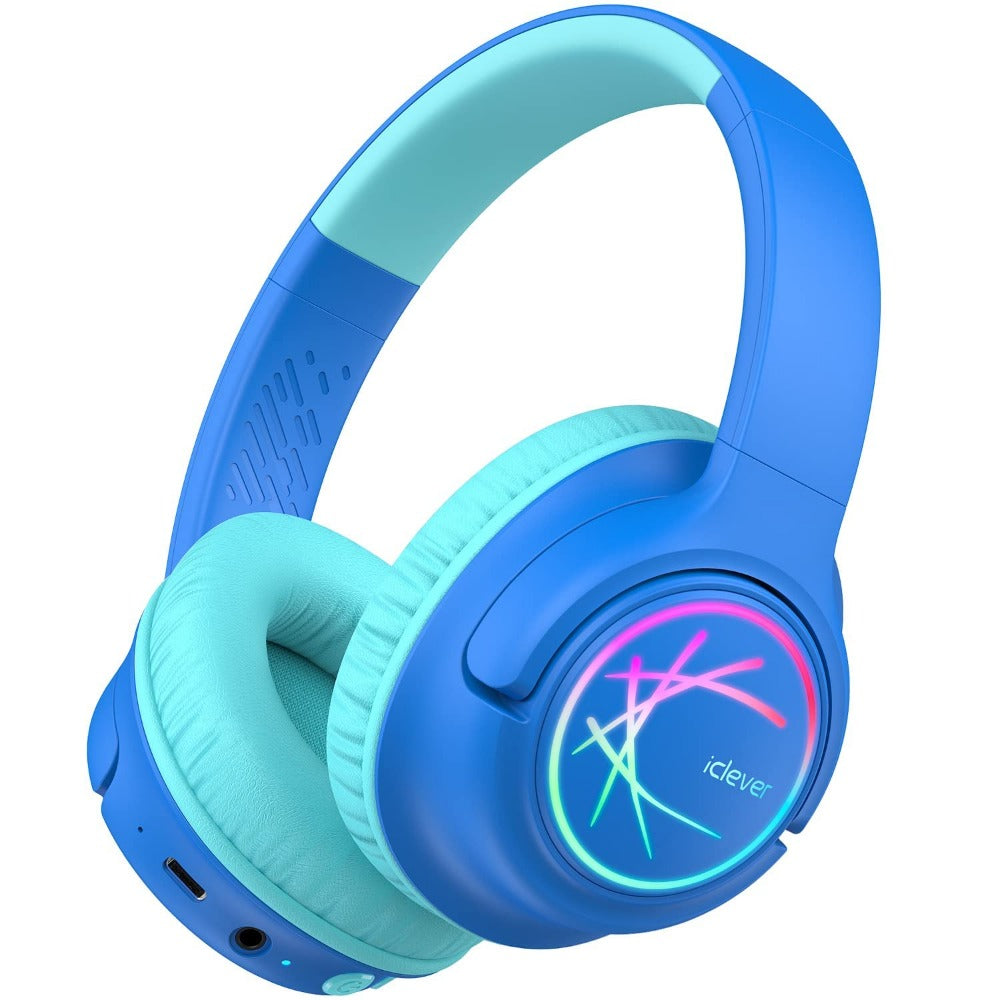
If pairing fails, try these fixes. I used these steps many times to solve odd issues.
- Headphones won’t enter pairing mode
- Fully charge the headphones. Reset by holding power for 10–15 seconds. Then try again.
- Device finds but won’t connect
- Delete the iClever entry from your device’s Bluetooth list. Reboot both devices and retry pairing.
- Only one earbud connects
- Place both earbuds in the charging case for 10 seconds, then remove and re-pair as a pair.
- Intermittent audio or dropouts
- Move closer to the source. Turn off other Bluetooth devices and Wi‑Fi routers if possible. Re-pair after a restart.
- Pairing with multiple devices
- Some iClever models support multi-point. If not, disconnect from the first device before pairing the second.
Tips and best practices from real use
I’ve paired iClever headphones on planes, trains, and at cafes. These tips made life easier.
- Keep earbuds charged and in the case when not in use. This avoids surprise pairing errors.
- Update firmware when possible. Firmware often fixes connection bugs.
- Use the correct earbud as primary if one model requires it. Some iClever buds use a master-slave pairing.
- Avoid metal and crowded Wi‑Fi frequency zones during initial pairing.
- If you travel often, unpair devices you don’t use. Fewer stored devices means fewer conflicts.
A mistake I made once was assuming a dead case meant the buds were charged. Always check battery before troubleshooting pairing.
Compatibility, limitations, and firmware updates
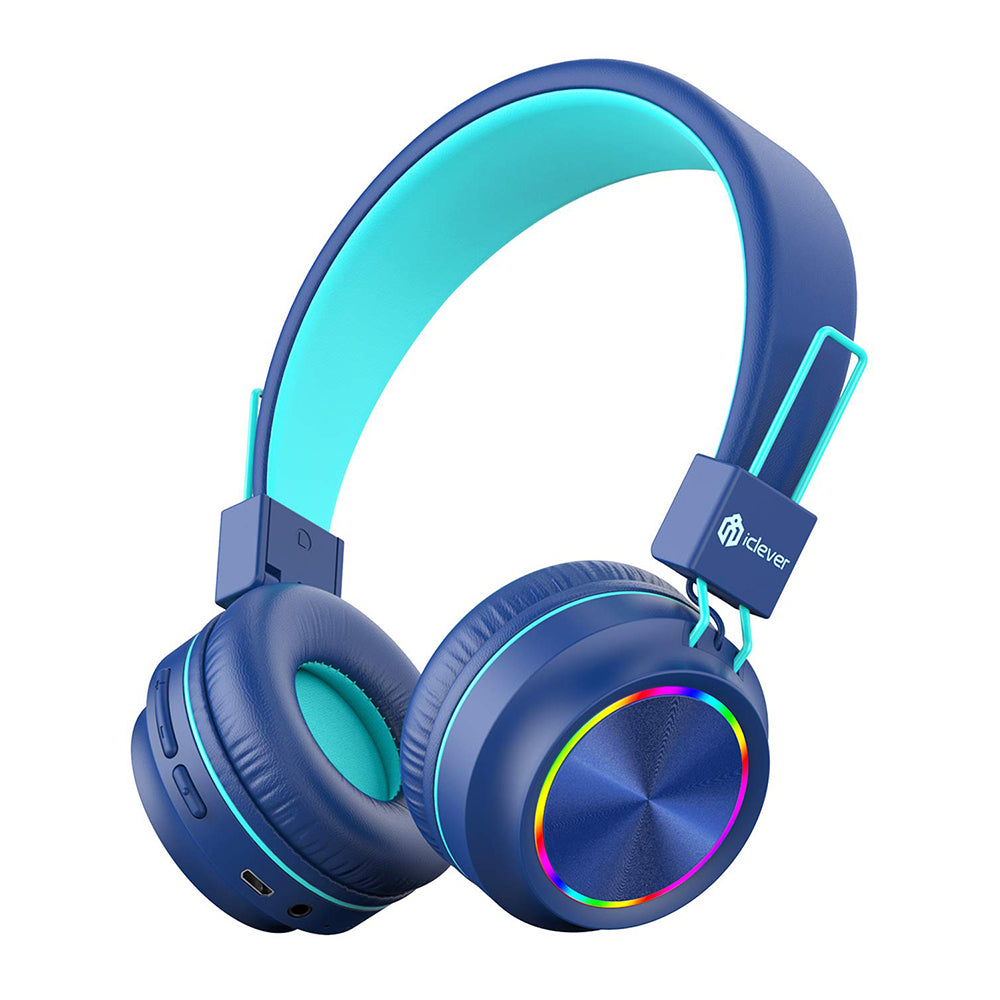
iClever headphones work with most Bluetooth-capable phones and computers. Support varies by model. Many iClever models use SBC codec. Some higher-end models add AAC or aptX. That affects audio quality and latency.
Firmware updates can improve pairing and battery life. Check the iClever support page or app for updates and instructions. If the update tool is unclear, contact support or follow the included manual. Be cautious: do not unplug or close the app during firmware installation.
Frequently Asked Questions of how to pair iclever headphones
How long does it take to pair iClever headphones?
Most pairing sessions take under one minute. If it takes longer, try resetting the headphones and your device.
Why won’t my device find iClever headphones?
They may not be in pairing mode or the battery could be low. Reset the headphones and ensure Bluetooth is enabled on your device.
Do iClever headphones support multi-point pairing?
Some models do and some do not. Check your model specs to confirm whether multi-point is supported.
How do I reset iClever headphones to factory settings?
Hold the power button or follow the manual’s reset steps, usually 10–15 seconds. Then re-pair your devices.
What if only one earbud plays sound after pairing?
Place both earbuds in the charging case for several seconds to sync them. Remove and re-pair if needed.
Can I update iClever headphone firmware myself?
Yes. Use the official app or support instructions. Make sure the battery is charged and follow steps carefully to avoid bricking.
Conclusion
You now have clear steps on how to pair iClever headphones with phones, tablets, and computers. Start by preparing and charging. Use the model-specific steps for best results. If something goes wrong, try the simple fixes I shared. Take action now: pair your iClever headphones, test audio, and explore firmware updates for a smoother experience. If this guide helped, share your pairing story or ask a question below.

Jamie Lee is a seasoned tech analyst and writer at MyTechGrid.com, known for making the rapidly evolving world of technology accessible to all. Jamie’s work focuses on emerging technologies, product deep-dives, and industry trends—translating complex concepts into engaging, easy-to-understand content. When not researching the latest breakthroughs, Jamie enjoys exploring new tools, testing gadgets, and helping readers navigate the digital world with confidence.