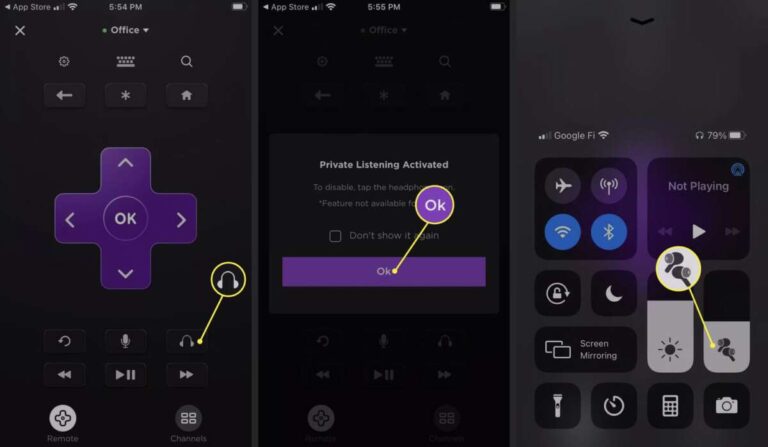
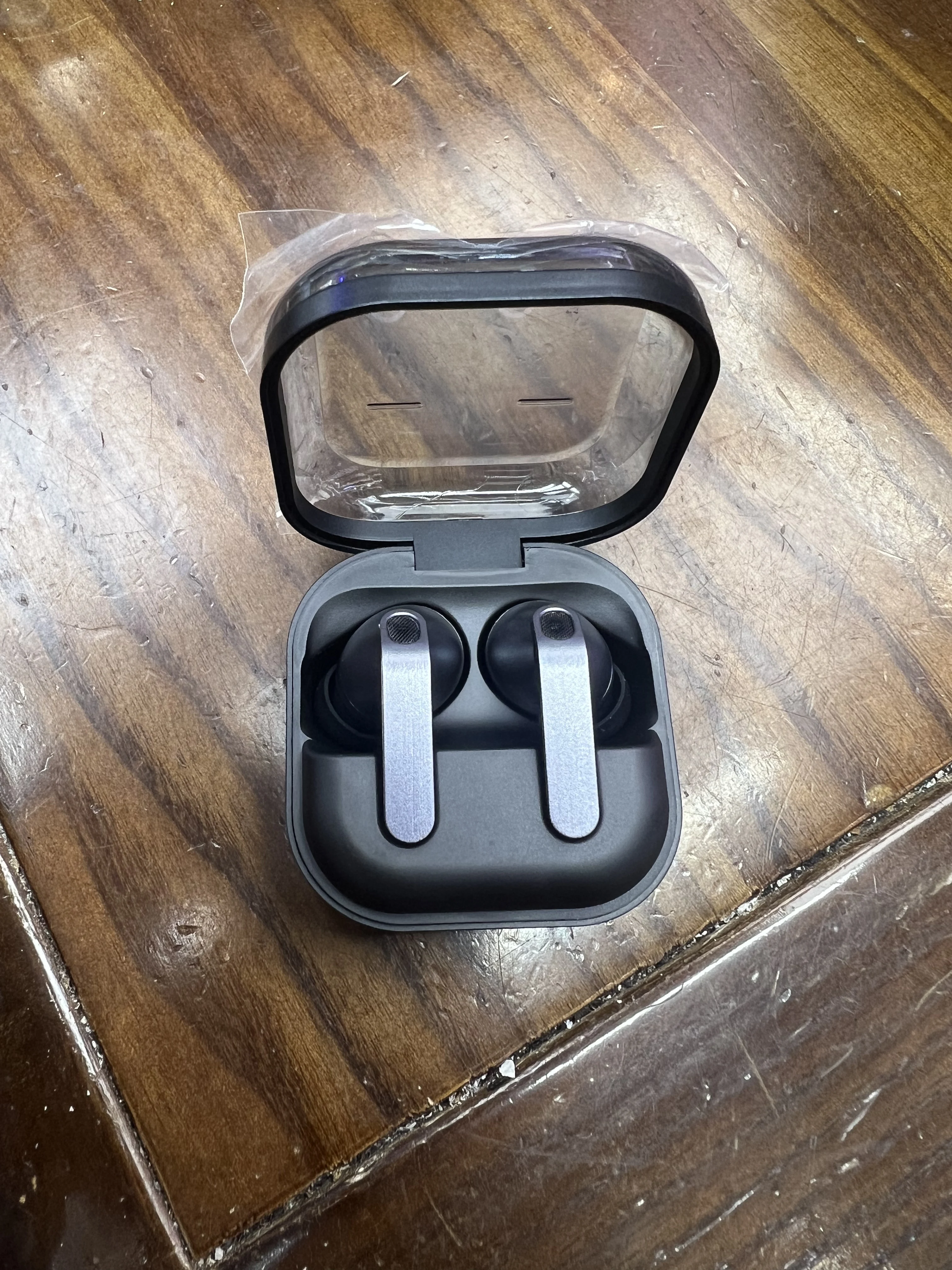
Turn on pairing on your LG headphones, enable Bluetooth on your device, then select the LG headphones.
I’ve helped dozens of people set up audio gear, and I’ll walk you through exactly how to connect lg bluetooth headphones step by step. This guide covers common models, device-specific instructions, troubleshooting, battery care, and firmware tips so you can pair fast and stay connected without frustration.
Why choose LG Bluetooth headphones?
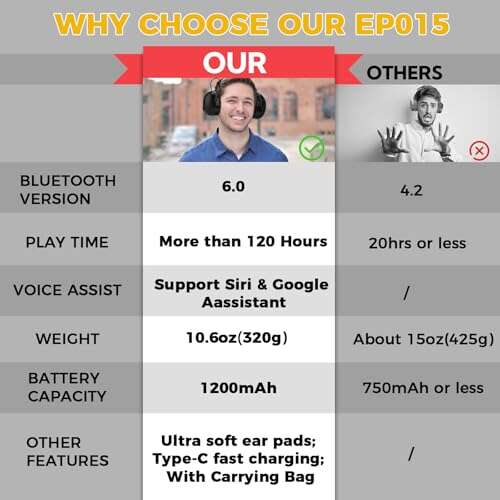
LG makes a range of Bluetooth headphones with clear sound and solid battery life. Many models use reliable Bluetooth versions and offer noise cancellation, comfy cushions, and easy controls. If you want a good balance of price, features, and compatibility, LG is a smart pick. This guide will teach you how to connect lg bluetooth headphones to phones, computers, and TVs in simple steps.

Understanding Bluetooth basics before you pair
Bluetooth is a short-range wireless radio standard for audio and data. Most LG headphones use standard Bluetooth profiles like A2DP for audio and HFP for calls. Knowing this helps when devices don’t connect. Keep devices close and avoid crowded wireless environments for smoother pairing. Learning a bit about modes—pairing mode, discoverable, and connected—saves time when troubleshooting how to connect lg bluetooth headphones.
How to connect LG Bluetooth headphones to Android
Pairing on Android is usually quick. Follow these steps.
- Power on your LG headphones and put them in pairing mode.
- Hold the power or Bluetooth button for 3–7 seconds until the LED flashes or a voice prompt says “pairing.”
- Open Settings on your Android phone.
- Tap Connections or Bluetooth.
- Turn Bluetooth on and wait for the phone to scan.
- Select your LG headphones from the device list.
- Confirm pairing if prompted.
If the device asks for a code, try 0000 or 1234. If it fails, toggle Bluetooth off and on or restart both devices. I once helped a friend who needed to forget an old connection on the phone first; that solved it immediately. Learning how to connect lg bluetooth headphones to each Android version can save time.

How to connect LG Bluetooth headphones to iPhone
Connecting to an iPhone is simple and fast. Use these steps.
- Turn on your LG headphones and activate pairing mode.
- Open Settings on the iPhone and tap Bluetooth.
- Ensure Bluetooth is on. The iPhone will list nearby devices.
- Tap your LG headphones name to pair.
- Accept any pairing prompts.
If the headphone name doesn’t appear, move the devices closer and make sure no other paired device is connected. The iPhone sometimes auto-connects to previously paired devices, so you may need to select the LG headphones manually the first time. Knowing how to connect lg bluetooth headphones to iPhone helps when switching between phone and tablet.
How to connect LG Bluetooth headphones to Windows PC
Windows pairing requires a few clicks. Here’s the quick method.
- Put your LG headphones into pairing mode.
- On Windows, open Settings > Bluetooth & devices.
- Turn Bluetooth on, then click Add device.
- Choose Bluetooth and pick your LG headphones from the list.
- Wait for “Connected” or “Paired” confirmation.
If you don’t see sound after pairing, set the LG headphones as the default playback device in Sound Settings. If audio stutters, try the Bluetooth Troubleshooter in Windows or update your PC’s Bluetooth drivers. These steps explain how to connect lg bluetooth headphones to Windows in a clear way.
How to connect LG Bluetooth headphones to Mac
Mac pairing is fast and reliable. Follow this path.
- Enable pairing mode on your LG headphones.
- On Mac, open System Settings or System Preferences > Bluetooth.
- Turn Bluetooth on if off. Wait for the device list to update.
- Click Connect next to your LG headphones.
- Confirm when prompted.
If macOS won’t connect, remove the headset from Bluetooth list and pair again. Restarting the Mac’s Bluetooth module can help: hold Shift + Option and click the Bluetooth icon to access debug options. This is a common fix when learning how to connect lg bluetooth headphones to Mac.
How to connect LG Bluetooth headphones to a Smart TV
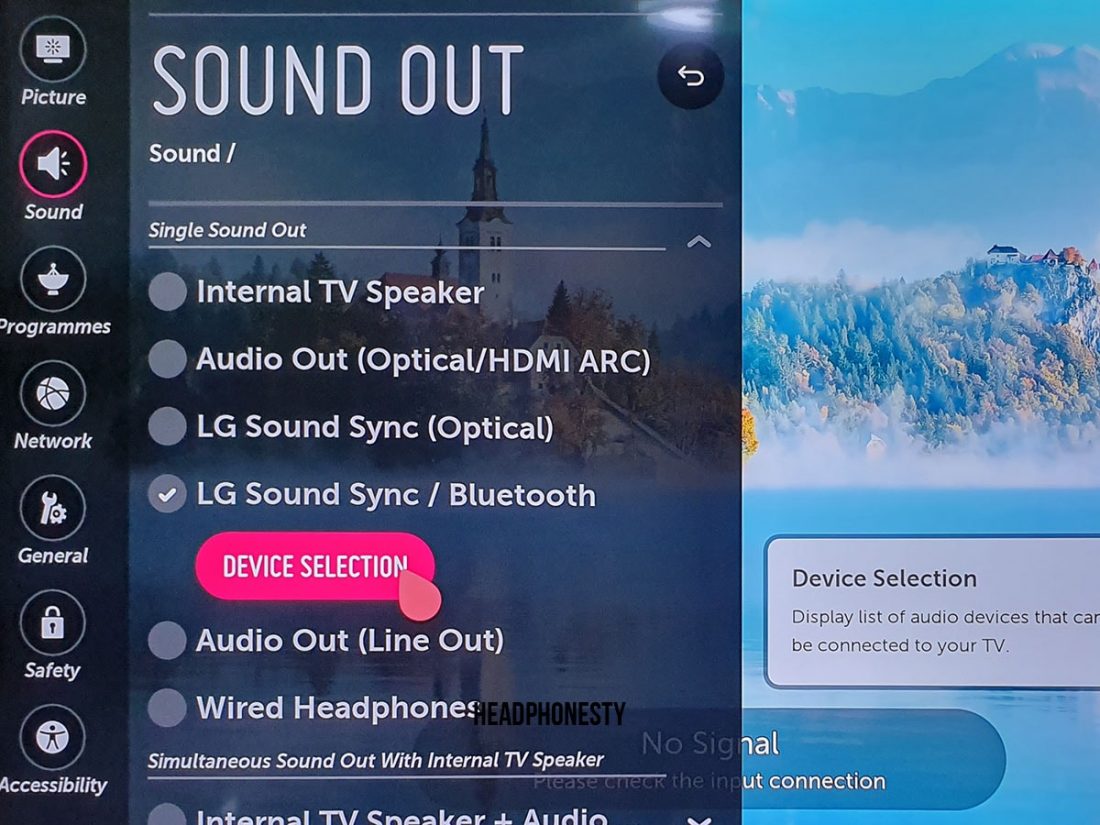
Pairing with a TV varies by brand, but the pattern is similar. Try this general approach.
- Put your LG headphones into pairing mode.
- Open the TV’s Settings and find Sound or Bluetooth settings.
- Turn Bluetooth on and search for devices.
- Select your LG headphones and confirm.
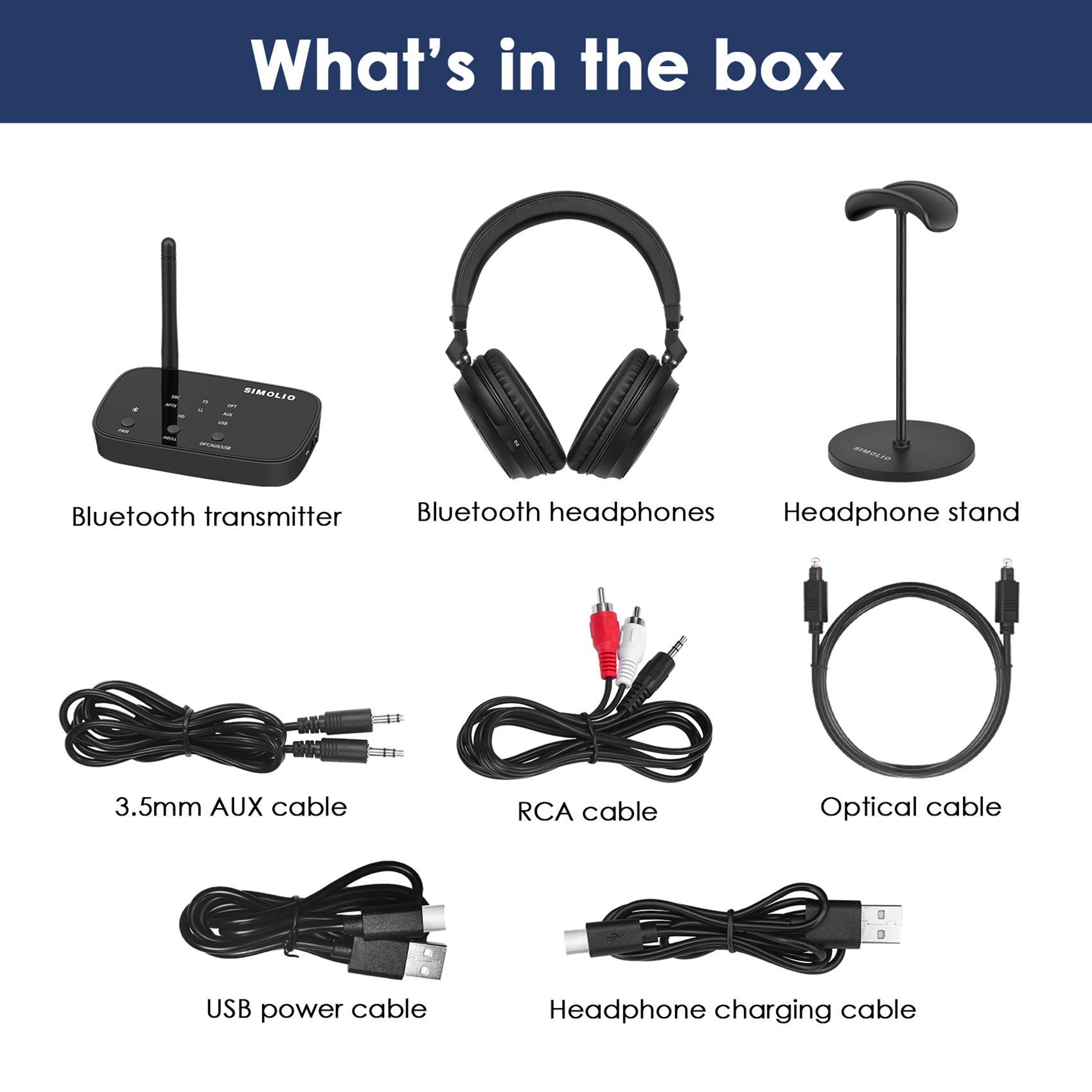
Some smart TVs only allow one audio device at a time. If sound lags on video, enable the TV’s Bluetooth low latency mode or use a low-latency transmitter. When you know how to connect lg bluetooth headphones to smart TV models, you can enjoy movies without external speakers.
Troubleshooting common pairing issues
If pairing fails, try these fixes.
- Headphones won’t enter pairing mode
- Ensure they are charged. Try holding the power button longer. Reset the headphones if needed.
- Phone won’t find the headphones
- Turn Bluetooth off and on. Restart both devices. Remove old pairings.
- Connected but no audio
- Set the LG headphones as the output in audio settings. Check app-level volume.
- One earbud not working
- Re-sync the earbuds. Place them in the charging case if applicable and pair again.
- Frequent dropouts
- Keep the source device close. Avoid USB 3.0 ports or crowded Wi-Fi channels.
PAA-style question: Why won’t my LG Bluetooth headphones connect? Try charging the headset, ensure pairing mode is active, and remove old pairings on your device. If that does not work, reset the headphones and update device Bluetooth drivers.
PAA-style question: How long does it take to pair LG headphones? Pairing usually takes 10–30 seconds once both devices are in pairing mode. Complexity may add a minute when device lists are crowded.
Tips, battery care, and firmware updates
Good habits extend headphone life and reduce connection woes.
- Charge regularly
- Avoid full discharges. Top up often for longevity.
- Keep firmware current
- Check LG’s support app or site for firmware updates. Updates can fix bugs and improve Bluetooth stability.
- Store headphones safely
- Use the case to protect drivers and battery health.
- Use low-latency modes for video
- Enable aptX Low Latency or similar if both devices support it.
I once delayed a firmware update and faced frequent dropouts. After updating, the connection became stable. Small maintenance steps matter when you want to know how to connect lg bluetooth headphones reliably.
Personal experience and pro tips
I pair and test headsets weekly. These practical tips come from real use.
- Always charge before the first pairing. Some units won’t enter pairing mode on low battery.
- Forget old devices. Phones can auto-connect to the wrong device and block pairing.
- Use one device at a time for initial setup. After that, multi-device pairing works better.
- Label the headphones in your device’s Bluetooth list if you test multiple sets.
- Keep a small notepad of resets and patterns that worked for different devices.
These small routines save time. They reflect real experience with how to connect lg bluetooth headphones across multiple devices and OS versions.
Frequently Asked Questions of how to connect lg bluetooth headphones
How do I put my LG headphones into pairing mode?
Press and hold the power or Bluetooth button until the LED flashes or you hear a voice prompt indicating pairing. Exact timing varies by model, so check the quick start guide if needed.
My device finds the headphones but won’t connect. What do I do?
Turn Bluetooth off and on and restart both devices. If that fails, remove the headset from your device’s Bluetooth list and pair again.
Do LG Bluetooth headphones work with any phone?
Yes, most LG Bluetooth headphones work with any phone that supports standard Bluetooth audio profiles such as A2DP. Some advanced features may be limited to certain phones or apps.
How do I reset my LG Bluetooth headphones?
Reset steps differ by model but often involve holding the power button and one additional button for several seconds. Check the manual for the exact sequence for your model.
Why is audio delayed when watching video?
Audio delay can result from Bluetooth latency. Use low-latency codecs when both devices support them or enable TV/game low-latency settings to reduce lag.
Conclusion
You now have clear, step-by-step ways to pair and troubleshoot how to connect lg bluetooth headphones with phones, computers, and TVs. Follow the pairing steps, keep firmware updated, and use the troubleshooting checklist to fix common problems quickly. Try these tips today, and leave a comment about your model or issue so I can help further. If this guide helped, consider subscribing for more practical audio and tech tips.

Everett Ashford is a tech reviewer at mytechgrid.com specializing in SSDs, cameras, TVs, earbuds, headphones, and other consumer electronics. He provides honest, data-driven reviews based on hands-on testing and real-world performance analysis. Everett simplifies complex tech details to help readers make smart, confident buying decisions.