Pair earbuds by turning on Bluetooth, opening the case, and selecting the device to pair.
I’ve spent years testing earbuds and fixing pairing issues for friends and clients. This guide shows exactly how to connect true wireless earbuds, step by step, with clear tips and fixes you can use today. Read on to learn fast pairing, common problems, and ways to keep your earbuds working reliably.
How true wireless earbuds work
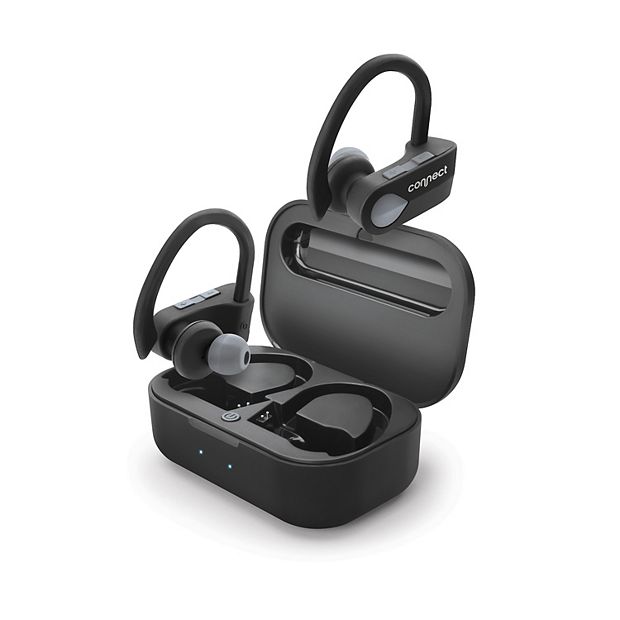
True wireless earbuds use Bluetooth to send audio from your phone to each earbud without wires. Each earbud has its own battery, chip, and microphone. One earbud often acts as the primary unit that talks to the phone, then shares audio with the other earbud. This design makes the pairing process a little different than wired or single-bluetooth headphones.

Before you start: quick checklist
Get ready before you try to pair. Charge both earbuds fully. Update your phone’s Bluetooth to the latest version and close apps that use audio.
- Make sure Bluetooth is on in your phone or device.
- Put earbuds in the case and open the lid to enter pairing mode if needed.
- Remove old Bluetooth pairings that might conflict.
Doing these steps reduces errors and speeds up pairing. I learned this after wasting time on devices with low battery or old pairings that blocked new connections.
Step-by-step pairing guide
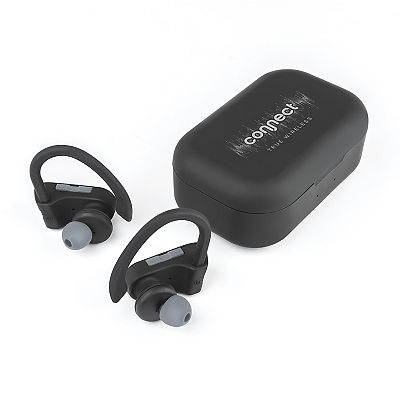
Follow these steps to learn how to connect true wireless earbuds to most phones and devices.
- Charge both earbuds and the case.
- Turn on Bluetooth on your phone.
- Remove earbuds from the case to power them on.
- If they do not auto-pair, press the pairing button on the case or the earbud.
- Look for the earbud name in your device’s Bluetooth list and tap to pair.
- Confirm any prompt for permissions or PINs (usually 0000 or 1234).
Most modern earbuds pair automatically the first time you remove them from the case near a phone. If you have trouble, reset the earbuds and repeat the steps. I often reset earbuds when the left or right bud will not connect.

Troubleshooting common issues
If one earbud won’t connect, or sound drops, try these fixes. Resetting earbuds often clears glitches. Turn Bluetooth off and on again on your phone.
- One earbud only plays: Place both earbuds back in the case then remove them together. This usually forces a fresh sync.
- Earbuds not visible in Bluetooth: Make sure pairing mode is active. Hold the pairing button for 5–10 seconds if needed.
- Dropped connection: Move closer to the device and remove sources of interference like Wi-Fi routers or crowded Bluetooth environments.
I fixed a friend’s earbuds by updating her phone’s Bluetooth firmware. Small updates can solve odd compatibility problems.
Tips for best connection and battery life
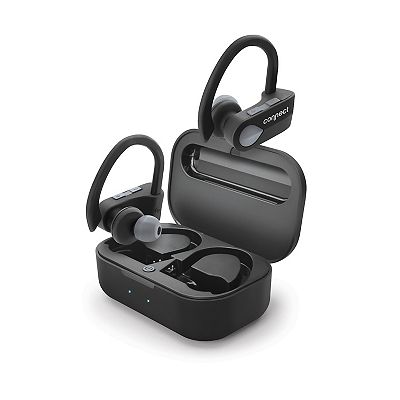
Good habits keep your earbuds working longer and connecting smoothly. Keep firmware up to date. Store earbuds in their case when not in use to conserve power.
- Keep earbuds and case clean to avoid connection gaps caused by dirt.
- Turn off unused Bluetooth devices to reduce interference.
- Use only one streaming app at a time to prevent audio conflicts.
I get the best battery life by lowering max volume and turning on any power-saving features the earbuds offer. That also helps maintain a steady Bluetooth link.

Advanced pairing and multi-device use
Some earbuds support multipoint or quick-switching between devices. Multipoint lets you stay connected to two devices at once, such as a laptop and phone. Quick-switch uses the earbud app to jump between devices faster.
- Enable multipoint in the earbud app if available.
- Pair to both devices separately, then enable multipoint in settings.
- For quick switch, use the app shortcut or long-press gesture assigned to device switching.
Note that multipoint can reduce battery life and sometimes cause brief audio hiccups. I recommend testing multipoint with your specific devices before relying on it for calls.
Safety and maintenance
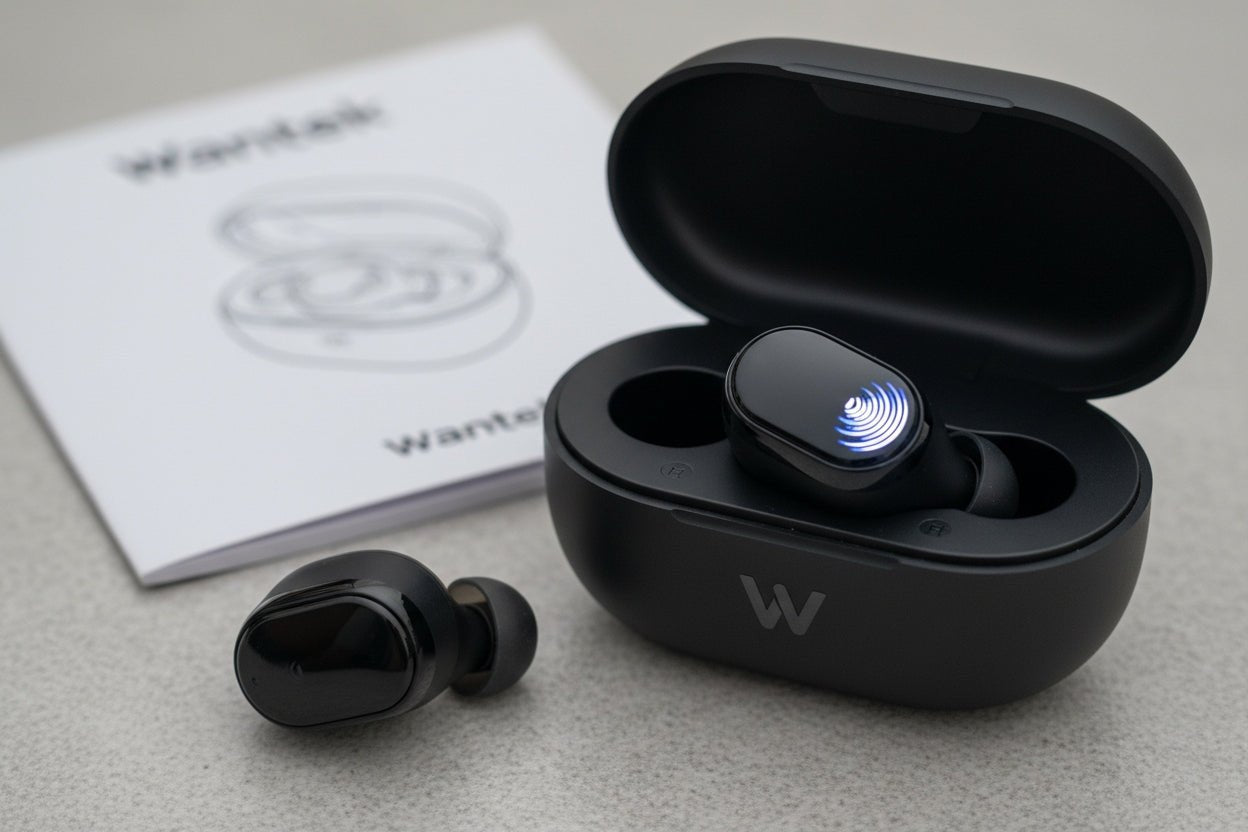
Handle earbuds gently and keep them dry. Earwax and moisture can block microphones and reduce sound quality. Clean earbuds with a soft, dry brush and use a slightly damp cloth for the case.
- Use the correct ear tips for a good seal and safer listening.
- Keep volumes at a healthy level to protect hearing.
- Store the case away from extreme heat or cold to protect the battery.
I once ruined a set by leaving the case in a hot car. Batteries do not like heat, and performance drops fast when they get damaged.

Frequently Asked Questions of how to connect true wireless earbuds
How do I put my earbuds into pairing mode?
Most earbuds enter pairing mode when you remove them from the case or hold a pairing button for several seconds. Watch for a blinking LED or voice prompt to confirm pairing mode.
Why does only one earbud connect?
One bud may act as the primary unit and needs to be synced first. Place both buds in the case, then remove them together to force a fresh connection.
How do I reset my true wireless earbuds?
Reset methods vary, but often involve holding the case button or tapping each earbud for 10 seconds. Check your manual, and reset if pairing fails repeatedly.
Can I connect earbuds to multiple devices at once?
Some earbuds support multipoint and can pair with two devices simultaneously. Enable multipoint in the earbud app or device settings if your model supports it.
What if earbuds keep disconnecting?
Try charging both earbuds, updating firmware, and moving closer to the device. Also remove old Bluetooth pairings and reduce nearby interference for a stable link.
Do I need an app to connect earbuds?
Most earbuds pair without an app, but the app can enable updates, EQ, and features like multipoint. Use the app for advanced settings and firmware installs.
Conclusion
You can learn how to connect true wireless earbuds quickly by following simple steps, keeping firmware updated, and using a few reliable fixes for common problems. Start with a charged pair, set your device’s Bluetooth on, and follow the pairing routine. Try the tips here, test multipoint only when needed, and keep earbuds clean and charged for best results.
Put these steps into practice today, and leave a comment with your pairing story or any questions you still have.

Jamie Lee is a seasoned tech analyst and writer at MyTechGrid.com, known for making the rapidly evolving world of technology accessible to all. Jamie’s work focuses on emerging technologies, product deep-dives, and industry trends—translating complex concepts into engaging, easy-to-understand content. When not researching the latest breakthroughs, Jamie enjoys exploring new tools, testing gadgets, and helping readers navigate the digital world with confidence.