
Restart C AI by refreshing the app, clearing cache, or signing out and signing back in.
I’ve spent years building and troubleshooting conversational AI tools, and I can walk you through every practical way to restart C AI safely and quickly. This guide covers why you might need to restart C AI, step-by-step methods for web and mobile, troubleshooting tips, and real-world lessons I’ve learned so you can fix issues fast and keep your conversations flowing.

What “C AI” means and why restarting matters
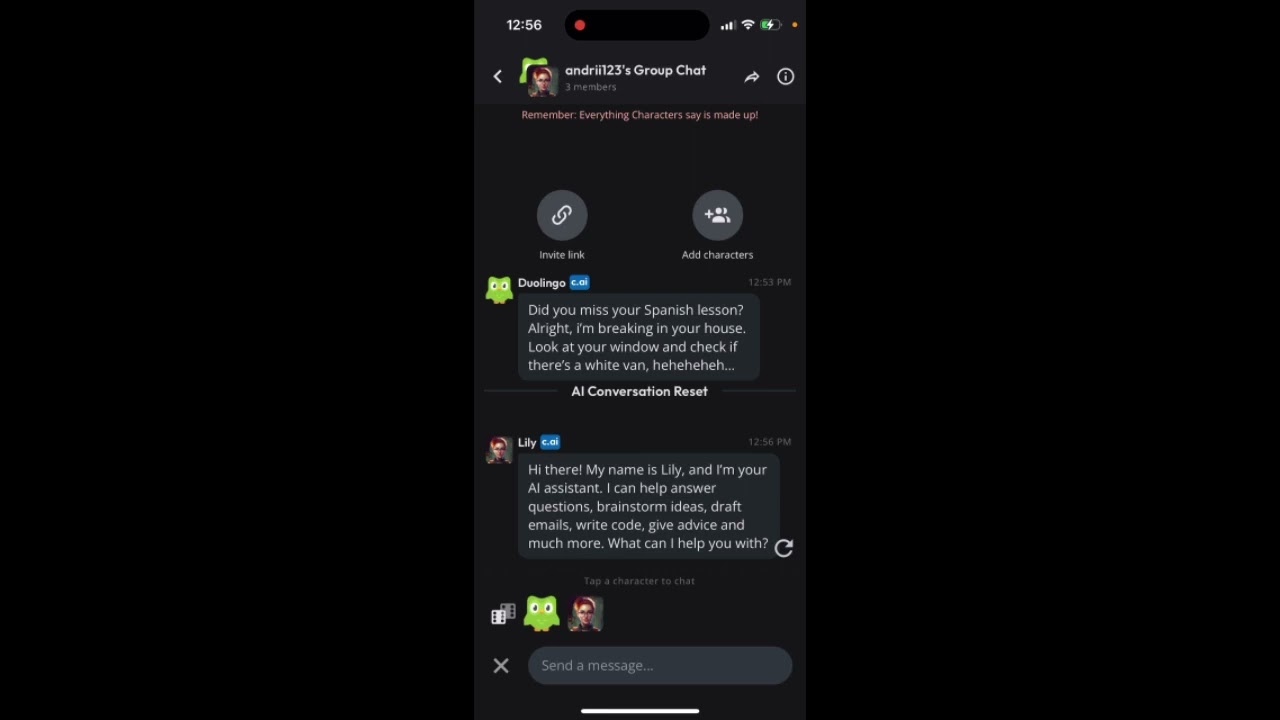
C AI often refers to conversational AI platforms such as Character AI or similar chat-based services. Restarting C AI means forcing the app or service to reload its state so it works correctly again.
Common reasons to restart C AI include slow responses, stuck conversations, login glitches, or update-related bugs. Restarting clears temporary errors and forces the system to reinitialize connections and local settings.
Restarting also helps protect privacy when sessions behave oddly. If a model behaves incorrectly, a restart is often the fastest way to restore normal behavior.

When you should restart C AI
You should restart C AI when you see any of these simple signs:
- Responses lag or stall for long periods.
- Conversations freeze or produce repeated text.
- Login fails or shows authentication errors.
- App or webpage behaves strangely after an update.
- You want to clear a session that may have cached bad data.
If the problem returns right after restarting, it points to deeper issues like account problems, network restrictions, or a server outage.

How to restart C AI: quick, step-by-step methods
Below are practical methods to restart C AI across platforms. Pick the scenario that matches your setup.
Restart C AI on the web (browser)
- Refresh the page.
- If refresh fails, close the browser tab and open a new one.
- Sign out of the service, then sign back in.
- Clear site data for the domain (browser settings > Privacy > Clear site data).
- Try in a private/incognito window to rule out extension conflicts.
These steps often fix session-level issues fast.

Restart C AI in the mobile app
- Force close the app from the task manager.
- Reopen the app and try a new conversation.
- If the app still misbehaves, uninstall and reinstall to clear corrupted files.
- Ensure the app is updated to the latest version from your app store.
A full reinstall solves deeper cache and binary issues.
Restart C AI by rebooting your device
- Save work and close apps.
- Restart your phone or computer.
- Open C AI after reboot and test.
Rebooting resets local networking and background processes that can affect the app.
Network-related restart steps
- Toggle Wi-Fi or mobile data off and on.
- Restart your router if multiple devices are affected.
- Switch networks to test if the issue is network-specific.
Poor or blocked networks can look like C AI failures when the service is actually waiting on data.

Account-level and server-side tips
- Log out and log back in to refresh authentication tokens.
- Check service status pages or community boards for reported outages.
- If you suspect a server-side bug, report it with clear reproduction steps.
When many users are affected, waiting for an official fix after reporting is often required.

Troubleshooting common restart failures
If restarting C AI doesn’t help, try these targeted fixes.
- Clear browser cache and cookies completely and sign back in.
- Disable browser extensions one at a time to find conflicts.
- Test in another browser or device to isolate the issue.
- Check your account limits or subscription status.
- Review local firewall or VPN settings that may block traffic.
If errors persist, capture logs or screenshots and contact support with exact steps to reproduce the issue. This makes it far easier for engineers to help.

Preventive steps to minimize future restarts
Small habits reduce how often you must restart C AI.
- Keep the app and browser updated.
- Use a stable, low-latency network when possible.
- Avoid long-lived sessions; start fresh periodically.
- Limit heavy browser extensions while using the service.
- Regularly clear site data if you use many chat sessions.
These habits cut downtime and improve experience.
Security and privacy considerations when restarting C AI
Restarting helps clear temporary tokens, but you should still be careful.
- Always sign out on shared devices.
- Clear local caches if you handled private data.
- Use multi-factor authentication for account safety.
- Reinstall only from official app stores to avoid tampered builds.
Transparency matters. If you suspect data exposure, follow the platform’s disclosure steps and change passwords.
My experience and lessons learned
I once faced an odd case where C AI kept looping answers after a model update. A quick page refresh did not help. I cleared site data, restarted my browser, and logged back in. That fixed it. Lesson: start simple, then escalate. Document what you tried. That saves time and helps support teams diagnose problems faster.
I also learned to test in incognito windows early. This quickly reveals whether extensions or cached data cause an issue.
Examples: real-world restart scenarios
- Scenario 1: The web chat shows “loading” forever. Solution: refresh, sign out, clear site data, then log in again.
- Scenario 2: Mobile app crashes on startup. Solution: force close, update app, reinstall if needed.
- Scenario 3: Multiple users report slowness. Solution: check service status and report outage details.
These pragmatic steps cover most common hiccups.
People Also Ask (PAA) style questions
-
How long does it take to restart C AI?
Restarting usually takes under a minute for a browser refresh. Reinstalls or device reboots take longer. -
Will restarting C AI delete my conversations?
Restarting usually does not delete saved conversations, but clearing site data or reinstalling may remove local cache; back up anything important. -
Is it safe to reinstall the C AI app?
Yes, reinstalling from your official app store is safe and often fixes corrupted app data.
Frequently Asked Questions of how to restart c ai
How do I restart C AI on my browser?
Refresh the page, sign out and back in, and clear site data if needed. Try an incognito window to rule out extensions.
How do I restart C AI on mobile?
Force close the app, reopen it, and update if available. Reinstall the app if problems persist.
Will restarting C AI fix slow responses?
Often yes. Restarting clears temporary states and network hiccups that cause slow answers.
What if restarting C AI doesn’t work?
Try other devices, clear caches, check network settings, and contact support with reproducible steps.
Could restarting C AI affect my saved data?
A simple restart won’t usually remove saved content. Clearing cache or reinstalling might remove local data, so back up anything important.
Conclusion
Restarting C AI is usually quick and effective. Start with a simple refresh or sign-out, then escalate to cache clearing, device reboots, or reinstalling when needed. Keep your app and browser updated, test in incognito, and document steps if you contact support. Try these fixes next time C AI stalls, and you’ll cut downtime and get back to better conversations.
Take action today: apply one method, note what works, and subscribe or comment below with your experience to help others.

Jamie Lee is a seasoned tech analyst and writer at MyTechGrid.com, known for making the rapidly evolving world of technology accessible to all. Jamie’s work focuses on emerging technologies, product deep-dives, and industry trends—translating complex concepts into engaging, easy-to-understand content. When not researching the latest breakthroughs, Jamie enjoys exploring new tools, testing gadgets, and helping readers navigate the digital world with confidence.




One Comment