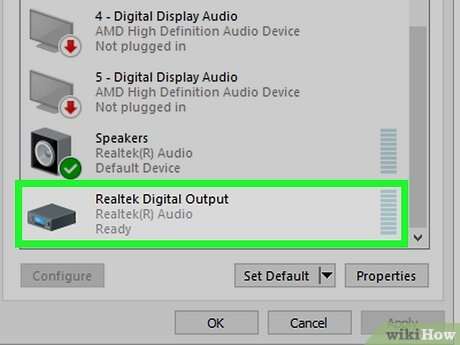
Use a splitter, USB sound card, or Windows Bluetooth features to pair two headsets.
I’ve helped dozens of friends and clients set up dual-audio on PCs. In this guide I explain in plain steps how to connect 2 headphones to pc, why each method works, what gear you’ll need, and common fixes. I write from hands-on experience with wired splitters, USB adapters, and Windows Bluetooth. Read on to pick the easiest method for your setup and get both listeners hearing the same audio fast.

Why you might want to connect 2 headphones to PC
Connecting two headsets lets two people listen at once. It’s handy for watching videos, gaming co-op, language learning, and recording reviews. Knowing how to connect 2 headphones to pc saves time and avoids arguments over volume and sound quality.
Benefits you get when you connect 2 headphones to pc
- Share audio without speakers. Both get private sound.
- Keep volume control separate with some adapters and software.
- Avoid room noise and improve focus for study or editing.
Limitations to expect
- Some methods lower audio volume slightly.
- Bluetooth can add small audio delay.
- Cheap splitters may degrade sound quality.
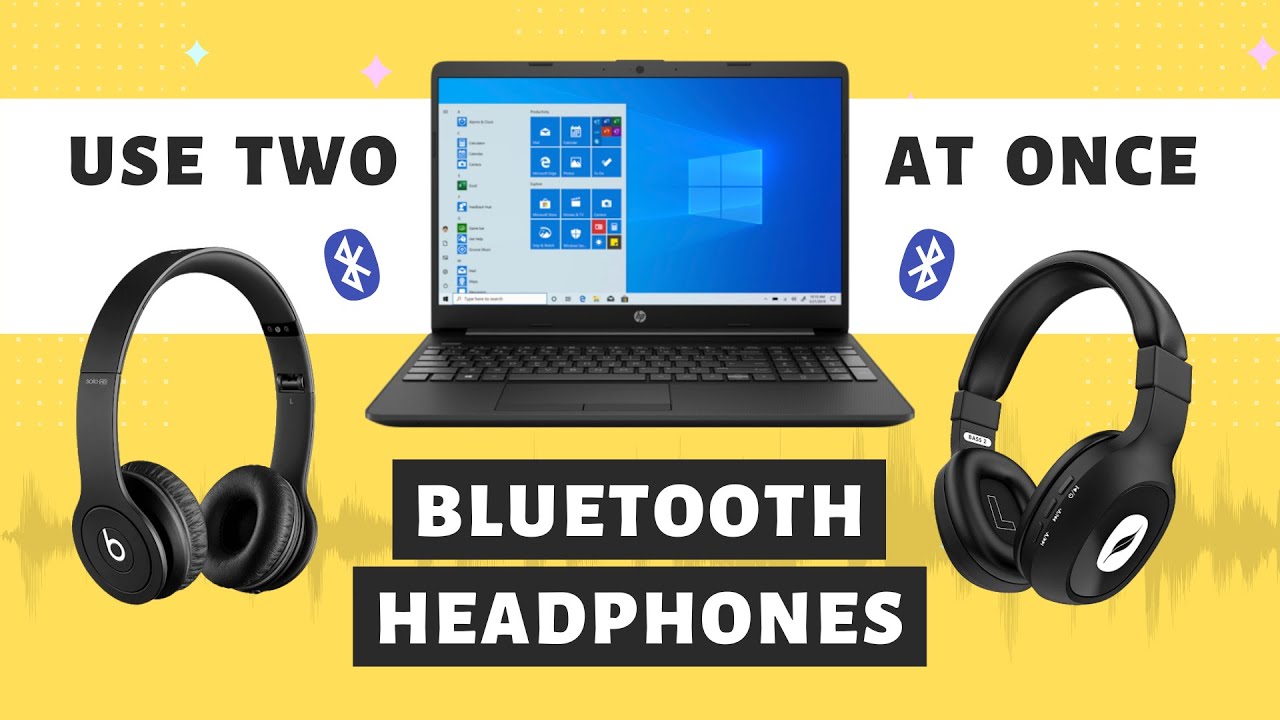
Methods to connect 2 headphones to PC
There are several reliable ways to connect two headphones. Each option balances cost, quality, and ease. Below I explain main methods and when to use each. This section helps you choose the best path for how to connect 2 headphones to pc.

Using a 3.5mm headphone splitter
This is the simplest and cheapest method.
Steps:
- Plug the splitter into the PC headphone jack or front panel output.
- Insert both 3.5mm plugs from the headphones into the splitter.
- Play audio and adjust the PC volume.
Pros:
- Very cheap.
- Zero setup time.
Cons:
- Both headphones get the same volume output.
- May reduce audio fidelity if splitter is poor.
Using a USB audio adapter (USB sound card)
A USB adapter gives a clean second output.
Steps:
- Buy a USB sound card with a headphone jack.
- Plug it into a free USB port.
- Set Windows output for each device if needed, or use software to route audio.
Pros:
- Better sound quality than cheap splitters.
- Works with PCs without a single combined jack.
Cons:
- Costlier than a splitter.
- Requires one USB port per extra output.
Using built-in dual jacks (front and back)
Many desktops offer separate front and back audio jacks.
Steps:
- Plug one headset into the green front jack.
- Plug the second headset into the rear green jack.
- In Windows sound settings, set playback to the same device or use software to mirror audio.
Pros:
- No extra cost on many desktops.
- Good audio fidelity.
Cons:
- May require software to duplicate audio across jacks.
Using Bluetooth (two wireless headphones)
Windows supports multiple Bluetooth devices. Some PCs can send audio to two Bluetooth headsets using special features or apps.
Steps:
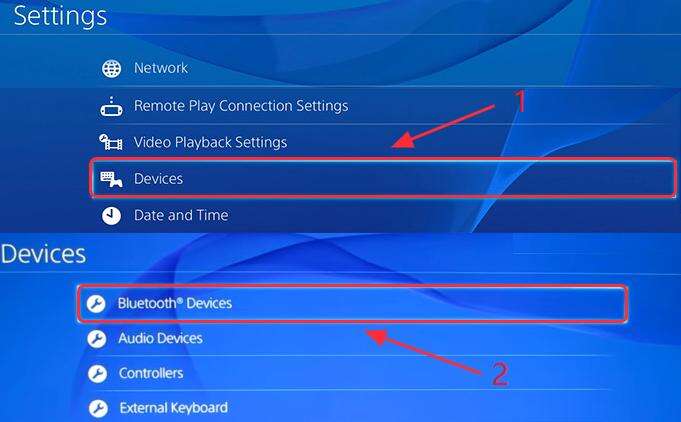
- Pair each Bluetooth headset with Windows.
- Use third-party software or Windows’ “Stereo Mix” and audio routing to mirror sound.
- Expect some delay with Bluetooth; wired is better for sync.
Pros:
- Wireless and neat.
- Great for casual listening.
Cons:
- Possible audio lag.
- More complex setup.
Using software mixers and virtual audio cables
Software like Voicemeeter or virtual audio cable apps can duplicate and route sound to multiple outputs.
Steps:
- Install the virtual audio software.
- Set the virtual device as default playback device.
- Route audio from the virtual device to both physical outputs.
Pros:
- Powerful and flexible.
- Great for streaming or recording.
Cons:
- Software learning curve.
- Slight latency risk if misconfigured.
Step-by-step scenarios (real examples)
Below are concrete how-to workflows for three common situations. Each shows how to connect 2 headphones to pc in a practical way.

Scenario A — Quick share: 3.5mm splitter
- Buy a quality TRS splitter (not a TRRS phone splitter).
- Plug into PC headphone jack.
- Plug both headphones into splitter.
- Play audio and set volume.
This worked for me on many quick movie nights. I recommend a metal-bodied splitter for durability.
Scenario B — Better quality: USB sound card
- Plug a USB audio adapter into the PC.
- Connect the second headphone to the adapter.
- Open Sound settings. If Windows shows two playback devices, use a simple app or Stereo Mix to send output to both.
I used a USB adapter for a podcast session. Each guest had their headset and the audio stayed clean.
Scenario C — Wireless pair: two Bluetooth headsets
- Pair each headset via Settings > Bluetooth & devices.
- Install an app or enable an audio sharing feature if the PC supports it.
- If there’s lag, lower Bluetooth profiles or switch to a wired method.
For casual listening, Bluetooth worked fine. For gaming, I switched to wired to avoid delay.

Common issues and troubleshooting
If you try to connect 2 headphones to pc and run into trouble, here are quick fixes. I’ve seen most of these in real setups.
Audio only plays through one headset
- Check default playback device in Windows Sound settings.
- If using hardware splitters, ensure plugs are fully seated.
Low volume or unbalanced sound
- Increase volume in Windows and on each headset.
- Try a powered splitter or use a USB sound card.
Audio lag on one device
- Bluetooth often causes lag. Use wired connections for zero delay.
- Use the same audio codec on both Bluetooth headsets if possible.
No sound after adding USB adapter
- Right-click the sound icon, choose Open Sound settings, and set the USB adapter as an output.
- Update audio drivers via Device Manager.
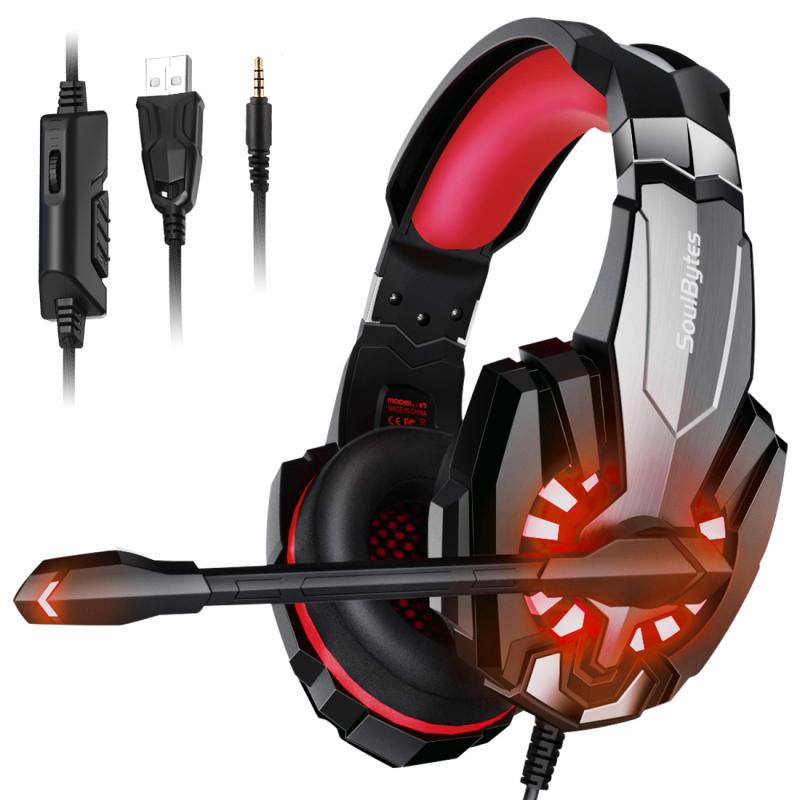
Personal tips and lessons learned
I’ve connected dual headphones for friends many times. Here’s what I learned.
- Use a good quality splitter if you want zero fuss. Cheap ones fail fast.
- For recording, use separate USB devices and a mixer app. It gives control.
- Bluetooth is great for movies, not for tight audio sync tasks like drumming or rhythm games.
If I could give one tip, it’s this: test before the session. Plug both headsets in and play a test clip.

PAA-style quick questions
Can I use two wired headphones at once on my PC?
Yes. Use a 3.5mm splitter or two separate jacks (front and back) or plug one to a USB sound card and the other to the headphone jack.
Will Bluetooth two-headphone connections add delay?
Often yes. Bluetooth can add latency. Wired solutions have lower delay.
Do I need special software to mirror audio to two devices?
Not always. Hardware splitters work without software. Windows or virtual audio tools help when using different types of outputs.

Frequently Asked Questions of how to connect 2 headphones to pc
How do I connect two wired headphones to my computer?
Use a 3.5mm splitter or connect each headset to separate audio outputs like the front and rear jacks. You can also add a USB audio adapter for an extra output.
Can I use two Bluetooth headphones on Windows at the same time?
Windows pairs multiple Bluetooth headsets, but playing audio to both simultaneously often needs extra software or a PC-specific sharing feature. Expect possible lag with Bluetooth.
Will using a splitter reduce audio quality?
A cheap splitter can reduce volume or quality. A high-quality passive splitter or a powered adapter maintains better sound.
Is a USB sound card better than a splitter?
A USB sound card often gives cleaner audio and separate device control. It is the better choice for recording or higher fidelity needs.
How do I fix one headphone not producing sound?
Check connections, set the correct default playback device, update drivers, and try swapping ports or a different headset to isolate the issue.
Conclusion
You have clear options for how to connect 2 headphones to pc. Choose a simple splitter for quick sharing, a USB adapter for quality, or software for flexible routing. Test your setup ahead of time and pick the method that matches your needs. Try one method today, and leave a note about your setup or questions below — I’ll help troubleshoot.

Jamie Lee is a seasoned tech analyst and writer at MyTechGrid.com, known for making the rapidly evolving world of technology accessible to all. Jamie’s work focuses on emerging technologies, product deep-dives, and industry trends—translating complex concepts into engaging, easy-to-understand content. When not researching the latest breakthroughs, Jamie enjoys exploring new tools, testing gadgets, and helping readers navigate the digital world with confidence.