Discord mirrors your camera because the app shows a mirrored preview for your comfort, not for others.
I’ve spent years testing video apps and troubleshooting webcams, so I’ll explain why does Discord mirror my camera in simple terms, how it affects calls, and clear steps to change what others see. This guide covers causes, fixes, privacy notes, and real-world tips so you won’t be stuck wondering why does Discord mirror my camera anymore.

Why Discord mirrors your camera
Discord mirrors your camera feed locally so your preview feels like looking into a mirror. The aim is to make gestures and hair adjustments feel natural while you set up video.
Most video apps do the same. You see a flipped preview, but the people you call usually see the correct, non-mirrored image. If you ask “why does Discord mirror my camera,” know that this is mainly a user-experience choice, not a bug.
Common causes explained
Understanding the different reasons helps fix the issue fast.
-
Preview-only mirroring
Discord mirrors your local preview to match how you expect yourself to look. This does not always mean other participants see the same mirrored view. -
Camera hardware and drivers
Some webcams or drivers provide a mirrored output by default. That can make your outgoing feed mirrored unless corrected. -
Virtual camera tools
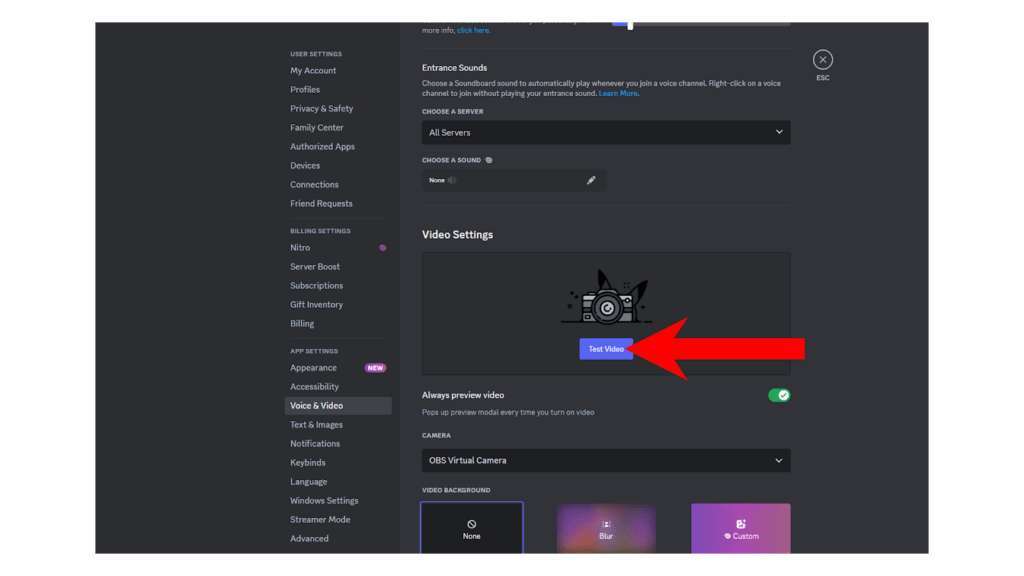
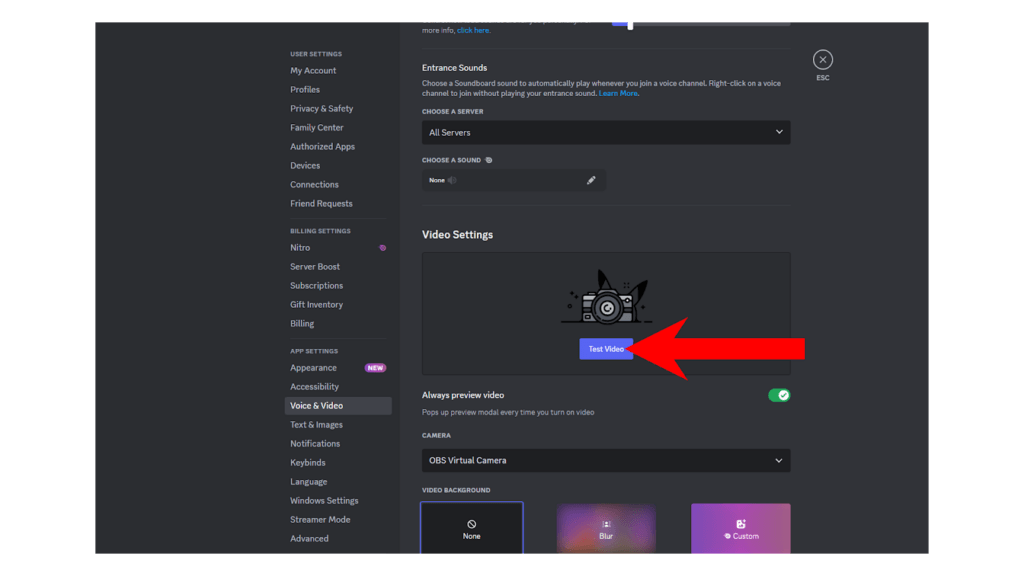
Apps like OBS, ManyCam, or virtual camera drivers can flip or mirror feeds. If one is active, Discord may use that mirrored output. -
Mobile front-facing cameras
Phone cameras often show a mirrored preview. Apps may or may not un-mirror the stream sent to others. -
Browser vs desktop app differences
Chrome, Edge, or the Discord desktop app may handle camera orientation differently. Browser permissions or settings can affect mirroring.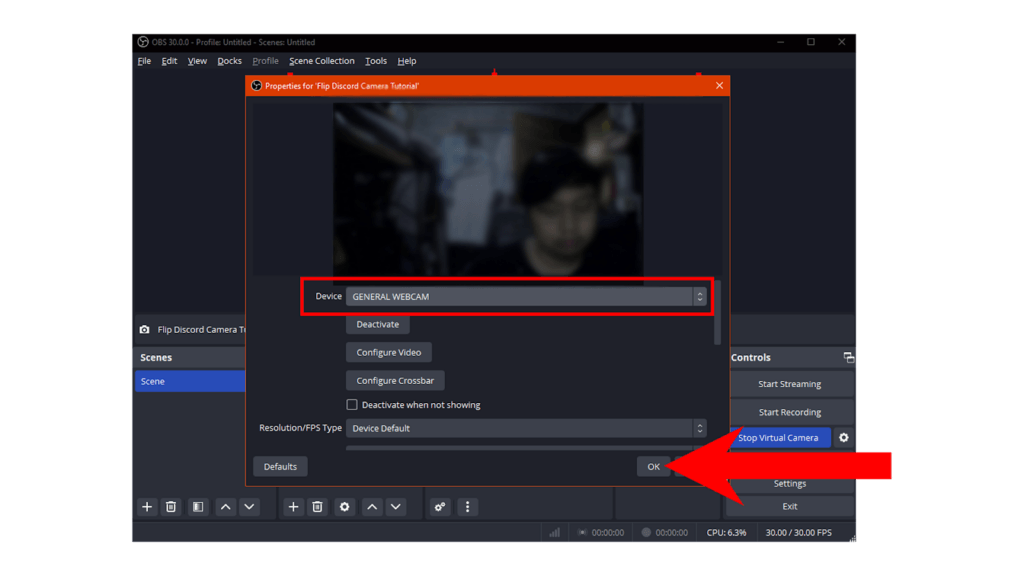
Source: hollyland.com
How to stop Discord from mirroring my camera
If you want others to see the same orientation you see, try these steps. Note: Discord does not currently offer a direct “unmirror preview” toggle in the app.
-
Confirm who sees what
Ask another person to tell you if your video is mirrored. Often the preview is the only mirrored view and others see the correct image. -
Use a camera app or driver settings
Open your webcam’s control panel or manufacturer app and look for flip or mirror options. Turn off mirroring there to change the feed Discord uses. -
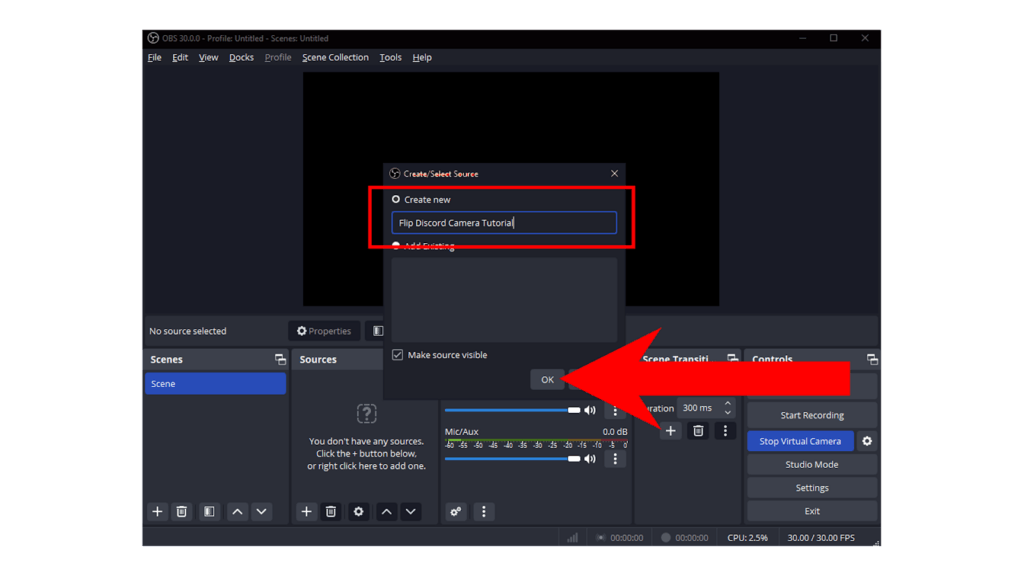
Use OBS Studio and Virtual Camera (desktop)
- Install OBS Studio.
- Add your webcam as a Video Capture Device.
- Right-click the source, choose Transform, then flip horizontal if needed.
- Start OBS Virtual Camera and select it in Discord’s camera settings.
This gives you full control over orientation.
-
Disable virtual cameras temporarily
If you use virtual camera software, disable it to see if Discord returns to a normal feed. -
Try the browser or app swap
Test Discord in a web browser if you use the desktop app, or vice versa. That can reveal where mirroring originates.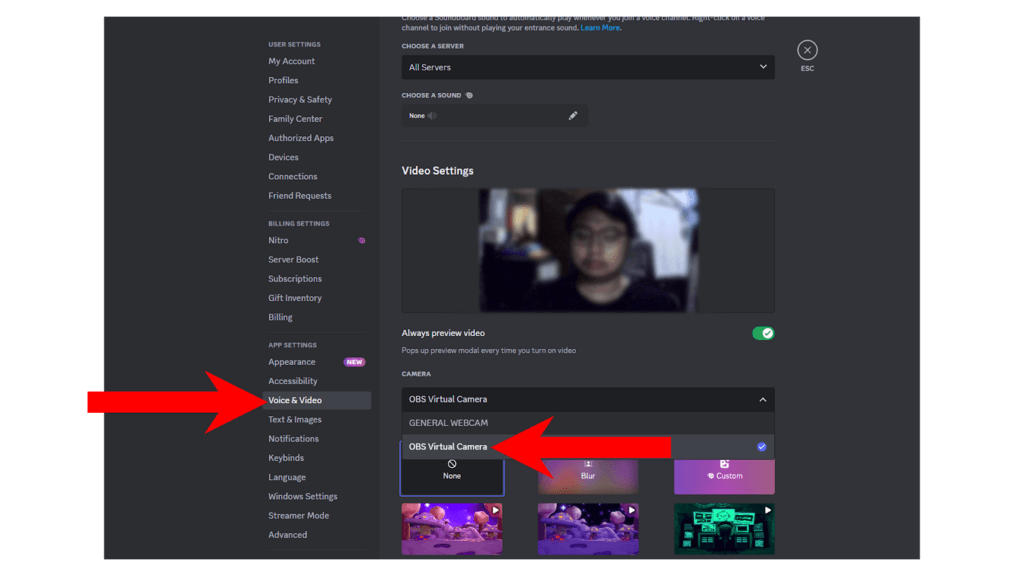
Source: hollyland.com
Privacy, perception, and why mirroring matters
Mirroring affects how you read text on your shirt, which hand looks raised, and how comfortable you feel in a call. It also changes how others perceive motion and sign language.
If you teach, stream, or show text on-camera, mirroring can confuse viewers. That’s why knowing why does Discord mirror my camera matters for pro calls and public streams. Adjust orientation early to avoid miscommunication.
Troubleshooting checklist
Quick steps to debug mirroring issues.
- Restart Discord and your camera app to reset settings.
- Update webcam drivers and the Discord app to the latest versions.
- Check Discord’s camera selection and pick a different device to test.
- Disable or remove virtual camera plugins to isolate the feed.
- Clear Discord cache or reinstall if odd behavior persists.
- Test with another device to confirm whether mirroring is local or on the stream.
Personal experience and lessons learned
I once had a live stream where the text on my shirt appeared backwards to viewers. I assumed Discord was broken. After testing, I found a virtual camera plugin was mirroring the feed. I switched to OBS Virtual Camera and fixed the orientation in five minutes.
Lesson learned: always confirm with a second device and keep a simple checklist. Mirroring often looks like a major issue but is usually a tiny setting in one app.
Frequently Asked Questions of why does discord mirror my camera
Why does Discord mirror my camera only for me?
Discord mirrors your local preview to make the view feel familiar. The stream sent to others is usually not mirrored.
Can I turn off camera mirroring in Discord settings?
There is no built-in toggle in Discord to stop mirroring your preview. Use your webcam app or a virtual camera to change the output.
Do other people see the mirrored image?
Most likely no. Other people typically see the non-mirrored, true orientation of your camera feed.
Will switching to the browser fix mirroring?
Sometimes. Browser and desktop app handle cameras differently, so testing both can reveal where mirroring comes from.
How do I flip my camera so others see it the same way I do?
Use webcam software or OBS Studio with Virtual Camera to flip or keep the feed as you prefer, then select that virtual camera in Discord.
Conclusion
Knowing why does Discord mirror my camera removes a lot of guesswork. Mirroring is often a local preview feature, hardware default, or virtual camera setting. Check your camera app, test another device, or use a virtual camera if you need precise control. Try one fix today, verify with a friend, and you’ll have clearer calls tomorrow. If this helped, leave a comment, subscribe for more guides, or test these tips and share what worked for you.

Jamie Lee is a seasoned tech analyst and writer at MyTechGrid.com, known for making the rapidly evolving world of technology accessible to all. Jamie’s work focuses on emerging technologies, product deep-dives, and industry trends—translating complex concepts into engaging, easy-to-understand content. When not researching the latest breakthroughs, Jamie enjoys exploring new tools, testing gadgets, and helping readers navigate the digital world with confidence.