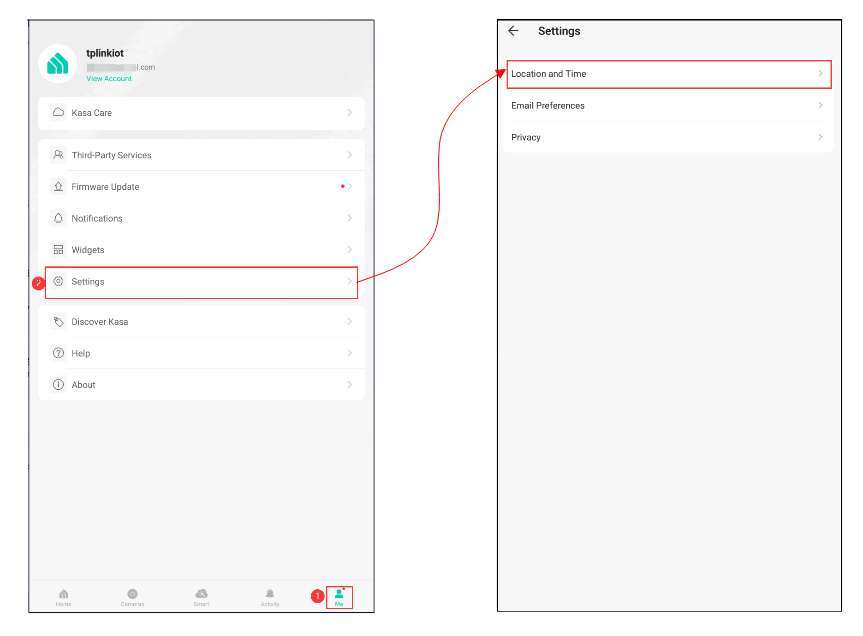
Open the Kasa app, go to Device Settings or Account Settings, and select the correct time zone.
I’ve spent years setting up home cameras and smart devices, and getting the time wrong on a Kasa camera is a common but fixable issue. This guide walks you through how to change time zone for Kasa camera with clear steps, tips, and troubleshooting from real-world experience. I’ll show the app-based method, quick fixes, why timestamps matter, and what to try if the camera won’t update.

Why the correct time zone matters for Kasa cameras
A wrong time zone makes video timestamps useless. You may not be able to match events to real time. Accurate time helps with alerts, clips, and evidence if you need it.
Many Kasa cameras use network time sources and app settings. That means the Kasa app or your phone often controls the clock. If you know how to change time zone for Kasa camera, you keep logs accurate and avoid confusion during incidents.
What you need before changing the time zone for Kasa camera
Make sure these basics are ready. They save time and prevent repeat steps.
- Have the Kasa app installed and logged in on your phone.
- Ensure the camera is online and visible in the app.
- Update the Kasa app and camera firmware if updates are pending.
- Know your account region and phone time settings. These can affect the camera time.
If anything fails, a factory reset can help, but only after other fixes. I learned this the hard way when I reset a camera prematurely and had to reconfigure automations. That’s why checking these items first matters.

How to change time zone for Kasa camera — step-by-step (mobile app)
Follow these steps. They work on iOS and Android with current Kasa app versions.
- Open the Kasa app and sign in.
- Tap the camera on the Devices screen to open its live view.
- Tap the settings icon (gear) for that camera.
- Look for Device Settings, Device Info, or Advanced Settings.
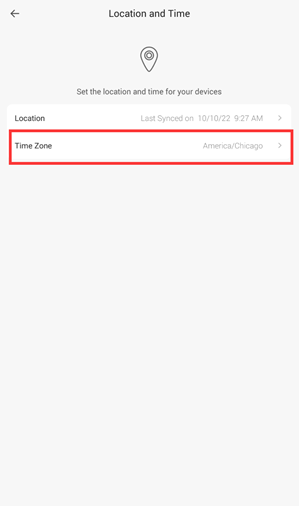
- Find Time Zone or Time and Date. Choose your correct time zone from the list.
- Save changes and restart the camera if prompted.
If you don’t see a time zone option, try these alternatives:
- Update the app and firmware, then check again.
- In the Kasa app main menu, go to App Settings or Account Settings and look for a global Time Zone or Region setting.
- Enable location services for the app so it can auto-detect your region.
I once changed my phone’s time zone instead of the camera’s and the timestamps stayed wrong. Always change the camera or app setting first, then adjust the phone if needed.
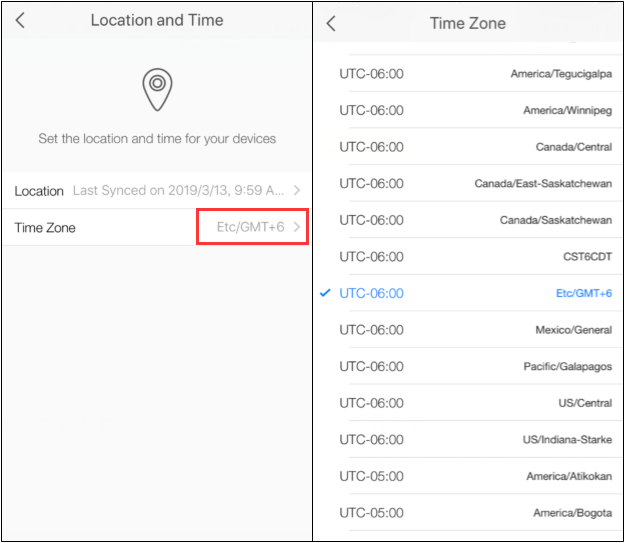
Additional methods and network time tips
Kasa devices often rely on network time (NTP). If the app methods fail, try these steps.
- Confirm the camera can reach the internet. NTP needs outgoing network access.
- Check your router’s DNS or firewall. Blocked NTP ports (UDP 123) can stop time sync.
- Set your phone’s time and region correctly, then restart the Kasa app to force a resync.
- If your camera supports custom NTP in advanced settings, add a trusted NTP server and save.
If your home network restricts certain traffic, you may need to allow time sync. On one job, opening UDP 123 fixed timestamps for multiple devices quickly.

Troubleshooting: when the time zone change doesn’t stick
Try these steps when timestamps stay wrong after changes.
- Force-close and reopen the Kasa app, then check the camera again.
- Power-cycle the camera: unplug, wait 10 seconds, and plug back in.
- Reboot your router to clear any cache that may block time sync.
- Reinstall the Kasa app and sign in again. This can refresh account-based settings.
- If only one camera is wrong, remove the camera from the app, then re-add it. Keep your settings noted before removal.
If issues persist, update firmware. Firmware bugs can prevent time zone updates. If a firmware update is impossible, contact support and report your model and firmware version. I once solved a stubborn timestamp bug by applying a camera firmware update released a week after I reported it.
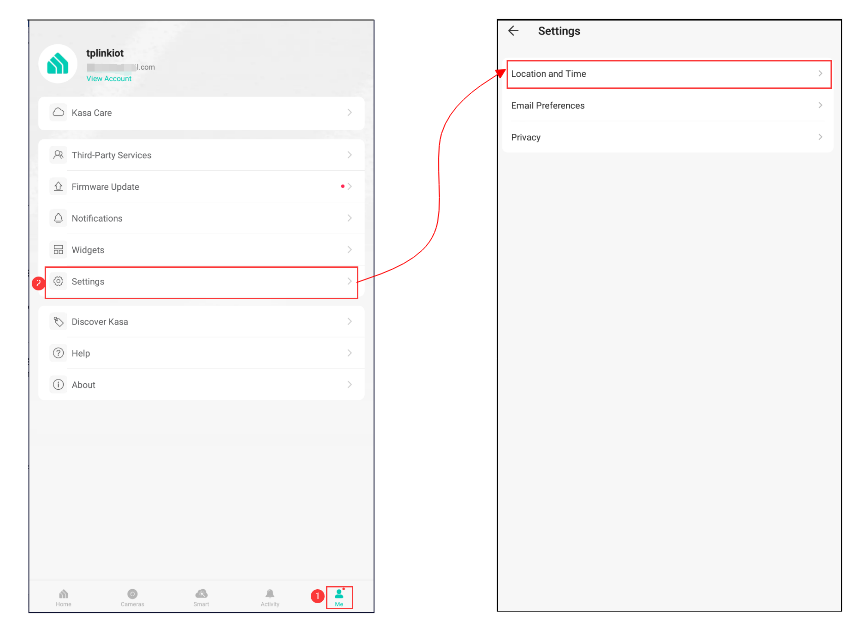
Best practices and tips for reliable timestamps
Small habits keep timestamps accurate across seasons and devices.
- Keep firmware and the Kasa app up to date.
- Use the same region and time zone across your account and devices.
- Enable location services for the app when possible for automatic zone detection.
- Check timestamps after daylight saving changes and update if needed.
- Document camera names and which timezone they use if you manage many devices.
When I manage multiple cameras, I keep a short checklist with device names, locations, and the timezone setting. This avoids confusion when reviewing clips from different cameras.

Frequently Asked Questions of how to change time zone for kasa camera(make it h2 tag)
How do I change the time zone on my Kasa camera app?
Open the Kasa app, select the camera, tap Settings, and find Time Zone or Time and Date. Save the correct zone and restart the camera if needed.
My Kasa camera shows the wrong time after DST. What should I do?
Check the camera and app settings for automatic time adjustments or daylight saving options. If none exist, manually update the time zone and reboot the camera.
What if there is no time zone option in device settings?
Update the Kasa app and camera firmware first. If the option is still missing, check global app settings or try removing and re-adding the camera.
Can my phone’s time affect the Kasa camera time?
Yes. The Kasa app may use your phone’s region or system time to set timestamps. Ensure your phone’s time and timezone are correct and then refresh the app.
Will a factory reset fix timestamp problems on Kasa cameras?
A factory reset can clear corrupted settings and sometimes fix time issues, but you’ll need to set up the camera again. Try updates, reboots, and re-adding the device before resetting.
Conclusion
Getting timestamps right on a Kasa camera is usually quick. Start in the Kasa app, confirm device and account settings, and keep firmware current. If problems persist, check network time access and use the troubleshooting steps above. Take action now: open your Kasa app, verify the time zone, and test a clip to confirm accuracy. If this helped, leave a comment or subscribe for more device tips and troubleshooting guides.

Everett Ashford is a tech reviewer at mytechgrid.com specializing in SSDs, cameras, TVs, earbuds, headphones, and other consumer electronics. He provides honest, data-driven reviews based on hands-on testing and real-world performance analysis. Everett simplifies complex tech details to help readers make smart, confident buying decisions.