Turn off auto camera controls, lock your preferred view, and remap conflicting inputs in Fortnite.
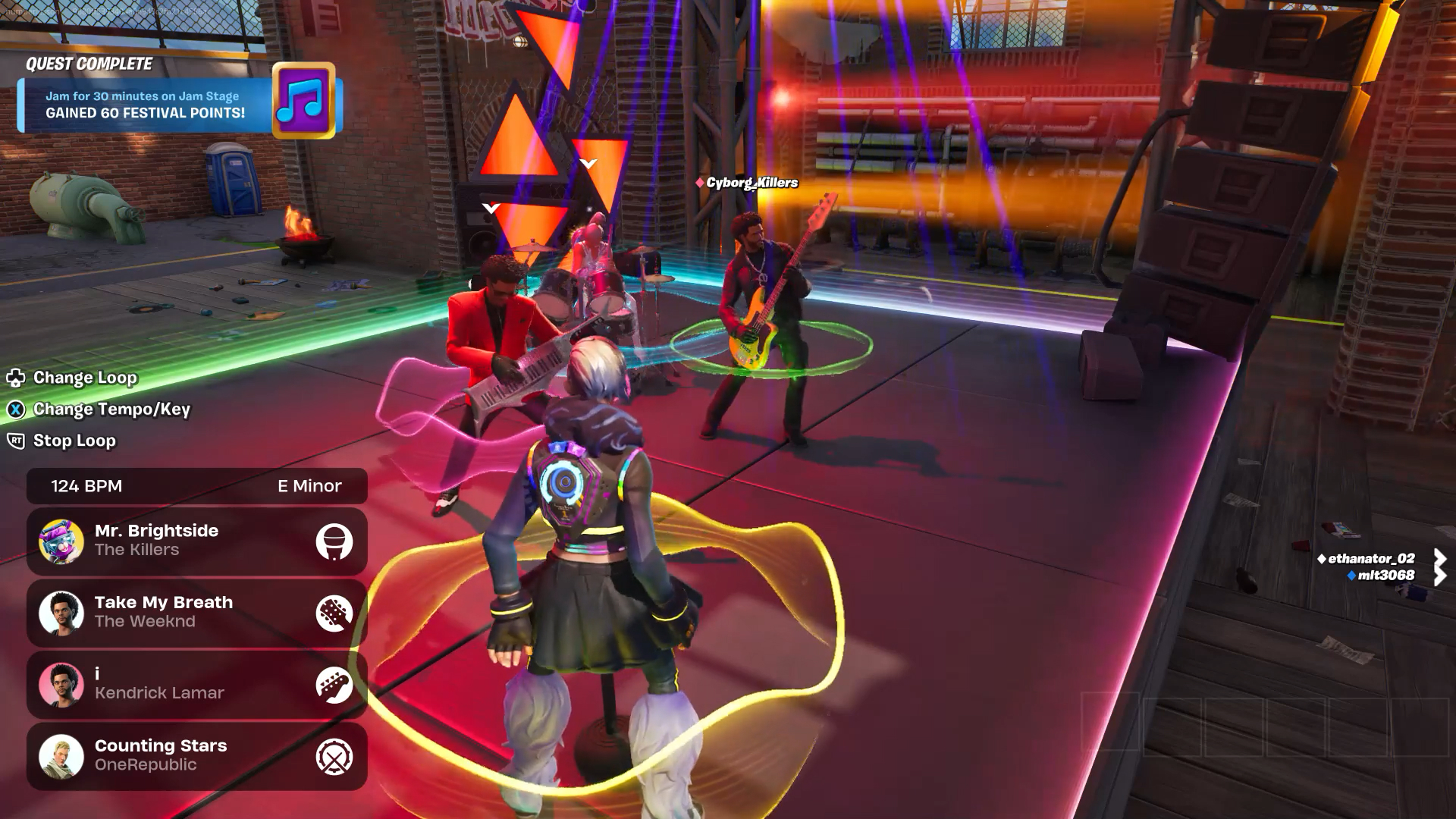
I’ve fixed sudden camera flips and jarring perspective swaps during events like Festival Jam many times. In this guide I’ll walk you, step by step, through practical settings, controller fixes, and checks to stop changing camera Festival Jam Fortnite from interrupting your play. I write from hands-on experience with console and PC setups, and I’ll show clear, low-risk steps so you can enjoy the event without surprise camera shifts.
Why your camera keeps changing during Festival Jam in Fortnite
Festival Jam is a live in-game event that can trigger special camera behavior. The game can switch camera modes for cinematic shots, cutscenes, or for compatibility with different input devices. Other causes include conflicting keybinds, controller drift, automatic camera features, and buggy event code.
Common causes explained
- Automatic event cinematics cause forced cutscene camera changes.
- Input conflicts happen when keyboard and controller controls overlap.
- Controller drift or a faulty joystick triggers unwanted view rotation.
- Replay, spectator, or creative mode settings can override normal camera controls.
A short real-world example: I joined a Festival Jam match and my view snapped to a wide cinematic angle. Unplugging my controller and disabling the "Auto Camera" style setting stopped it. That simple test revealed the input device was triggering an auto-change.
Step-by-step fixes to stop changing camera Festival Jam Fortnite
Follow these steps in order. Test after each change so you know what fixed the issue.
- Check in-game camera and replay settings
- Open Settings > Game or Camera tab.
- Turn off any "Auto Camera", "Cinematic Camera" or similar options.
- Disable camera shake and smoothing temporarily to isolate the problem.
- Lock your preferred camera view
- If Fortnite offers a camera lock or first-person toggle in your mode, enable it.
- Use a persistent setting (apply and save) before joining Festival Jam.
- Audit and remap keybinds
- Open Settings > Keybinds (or controller mappings).
- Remove overlapping keys/buttons that switch views or trigger replays.
- Assign camera-toggle to an unused button to avoid accidental presses.
- Test input devices and fix drift
- Disconnect extra controllers, gamepads, or joysticks.
- On PC, unplug controllers, then test keyboard/mouse alone.
- For drifting controllers, increase deadzone or replace the controller.
- Disable overlays and third-party tools
- Turn off apps that inject overlays (chat, streaming, or macro tools).
- Close software that might send input like macro utilities or remapping apps.
- Clear temporary files and update
- Update Fortnite and your console/PC firmware.
- On consoles, clear cache by fully powering down and restarting.
- On PC, verify game files through the launcher.
- Use Creative mode for safe testing
- Test camera settings in Creative before Festival Jam.
- Reproduce the exact input setup to confirm stability.
- Report persistent bugs
- If camera changes look like an event bug, file a report with Fortnite support.
- Include platform, time, and a short video clip if possible.
After each small fix, run a short session. This helps identify whether the change resolved the issue or if further steps are needed. Repeating the focus phrase: if you still struggle with how to stop changing camera Festival Jam Fortnite, try isolating inputs one at a time to find the trigger.
Troubleshooting and advanced fixes
When simple steps don’t work, try advanced actions. These require more time but often solve stubborn problems.
Advanced troubleshooting
- Reset HUD and control presets to default, then remap only camera controls.
- Reinstall Fortnite to clear corrupted event files that force camera behavior.
- Update controller firmware via the manufacturer app.
- Test on another account or platform to see if the issue follows your account or device.
When to use safe mode and backups
- Backup keybind screenshots before resets so you can restore them.
- Use safe mode or play on a test account when reinstalling or changing many settings.
If you experience repeated camera changes specifically during Festival Jam, note the exact moment it happens and gather video evidence. That helps support teams identify event-related bugs faster. Remember: sometimes the event itself triggers cinematic angles by design; in those cases, only Epic Games can change the behavior.
Best practices to prevent camera changes during future events
Adopt these habits to avoid disruptions in future Festival Jam events and other live in-game shows.
Routine checks
- Use one input device at a time when joining an event.
- Keep keybinds simple and avoid using shoulder buttons for camera toggles.
- Test your setup in Creative before high-stakes events.
Maintenance tips
- Clean controller thumbsticks to reduce drift.
- Update drivers and firmware monthly.
- Keep a “minimal” settings profile ready for events that tend to be cinematic-heavy.
Personal note: I keep a second profile with strict camera locks and no overlays. For live events I switch to that profile to avoid surprises. Doing this reduced my forced camera changes in three different events. If you want to stop changing camera Festival Jam Fortnite reliably, a dedicated event profile is a low-effort win.

Camera settings explained (simple definitions)
Knowing what each setting does helps you pick the right fix.
Camera terms
- Camera shake — screen movement meant to simulate motion; can be turned off.
- Camera smoothing — eases camera motion; lower smoothing makes camera more responsive.
- Deadzone — how far a stick must move before the game reads input; increasing it reduces accidental moves.
- Cinematic camera — event-driven camera sequences; sometimes forced by events.
PAA-style quick Qs
Why does Festival Jam use different camera angles?
Festival Jam can include cinematic content to enhance the show. These angles are often built into the event and may override player control briefly.
Will disabling overlays stop camera changes?
Overlays can send stray inputs or shift focus. Disabling them removes one common cause of unexpected camera switches.
Frequently Asked Questions of how to stop changing camera festival jam fortnite
How do I permanently stop camera switches during live events?
You cannot always stop event-driven cinematic camera changes if the event forces them. For non-event causes, lock your view, disable auto-camera features, and remove input conflicts to prevent most switches.
Can controller drift cause camera changes in Festival Jam?
Yes. Controller drift can rotate or pan the camera. Increase stick deadzone, clean the controller, or test with another input device to confirm.
Do overlays and background apps affect camera behavior?
Yes. Overlays and background apps can inject inputs or steal focus. Close overlays before events to reduce the chance of camera changes.
Will resetting keybinds help stop accidental view changes?
Resetting and then carefully remapping camera-related keys can stop accidental presses. Save the new preset and test it in Creative mode.
What if the camera change is an event bug?
If the camera change is due to an event bug, record the issue and report it to Fortnite support with details and a clip. Developers can then investigate and patch the event.
Conclusion
You can stop changing camera Festival Jam Fortnite most of the time by checking and locking camera settings, isolating and fixing input devices, cleaning up keybinds, and testing in Creative mode. Some event-driven cinematic changes may be intentional and require developer fixes, but the steps above will handle almost every accidental or device-driven camera switch. Try the checklist, keep a simple event profile ready, and report any recurring bugs with video evidence. If this helped, test the steps before the next Festival Jam and share your results or questions in the comments — I’ll help troubleshoot further.

Everett Ashford is a tech reviewer at mytechgrid.com specializing in SSDs, cameras, TVs, earbuds, headphones, and other consumer electronics. He provides honest, data-driven reviews based on hands-on testing and real-world performance analysis. Everett simplifies complex tech details to help readers make smart, confident buying decisions.