Most camera issues come from permissions, drivers, or simple hardware and connection faults.
I’ve fixed dozens of camera problems for friends and clients, and I’ll walk you through clear, step-by-step reasons and fixes for why isn't my camera working. This guide explains common causes, quick checks, deeper troubleshooting, and real-world tips you can use right now. Read on to diagnose your camera with confidence and get it back to normal fast.

Quick checklist to try first
Start simple. Many camera problems resolve in minutes with a few checks.
- Restart the device and the camera app.
- Check camera privacy and app permissions.
- Unplug and replug external cameras or try a different port.
- Update the operating system and camera app.
- Test the camera in another app or on another device.
If those steps do not work, keep reading for targeted fixes and explanations tailored to why isn't my camera working.

Software and permission issues
Software blocks and wrong permissions are top reasons cameras stop working. Apps need explicit access to hardware on modern systems.
- Check privacy settings on your phone or computer and make sure the camera is allowed for the app you’re using.
- Close background apps that might be using the camera. Only one app can usually use the camera at a time.
- If an app shows a black screen, force‑close it and reopen. Reinstall the app if the issue persists.
- For web use, confirm the browser has camera permission and that the site isn’t blocked.
Example: On Windows, open Settings > Privacy > Camera and toggle access for apps. On macOS, open System Settings > Privacy & Security. These simple checks often answer why isn't my camera working.
Driver and system updates
Outdated or corrupt drivers and system files can break camera function.
- Check for OS updates. Install them and restart.
- For external or built‑in webcams on PCs, update the camera driver from Device Manager or the manufacturer’s support site.
- Roll back a recent driver update if the camera stopped working after an update.
- Run built-in troubleshooters. Many systems have a “Hardware and Devices” troubleshooter that can fix common issues.
Pro tip from experience: I once solved a client’s camera failure by rolling back a webcam driver installed automatically by Windows Update. After rollback and restart, the camera worked fine again.

Hardware and connection problems
Hardware faults are common, especially with external webcams, USB cams, and laptops where the camera cable can loosen.
- Inspect cables and ports for damage or dust. Try a different USB cable or port.
- Test the camera on another computer to rule out device failure.
- For built-in laptops, check for a physical privacy shutter or switch that covers the lens.
- If the camera makes noise, overheats, or the lens is stuck, stop and consult repair services.
Example checks: Swap USB ports, try a powered USB hub, or test with a known-good cable. These steps answer many “why isn't my camera working” cases driven by connection issues.
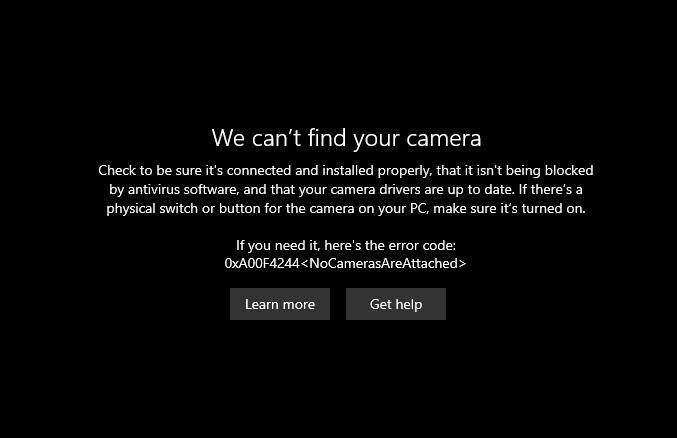
App-specific issues and settings
Some apps have their own camera settings that can cause problems even when the hardware is fine.
- In video conferencing apps, verify the correct camera is selected and not set to a virtual or disabled device.
- Reset the app settings to default if you changed video settings recently.
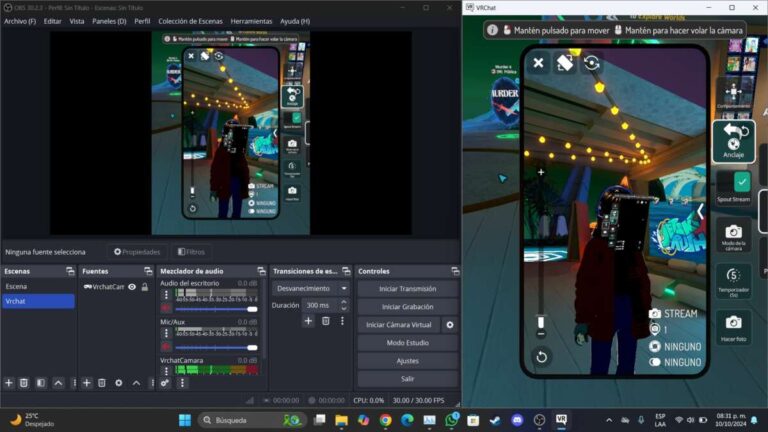
- Disable any virtual camera software if it conflicts with the real camera.
- Check resolution and frame rate settings. Extremely high settings may cause the camera to fail on older devices.
From experience, switching the app’s selected camera to an alternate device and then back can reset the stream and restore function. This quick trick often answers why isn't my camera working in a specific app.

Network, streaming, and IP camera issues
Network cameras add another layer. Network configuration and bandwidth can break camera streams.
- Confirm the camera and viewing device are on the same network and subnet.
- Check camera IP address and login credentials. Use the camera’s web interface to test the feed.
- Reduce streaming resolution to save bandwidth and test stability.
- Ensure port forwarding or firewall rules allow the camera stream if accessing remotely.
If a camera once connected but now doesn’t, a router restart and a DHCP reservation for the camera often fix the problem. These fixes cover many why isn't my camera working scenarios for networked devices.
Advanced troubleshooting and diagnostics
When basic steps fail, systematic diagnostics help find root causes.
- Use safe mode or a clean user profile to see if third-party software conflicts with the camera.
- Check system logs for errors related to camera devices or drivers.
- Run manufacturer diagnostic tools for the camera or laptop.
- Capture a short log or video demonstrating the failure to help support staff diagnose the issue.
Example workflow I use: reproduce the issue, test with a second device, check logs, update drivers, and, if needed, reset hardware settings. This structured approach pinpoints why isn't my camera working in stubborn cases.
Preventive tips and maintenance
Keep your camera healthy with routine care and settings checks.
- Keep firmware and drivers updated on cameras and routers.
- Clean the lens with a soft cloth and avoid harsh chemicals.
- Avoid running memory‑heavy apps while streaming video.
- Label cables and keep spare cables on hand.
- Enable automatic backups of camera settings when possible.
A simple maintenance habit prevents most surprises that lead people to ask why isn't my camera working.
Personal experience and common mistakes
I’ve repaired cameras for non-tech clients and learned what trips people up most.
- People often skip permissions and jump to hardware conclusions. Always check permissions first.
- Replacing gear too quickly wastes money. Often a driver rollback or setting change fixes the issue.
- Not testing on another device is a common miss. A quick cross‑test saves hours.
Lesson learned: patience and method beat guesswork. Follow the checklist and you will likely fix why isn't my camera working without buying new hardware.
Frequently Asked Questions of why isn't my camera working
Why isn't my camera working on Zoom or Teams?
Check the app’s camera selection and permissions. Close other apps that may be using the camera, and restart the meeting app to refresh the device list.
Why does my camera show a black screen?
A black screen often means the camera is blocked, in use by another app, or the driver failed. Verify permissions, close competing apps, and update or rollback the driver.
Why won't my phone camera open?
Phone cameras can be blocked by permissions, a buggy app, or low storage. Restart the phone, clear the camera app cache, and ensure the app has camera access.
How do I test if my camera is broken?
Test the camera on another computer or app. If it fails across devices, the camera likely has a hardware issue. If it works elsewhere, the problem is software on the original device.
Can antivirus block my camera?
Yes. Security software can block camera access or virtualize the device. Check antivirus or privacy tools and whitelist the camera or app if needed.
Why is my Wi‑Fi camera offline?
Network issues, power loss, or IP changes can put a camera offline. Restart the camera and router, check power and network settings, and confirm the camera has a stable IP or DHCP reservation.
Conclusion
Camera problems are usually fixable with calm, simple checks. Start with permissions, app selection, and a restart. Then move to drivers, cables, and network checks. If needed, follow systematic diagnostics or seek professional hardware repair. Try the steps here, and you’ll likely resolve why isn't my camera working today.
Take action now: run the quick checklist, update drivers, and test across apps. If you found this helpful, leave a comment or subscribe for more clear troubleshooting guides.

Jamie Lee is a seasoned tech analyst and writer at MyTechGrid.com, known for making the rapidly evolving world of technology accessible to all. Jamie’s work focuses on emerging technologies, product deep-dives, and industry trends—translating complex concepts into engaging, easy-to-understand content. When not researching the latest breakthroughs, Jamie enjoys exploring new tools, testing gadgets, and helping readers navigate the digital world with confidence.