Turn off the PC, unplug it, remove the side panel, disconnect the SSD, and take out its mounting screw.
Learning how to remove SSD from PC is simple when you follow the right order. The process differs slightly between a 2.5-inch SATA SSD and an M.2 NVMe drive, but both can be removed safely with basic tools. This guide explains each step, protects your data, and helps you avoid common hardware mistakes.

Before You Remove an SSD From a PC
Before learning how to remove SSD from PC, check which type of drive your computer uses. Most desktop computers contain either a 2.5-inch SATA SSD or a small M.2 SSD mounted directly on the motherboard.
A SATA SSD looks like a thin metal or plastic rectangle. It connects with two cables:
• A SATA data cable runs to the motherboard.
• A SATA power cable runs from the power supply.
An M.2 SSD looks like a narrow circuit board. It lies flat on the motherboard and usually uses one small screw at the end.
Removing an SSD does not erase its data. The files remain on the drive unless you format it, overwrite it, or physically damage it. Still, always handle the drive with care.
Back Up Important Files
Back up your documents, photos, game saves, and work files before you start. If the SSD contains Windows, create a system image or make sure you have a recovery drive ready.
If BitLocker or another encryption tool protects the drive, save your recovery key. You may need it later if you connect the SSD to another computer.
Shut Down the Computer Fully
Use the normal Windows shutdown option. Do not remove the drive while the computer is running.
After the PC turns off, switch off the power supply at the rear if it has a switch. Then unplug the power cable. Press the PC’s power button for a few seconds to help drain leftover electrical power.
Gather Simple Tools
You may need:
• A Phillips-head screwdriver
• A small container for screws
• An anti-static wrist strap
• A flashlight
• A clean, dry work surface
Avoid working on carpet when possible. Static electricity can harm sensitive computer parts, even when the damage is not visible.

How to Remove a 2.5-Inch SATA SSD
This is the most common method for removing a SATA solid-state drive from a desktop computer. The drive may sit in a drive cage, tray, bracket, or adapter.
Step 1: Open the PC Case
Place the computer on its side with the removable side panel facing up. Remove the screws that hold the panel in place, then slide or lift the panel off.
Some cases use thumb screws. Others use a release button or a sliding latch. Do not force the panel. Check the case manual if it does not move easily.
Step 2: Find the SATA SSD
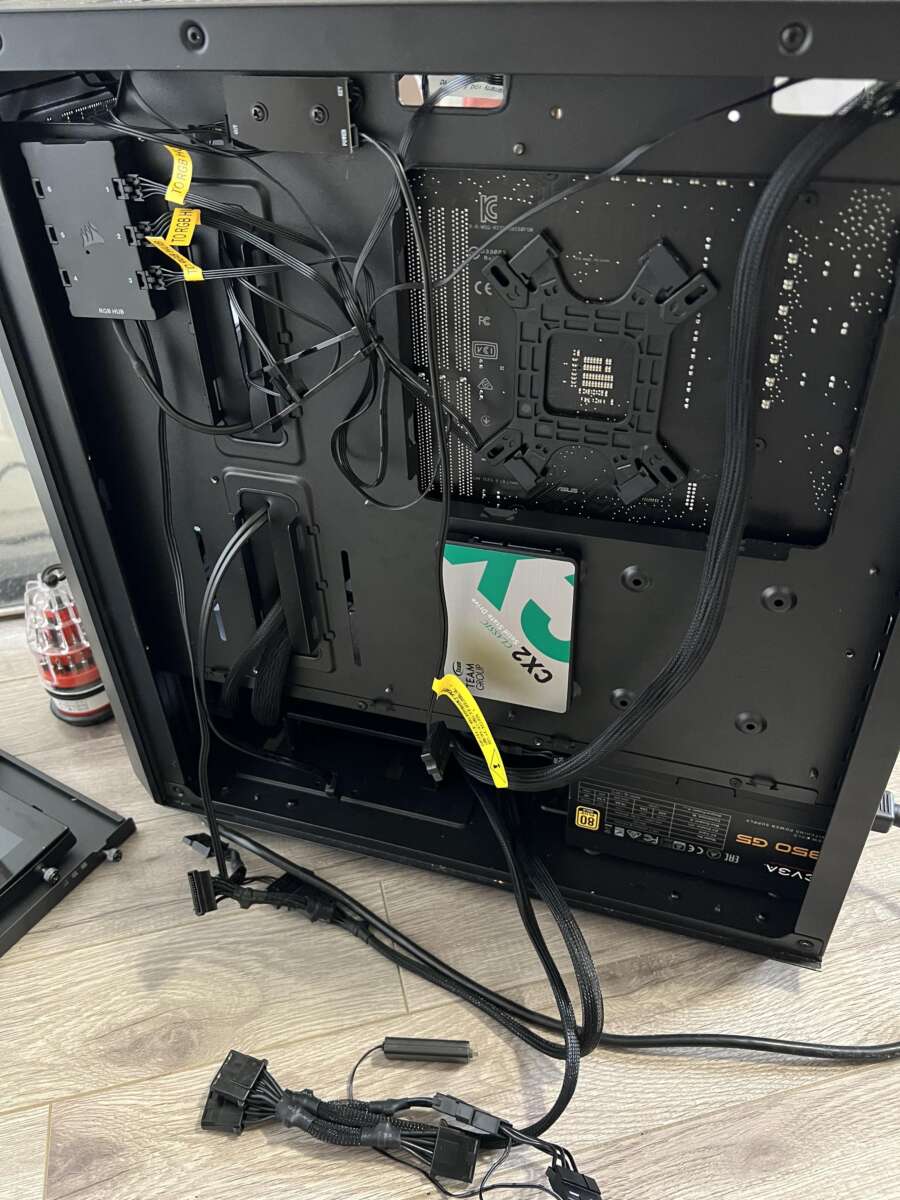
Look for a flat, rectangular drive. It may have a label that says SSD, SATA, or a brand name such as Samsung, Crucial, Kingston, or Western Digital.
The drive may be mounted:
• Behind the motherboard tray
• In a front drive cage
• On the bottom of the case
• On a removable metal bracket
Step 3: Disconnect the Cables
Hold the plastic connector on the SATA data cable. Pull it straight out of the SSD.
Next, disconnect the wider SATA power connector. It may be tight, so gently rock it from side to side while pulling straight back. Never pull on the cable itself.
If the connector has a locking clip, press the clip before removing it. This prevents damage to the socket.
Step 4: Remove the Mounting Screws
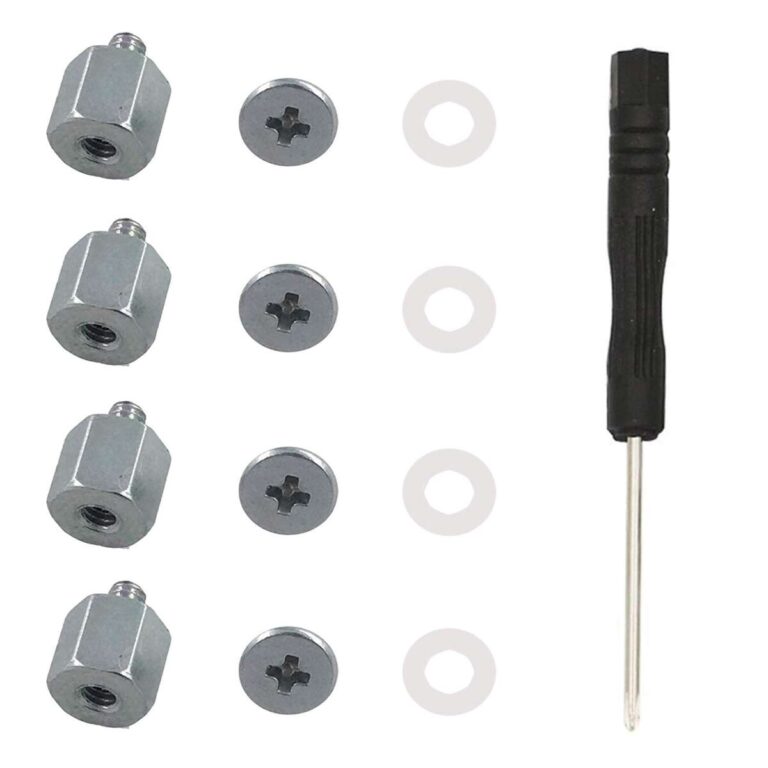
Use a Phillips screwdriver to remove the screws that hold the SSD to its tray or bracket. Most 2.5-inch SSDs use four screws, but some cases use only two or use a tool-free mount.
Keep the screws in a safe place. SSD screws are small and easy to lose inside a PC case.
Step 5: Lift Out the SSD
Once the cables and screws are removed, slide the SSD out of its bracket. Hold it by the edges and avoid touching the exposed circuit board.
Place the drive in an anti-static bag if you plan to reuse or store it. If you do not have one, use the original packaging or a clean box. Do not place the SSD on a metal surface.
When I help with PC upgrades, the most common mistake is pulling the SATA cable by its wire. The connector can separate from the cable or damage the SSD port. A slow, straight pull is safer than force.

How to Remove an M.2 NVMe SSD
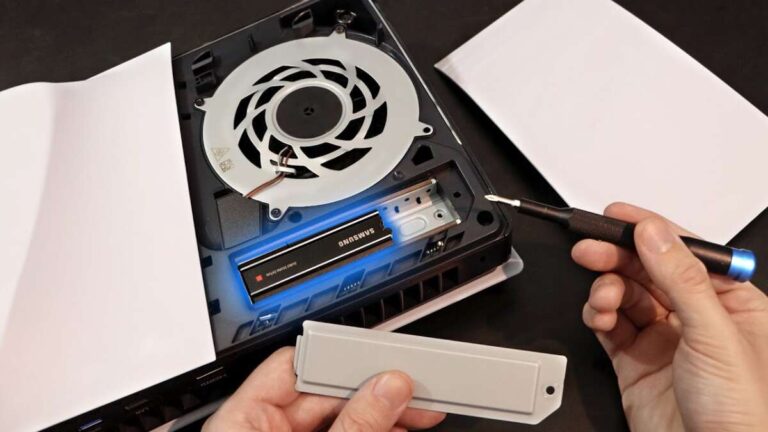
M.2 drives are smaller than SATA SSDs and connect directly to the motherboard. Learning how to remove SSD from PC in this form requires extra care because the drive is held down by one tiny screw or a retention clip.
Step 1: Locate the M.2 Drive
Look for a narrow circuit board installed on the motherboard. It may be covered by a metal heatsink labeled M.2, NVMe, or a motherboard brand name.
The drive may be near the CPU socket, below the graphics card, or between the PCIe expansion slots. Some motherboards have more than one M.2 slot.
Step 2: Remove the Heatsink if Needed
If a metal cover sits over the M.2 drive, remove its retaining screw. Lift the cover carefully.
Some heatsinks have a thermal pad attached to the underside. Avoid touching or tearing the pad. If it sticks to the SSD, separate it slowly.
Step 3: Remove the Retaining Screw
At the far end of the M.2 SSD, you will find a very small screw. Remove it with the correct screwdriver.
Once the screw is out, the drive usually rises at an angle of about 20 to 30 degrees. This is normal. Do not push it down or pull it straight upward.
Step 4: Slide the SSD Out
Hold the edges of the drive and slide it out of the M.2 slot at the same angle. The gold contacts should move straight out of the connector.
Do not twist the SSD. The connector is delicate, and bending the drive can damage both the SSD and the motherboard.
Step 5: Store the SSD Safely
Place the M.2 SSD in an anti-static bag or its original box. Keep the tiny retaining screw with it so you can reinstall the drive later.
If you remove an M.2 SSD from a gaming PC, check whether the graphics card blocks access. In that case, you may need to remove the graphics card first. Disconnect its power cable and release the PCIe slot latch before lifting it out.

How to Remove an SSD From a Laptop
Removing an SSD from a laptop is different from learning how to remove SSD from PC in a desktop. Many laptops use M.2 drives, while older models may use 2.5-inch SATA drives.
First, shut down the laptop and unplug the charger. If the battery is removable, take it out. If the battery is internal, disconnect it from the motherboard after opening the bottom cover, when the design allows it.
Remove the bottom-panel screws and lift the cover with a plastic pry tool. Avoid metal knives or screwdrivers for prying because they can scratch the case or short components.
Find the SSD and remove its retaining screw. For an M.2 drive, lift the exposed end and slide it out. For a 2.5-inch drive, disconnect the cable or drive caddy before lifting it out.
Laptop designs vary widely. Check the service manual for your exact model before opening it. Opening some laptops may affect warranty coverage, although many manufacturers allow user upgrades. The warranty rules depend on the brand and region.

What to Do After Removing the SSD
After you remove the drive, inspect the connector and mounting area. Look for bent pins, broken clips, loose screws, or damaged cables.
If you removed the boot drive, the PC may show a message such as “No boot device found” when you turn it on. This is expected because the computer can no longer find Windows.
If you plan to install a replacement drive:
- Insert the new SSD into the correct slot.
- Secure it with the proper screw or bracket.
- Reconnect the SATA data and power cables if it is a SATA model.
- Reinstall any M.2 heatsink.
- Reconnect the graphics card if you removed it.
- Close the case and reconnect the power cable.
- Turn on the PC and check the BIOS or UEFI menu.
The BIOS or UEFI screen should detect the new drive. If it does not, turn off the PC and check the cable, slot, and mounting position.
An M.2 SSD must be installed in a compatible slot. Some M.2 slots support both SATA and NVMe drives, while others support only one type. Your motherboard manual provides the most reliable information.

How to Protect Data on a Removed SSD
Removing an SSD does not securely erase its contents. Anyone who can access an unencrypted drive may be able to recover files with the right software.
If you plan to sell, recycle, or give away the SSD, use a secure erase feature from the drive manufacturer or your motherboard’s UEFI tools. For an encrypted drive, properly deleting the encryption key can make the stored data unreadable.
Do not use random file deletion as a secure wipe. Emptying the Recycle Bin only removes file references. It does not reliably remove the underlying data.
For sensitive business or personal information, follow accepted data disposal guidance. The correct method depends on the drive type, encryption status, and your security needs.
If the SSD has failed, physical destruction may be necessary for highly sensitive data. However, this makes recovery and reuse impossible. Use a certified electronics recycling service whenever possible.

Common Mistakes to Avoid
Knowing how to remove SSD from PC is not only about taking out screws. Good preparation prevents most damage.
Avoid these mistakes:
• Removing the SSD while the computer is powered on
• Forgetting to unplug the power cable
• Pulling SATA cables by the wire
• Touching gold contacts or exposed circuit traces
• Losing the M.2 retaining screw
• Using the wrong screwdriver
• Forcing a case panel, cable, or drive
• Installing an NVMe drive in an incompatible slot
• Forgetting BitLocker or encryption recovery keys
• Placing the SSD on carpet, metal, or a damp surface
One lesson worth remembering is that small connectors need patience. If a cable will not move, look for a locking tab instead of pulling harder. Most broken ports come from force, not from normal removal.

How Long Does SSD Removal Take?
A desktop SATA SSD usually takes about 10 to 20 minutes to remove. An M.2 SSD may take a similar amount of time, although removing a graphics card or motherboard heatsink can add extra steps.
A laptop may take longer because its bottom cover can have hidden screws or clips. First-time users should allow 30 to 60 minutes and work slowly.
You do not need advanced computer skills for this task. You need the correct screwdriver, good lighting, and enough time to identify each cable before removing it.

Frequently Asked Questions About How to Remove SSD From PC
Can I remove an SSD while the PC is turned on?
No. Shut down the computer, unplug the power cable, and wait before removing the SSD. Removing a drive while it is active can cause data loss and may damage the drive or motherboard.
Will removing an SSD delete my files?
No. Physical removal does not erase data from an SSD. The files remain on the drive unless you format it, use a secure erase tool, or overwrite the storage.
Do I need to remove the graphics card to remove an M.2 SSD?
Sometimes. If the graphics card covers the M.2 slot or blocks the retaining screw, you must remove it first. Disconnect the graphics card power cable and release the PCIe slot latch before taking it out.
How do I remove a SATA SSD from a desktop computer?
Disconnect the SATA data cable and SATA power cable, remove the mounting screws or release the drive bracket, and slide out the SSD. Pull the connectors by their plastic ends, not by the wires.
How do I remove an NVMe SSD?
Remove the M.2 heatsink if present, take out the small retaining screw, and let the SSD rise at an angle. Slide it straight out of the slot without twisting or bending it.
Can I use the removed SSD in another computer?
Usually, yes. A SATA SSD needs a compatible SATA connection, while an NVMe SSD needs a compatible M.2 PCIe slot or USB enclosure. The drive may still contain an operating system, encryption, or partitions from the old computer.
What should I do if the SSD is not detected after reinstalling it?
Turn off the PC and check that the drive is fully inserted and secured. For a SATA SSD, check both cables; for an M.2 SSD, confirm that the slot supports its interface and that the BIOS or UEFI detects it.
[CodeImg?] Wait no FAQ placeholder prohibited. Remove. Need ensure there is no CodeImg after FAQ. Good.
Conclusion
Removing an SSD from a PC is a careful hardware task, not a difficult one. Shut down the computer, disconnect power, protect against static, identify the drive type, and remove cables or screws without force.
For a 2.5-inch SATA SSD, disconnect the two cables and remove the bracket screws. For an M.2 SSD, remove the retaining screw and slide the drive out at an angle. Back up important data first, and use secure erase methods before giving the drive to someone else.
Take your time, keep the screws organized, and check your motherboard or laptop manual when the layout is unclear. If this guide helped, explore more PC upgrade guides or share your experience with SSD removal.

Everett Ashford is a tech reviewer at mytechgrid.com specializing in SSDs, cameras, TVs, earbuds, headphones, and other consumer electronics. He provides honest, data-driven reviews based on hands-on testing and real-world performance analysis. Everett simplifies complex tech details to help readers make smart, confident buying decisions.