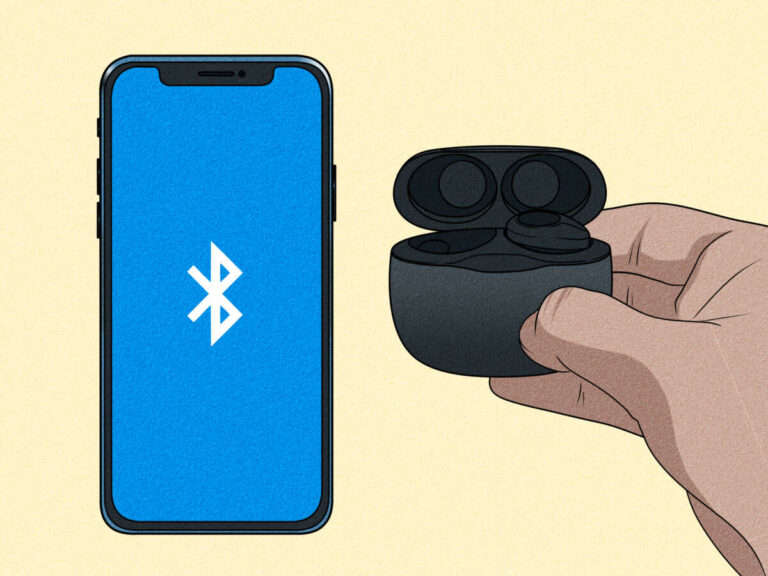
Turn on the earbuds, enable Bluetooth on your device, and select “Helix” from the Bluetooth list to pair quickly.
I’ve spent years testing earbuds and teaching others to pair gear smoothly. This guide shows clear, step-by-step methods for how to connect Helix earbuds to phones, tablets, and computers. You’ll get practical fixes, tips I learned the hard way, and exact steps so pairing works the first time.
What Helix earbuds are and Bluetooth basics
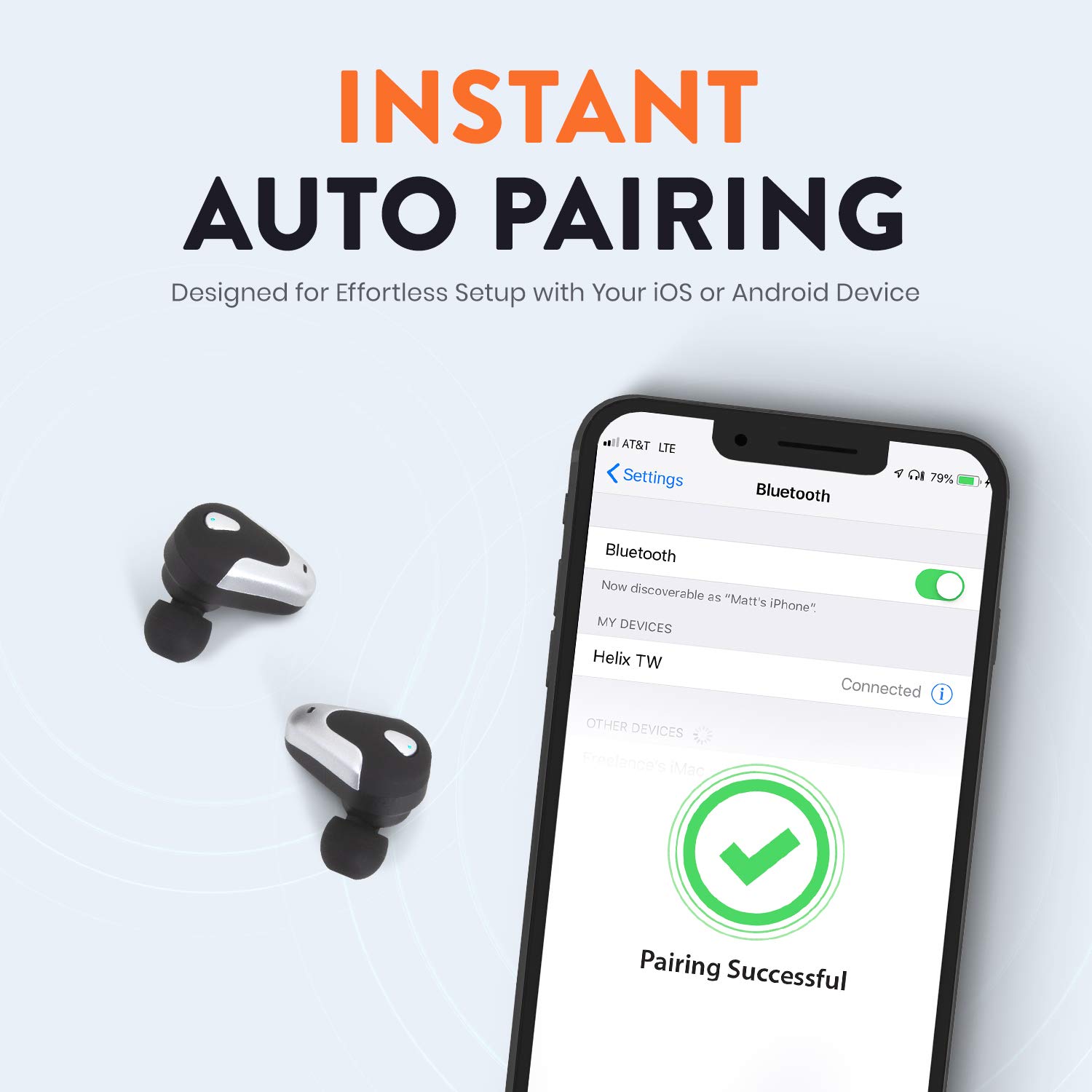
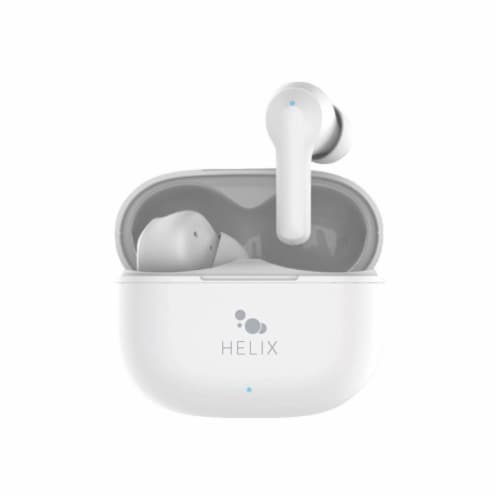
Helix earbuds are true wireless earbuds that use Bluetooth for audio and controls. They usually come with a charging case. Pairing links the earbuds to your device for audio and calls. Knowing how Bluetooth pairing works helps avoid common issues.
Bluetooth uses a short-range radio link. Devices must be discoverable to pair. Most Helix models use Bluetooth 5.x for stable range and low power. If you know these basics, you can troubleshoot fast and connect reliably.
How to connect Helix earbuds to a phone (iOS and Android)
Follow these clear steps to pair. If you already paired once, open the case and they may reconnect automatically.
iPhone (iOS)
- Charge the earbuds and case for at least 20 minutes.
- Open Settings > Bluetooth and keep the screen on.
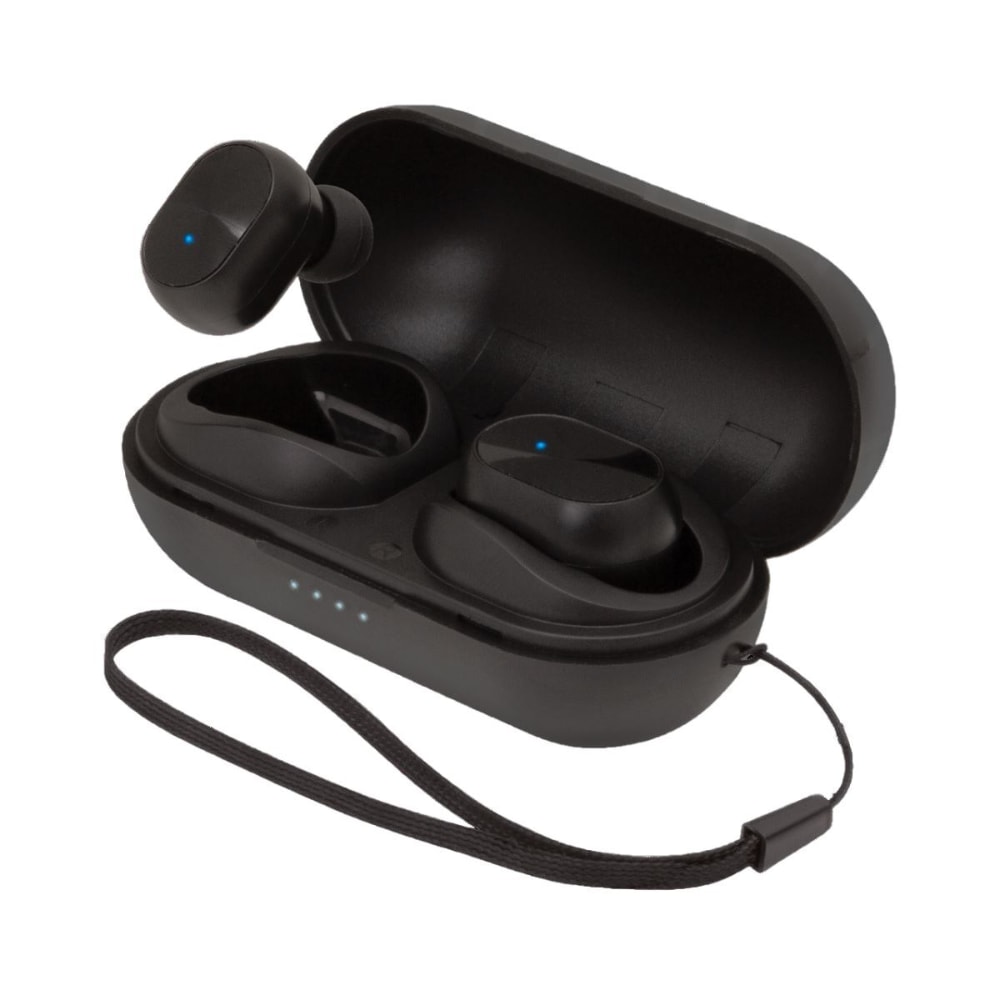
- Open the Helix case near the phone. If the earbuds have a pairing button, press and hold until an LED blinks.
- Look for a device named “Helix” or similar in the Bluetooth list.
- Tap the name to pair. Confirm any pop-up prompts.
Android
- Charge the earbuds and ensure Bluetooth is on in Settings > Connections.
- Open the case or press the pairing button on the earbuds until the LED flashes.
- Tap Scan or Refresh in the Bluetooth menu.
- Select “Helix” from the list and tap Connect.
- Grant permission for contacts or call audio if the phone asks.
If your model uses a companion app, install it after the first pairing to access EQ, touch controls, and firmware updates. The same core steps apply for most Helix earbuds models. Repeat these steps any time a device is new or forgets the earbuds.
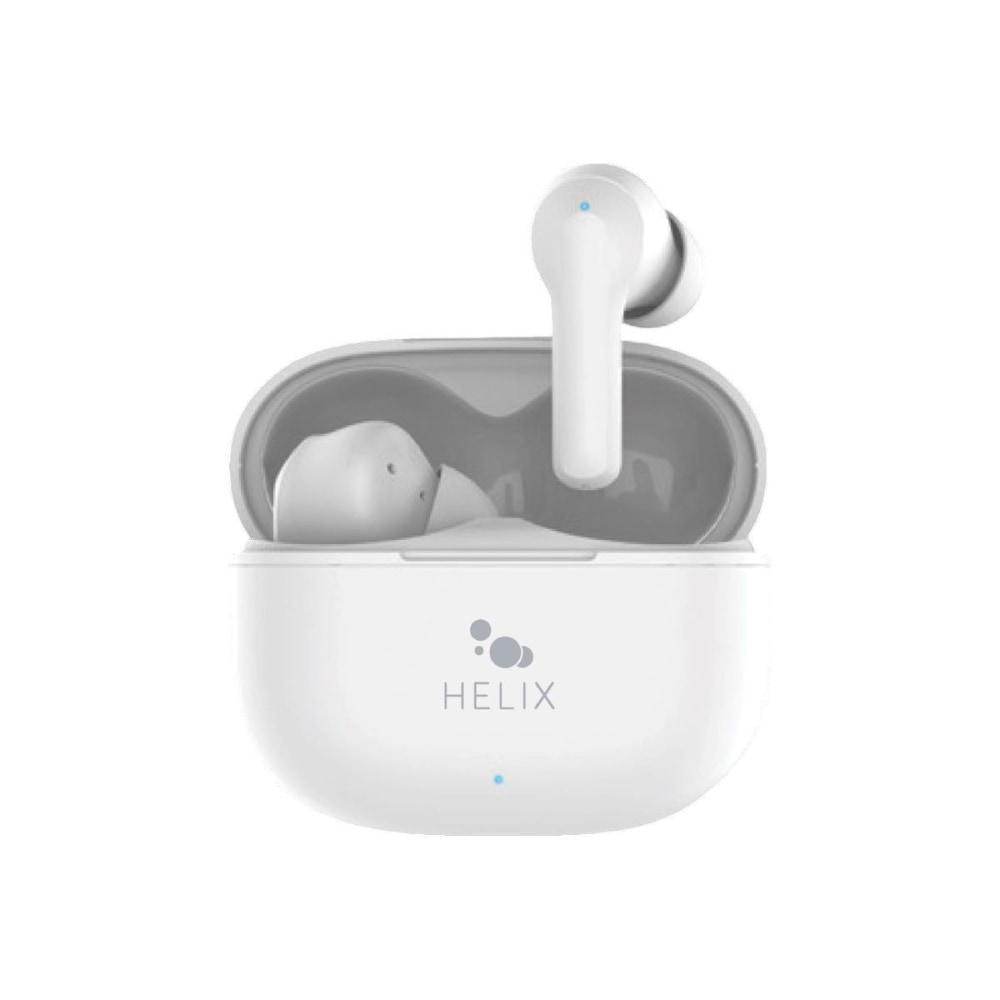
How to connect Helix earbuds to a Windows PC or Mac
Connecting to a PC or Mac is similar but uses system Bluetooth menus.
Windows 10/11
- Open Settings > Bluetooth & devices.
- Turn on Bluetooth and click Add device.
- Select Bluetooth and wait for “Helix” to appear.
- Pick “Helix” and follow prompts. You may need to set audio output to the earbuds in Sound settings.
Mac
- Open System Settings or System Preferences > Bluetooth.
- Turn Bluetooth on.
- Put the Helix earbuds in pairing mode.
- Click Connect next to “Helix” in the list.
- If audio doesn’t route automatically, select the earbuds in Sound settings.
Pro tip: For low-latency on PC, use the proper Bluetooth codec if your PC and the Helix model support it. Codec options can appear in advanced device settings.
Troubleshooting common pairing problems
If pairing fails, try these fixes in order. Short steps save time.
- Charge devices
- Ensure both earbuds and device battery are not critically low.
- Reset the earbuds
- Press and hold both earbuds or the case button for 10–15 seconds until LEDs change.
- Forget and re-pair
- On your phone or PC, choose Forget or Remove device for “Helix,” then retry pairing.
- Move closer
- Stay within 3 feet for initial pairing to avoid interference.
- Turn off conflicting Bluetooth devices
- Nearby active headsets can steal the pairing process.
- Update firmware
- Use the companion app or the manufacturer’s instructions to update firmware.
- Check Bluetooth version and compatibility
- Older devices may need manual drivers or won’t support certain codecs.
If you still can’t connect, test with another phone. If the earbuds pair with a second device, the problem is the original device’s Bluetooth stack. If they don’t, contact support.
Short answers to common pairing questions
- How long should pairing take?
- Usually 5–30 seconds once the earbuds are in pairing mode.
- What if only one earbud connects?
- Reset both earbuds and pair again. Often one earbud needs re-synching.
- Can I pair Helix earbuds to two devices at once?
- Some models support multipoint; check your Helix model specs or app.
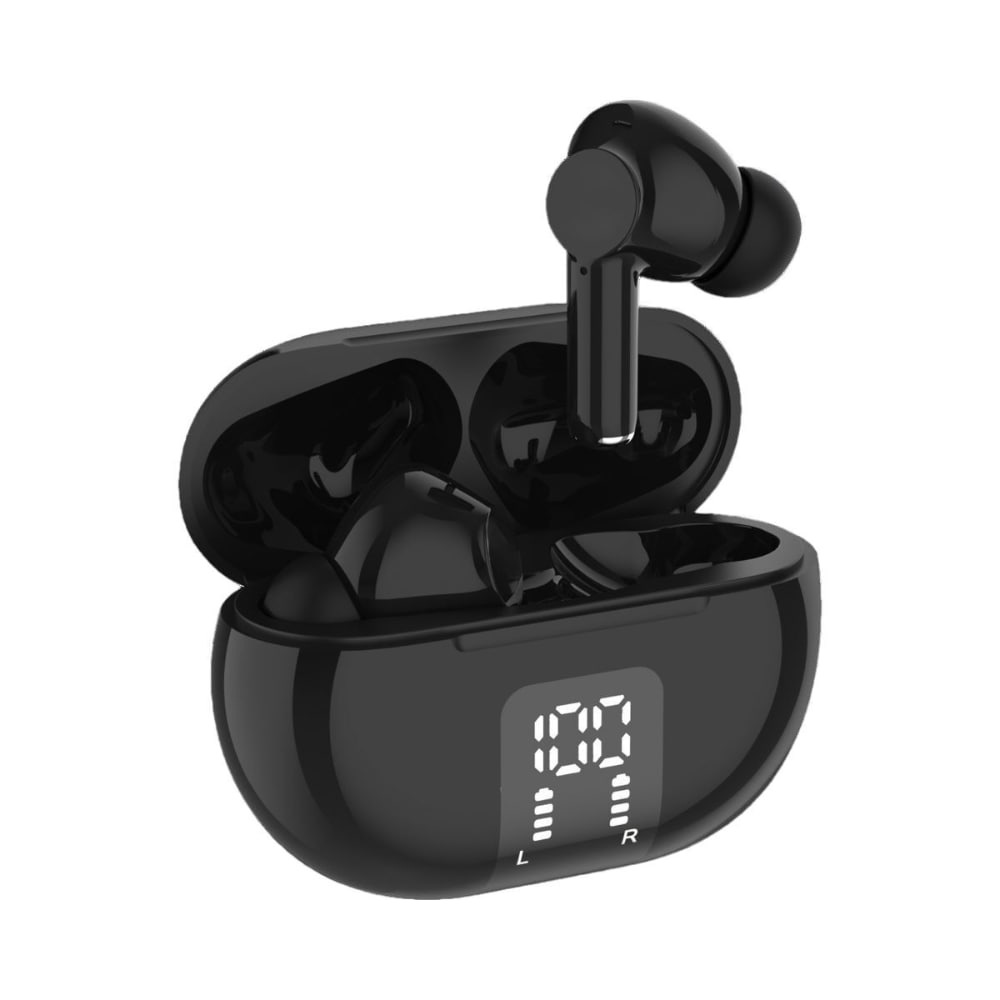
Tips, best practices, and battery life
Use these tips to make how to connect Helix earbuds easier every day.
- Keep the case charged
- The case stores battery and often keeps pairing info.
- Store earbuds in the case after use
- This prevents accidental pairing and conserves battery.
- Turn off Bluetooth on unused devices
- Reduces interference when you want a single device to connect.
- Use the companion app
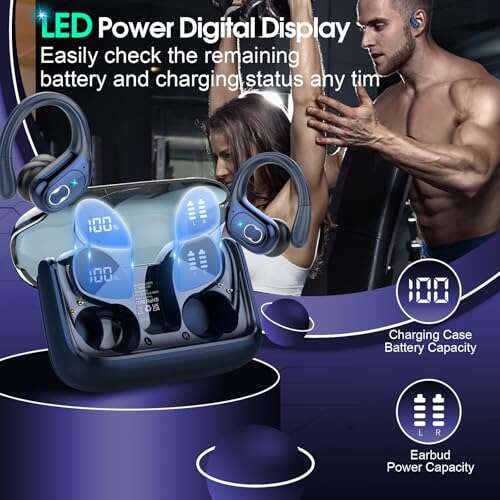
- The app can show battery, update firmware, and tune sound.
- Learn touch or button controls
- This saves time when answering calls without touching the phone.
Battery basics
- Typical play time ranges from 4–8 hours per charge. Case adds multiple charges.
- Lower volume increases play time. High bitrate streaming uses more battery.
Firmware updates and advanced features
Keeping firmware current improves pairing and audio. Updates can fix bugs and add features.
How to update
- Install the Helix app if available.
- Connect the earbuds and open the app.
- Check the firmware section and follow update prompts.
- Keep the case and earbuds charged during updates.
Advanced features to look for
- Multipoint pairing to connect two devices at once.
- Custom EQ to adjust bass and treble.
- Low-latency gaming mode for reduced audio delay.
Note the limits: firmware updates can fail if the battery is low or Bluetooth drops during the process. Always keep backups and follow instructions closely.
Personal experience, mistakes to avoid, and practical tips
I’ve paired dozens of earbuds over the years. Here are honest lessons from real use.
- Mistake: Trying to pair with low battery
- I learned the hard way that updates and pairing fail more often with low power. Charge first.
- Mistake: Pairing in crowded RF zones
- Busy airports caused failed pairing for me. Move to a quiet spot.
- Practical tip: Use airplane mode on the phone, then re-enable Bluetooth
- This clears other wireless noise while keeping Bluetooth alive.
- Practical tip: Label the device in Bluetooth settings
- If you pair many devices, renameHelix in settings to find it quick.
These simple habits save time and avoid repeated resets. They helped me stop losing time and enjoy reliable connections.
Frequently Asked Questions of how to connect helix earbuds
How do I put my Helix earbuds in pairing mode?
Usually press and hold the case button or both earbud buttons until an LED flashes. Check the LED pattern to confirm pairing mode.
My phone won’t find “Helix” in Bluetooth. What should I do?
Turn Bluetooth off and on, move closer, and reset the earbuds. If that fails, forget other paired devices and retry.
Only one earbud works after pairing. How do I fix it?
Reset both earbuds by holding the buttons per the manual, then re-pair them to the device. Often the single earbud needs resyncing.
Can Helix earbuds connect to two phones at once?
Some models support multipoint pairing. Check the Helix model specs or app to confirm if multipoint is supported.
How do I update Helix earbuds firmware?
Use the official companion app or follow the manufacturer’s update instructions. Keep earbuds and case charged during updates to avoid failure.
Will Bluetooth range affect pairing success?
Yes. For initial pairing, stay within a few feet. After pairing, range is usually 30 feet but walls and interference can reduce it.
Conclusion
You now have a clear, down-to-earth plan for how to connect Helix earbuds to phones, computers, and tablets. Follow the step-by-step pairing, try the simple troubleshooting tips, and keep firmware up to date for the best results. Take action now: charge your earbuds, open your device’s Bluetooth, and pair using the exact steps above. If you found this helpful, leave a comment or subscribe for more practical guides.

Everett Ashford is a tech reviewer at mytechgrid.com specializing in SSDs, cameras, TVs, earbuds, headphones, and other consumer electronics. He provides honest, data-driven reviews based on hands-on testing and real-world performance analysis. Everett simplifies complex tech details to help readers make smart, confident buying decisions.