Headphones usually work on one side because of a damaged cable, dirty connection, incorrect balance setting, or a failing speaker.
If you are asking, “why do my headphones only work on one side,” the problem may be simple to fix. A loose plug, blocked jack, low battery, Bluetooth glitch, or broken wire can stop sound in one ear while the other keeps playing. This guide explains how to find the real cause, test your headphones safely, and decide whether to clean, repair, replace, or reset them.
Why Do My Headphones Only Work on One Side?
Headphones produce separate left and right audio channels. If one channel loses its electrical path, you may hear sound in only one ear. The fault can come from the headphones, the audio source, the connection, or the settings.
The most common causes include:
• A plug that is not fully inserted
• Dirt or lint inside the headphone jack
• A damaged cable near the plug or ear cup
• Incorrect left-right audio balance
• A Bluetooth pairing or software problem
• A blocked speaker grille
• Water or sweat damage
• A dead battery in one wireless earbud
• A damaged driver, which is the small speaker inside the headphone
A useful rule is to test the headphones with another device before assuming they are broken. This single step often shows whether the problem is in the headphones or the phone, computer, tablet, or game console.
Common Reasons One Headphone Stops Working
1. The plug is not fully inserted
A wired headphone plug must sit firmly inside the audio port. If it is only partly inserted, the contacts may not line up correctly. This can send sound to one side or create faint, distorted audio.
Remove the plug and insert it again with steady pressure. If your device uses a headphone adapter, check both connections. A loose USB-C or Lightning adapter can cause the same problem as a loose 3.5 mm plug.
2. The audio balance is shifted
Most phones, computers, and music apps have a balance control. This setting lets users send more sound to the left or right channel. If the slider is moved too far to one side, one headphone may seem dead.
Check the accessibility or sound settings on your device. Set the left-right balance to the center and test the headphones again. Also turn off mono audio if you want normal stereo sound.
3. The cable has an internal break
A cable can break inside even when its outer cover looks fine. This often happens near the plug, the remote control, or the point where the cable enters an ear cup.
A typical sign is sound that returns when you bend or twist the cable. If the audio cuts in and out as you move it, the wire is likely damaged. Avoid pulling the cable from a sharp angle, since this can make the break worse.
4. The headphone jack is dirty
Pocket lint, dust, and small debris can prevent the plug from making full contact. This is especially common with phones kept in pockets or bags.
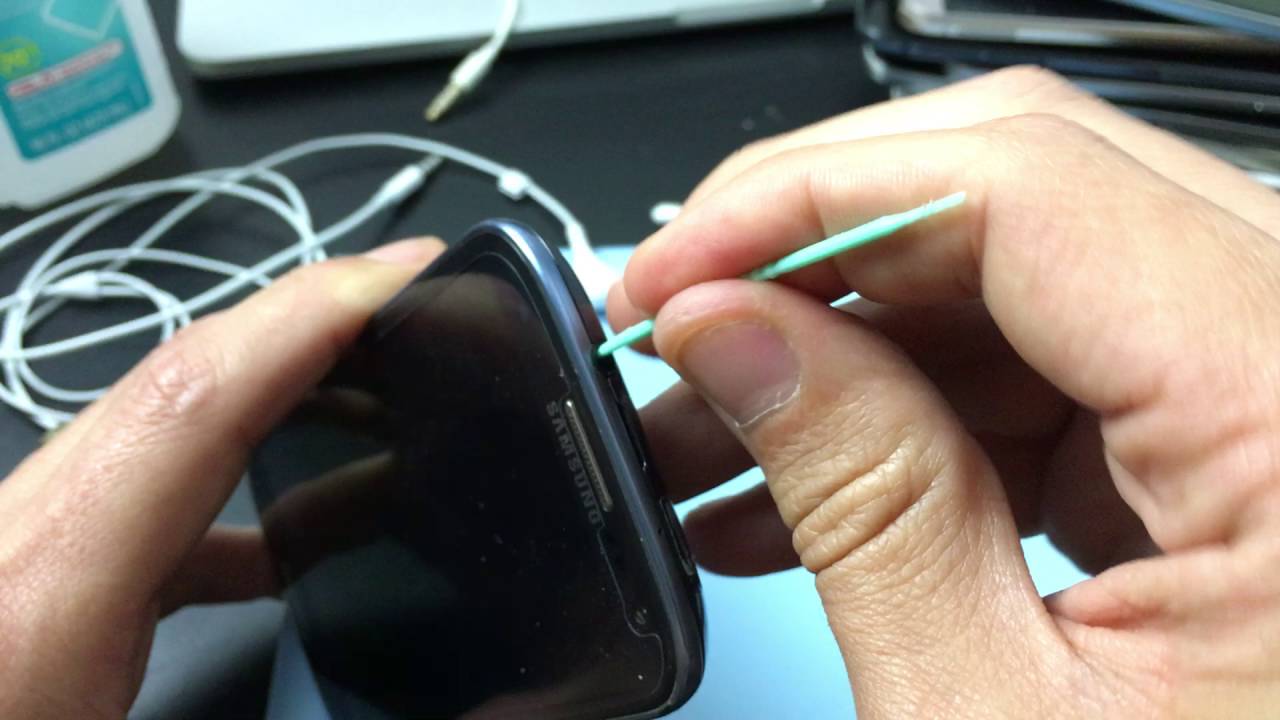
Turn off the device before cleaning the port. Use a soft, dry brush or a small amount of air made for electronics. Do not push a metal pin into the jack, and do not pour liquid inside it.
5. The speaker grille is blocked
Earwax, dust, and skin oils can cover the mesh over the speaker. The headphone may still work, but the sound can become very quiet or seem absent.
Use a dry, soft brush to clean the grille. Do not press debris deeper into the opening. If the manufacturer provides cleaning instructions, follow them because some earbuds have delicate mesh and moisture seals.
6. A wireless earbud is not charged
True wireless earbuds often charge through separate contacts in the case. If one contact is dirty or the earbud is not seated correctly, one side may not charge.
Place both earbuds in the case and check the charging indicators. Clean the metal contacts with a dry cotton swab. Make sure the case itself has enough power.
7. Bluetooth pairing has failed
Wireless headphones can connect to a phone while sending audio to only one earbud. This can happen after an update, a low-battery event, or an interrupted pairing process.
Forget the headphones in the device’s Bluetooth menu. Then place the earbuds in their case, reset them according to the manual, and pair them again. This often restores the left and right connection.
8. Moisture has damaged the headphones
Sweat, rain, and spills can damage a driver or circuit. Water damage may first appear as low volume on one side, crackling, or sound that cuts out.
Turn the headphones off and let them dry in a cool, dry place. Do not use a hair dryer or place them on a heater. Heat can warp plastic parts and damage batteries.

How to Find the Real Cause
A simple test can save you time. Follow these steps in order.
- Play a familiar song or a left-right audio test.
- Check that the audio balance is centered.
- Remove and reconnect the plug or Bluetooth connection.
- Try the headphones with a second device.
- Try a different pair of headphones with the first device.
- Clean the plug, port, earbud grille, and charging contacts.
- Restart the phone, computer, or audio player.
- Reset the wireless headphones if needed.
- Test the cable gently for cuts or sound changes.
- Check the warranty before opening or repairing anything.
The results help narrow down the fault:
• If several headphones work on one side with the same device, check the device or its port.
• If your headphones fail on every device, the headphones are likely damaged.
• If another pair works normally, your original headphones need attention.
• If only Bluetooth audio fails, reset the wireless connection.
• If sound changes when you move the cable, suspect a broken wire.
Do not keep twisting a damaged cable to make it work. That may create a short circuit or damage the audio port.
Fixes for Wired Headphones
Wired headphones are often easier to diagnose. Start with the plug, then inspect the cable and speakers.
Clean the plug and port
Wipe the metal plug with a clean, dry cloth. If the plug has visible corrosion, the connection may be unreliable. Clean the device port carefully with a soft brush.
Never insert a wet cotton swab into the port. Moisture can cause corrosion and may damage the device.
Test the cable safely
Play audio at low volume. Move the cable slowly near:
• The plug
• The microphone or volume control
• The cable splitter
• The entrance to the left ear cup
• The entrance to the right ear cup
If one side cuts in and out, the cable likely has an internal break. This test should be gentle. Do not bend the cable sharply or pull on the ear cups.
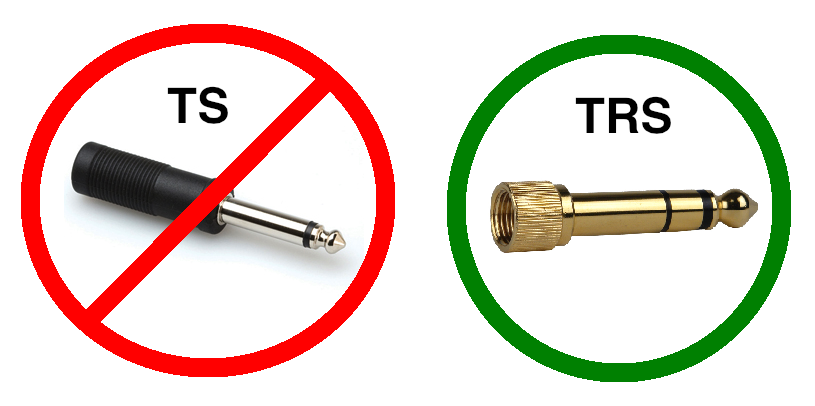
Check the plug type
Some headphones use a four-contact plug for stereo sound and a microphone. An adapter that does not match the plug can create sound problems. This is common when connecting older headphones to newer phones.
Use a compatible, well-made adapter. Very cheap adapters may have poor contact points or may not support microphones correctly.
Consider cable replacement
Some over-ear headphones have detachable cables. If yours does, replace the cable with the correct model or connector type. This is often cheaper than replacing the entire headset.
Headphones with a fixed cable may also be repairable, but soldering small wires requires skill. A repair shop can replace the plug or cable. Opening sealed earbuds is usually difficult and may destroy the housing.
Fixes for Wireless Headphones and Earbuds
Wireless models need a different approach because the problem may involve charging, software, or separate left and right connections.
Charge both sides
Put both earbuds in the charging case. Confirm that each one shows a charging light or appears in the companion app. Leave them charging for at least 15 to 30 minutes.
Clean the charging contacts if one earbud remains at zero percent. Check that the earbud sits flat in the case and that the case lid closes fully.
Reconnect Bluetooth
Turn Bluetooth off, wait a few seconds, and turn it back on. If the issue remains, remove the headphones from the saved device list.
Then reset and pair them again. The exact reset method differs by brand, so use the product manual rather than guessing.
Update the firmware
Some wireless headphone problems come from software errors. Install official firmware updates through the manufacturer’s app when available.
Keep the headphones charged during an update. Do not close the app or move far from the phone until the process ends.
Check independent earbud mode
Many earbuds can work in single-ear mode. One earbud may connect while the other remains asleep or disconnected.
Place both earbuds in the case, close the lid, and take them out together. If the app offers a “dual audio,” “stereo,” or “earbud connection” option, confirm that both sides are enabled.
Check Your Phone, Computer, or Audio App
Sometimes the headphones are fine. The source device is the problem.
On a phone, check accessibility settings for audio balance and mono sound. On a Windows computer, open the sound settings and confirm that the left and right channel levels match. On a Mac, check the audio output and balance settings.
A music app may also have its own balance, equalizer, or channel controls. Some videos and recordings are made with uneven audio. Test a different song, video, podcast, or system sound before blaming the headphones.
Game consoles can add another layer. Check chat mix, party audio, headset format, and controller settings. A loose headset connection in the controller can also affect one channel.

When the Headphones Need Repair or Replacement
If you have tested the headphones on multiple devices and one side still fails, the internal hardware may be damaged. Common failures include a broken driver, torn wire, damaged circuit board, or failed battery.
Repair may make sense when:
• The headphones are expensive
• The cable is detachable
• The product is still under warranty
• A trusted repair shop can replace a simple part
• The damage is limited to the plug or cable
Replacement may be better when:
• The battery no longer holds a charge
• The headphones have water damage
• The driver is sealed inside a low-cost model
• Repair costs nearly as much as a new pair
• The headphones are unsafe, swollen, hot, or burning
Do not use wireless headphones with a swollen battery. Stop charging them and contact the manufacturer or a local electronics recycling service. Lithium-ion batteries can become dangerous when damaged.
How to Prevent One-Sided Headphone Problems
Good care can extend the life of headphones. Most failures come from repeated stress, moisture, dirt, or poor storage.
Use these habits:
• Pull the plug by its solid connector, not by the cable.
• Store wired headphones in a loose loop instead of a tight knot.
• Keep earbuds in their case when they are not in use.
• Wipe away sweat after exercise.
• Keep ports and charging contacts clean and dry.
• Avoid sleeping on wired headphones.
• Do not leave headphones in a hot car.
• Use the correct adapter for your device.
• Keep the volume at a safe level.
• Check the warranty before attempting a repair.
One mistake I often see in real-world troubleshooting is replacing headphones before testing another device. Another is using a sharp object to clean a port. A two-minute test and a soft brush are safer than an expensive replacement or a damaged connector.

Can Loud Volume Cause One-Sided Audio?
Very loud sound can damage the headphone driver over time, although one-sided audio is more often caused by a cable, connection, setting, or battery issue. Loud listening can also harm your hearing, so keep the volume at a comfortable level and take regular breaks.
If one ear suddenly sounds muffled even with different headphones, the problem may be your hearing rather than the device. Seek medical advice if hearing loss, ringing, pain, or dizziness continues.
What If Only One Side Works on a Laptop?
First, check the balance settings and make sure the plug is fully inserted. Then test another pair of headphones and try your headphones on a phone.
If both pairs fail on the laptop, the laptop’s audio jack or software may need service. If only one pair fails, the headphones or adapter are the likely cause.
Is It Safe to Keep Using Headphones That Work on One Side?
It is usually safe if the headphones have no heat, smoke, swelling, exposed wires, or burning smell. However, one-sided audio may tempt you to raise the volume, which can strain the working ear and make the problem worse.
Replace or repair headphones with exposed wires or battery damage. Stop using wireless headphones that become unusually hot.
Why Do My Headphones Only Work on One Side After Washing Them?
Moisture may have entered the speaker, cable, charging contacts, or internal circuit. Turn them off, disconnect them, and allow them to dry fully in a cool place before testing them.
Do not use direct heat. If the problem remains after drying, water may have caused permanent damage.
Why Do My Headphones Only Work on One Side With Bluetooth?
A Bluetooth pairing error, low battery, charging failure, or independent earbud mode can disconnect one side. Charge both earbuds, forget the Bluetooth connection, reset the headphones, and pair them again.
If one earbud never appears or charges, its battery or internal electronics may have failed.
Why Do My Headphones Only Work on One Side When Plugged Into a Phone?
The plug may be loose, the phone jack may contain debris, or the adapter may be incompatible. Check the balance setting, clean the port carefully, and test another wired headset.
If every wired headset has the same problem, the phone’s port or adapter may need repair.
Conclusion
When you wonder why do my headphones only work on one side, begin with the simple checks: reconnect the plug, center the audio balance, clean the connection, charge both wireless sides, and test another device. These steps can quickly separate a setting problem from a damaged cable, battery, driver, or port.
Treat the headphones gently, avoid sharp tools and excess heat, and check the warranty before opening them. Try the troubleshooting steps today, then share your result or explore your manufacturer’s support guide for model-specific help.

Everett Ashford is a tech reviewer at mytechgrid.com specializing in SSDs, cameras, TVs, earbuds, headphones, and other consumer electronics. He provides honest, data-driven reviews based on hands-on testing and real-world performance analysis. Everett simplifies complex tech details to help readers make smart, confident buying decisions.