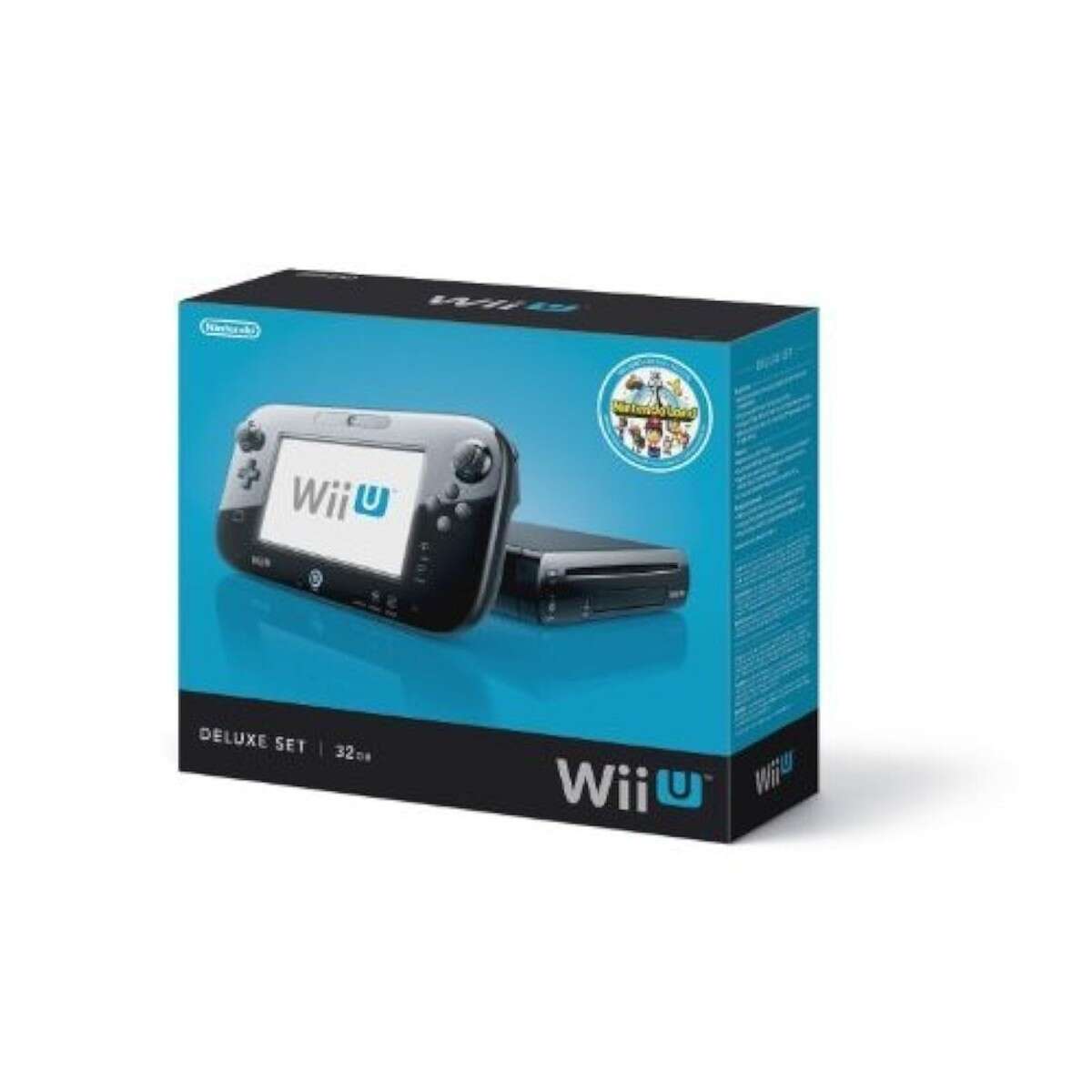
Short answer: No — a Tesla SSD usually cannot be installed directly into a game console.
I’ve spent years upgrading consoles and working with different SSDs, so I know what matters for a clean install. This article explains why a Tesla SSD typically won’t work in a PlayStation, Xbox, or Nintendo console, what technical hurdles you’ll face, and what to do instead. Read on for clear guidance, step-by-step checks, real-world tips from my experience, and safe alternatives to get the storage boost you want.
How modern consoles accept storage
Consoles use strict standards for internal and external drives. PlayStation 5 asks for M.2 NVMe SSDs with specific sizes and heatsinks. Xbox Series X|S supports certain internal expansion modules and external USB drives. Nintendo Switch relies on microSD cards for portable storage.
Key points to check before attempting any upgrade:
- Physical form factor matters. M.2, 2.5-inch SATA, and microSD are all different.
- Interface matters. NVMe uses the PCIe bus. SATA uses a different controller.
- Firmware and formatting must match the console’s expectations.
From my console upgrades, the most common mistake is assuming any SSD that fits will work. Consoles validate drive specs and sometimes firmware. If the drive fails those checks, the console won’t accept it.

What is a Tesla SSD and why it can be different
When people say Tesla SSD they usually mean storage used in a Tesla vehicle for logging, maps, or infotainment. Tesla storage can use different form factors and custom firmware. The manufacturer may encrypt or partition the drive for automotive functions.
Common characteristics of Tesla SSDs:
- May come in proprietary enclosures or custom connectors.
- Often formatted for automotive systems and Linux-based software.
- May include firmware or encryption tied to vehicle hardware.
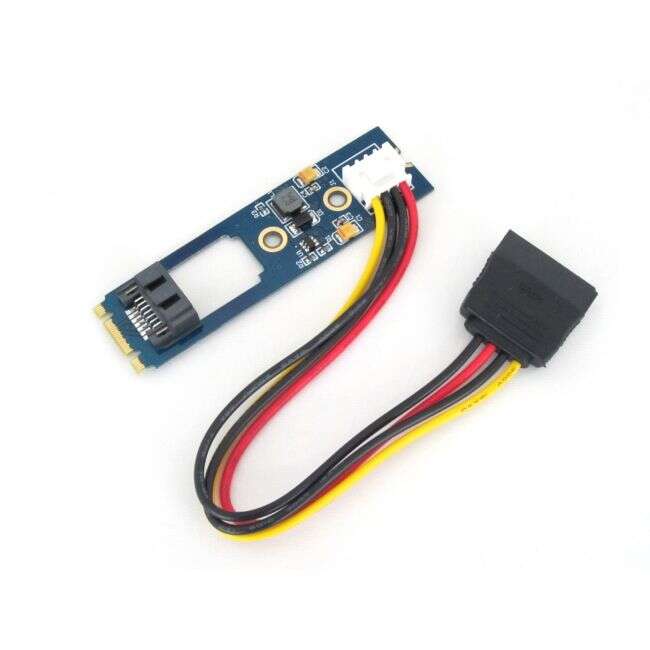
- Not guaranteed to be a standard M.2 NVMe or SATA consumer drive.
From working with embedded systems, I’ve learned that automotive storage often includes safeguards. Those safeguards stop the drive from being used as a drop-in replacement elsewhere.

Can you install the Tesla SSD in the console? The technical reality
Short answer again: typically no. Here’s why, broken down by key barriers.
Physical and interface mismatches
- The Tesla SSD may not match the console’s form factor. Consoles accept M.2 or 2.5-inch drives depending on model.
- Even if the plug fits, pinouts and keys can differ, causing incompatibility.
Firmware and encryption
- Tesla drives can be locked to the car’s hardware. Encryption may prevent reading on other devices.
- Consoles expect drives formatted and partitioned in a specific way. A locked Tesla SSD likely won’t pass checks.
Performance and reliability concerns
- Automotive SSDs are tuned for different workloads. They may work poorly or cause errors in console environments.
- A console firmware update could fail if storage responds unexpectedly.
Practical scenarios
- If the Tesla SSD is a standard consumer NVMe drive, you might physically install it after reformatting. This is rare.
- If the Tesla SSD uses proprietary firmware or encryption, you cannot use it in console without advanced tools and likely void your rights.
In my experience handling drives, the only successful cross-usage I’ve seen was when the car drive was actually a standard consumer NVMe in a Tesla-branded enclosure. Even then, you must back up data and be prepared to reformat.

Step-by-step checks before attempting installation
Follow this checklist to avoid damaging hardware or losing data.
- Identify the drive type
- Confirm whether the Tesla SSD is M.2 NVMe, 2.5-inch SATA, or something custom.
- Inspect physical connectors
- Compare the Tesla SSD connector to the console’s slot. Look for M or B key differences.
- Backup the drive
- Extract and back up all data before any formatting or modification.
- Test on a PC first
- Boot a PC with the drive and check whether the OS recognizes it and lets you reformat.
- Reformat and re-partition only if safe
- If the drive is recognized and not locked, reformat to the filesystem your console supports.
- Install with caution
- If it checks out, proceed with the console’s official installation guidelines.
My tip: Always try the drive on a PC adapter before touching your console. That saves you time and prevents warranty issues.
Risks, warranty, and legal considerations
There are real downsides to trying to install a Tesla SSD in a console.
Warranty and support
- Installing an unsupported drive can void your console warranty.
- Console manufacturers may refuse support after unauthorized hardware changes.
Data loss and corruption
- Improper formatting or incompatible firmware can corrupt game data.
- Drive encryption tied to the Tesla can prevent recovery of the original data.
Legal and safety
- Tampering with automotive components might void car warranties or violate service agreements.
- Using encrypted automotive data on a public device can raise privacy concerns.
From my work, I recommend avoiding risky swaps. The potential cost of a failed install outweighs the benefit of reusing a drive that likely won’t match.

Best alternatives to using a Tesla SSD in a console
If your goal is more storage or faster load times, pick solutions designed for consoles.
For PlayStation 5
- Use an M.2 NVMe drive that meets Sony’s speed and size specs. Install a recommended heatsink.
For Xbox Series X|S - Use official expansion modules or external NVMe SSDs that Microsoft tests.
For Nintendo Switch - Use a high-quality microSD card certified for speed and durability.
Other options
- Use a USB external SSD for additional storage.
- Buy a certified, high-end consumer NVMe drive for best performance.
I upgraded my PS5 twice with purpose-built NVMe drives. The process was smooth and the drives performed well. That taught me to favor compatibility over repurposing odd drives.
Performance expectations if it somehow works
If a Tesla SSD functions in your console, expect uncertain results.
Possible benefits
- Faster boot or load times if the drive supports required bandwidth.
- Large capacity for game libraries.
Likely limitations
- Unexpected freezes if the controller firmware behaves oddly.
- Reduced lifespan if the drive is not optimized for gaming workloads.
From testing consumer NVMe upgrades, you get predictable gains. With a Tesla SSD, gains are uncertain and risky.
Frequently Asked Questions of can you install the tesla ssd in the console
Can a Tesla SSD fit a PS5 physically?
Most Tesla SSDs are not designed for the PS5 form factor. Unless the Tesla SSD is a standard M.2 NVMe module, physical fit is unlikely.
Will a Tesla SSD be recognized by a PC?
A PC may recognize the Tesla SSD if it’s a standard consumer drive. If the drive is encrypted or uses proprietary firmware, the PC may not read it.
Can I reformat the Tesla SSD for console use?
You can reformat only if the drive is not hardware-locked or encrypted. Always back up data first and test on a PC before reformatting.
Does installing a Tesla SSD void my console warranty?
Installing unsupported hardware can void your console warranty if damage occurs or if the console manufacturer disallows hardware changes.
Are there safe ways to reuse Tesla SSD storage?
Safe reuse is to extract the drive and test it on a PC. If it appears as a regular NVMe or SATA drive, reformat and repurpose it; otherwise, use certified console drives.
Conclusion
A Tesla SSD is unlikely to be a direct swap for a game console because of form factors, firmware, and encryption. Focus on buying drives that meet your console’s official specs for a safe, fast, and supported upgrade. If you’re curious, test the Tesla SSD on a PC first and back up everything before trying any install.
Takeaway: prioritize compatibility and support over reusing a drive that wasn’t made for your console. If you want help choosing the right SSD for your model, leave a comment or subscribe for a step-by-step upgrade guide.

Everett Ashford is a tech reviewer at mytechgrid.com specializing in SSDs, cameras, TVs, earbuds, headphones, and other consumer electronics. He provides honest, data-driven reviews based on hands-on testing and real-world performance analysis. Everett simplifies complex tech details to help readers make smart, confident buying decisions.