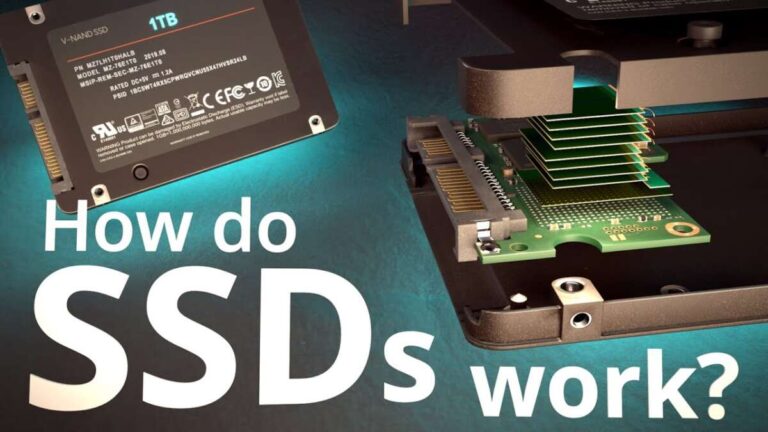
An SSD for a PC is a fast storage drive that saves your files, apps, and operating system without moving parts.
If you are asking what is a SSD for PC, think of it as the quiet, speedy storage center inside a modern computer. Unlike a traditional hard disk drive, an SSD uses flash memory, so it can start Windows faster, open programs sooner, and make your whole PC feel more responsive. This guide explains how SSDs work, which type you need, and how to choose, install, and care for one with confidence.
What Is a SSD for PC?
A SSD, or solid-state drive, is a storage device for a desktop computer or laptop. It stores data on NAND flash memory chips instead of spinning magnetic disks.
That difference matters. A hard disk drive uses a moving arm and spinning platters to find data. An SSD reads data electronically, much like a large, permanent memory card. This design lets an SSD access files quickly and silently.
When people ask what is a SSD for PC, they usually want to know whether it replaces a hard drive. In most cases, yes. An SSD can hold:
• Windows or another operating system
• Applications and games
• Photos, videos, and music
• Documents and school or work files
• Temporary files and system data
An SSD is not the same as RAM. RAM helps your PC work with data right now. An SSD stores data even when the computer is turned off.
For example, installing Windows on an SSD can reduce startup time from a slow minute or more to only a few seconds on many systems. Program launches also feel faster because the computer can find small files with much less delay.
How Does an SSD Work?
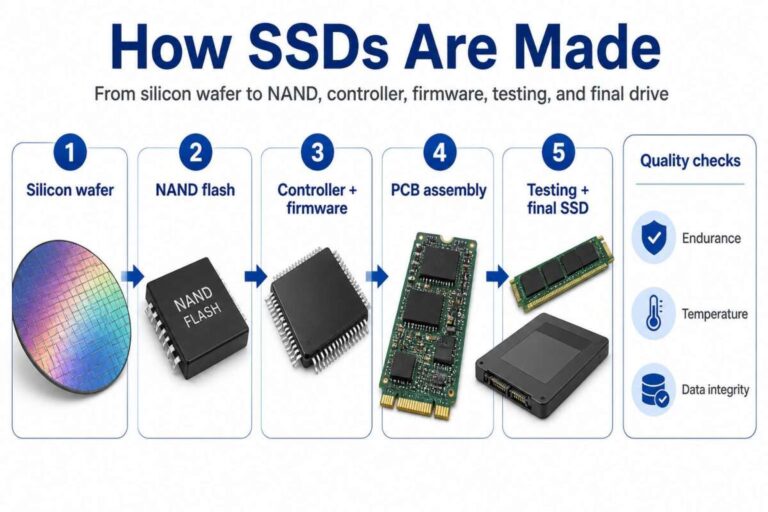
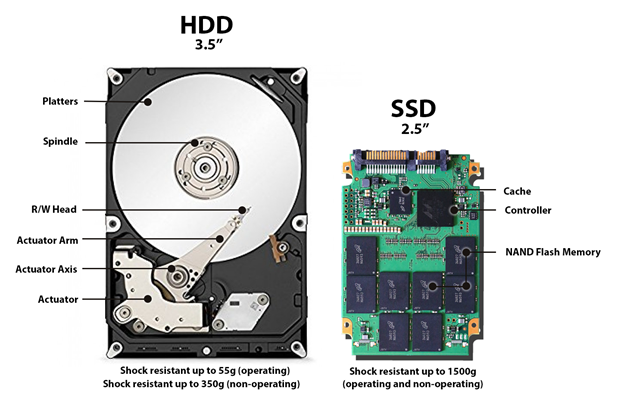
An SSD stores information in memory cells made from NAND flash. These cells hold electrical charges that represent data. A controller manages the cells and sends information between the drive and the computer.
You can think of the controller as a traffic manager. It decides where data goes, finds requested files, corrects some errors, and helps the drive spread writes across its memory cells.
Most SSDs also use several important technologies:
• Wear leveling spreads writes across memory cells to reduce uneven wear.
• Garbage collection clears blocks that no longer contain useful data.
• TRIM tells the SSD which deleted blocks can be cleaned and reused.
• Error correction helps protect data from memory errors.
• Over-provisioning reserves some space for maintenance and performance.
An SSD does not erase every file the moment you delete it. Instead, the operating system marks the space as available. TRIM helps the drive prepare that space for new data.
Modern SSDs may use different types of NAND flash. Single-level cell, or SLC, stores one bit per cell and is very durable but expensive. Consumer drives often use TLC or QLC NAND because they offer more capacity at a lower price.
SSD vs. HDD: What Is the Difference?
The main difference between an SSD and an HDD is how each device stores and retrieves data. An HDD uses mechanical parts. An SSD uses electronic memory.
Here is a simple comparison:
| Feature | SSD | HDD |
|---|---|---|
| Speed | Very fast | Slower |
| Moving parts | None | Spinning platters and an actuator arm |
| Noise | Silent | May produce vibration and noise |
| Shock resistance | Generally better | More sensitive to impact |
| Power use | Usually lower | Usually higher |
| Cost per gigabyte | Higher | Lower |
| Large storage value | Moderate | Excellent |
An SSD can make an older PC feel new again. It will not increase the computer’s processor speed, but it can reduce the time spent waiting for files, applications, and system tasks.
An HDD can still be useful. Many people use an HDD for large photo collections, video archives, backups, or other files that do not need frequent access. A common setup uses an SSD for the operating system and an HDD for bulk storage.
From my own PC upgrades, the biggest surprise is often not the benchmark score. It is the small daily improvements. The computer wakes faster, file searches feel less sluggish, and software updates finish with less waiting.
What Are the Main Types of SSDs?
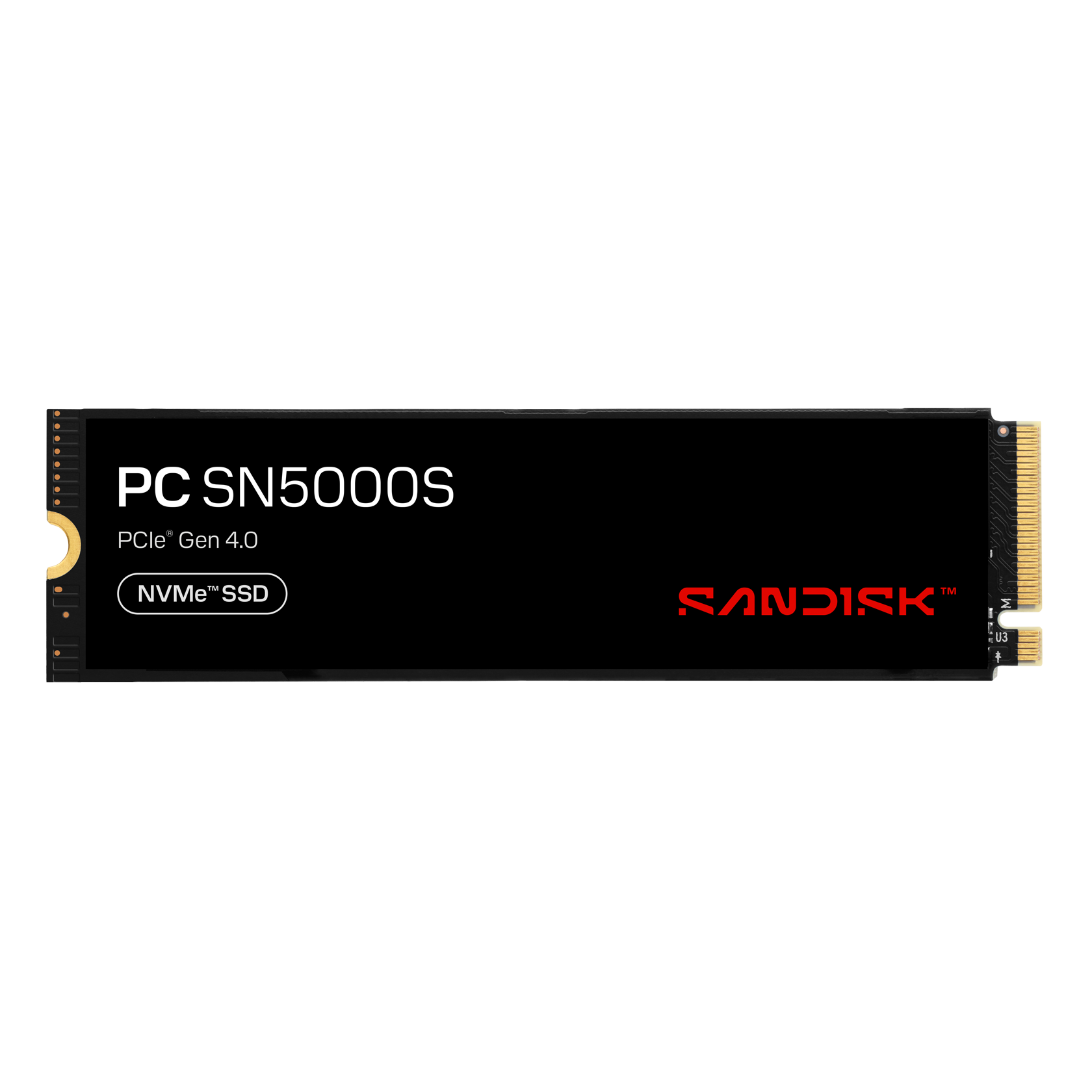
When learning what is a SSD for PC, it helps to separate the drive’s physical shape from its connection type. A small M.2 drive may use SATA or NVMe, while a 2.5-inch drive usually uses SATA.
2.5-Inch SATA SSD
A 2.5-inch SATA SSD looks similar to a laptop hard drive. It connects with a SATA data cable and a SATA power cable in most desktop PCs.
SATA SSDs are much faster than hard drives, but their interface limits their maximum speed. They are a good choice for older desktops and laptops that do not support NVMe drives.
M.2 SATA SSD
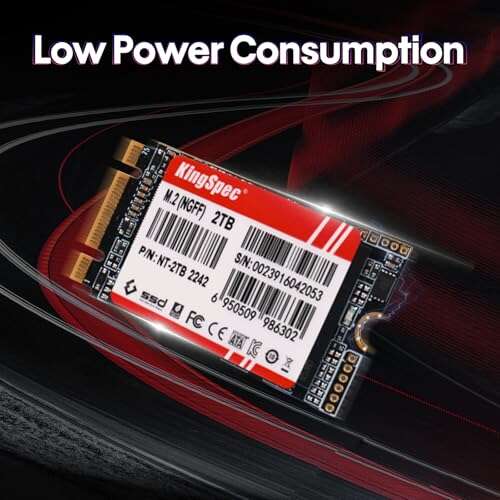
An M.2 SATA SSD is a slim circuit board that fits into an M.2 slot. It uses the SATA protocol, even though its shape looks like an NVMe drive.
This type can be useful in compatible laptops, but you must check the manual carefully. Some M.2 slots support SATA drives, while others support only NVMe drives.
M.2 NVMe SSD
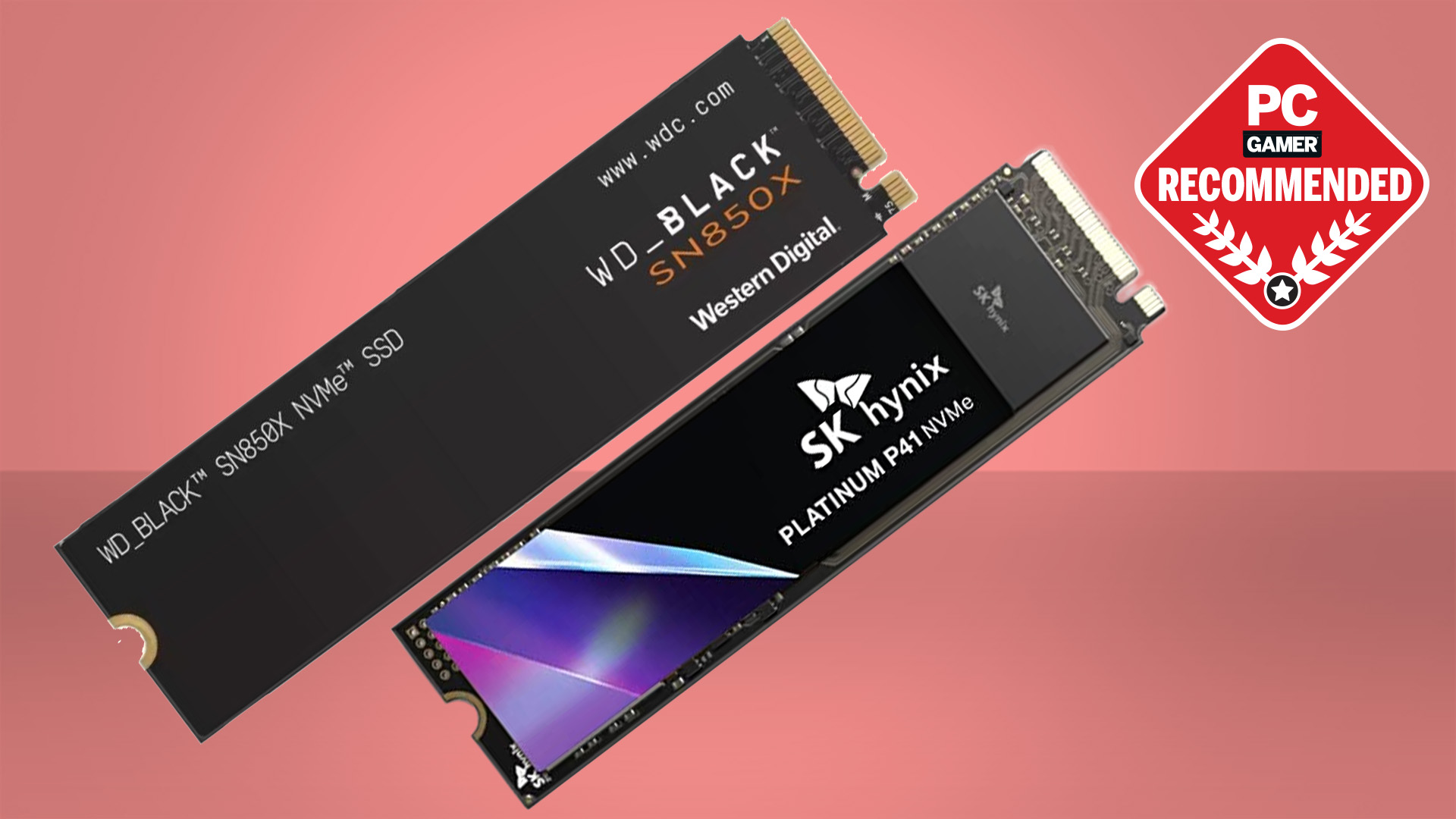
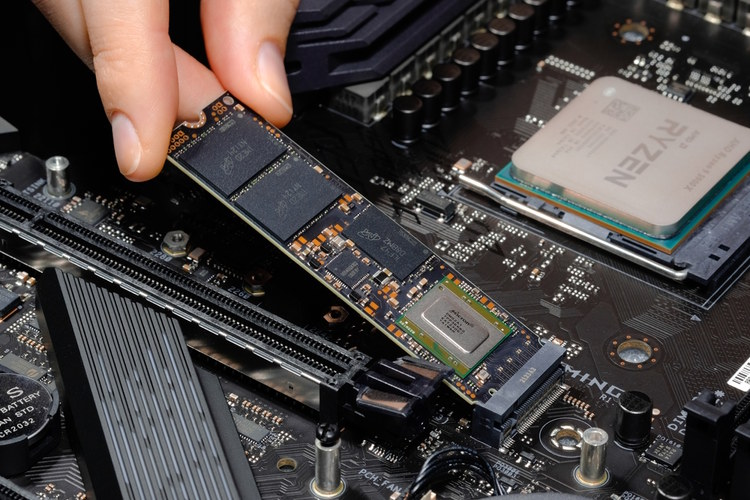
An M.2 NVMe SSD is the common high-speed option in newer computers. It connects through PCI Express and uses the NVMe protocol, which was designed for fast flash storage.
NVMe drives are available in several sizes, such as 2242, 2260, and 2280. The numbers show the width and length in millimeters. The 2280 size is widely used in desktop PCs and laptops.
PCIe Expansion Card SSD
Some SSDs fit into a PCIe expansion slot instead of an M.2 slot. These drives can work well in desktops with limited M.2 support. They may also include a heatsink or extra cooling.
Always check your motherboard and operating system support before buying. Interface speed, lane support, physical clearance, and boot support can all affect compatibility.

What Are the Benefits of an SSD for PC?
An SSD can improve the everyday experience of using a computer. Its benefits go beyond a single speed test.
Faster Startup and Loading
The operating system can load files quickly from an SSD. Applications also open faster, and games may reduce loading screens.
An SSD does not guarantee higher game frame rates. The graphics card and processor still control most frame rate performance. However, an SSD can improve loading time and reduce texture streaming delays in some newer games.
Better Responsiveness
Small tasks often feel smoother on an SSD. Opening folders, searching for files, switching between applications, and installing updates can all become quicker.
This is especially noticeable on an older PC that previously used a hard drive. The upgrade may feel more dramatic than a small processor upgrade because storage affects many basic actions.
Lower Noise
An SSD has no spinning platters or moving read head. It operates silently, which is helpful for home offices, bedrooms, recording spaces, and media centers.
Better Resistance to Movement
Because an SSD has no moving mechanical parts, it generally handles bumps and movement better than an HDD. It is still an electronic device, so it can fail from heat, power problems, physical damage, or manufacturing defects.
Lower Power Use
Many SSDs use less power than mechanical hard drives. This can help laptop battery life, though the actual result depends on the model, workload, and computer design.

Are There Any SSD Limitations?
An SSD is not perfect storage. Understanding its limits helps you make a better choice.
The first limitation is price. An SSD often costs more per gigabyte than an HDD. Large SSDs have become more affordable, but hard drives still offer strong value for massive archives.
The second limitation is write endurance. Flash memory can handle a large amount of data, but each memory cell has a limited number of write cycles. Manufacturers often list endurance as TBW, or terabytes written.
For most home users, endurance is not a daily concern. A quality consumer SSD can last for years under normal use. Heavy workloads, such as constant video recording, server tasks, or large data processing, require closer attention to endurance ratings.
An SSD can also slow down when it is nearly full. Keeping about 10% to 20% of the drive free is a practical habit, although the exact recommendation depends on the model.
Finally, an SSD can fail without much warning. An HDD may show clicking sounds or slow behavior before failure. An SSD may simply stop working. This is why an SSD should never replace a reliable backup plan.
How Much SSD Storage Does a PC Need?
The right capacity depends on how you use your computer.
• 250GB is suitable for a basic operating system drive, but it leaves limited room for programs.
• 500GB is a practical starting point for office work, browsing, and several applications.
• 1TB is a strong choice for gaming, creative work, and general long-term use.
• 2TB or more suits large game libraries, video projects, and many media files.
A 500GB drive does not provide exactly 500GB of usable space. Formatting, system partitions, and measurement differences reduce the available amount.
For a new gaming PC, I usually suggest starting with 1TB if the budget allows. Games can be very large, and filling a small drive quickly can create unnecessary maintenance. A second drive can later add more room.
Capacity is more important than chasing the highest advertised speed. A slightly slower 1TB SSD often provides a better experience than an ultra-fast 500GB drive that stays nearly full.
How to Choose the Best SSD for Your PC
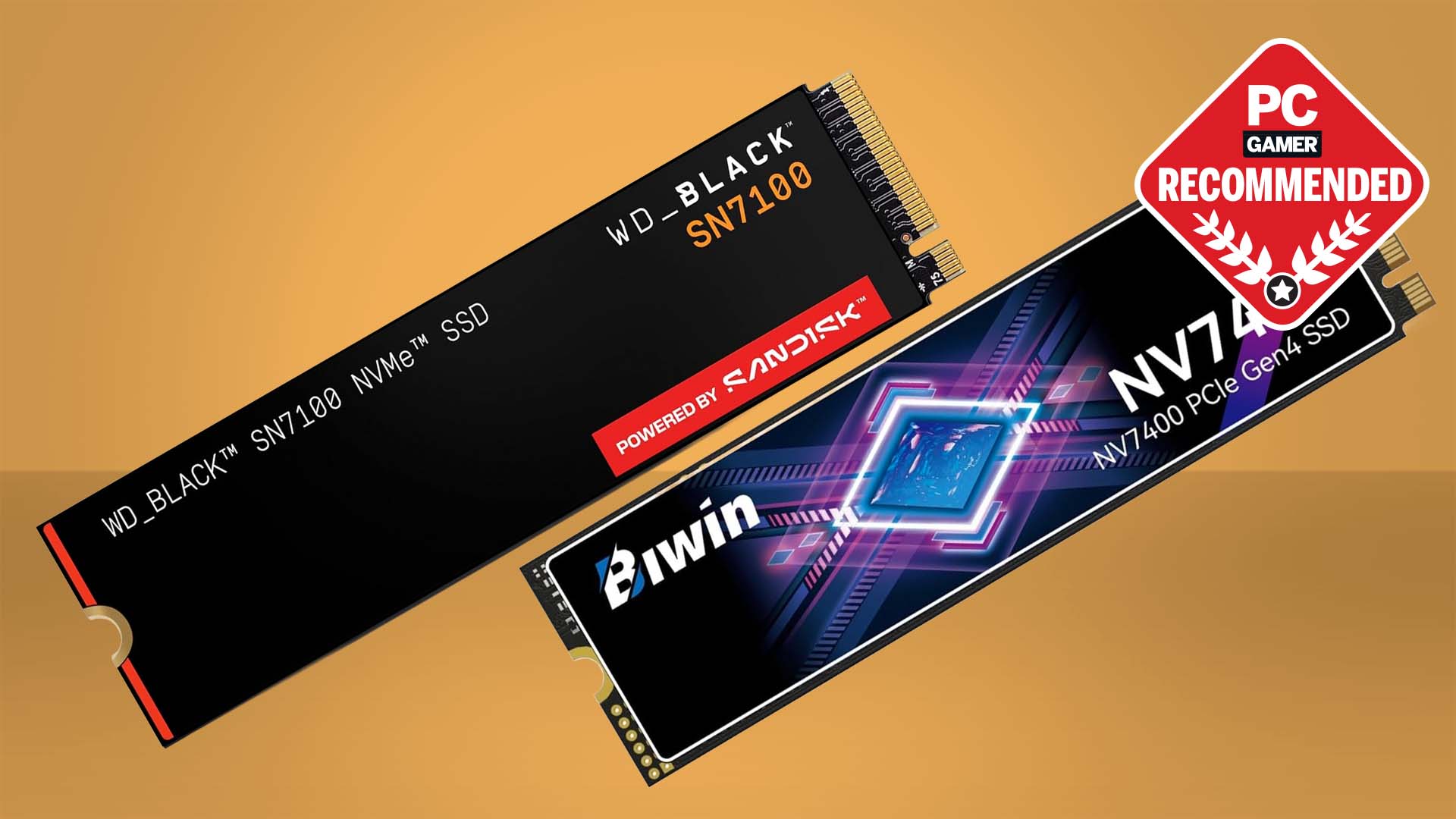
Choosing an SSD starts with compatibility, not marketing. Check your PC or motherboard manual before you buy.
Use this checklist:
- Check the available drive bay or M.2 slot.
- Confirm whether the slot supports SATA, NVMe, or both.
- Check the supported PCIe generation.
- Choose a capacity that matches your files and applications.
- Review the drive’s warranty and TBW rating.
- Look for reliable reviews that test sustained performance and temperature.
- Confirm whether your PC needs an M.2 heatsink.
PCIe generations are backward compatible in many cases. For example, a PCIe 4.0 NVMe SSD may work in a PCIe 3.0 slot, but it usually runs at the older slot’s speed.
Do not choose only by the largest sequential read number on the product box. Sequential speed matters when moving large files. Random performance, latency, controller quality, firmware, and sustained write behavior affect normal PC use.
DRAM can also matter. Some SSDs include dedicated DRAM for mapping data. Others use host memory buffer, or HMB, to use a small amount of system RAM. Both designs can work well, but performance varies by model and workload.

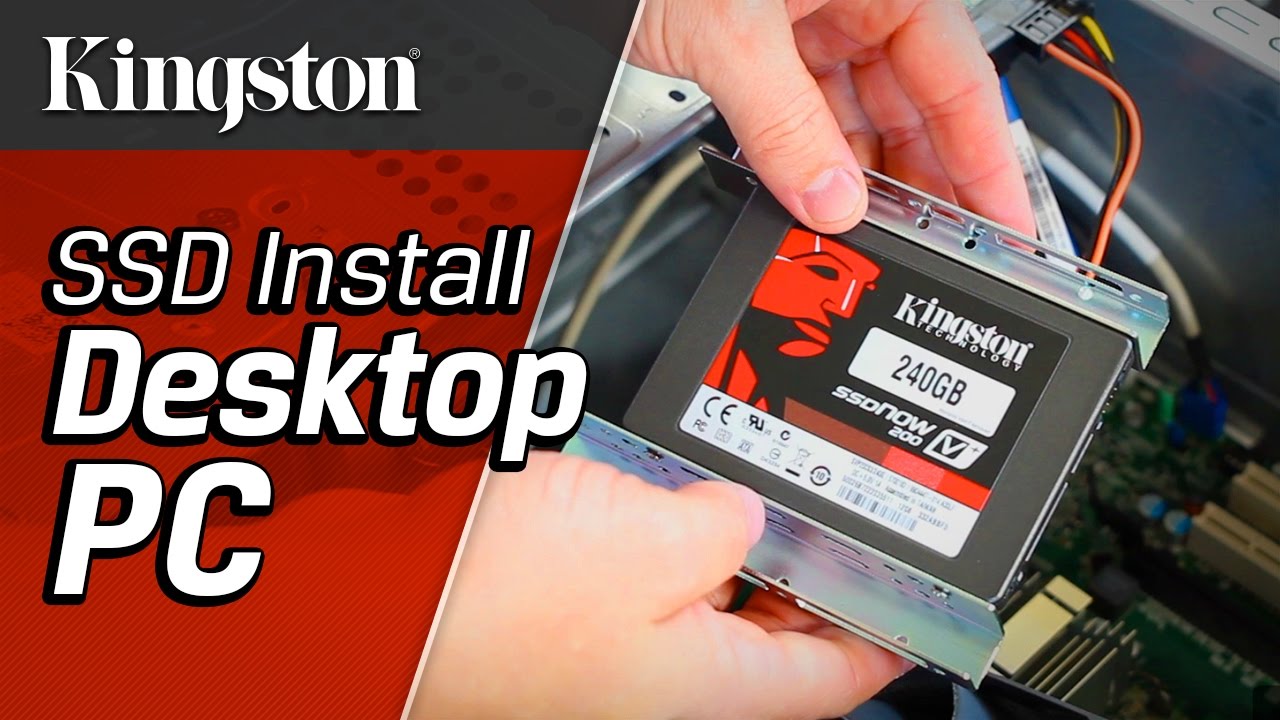
How to Install an SSD in a Desktop PC
Installing a 2.5-inch SATA SSD is usually simple. Installing an M.2 drive is also straightforward, but you must handle the small circuit board carefully.
Installing a 2.5-Inch SATA SSD
- Shut down the PC and unplug the power cable.
- Touch an unpainted metal part of the case to reduce static risk.
- Mount the SSD in a 2.5-inch bay or adapter.
- Connect the SATA data cable to the motherboard.
- Connect the SATA power cable from the power supply.
- Close the case and start the computer.
- Initialize and format the drive in Windows Disk Management if needed.
Installing an M.2 SSD
- Turn off the PC and disconnect its power.
- Find the correct M.2 slot on the motherboard.
- Remove the small mounting screw or heatsink.
- Slide the SSD into the slot at a slight angle.
- Press it flat and secure it with the screw.
- Reinstall the heatsink if the motherboard includes one.
- Start the PC and check whether the drive appears in the firmware and operating system.
Avoid forcing the connector. An M.2 drive fits in only one direction, and the notch must match the slot.
One mistake I have seen during upgrades is installing a drive in an M.2 slot that shares bandwidth with another port. On some motherboards, using a particular M.2 slot disables one or more SATA ports. The manual usually explains these shared connections.
How to Move Windows to an SSD
You can install Windows fresh or clone your existing drive.
A clean installation removes old software and clutter. It is often the best choice when the current system has years of unused programs or unusual errors.
Cloning copies the operating system, applications, settings, and files to the new SSD. It saves time, but the target drive must have enough usable space for the data being copied.
Before cloning:
• Back up important files to another device.
• Check that the new SSD is detected.
• Remove unnecessary files and applications.
• Confirm that the partition style and boot mode are compatible.
• Keep the old drive untouched until the new drive boots correctly.
After cloning, the PC may still boot from the old drive. You may need to change the boot order in the firmware settings or disconnect the old drive for the first test.
Never treat cloning as a backup. It creates another copy, but mistakes or corrupted files may also be copied. Keep a separate backup before starting.
How to Maintain an SSD
An SSD needs little daily care, but a few habits can improve reliability.
Keep the operating system updated. Firmware updates can fix bugs or improve compatibility, but read the manufacturer’s instructions before applying one.
Leave free space on the drive. A nearly full SSD has less room for background maintenance and may show slower write performance.
Enable TRIM. Current versions of Windows normally manage TRIM automatically for supported SSDs. You can check this through Windows tools if you suspect a problem.
Avoid unnecessary “defragmentation” tools. Traditional defragmentation is designed for hard drives. Modern operating systems use SSD-aware optimization instead.
Monitor drive health with a trusted utility. Look for temperature, remaining life, error warnings, and written data. These values are estimates, not guarantees, but they can reveal problems early.
Back up important data using the 3-2-1 approach:
• Keep three copies of important data.
• Store the copies on at least two different types of media.
• Keep one copy in a separate location or cloud service.
This approach protects against drive failure, theft, accidental deletion, and malware.
Common SSD Problems and Fixes
If the computer does not detect an SSD, first check the physical connection. For a SATA drive, reseat both the data and power cables. For an M.2 drive, remove and reinstall it carefully.
If the drive appears in firmware but not in Windows, it may need initialization or a drive letter. Open Disk Management and check its status before formatting anything. Formatting erases data, so confirm that the drive is new or already backed up.
If an NVMe SSD runs slowly, check its PCIe slot, temperature, firmware, and workload. Some drives slow during long transfers after their fast cache fills. This behavior is normal for many consumer models.
High temperatures can also reduce performance. A motherboard heatsink, better airflow, or a larger aftermarket heatsink may help. Do not cover the drive with a heatsink pad that is too thick, because it can prevent proper contact or damage the slot.
If the SSD reports errors or disappears repeatedly, back up your files immediately. Do not continue testing for days with important data on the drive.
Frequently Asked Questions About What Is a SSD for PC
Is an SSD better than an HDD for a PC?
An SSD is usually better for the operating system, applications, and games because it is faster, quieter, and more resistant to movement. An HDD can still be better for low-cost, high-capacity storage and long-term file archives.
Does an SSD make a PC faster?
An SSD can make startup, file access, application loading, and system responsiveness much faster. It does not directly increase processor speed or graphics performance, so it may not raise game frame rates.
Can any PC use an SSD?
Most modern desktops and laptops can use at least one type of SSD, but the correct format depends on the hardware. Check whether your computer supports 2.5-inch SATA, M.2 SATA, or M.2 NVMe storage before buying.
How long does an SSD last?
An SSD may last many years under normal consumer use. Its life depends on written data, temperature, NAND type, controller quality, and workload, so check its TBW rating and health data for a better estimate.
Should Windows be installed on an SSD?
Yes, installing Windows on an SSD is one of the most noticeable storage upgrades. It helps the computer start faster and makes everyday tasks feel more responsive.
Is a 1TB SSD enough for gaming?
A 1TB SSD is enough for many gamers, but modern games can take a large amount of space. If you keep many large games installed, a 2TB SSD may provide better long-term value.
Do SSDs need defragmentation?
No, SSDs should not be treated like traditional hard drives. Modern operating systems usually perform an SSD-friendly optimization process, including TRIM, without traditional manual defragmentation.
Conclusion
An SSD for a PC is fast, silent flash storage that can transform daily computer use. It starts the operating system quickly, opens programs faster, and avoids the mechanical limits of a hard drive.
The best choice depends on your PC’s connection, storage needs, budget, and workload. Check compatibility first, keep free space available, monitor drive health, and always maintain separate backups.
If your computer still uses a hard drive, upgrading to an SSD is one of the clearest improvements you can make. Review your PC manual, choose a suitable capacity, and share your SSD upgrade experience or questions in the comments.

Everett Ashford is a tech reviewer at mytechgrid.com specializing in SSDs, cameras, TVs, earbuds, headphones, and other consumer electronics. He provides honest, data-driven reviews based on hands-on testing and real-world performance analysis. Everett simplifies complex tech details to help readers make smart, confident buying decisions.