Run a simple benchmark tool on your OS, measure sequential and random read/write, and compare to your drive specs.
I’ve tested dozens of SSDs and built systems for clients. This guide on how to test ssd speed lays out clear steps, tools, and pitfalls. You will learn how to set up tests, run safe and repeatable benchmarks on Windows, macOS, and Linux, and read results so you can spot real problems vs. normal variance. Read on for practical tips, real-world lessons, and easy checks you can run today.
Why test SSD speed and what it tells you
Testing drive speed gives you real numbers. You learn if a drive meets its spec. You also learn if a drive is slowed by settings, a bad cable, or system limits. Testing is useful when you buy a new SSD, move an OS, suspect slowdowns, or compare upgrades.
What testing reveals
- Peak sequential speed for big file transfers.
- Random IOPS for app launches and OS tasks.
- Latency and consistency for real use.
- Impact of full drive, encryption, or thermal throttling.
Why numbers matter
- Specs are measured in lab conditions.
- Real systems add limits like SATA, PCIe lanes, and drivers.
- A good test helps you troubleshoot and choose upgrades.
/cdn.vox-cdn.com/uploads/chorus_asset/file/23926249/Screenshot_2022_08_05_at_6.50.18_PM.png)
Basic concepts you should know before testing
Keep terms clear. Short definitions help you read results right.
Sequential vs random
- Sequential speed measures long, continuous reads/writes.
- Random speed measures many tiny transfers at different spots.
IOPS and throughput
- IOPS counts operations per second for small reads/writes.
- Throughput shows megabytes per second for large reads/writes.
Latency and queue depth
- Latency is how long one operation takes.
- Queue depth is how many operations run at once.
Controller, NAND, and cache
- The SSD controller and NAND type affect speed.
- DRAM or SLC cache can hide slower NAND with short bursts.
How this affects you
- Apps like games and editing care about random IOPS.
- Large file moves care about sequential throughput.
- A drive can be fast in one test and slower in another.
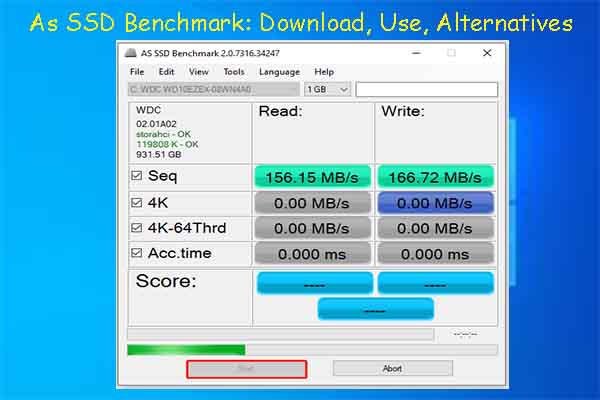
Prepare your system for accurate tests
Good setup makes tests repeatable. Follow these steps.
Checklist before testing
- Update your OS and storage drivers.
- Plug SSD into the fastest slot or controller.
- Use a good cable or adapter for SATA and NVMe.
- Disable background apps and heavy services.
- Ensure the drive is not nearly full; test at 10–30% free if possible.
- Disable encryption or benchmarks that re-encrypt unless you test that case.
- Boot from a different drive when testing your OS drive for full accuracy.
Real-world tip from my lab
- I once tested a NVMe drive in a USB adapter and saw low speeds. Moving it to the motherboard slot fixed it. Bad adapters and wrong slots are common culprits.
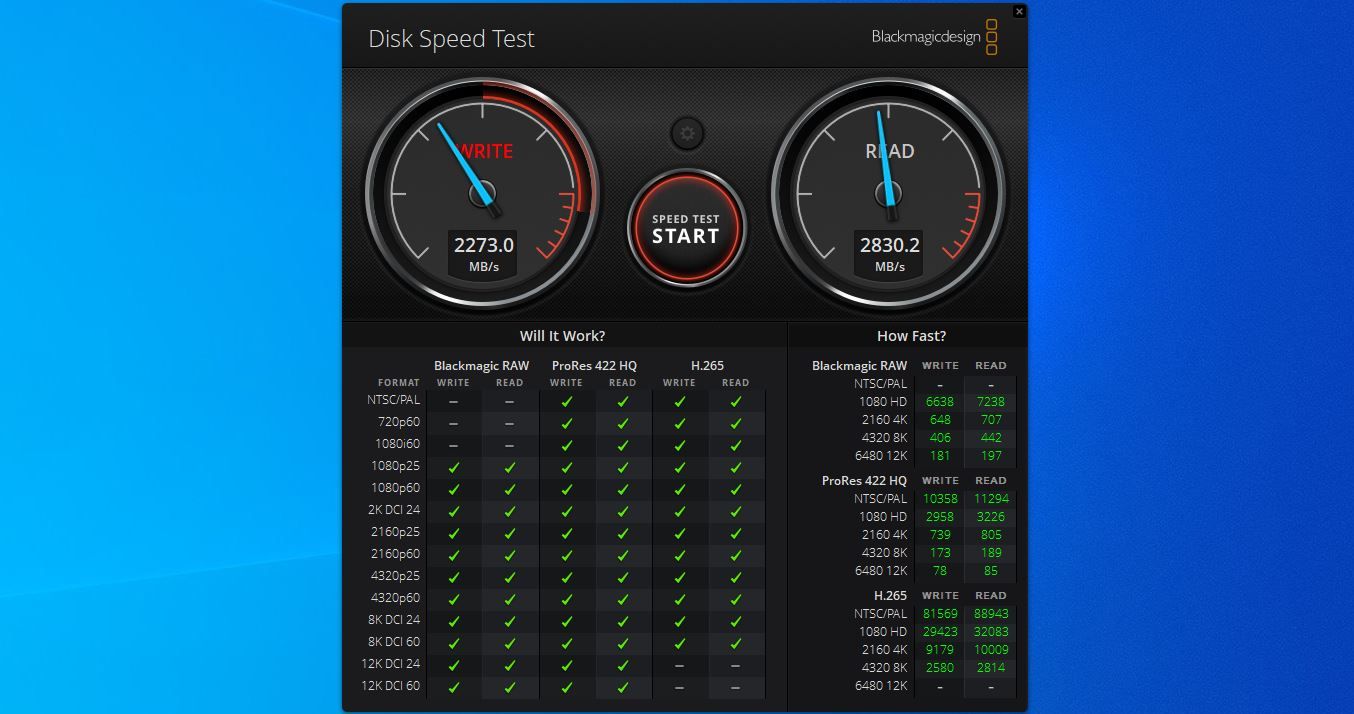
Step-by-step: how to test ssd speed on Windows
Windows has many good tools. Use both synthetic and real-world tests.
Tools I recommend
- CrystalDiskMark for quick synthetic tests.
- ATTO Disk Benchmark for throughput scaling.
- DiskSpd (command line) for advanced I/O testing.
- Robocopy or FastCopy for real file transfer tests.
How to run a simple CrystalDiskMark test
- Close apps and antivirus scans.
- Set test file size to a realistic value (1–16 GB for modern SSDs).
- Run at least three passes and note the average.
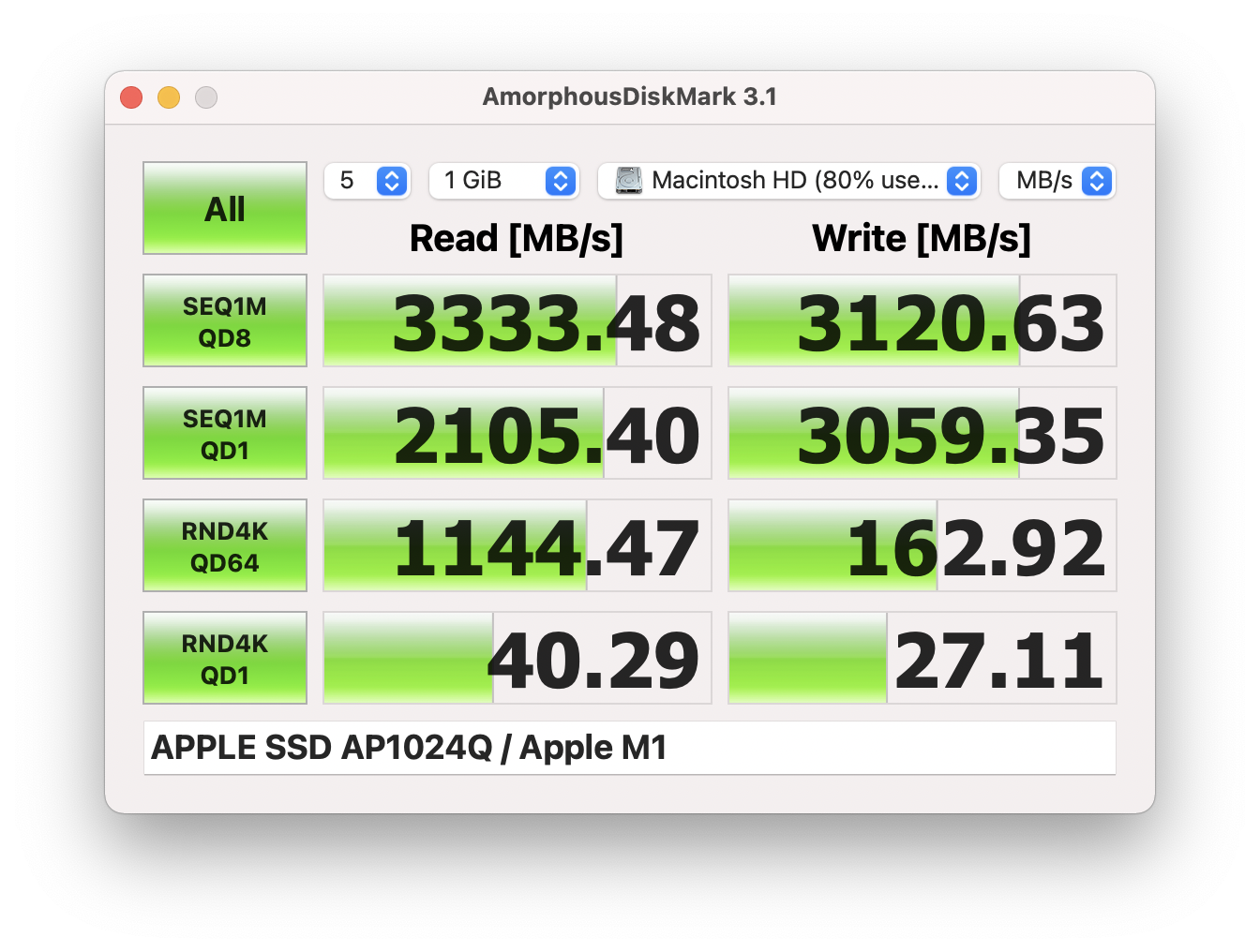
- Record sequential read/write and 4K random read/write.
How to run a real file transfer test with Robocopy
- Prepare a folder of mixed files (video + docs).
- Use robocopy source dest /E /MT:8 and time the transfer.
- Compare to expected throughput by converting MB/s to GB/min.
What to look for
- Sequential speeds near spec for large files.
- 4K IOPS and latency for small operations.
- Throttling after sustained writes indicates thermal or cache limits.

Step-by-step: how to test ssd speed on macOS
macOS tools and methods are easy and reliable.
Tools I recommend
- Blackmagic Disk Speed Test for quick checks.
- AmorphousDiskMark for more control.
- Terminal dd for simple throughput checks.
Quick Blackmagic test
- Close apps and Time Machine.
- Choose a large test file size.
- Run write and read tests and note results.
Terminal dd example
- Use dd if=/dev/zero of=~/testfile bs=1m count=2048 to write 2 GB, then remove the file.
- This gives a rough write throughput number but not random IOPS.
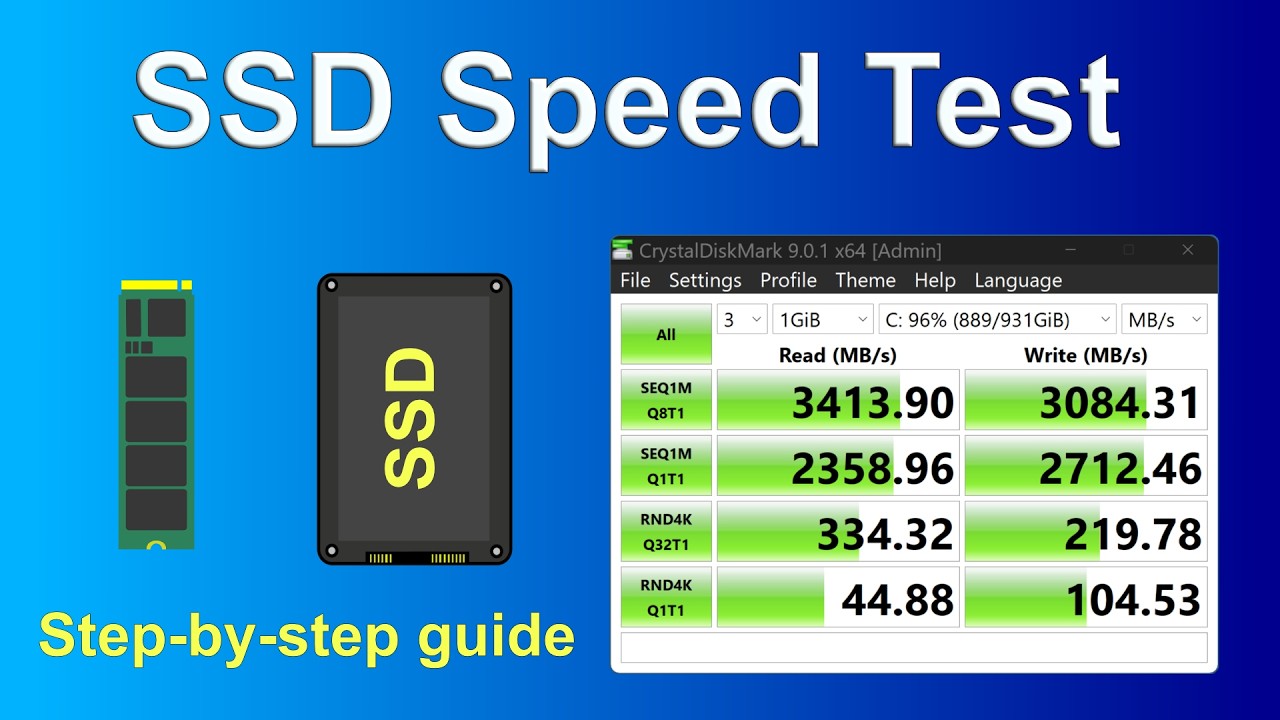
Step-by-step: how to test ssd speed on Linux
Linux gives precise control for advanced tests.
Tools I recommend
- fio for flexible I/O patterns and queue depths.
- hdparm for simple sequential reads.
- dd for quick throughput checks.
Basic fio test command
- fio –name=randread –filename=/dev/nvme0n1 –rw=randread –bs=4k –ioengine=libaio –iodepth=32 –numjobs=4 –runtime=30 –time_based –group_reporting
What this shows
- 4K random read IOPS and latency under load.
- Use randwrite and mixed read/write tests to match real use.
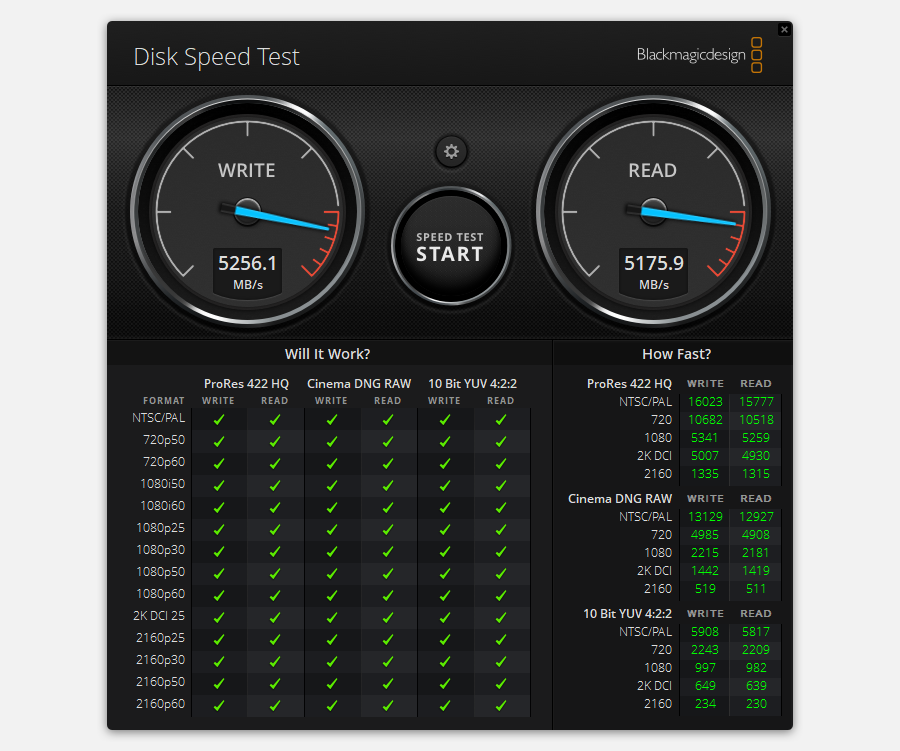
How to interpret benchmark results
Numbers need context. Follow this guide.
Compare to spec
- Check sequential read/write against the drive’s rated numbers.
- Small differences are normal. Big gaps suggest a problem.
Look at workload type
- High sequential but low random means the drive handles big files well but not many small ops.
- High variability across runs may mean thermal throttling or background tasks.
Watch for these red flags
- Sequential speed a small fraction of spec.
- 4K random IOPS far below similar drives.
- Dramatic drop after sustained writes.
Example interpretation
- If your NVMe rated 3500 MB/s only gives 500 MB/s, check lane configuration, driver, and BIOS settings first.

Common causes of slow SSD speed and fixes
Slow speeds have common root causes. Fixes are often simple.
Cause: wrong slot or interface
- Fix: Move drive to native PCIe slot or use motherboard NVMe port.
Cause: outdated drivers or firmware
- Fix: Update storage drivers and SSD firmware per manufacturer steps.
Cause: SATA mode or BIOS limits
- Fix: Use AHCI for SATA drives. Ensure NVMe lanes are not shared.
Cause: full drive or nearly full
- Fix: Free up 20–30% of capacity to restore peak speeds.
Cause: thermal throttling
- Fix: Add heatsink, improve airflow, or adjust workload timing.
Cause: poor adapter or cable
- Fix: Replace USB-to-NVMe or SATA cable with quality parts.
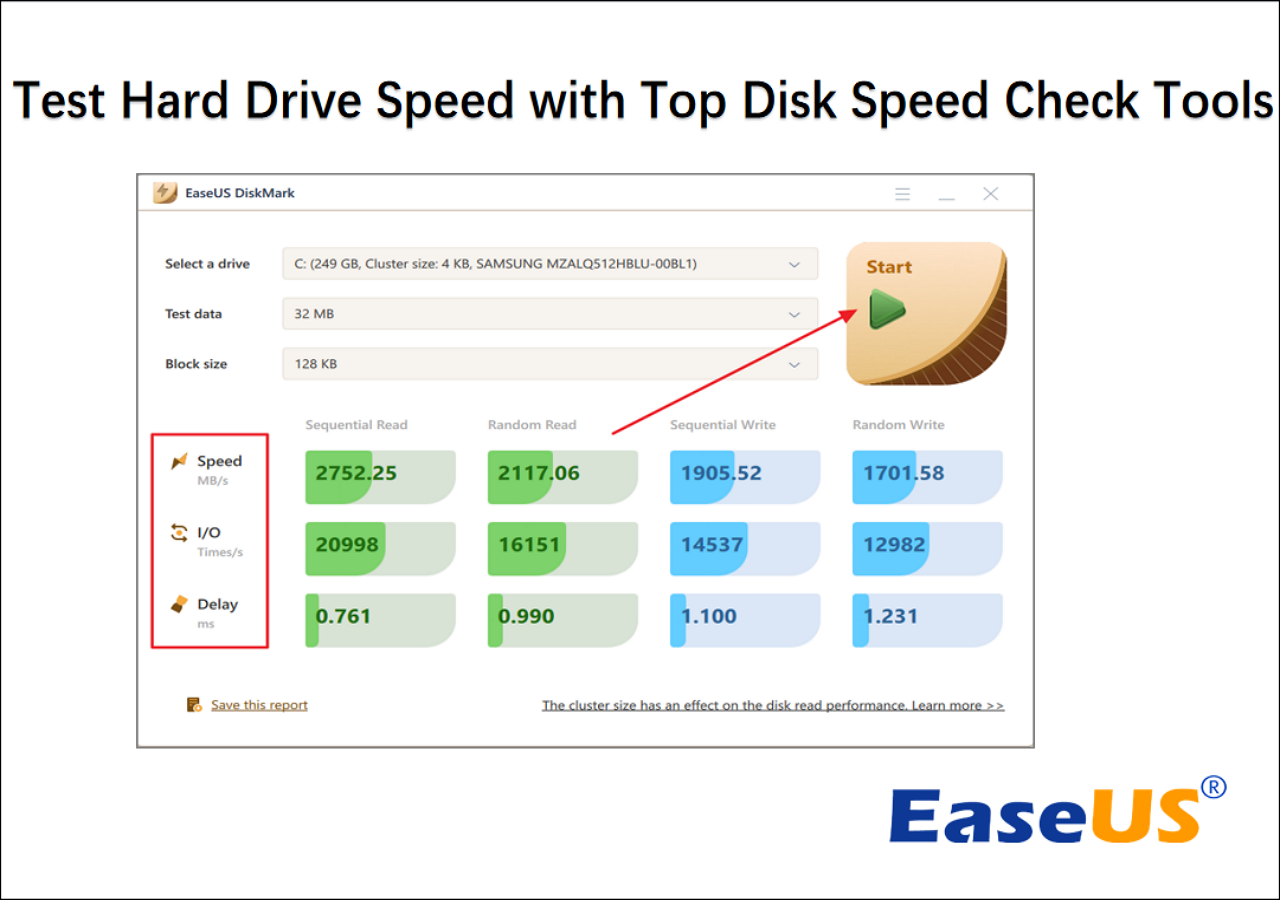
Real-world tests vs synthetic benchmarks
Both matter. Know when to use each.
Synthetic benchmarks
- Show peak capabilities.
- Use for apples-to-apples comparisons.
Real-world tests
- Show everyday performance.
- Use file copy, app launch, and boot-time measurements.
My experience
- A drive that wins synthetic tests may lag in app use if random IOPS are low. I always run both kinds of tests.
Tips to get reliable and repeatable tests
Small steps improve accuracy.
Testing rules
- Restart the PC between major tests.
- Run multiple passes and use the median.
- Use a cold start for boot and app tests.
- Log system temps and background activity.
- Note test file size and queue depth when reporting numbers.
Things I learned the hard way
- I once compared two drives but forgot to move the OS. The drive with the OS showed worse numbers because background tasks were active. Always test from a neutral state.
How to test ssd speed safely on NVMe and SATA
Safety matters. Follow these safe steps.
Before testing
- Back up data; some tools can rewrite sectors.
- Avoid destructive tests on a live system drive unless you know the tool.
- Use non-destructive read-only options when possible.
Safe tools and settings
- Use benchmark modes that write to a test file rather than raw device.
- For fio or DiskSpd, specify a test file path on the drive, not the raw disk, unless you know what you’re doing.
PAA-style quick questions
What affects SSD speed most?
- Controller type, NAND type, PCIe lanes, and system drivers are top factors. Thermal limits and cache behavior also matter.
How often should I benchmark my SSD?
- Benchmark after upgrades, driver/firmware updates, or major OS changes. Monthly checks are fine for monitoring.
Can firmware updates improve speed?
- Yes. Firmware can fix bugs, improve caching, and raise sustained write performance. Always follow vendor guides.
Frequently Asked Questions of how to test ssd speed
How long should a benchmark run for accurate results?
Run synthetic tests for multiple passes of 30–60 seconds each and real-world transfers long enough to clear any cache, typically several gigabytes.
Will testing wear out my SSD?
Modern SSDs handle many terabytes written. Benchmarks write some data, but normal testing won’t noticeably reduce lifespan if done occasionally.
Is testing from the OS drive reliable?
Testing the OS drive can give skewed results due to background activity. Use a separate boot device or run tests in safe mode for cleaner results.
Do USB adapters affect NVMe test results?
Yes. USB or cheap adapters can limit throughput. Test NVMe drives from a native M.2 slot for full speed.
Which test shows real-life performance best?
Mixed read/write tests and timed file transfers reflect daily use best. Synthetic 4K random IOPS tests show app responsiveness.
Conclusion
You can learn a lot by knowing how to test ssd speed. Run both synthetic and real-world tests. Prepare the system, use the right tools, and repeat tests for reliable numbers. Check drivers, firmware, cables, and slots when results fall short.
Take action today: pick one drive, follow the step-by-step guide here, and run a simple benchmark. Share your results or questions in the comments. If you liked this guide, subscribe or save it for your next SSD upgrade.

Everett Ashford is a tech reviewer at mytechgrid.com specializing in SSDs, cameras, TVs, earbuds, headphones, and other consumer electronics. He provides honest, data-driven reviews based on hands-on testing and real-world performance analysis. Everett simplifies complex tech details to help readers make smart, confident buying decisions.