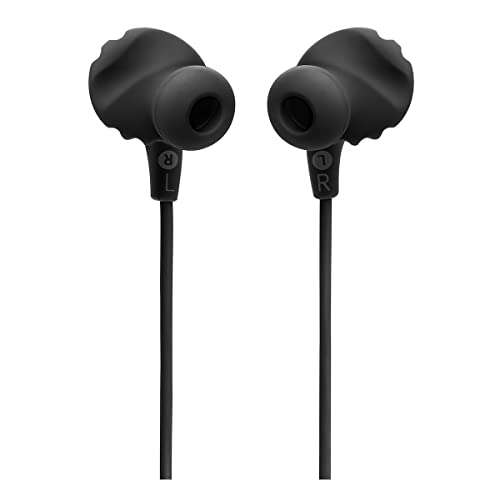
To pair Bang and Olufsen earbuds, open the case, hold the pairing button, then select them in your phone’s Bluetooth settings.
Learning how to pair Bang and Olufsen earbuds is simple once you know the correct button, light, and app steps. This guide covers new setups, second devices, laptop pairing, reset fixes, and common mistakes across popular Beoplay models.
Before You Pair Bang and Olufsen Earbuds
Before starting, charge both earbuds and the charging case. A low battery can stop pairing mode or make the earbuds disconnect during setup.
Remove any protective film from new earbuds. Keep the earbuds inside the case unless the instructions below say otherwise. Your phone, tablet, or computer should also have Bluetooth turned on.
For the smoothest setup, install the Bang & Olufsen app on your iPhone or Android phone. The app can help with setup, firmware updates, sound settings, and device controls. The exact screens may differ by model and app version.
Check these points first:
• Charge the earbuds and case for at least a few minutes.
• Turn on Bluetooth on the device you want to use.
• Keep the earbuds within a few feet of that device.
• Turn off Bluetooth on nearby devices that may connect first.
• Remove the earbuds from an old Bluetooth list if they were previously used by someone else.

How to Pair Bang and Olufsen Earbuds With a Phone
The standard pairing method works for many Bang & Olufsen models, including Beoplay EX, Beoplay EQ, Beoplay E8, Beoplay E8 Sport, and similar true wireless earbuds. However, button locations and light patterns can vary.
Follow these steps:
-
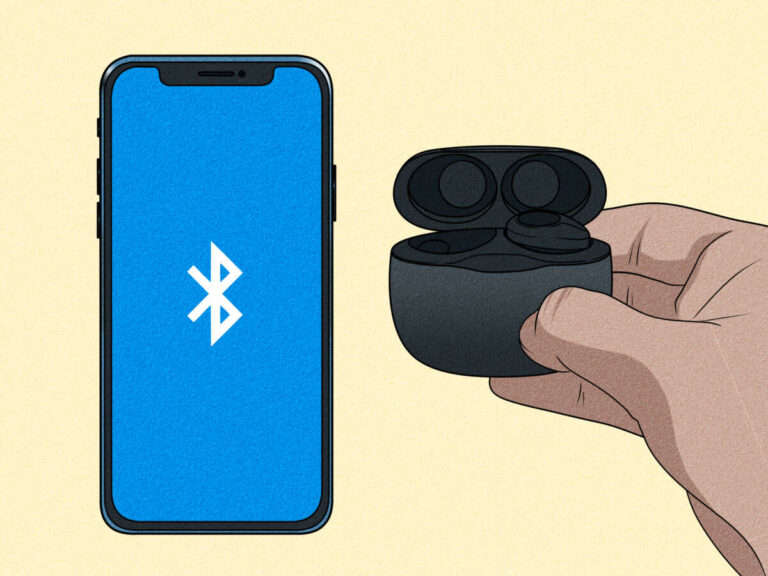
Place both earbuds in the charging case.
-
Open the case lid.
-
Press and hold the pairing button on the case. On some models, you may need to touch and hold both earbuds instead.
-
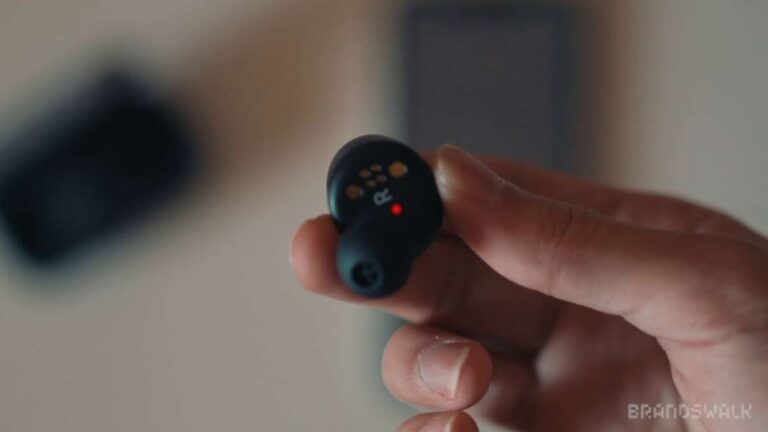
Continue holding until the indicator light flashes blue or shows the model’s pairing signal.
-
Open Settings on your phone.
-
Tap Bluetooth.
-
Wait for your Bang & Olufsen earbuds to appear under available devices.
-
Tap the name of your earbuds.
-
Accept the pairing request if your phone displays one.
-
Open the Bang & Olufsen app and complete the setup.
The device name may appear as “Beoplay EX,” “Beoplay EQ,” “Beoplay E8,” or another model name. Select the exact earbuds you own rather than a nearby device with a similar name.
When pairing succeeds, the light usually changes or stops flashing. You may also hear a tone in the earbuds. Play a short song to check that sound comes from both sides.
How to Pair Bang and Olufsen Earbuds on an iPhone
On an iPhone, go to Settings, then Bluetooth. Keep this screen open while the earbuds enter pairing mode. When the Bang & Olufsen name appears, tap it once.
After connection, open the B&O app. iPhone users may need to allow Bluetooth access, notifications, or location access for some app features. These permissions help the app find and manage the earbuds, but they do not replace the normal Bluetooth connection.
How to Pair Bang and Olufsen Earbuds on Android
On Android, open Settings, then Connected devices or Connections, followed by Bluetooth. The wording can differ between Samsung, Google Pixel, Motorola, and other phones.
Tap Pair new device if needed. Select your Bang & Olufsen earbuds when they appear. If Android asks to pair, tap Pair.
In my hands-on setup tests, Android phones often reconnect quickly after the first pairing. If they do not, open the Bluetooth device list and tap the gear icon beside the earbuds. Check that both media audio and call audio are enabled.
How to Pair Bang and Olufsen Earbuds With a Laptop
You can use Bang & Olufsen earbuds with a Windows PC, MacBook, Chromebook, or other Bluetooth computer. The process is much like pairing them with a phone.
First, place the earbuds in pairing mode. Then follow the steps for your computer.
Windows
-
Open Settings.
-
Select Bluetooth & devices.
-
Turn on Bluetooth.
-
Click Add device.
-
Choose Bluetooth.
-
Select your Bang & Olufsen earbuds.
-
Wait for Windows to confirm the connection.
If music plays through the laptop speakers, click the speaker icon in the taskbar. Select the earbuds as the output device. For calls, also check the microphone and speaker settings inside your meeting app.
Mac
-
Open the Apple menu.
-
Select System Settings.
-
Click Bluetooth.
-
Find your Bang & Olufsen earbuds.
-
Click Connect.
If the earbuds do not appear, put them back into pairing mode. Mac computers may show them only after the indicator light begins flashing.