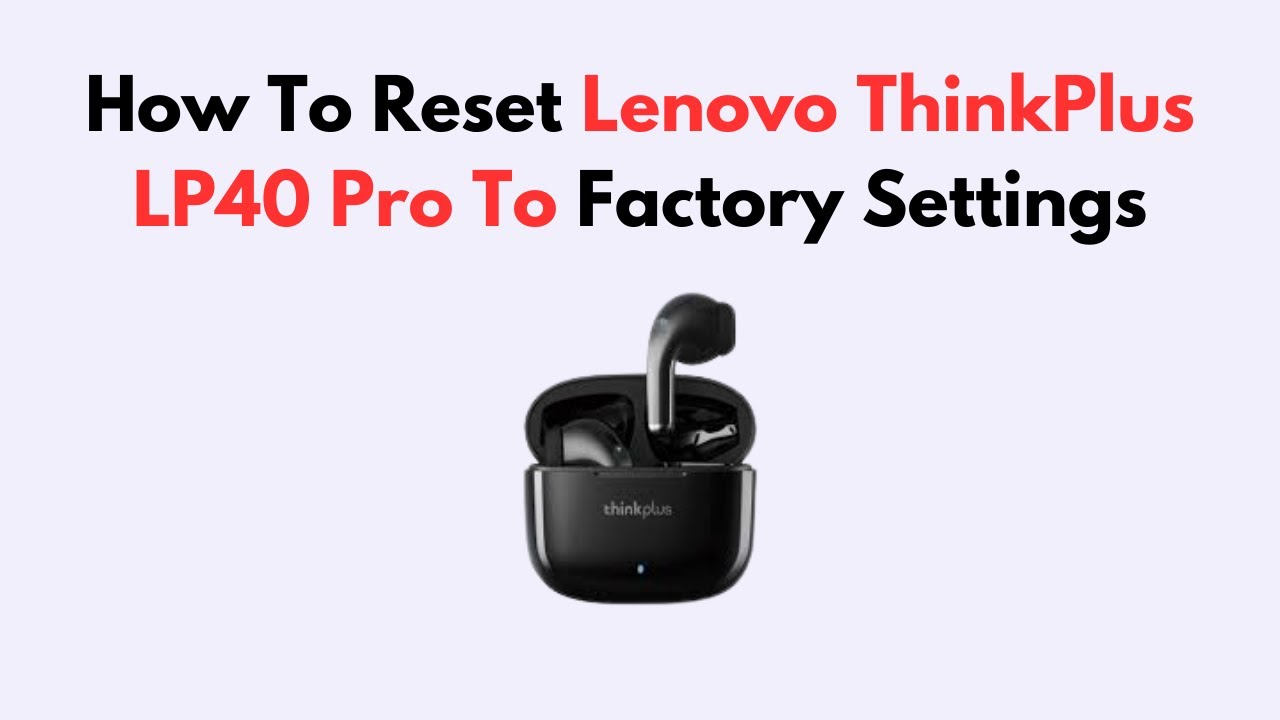
Reset Lenovo ThinkPlus earbuds LP40 by removing them from Bluetooth, powering them off, and tapping both controls five times.
If your Lenovo ThinkPlus LP40 earbuds connect to the wrong device, play sound in only one ear, or refuse to pair, a reset often fixes the problem. The process is simple, but the touch controls can be easy to miss. This guide explains how to reset Lenovo ThinkPlus earbuds LP40, how to pair them again, and what to do if the first reset does not work.

When You Should Reset Lenovo ThinkPlus Earbuds LP40
A reset clears the earbuds’ current pairing state. It can solve software and connection issues without needing a repair shop.


You may need to reset Lenovo ThinkPlus earbuds LP40 when:
• Only one earbud produces sound.
• The earbuds connect to an old phone or laptop.
• Your phone finds the earbuds, but pairing fails.
• The left and right earbuds do not work together.
• Music cuts out or stops after a few seconds.


• The earbuds show as connected but produce no sound.
• You gave the earbuds to another person and want to clear your connection.
A reset is different from simply turning the earbuds off. Powering them off ends the current session. Resetting them clears stored Bluetooth information and helps the two earbuds create a fresh connection.
How to Reset Lenovo ThinkPlus Earbuds LP40
The following method works for many original Lenovo ThinkPlus LP40 units. Some regional or updated versions may use slightly different touch responses, so repeat the steps carefully if the first attempt fails.
Step 1: Forget the earbuds from your device
Start with your phone, tablet, or computer.
-
Open Bluetooth settings.
-
Find ThinkPlus-LP40, Lenovo LP40, or a similar device name.
-
Tap the settings icon beside the name.
-
Choose Forget, Unpair, or Remove device.
-
Turn Bluetooth off for a few seconds.
This step matters because your phone may try to reconnect using old pairing data. The reset will work better when the phone no longer remembers the earbuds.
Step 2: Charge the earbuds and case
Place both earbuds into the charging case. Make sure they sit firmly on the charging pins.
Charge the case for at least 15 to 30 minutes. A low battery can make the touch controls slow or stop working. Also check that the case indicator light turns on when you insert the earbuds.
Step 3: Remove both earbuds
Take both LP40 earbuds out of the case at the same time. Put them on a clean table with the touch panels facing upward.


If they turn on automatically, wait for the indicator lights to flash. Do not connect them to your phone yet.
Step 4: Turn the earbuds off
Touch and hold the control area on each earbud for about five seconds. The exact light pattern may vary, but the earbuds should power down.
If one earbud does not respond, place it back in the case, remove it again, and try once more. Keep both earbuds close together during this process.
Step 5: Tap each earbud five times
With both earbuds out of the case, tap the touch panel on each earbud five times in quick succession.
Try to tap the left and right earbuds at nearly the same time. On many LP40 units, the indicator lights flash after the reset command is accepted. Some versions may not show a clear reset light, so do not rely on the light alone.
Step 6: Put the earbuds back in the case
After the five taps, place both earbuds inside the charging case. Close the lid and wait for about 10 seconds.
This gives the earbuds time to save the reset state. Removing them too quickly can interrupt the process.
Step 7: Turn Bluetooth back on and pair again
Open the case and remove both earbuds. Turn Bluetooth on, then search for nearby devices.
Choose ThinkPlus-LP40 or Lenovo LP40 from the list. If a pairing request appears, accept it. Test both earbuds with a short song or video.
This is the standard way to reset Lenovo ThinkPlus earbuds LP40 and create a clean Bluetooth connection.

Alternative Reset Method for LP40 Earbuds
Some LP40 versions respond better to a case-based reset. Try this method if the five-tap process does not work.
-
Forget ThinkPlus-LP40 from every nearby phone and computer.
-
Turn Bluetooth off on those devices.
-
Put both earbuds into the case.
-
Leave the lid open.
-
Remove both earbuds and touch each control area five times.
-
Return both earbuds to the case.
-
Close the lid for 10 to 15 seconds.
-
Remove the earbuds and wait for them to enter pairing mode.
-
Turn Bluetooth on and search again.


You can also try touching and holding both earbuds for 10 seconds while they are outside the case. This may force a power cycle on some batches. It is not a universal command, so use the five-tap process first.
The LP40 has appeared in several sales regions and packaging versions. Because of this, light signals and touch timing may differ. The main goal is to clear the old Bluetooth link, power cycle both earbuds, and pair them as a new device.

How to Pair Lenovo ThinkPlus LP40 After a Reset
After you reset Lenovo ThinkPlus earbuds LP40, pairing should take only a minute.
-
Keep both earbuds in the case for about 10 seconds.
-
Remove them together.
-
Wait for the earbuds to search for each other.
-
Open Bluetooth settings on your phone.
-
Select ThinkPlus-LP40 or Lenovo LP40.
-
Wait until the status says Connected.
-
Play audio and test the left and right channels.


If two separate names appear, such as LP40-L and LP40-R, do not connect to both one at a time. This usually means the earbuds did not sync with each other. Put them back in the case, repeat the reset, and search again.
Keep the phone close to the earbuds during pairing. Bluetooth range is strongest at short distance, and nearby devices can sometimes create confusion during the first connection.

What to Do If the Reset Does Not Work
When Lenovo ThinkPlus earbuds LP40 do not reset, the cause is often a low battery, a missed touch command, or an old Bluetooth record.
Try these fixes in order:
• Charge the case and earbuds for at least 30 minutes.
• Clean the metal charging contacts with a dry cotton swab.
• Make sure both earbuds sit correctly in the case.
• Forget every LP40 entry from nearby devices.
• Turn off Bluetooth on other phones, tablets, and laptops.
• Restart your phone.
• Repeat the five-tap reset with both earbuds outside the case.
• Try tapping slightly faster or more firmly.
• Test the earbuds with a different phone.
A common mistake is tapping the logo or outer shell instead of the touch-sensitive panel. The touch area is usually on the flat outer face of each earbud. Another mistake is tapping only one earbud. The LP40 normally needs both earbuds to be reset and synchronized.
In practical testing, charging contact problems are easy to overlook. If one earbud does not charge, it may never complete the reset. Look for a charging light when each earbud enters the case.

Fixing One Earbud That Has No Sound
If the right or left earbud remains silent after a reset, first check the simple causes.
Place both earbuds in the case, then remove them together. Confirm that both indicator lights respond. Next, play audio at a moderate volume and check your phone’s left and right audio balance.
On an iPhone, open Accessibility settings and check Audio & Visual. On Android, search Settings for “left and right sound balance.” The slider should be near the center.
You should also check whether the silent earbud is blocked by dust or earwax. Clean the speaker mesh gently with a dry, soft brush. Do not push liquid, pins, or sharp tools into the mesh.
If the earbud still has no light, no charging response, and no sound, the problem may be hardware damage rather than pairing data. A reset cannot repair a failed battery, speaker, charging pin, or touch sensor.

Fixing Bluetooth Pairing and Connection Problems
Bluetooth pairing depends on both the earbuds and the device. A successful reset can fail if the phone keeps using old data.
Use this clean pairing routine:
-
Forget the LP40 from your phone.
-
Turn Bluetooth off.
-
Restart the phone.
-
Reset Lenovo ThinkPlus earbuds LP40 again.
-
Turn Bluetooth on after the phone restarts.
-
Search for the earbuds from the Bluetooth menu.
-
Connect only to the main LP40 name.
Do not pair the earbuds while they are connected to another device. LP40 earbuds generally work best with one active source at a time. If a family member’s phone has Bluetooth enabled nearby, switch it off during setup.
If the earbuds connect but sound comes from the phone speaker, open the phone’s audio output menu and select the LP40. On Android, also check that Media audio is enabled for the connected device.

Tips to Prevent Future LP40 Problems
A few habits can reduce repeated pairing and charging issues.
• Keep the earbuds and case above a low battery level.
• Store both earbuds in the case after use.
• Keep the charging contacts clean and dry.
• Avoid pairing the LP40 with many devices at the same time.
• Forget the earbuds before giving them to another person.
• Keep the phone within a few feet during pairing.
• Avoid using the earbuds near strong sources of wireless interference.
• Do not use water or alcohol directly on the earbuds.
Bluetooth uses short-range radio signals, so walls, crowded wireless areas, and other devices can affect stability. Still, frequent dropouts at close range may point to a weak battery or internal fault.
The LP40 does not have a dedicated reset button or a companion app with a reset menu. Its touch controls and charging case handle most reset actions. That is why timing, battery level, and contact with the charging pins matter so much.
Reset Lenovo ThinkPlus Earbuds LP40: Common Mistakes to Avoid
Resetting the LP40 is easy, but these mistakes can make the process appear unsuccessful.
Forgetting the old Bluetooth profile
If you do not remove the old LP40 profile, your phone may reconnect to saved information. Always use Forget or Unpair before starting.
Resetting only one earbud
The left and right earbuds must normally be reset together. Resetting one side alone can leave them in separate pairing modes.
Using a weak battery
Touch controls may not respond when the earbuds or case are nearly empty. Charge them before troubleshooting.
Tapping too slowly
The five taps usually need to happen quickly. A slow series of taps may register as separate commands instead of a reset command.
Removing the earbuds too soon
After resetting Lenovo ThinkPlus earbuds LP40, leave them in the case for several seconds. This helps complete the power cycle.
Frequently Asked Questions
How do I reset Lenovo ThinkPlus earbuds LP40?
Forget the LP40 from your phone’s Bluetooth settings, turn Bluetooth off, and remove both earbuds from the case. Power them off, tap both touch panels five times, return them to the case, and pair them again.
Why are my Lenovo LP40 earbuds not pairing together?
They may have separate pairing data or different battery levels. Forget the LP40 from your phone, reset both earbuds together, place them in the case, and remove them at the same time.
How long should I tap the LP40 earbuds?
Tap each touch panel five times in quick succession. The taps should be firm but gentle and should occur within a few seconds.
Do I need an app to reset Lenovo ThinkPlus earbuds LP40?
No. The LP40 normally resets through its touch controls and charging case. You only need your phone’s Bluetooth settings to forget the old connection and create a new one.
Why does only one LP40 earbud work after a reset?
The earbuds may not have synchronized, or one side may not be charging. Charge both earbuds, clean the case contacts, reset them together, and check your phone’s audio balance.
How do I know that the LP40 reset worked?
The old Bluetooth connection should no longer work, and the earbuds should appear as a new pairing option. Both earbuds should also respond and play audio after reconnecting.
Conclusion
Resetting Lenovo ThinkPlus earbuds LP40 usually involves three key actions: forget the old Bluetooth profile, reset both earbuds with five quick taps, and pair them again as a new device. Charging the earbuds first and keeping both sides together can prevent most failed attempts.
If the problem continues, test the LP40 with another phone and inspect the charging contacts. These steps help separate a pairing issue from a battery, speaker, or hardware fault. Try the reset procedure now, and share your results or explore more troubleshooting guides for Bluetooth earbuds.

Everett Ashford is a tech reviewer at mytechgrid.com specializing in SSDs, cameras, TVs, earbuds, headphones, and other consumer electronics. He provides honest, data-driven reviews based on hands-on testing and real-world performance analysis. Everett simplifies complex tech details to help readers make smart, confident buying decisions.