GPT is usually the best partition style for modern SSDs, while MBR suits older systems and legacy BIOS hardware.
Choosing what partition style for SSD storage may seem like a small setup choice, but it affects boot support, drive capacity, partition limits, and recovery options. After working with Windows PCs, Linux systems, cloned drives, and fresh SSD installations, I have found that GPT is the safest default for most computers made in the last decade. This guide explains the differences clearly so you can choose the right option before installing an operating system or moving your files.

What partition style for SSD should you choose?
For most modern computers, choose GUID Partition Table, commonly called GPT. GPT works with UEFI firmware, supports very large drives, and allows more partitions than the older Master Boot Record, or MBR, format.
Choose MBR only when you have a specific reason, such as:
- The computer uses Legacy BIOS instead of UEFI.
- You need to boot an older operating system.
- An old tool or device does not support GPT.
- You are working with a system built before UEFI became common.
The SSD itself does not require GPT or MBR. Both styles can store data on solid-state drives. The correct choice depends mainly on your computer’s firmware, operating system, and boot mode.
Think of the partition style as a map for the drive. The SSD stores the data, while GPT or MBR tells the computer how to find each section.
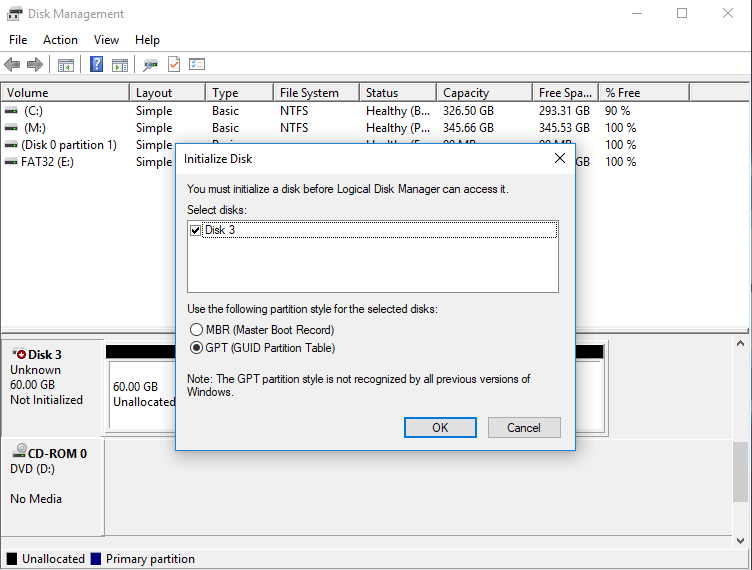
GPT vs. MBR: What is the difference?
GPT and MBR are partitioning standards. They organize information about partitions on a storage drive. However, they were designed for different generations of computer hardware.
GPT explained
GPT is the newer standard. It is part of the UEFI system used by most current computers.
GPT offers several important benefits:
- It supports drives larger than 2 TB.
- It supports up to 128 partitions in Windows without extended partition tricks.
- It stores backup partition data for better recovery.
- It uses modern checks to detect partition table damage.
- It works well with UEFI Secure Boot.
- It is the normal choice for Windows 10, Windows 11, and current Linux versions.
GPT places a primary partition table near the start of the drive and keeps a backup near the end. This design gives the computer another way to recover the layout if one copy becomes damaged.
MBR explained
MBR is an older standard that dates back to the early days of personal computers. It works with Legacy BIOS firmware and remains useful for older hardware.
MBR has several limits:
- It supports drives up to about 2 TB for normal use.
- It allows only four primary partitions.
- It may require an extended partition for additional logical partitions.
- It does not provide the same level of partition table redundancy as GPT.
- It does not support modern UEFI boot features in the same way.
MBR is not automatically bad. It is simply an older map. If your computer uses Legacy BIOS, MBR may be the correct and most practical option.
Why GPT is usually the best partition style for SSD
When people ask what partition style for SSD is best, GPT is usually the answer because modern operating systems and motherboards are built around it.
A new Windows 11 computer normally uses UEFI firmware. Windows 11 also expects features such as Secure Boot and Trusted Platform Module support. A system disk using GPT fits this modern setup.
GPT also avoids the 2 TB limit that can affect MBR. Many people use 1 TB or 2 TB SSDs today, but larger drives are becoming more common. Choosing GPT gives you room to grow.
Another benefit is safer partition information. GPT stores a backup copy of its partition table. It also uses a cyclic redundancy check to help identify damaged data. This does not replace a backup, but it can make the drive layout more resilient.
In my own drive upgrades, GPT has saved time because it works smoothly with current installation tools. The biggest mistake I have seen is choosing MBR during a clean installation, then discovering that the computer is set to UEFI mode. The installer may refuse to use the disk until the partition style is changed.
Does partition style affect SSD speed?
The partition style does not normally make an SSD faster. GPT does not increase read speed, write speed, or random input and output performance by itself.
SSD performance depends more on:
- The SSD controller.
- NAND flash type.
- Drive capacity and free space.
- PCIe or SATA interface.
- NVMe generation.
- Thermal control.
- Operating system drivers.
- Firmware quality.
- Proper alignment and trim support.
Still, partition style matters because an incompatible style can stop the computer from booting. A fast SSD is not useful if the firmware cannot start the operating system.
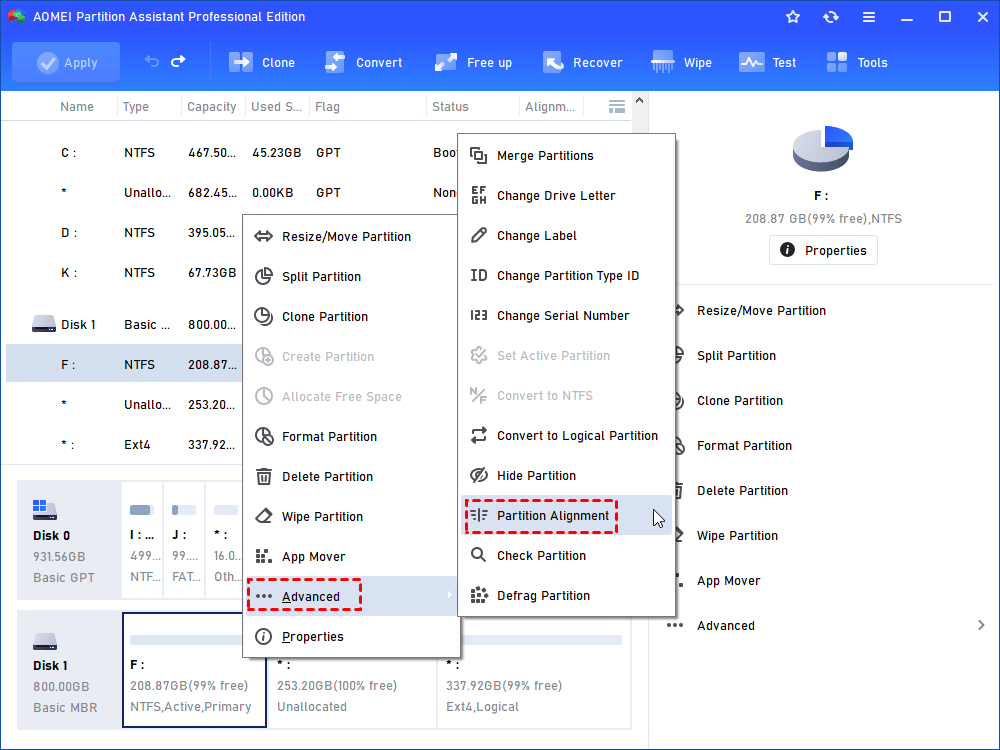
Modern operating systems usually create properly aligned partitions automatically. Good alignment helps the operating system work with the SSD’s physical data blocks. You normally do not need to align partitions by hand when using current Windows or Linux installers.
So, when deciding what partition style for SSD to use, focus on compatibility rather than speed. Select GPT for a modern UEFI computer and MBR for a genuine Legacy BIOS requirement.

What partition style for SSD works with Windows?
Windows supports both GPT and MBR, but the boot mode must match the partition style.
The usual combinations are:
- UEFI firmware with GPT system disk.
- Legacy BIOS firmware with MBR system disk.
A computer using UEFI can often read an MBR disk for storage. However, booting Windows from that disk may require special settings or conversion. Likewise, a Legacy BIOS computer may not boot Windows from a GPT disk without additional support.
For Windows 10 and Windows 11, GPT is the preferred option. During a clean installation, Windows may create several partitions automatically, including:
- An EFI System Partition.
- A Microsoft Reserved Partition.
- The main Windows partition.
- A recovery partition.
Do not delete these partitions casually. The EFI partition helps the computer boot in UEFI mode, and the recovery partition can provide repair tools when Windows fails to start.
If you are installing Windows on a new SSD, the simplest process is usually to boot the installer in UEFI mode, delete old partitions when appropriate, and allow Windows Setup to create a fresh GPT layout.
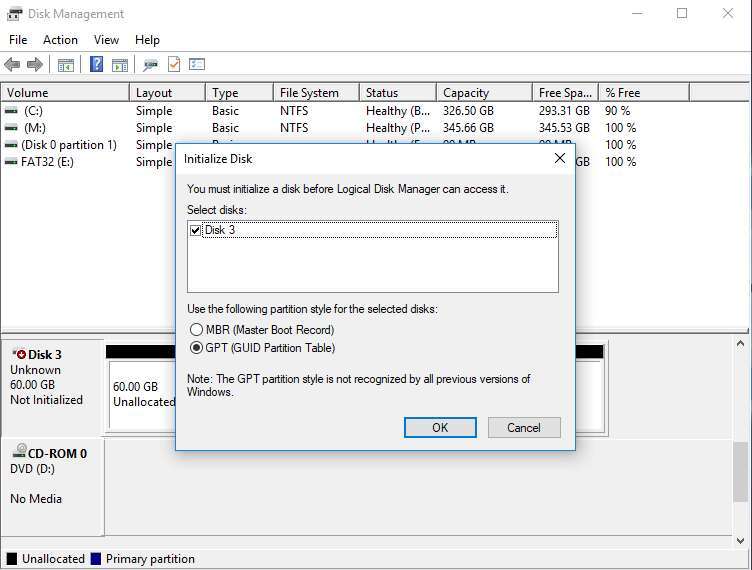
How to check whether your SSD uses GPT or MBR
You can check the current partition style without installing extra software.
Check in Windows Disk Management
- Press Windows key + X.
- Select Disk Management.
- Find the SSD in the lower panel.
- Right-click the disk label, such as Disk 0.
- Select Properties.
- Open the Volumes tab.
- Look for Partition style.
Windows will show either GUID Partition Table, GPT, or Master Boot Record, MBR.
Be careful to right-click the disk label, not a volume such as the C: drive. The disk label appears on the left side of the Disk Management window.
Check with Windows Terminal
You can also use DiskPart:
- Open Windows Terminal or Command Prompt as an administrator.
- Type
diskpart. - Type
list disk. - Press Enter.
- Look for an asterisk in the GPT column.
An asterisk usually means that the selected disk uses GPT. If there is no asterisk, the disk may use MBR.
Check the boot mode
To check the current Windows boot mode:
- Press Windows key + R.
- Type
msinfo32. - Press Enter.
- Find BIOS Mode in System Information.
The result will usually say UEFI or Legacy. This helps you understand what partition style your boot drive should use.
How to change an SSD from MBR to GPT
You can convert an SSD from MBR to GPT, but conversion can erase data if you use the wrong method. Back up important files before changing any partition structure.
Convert during a clean Windows installation
This is often the easiest method for a new or empty SSD:
- Start the Windows installer in UEFI mode.
- Choose the custom installation option.
- Select the target SSD.
- Delete its existing partitions if the data is no longer needed.
- Select the unallocated space.
- Continue with the installation.
Windows will normally create the required GPT partitions automatically.
Convert an existing Windows installation
Microsoft provides the mbr2gpt tool for supported Windows installations. It can often convert a system disk without deleting personal files, but it still requires careful preparation.
Before using it:
- Create a full backup.
- Confirm that the computer supports UEFI.
- Check that the disk meets the tool’s partition requirements.
- Suspend or disable drive encryption as instructed.
- Have a Windows recovery method ready.
- Change firmware boot mode to UEFI after conversion.
A failed conversion can make Windows unbootable. If the computer contains critical work, professional help may be worth the cost.
Convert with Disk Management or DiskPart
Windows Disk Management and DiskPart can convert between MBR and GPT, but the built-in destructive method requires deleting all volumes first. This is suitable only when the drive is empty or properly backed up.
Never run a disk-cleaning command until you have confirmed the correct disk number. Selecting the wrong disk can erase your operating system or personal files in seconds.

How to choose the partition style for a new SSD
Use this simple process before formatting or installing an operating system.
- Check whether the computer uses UEFI or Legacy BIOS.
- Check the operating system requirements.
- Confirm the SSD capacity.
- Back up important data.
- Choose GPT for UEFI systems.
- Choose MBR for Legacy BIOS systems.
- Use the installer’s default partition setup when possible.
For a modern desktop or laptop, the answer to what partition style for SSD is normally GPT. For an older computer that cannot boot in UEFI mode, MBR may be necessary.
If the SSD will be used only as a secondary storage drive, either GPT or MBR may work. GPT is still the better long-term choice, especially if the drive is larger than 2 TB or may later become a boot drive.
Partition style for SATA SSDs, NVMe SSDs, and external SSDs
The interface does not decide the partition style. A SATA SSD and an NVMe SSD can both use GPT or MBR.
SATA SSD
SATA SSDs connect through the same general storage interface used by many older hard drives. A SATA SSD can use GPT for a modern computer or MBR for an older BIOS system.
NVMe SSD
NVMe drives are commonly used as boot drives in newer computers. These systems almost always use UEFI, so GPT is usually the right choice for an NVMe SSD.
Some older computers may not support booting from NVMe storage at all. Check the motherboard manual before purchasing an NVMe drive for an older machine.