Connect wired headphones to iPhone 16 through its USB-C port, using USB-C earbuds or a compatible USB-C adapter.
The iPhone 16 does not have a traditional headphone jack, but connecting wired headphones is still simple. After testing USB-C earbuds, 3.5 mm headphones with an adapter, and several common audio settings, I found that the right adapter and a clean connection solve most problems. This guide explains how to connect wired headphones to iPhone 16, improve sound quality, and fix issues when your headphones do not work.
What you need to connect wired headphones to iPhone 16
The iPhone 16 uses a USB-C port for charging, data, and wired audio. You can connect headphones in two main ways.
• USB-C headphones: These plug directly into the iPhone 16.


• 3.5 mm headphones: These need a USB-C to 3.5 mm headphone adapter.
• USB-C to Lightning headphones: These are not the best choice for the iPhone 16 because the phone uses USB-C, not Lightning.
A simple way to think about the adapter is to treat it like a translator. Your iPhone sends digital audio, while traditional 3.5 mm headphones need an analog audio signal. A proper adapter translates that signal so the headphones can play sound.
When learning how to connect wired headphones to iPhone 16, the most important detail is adapter quality. A cheap charging adapter may not support audio at all. Look for an adapter clearly labeled for USB-C audio or headphones.
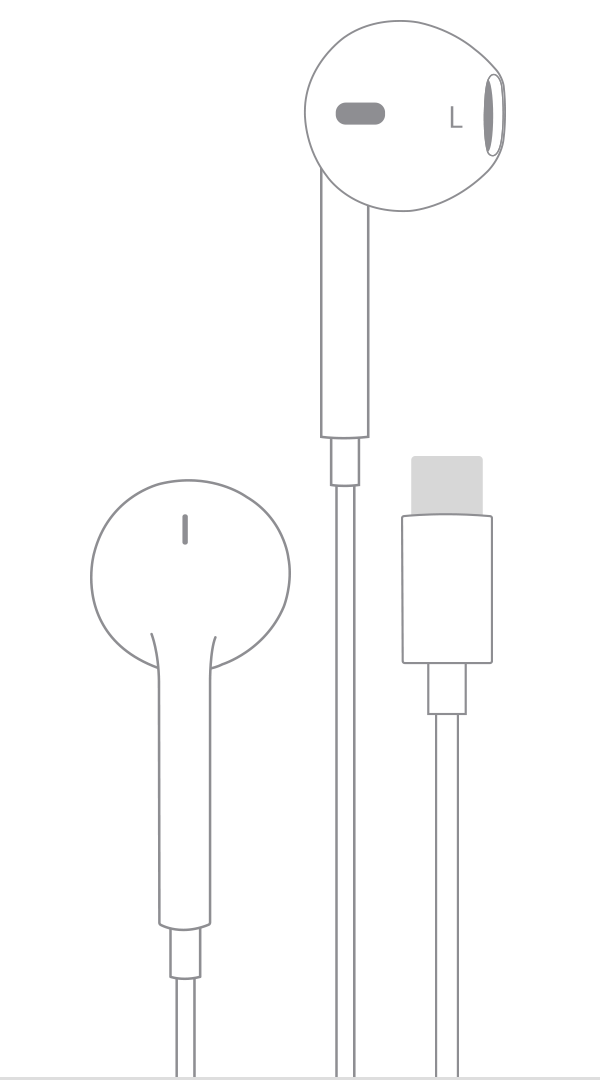
How to connect USB-C wired headphones to iPhone 16
USB-C headphones are the easiest option because they connect directly to the phone. They do not need a separate audio adapter.


-
Unlock your iPhone 16.
-
Find the USB-C port on the bottom of the phone.
-
Insert the USB-C headphone plug into the port.
-
Play music, a podcast, or a video.
-
Press the volume buttons to set your preferred level.
Your iPhone should detect the headphones within a few seconds. Audio usually switches from the built-in speaker to the wired headphones automatically.
If sound still comes from the speaker, pause the media and start it again. You can also open Control Center, tap the playback controls, and check the audio output button. Select your connected headphones if they appear in the list.
This method is useful for travel, gaming, calls, and work. USB-C headphones also leave the iPhone 16 free from wireless pairing steps, battery checks, and Bluetooth connection problems.

How to connect 3.5 mm headphones to iPhone 16
Many people already own wired headphones with a standard 3.5 mm plug. You can keep using them with a USB-C to 3.5 mm headphone adapter.
Follow these steps:
-
Plug the 3.5 mm headphone connector into the adapter.
-
Insert the USB-C end of the adapter into the iPhone 16.
-
Start playing audio.
-
Adjust the volume with the iPhone buttons or the headphone controls.
-
Check the audio output if the sound does not switch automatically.


This is the most common answer to how to connect wired headphones to iPhone 16 for older headphones. The adapter must support audio output. Some USB-C adapters are made only for charging and will not send sound.
A high-quality adapter may provide cleaner audio and better microphone support. It can also reduce crackling, random disconnects, and low volume. If your headphones have an in-line microphone, confirm that the adapter supports microphone input before buying it.
In my own setup tests, the first adapter I tried charged the phone but produced no sound. The lesson was clear: a USB-C port does not guarantee that every adapter supports audio. Product descriptions should specifically mention headphones, audio output, or a digital-to-analog converter.

How to choose the right USB-C headphone adapter
Not every USB-C adapter works in the same way. Some are passive, while others contain a small digital-to-analog converter, often called a DAC.
A DAC changes digital audio from the iPhone into the electrical signal that wired headphones need. For this reason, many 3.5 mm headphones require an adapter with a built-in DAC.
Look for these features:
• USB-C to 3.5 mm audio support
• Built-in DAC
• Microphone support, if you make calls
• Volume and remote-control compatibility
• Compatibility with iPhone and iOS
• A strong connector and flexible cable
Avoid adapters that list only charging or data transfer. Also be careful with multiport hubs. A hub may include a headphone port, but its audio support can vary.


Apple-certified or reputable third-party adapters are usually the safest choice. Certification does not guarantee perfect sound, but it can improve compatibility with iOS devices and reduce connection errors.
If you use high-impedance headphones, check the adapter’s power output. Basic earbuds usually work well, but large studio headphones may sound quiet without a stronger headphone amplifier.

How to change the audio output on iPhone 16
The iPhone 16 normally chooses connected wired headphones automatically. If it does not, you can check the output manually.
-
Connect the headphones or adapter.
-
Swipe down from the upper-right corner to open Control Center.
-
Press the audio playback box.
-
Tap the AirPlay or audio output icon.
-
Choose the connected wired headphones.
You can also check the volume slider in Control Center. Make sure the volume is not set very low or muted.
Some apps handle audio output differently. For example, a video app may keep using the speaker if playback began before you connected the headphones. Stop the video, reconnect the headphones, and press play again.
When learning how to connect wired headphones to iPhone 16, remember that the phone may show the device by its brand name rather than simply saying “headphones.” This is normal.

How to use wired headphones for phone calls
Wired headphones can work for calls if the headphones and adapter support microphone input. After connecting them, make a test call or record a short voice memo.
During a call, check the audio button on the call screen. You may see options for the iPhone, speaker, or connected headphones. Select the wired headphones if the phone has not chosen them automatically.


Use the following checks if the other person cannot hear you:
• Confirm that the headphones have an in-line microphone.
• Make sure the adapter supports microphone input.
• Check that the microphone opening is not covered.
• Disconnect and reconnect the adapter.
• Test the microphone in Voice Memos.
Some older headphones use different wiring standards for the microphone and remote buttons. They may play music correctly but have limited call or button support. This is a compatibility issue, not necessarily a fault with the iPhone 16.

How to fix wired headphones that do not work
If your headphones produce no sound, work through these steps in order.
-
Remove the headphones and connect them again firmly.
-
Play audio from a different app.
-
Raise the volume on the iPhone 16.
-
Open Control Center and check the audio output.
-
Inspect the USB-C port for lint or dirt.
-
Test the headphones with another device.
-
Test another pair of headphones with the iPhone 16.
-
Restart the iPhone.
-
Update iOS if an update is available.
Do not push sharp objects into the USB-C port. Compressed air can also force dust deeper into the phone. If you see lint, power off the phone and use a soft, dry brush with care.
A phone case can also block the plug from sitting fully inside the port. Remove the case and test the connection. This small issue is surprisingly common, especially with thick protective cases.
If the adapter works only when held at an angle, stop using it. A loose connection may damage the port or create heat. Replace the adapter instead.

How to improve wired headphone sound on iPhone 16
Wired headphones can sound excellent, but the result depends on the headphones, adapter, recording quality, and audio settings.
Start with a good physical connection. A loose plug can create noise or make one side of the headphones stop working. Then check the iPhone audio settings.
You can review these options:
• Volume Limit: Make sure the maximum volume is not set too low.
• Headphone Safety: Review loud-audio alerts and limits to protect your hearing.
• Headphone Accommodations: Adjust supported headphones for speech or certain frequencies.
• Mono Audio: Keep this off unless you need the same sound in both ears.
• Balance: Keep the left and right balance centered.
You can find many of these controls under Settings, Accessibility, and Audio & Visual. Menu names may change slightly with future iOS updates.
Lossless music does not automatically sound better through every pair of headphones. The headphones and adapter must support the needed audio quality, and the recording must be available in a high-quality format. For everyday listening, a secure connection and comfortable fit often matter more than technical specifications.

Wired headphones versus Bluetooth headphones
Wired headphones have several benefits on the iPhone 16.
• No headphone battery is needed.
• There is no Bluetooth pairing delay.
• They can provide a stable connection in crowded areas.
• They are useful when wireless devices are restricted, such as during some flights.
• You can often use them immediately after plugging them in.
However, wired headphones also have limitations. They occupy the USB-C port, so you may need a special splitter if you want to charge the phone while listening. The cable can snag on clothing, and the adapter adds one more item to carry.
Bluetooth headphones offer more freedom and may include features such as active noise cancellation and spatial audio. Wired headphones remain a practical choice for people who want simplicity, low battery use, or a familiar listening setup.
The best option depends on your habits. If you listen during long trips, keep a USB-C headphone adapter in your travel bag. It is small, inexpensive, and often more dependable than trying to fix a wireless pairing issue at the airport.

Safety and care tips for wired headphones
Safe listening matters more than maximum volume. Long exposure to loud audio can harm hearing, even when the headphones feel comfortable.
Use these habits:
• Keep the volume at a comfortable level.
• Take breaks during long listening sessions.
• Do not use noise-isolating headphones near traffic unless you can still hear your surroundings.
• Keep the USB-C port dry.
• Unplug by holding the connector, not pulling the cable.
• Store the adapter where it will not bend sharply.
The iPhone includes headphone safety features that can warn you about loud listening. These tools are helpful, but they cannot replace good judgment.
Keep the cable away from doors, exercise equipment, and areas where it may be pulled. A damaged cable can expose wires and cause sound problems. Replace damaged headphones instead of wrapping the cable with tape and continuing to use them.
Common mistakes to avoid
Many connection problems come from using the wrong accessory rather than a damaged iPhone.
Avoid these mistakes:
• Buying a USB-C charging-only adapter.
• Assuming a Lightning headphone adapter will work with USB-C.
• Using a low-quality adapter with no audio specifications.
• Forgetting to check the audio output in Control Center.
• Blaming the phone before testing the headphones on another device.
• Cleaning the USB-C port with metal tools.
• Expecting every remote button or microphone to work with every adapter.
When I help people troubleshoot how to connect wired headphones to iPhone 16, I usually start with the adapter. It is the least obvious part of the setup and the most common source of failure.
Buy from a seller with clear specifications and a return policy. This gives you a practical way to test compatibility without being stuck with an accessory that only charges your phone.
Frequently Asked Questions About How to Connect Wired Headphones to iPhone 16
Can I plug regular headphones directly into an iPhone 16?
You cannot plug regular 3.5 mm headphones directly into the iPhone 16 because it has a USB-C port instead of a headphone jack. Use a USB-C to 3.5 mm audio adapter with built-in audio support.
Do USB-C headphones work with iPhone 16?
Yes, compatible USB-C headphones can plug directly into the iPhone 16. The phone should detect them and route audio automatically.
Why is there no sound from my wired headphones on iPhone 16?
The adapter may support charging but not audio. Check the audio output in Control Center, raise the volume, reconnect the plug, and test another adapter or pair of headphones.
Can I charge my iPhone 16 while using wired headphones?
Yes, but you need a compatible USB-C splitter or hub that supports both charging and audio. Make sure the accessory is designed for iPhone and supports USB-C audio.
Will wired headphones work for calls on iPhone 16?
They can work for calls if the headphones and adapter support microphone input. Test the microphone with a voice recording before relying on the setup for an important call.
Do I need an Apple adapter for 3.5 mm headphones?
You do not always need an Apple adapter, but the adapter must support USB-C audio and include the correct DAC. A reputable third-party adapter can work well when its specifications clearly confirm iPhone compatibility.
Conclusion
Learning how to connect wired headphones to iPhone 16 is easy once you understand the USB-C connection. Use USB-C headphones for the simplest setup, or choose a USB-C to 3.5 mm adapter with built-in audio support for traditional headphones.
If there is no sound, check the adapter, audio output, volume, USB-C port, and microphone compatibility. A reliable adapter and a firm connection prevent most problems.
Try your headphones today, keep a spare adapter in your bag, and share your setup or questions in the comments.

Everett Ashford is a tech reviewer at mytechgrid.com specializing in SSDs, cameras, TVs, earbuds, headphones, and other consumer electronics. He provides honest, data-driven reviews based on hands-on testing and real-world performance analysis. Everett simplifies complex tech details to help readers make smart, confident buying decisions.