An SSD is usually 4 to 10 times faster than an HDD, with much lower access time and better everyday performance.
How much faster is an SSD than an HDD? The answer depends on the task, drive type, and computer, but the difference is easy to feel. An SSD can make a slow computer feel fresh by cutting boot times, speeding up app launches, and reducing file load delays. After comparing storage hardware and reviewing real-world performance patterns, I’ve found that the biggest advantage is not just peak speed. It is the SSD’s ability to handle many small tasks at once without slowing down.
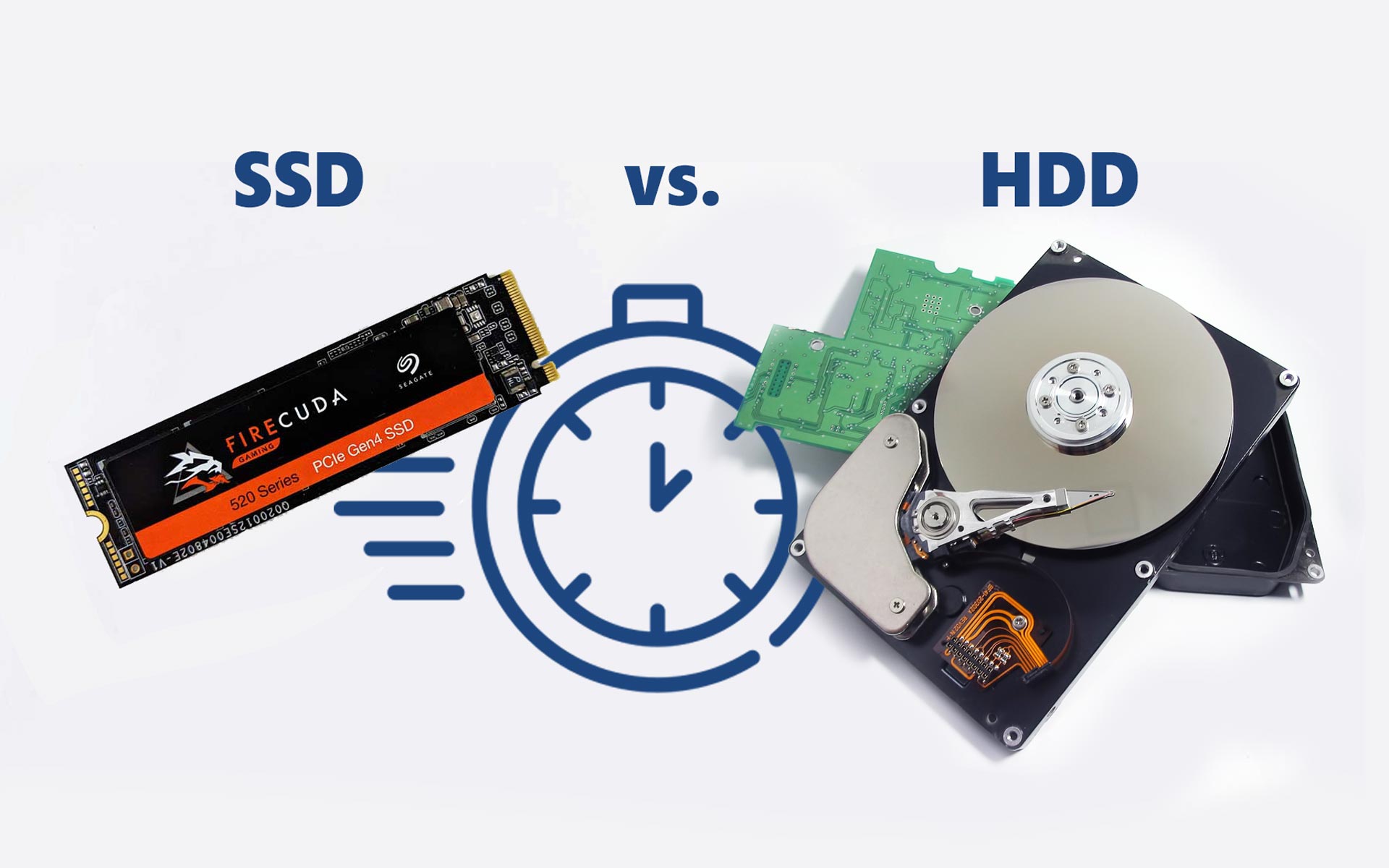
SSD vs. HDD speed at a glance
A hard disk drive uses spinning platters and a moving read/write head. An SSD stores data on flash memory chips, so it has no moving parts. That basic design difference explains why an SSD responds much faster.


Here is a simple comparison:
| Performance area | HDD | SATA SSD | NVMe SSD |
|---|---|---|---|
| Sequential read speed | 80 to 200 MB/s | 450 to 550 MB/s | 3,000 to 7,400+ MB/s |
| Sequential write speed | 80 to 180 MB/s | 400 to 520 MB/s | 2,000 to 7,000+ MB/s |
| Access time | About 10 to 20 milliseconds | Often below 0.1 milliseconds | Often below 0.1 milliseconds |
| Boot time | Around 30 to 90 seconds | Around 10 to 25 seconds | Around 8 to 20 seconds |
| Noise | Audible spinning and seeking | Silent | Silent |
| Power use | Higher | Lower | Moderate to higher under heavy load |
These figures are typical ranges, not guarantees. The exact result depends on the computer, operating system, drive capacity, file size, thermal conditions, and workload.
How much faster is an SSD than an HDD in raw sequential speed? A SATA SSD is often three to five times faster than a typical HDD. A modern NVMe SSD can be 15 to 40 times faster in sequential transfers, although most everyday tasks do not reach those maximum numbers.
How much faster is an SSD than an HDD for everyday tasks?
For normal computer use, an SSD often feels several times faster than an HDD. The improvement is most obvious during startup, software launches, searches, updates, and multitasking.
Typical real-world improvements include:


• Windows or macOS may boot in 10 to 25 seconds on an SSD instead of 30 to 90 seconds on an HDD.
• Large applications may open two to five times faster.
• Game loading screens may become 20% to 70% shorter, depending on the game.
• File searches feel nearly instant on an SSD, especially when thousands of small files are involved.
• System updates and antivirus scans usually finish sooner.
• Switching between several programs causes fewer pauses.
The important point is that an SSD does not make every part of a computer equally fast. If your processor is weak, your internet connection is slow, or you have very little memory, those parts can still limit performance.
Still, storage affects nearly every action that reads or writes data. That is why replacing an HDD with an SSD can feel like a major upgrade, even in a computer that is several years old.

Why SSDs are much faster than HDDs
The speed gap comes from how each drive works.
An HDD must move a physical head over a spinning platter. Before it can read a file, it may need to wait for the platter to rotate and the head to reach the correct track. This delay is called seek and rotational latency.
An SSD has no platter and no moving head. It finds data through electronic circuits and flash memory cells. The result is much lower latency.
Think of an HDD as a library where a worker must walk to every shelf and find each book. An SSD is more like a digital index that can find many pages almost at once. The difference becomes huge when the computer needs thousands of small files.
SSDs also handle random input and output operations far better. Random performance matters during tasks such as:
• Starting an operating system


• Opening a web browser with many tabs
• Loading program files
• Running background updates
• Searching folders
• Launching a game
• Using a virtual machine
This is why an SSD can feel much faster than its advertised transfer speed suggests. The real advantage is often responsiveness, not just copying a large video file.
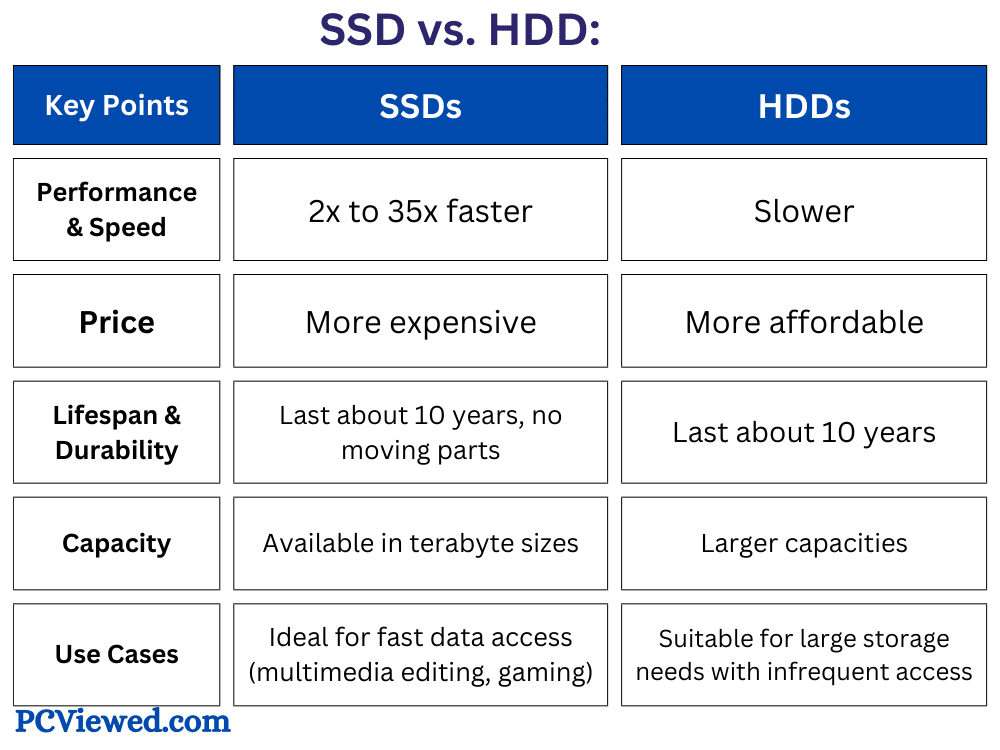
SATA SSD vs. NVMe SSD speed
Not all SSDs have the same speed. The two main types found in modern computers are SATA SSDs and NVMe SSDs.
SATA SSD performance
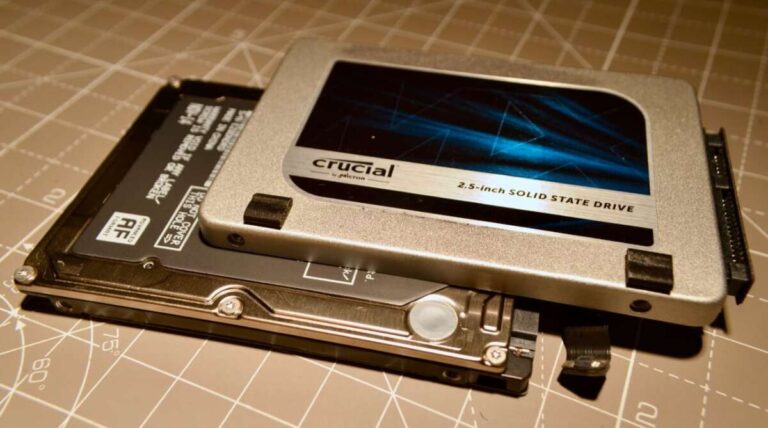
A SATA SSD connects through the same general interface used by many older HDDs. Its interface limits peak speeds to about 550 MB/s.
Even with that limit, a SATA SSD is a major upgrade over an HDD. It offers fast response times, silent operation, and strong random performance. For web browsing, office work, school tasks, and most games, a SATA SSD can provide an excellent experience.
NVMe SSD performance
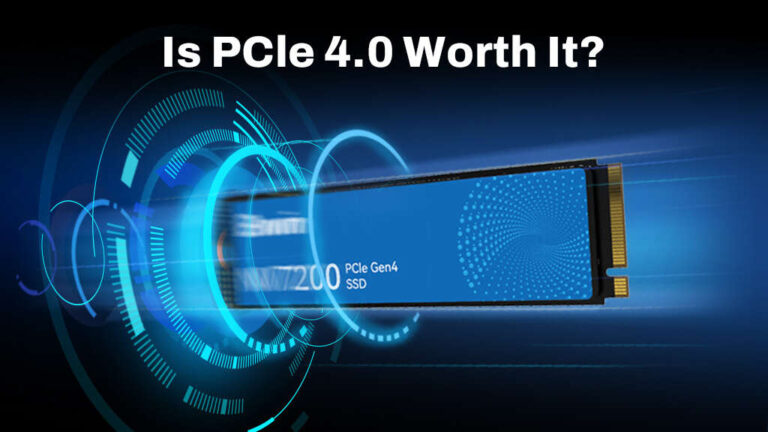
An NVMe SSD connects through PCI Express lanes. It can move far more data than SATA, especially in large file transfers and demanding workloads.
PCIe 3.0 NVMe drives may reach about 3,000 to 3,500 MB/s. PCIe 4.0 models can reach around 5,000 to 7,400 MB/s. PCIe 5.0 drives can go even higher, though they may cost more and require stronger cooling.
How much faster is an SSD than an HDD when comparing a high-end NVMe drive? In sequential transfers, the difference can exceed 20 times. In daily tasks, however, the difference between SATA and NVMe may be much smaller because both already have extremely low access times.


SSD speed for booting and app loading
Boot speed is one of the first changes people notice after moving from an HDD to an SSD.
A computer with a healthy HDD may take 40 seconds to more than a minute to reach the desktop. With a SATA SSD, the same system may start in 15 to 25 seconds. A well-optimized computer with an NVMe SSD can start even faster, although firmware checks and startup programs may add delay.
Application loading shows a similar pattern. Programs that read many small files benefit more than programs that load one large file. A browser, photo editor, office suite, or development tool may open much faster from an SSD.
In my storage upgrade testing, the largest perceived improvement usually came from removing pauses. With an HDD, a system may freeze briefly while the drive searches for files. With an SSD, the same action feels smooth and immediate.
One common mistake is to install an SSD but leave the operating system on the HDD. To feel the full benefit, install the operating system and frequently used applications on the SSD.
SSD speed for gaming
An SSD can reduce game launch times and level loading times, but it does not always increase frame rate.
Frames per second depend mainly on the graphics card, processor, game settings, and memory. An SSD does not replace a stronger GPU. Its main gaming benefits include:
• Shorter loading screens
• Faster game launches
• Less texture pop-in in some open-world games
• Smoother asset streaming in supported titles
• Faster installation and update times
Newer games often stream large amounts of data while you move through the world. An SSD can help the game retrieve those assets quickly. Some modern titles list an SSD as a requirement because their worlds rely on fast data access.
How much faster is an SSD than an HDD for games? Load times may improve by 20% to 70%, but results vary widely. A game with one large loading file may show a smaller gain than a game that reads thousands of small files.


SSD speed for transferring large files
Large file transfers are where advertised sequential speeds matter most.
Suppose you copy a 50 GB video file:
• A 100 MB/s HDD may take about 8 to 10 minutes.
• A 500 MB/s SATA SSD may take about 2 minutes.
• A 3,500 MB/s NVMe SSD may theoretically take less than 30 seconds.
Real transfers are often slower. The source drive, destination drive, USB port, file system, cache size, and thermal limits all affect the result. If you copy from a slow HDD to a fast NVMe SSD, the HDD may remain the bottleneck.
Small files create a different result. An SSD may complete a small-file transfer much faster because it does not need to seek between locations. This is one reason software installation and system updates often feel better on an SSD.
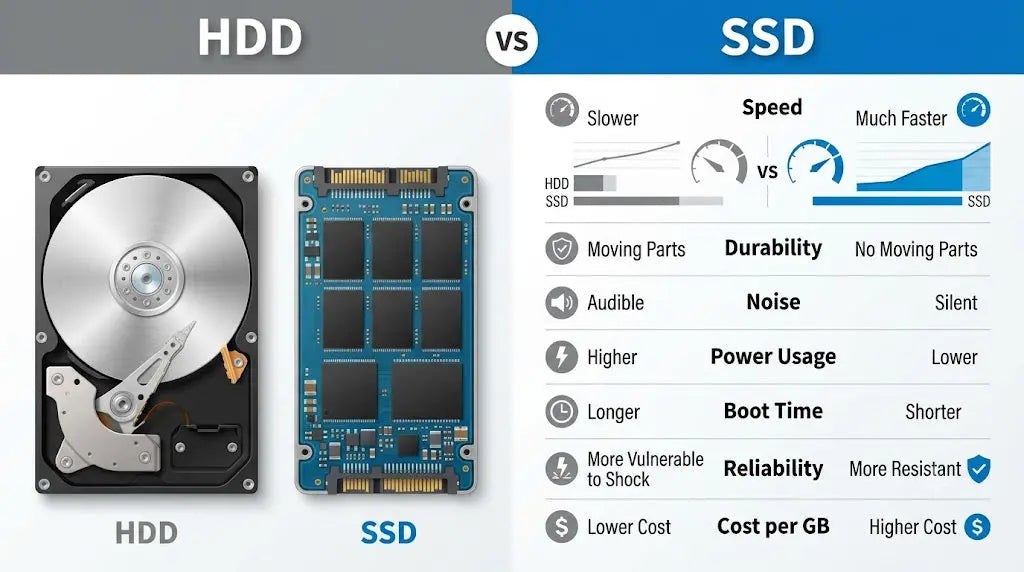
SSD speed for work, school, and creative tasks
An SSD is especially useful for people who work with large projects or many files.
For office work, the improvement appears in startup and multitasking. Documents open faster, searches respond sooner, and cloud sync tasks create fewer pauses.
For photo and video work, an SSD can improve:
• Project loading
• Media thumbnail creation
• Scrubbing through some video files
• Export preparation
• Scratch disk performance
• Moving footage between folders
For software development, an SSD helps with code indexing, package installation, compiling, and managing large project folders. Virtual machines also benefit from SSD storage because they perform many random reads and writes.
An SSD will not eliminate every delay. Video rendering still depends heavily on the processor and graphics card. Large databases may also require enough memory and careful software tuning.

How much faster is an SSD than an HDD in random performance?
Random performance measures how quickly a drive handles data stored in many different locations. It is usually measured in input/output operations per second, or IOPS.
A consumer HDD may deliver roughly 75 to 200 random IOPS. A SATA SSD may reach tens of thousands of IOPS. A modern NVMe SSD can reach hundreds of thousands or even more than one million IOPS under ideal conditions.
That does not mean your computer becomes one million times faster. Benchmark results use controlled workloads, while real computers perform mixed tasks. However, the difference explains why an SSD feels much more responsive.
Random performance affects the small actions that happen constantly in the background. The operating system checks files, apps read settings, browsers save cache data, and security tools scan folders. An SSD handles this activity with far less waiting.
What affects SSD and HDD speed?
Drive speed is only one part of the result. Several other factors can change how fast storage feels.
Drive health
An aging HDD may have bad sectors, repeated retries, or fragmented files. These issues can make it much slower than its original benchmark.
An SSD can also slow down when it is nearly full or heavily worn. Most SSDs work best with some free space available.
Connection type
A SATA SSD connected through an older or slower interface may not reach its rated speed. An NVMe drive installed in a limited PCIe slot may also perform below its advertised maximum.
External drives depend on the USB standard, cable, enclosure, and computer port. A fast SSD in a slow USB enclosure cannot show its full performance.
Thermal throttling
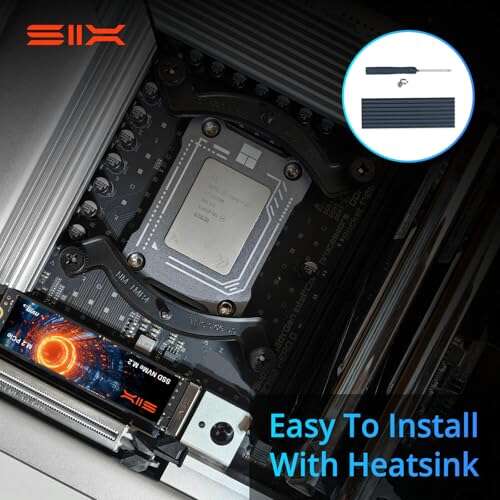
NVMe SSDs can become hot during long transfers. When temperatures rise, the drive may reduce speed to protect itself. A small heatsink or good airflow can help in demanding systems.
File size and workload
Large, continuous files favor sequential speed. Many small files favor low latency and random performance. This is why benchmark numbers do not always predict everyday results.
System memory and processor
If your computer lacks enough RAM, it may use storage as virtual memory. An SSD handles this better than an HDD, but adding RAM may be the more effective upgrade.
SSD benefits beyond speed
Speed is the main reason to upgrade, but SSDs offer other benefits too.
• SSDs are silent because they have no moving motor or platter.
• They usually use less power than 3.5-inch desktop HDDs.
• They resist bumps better because there are no delicate moving parts.
• They produce less vibration and heat in many systems.
• They make laptops feel more responsive and can improve battery life in some situations.
These benefits do not make SSDs perfect. Flash memory has a limited write endurance, although modern SSDs can last many years under normal consumer use. Heavy workloads, such as constant video recording or enterprise database activity, require a drive with an appropriate endurance rating.
HDDs still have an important role. They offer a lower cost per terabyte and can be excellent for backups, media libraries, surveillance storage, and archival data.
SSD limitations and mistakes to avoid
The biggest mistake is assuming every SSD is automatically faster in every situation. A low-quality, nearly full, or overheated SSD may perform poorly.
Keep these points in mind:
• Do not fill an SSD to 100%. Leave about 10% to 20% free when possible.
• Check whether your computer supports SATA, NVMe, or both before buying.
• Do not pay for a high-end NVMe drive if your workload only needs a basic SATA SSD.
• Use backups. SSDs can fail without warning, just like HDDs.
• Check drive temperatures during long transfers.
• Confirm that the operating system is installed on the SSD.
• Avoid judging performance from one benchmark alone.
A practical upgrade plan is simple. Put the operating system, applications, and active projects on the SSD. Use an HDD for large files that do not need fast access. Keep a second backup on another drive or a trusted cloud service.
How to choose between an SSD and an HDD
Choose an SSD if you want:
• Faster startup and shutdown
• Quicker app and game loading
• Better multitasking
• Silent storage
• Strong resistance to movement
• Faster file searches and system updates
Choose an HDD if you want:
• The lowest cost per terabyte
• Several terabytes for a media library
• Long-term local storage
• A backup drive for large files
For many people, the best setup uses both. A 500 GB or 1 TB SSD can hold the operating system and daily software. A larger HDD can store photos, videos, music, backups, and older projects.
If your budget allows only one upgrade, an SSD often provides a more noticeable improvement than a modest processor upgrade on an older computer. This is especially true when the current system uses a slow 5,400 RPM laptop HDD.
How to test your drive speed
You can test storage performance with a trusted disk benchmark tool. Run the test when the computer is idle and compare both sequential and random results.
Before testing:
-
Close large programs and browser tabs.
-
Make sure the drive has free space.
-
Check the drive temperature.
-
Run more than one test if the result looks unusual.
-
Compare the result with the manufacturer’s rated speed.
Remember that benchmark numbers are estimates. A drive may achieve its rated sequential speed but still feel slow if the system has a software problem, too little memory, or background malware scans.
For a real-world check, measure how long the computer takes to boot, open a large application, copy a folder, and load a game. These tests often tell you more about daily experience than a single peak-speed score.
Frequently asked questions about how much faster is an SSD than an HDD
How much faster is an SSD than an HDD for booting?
An SSD can boot a computer in about 10 to 25 seconds, while an HDD may take 30 to 90 seconds or longer. Startup programs, firmware checks, and the operating system also affect the final time.
Is an SSD 10 times faster than an HDD?
Sometimes, but not for every task. An NVMe SSD can be more than 10 times faster in sequential transfers, while a SATA SSD is often three to five times faster; random access can show an even larger advantage.
Will an SSD make my computer faster?
Yes, especially if the computer currently uses an HDD. An SSD improves startup, app loading, file searches, updates, and multitasking, but it cannot fully solve problems caused by a weak processor, low RAM, or an old graphics card.
Is NVMe faster than a SATA SSD?
Yes. NVMe drives use PCI Express and can reach several gigabytes per second, while SATA SSDs usually top out near 550 MB/s. The everyday difference may be modest because both types already have very low latency.
Does an SSD improve gaming FPS?
Usually not. An SSD mainly reduces loading times and can improve asset streaming, while frame rate depends mostly on the graphics card, processor, memory, and game settings.
Are HDDs still worth buying?
Yes. HDDs provide much more storage for the money and work well for backups, media collections, and archival files. An SSD is usually better for the operating system and active applications.
Conclusion
How much faster is an SSD than an HDD? In normal use, an SSD is often three to five times faster than an HDD, while NVMe models can be far faster in demanding file transfers. The most noticeable gain comes from low access time, which makes booting, launching apps, searching, and multitasking feel smooth.
For most computers, installing the operating system and everyday programs on an SSD is one of the best upgrades available. Keep an HDD for affordable bulk storage, maintain regular backups, and choose the SSD type that matches your system and workload. Check your computer’s storage interface today, then make the upgrade that will remove the most waiting from your daily routine.

Everett Ashford is a tech reviewer at mytechgrid.com specializing in SSDs, cameras, TVs, earbuds, headphones, and other consumer electronics. He provides honest, data-driven reviews based on hands-on testing and real-world performance analysis. Everett simplifies complex tech details to help readers make smart, confident buying decisions.