Yes. You can use most non-Apple wireless earbuds with an iPhone if they support Bluetooth audio. This includes earbuds from Samsung, Google, Sony, Bose, Jabra, Anker, JBL, Beats, and many other brands sold in the United States.
The basic setup is simple: put the earbuds in pairing mode, open Settings > Bluetooth on your iPhone, and select the earbuds. They should then work for music, videos, phone calls, and many other audio tasks.
The main trade-off is that some Apple-only features may not work. Automatic device switching, precise battery displays, Find My support, and hands-free Siri controls can vary by brand and model.


How to Connect Non-Apple Wireless Earbuds to an iPhone
You do not need a special adapter or cable. The iPhone connects to most wireless earbuds through Bluetooth.
Follow these steps
-
Charge the earbuds and their case.
Low battery can stop the earbuds from entering pairing mode. -
Keep the earbuds near your iPhone.
Place them within a few feet of the phone during setup. -
Put the earbuds into pairing mode.
This often means opening the charging case and holding its setup button. Some models require you to touch and hold both earbuds. Check the earbud maker’s instructions if you are unsure. -
Open Settings on your iPhone.
-
Tap Bluetooth.
-
Turn Bluetooth on if it is off.
-
Select the earbuds under “Other Devices.”
The name may show the brand or model number. -
Wait for the status to change to “Connected.”


After pairing, audio should play through the earbuds. You can test the connection with a song, video, or phone call.
Apple provides general Bluetooth pairing steps in its official iPhone Bluetooth support guide.
What Works With Third-Party Earbuds?
Most non-Apple wireless earbuds support the core features people expect from Bluetooth headphones.
| Feature | Usually works with an iPhone? | What can affect it |
|---|---|---|
| Music and podcasts | Yes | Bluetooth connection and supported audio profiles |
| YouTube and streaming video | Yes | Earbud and app behavior |
| Phone calls | Yes | Earbud microphone quality and permissions |
| Earbud controls | Usually | Button or touch controls must support the function |
| Volume controls | Often | Controls may change the iPhone volume |
| Noise cancellation | Usually | May require the maker’s app or earbud controls |
| Transparency or ambient mode | Usually | Depends on the earbud model |
| Siri access | Sometimes | Earbud controls and iOS support vary |
| Battery percentage | Sometimes | May require a brand app |
| Automatic switching | Limited | Apple’s feature is designed mainly for Apple devices |
| Find My tracking | Only on supported models | Requires compatible Apple Find My support |
The important distinction is between Bluetooth audio features and Apple ecosystem features. Bluetooth handles the basic sound connection. Apple controls several extra features through its own software and device ecosystem.
Music and video
Non-Apple earbuds can play music, podcasts, audiobooks, and video sound from an iPhone. You can also use them with common U.S. apps such as Spotify, YouTube, Netflix, Audible, and Apple Music.
Some earbuds may have a small delay when playing games or watching video. This is usually caused by Bluetooth processing, the earbud design, or the app. It does not mean the earbuds are incompatible with the iPhone.
Phone calls and microphones
Most Bluetooth earbuds can handle phone calls. The iPhone uses the earbuds’ built-in microphones when they are connected.
Call quality can vary. A model with strong noise reduction may make your voice clearer in a busy place, while a cheaper model may pick up wind or nearby voices. This is a hardware difference, not an Apple compatibility issue.
Touch and button controls
Play, pause, track skip, and call controls often work without extra setup. The exact actions depend on the earbud model.
Some brands let you change the controls in their iPhone app. Other models have fixed controls. If a control does not work, check the brand’s app and user guide before assuming the earbuds cannot work with your iPhone.


Which Apple Features May Not Work?
Non-Apple earbuds can provide basic Bluetooth audio without matching every AirPods feature. This is the most common source of confusion.
Automatic switching
AirPods can switch between supported Apple devices using the same Apple Account. Non-Apple earbuds may not support this Apple feature.
Some third-party earbuds offer their own multipoint connection. Multipoint lets the earbuds stay connected to two devices, such as an iPhone and a Windows laptop. This is different from Apple’s automatic switching, and it must be supported by the specific earbud model.
Find My support
A normal pair of Bluetooth earbuds will not automatically appear in Apple’s Find My app.
Some third-party products are built to work with the Find My network. The product must specifically advertise Apple Find My support. A standard Bluetooth connection alone is not enough.
If location tracking matters, confirm this feature on the manufacturer’s U.S. product page before buying.
Battery display
The iPhone may show a battery level for some Bluetooth earbuds, but the display is not guaranteed to work in the same way as it does for AirPods.
Many earbud makers provide a companion app for battery levels. The app may show each earbud and the charging case separately. Without that app, the iPhone may show limited information or none at all.
Siri and voice assistants
You may be able to activate Siri through an earbud button or touch gesture. However, the method varies by model.
Some earbuds call Siri when you press a control. Others launch the manufacturer’s voice assistant or do nothing. You can still activate Siri by saying “Hey Siri” if the iPhone and settings support it, but microphone behavior may vary.
Spatial audio and head tracking
Some non-Apple earbuds support spatial audio through their own apps or through compatible iPhone apps. Other models only provide normal stereo sound.
Apple-specific spatial audio features may require compatible Apple or Beats products. Check the exact earbud model rather than assuming that every feature will transfer from AirPods.
Do Non-Apple Earbuds Work With Every iPhone?
They work with iPhones that support the Bluetooth features used by the earbuds. Most modern iPhones do, including current models and many older models still in use in the United States.
Compatibility can depend on:


- The iPhone’s iOS version
- The earbud’s Bluetooth version
- The earbud manufacturer’s app
- Required app permissions
- Whether the earbuds are already connected to another device
- Whether the earbuds use a supported Bluetooth audio profile
A newer Bluetooth version does not automatically make earbuds unusable with an older iPhone. Bluetooth devices often work across versions, but advanced features may require newer hardware or software.
For the safest purchase, check both the earbud maker’s compatibility list and the app’s requirements in the U.S. App Store.
How to Use a Brand App on an iPhone
Many non-Apple earbuds work without an app, but a companion app can unlock more settings.
A brand app may let you:
- Update earbud firmware
- Adjust noise cancellation
- Turn on transparency mode
- Change touch controls
- Set an equalizer
- View individual battery levels
- Enable multipoint
- Find the last known connection
- Read the user guide
Download the app from the App Store and follow its setup instructions. Give the app only the permissions it needs. Bluetooth access is usually required. Location access may be needed for certain discovery or finding features, but it is not automatically required for every earbud function.
Keep the app and firmware current, but do not update firmware while the earbuds have very little battery. An interrupted update can cause setup problems.
What to Do If the Earbuds Will Not Connect
Start with the simplest checks. Most pairing failures come from the earbuds being connected to another device, not from an iPhone compatibility problem.
1. Check the charging case
Place both earbuds in the case and charge them for a while. Confirm that the case has power. One earbud with a dead battery can make pairing appear to fail.
2. Turn Bluetooth off and on
On the iPhone, go to Settings > Bluetooth, turn Bluetooth off, wait a few seconds, and turn it back on.
Use the Settings app for this check. The Bluetooth button in Control Center may disconnect accessories without fully turning Bluetooth off.
3. Disconnect the earbuds from another device
The earbuds may still be connected to an Android phone, tablet, computer, smart TV, or another nearby device. Turn Bluetooth off on those devices or disconnect the earbuds from their Bluetooth menus.
4. Put the earbuds back into pairing mode
Earbuds often leave pairing mode after a short time. Place them in the case, open the lid, and use the model’s pairing method again.
5. Forget and pair again
If the earbuds appear under My Devices but will not connect:
- Open Settings > Bluetooth.
- Tap the information button next to the earbuds.
- Tap Forget This Device.
- Confirm the choice.
- Put the earbuds into pairing mode.
- Select them under Other Devices.
This removes the old Bluetooth record from the iPhone. You will need to pair the earbuds again.


6. Reset the earbuds
If the problem continues, reset the earbuds using the manufacturer’s instructions. A reset usually clears stored connections, so you may need to pair them with every device again.
7. Update iOS and the earbud app
Install available iOS updates and check the manufacturer’s app for firmware updates. Updates can fix pairing, call, and control problems.
Signs the connection is working
You should see:
- The earbuds listed as Connected
- A headphone symbol or audio route in the iPhone media controls
- Sound coming from both earbuds
- The earbud microphone available during a test call
- Controls responding when you press or tap them
If music works but calls do not, check the call audio route and the earbud microphone. If one earbud is silent, clean the charging contacts and confirm that the model supports independent earbud use.
How to Improve Sound and Call Quality
The iPhone can connect to compatible earbuds, but connection quality also depends on fit, distance, interference, and the earbud design.
For better results:
- Keep the iPhone within the normal Bluetooth range.
- Avoid placing the phone behind your body during exercise.
- Keep the case and earbuds charged.
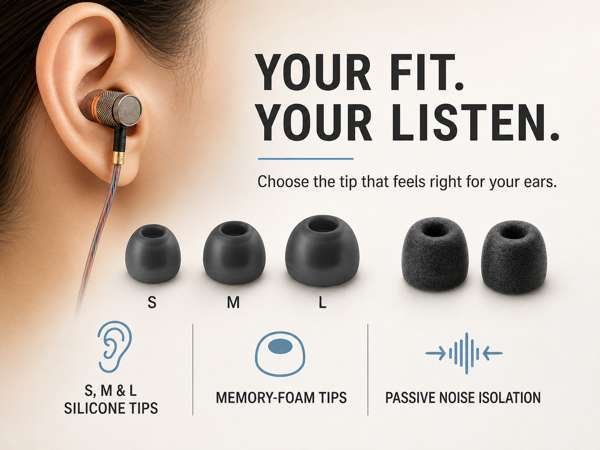
- Use the correct ear tip size for a good seal.
- Clean earbud speaker screens with a dry, soft method recommended by the manufacturer.
- Keep the earbuds away from heavy wireless interference when possible.
- Use the manufacturer’s app to adjust the equalizer or noise-control mode.
- Update the earbuds when a stable firmware update is available.
A good seal can improve bass and passive noise blocking. It can also make music seem louder without increasing the iPhone’s volume.
For hearing safety, keep volume at a comfortable level and take breaks. Loud sound can harm hearing over time. If you notice ringing, pain, or muffled hearing, stop using the earbuds and seek medical advice.
Bluetooth Codec Limits to Know
A Bluetooth codec compresses audio so it can travel wirelessly from the iPhone to the earbuds. The iPhone and earbuds must share a supported codec.
Many premium earbuds advertise codecs such as aptX, aptX Adaptive, or LDAC. The earbuds may support those codecs with some Android phones, but an iPhone may use a different codec instead. The result can still sound good, but the advertised codec may not be active.
Do not buy earbuds based only on their codec list. Also consider:
- Comfort
- Microphone quality
- Battery life
- Noise cancellation
- App support for iOS
- Controls
- Multipoint support
- Warranty and repair options in the United States
Codec support rarely prevents basic use. It mainly affects audio processing, latency, and possible sound quality under certain conditions.
Non-Apple Earbuds vs. AirPods
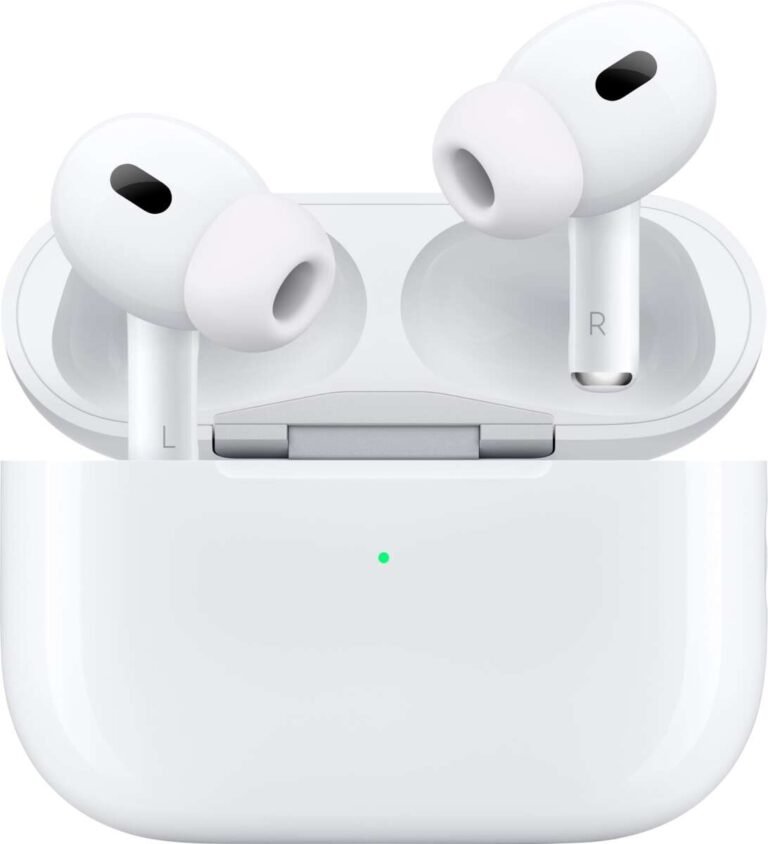
AirPods are not required for iPhone use. They are simply designed to integrate more closely with Apple devices.
| Consideration | Non-Apple wireless earbuds | AirPods |
|---|---|---|
| Basic iPhone audio | Usually works | Works |
| Phone calls | Usually works | Works |
| Brand choice | Broad | Limited to Apple and Beats options |
| Apple device integration | Varies | Strong |
| Automatic switching | Model-dependent | Designed for Apple devices |
| Find My support | Only on supported products | Supported on compatible models |
| Custom settings | Often available in a brand app | Managed through Apple settings |
| Android use | Often strong | Basic use may work, but Apple features are limited |
Choose non-Apple earbuds if you want a particular fit, price, sound profile, noise-control system, or cross-platform design.
Choose AirPods if automatic switching, Find My, Apple device integration, and simple setup matter more than brand flexibility.
The best choice depends on the features you use, not on the logo on the charging case.

Common Mistakes to Avoid
Looking in the wrong Bluetooth menu
Pair the earbuds through Settings > Bluetooth, not through the music app. Apps usually cannot complete the first Bluetooth pairing by themselves.
Leaving the earbuds connected to another device
This is one of the most common causes of failure. Turn off Bluetooth on nearby devices during the first setup.
Assuming every model has the same features
Two earbuds from the same brand may use different apps, controls, codecs, or multipoint systems. Check the exact model number.
Expecting AirPods features
A third-party pair may play sound perfectly but lack automatic switching, battery pop-ups, or Find My support. That is a feature difference, not necessarily a defect.
Buying based on codec support alone
A codec listed on the box may not be used with an iPhone. Check the full iOS feature list before buying.
Resetting the iPhone too soon
Most connection problems can be fixed by charging the earbuds, removing an old Bluetooth record, or resetting the earbuds. A full iPhone reset is rarely the first step.

Frequently Asked Questions
Can I use Samsung Galaxy Buds with an iPhone?
Yes. Galaxy Buds can connect to an iPhone as Bluetooth earbuds. Basic audio and calls should work, but some Samsung-specific features and app support vary by Galaxy Buds model and iOS version.
Can I use Sony, Bose, JBL, or Jabra earbuds with an iPhone?
Yes. These brands make Bluetooth earbuds that can connect to an iPhone. Install the correct iOS app if you want firmware updates, equalizer settings, noise-control options, or other advanced features.
Do non-Apple earbuds work with Siri?
Sometimes. If the earbuds support a voice-assistant control, their button or touch gesture may activate Siri. You can also use the iPhone’s normal Siri settings when supported.
Can I use only one non-Apple earbud?
Often, but not always. The earbuds must support independent use of the left or right side. Check the model’s manual if one earbud does not work alone.
Why do my earbuds connect but have no sound?
First, play audio and open the iPhone’s audio output menu. Select the earbuds as the output device. Then check the iPhone volume, the app volume, and whether the earbuds are still connected to another device.
Can non-Apple earbuds connect to an iPhone and a laptop at the same time?
Only if the earbuds support multipoint or a similar dual-device mode. The iPhone itself does not add this feature to earbuds that lack it.
Conclusion
You can use non-Apple wireless earbuds with an iPhone for music, video, calls, and everyday listening. Pair them through Settings > Bluetooth, then use the manufacturer’s iPhone app if you need advanced controls or updates.
The main limitation is Apple ecosystem integration. Features such as automatic switching, Find My, battery displays, and spatial audio may depend on the exact earbud model. Before buying, check iOS app support, multipoint capability, microphone quality, and the features you actually plan to use.
For most people, the next step is simple: charge the earbuds, put them in pairing mode, and select them from the iPhone’s Bluetooth settings.

Everett Ashford is a tech reviewer at mytechgrid.com specializing in SSDs, cameras, TVs, earbuds, headphones, and other consumer electronics. He provides honest, data-driven reviews based on hands-on testing and real-world performance analysis. Everett simplifies complex tech details to help readers make smart, confident buying decisions.