To update an app on Roku TV, run a software check; Roku usually updates channels automatically.
Learning how to update app on Roku TV is simple because Roku devices manage most channel updates in the background. Still, a manual software check can fix an outdated app, missing feature, playback error, or channel that refuses to open. This guide explains the safest steps, common problems, and practical fixes for Roku TVs and Roku streaming players.
How Roku app updates work
Roku calls its apps “channels.” This includes services such as Netflix, YouTube, Hulu, Disney+, Max, and many free streaming channels.
Most Roku channels update automatically when your TV is connected to the internet. Roku checks for updates at regular times, so you may not need to update each app one by one.


However, an automatic update may not happen right away. Your Roku TV may be turned off, offline, busy, or running an older version of Roku OS. A manual software check tells the device to look for available system and channel updates now.
Understanding this process helps avoid a common mistake: deleting and reinstalling an app when a simple update would have fixed it.

How to update app on Roku TV manually
The most reliable way to update apps on Roku TV is to check for a system update. This can refresh Roku OS and any available channel updates.
Follow these steps:
- Turn on your Roku TV and press the Home button on your Roku remote.
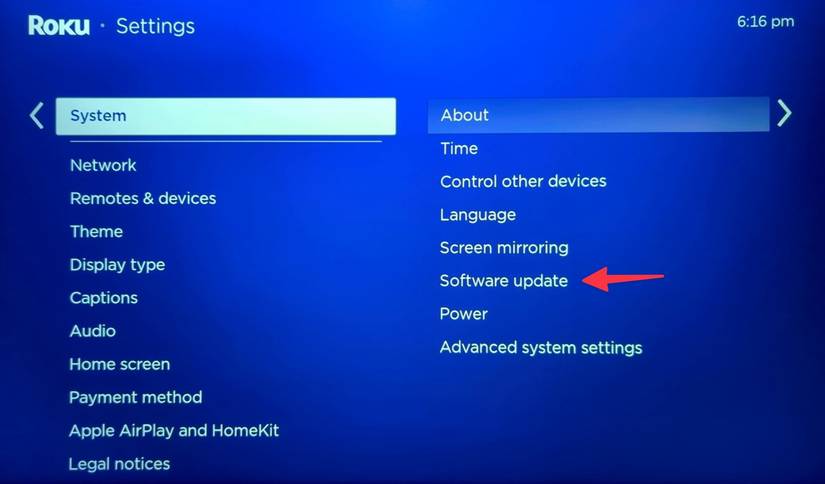
- Scroll down and select Settings.
- Choose System.
- Select Software update.
- Choose Check now.
- Wait while Roku searches for new software and channel updates.
- If an update is available, allow Roku to download and install it.
- Reopen the app after the update finishes.
This is the standard method for how to update app on Roku TV. Your TV may restart during the process. Do not unplug it while the update is installing.


If your Roku menu uses slightly different wording, look for System update instead of Software update. Menu names can vary by Roku OS version and TV brand, but the path is usually close to Settings, System, and Software update.

How to update a specific Roku app
Roku does not always show a separate “Update” button for every channel. In many cases, the channel updates when you run the system check described above.
You can also try these steps for a specific app:
- Press Home on the remote.
- Highlight the app on the Roku home screen.
- Press the Star or Asterisk button on the remote.
- Look for Check for updates.
- Select the option if it appears.
- Wait for the update to finish, then open the channel.
The Check for updates option may not appear on every Roku TV or channel. If you do not see it, use Settings > System > Software update > Check now instead.
This method is useful when one channel seems outdated while the rest of the Roku TV works normally. For example, if YouTube opens but crashes when you select a video, checking for updates may repair the problem without removing the app.

How to update app on Roku TV when the app will not open
an app that will not open may need an update, but the real cause could also be a weak internet connection, low temporary memory, or a service outage.
Try these fixes in order:
- Run the Roku software update check.
- Restart the Roku TV by selecting Settings > System > Power > System restart, if those options are available.
- Unplug the TV from power for about 60 seconds.
- Plug it back in and wait for the home screen to load.
- Open the app again.
- Check whether other apps work.
A full restart often helps because it clears temporary system data. It is similar to closing and reopening a frozen computer program.
If the app still fails, highlight the channel, press the Star button, and choose Remove channel. Restart the Roku TV before adding the channel again. Be careful with paid services, because removing a channel does not always cancel a subscription. Manage billing through the service provider or your Roku account settings.
 open”
style=”max-width: 100%; height: auto; border: 2px solid black; border-radius: 10px; display: block; margin: 0 auto;”
loading=”lazy”
/>
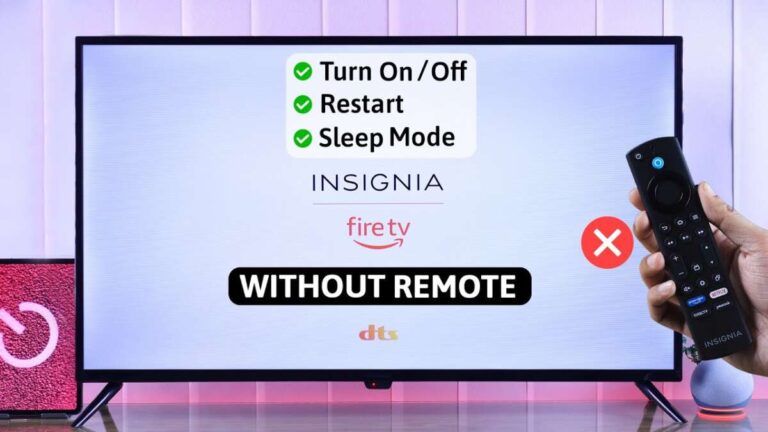
How to update app on Roku TV without a remote
You can still update Roku apps if your physical remote is missing or not working.
The Roku mobile app can work as a remote when your phone and Roku TV are connected to the same Wi-Fi network.
- Install the official Roku mobile app on your iPhone or Android phone.
- Connect the phone to the same Wi-Fi network as the Roku TV.
- Open the app and select Devices.
- Choose your Roku TV.
- Tap Remote.
- Use the virtual remote to open Settings.
- Go to System, Software update, and Check now.
This approach may not work if the Roku TV is not connected to Wi-Fi. In that case, use a physical replacement remote or connect the TV to the network through another available method.
If your phone cannot find the Roku TV, make sure mobile data is not being used instead of Wi-Fi. Guest networks, VPNs, and router isolation settings can also prevent the phone from detecting the TV.


How to update app on Roku TV with an internet problem
Roku needs a working internet connection to download app and system updates. A connected Wi-Fi icon does not always mean the connection is strong enough for updates.
Check your connection by opening Settings > Network > Check connection. Roku will test the wireless signal and internet access.
If the test shows a problem, try these steps:
• Restart your home router and modem.
• Move the router closer to the Roku TV, if possible.
• Remove objects that block the router or TV.
• Disconnect devices that use heavy bandwidth, such as game consoles or computers.
• Try a 2.4 GHz Wi-Fi network if the 5 GHz signal is weak.
• Reconnect the Roku TV to Wi-Fi through Settings > Network > Set up connection.
A weak connection may cause an update to pause or fail. It can also make an app appear outdated when the real issue is slow loading.
For testing, open another streaming channel. If every app buffers or fails, focus on the network first. If only one app has trouble, the channel itself may need an update or reinstall.

How to update app on Roku TV automatically
Automatic updates are normally enabled by default. Roku checks for software and channel updates while the device is connected to the internet.
To help automatic updates work correctly:


• Keep the Roku TV connected to Wi-Fi.
• Turn off the TV normally instead of cutting power with a wall switch.
• Leave the TV connected to power when possible.
• Run a manual software check after adding a new channel.
• Keep enough storage available by removing channels you no longer use.
Roku TVs may not update instantly after a channel developer releases a new version. The update can appear later, depending on the Roku device, internet connection, and channel rollout.
This is why a manual check is useful. It gives you a direct way to look for updates instead of waiting for the next automatic check.
How to update app on Roku TV after adding a new channel
When you add a channel from the Roku Channel Store, Roku usually installs the latest available version. Still, the channel may need a short time to finish loading or synchronizing with your account.
After adding a channel:
- Return to the Roku home screen.
- Highlight the new channel.
- Press the Star button.
- Select Check for updates if available.
- Open the channel and sign in.
If the new channel does not appear, restart the Roku TV and check the home screen again. You can also visit the Roku Channel Store from the device and search for the channel.
Avoid adding the same channel several times. Repeated installation attempts can make it harder to tell whether the issue is with the channel, the account, or the network.

Common reasons Roku apps do not update
Several issues can prevent a Roku app from updating. Identifying the cause makes the fix faster.
Roku is offline
Without internet access, Roku cannot download a new channel version. Run the network connection test before trying other solutions.


The app is already current
Roku may show no update because the channel already has the newest version. In that case, restarting the TV may solve a temporary loading problem.
Roku software is outdated
An older Roku OS version can cause compatibility issues with newer channel features. Run the system update check and restart the device.
The channel has a service outage
Sometimes the app is working correctly, but the streaming company is having an outage. Check another device or channel to see whether the issue is limited to one service.
The app has damaged temporary data
Removing and reinstalling the channel can clear stored data. Remember to keep your login details available before removing it.
The Roku device has limited storage
Older Roku models may have less storage than newer devices. Removing channels that you no longer watch can improve the device’s performance.
How to check your Roku OS version
Knowing your Roku OS version can help when an app requires a newer system.
Use this path:
- Press Home.
- Open Settings.
- Select System.
- Choose About.
The About screen shows the Roku model, serial number, software version, and network details. Avoid sharing the serial number or account information publicly when asking for help online.
Roku software updates are designed to improve security, performance, compatibility, and features. However, an older Roku model may not support every feature offered by a newer channel. If an app remains unavailable after an update, the device may no longer meet the channel’s technical requirements.
Practical tips for a smoother Roku update
A few simple habits can prevent most update problems.
• Keep your Wi-Fi password saved and current.
• Restart the Roku TV before troubleshooting a single channel.
• Update the TV software before removing an app.
• Write down your app login before reinstalling a channel.
• Do not unplug the TV during an update.
• Use the official Roku mobile app instead of random remote-control apps.
• Remove unused channels if the home screen feels slow.
• Check the streaming service’s support page during a widespread outage.
In real-world troubleshooting, the most common mistake is reinstalling the app too soon. I recommend checking the network and running a Roku software update first. These steps take only a few minutes and often preserve saved settings and reduce unnecessary sign-ins.
Another useful lesson is to test more than one app. If Netflix works but one channel does not, your internet connection is probably not the main problem. If all channels fail, restarting the router or Roku TV is a better first move.
What to do if a Roku update is stuck
An update may appear stuck because the download is slow or the TV is processing the installation. Give it several minutes before taking action.
If there is no progress for a long time:
- Check whether other devices still have internet access.
- Restart the router.
- Restart the Roku TV.
- Run the update check again.
- Try a different Wi-Fi network if available.
Do not repeatedly unplug the TV while the update screen is active. Interrupting a software installation can create additional problems.
If the update fails more than once, write down the error message. The exact wording can help Roku support identify whether the issue involves storage, network access, the device model, or the update server.
Frequently Asked Questions About How to Update App on Roku TV
Do Roku apps update automatically?
Yes. Roku normally updates channels automatically when the device is connected to the internet. You can also use Settings > System > Software update > Check now to look for updates immediately.
How do I update apps on Roku TV manually?
Press Home, open Settings, select System, choose Software update, and select Check now. Roku will search for available system and channel updates.
Why is there no update button on my Roku app?
Roku does not display a separate update button for every channel. The app may already be current, or Roku may manage the update through the main software update menu.
Will updating Roku apps delete my login information?
A normal update should not delete your login information. Removing and reinstalling a channel can require you to sign in again, so keep your account details available.
How long does a Roku app update take?
Most updates finish within a few minutes. The time depends on the size of the update, your internet speed, and the Roku device.
Can I update a Roku app without Wi-Fi?
No. Roku needs an internet connection to download app and system updates. You can use Wi-Fi or a supported wired network connection, depending on your Roku TV model.
What should I do if a Roku app still does not work after updating?
Restart the Roku TV, check your internet connection, and see whether the streaming service has an outage. If the problem affects only one channel, remove and reinstall it after confirming that you know the account login.
Conclusion
Updating apps on Roku TV is usually quick because Roku handles most channel updates automatically. When an app looks outdated or stops working, use Settings > System > Software update > Check now, then restart the TV if needed.
Check the network before removing an app, and remember that reinstalling a channel may require a new sign-in. Try these steps the next time a Roku app freezes, buffers, or refuses to open, and explore Roku’s official support resources for device-specific help.

Everett Ashford is a tech reviewer at mytechgrid.com specializing in SSDs, cameras, TVs, earbuds, headphones, and other consumer electronics. He provides honest, data-driven reviews based on hands-on testing and real-world performance analysis. Everett simplifies complex tech details to help readers make smart, confident buying decisions.