Calibrate Govee TV lights by mounting the camera correctly, using the Govee Home app, and fine-tuning color and brightness.
Knowing how to calibrate Govee TV lights can turn uneven backlighting into smooth, screen-matching effects. The process is simple, but small details such as camera position, lens glare, LED strip placement, and room lighting can affect the result. This guide explains how to calibrate Govee TV lights step by step, including setup tips, common mistakes, troubleshooting, and ways to improve color accuracy.

What Govee TV Light Calibration Does
Govee TV lights use a camera or screen sensor to read the colors on your television. The system then sends matching colors to the LED strip behind the TV. Calibration teaches the Govee system where each part of the screen appears in the camera’s view.
Without calibration, the lights may show the wrong colors. For example, a blue sky might create green light, or a bright scene on the left side of the screen might appear on the right side of the TV.
Learning how to calibrate Govee TV lights helps correct these problems. It also improves the relationship between the TV image and the light strip.
Calibration usually adjusts:
• Screen corners and viewing area
• Camera position and angle
• LED strip direction
• Color response
• Brightness and saturation
• The amount of light shown during dark scenes
The exact process can vary between Govee models. Govee TV Backlight T1, T2, Envisual TV Backlight, and AI Sync Box systems may use slightly different app menus. Still, the basic method remains much the same.

Prepare Your TV and Govee Lights
Good preparation makes how to calibrate Govee TV lights much easier. Most failed calibrations come from poor placement, dirty camera lenses, or bright light in the room.
Before opening the Govee Home app, complete these steps.
Clean the TV and camera
Use a soft, dry microfiber cloth to clean the TV screen and the Govee camera lens. Dust or fingerprints can confuse the camera and reduce color accuracy.
Do not spray cleaner directly onto the camera or TV. Apply a small amount of screen-safe cleaner to the cloth instead.
Control room lighting
Calibrate the lights with the room in the same lighting condition you normally use. Close strong curtains and turn off lamps that shine onto the screen.
You do not need a completely dark room. A small amount of soft room light can help you see the calibration markers. However, direct sunlight can create glare and change how the camera reads colors.
Check the LED strip placement
Make sure the strip is attached close to the outer edge on the back of the TV. Keep the strip flat and avoid sharp bends.
The corners should be clear and secure. Loose corners can create uneven light, while a strip mounted too far from the edge may produce a delayed or weak glow.
Confirm the correct power and app setup
Connect the Govee lights to power and open the Govee Home app. Turn on Bluetooth and allow the app to access the permissions it needs.
If you use Wi-Fi features, connect the lights to a stable 2.4 GHz network when required by your model. Some Govee devices support both 2.4 GHz and 5 GHz networks, but the setup instructions can differ.

How to Calibrate Govee TV Lights Step by Step
The following process applies to many Govee camera-based TV light kits. Your app may use different names, but look for options such as Calibration, Camera Calibration, Device Settings, or Screen Calibration.
1. Open the Govee Home app
Open the Govee Home app on your phone. Select your TV light device from the home screen.
If the device does not appear, make sure it has power and that Bluetooth is enabled. You may need to stand close to the control box during setup.
2. Find the calibration tool
Open the device settings. Look for a calibration option.
Common menu names include:
• Camera Calibration
• Screen Calibration
• Adjust Camera
• Calibration Guide
• Device Calibration
Tap the option and follow the instructions shown on the screen.
3. Set the camera position
Place the camera where the app recommends. In many Govee kits, the camera sits on top of the TV and points toward the screen.
Keep the lens centered if the instructions call for a center position. Some models allow or require a bottom-mounted camera. Use the position designed for your specific kit.
The camera should face the TV directly. A tilted camera can make the top and bottom edges look uneven.
4. Adjust the calibration points
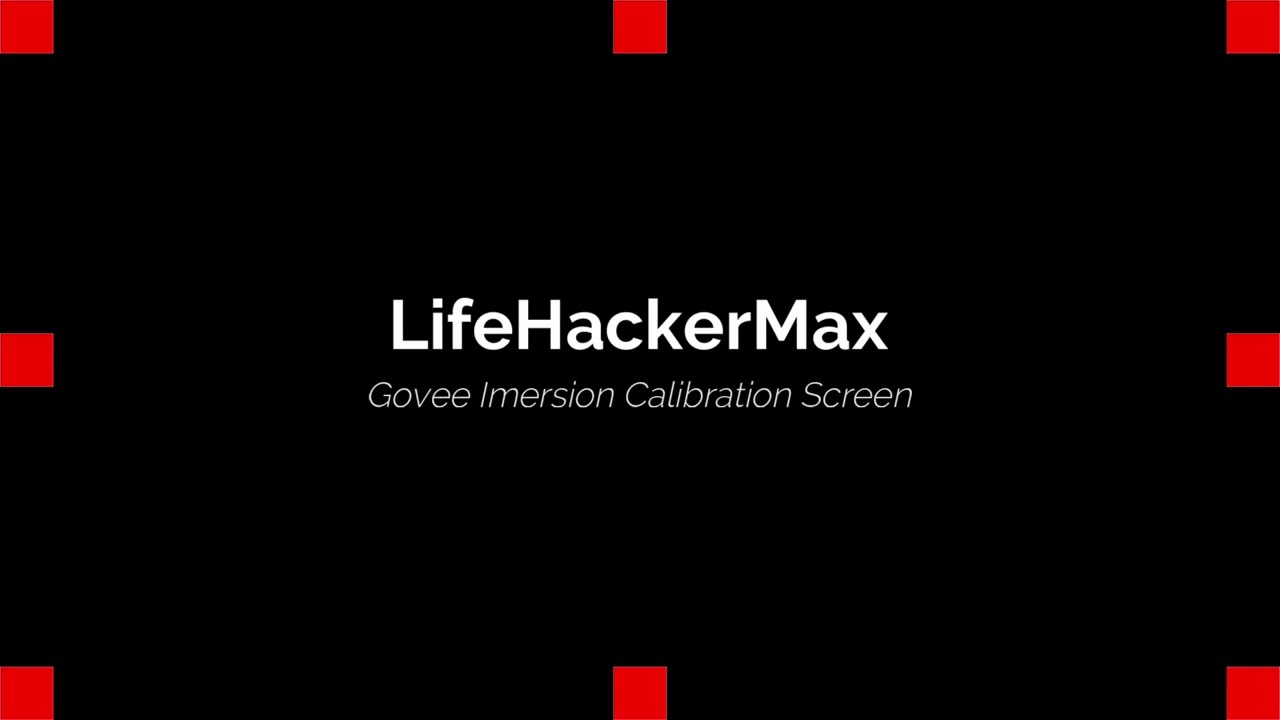
The app will show points, lines, or colored markers over the camera view. Move each point to match the visible corners of the TV screen.
Place the markers at the actual screen edges, not at the outside edge of the television frame. This distinction matters when your TV has a thick bezel.
Take your time with this step. Accurate points are the foundation of how to calibrate Govee TV lights.
5. Match the LED strip layout
Some Govee systems ask you to identify the direction of the light strip. The app may show a diagram with a starting point and a path around the TV.
Select the layout that matches your installation. If the strip starts at the lower left but you choose the lower right, the colors may appear on the wrong side of the screen.
6. Save the calibration
Tap Save, Complete, or Confirm after matching the points. The lights should begin reacting to the image on the screen.
Play a video with clear colors and movement. A nature video, sports game, or animated film can help you check the response.
7. Test several scenes
Do not judge the calibration using only one scene. Test:
• A bright white scene
• A blue sky or ocean scene
• A red scene
• A dark scene
• Fast movement across the screen
• A scene with color on only one side
If the lights follow the wrong screen area, repeat the calibration. If the colors are close but too strong, use the color and brightness controls rather than repeating the full setup.

Fine-Tune Color, Brightness, and Sensitivity
Calibration sets the map between the screen and the lights. It does not always create perfect color matching by itself. Fine-tuning can make the result look more natural.
Adjust brightness
Start with a medium brightness level. Very high brightness can make the lights look harsh and can reduce the comfort of watching TV in a dark room.
For movies, lower brightness often looks better. For games or sports, a brighter setting may create a more energetic effect.
Adjust saturation
High saturation produces bold colors, but it can look less accurate. If the lights appear neon or exaggerated, reduce saturation.
A useful approach is to lower saturation until the colors look slightly soft. The light on the wall should support the picture, not compete with it.
Adjust sensitivity or response speed
Sensitivity controls how quickly the lights respond to changes on the screen. If the lights change too often, reduce sensitivity or smoothness.
If the lights react too slowly, increase the response setting. Fast scenes may need quicker tracking, while movies often look better with smoother transitions.
Adjust color temperature
Some Govee models offer warm, neutral, or cool color settings. A neutral or slightly warm setting can make skin tones and indoor scenes feel more natural.
Cool settings may work well for blue action scenes or gaming, but they can make white areas look icy.
Test with real content
Test the settings with the shows, games, or movies you watch most. A setting that looks good with an animated film may look too bright with a news program.
I recommend testing both a dark movie and a colorful game. This quickly shows whether the lights are balanced or overactive.

Common Problems During Govee Calibration
Even when you follow the correct steps, a few issues can appear. Most are easy to fix.
The colors appear on the wrong side
This usually means the LED strip direction was entered incorrectly or the strip was installed in the opposite direction from the app diagram.
Check the starting point in the app. If needed, recalibrate and select the correct strip layout.
The lights do not match the screen
Check the camera angle first. The lens must see the full screen without obstruction.
Also check the calibration points. If one point sits outside the screen or too far inside the bezel, the system may read the wrong area.
The lights show too much white
Bright white scenes can cause the lights to look pale. This may happen when the camera sees glare from lamps, windows, or glossy screens.
Reduce room glare and lower brightness or saturation. Make sure the camera lens is clean.
The lights flicker
Flicker may result from unstable power, loose connections, rapidly changing content, or an app setting that reacts too quickly.
Try these steps:
• Reseat the power and USB connections
• Restart the Govee control box
• Lower sensitivity
• Update the Govee Home app
• Check for firmware updates
• Test a different video source
If the issue continues, inspect the strip for damaged sections.
The camera view is blocked
A soundbar, wall mount, TV frame, or decorative object may block part of the camera’s view. Move the obstruction or use the mounting position recommended for your model.
Do not cover the lens with tape or a dark protective film. The camera needs a clear view of the screen.
Calibration does not save
Close and reopen the Govee Home app. Confirm that the device is connected and has enough power.
If the problem remains, restart the TV light system and repeat the process. A firmware update may also be needed.

Mistakes to Avoid When Calibrating Govee TV Lights
Avoiding simple mistakes can save several attempts.
• Do not calibrate in bright sunlight. Glare can change the camera’s reading.
• Do not place the calibration points on the TV frame. Put them on the visible screen area.
• Do not bend the LED strip sharply around corners. Use gentle curves.
• Do not assume every Govee model uses the same app menu. Follow the instructions for your exact device.
• Do not judge color accuracy from one video. Test several types of content.
• Do not mount the camera at an extreme angle. A centered, direct view usually gives the most consistent result.
• Do not set brightness to maximum before testing. High brightness can hide color problems.
One mistake I often see is rushing the corner-point step. It takes only a minute, but it has the biggest effect on screen tracking. Treat those points like the corners of a picture frame: every corner needs to match the real image area.
Advanced Tips for Better Screen Matching
Once you understand how to calibrate Govee TV lights, you can improve the setup even more.
Use a stable camera mount
The camera must not move after calibration. If it shifts even slightly, the screen map may become inaccurate.
Secure the camera firmly, but do not press it against the TV screen. Check the mount after cleaning the TV or adjusting the television angle.
Keep the TV position consistent
If the TV is moved, tilted, or raised, recalibration may help. The camera and screen must maintain the same relationship.
This is especially important for TVs on adjustable stands or wall mounts.
Match the viewing environment
If you normally watch TV with a lamp on, calibrate with that lamp on. If you watch movies in a dark room, test the system in the dark.
The camera reads the image based on the light it sees. A major change in the room can change the way colors look.
Use bias lighting carefully
Backlighting can reduce the sharp contrast between a bright screen and a dark room. However, very bright lights can distract from the picture.
A soft, balanced glow often works better than maximum output. The goal is comfort and immersion, not simply the brightest wall.
Update firmware when needed
Govee may improve device performance through firmware updates. Updates can address connection problems, app errors, and performance issues.
Before updating, keep the light system powered and follow the instructions in the Govee Home app.
Recalibrate after major changes
Repeat how to calibrate Govee TV lights after:
• Moving the TV
• Reinstalling the LED strip
• Changing the camera position
• Replacing the TV
• Adjusting the screen mount
• Updating hardware or adding a sync box
You usually do not need to recalibrate after changing only the TV picture mode, but you may want to check color and brightness again.
Govee TV Light Calibration Limitations
Calibration improves tracking, but it cannot correct every visual issue. The camera sees the screen from its own position, so it may not read colors exactly as the human eye does.
Glossy screens can create reflections. Very dark scenes may provide too little color for precise tracking. Bright white images can also appear warmer or cooler depending on the TV panel and room lighting.
Different TV technologies may produce different results. OLED, LED, QLED, and mini-LED screens can have different brightness and color behavior.
The Govee system also cannot make low-quality video look better. If the source image has heavy compression, poor color, or motion artifacts, the lights may respond to those flaws.
For the best results, use a clean screen, a stable camera, accurate calibration points, and moderate brightness. Think of calibration as creating a reliable translation between the TV and the wall. It improves communication, but it cannot change the original picture.
Frequently Asked Questions About How to Calibrate Govee TV Lights
How often should you calibrate Govee TV lights?
Calibrate Govee TV lights whenever you move the TV, camera, or LED strip. You should also recalibrate after reinstalling the system or changing the camera position.
Why are my Govee TV lights not matching the colors?
The camera may be positioned incorrectly, or the calibration points may not match the actual screen edges. Check for glare, clean the lens, and repeat the calibration in the Govee Home app.
Can I calibrate Govee TV lights in a bright room?
You can, but strong sunlight and direct lamp light may reduce accuracy. Use soft, steady lighting and avoid reflections on the screen during calibration.
Should the calibration points go on the TV frame?
No. Place the calibration points on the visible display area. If you place them on the bezel or outside the screen, the lights may track colors from the wrong locations.
Why do my Govee lights show the wrong side of the screen?
The LED strip direction may not match the layout selected in the app. Check where the strip begins and choose the matching direction before calibrating again.
Do I need to recalibrate after changing brightness?
Usually, no. Changing brightness does not move the camera or strip, but you may need to adjust saturation, sensitivity, or color temperature for a better visual balance.
Conclusion
Learning how to calibrate Govee TV lights is mainly about accurate placement, careful screen-point adjustment, and sensible fine-tuning. Clean the camera, control room glare, match the LED strip layout, and test the lights with several types of content.
If the colors look wrong, do not immediately blame the hardware. Check the camera angle, screen markers, strip direction, and room lighting first. Once the setup is correct, moderate brightness and saturation usually create a smoother and more comfortable glow.
Take a few minutes to calibrate your Govee TV lights today, then test them with your favorite movie or game. Explore the settings in the Govee Home app, and share your results or setup tips in the comments.

Everett Ashford is a tech reviewer at mytechgrid.com specializing in SSDs, cameras, TVs, earbuds, headphones, and other consumer electronics. He provides honest, data-driven reviews based on hands-on testing and real-world performance analysis. Everett simplifies complex tech details to help readers make smart, confident buying decisions.