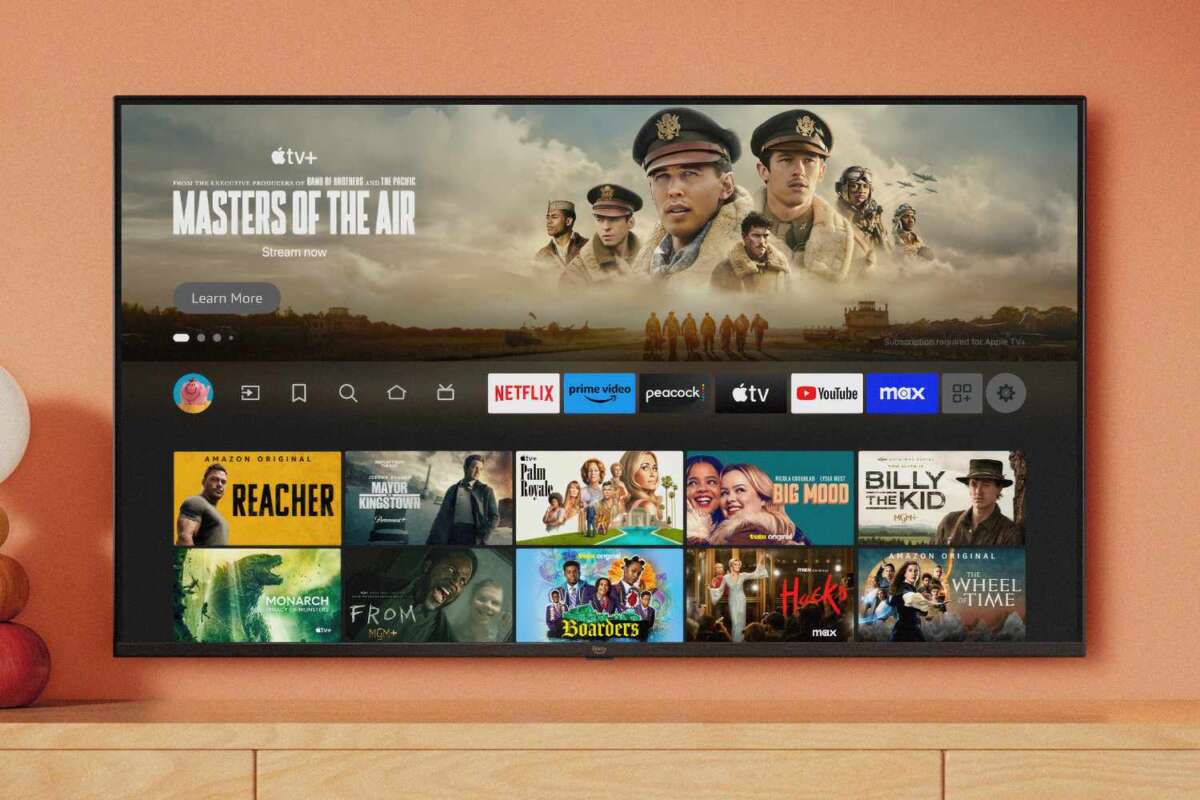
You can download apps to Fire TV Stick through the Amazon Appstore, voice search, or safe sideloading tools.
Learning how to download apps to Fire TV Stick is simple once you know where each option lives. I have tested the main methods on different Fire TV devices, and the best choice depends on whether the app is listed in the Amazon Appstore, available from a trusted website, or blocked in your region. This guide explains each method, common errors, safety tips, and ways to manage apps after installation.

What You Need Before Downloading Apps
Before you download apps to Fire TV Stick, check that the device has a working internet connection. A strong Wi-Fi signal helps apps download faster and prevents failed installations.
You also need an Amazon account. Your Fire TV Stick uses this account to access the Amazon Appstore, download apps, and manage purchases or subscriptions.
Check these items first:
- Your Fire TV Stick is connected to Wi-Fi.
- The device has enough free storage.
- Your Amazon account is signed in.
- Your Fire TV software is updated.
- You know the name of the app you want to install.
- The app is supported in your country and on your Fire TV model.
To check for updates, open Settings, select My Fire TV, and choose About. Select Check for Updates if the option appears. Updates can fix app store errors and improve device security.
Fire TV Stick models have limited storage. Large games and streaming apps can fill the device quickly, so removing unused apps may be needed before you install something new.
:max_bytes(150000):strip_icc()/amazon-fire-tv-4158f4df48da40f294cf9e3b15dde4c6.jpg)
How to Download Apps to Fire TV Stick From the Appstore
The Amazon Appstore is the easiest and safest way to download apps to Fire TV Stick. It includes popular streaming, music, news, sports, weather, and utility apps.
Follow these steps:
- Turn on your television and Fire TV Stick.
- Press the Home button on your Fire TV remote.
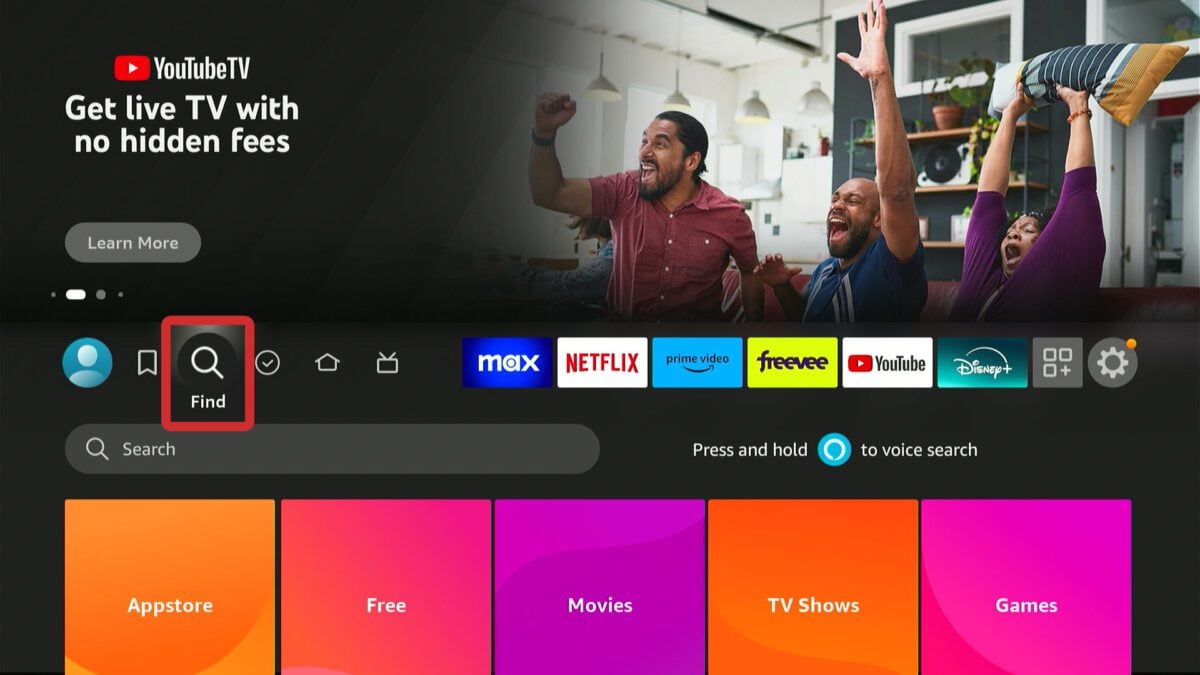
- Select the Find icon, which looks like a magnifying glass.
- Choose Search.
- Type the name of the app.
- Select the correct app from the results.
- Choose Get, Download, or the price button.
- Wait for the installation to finish.
- Select Open to launch the app.
The wording may differ slightly between Fire OS versions. For example, a free app may show Get, while a paid app may show its price.
When searching, look closely at the app name and publisher. Many apps have similar names. Choosing the wrong listing can lead to confusion or an unwanted subscription.
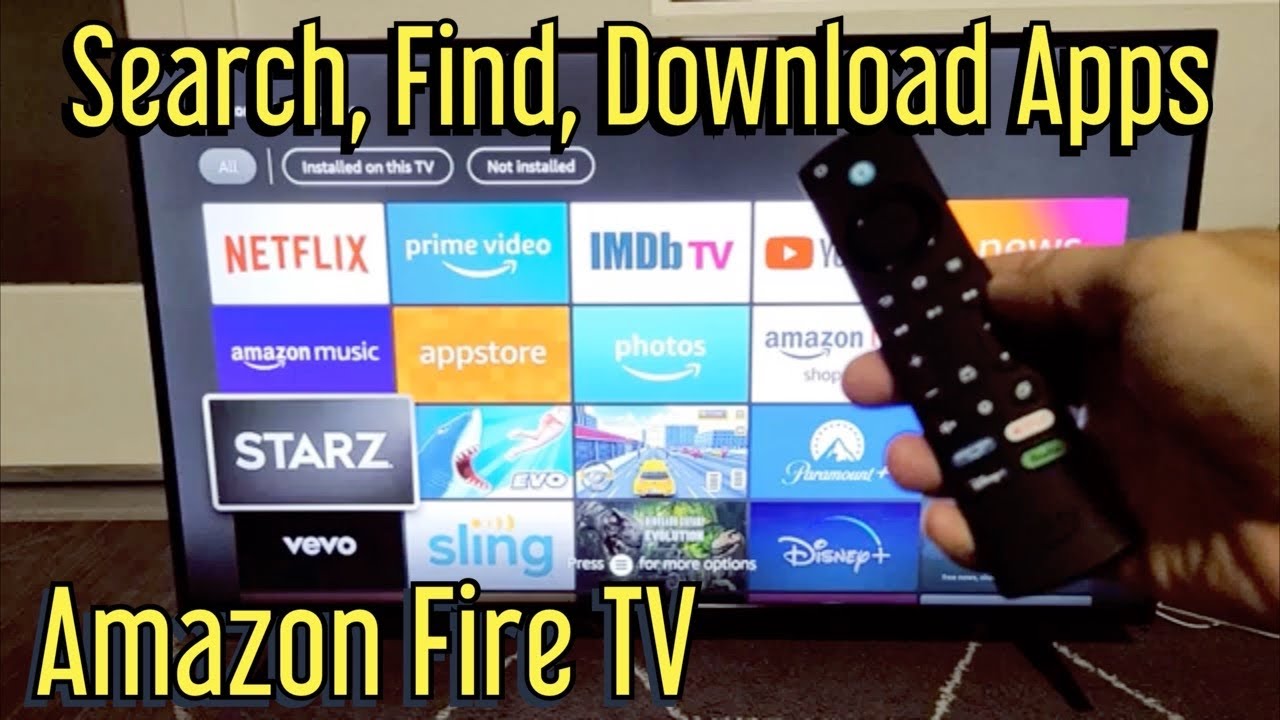
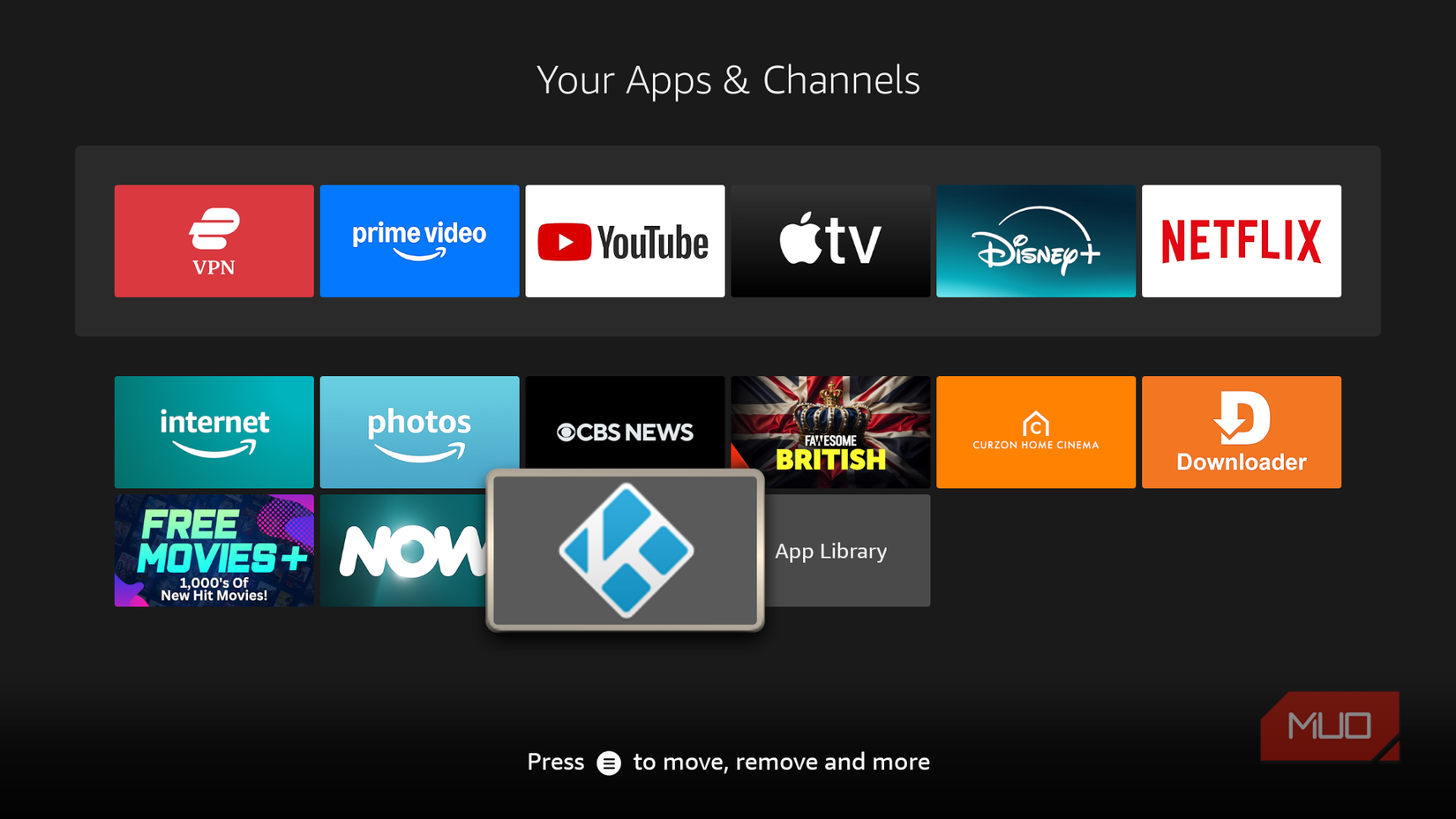
Once you download apps to Fire TV Stick, they usually appear on the Home screen under Your Apps & Channels. If you do not see the new app, select the Apps icon or open the full app library.

How to Download Apps to Fire TV Stick With Alexa
Alexa can make it faster to download apps to Fire TV Stick. This method works well when typing with the remote feels slow.
Press and hold the microphone button on the remote. Then say the app name, such as “Find Netflix” or “Search for Spotify.” Fire TV should show matching results on the screen.
Next, select the correct app and choose Get or Download. Alexa may also open an app that is already installed.
Voice search is useful, but it is not perfect. Alexa may misunderstand names, especially when an app has a short name or unusual spelling. Always check the logo and publisher before installing it.
You can also use the Alexa app on a compatible phone or smart speaker to control some Fire TV functions. Availability can vary by device, account, language, and region.
:max_bytes(150000):strip_icc()/vlcsnap-2018-11-19-12h36m06s339-5bf30349c9e77c005147d6b2.png)
How to Download Apps to Fire TV Stick From Amazon’s Website
You can also download apps to Fire TV Stick from Amazon’s website. This method is helpful when searching with a phone or computer is easier than using the remote.
Use these steps:
- Open Amazon’s website in a web browser.
- Sign in with the same Amazon account connected to your Fire TV Stick.
- Search for the app.
- Open the app’s official listing.
- Look for the delivery or device selection menu.
- Choose your Fire TV Stick.
- Select Get App or a similar purchase button.
The app may download automatically the next time your Fire TV Stick connects to the internet. If it does not, restart the device or open the Appstore on the Fire TV Stick.
This method only works when the app supports Fire TV and is available through Amazon’s store. It will not install phone-only apps or apps that are blocked in your location.
Before confirming the installation, check that the selected device is correct. If you own more than one Fire TV device, it is easy to send the app to the wrong television.
How to Sideload Apps to Fire TV Stick
Sideloading means installing an app from a source outside the Amazon Appstore. You may need this method when an app is unavailable in the store or is made for a specific audience.
Sideloading has more risks than using the official store. Only use an official developer website or another source you trust. Avoid modified apps, pirated services, and files that promise free access to paid content.
Turn On Developer Options
The exact menu names can change with Fire OS updates. On many devices, use this path:
- Open Settings.
- Select My Fire TV.
- Choose About.
- Highlight your Fire TV device name.
- Press the Select button several times until developer options appear.
- Return to the My Fire TV menu.
- Open Developer Options.
- Turn on Install Unknown Apps for the tool you plan to use.
Some Fire TV versions show Apps From Unknown Sources instead. Select the setting that allows the chosen installer to install files.
After installation, turn off permission for unknown apps unless you still need it. This reduces the chance of an unwanted file installing later.
Use a Trusted Downloader Tool
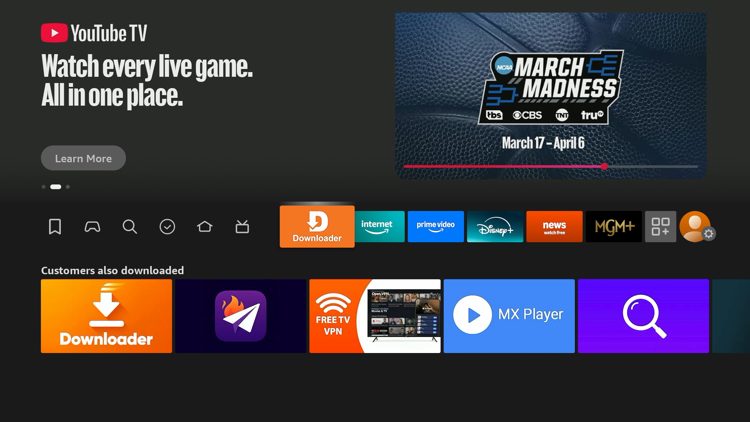
A common approach is to install a downloader app from the Amazon Appstore. The tool can open a web address and download an Android package file, often called an APK.
The general process is:
- Search for a trusted downloader in the Amazon Appstore.
- Install and open it.
- Enter the official download address for the app.
- Download the correct APK file.
- Approve the installation.
- Delete the APK file after installation.
- Turn off unknown app permissions when finished.
An APK made for a regular Android phone may not work well on Fire TV. It may lack remote control support, display in the wrong shape, or require Google Play Services. A Fire TV-compatible version is the better choice.
I have seen sideloaded apps install correctly but feel difficult to use because they expect a touch screen. In those cases, a mouse feature or Bluetooth mouse may help, but it can still be less convenient than a native Fire TV app.
How to Install Apps With a Fire TV Downloader Code
Some downloader tools support a short code that redirects the device to an app’s download page. This can be faster than entering a long web address with the remote.
To use a code:
- Install the downloader from the Amazon Appstore.
- Open the downloader.
- Enter the code from a trusted source.
- Review the destination page.
- Download the file.
- Install the app only if the file and publisher look legitimate.
A code is simply a shortcut. It does not prove that the destination is safe. Codes can expire, change, or redirect to pages filled with misleading advertisements.
Do not install a file just because a video or website recommends it. Confirm that the app is legal, supported, and offered by a trustworthy developer.
How to Find Apps After Installation
After you download apps to Fire TV Stick, you can find them in the app library. From the Home screen, open the Apps section and move through the installed apps.
To place an app near the front:
- Open the Apps section.
- Highlight the app.
- Press the Menu button on the remote.
- Select Move to Front.
- Place the app where you want it.
You can also press the Home button, highlight an app in the recent apps row, and open it from there.
If an app does not appear, restart the Fire TV Stick. You can also check Settings, Applications, and Manage Installed Applications to confirm whether the app is installed.
Some sideloaded apps do not appear in the normal app row. A launcher app or the Applications menu may be needed to open them.
How to Update and Remove Fire TV Apps
Most apps downloaded from the Amazon Appstore update automatically when automatic updates are enabled. You can check this setting under Settings, Applications, Appstore, and Automatic Updates.
To update an app manually, open the Appstore and search for the app. If an update is available, select Update.
To remove an app:
- Open Settings.
- Select Applications.
- Choose Manage Installed Applications.
- Select the app.
- Choose Uninstall.
- Confirm the removal.
Uninstalling an app removes the program, but it may not cancel a paid subscription. Manage subscriptions through your Amazon account or through the service that bills you.
Removing unused apps can free storage and improve navigation. It is one of the simplest ways to keep an older Fire TV Stick responsive.
Fixes for Common App Download Problems
Sometimes you cannot download apps to Fire TV Stick because of storage, network, account, or compatibility problems. The solution is often quick.
The Appstore Will Not Load
Restart the Fire TV Stick by opening Settings, selecting My Fire TV, and choosing Restart. You can also unplug the device for about one minute and reconnect it.
Check your router as well. Try another device on the same Wi-Fi network to see whether the internet connection works.
The App Is Not Available
The app may not support your Fire TV model or country. Some services limit access by location because of licensing rules.
You can check the developer’s official website for supported devices. Avoid random APK files that claim to bypass regional limits.
There Is Not Enough Storage
Open Manage Installed Applications and remove apps you no longer use. Clearing an app’s cache can also help, but do not select Clear Data unless you are willing to sign in again.
The Download Stays Stuck
Pause other downloads and restart the device. A weak Wi-Fi signal, full storage, or a temporary Amazon service issue can cause the download to stop.
A Sideloaded App Will Not Open
The app may require Google services, a touch screen, or a different Android version. Try a Fire TV-specific release from the developer instead.
Safety Tips for Downloading Fire TV Apps
The safest way to download apps to Fire TV Stick is through the official Amazon Appstore. Sideloading can be useful, but it requires careful judgment.
Follow these safety rules:
- Download from the developer’s official website when possible.
- Check the app name, publisher, and permissions.
- Avoid pirated streaming apps and modified APK files.
- Do not enter payment details into an unfamiliar app.
- Keep Fire OS and installed apps updated.
- Use a strong Amazon account password.
- Remove unknown apps that you do not recognize.
- Disable unknown app installation after sideloading.
- Avoid clicking fake download buttons on crowded websites.
- Review subscriptions after installing free trials.
A free app is not always free of risk. Some apps collect data, show aggressive ads, or install unwanted services. Read the privacy details and permissions before you proceed.
Amazon’s official app store provides screening and account controls, but no store can remove every risk. Your best defense is to install fewer apps and use sources you can verify.
Expert Tips for a Better Fire TV Experience
After helping people download apps to Fire TV Stick, I have noticed that small habits prevent most problems. The most useful habit is to search for the official app before trying a third-party installer.
Use these practical tips:
- Keep at least some storage free.
- Restart the device after major updates.
- Use a wired Ethernet adapter if Wi-Fi is weak.
- Place the Fire TV Stick where it has airflow.
- Use the exact app name when searching.
- Check your Amazon account before downloading paid apps.
- Remove apps that you have not opened in months.
- Prefer apps designed for Fire TV remote controls.
- Keep a note of any sideloaded app and its source.
- Recheck privacy settings after major app updates.
In my testing, remote-friendly apps were much easier to use than phone apps installed through sideloading. A supported native app may offer fewer features, but it often provides better menus, updates, and playback.
Think of your Fire TV Stick like a small kitchen counter. The more clutter you place on it, the harder it becomes to find what you need. Install only useful apps, organize your favorites, and clear out old files.
Frequently Asked Questions About How to Download Apps to Fire TV Stick
Can I download apps to Fire TV Stick without an Amazon account?
No. You generally need an Amazon account to access the Amazon Appstore and install apps. A free account is enough for many apps, although some services require a separate subscription.
Why can’t I find an app on my Fire TV Stick?
The app may not support your device, may be unavailable in your region, or may use a different name in the Appstore. Check the developer’s official website for compatibility details.
Is sideloading apps to Fire TV Stick safe?
Sideloading can be safe when you use a trusted developer and the correct Fire TV-compatible file. Avoid pirated apps, modified APKs, and unknown websites because they may contain malware or steal personal data.
How do I download apps to Fire TV Stick using my phone?
You can use the Amazon website or the Amazon shopping app if it supports device delivery for the selected app. Sign in with the same Amazon account and choose your Fire TV device during installation.
How do I free up space on my Fire TV Stick?
Open Settings, choose Applications, and select Manage Installed Applications. Uninstall apps you no longer use and clear app caches when needed.
Can I install Google Play Store on a Fire TV Stick?
The Google Play Store is not officially supported on Fire TV Stick. Installing it through unofficial methods can cause errors, security risks, and compatibility problems.
Do Fire TV apps update automatically?
Apps from the Amazon Appstore can update automatically when automatic updates are enabled. Sideloaded apps often require you to download and install updates manually from a trusted source.
Conclusion
You can download apps to Fire TV Stick in several ways, but the Amazon Appstore is the simplest and safest option for most people. Use search, Alexa, or Amazon’s website for official apps, and reserve sideloading for trusted, compatible software.
Keep your device updated, watch your storage, and check every app source before installing it. Start with the official Appstore today, organize your favorite apps, and share your experience or questions in the comments.

Everett Ashford is a tech reviewer at mytechgrid.com specializing in SSDs, cameras, TVs, earbuds, headphones, and other consumer electronics. He provides honest, data-driven reviews based on hands-on testing and real-world performance analysis. Everett simplifies complex tech details to help readers make smart, confident buying decisions.