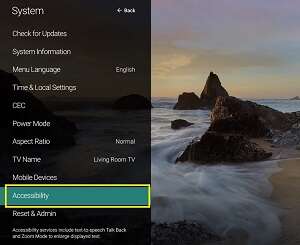
Press the Vizio remote’s Wide button and select Normal to restore the correct screen size.
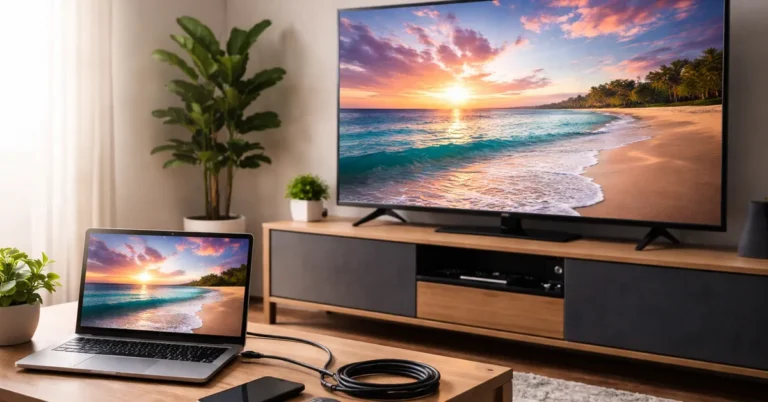
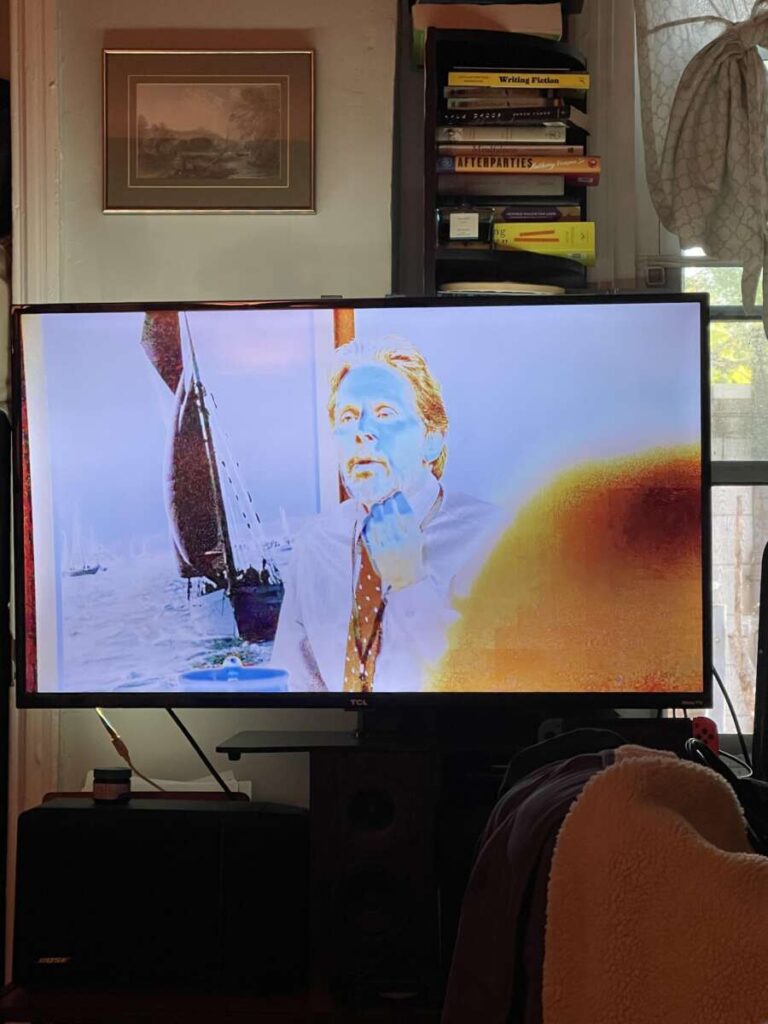
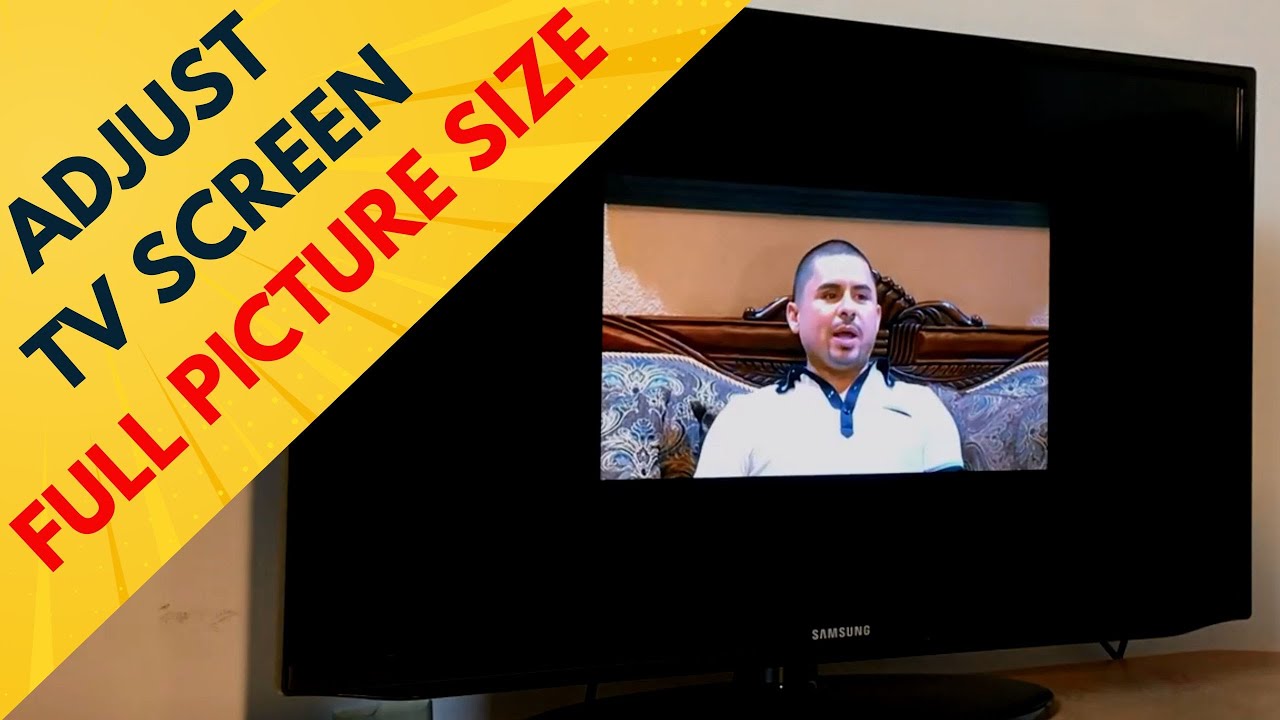
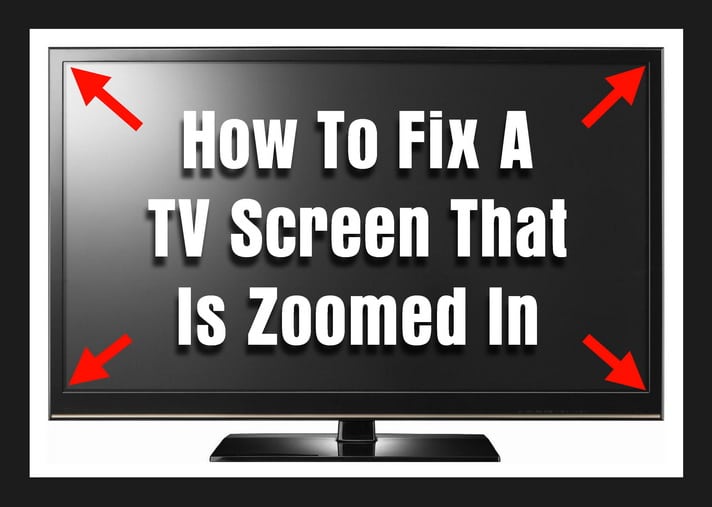
A zoomed-in Vizio TV can cut off faces, news banners, scores, and subtitles. In most cases, the fix takes less than a minute. This guide explains how to unzoom Vizio TV screens, fix picture size issues from cable boxes or streaming devices, and prevent the problem from returning.

How to unzoom Vizio TV with the remote
The fastest way to unzoom Vizio TV content is to change the picture mode from Zoom, Wide, or Stretch to Normal. Vizio remote controls use different names for this setting, so try the method that matches your remote.
Method 1: Use the Wide button
Many Vizio remotes include a button labeled Wide, Aspect, or Picture Size.
- Turn on the Vizio TV.
- Point the remote at the TV.
- Press the Wide or Aspect button.
- Keep pressing it until Normal, Standard, or 16:9 appears.
- Stop when the full picture fits the screen.
The Normal setting usually shows the original image without cutting off the sides or top. On some models, Wide may cycle through several choices before returning to Normal.
Method 2: Use the TV menu
If the remote does not have a Wide button, use the on-screen menu.
- Press the Menu button.
- Open Picture.
- Select More Picture or Advanced Picture.
- Choose Aspect Ratio, Picture Size, or Wide Mode.
- Select Normal or 16:9.
- Exit the menu and check the picture.
The exact labels can vary by Vizio TV series and software version. If you do not see Aspect Ratio, look under Picture Size, Wide Mode, or Screen Size.
Method 3: Use the V button or Home menu
Some Vizio Smart TV remotes use a V button or Home button instead of a traditional Menu button.
- Press V or Home.
- Open All Settings.
- Select Picture.
- Open Aspect Ratio or Wide Mode.
- Choose Normal.
This is the most reliable way to unzoom Vizio TV models with newer SmartCast menus.

Why your Vizio TV screen looks zoomed in
A Vizio TV may look zoomed in for several reasons. The TV may be using the wrong aspect ratio, or a connected device may be sending a cropped image.
The most common causes include:
• The TV is set to Zoom, Panoramic, or Stretch.
• A cable box changed its screen format.
• A streaming stick is using an incorrect display setting.
• The source video was made in a different aspect ratio.
• A remote button was pressed by accident.
• A broadcast or app has a cropped video format.
Aspect ratio describes the shape of an image. Most modern TV programs use a 16:9 shape. Older shows may use a 4:3 shape. When a TV stretches or enlarges one format to fill another, parts of the image may disappear.
Think of the picture like a photograph inside a frame. Zooming makes the photograph larger, but the edges move outside the frame. Choosing Normal brings the entire photograph back into view.
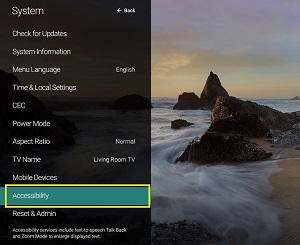
How to unzoom Vizio TV using picture settings
If the first method does not work, adjust the main picture settings one at a time. Avoid changing several settings at once. That makes it harder to know which option solved the problem.
Look for these settings:
• Aspect Ratio: Choose Normal or 16:9.
• Wide Mode: Avoid Zoom, Stretch, and Panoramic.
• Picture Size: Choose Screen Fit, Normal, or Original.
• Overscan: Turn it off if your model includes this option.
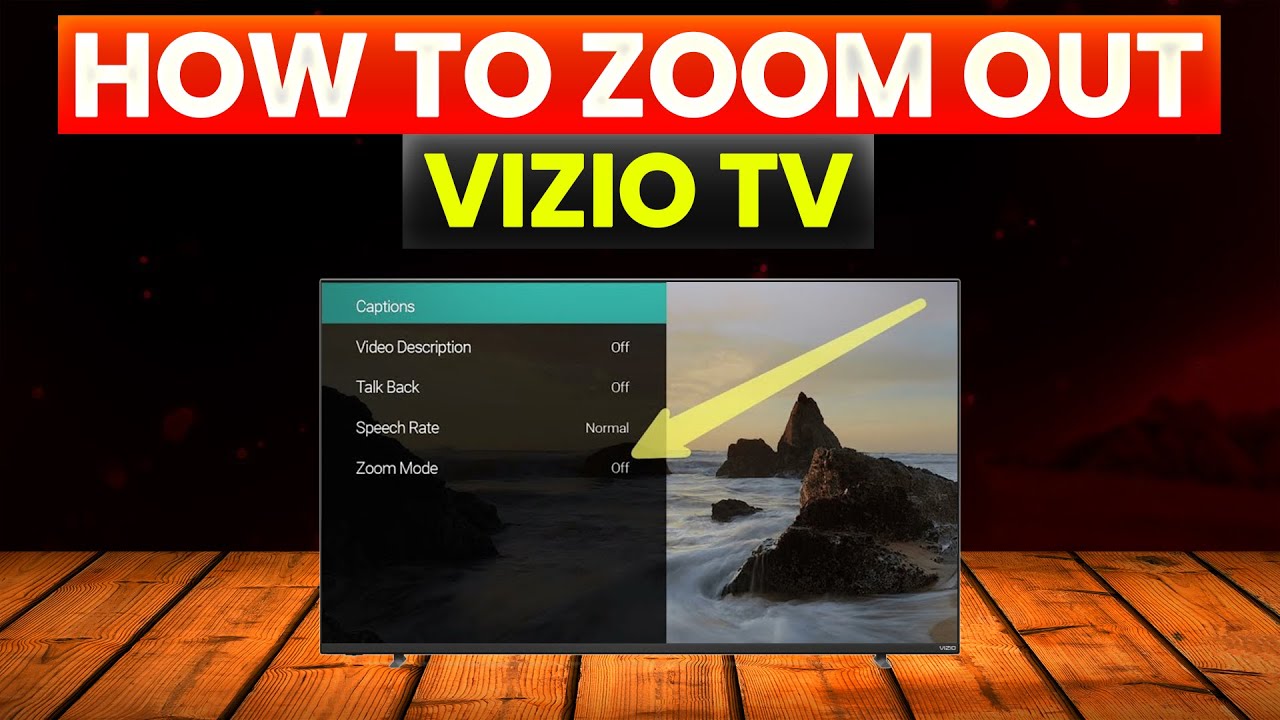
• Zoom Mode: Set it to Off or Normal.
Screen Fit is useful on some Vizio models because it displays the complete image from an HDMI source. However, not every Vizio TV uses this name. Some models show Normal as the correct choice.
After making a change, watch the edges of the picture. A properly adjusted screen should show the full channel logo, subtitles, and image borders. If the edges are still missing, move to the next troubleshooting step.
How to unzoom Vizio TV when using cable or satellite
Sometimes the Vizio TV is not the cause. A cable box, satellite receiver, or DVR may be zooming the picture before it reaches the TV.
First, correct the TV setting with these steps:
- Set the Vizio TV to Normal or 16:9.
- Open the cable box settings.
- Look for Display, Video, Screen Format, or Aspect Ratio.
- Choose 16:9, Full, or Original.
- Turn off Zoom, Crop, and Stretch.
- Save the setting and return to live television.
The wording differs by provider. Some boxes have a Format button on the remote. Pressing it may cycle through Stretch, Zoom, and Normal modes.
A useful test is to open the Vizio TV’s built-in settings menu. If the menu fits the screen but the cable picture does not, the cable box is likely responsible. If the menu itself is cut off, change the TV’s own aspect ratio settings.

How to unzoom Vizio TV with Roku, Fire TV, or another device
Streaming devices can also create a zoomed picture. The TV and the device must agree on the display format and resolution.
Roku
Open Settings, then Display type. Choose Auto detect or the recommended 16:9 option. If the image still looks cropped, check the Roku accessibility and display settings for a zoom or screen-size option.
Amazon Fire TV
Open Settings, choose Display & Sounds, and check Display. Set the resolution to Auto or the recommended setting. Also check Calibration and reduce the display size if the edges extend beyond the TV screen.
Apple TV
Open Settings, then AirPlay and HomeKit or Video and Audio. Use Match Content or the recommended format. Check that Zoom is not enabled in Accessibility settings.
Game consoles
Open the console’s Display or Screen settings. Use the automatic resolution option first. Then adjust the screen boundaries until all four corners are visible.
After changing an external device, switch to another input. This helps confirm whether the issue affects one device or every source connected to the Vizio TV.
How to fix a Vizio TV that is zoomed in on one channel
If only one channel looks enlarged, the problem may come from the broadcast rather than your television. Local stations sometimes send older 4:3 programs inside a 16:9 signal. Some programs also use intentional cropping.
Try these checks:
• Change the channel and compare the picture.
• Open a built-in Vizio app.
• Watch a different show on the same channel.
• Check whether the station logo or captions are cut off.
• Press the Wide or Aspect button and select Normal.
If every channel looks zoomed in, focus on the TV or cable box settings. If only one program looks unusual, the broadcaster may be sending that format. A TV cannot always correct a poorly formatted source without adding black bars or cutting part of the image.

How to unzoom Vizio TV without the original remote
You can often change the picture size without the original Vizio remote.
Use the buttons on the TV
Some Vizio TVs have physical buttons on the back, side, or bottom edge. Press Menu, then use the volume and channel buttons to move through Picture and Aspect Ratio settings.
The button layout differs by model. Some TVs have one multi-function button, while others have separate controls. Use gentle presses because these buttons are small and can be hard to identify.
Use the Vizio mobile app
Many SmartCast models support the Vizio mobile app. Connect your phone and TV to the same Wi-Fi network, then use the app as a remote. Open the picture settings and choose Normal or 16:9.
This method may not work if the TV is offline or has not been paired with the app.
Use a replacement remote
A compatible Vizio replacement remote is often the simplest long-term solution. Universal remotes may also work, but some do not include the Wide or Aspect function. If possible, choose a remote designed for your Vizio series.
What to do if the Vizio TV stays zoomed in
If the picture remains enlarged after changing the aspect ratio, use this order of checks:
- Turn the TV off.
- Unplug the TV from the wall for 60 seconds.
- Disconnect HDMI devices.
- Plug the TV back in and turn it on.
- Check the picture using a built-in app.
- Reconnect each HDMI device one at a time.
- Test the picture after adding each device.
This process can reveal a faulty cable box, streaming stick, HDMI cable, or console setting. It also clears temporary software errors.
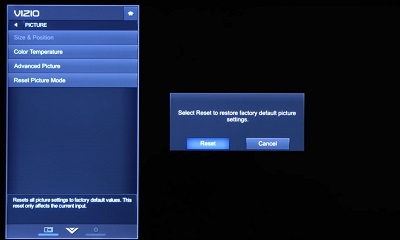
You can reset the picture settings from the Picture menu. Look for Reset Picture Mode or Reset Picture. This resets image options without usually deleting apps or Wi-Fi details.
A full factory reset should be the last step. It removes saved settings, accounts, and network information. Before using it, check the model’s user guide and write down your Wi-Fi password.
Common mistakes when changing Vizio picture size
Many people solve the problem quickly but make it return later. These mistakes are easy to avoid.
• Choosing Stretch instead of Normal: Stretch fills the screen but can distort faces.
• Changing the TV when the cable box is at fault: Check both devices.
• Adjusting brightness instead of aspect ratio: Brightness will not restore missing picture edges.
• Assuming every app uses the same format: Different apps and programs may use different video shapes.
• Using a factory reset too soon: Try a power cycle and picture reset first.
• Ignoring subtitles: Cut-off captions are a strong sign that the image is cropped.
In my own troubleshooting work, the most common mistake is changing several display settings at once. A better approach is to take one step, test the screen, and then continue only if needed. This saves time and protects your original settings.
How to keep the correct Vizio screen size
Once you unzoom Vizio TV content, a few habits can help keep the picture correct.
• Leave the TV on Normal or 16:9.
• Set connected devices to Auto or Original.
• Avoid pressing Wide repeatedly unless you need another format.
• Keep the TV software and streaming devices updated.
• Use reliable HDMI cables and secure connections.
• Note which input has the problem.
• Check the source device before resetting the TV.
The best setting depends on the content. Normal is usually best for modern television, streaming video, and gaming. Older 4:3 programs may show black bars on the sides. Those bars are normal and preserve the full image.
There is also a limit to what a TV can fix. If the source video is already cropped, selecting Normal cannot recreate the missing edges. It can only display the signal as accurately as possible.
Frequently asked questions about how to unzoom Vizio TV
Why is my Vizio TV screen zoomed in?
Your Vizio TV may be set to Zoom, Stretch, or Panoramic mode. A cable box, streaming device, or game console can also crop the picture before it reaches the TV.
What setting should I use to unzoom my Vizio TV?
Choose Normal, 16:9, Original, or Screen Fit, depending on the wording used by your model. Avoid Zoom and Stretch because they can remove parts of the image.
Why is only one HDMI device zoomed in?
The HDMI device may have its own display or aspect ratio setting. Check the device’s video menu and choose Auto, 16:9, or the recommended resolution.
How do I unzoom a Vizio TV without a remote?
Use the physical buttons on the TV, the Vizio mobile app if supported, or a compatible replacement remote. The TV buttons may provide access to Picture and Aspect Ratio settings.
Will a factory reset fix a zoomed Vizio TV?
A factory reset may fix unusual software settings, but it is rarely needed for a simple zoom problem. Try Normal or 16:9, restart the TV, and reset the picture settings before performing a full reset.
Why do black bars appear after I unzoom my Vizio TV?
Black bars can appear when the video has a different aspect ratio from the TV screen. They often mean the entire image is being shown correctly rather than cropped.
Conclusion
To unzoom Vizio TV content, start with the Wide or Aspect button and select Normal, 16:9, or Screen Fit. If that does not work, check the cable box, streaming device, game console, and HDMI connection. Test one setting at a time, and use a factory reset only as a final option.
A properly fitted picture should show the full image, clear captions, and undistorted faces. Try these steps now, and share your Vizio model or working solution if you want to help other viewers.

Everett Ashford is a tech reviewer at mytechgrid.com specializing in SSDs, cameras, TVs, earbuds, headphones, and other consumer electronics. He provides honest, data-driven reviews based on hands-on testing and real-world performance analysis. Everett simplifies complex tech details to help readers make smart, confident buying decisions.