Installing a second SSD adds fast storage when your motherboard, laptop, and power connections support the drive.
Learning how to install a second SSD is easier than it sounds. The key is choosing the right drive, checking your system’s connections, mounting it safely, and setting it up in Windows. This guide covers SATA and NVMe SSDs, desktop PCs and laptops, common mistakes, and the steps I use to avoid data loss.
Before You Install a Second SSD
Before learning how to install a second SSD, check what your computer supports. SSDs come in different shapes and use different connections. A drive that fits one computer may not work in another.
The two common types are:
• SATA SSD: A 2.5-inch drive that connects with a SATA data cable and a SATA power cable.
• M.2 SATA SSD: A small stick-shaped drive that uses an M.2 slot but communicates through SATA.
• M.2 NVMe SSD: A compact drive that uses an M.2 slot and the PCIe bus for much faster speeds.
A desktop PC often supports more than one storage drive. Many laptops have only one drive bay, but some business and gaming laptops include a second M.2 slot or a 2.5-inch bay.
Check your computer’s manual, motherboard specifications, or manufacturer support page. Look for terms such as “M.2 storage,” “NVMe support,” “SATA ports,” or “second drive bay.”
:max_bytes(150000):strip_icc()/1a-91c37fe06a894ea0a15911e905c1892e.jpg)
What You Need to Install a Second SSD
Gather the right parts and tools before opening your computer. This makes the job smoother and helps prevent rushed mistakes.
You may need:
• A compatible SSD
• A Phillips screwdriver
• A small M.2 screw and standoff for an NVMe drive
• A SATA data cable for a 2.5-inch SATA SSD
• A spare SATA power connector from the power supply
• A mounting bracket or drive sled
• An anti-static wrist strap, if available
• A USB-to-SATA adapter for cloning or data transfer
Most 2.5-inch SATA SSDs do not include a SATA data cable. Desktop motherboards sometimes include spare cables, but not always. Check the package before you begin.
For an M.2 NVMe SSD, confirm the length. The most common size is 2280, which means 22 millimeters wide and 80 millimeters long. Some small laptops use shorter 2230 or 2242 drives.
Capacity also matters. A 1TB SSD is a useful choice for games, photos, video files, and applications. For simple document storage, 500GB may be enough. Choose a reputable model with a warranty and published endurance rating.
How to Choose Between SATA and NVMe
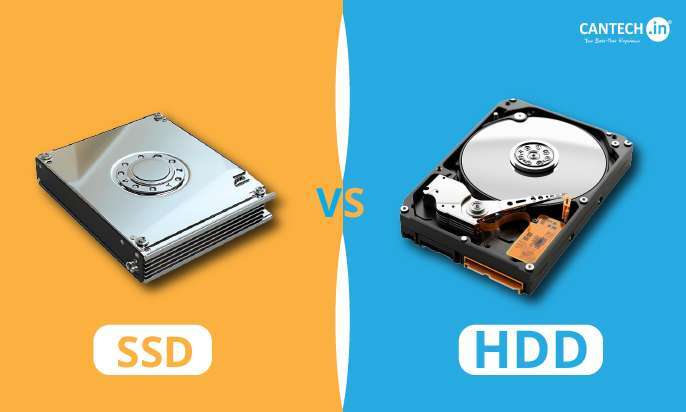
The best second SSD depends on your computer and your workload. SATA SSDs are usually simple to install and offer a major improvement over hard drives. NVMe SSDs can be much faster, but they require a compatible M.2 slot.
A SATA SSD can reach roughly 500 to 550 MB/s in normal sequential transfers. PCIe NVMe drives can reach several thousand MB/s, depending on the PCIe generation, controller, and workload.
You may not notice a large difference when opening email or browsing the web. You are more likely to notice NVMe speed when moving large video files, loading large projects, or working with modern games.
Keep these points in mind:
• Choose SATA if your computer has spare SATA ports but no compatible M.2 slot.
• Choose NVMe if your motherboard or laptop clearly supports an NVMe M.2 drive.
• Do not assume every M.2 slot supports NVMe. Some support only SATA, while others support both.
• Check whether using an M.2 slot disables one or more SATA ports. Some motherboards share lanes between these connections.
In my own PC upgrades, the most common mistake has been buying the right physical size but the wrong interface. A drive can look like it fits and still fail to appear because the slot does not support that protocol.

Back Up Your Data First
Installing a second SSD should not erase your existing files, but every hardware upgrade carries some risk. A loose cable, accidental format, or wrong disk selection can cause serious trouble.
Back up important documents, photos, passwords, and project files to an external drive or trusted cloud service. If you plan to clone your current system drive, create a full backup before starting.
Also make sure you know which drive contains Windows. You can check this in File Explorer, Disk Management, or your computer’s storage settings.
Before opening a desktop computer:
-
Shut down Windows completely.
-
Turn off the power supply switch.
-
Unplug the power cable.
-
Press the power button for a few seconds to discharge leftover power.
-
Place the computer on a stable, clean surface.
For a laptop, shut it down and disconnect the charger. If the battery is removable, remove it. If the battery is internal, follow the manufacturer’s instructions before disconnecting it.

How to Install a Second SATA SSD in a Desktop
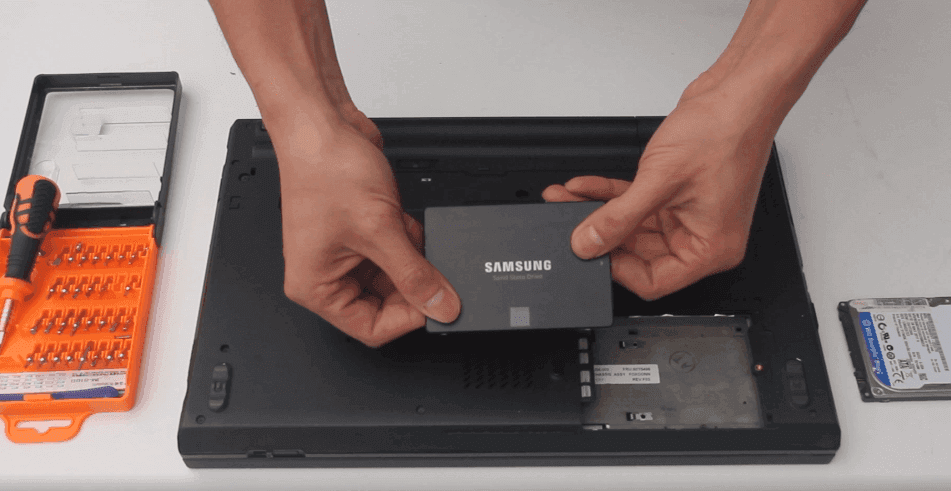
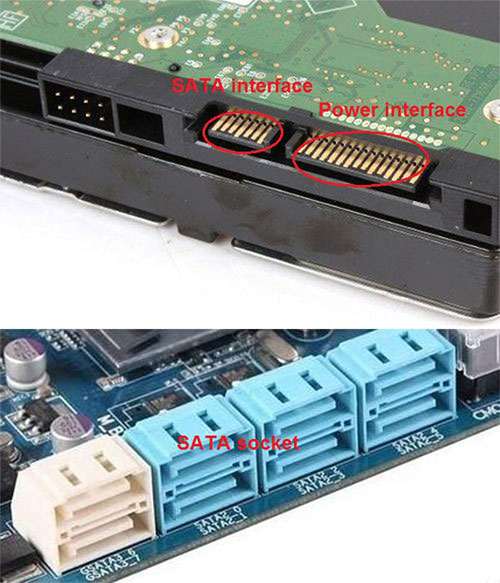
A 2.5-inch SATA SSD is one of the easiest storage upgrades. It uses two connections: one for data and one for power.
Follow these steps:
-
Remove the desktop’s side panel.
-
Find an open 2.5-inch mounting point or drive tray.
-
Secure the SSD with the correct screws.
-
Connect one end of the SATA data cable to the SSD.
-
Connect the other end to an open SATA port on the motherboard.
-
Connect a SATA power plug from the power supply to the SSD.
-
Check that both connectors are fully seated.
-
Make sure the cables do not touch case fans.
The SATA connector has an L-shaped design, so it should fit only one way. Never force it. If the drive is not mounted in a 2.5-inch bay, use a proper bracket rather than leaving it loose inside the case.
Some power supplies use modular cables. Only use cables designed for that exact power supply. Modular cables may look similar, but their wiring can differ between brands and models.
After connecting the drive, close the case and reconnect the power cable. The physical part of how to install a second SSD is now complete, but Windows still needs to detect and prepare it.
How to Install a Second NVMe SSD
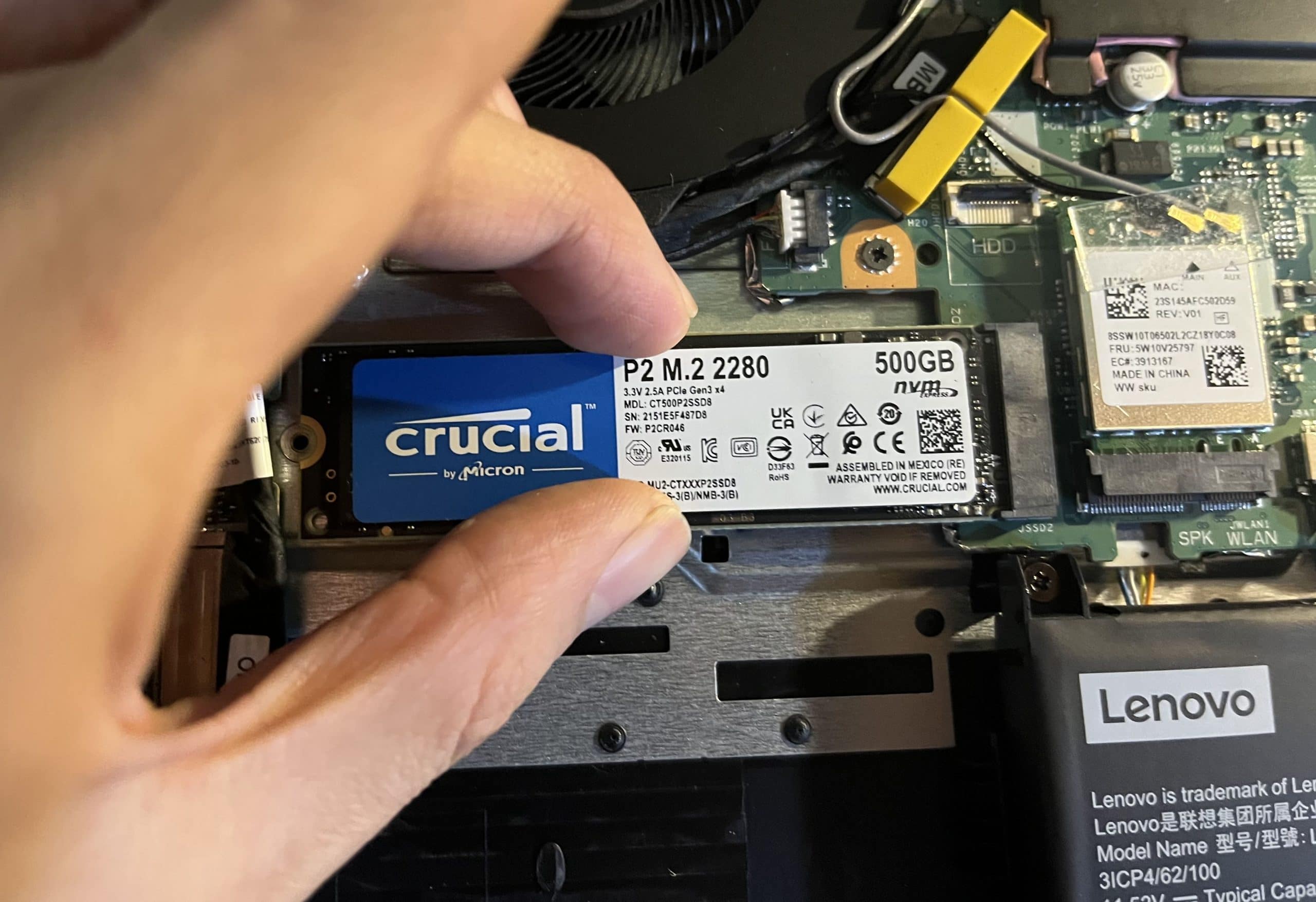
An NVMe SSD installs directly into an M.2 slot on the motherboard. This removes the need for SATA data and power cables.
Use these steps:
-
Locate the M.2 slot on the motherboard.
-
Check the label or manual to confirm NVMe support.
-
Remove the small M.2 heatsink if your board has one.
-
Remove the M.2 screw or prepare the correct standoff.
-
Hold the SSD by its edges.
-
Align the notch on the drive with the key in the slot.
-
Insert the drive at about a 20 to 30-degree angle.
-
Press the drive down gently.
-
Secure it with the M.2 screw.
-
Replace the heatsink if one is included.
Do not press down on the middle of the drive while it is still at an angle. Slide it into the slot first, then lower it flat. The gold contacts should disappear into the connector.
If the SSD includes a thin label, leave it in place unless the manufacturer says otherwise. If you use a motherboard heatsink, remove only the protective plastic from the thermal pad.
A loose M.2 screw can let the drive rise away from the connector. That can cause intermittent detection problems, so tighten the screw until the drive is secure. Do not overtighten it.

How to Install a Second SSD in a Laptop
Laptop upgrades need extra care because space and compatibility vary widely. Some laptops have an empty M.2 slot. Others include a space for a 2.5-inch SATA drive but require a special cable or mounting bracket.
First, check the exact laptop model. The manufacturer’s service manual is usually the most reliable source for drive compatibility and opening instructions.
The general process is:
-
Shut down the laptop.
-
Unplug the charger.
-
Remove the bottom cover.
-
Disconnect the internal battery if the manual recommends it.
-
Find the second M.2 slot or 2.5-inch drive bay.
-
Install the SSD using the correct connector and screw.
-
Reconnect the battery if needed.
-
Replace the bottom cover.
-
Start the laptop and check the drive in BIOS or Windows.
Some laptops have a physical bay but lack the cable needed to connect the SSD. Others support only single-sided M.2 drives because double-sided models are too thick. Confirm these details before purchasing.
In laptop work, patience matters more than force. I have seen plastic clips break because a person tried to lift the cover from the wrong edge. Use a plastic opening tool and follow the service manual’s order.
How to Initialize and Format the New SSD in Windows
After you install a second SSD, Windows may detect it but leave it unusable until you initialize and format it. This is normal.
Follow these steps:
-
Right-click the Start button.
-
Select Disk Management.
-
Find the new disk by checking its capacity.
-
If Windows asks you to initialize it, choose GPT.
-
Right-click the unallocated space.
-
Select New Simple Volume.
-
Follow the setup wizard.
-
Assign a drive letter.
-
Choose NTFS for a normal Windows storage drive.
-
Give the volume a clear name, such as “Games” or “Projects.”
GPT is the preferred partition style for modern computers using UEFI firmware. MBR may be needed for older systems, but it has older limitations and is usually not the best choice for a new drive.
Be careful when selecting the disk. Disk Management lists all connected storage devices. Formatting the wrong disk can remove its data. Compare the capacity and existing partitions before making changes.
Once formatting finishes, the SSD will appear in File Explorer. You can then move files, install applications, or change the default save location.
How to Check Whether Windows Detects the SSD
If the new drive does not appear in File Explorer, do not assume it is defective. The disk may simply need initialization, a drive letter, or a better connection.
Check the drive in these places:
• Disk Management in Windows
• Device Manager under Disk drives
• Your computer’s BIOS or UEFI storage menu
• The motherboard manufacturer’s utility, if available
If the SSD appears in Disk Management but has no drive letter, right-click its partition and choose Change Drive Letter and Paths. If it shows as unallocated, create a new volume.
If it appears in BIOS but not Windows, the problem may involve partitioning, drivers, or Windows configuration. If it does not appear in BIOS, inspect the physical installation, M.2 compatibility, SATA cable, and power connection.
Some motherboards disable SATA ports when certain M.2 slots are occupied. The manual will show which ports share bandwidth. Moving the SATA cable to another port often fixes the issue.
How to Use the Second SSD
A second SSD can serve several purposes. You can use it as a games drive, a media library, a work drive, or a backup destination.
Good uses include:
• Installing large games and applications
• Storing video, music, and photo libraries
• Keeping creative projects separate from Windows
• Moving temporary files away from the system drive
• Creating a local backup of important files
To move a Windows library, right-click a folder such as Documents or Downloads, choose Properties, open the Location tab, and select Move. Choose a folder on the new SSD.
For Steam games, open the storage settings and create a library folder on the new drive. Other launchers have similar options. Moving large games can free space on the system SSD without reinstalling them.
Do not treat a second SSD as a complete backup by itself. If both drives remain in the same computer, theft, power damage, malware, or hardware failure could affect both. Keep at least one backup copy on a separate device or secure cloud service.
Common Problems After Installing a Second SSD
Even when you follow the correct steps, a few issues can appear.
The SSD does not appear anywhere
Check the power cable, SATA data cable, M.2 seating, and motherboard support. For a SATA drive, try another SATA port and another cable. For an NVMe drive, test the slot and confirm that it supports PCIe storage.
The SSD appears in BIOS but not File Explorer
Open Disk Management. The drive may need a GPT initialization, a new volume, formatting, or a drive letter.
The computer will not boot
Enter BIOS and confirm that the original Windows drive remains first in the boot order. A new SSD should not normally change the boot drive, but firmware settings can sometimes shift after hardware changes.
The SSD runs hot
NVMe drives can become warm during large transfers. Make sure the motherboard heatsink is installed correctly and that the case has good airflow. A high temperature may reduce performance through thermal throttling.
The SSD is slower than expected
Advertised speeds are based on ideal conditions. Real performance depends on the PCIe generation, drive capacity, controller, cache, temperature, and file size. Small files usually transfer more slowly than large sequential files.
Avoid downloading random firmware tools or storage drivers from unknown websites. Use the SSD maker’s official support software when a firmware update is necessary.
Mistakes to Avoid When Installing a Second SSD
The most damaging mistakes are usually simple and preventable.
• Buying an M.2 SATA drive for an NVMe-only slot
• Installing an NVMe drive in an M.2 slot that supports only SATA
• Forgetting the SATA power cable
• Formatting the wrong disk
• Removing the protective label from an SSD without checking the instructions
• Using the wrong modular power supply cable
• Installing the drive without a mounting screw
• Ignoring a laptop’s thickness or connector limits
• Skipping a backup
• Blocking case airflow with loose cables
Keep screws in a small container while you work. M.2 screws are tiny and easy to lose. Also take a photo of your cable layout before disconnecting anything. This simple habit makes reassembly much easier.
When I install storage, I identify the original boot drive before touching Disk Management. That one step prevents the most serious setup error: wiping the wrong disk.
How to Keep a Second SSD Healthy
Modern SSDs need little maintenance, but good habits can extend reliable use.
Leave some free space on the drive. A nearly full SSD may have less room for background management and temporary data. Keeping around 10% to 20% free is a practical target, though the ideal amount varies by model and workload.
Enable TRIM in Windows. It helps the operating system tell the SSD which blocks are no longer needed. Windows normally manages this automatically through its scheduled drive optimization feature.
You can also:
• Install firmware updates only when needed and from the manufacturer
• Keep the computer cool
• Monitor drive health with trusted software
• Avoid repeated full-drive benchmarks
• Maintain current backups
SSD endurance is often listed as TBW, or terabytes written. Normal home use rarely reaches the rated limit quickly, but heavy video production, databases, and constant scratch-disk work can create more writes.
Frequently Asked Questions About How to Install a Second SSD
Can I install a second SSD in any computer?
No. The computer needs an open compatible slot, drive bay, cable, or adapter. Check the motherboard or laptop specifications before buying the SSD.
Is it better to install a second SATA SSD or NVMe SSD?
NVMe is usually faster, but SATA is often easier to install and works with more older systems. Choose the interface your computer supports and match it to your workload.
Do I need to reinstall Windows on the second SSD?
No. You can use the second SSD for files, games, and applications without reinstalling Windows. Reinstall Windows only if you want the new drive to become your primary boot drive.
Why is my new SSD not showing in File Explorer?
It may not be initialized, formatted, or assigned a drive letter. Open Disk Management and identify the new drive by its capacity before creating a volume.
Can I use a second SSD as a backup drive?
Yes, but it should not be your only backup. A separate external drive or secure cloud copy protects your data if the computer is stolen, damaged, infected, or fails.
Does adding a second SSD make my computer faster?
It can improve storage capacity and reduce reliance on a slow hard drive. It will not automatically make the CPU faster, and the speed increase depends on what you move to the new drive.
Can I install an NVMe SSD without a heatsink?
Usually, yes, especially for light use. A heatsink can help an NVMe SSD maintain performance during long transfers, so use one when your motherboard includes it or the drive manufacturer recommends it.
Conclusion
Learning how to install a second SSD involves four main tasks: confirm compatibility, install the drive safely, initialize it in Windows, and use it with a sensible backup plan. SATA SSDs need data and power cables, while NVMe SSDs fit directly into a compatible M.2 slot.
Take your time, identify each disk carefully, and never force a connector or screw. With the right SSD and a few careful checks, you can expand your storage in less than an hour. Try the upgrade, organize the new drive around your needs, and share your experience or questions in the comments.

Everett Ashford is a tech reviewer at mytechgrid.com specializing in SSDs, cameras, TVs, earbuds, headphones, and other consumer electronics. He provides honest, data-driven reviews based on hands-on testing and real-world performance analysis. Everett simplifies complex tech details to help readers make smart, confident buying decisions.