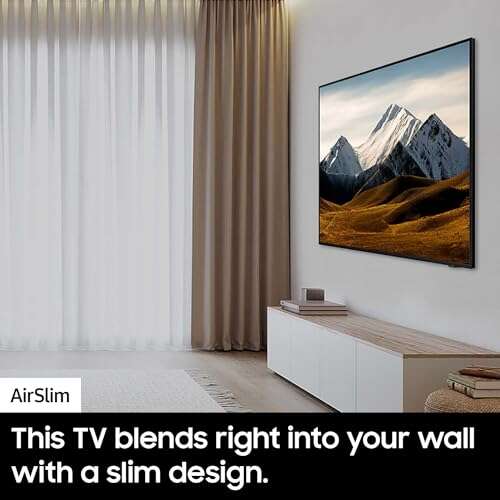
To connect a Motorola phone to a TV with HDMI, use a compatible USB-C adapter, HDMI cable, and the right phone settings.
Connecting a Motorola phone to a TV with HDMI sounds simple, but one detail matters most: the phone must support wired video output. Some Motorola models work with a USB-C to HDMI adapter, while others support only wireless screen sharing. This guide explains how to check compatibility, connect everything correctly, fix common problems, and choose the best alternative when HDMI is not supported.
Check whether your Motorola phone supports HDMI output
Before buying an adapter, check whether your Motorola phone can send video through its USB-C port. A USB-C port does not always support HDMI. It may handle charging and file transfers but lack DisplayPort Alt Mode, which is the feature needed for wired video.
Motorola phones that support Ready For or similar desktop features are more likely to support a wired display connection. However, support can vary by model, region, software version, and accessory.
Look up your exact model in the phone’s technical specifications or Motorola’s support documentation. Search for terms such as:
• DisplayPort Alt Mode
• USB-C video output
• Wired external display
• Ready For wired connection
• HDMI support
You can find your model name by opening Settings, selecting About phone, and checking the model number. Do not rely only on the fact that the phone has a USB-C port.
If your Motorola phone uses a Micro-USB port, HDMI output is uncommon. A Micro-USB to HDMI connection would require MHL support, and most newer Motorola phones do not use this method.

What you need to connect a Motorola phone to a TV with HDMI
A successful Motorola phone to TV with HDMI setup usually needs three main items:
• A Motorola phone with wired video output support
• A compatible USB-C to HDMI adapter or USB-C hub
• A standard HDMI cable
Connect the adapter to the phone, then connect the HDMI cable from the adapter to an open HDMI port on the TV. Some USB-C hubs also include charging, USB-A ports, Ethernet, or a memory card slot. These extra ports are useful, but they are not required for basic screen mirroring.
Choose an adapter that clearly states it supports video output. Avoid cheap adapters that only support charging or data transfer. The adapter should support DisplayPort over USB-C and should be compatible with Android devices.
A powered USB-C hub can help if your phone loses battery quickly or if the display flickers. It lets you connect a charger while the phone sends video to the TV.
For the best results, use a reliable HDMI cable. A short, certified cable is often better than a very long or damaged one. Most basic phone mirroring works well at 1080p, while higher resolutions depend on the phone, adapter, TV, and app.

How to connect a Motorola phone to a TV with HDMI
Follow these steps to connect a Motorola phone to a TV with HDMI.
-
Turn on the TV and locate an available HDMI port.
-
Plug the HDMI cable into the TV’s HDMI port.
-
Connect the other end of the HDMI cable to the USB-C to HDMI adapter.
-
Insert the adapter into the Motorola phone’s USB-C port.
-
Use the TV remote to select the matching HDMI input.
-
Unlock the phone and wait for a display prompt.
-
Choose a display, mirror, or Ready For option if the phone shows one.
Some Motorola phones may open Ready For automatically. This mode can show a desktop-style interface instead of copying the phone screen exactly. Other models may mirror the phone screen or show a simple external display prompt.
If nothing happens, unplug the adapter, unlock the phone, and connect it again. Some phones detect an external display only after the phone is awake. You can also restart both the TV and phone before trying again.
When you connect a Motorola phone to a TV with HDMI, the phone may continue using its own screen as a touchpad or second display. This depends on the model and the version of Android installed.

Use Motorola Ready For with an HDMI TV
Motorola Ready For is a software platform available on selected Motorola phones. It can connect the phone to a TV, monitor, or computer and provide a larger interface for apps, video, games, and work.
When supported, Ready For may offer different modes, such as:
• Mobile desktop mode for apps and multitasking
• TV mode for video and entertainment
• Game mode for compatible controllers
• Video call mode for larger meetings
• Mobile mode for standard screen mirroring
The names and features can change between Motorola models. Some devices support Ready For wirelessly, while others support a wired connection through USB-C.
To use it, connect the phone to the TV with the HDMI adapter. Look for a Ready For notification or open the Ready For app from the app drawer or quick settings panel. Follow the instructions shown on the phone.
Ready For can be useful when you want to browse the web, open documents, play games, or watch videos on a larger screen. A Bluetooth keyboard, mouse, or game controller can make the setup feel more like a small computer.
Keep in mind that a Ready For connection is not the same on every Motorola phone. Always check the model-specific features before purchasing accessories.

Fix common Motorola phone HDMI problems
A failed connection does not always mean the phone is incompatible. Work through these checks before replacing your equipment.
The TV says “No signal”
Make sure the TV is set to the same HDMI input used by the cable. Test another HDMI port if possible, then reconnect the adapter while the phone is unlocked.
If the TV still shows no signal, the phone may not support wired video output. The adapter may also be a charge-and-data model without DisplayPort support.
The phone charges but shows no picture
Charging only proves that the USB-C connection works. It does not prove that the port can send video.
Try a different USB-C to HDMI adapter made for video output. If the problem continues, confirm that your Motorola model supports DisplayPort Alt Mode or wired Ready For.
The picture flickers or cuts out
Flickering often comes from a weak adapter, damaged HDMI cable, loose connection, or insufficient power. Try a shorter cable and remove any extra USB accessories from the hub.
A powered USB-C hub may solve the issue by giving the adapter stable power. Avoid bending the adapter or placing strain on the phone’s USB-C port.
The sound comes from the phone
Open the phone’s volume panel and check the available audio output. Some TVs appear as an external audio device after the HDMI connection is active.
You can also check the TV’s sound settings. Set the TV to its internal speakers unless you are using a soundbar or receiver.
Streaming apps show a black screen
Some streaming services restrict screen mirroring because of digital rights protection. The phone’s home screen may appear normally while a video app shows a black image.
When this happens, use the app’s built-in cast feature or connect a supported streaming device directly to the TV. This limitation is usually caused by content protection, not the HDMI cable.
The phone becomes hot
Video output uses more power than normal phone use. Remove a thick case, close apps running in the background, and avoid charging with a low-quality power adapter.
If the phone becomes unusually hot, disconnect it and let it cool. Do not cover the phone during long gaming or video sessions.

How to improve picture and sound quality
Once you connect a Motorola phone to a TV with HDMI, a few small changes can make the experience smoother.
Set the TV to its normal or game picture mode. Some TVs add processing that causes a delay, which is noticeable during games or video calls. Game mode often reduces this delay.
Turn the phone sideways when watching widescreen video. Many apps display better in landscape mode. If the image does not fill the TV, check the TV’s aspect ratio and picture size settings.
Keep the phone close to the adapter and avoid moving the USB-C connection. A loose port can cause temporary black screens or repeated connection sounds.
For sound, start with the TV volume at a moderate level. Then adjust the phone volume. If the audio is delayed, restart the app or reconnect the HDMI cable.
If you plan to watch long videos, connect a charger to a powered hub. This prevents the phone from draining quickly while it sends video and sound through HDMI.

When wireless casting is a better option
If your Motorola phone does not support HDMI output, wireless casting may be the easiest solution. Many Motorola phones can cast to a compatible smart TV, Chromecast device, or Android TV.
To try wireless casting:
-
Connect the phone and TV to the same Wi-Fi network.
-
Open the Quick Settings panel on the phone.
-
Look for Cast, Screen Cast, Smart View, or a similar option.
-
Select the TV or streaming device.
-
Accept the connection request on the TV if prompted.
Wireless casting avoids cables, but it can have a short delay. This delay may be fine for photos, presentations, and video streaming. It is less ideal for fast games or detailed work.
You can also use the cast button inside supported apps. This sends the video directly to the TV instead of mirroring the entire phone screen. Direct casting often uses less battery and provides smoother playback.
Wireless casting also depends on the TV and network. A busy Wi-Fi network can cause buffering, dropped connections, or lower picture quality.
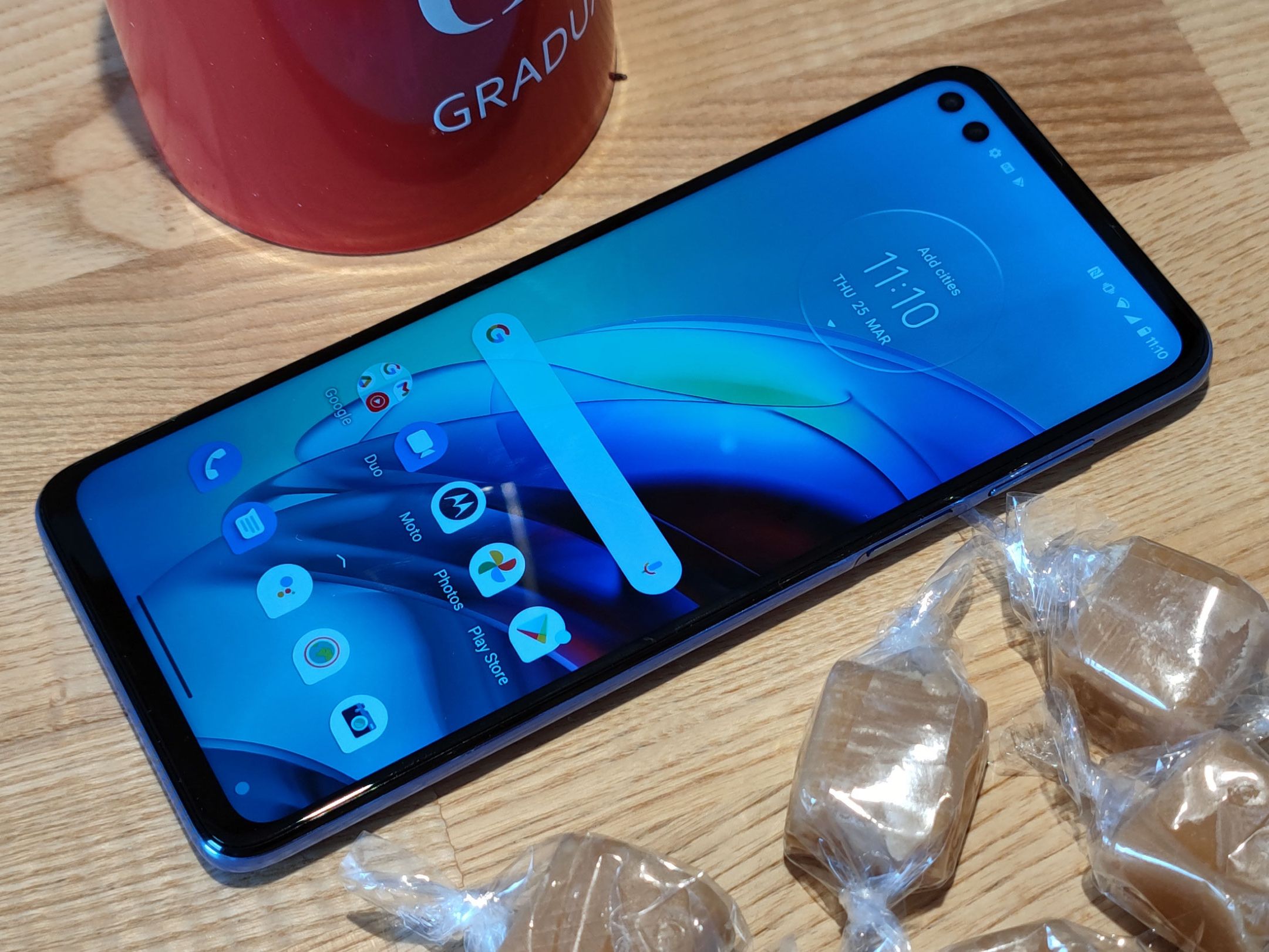
HDMI versus wireless casting
Both methods have clear benefits. The best choice depends on your phone, TV, and intended use.
HDMI connection benefits
• Usually provides a stable connection
• Does not depend on Wi-Fi strength
• Works well for presentations and games
• Can offer lower delay than wireless casting
• May support desktop-style Ready For features
HDMI connection limitations
• Requires a compatible phone and adapter
• Adds cables to your setup
• Can drain the phone battery
• Some apps may block mirrored video
• Adapter quality can affect performance
Wireless casting benefits
• No HDMI adapter is required
• Easy to start from the phone
• Convenient for photos and streaming
• Keeps the phone physically separate from the TV
Wireless casting limitations
• Requires compatible devices
• Depends on Wi-Fi performance
• May introduce delay
• Can disconnect when the network is busy
In practical use, HDMI is often best for reliability. Wireless casting is more convenient when you are sharing photos or watching content from a supported app.
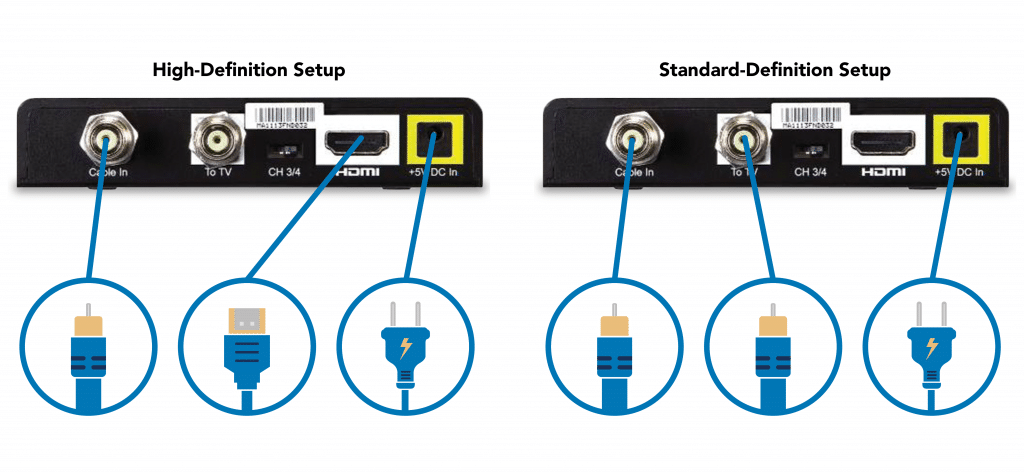
Safety and accessory tips
Use accessories from reputable brands and inspect them before use. A damaged USB-C adapter can cause unstable connections or put stress on the phone’s port.
Avoid forcing the adapter into the phone. USB-C connectors are reversible, but the port can still be damaged by dirt, pressure, or a bent plug.
Keep the phone ventilated during long sessions. This matters most when using Ready For, playing games, or charging at the same time.
Do not assume that every USB-C hub supports video. Read the product specifications carefully. Look for DisplayPort Alt Mode, HDMI video output, or Android external display support.
If the phone becomes very hot, smells unusual, or repeatedly disconnects, stop using the accessory. Replace questionable cables and adapters rather than risking damage to the phone or TV.

Frequently Asked Questions
Can every Motorola phone connect to a TV with HDMI?
No. The phone must support wired video output through USB-C, usually through DisplayPort Alt Mode. Many Motorola phones support wireless casting but do not support a direct USB-C to HDMI connection.
What adapter do I need for a Motorola phone to TV with HDMI?
You generally need a USB-C to HDMI adapter that supports DisplayPort Alt Mode. A USB-C charging or data adapter will not create a video signal if it lacks HDMI video support.
Why does my Motorola phone charge but not connect to the TV?
Charging and video output use different USB-C functions. Your phone or adapter may support charging but not DisplayPort video, so check both the phone specifications and the adapter features.
Can I connect an older Micro-USB Motorola phone to HDMI?
Only if the phone supports a compatible MHL feature, which is uncommon on older Motorola models. A regular Micro-USB to HDMI cable will not work without phone-level MHL support.
Does Motorola Ready For work with every Motorola phone?
No. Ready For is available only on selected models and may offer different wired or wireless features. Check the specifications for your exact phone model before buying accessories.
Can I watch Netflix or other streaming services through HDMI?
Often, yes, but some apps may restrict mirrored playback because of digital rights protection. If the screen turns black, use the app’s cast feature or a supported streaming device connected directly to the TV.
Can I charge my Motorola phone while using HDMI?
You can often charge the phone through a USB-C hub with pass-through charging. Use a quality charger and hub, since weak power delivery may cause flickering or disconnects.
Conclusion
Connecting a Motorola phone to a TV with HDMI requires more than a simple cable. Your phone must support wired video output, and the adapter must support DisplayPort Alt Mode. Once compatibility is confirmed, connect the USB-C adapter, HDMI cable, and TV input, then enable Ready For or the available display option.
If HDMI does not work, wireless casting may be a better choice. Check your exact Motorola model first, use a reliable adapter, and test the setup before an important presentation, movie night, or gaming session. Explore your phone’s display settings, and share your experience or questions in the comments.

Everett Ashford is a tech reviewer at mytechgrid.com specializing in SSDs, cameras, TVs, earbuds, headphones, and other consumer electronics. He provides honest, data-driven reviews based on hands-on testing and real-world performance analysis. Everett simplifies complex tech details to help readers make smart, confident buying decisions.