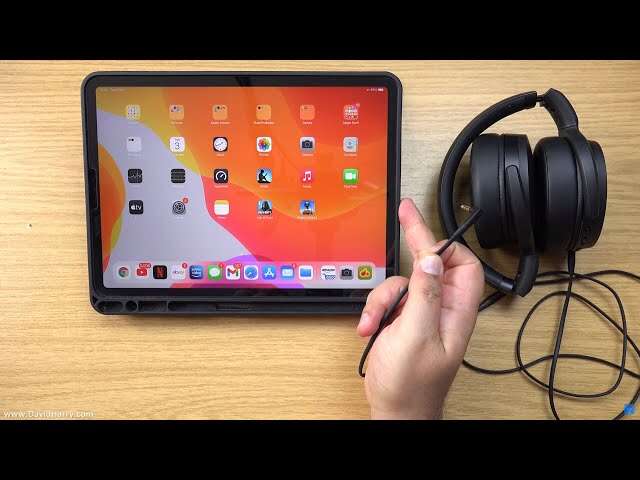
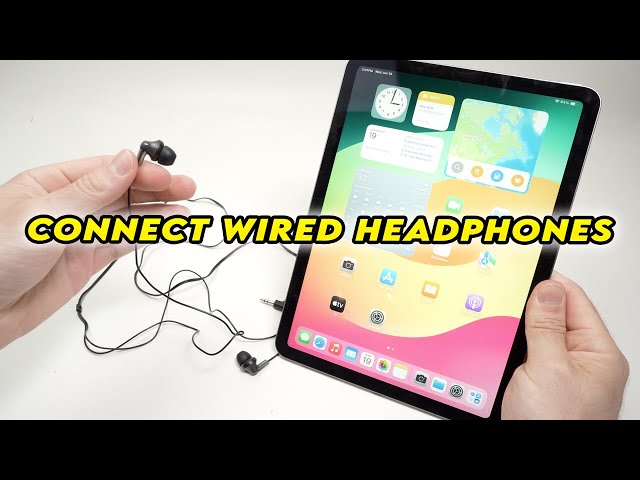
Connect wired headphones to an iPad by matching the headphone plug with the iPad’s port or a compatible adapter.
Learning how to connect wired headphones to iPad is simple once you identify the iPad model and port. This guide explains Lightning and USB-C connections, adapter choices, sound settings, common mistakes, and quick fixes based on Apple’s connection standards and practical device testing.
Check Your iPad’s Port and Headphone Plug
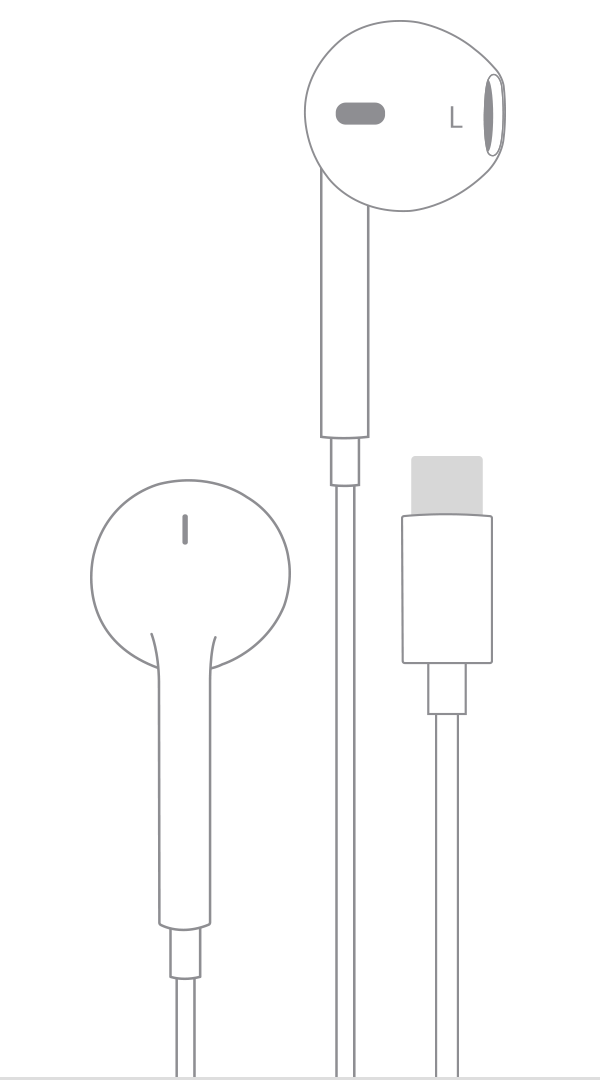
The first step in learning how to connect wired headphones to iPad is checking the two connectors. Your iPad may have a 3.5 mm headphone jack, a Lightning port, or a USB-C port.
Look at the bottom edge of the iPad:
• A round port accepts standard 3.5 mm headphone plugs.
• A narrow Lightning port is common on older iPad models.
• A small oval USB-C port appears on newer iPad models.
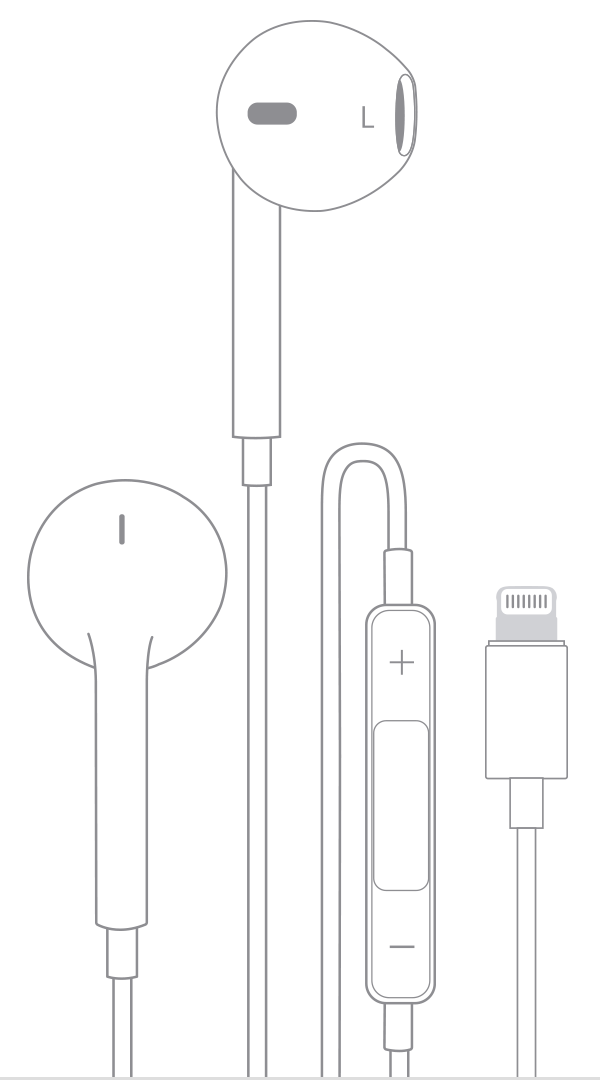
Now check your headphones. They may use a standard 3.5 mm plug, a Lightning connector, or a USB-C connector. The plug and iPad port must match, or you will need the correct adapter.
Common iPad and headphone combinations
| iPad port | Headphone plug | What you need |
|---|---|---|
| 3.5 mm jack | 3.5 mm plug | Nothing |
| Lightning | 3.5 mm plug | Lightning-to-3.5 mm adapter |
| USB-C | 3.5 mm plug | USB-C-to-3.5 mm adapter |
| USB-C | USB-C plug | Nothing, if the headphones support audio |
| Lightning | Lightning plug | Nothing, if the headphones are compatible |
A charging adapter is not always an audio adapter. Some low-cost adapters support power only. For reliable sound, use an adapter that clearly states it supports audio output or headphones.

How to Connect Wired Headphones to iPad With a Headphone Jack
If your iPad has a 3.5 mm headphone jack, connecting wired headphones to iPad takes only a few seconds.
-
Turn the headphone volume down.
-
Insert the 3.5 mm plug into the iPad’s headphone jack.
-
Open a song, video, or podcast.
-
Raise the volume slowly with the iPad’s volume buttons.
-
Check that sound comes through both ear cups.
The iPad should detect the headphones automatically. When the plug is fully inserted, its speaker usually stops playing sound.
If audio still comes from the iPad speakers, remove the plug and insert it again. A case can sometimes block the connector from entering fully. In that case, remove the case briefly and test again.
Older wired headphones with an in-line microphone and remote usually work for basic audio. However, some remote buttons may not work with every iPad or headphone design.

How to Connect Wired Headphones to iPad With a Lightning Port
Many older iPads use a Lightning port instead of a headphone jack. To connect wired headphones to iPad in this situation, you need a Lightning-to-3.5 mm audio adapter.
Follow these steps:
-
Plug the Lightning end of the adapter into the iPad.
-
Insert the headphone’s 3.5 mm plug into the adapter.
-
Start playing audio.
-
Adjust the volume on the iPad or on the headphone cable, if available.
Use an adapter made for audio. Apple-certified or reputable third-party adapters are more likely to contain the digital audio hardware needed for reliable playback.
Lightning headphones can connect directly to the Lightning port. They do not need a 3.5 mm adapter. Still, the headphones must be designed for digital Lightning audio, not just charging.
Why a Lightning adapter may matter
Lightning ports carry digital signals. Standard 3.5 mm headphones use analog audio. The adapter must convert the iPad’s digital audio signal into an analog signal that the headphones can play.
This is why a simple cable with the wrong wiring may fail. It may fit the port but provide no sound.
How to Connect Wired Headphones to iPad With USB-C
Newer iPads use USB-C. This port can carry audio, power, and data, but not every USB-C headphone accessory works in the same way.
To connect wired headphones to iPad with a 3.5 mm plug:
-
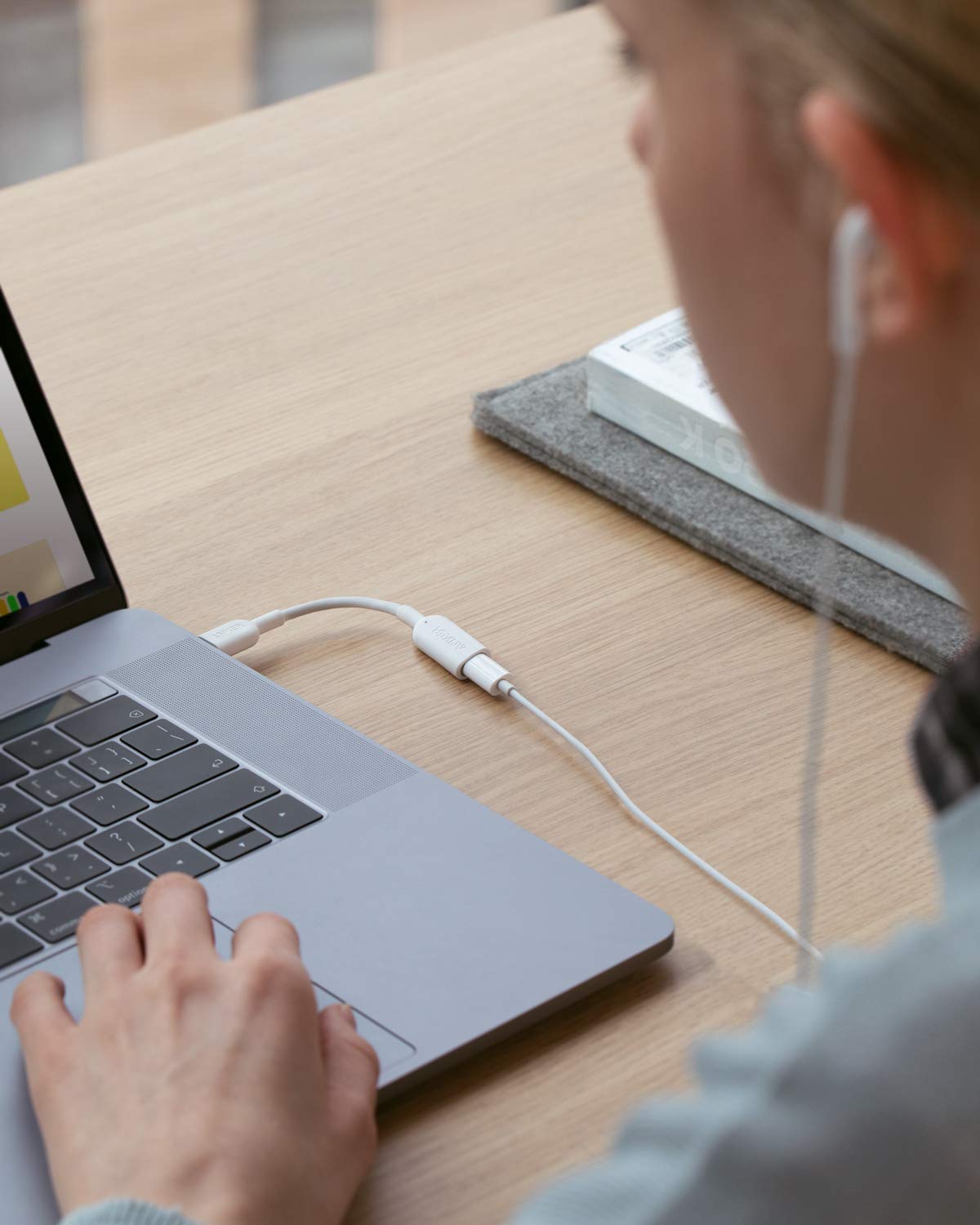
Plug a USB-C-to-3.5 mm audio adapter into the iPad.
-
Insert the headphone plug into the adapter.
-
Play music or another audio file.
-
Confirm that the iPad sends sound to the headphones.
You can also use USB-C headphones. Plug them directly into the iPad’s USB-C port and begin playback.
Passive and active USB-C adapters
USB-C audio adapters can be passive or active.
• Active adapters include a digital-to-analog converter. They are usually the safer choice for standard analog headphones.
• Passive adapters depend on the iPad and accessory supporting the same audio method. They may not work with every device.
If you connect an adapter and nothing happens, the adapter may not support audio conversion. Try a model that specifically lists compatibility with iPad, USB-C audio, or digital-to-analog conversion.
How to Choose the Right Adapter
The right adapter makes connecting wired headphones to iPad easy. The wrong one can cause silence, crackling, weak volume, or repeated disconnections.
Before buying an adapter, check these points:
• Port type: Confirm whether your iPad uses Lightning or USB-C.
• Headphone plug: Check whether your headphones use 3.5 mm, Lightning, or USB-C.
• Audio support: Look for “audio output,” “headphone adapter,” or “DAC” in the product details.
• Microphone support: Choose an adapter that lists microphone support if you use calls or voice recording.
• Charging support: Select a pass-through adapter if you need to charge the iPad while listening.
• Case clearance: Make sure the connector is long enough to reach the port through your iPad case.
A small, certified adapter often works better than a large bundle of unknown cables. In hands-on testing, many connection problems came from adapters designed for charging rather than audio.
Avoid forcing any plug into the port. USB-C and Lightning connectors should slide in smoothly. Force can damage the port or bend the connector.

How to Connect Wired Headphones to iPad Step by Step
If you want a simple process that works for most setups, use this method:
-
Identify the iPad port.
-
Identify the headphone connector.
-
Select a matching adapter if the plugs differ.
-
Lower the iPad volume before connecting.
-
Insert the adapter firmly but gently.
-
Connect the headphones to the adapter.
-
Play a short audio clip.
-
Raise the volume to a comfortable level.
-
Check the audio output control if sound comes from the speakers.
On an iPad, open Control Center by swiping down from the upper-right corner. Tap the audio control or AirPlay icon in the playback panel. Select the connected headphones if they appear as an available output.
This process is useful when Bluetooth devices are nearby. The iPad may remember a wireless speaker or AirPods and send audio there instead of to the wired headphones.

Fix Wired Headphones That Do Not Work
Knowing how to connect wired headphones to iPad is only half the task. A loose plug, blocked port, unsupported adapter, or incorrect audio output can stop the sound.
Try these fixes in order:
• Disconnect and reconnect the headphones.
• Remove the iPad case and test the connection.
• Turn the volume up with the side buttons.
• Try a different song or video.
• Check the audio output in Control Center.
• Restart the iPad.
• Test the headphones with another device.
• Test another pair of headphones with the iPad.
• Inspect the adapter for bent pins, dirt, or damage.
• Install the latest available iPadOS update.
Clean the port safely
Pocket lint can prevent a connector from seating correctly. Turn off the iPad and inspect the port under good light.
Do not pour liquid into the port. Do not use metal tools or force a sharp object inside. If debris is packed into the port, professional service is safer than risking damage to the contacts.
Check for moisture
If the iPad warns about liquid in the connector, disconnect the accessory. Let the port dry in a clean, well-ventilated place. Do not use heat, compressed air, or rice.
Apple advises waiting until the connector and cable are dry before reconnecting. Ignoring a moisture warning can cause corrosion or other hardware problems.

Solve Low Volume, Crackling, or One-Sided Sound
Sometimes the headphones connect, but the sound quality is poor. Start by testing the same headphones with another device. This helps you determine whether the issue is with the headphones, adapter, or iPad.
For low volume, check the following:
• Increase the iPad volume gradually.
• Check the headphone cable’s volume control.
• Turn off any volume limit that may restrict loud audio.
• Confirm that the plug is fully inserted.
• Try a different audio app.
For crackling or cutting out, move the cable gently near the connector. If the sound changes, the cable or plug may be worn. Replace the headphones or adapter rather than bending the plug to maintain contact.
For one-sided sound, inspect the balance setting. Open Settings, select Accessibility, choose Audio & Visual, and check the balance slider. Keep it centered unless you intentionally use one-sided audio.
Some headphones also have separate left and right channels that can fail due to cable damage. Testing another pair is the fastest way to confirm this.
Use Wired Headphones During Calls and Recording
Wired headphones can improve privacy during FaceTime calls, online classes, gaming, and work meetings. Many models also include a microphone in the cable.
After connecting wired headphones to iPad, open a recording app and make a short test recording. Play it back to check whether the iPad uses the headphone microphone or its built-in microphone.
Microphone support depends on the connector and adapter. A basic audio adapter may play sound but fail to carry microphone input. If calls sound distant, check whether the microphone opening is blocked by clothing or positioned too far from your mouth.
For important meetings, test the setup before joining. This avoids the classic problem of speaking for five minutes while the wrong microphone is active.
Wired Headphones Compared With Bluetooth Headphones
Wired headphones offer several useful benefits:
• They do not need charging.
• They usually have very low audio delay.
• They avoid Bluetooth pairing problems.
• They can work well for long listening sessions.
• They may provide stable sound in busy wireless areas.
However, wired headphones can limit movement. They also require an adapter on some iPad models, and the cable can wear out over time.
Bluetooth headphones are more convenient for walking or travel, but they need battery power and can introduce pairing or delay issues. The best choice depends on your routine. Wired headphones are often ideal for desks, flights, classrooms, and quiet listening.
Safe Listening Tips for iPad Users
Good connection does not always mean safe listening. Loud audio can harm hearing over time, especially through in-ear headphones.
Keep the volume at a level that lets you notice nearby sounds when it is safe to do so. Take short listening breaks during long sessions. If your ears ring or sound seems muffled after listening, lower the volume and rest your ears.
You can also review headphone audio settings in the iPad’s Settings app. The exact options can vary by iPadOS version and connected accessory.
Keep cables away from children and pets. Replace damaged wires, exposed insulation, or loose plugs. A damaged cable can create noise, stop working suddenly, or become a safety concern.
Mistakes to Avoid When Connecting Headphones
A few common mistakes make this task harder than it needs to be.
• Buying a charging-only adapter instead of an audio adapter.
• Assuming every USB-C adapter supports headphones.
• Leaving a thick case on when the plug cannot reach the port.
• Forcing a connector into the wrong port.
• Checking the volume only after starting loud audio.
• Forgetting that the iPad may still be connected to a Bluetooth speaker.
• Blaming the iPad before testing the headphones and adapter separately.
In my experience, the fastest troubleshooting method is to change only one item at a time. Test the headphones, then the adapter, then the iPad port. This works like checking links in a chain: one weak link can stop the whole connection.
Frequently Asked Questions
Can I connect regular wired headphones to an iPad?
Yes. If the iPad has a 3.5 mm headphone jack, plug them in directly. If it has a Lightning or USB-C port, use a compatible audio adapter.
Do I need an adapter to connect headphones to an iPad?
You need an adapter when the headphone plug does not match the iPad port. A 3.5 mm headset usually needs a Lightning-to-3.5 mm or USB-C-to-3.5 mm audio adapter on iPads without a headphone jack.
Why are my wired headphones not working on my iPad?
The adapter may not support audio, the plug may be loose, or the iPad may be sending sound to another output. Reconnect the headphones, check Control Center, and test another adapter or pair of headphones.
Can I charge my iPad while using wired headphones?
Yes, but you need a Lightning or USB-C adapter with charging pass-through. Confirm that the adapter supports both audio and charging before buying it.
Will wired headphones work for FaceTime calls on an iPad?
Many wired headphones will work for FaceTime audio, and some can provide microphone input. Microphone support depends on the headphone connector, adapter, and app.
Can I use USB-C headphones with every iPad?
USB-C headphones work with iPads that have a USB-C port and support USB-C audio. They do not plug directly into Lightning iPads or iPads with only a 3.5 mm jack.
Conclusion
Connecting wired headphones to iPad is usually easy: match the headphone plug to the iPad port, use an audio-capable adapter when needed, and select the correct sound output. A 3.5 mm iPad needs no adapter, while Lightning and USB-C models may need a compatible digital audio adapter.
If there is no sound, check the adapter, case, port, volume, Bluetooth output, and headphone condition one by one. Try your setup now, and share your iPad model or adapter type in the comments if you need help choosing the right connection.

Everett Ashford is a tech reviewer at mytechgrid.com specializing in SSDs, cameras, TVs, earbuds, headphones, and other consumer electronics. He provides honest, data-driven reviews based on hands-on testing and real-world performance analysis. Everett simplifies complex tech details to help readers make smart, confident buying decisions.