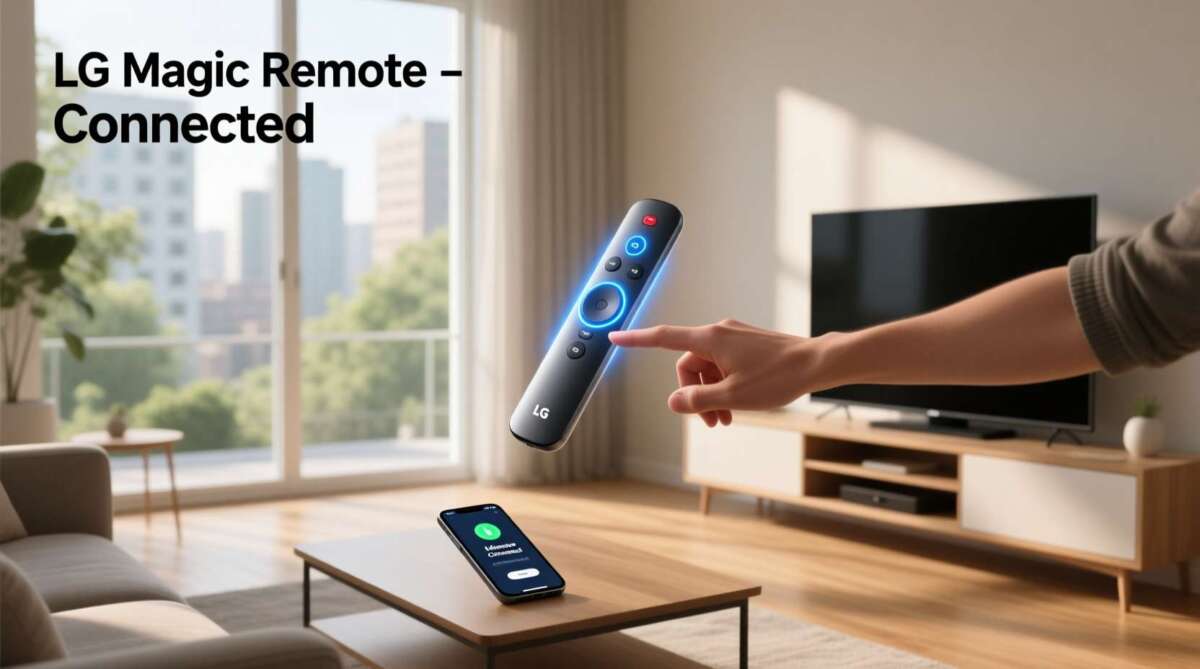
Point the LG Magic Remote at your TV, insert fresh batteries, and press the Wheel button to register it.
The LG Magic Remote pairs through Bluetooth while still using infrared for basic commands. Most LG TVs complete the setup in seconds, but the exact button sequence can vary by model year and remote type. This guide explains how to pair LG Magic Remote with TV, fix failed registration, and avoid the small mistakes that cause most connection problems.
What You Need Before Pairing an LG Magic Remote
Before you start, check that your remote and TV are ready. A weak battery or an unsupported remote can make pairing seem harder than it is.
You will need:
• An LG Smart TV with Magic Remote support
• The correct LG Magic Remote for your TV model
• Two working AA or AAA batteries, depending on the remote
• A clear path between the remote and the TV
• The TV turned on and fully loaded to the home screen
Magic Remotes are not universal across every LG TV. For example, a remote made for a 2024 OLED model may not support all functions on an older NanoCell TV. The pointer, voice control, and shortcut buttons depend on the TV and remote model.
Look for the remote model number inside the battery compartment or on the back. Common model codes include AN-MR19BA, AN-MR20GA, AN-MR21GA, and AN-MR22GA. Your TV model number appears in Settings, on the rear label, or on the original box.

How to Pair LG Magic Remote With TV
The standard registration process is simple. In most cases, you can pair the remote without opening the TV settings.
Standard pairing method
Follow these steps:
-
Turn on your LG TV with the TV button, the power button on the set, or an existing remote.
-
Install fresh batteries in the LG Magic Remote.
-
Wait about 10 seconds after the TV starts. This gives the TV time to load its wireless system.
-
Point the Magic Remote toward the TV.
-
Press the Wheel button in the center of the remote. This button may also be labeled OK.
-
Keep the remote still while the TV displays a registration message.
-
Select OK if the TV asks you to confirm registration.
The pointer should appear on the screen when you move the remote. If the pointer moves and the wheel selects items, the LG Magic Remote is paired.
The wheel button is important because it starts the registration process on many LG models. Pressing only the power button will not pair the remote. This is one of the most common setup mistakes.
Pairing with newer LG TVs
On newer LG webOS televisions, pressing the Wheel button usually begins automatic registration. The TV may show a message such as “Magic Remote is registering” or “Registration complete.”
If the TV does not respond, hold the Guide button for several seconds on models that include one. Some remotes use a Home and Back button combination instead. Because LG changes button layouts, the owner’s manual remains the most accurate guide for a specific model.
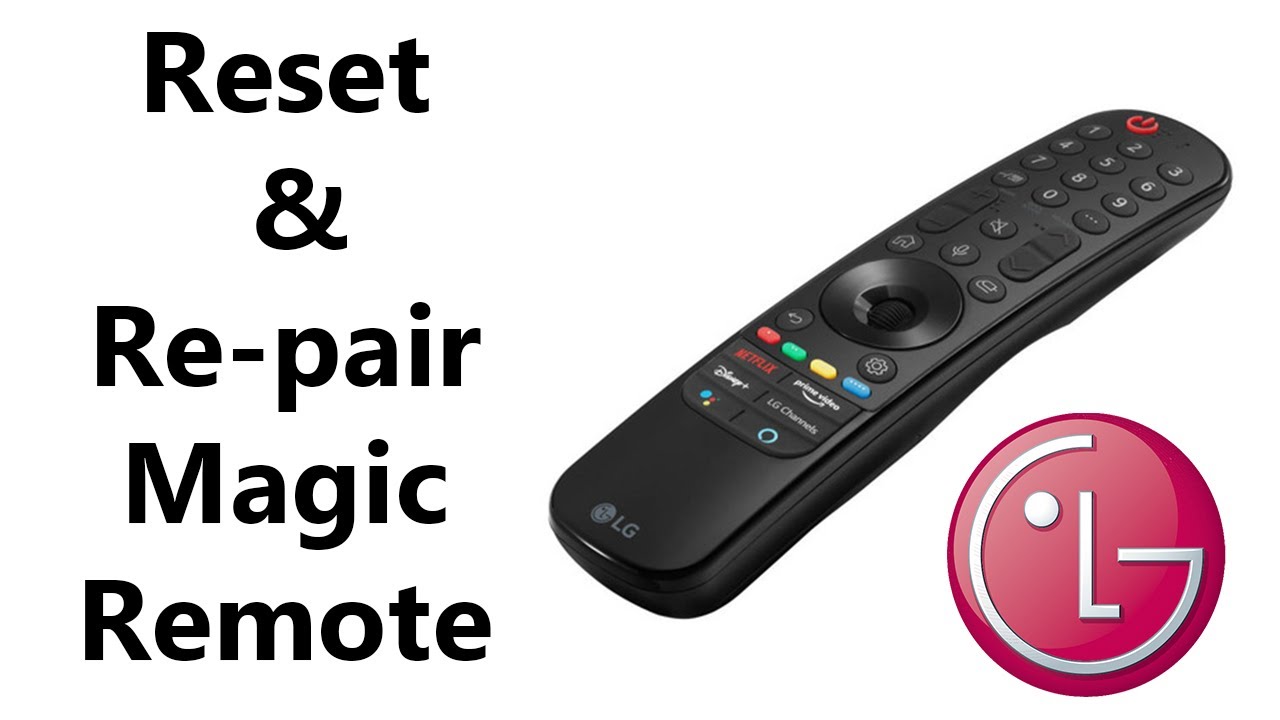
How to Register the Magic Remote Through TV settings
you can also pair the remote through the TV menu. This method helps when automatic registration does not start.
Use the TV’s existing remote or the buttons on the TV to open the menu:
-
Open Settings.
-
Choose All Settings.
-
Select General.
-
Choose Devices or External Devices.
-
Select Remote Settings or Magic Remote Settings.
-
Choose Register Magic Remote.
-
Press the Wheel or OK button on the Magic Remote.
Menu names can differ between webOS versions. On some models, the path is Settings, General, Accessibility, and then Magic Remote Settings. On others, Bluetooth device options appear under Connection.
Do not worry if your menu uses slightly different words. Look for terms such as Magic Remote, Remote Control, Register, Pair, or Bluetooth. The goal is to place the TV in registration mode and then press the Wheel button.
This method answers how to pair LG Magic Remote with TV when the normal shortcut does not work. It is also useful after a factory reset or when another remote was previously registered.
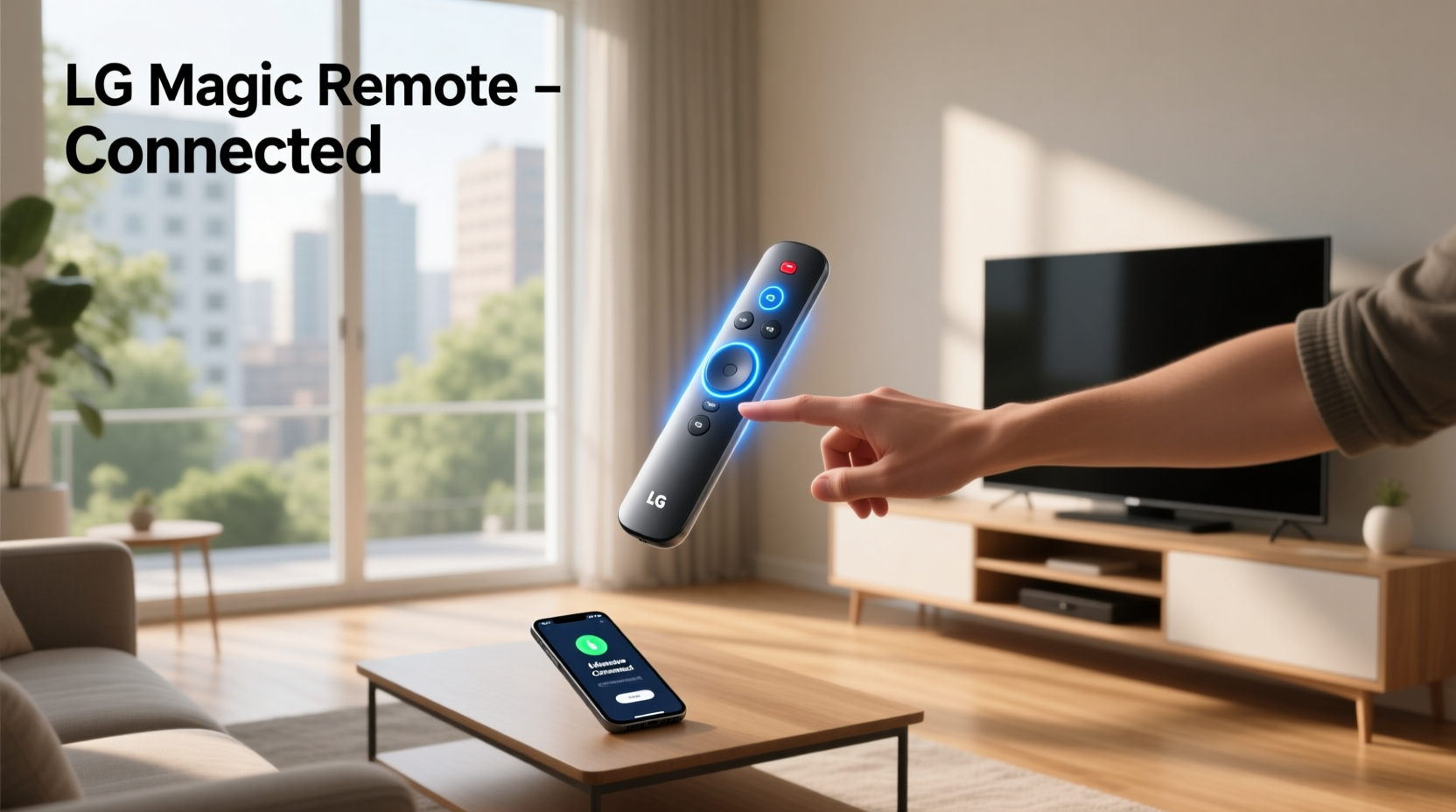 settings”
style=”max-width: 100%; height: auto; border: 2px solid black; border-radius: 10px; display: block; margin: 0 auto;”
loading=”lazy”
/>
How to Pair LG Magic Remote With TV After a Reset
A reset can remove the remote’s connection. This may happen after resetting the TV, changing the remote, or using the remote with another LG television.
To pair the remote again:
-
Turn on the LG TV.
-
Point the remote at the screen.
-
Press and hold the Home and Back buttons together for about five seconds.
-
Release the buttons when the power button flashes or a registration message appears.
-
Press the Wheel button.
-
Wait for the confirmation message.
This button combination works on many recent Magic Remote models, but not every model uses it. Some older remotes use Home and Settings, while others require a dedicated Mute button sequence. If Home and Back do nothing, check the remote’s model instructions rather than repeating the same steps.
After unpairing, the remote may still control power or volume through infrared. That does not mean Bluetooth registration is complete. Test the pointer and voice function to confirm a full connection.
How to Unpair and Re-Pair an LG Magic Remote
Sometimes the remote is paired with the wrong LG TV. This can happen in homes with two LG televisions in nearby rooms.
To reset the remote connection on many models:
-
Aim the remote at the TV.
-
Press and hold the Home and Back buttons for about five seconds.
-
Watch for a message that says the remote has been unregistered.
-
Press the Wheel button to register it again.
Some older Magic Remotes use the Guide button to unpair. If the first method does not work, open the TV’s Magic Remote settings and choose Unregister or Disconnect.
Keep the remote close to the correct TV during this process. If two LG TVs are powered on nearby, the remote may try to connect to the wrong one. Turning off the second TV can prevent confusion.
Why the LG Magic Remote Will Not Pair
A failed pairing attempt usually has a simple cause. Check these issues in order.
The batteries are weak
The remote may still send infrared commands with weak batteries, but Bluetooth pairing needs a stronger and steadier signal. Replace both batteries at the same time, and do not mix old and new batteries.
The remote is not compatible
A Magic Remote must support the TV’s webOS version and model range. A remote may turn the TV on but still fail to provide pointer or voice features if it is not compatible.
Check the TV manual or LG’s compatibility information before buying a replacement. Matching the remote model is safer than choosing one based only on appearance.
The TV is too far away
During registration, stand within a few feet of the TV. Point the remote toward the screen and remove objects that block the front of the remote.
Bluetooth does not always require a direct line of sight after pairing, but the first registration may still depend on the remote’s infrared signal.
Another remote is connected
The TV may already have a different Magic Remote registered. Unregister the old remote, then repeat the pairing steps with the new one.
The TV software needs attention
A software update can improve Bluetooth stability and remote support. Open Settings, choose Support, and look for Software Update. Menu names differ, so use the TV’s search feature if available.
Do not unplug the TV during an update. Wait until the update finishes and the TV restarts.
Troubleshooting Steps That Usually Work
If you still cannot pair the remote, use this practical sequence. It clears most temporary connection errors.
-
Turn the TV off.
-
Unplug the TV from the wall for about one minute.
-
Remove the batteries from the Magic Remote.
-
Plug the TV back in and turn it on.
-
Install fresh batteries in the remote.
-
Stand close to the TV.
-
Hold Home and Back for about five seconds if your remote supports that reset.
-
Press the Wheel button.
-
Wait for the registration message.
This process restarts both sides of the connection. It is similar to restarting a phone and router when Wi-Fi stops working.
If the pointer appears but voice search does not work, check the microphone button and internet connection. Voice commands require a supported remote, a supported TV, and network access. Privacy settings may also limit voice features.
If the remote controls the TV but the pointer does not appear, Bluetooth registration may be incomplete. Repeat the unpair and re-pair process rather than replacing the remote immediately.
How to Use the Magic Remote After Pairing
Once the LG Magic Remote is registered, move it gently to control the on-screen pointer. You do not need to wave it sharply. Small wrist movements are more accurate.
Important controls include:
• Wheel or OK: Selects an item and scrolls through lists
• Home: Opens the webOS home screen
• Back: Returns to the previous screen
• Settings: Opens quick settings
• Microphone button: Starts voice search on supported models
• Number buttons: Enter channels or numbers
• Volume and channel buttons: Adjust sound and change channels
You can also configure shortcut buttons on some models. Pressing and holding a number may open an assigned app, depending on the TV software and remote version.
The pointer can feel too sensitive at first. Use Settings, Accessibility, and Pointer Options to adjust its speed or size when those controls are available. A slower pointer often helps older viewers and anyone who prefers precise menu control.
Common Mistakes to Avoid
Many pairing problems come from small oversights rather than faulty equipment.
• Do not press random buttons while the TV is registering the remote.
• Do not use batteries that have been stored for years.
• Do not assume every LG remote works with every LG TV.
• Do not test the remote from across the room during setup.
• Do not keep a second LG TV powered on nearby.
• Do not confuse infrared control with Bluetooth pairing.
• Do not reset the TV unless simpler steps have failed.
One useful lesson from helping people with home entertainment setups is to test one feature at a time. First check power. Then check the pointer. Finally test voice search and app shortcuts. This approach quickly shows whether the issue affects the whole remote or only one function.
When to Replace the Remote or Contact LG
A replacement may be necessary if the remote has liquid damage, cracked buttons, corrosion, or no light from the power button after you install fresh batteries.
Before buying one, confirm three details:
• The exact TV model
• The Magic Remote model number
• Whether the replacement supports pointer and voice functions
Generic replacements may offer basic navigation but lack full LG features. An official replacement or a clearly compatible model is usually the safer choice.
Contact LG support if the TV cannot register any compatible Magic Remote, Bluetooth devices repeatedly disappear, or the TV shows a hardware error. A service technician may need to inspect the TV’s Bluetooth module.
Your TV warranty may cover a hardware fault, but accidental remote damage is often excluded. Check the warranty terms before paying for service.
Frequently Asked Questions About How to Pair LG Magic Remote With TV
How do I pair an LG Magic Remote with my TV?
Turn on the TV, insert fresh batteries, point the remote at the screen, and press the Wheel or OK button. The TV should display a registration message and connect the remote automatically.
Why is my LG Magic Remote not registering?
Weak batteries, an incompatible remote, an existing remote connection, or a software issue can prevent registration. Replace the batteries, restart the TV, unregister the old remote, and try again from a short distance.
How do I reset my LG Magic Remote?
On many models, hold the Home and Back buttons together for about five seconds. Older models may use a different button combination, so check the remote model guide if this shortcut does not work.
Can I use an LG Magic Remote without pairing it?
Basic power, volume, and channel commands may work through infrared without Bluetooth registration. The pointer, voice search, and some smart features usually require pairing.
How do I pair an LG Magic Remote after replacing the batteries?
Replacing batteries normally does not erase the pairing. If the remote stops working, install two fresh batteries, point it at the TV, and press the Wheel button to register it again.
Will any LG Magic Remote work with my LG TV?
No. Compatibility depends on the TV model, webOS version, and remote generation. Check the TV manual or the remote model number before buying a replacement.
Can I pair one Magic Remote with two LG TVs?
A Magic Remote generally connects to one TV at a time. If you use it with another LG TV, you may need to unregister it from the first TV and register it with the second.
Conclusion
Learning how to pair LG Magic Remote with TV usually takes only a few steps: turn on the TV, install fresh batteries, point the remote at the screen, and press the Wheel button. If registration fails, reset the remote, restart the TV, check compatibility, and try again from close range.
Do not mistake basic infrared control for a full Bluetooth connection. Test the pointer, voice feature, and smart menus to make sure pairing is complete. Save this guide for future setup, and share your LG TV model or pairing experience in the comments.

Everett Ashford is a tech reviewer at mytechgrid.com specializing in SSDs, cameras, TVs, earbuds, headphones, and other consumer electronics. He provides honest, data-driven reviews based on hands-on testing and real-world performance analysis. Everett simplifies complex tech details to help readers make smart, confident buying decisions.