Install a compatible M.2 NVMe SSD in the PS5 expansion slot, secure its heatsink, then format it through Storage settings.
Learning how to install SSD in PS5 disc version is simple when you use the right drive and follow the console’s exact fit limits. I have seen most installation problems come from choosing the wrong SSD, forcing the cover, or skipping the format step. This guide explains each part clearly, from choosing a compatible M.2 drive to moving games after installation.
What You Need Before Installing an SSD in a PS5 Disc Version
The PS5 disc version supports an internal M.2 SSD through its dedicated expansion bay. This lets you store and play compatible PS5 and PS4 games without relying only on the console’s built-in storage.
You do not need to open the main console housing. The expansion slot sits beneath one of the large white side panels, so the process is safer than many users expect.


Before you begin, collect these items:
• A compatible M.2 NVMe SSD
• A compatible heatsink for the SSD
• A small Phillips screwdriver, usually a #1 or #2 size
• A clean, flat work surface
• A soft cloth to protect the console


• Your PS5 power cable and controller for the setup test
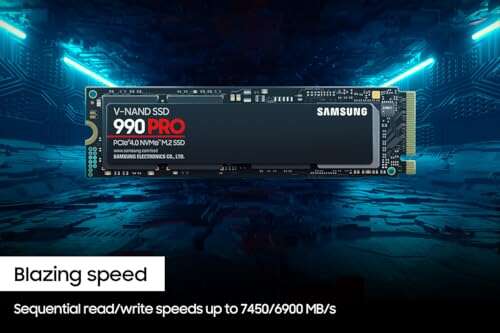
The SSD must use a PCIe Gen4 x4 interface. Sony recommends a sequential read speed of at least 5,500 MB/s for smooth performance. The drive must also fit the PS5’s size limits.
The supported storage range is 250GB to 8TB. A 1TB or 2TB drive is often the best balance for most players because larger games can use more than 100GB each.

Choosing the Right SSD for Your PS5 Disc Edition
The most important part of how to install SSD in PS5 disc version is selecting a drive that meets every requirement. A drive can be fast on a PC but still fail to fit inside the PS5 expansion bay.
Look for these specifications:
• M.2 NVMe design
• PCIe Gen4 x4 interface
• Storage capacity from 250GB to 8TB
• Recommended read speed of 5,500 MB/s or faster
• A suitable cooling heatsink
• Maximum width of 22 mm for the SSD module
• Supported lengths of 30, 42, 60, 80, or 110 mm
The most common size is M.2 2280. In this label, “22” means the drive is 22 mm wide, and “80” means it is 80 mm long.
A heatsink is not optional. The PS5 needs the SSD to stay within a safe temperature range during long game sessions. Some SSDs include a built-in heatsink, while others require a separate low-profile model.


Check the total height before buying. The SSD and heatsink together must not exceed the PS5’s clearance limit of 11.25 mm. The heatsink should also stay within the console’s allowed width.
Avoid these products:
• M.2 SATA SSDs
• PCIe Gen3 SSDs
• SSDs without suitable cooling
• Oversized desktop heatsinks
• External USB drives marketed as internal PS5 upgrades
An external USB SSD can store PS5 games, but it cannot run PS5 games directly. You must copy those games back to internal storage or the internal M.2 SSD before playing them.
Back Up Your PS5 Before Opening the console
learning how to install SSD in PS5 disc version does not normally affect saved data, but backing up important files is still wise. A careful setup reduces stress if the console needs a system repair or if something unexpected happens.
Cloud saves are available through PlayStation Plus. You can also use the PS5 data transfer tools to move important content to another console or storage device.
Before you start:
• Update the PS5 system software
• Sync your game saves
• Turn off the console fully


• Unplug every cable
• Wait several minutes for the console to cool
Do not install the drive while the PS5 is in Rest Mode. Hold the power button until the console beeps and shuts down completely. Then unplug the power cable and any USB accessories.
Place the console on a soft, clean cloth. Keep drinks, metal objects, pets, and loose screws away from the work area. Static electricity is unlikely to damage modern hardware in normal home use, but touching a grounded metal object before handling the SSD is a sensible precaution.
 console”
style=”max-width: 100%; height: auto; border: 2px solid black; border-radius: 10px; display: block; margin: 0 auto;”
loading=”lazy”
/>
How to Install SSD in PS5 Disc Version Step by Step
The following method applies to the standard PS5 disc edition with an M.2 expansion slot. Console shapes and cover removal points can vary slightly by model, so use the printed model information and the official hardware guide if your panel feels different.
1. Remove the stand and cables
Take off the vertical or horizontal stand. Remove the HDMI cable, power cable, USB devices, and network cable.
Place the PS5 on its side with the PlayStation logo facing down. Keep the disc drive side positioned according to the console guide. The goal is to expose the correct white outer panel without pressing on the disc drive.
2. Remove the outer cover
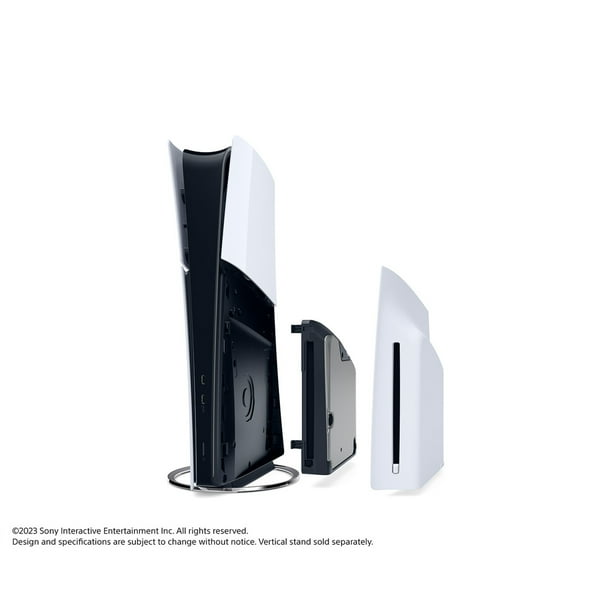
Grip the raised edge of the white cover near the appropriate corner. Lift the cover slightly, then slide it in the direction shown by the panel design.
Do not twist the panel or use a screwdriver to pry it open. The plastic clips release with controlled pressure. If the cover does not move, check the console’s position and try again with a firm, even motion.
A common mistake I have seen is pulling straight upward with too much force. That can stress the clips. Think of the panel like a sliding lid rather than a hinged door.
3. Locate the M.2 expansion bay
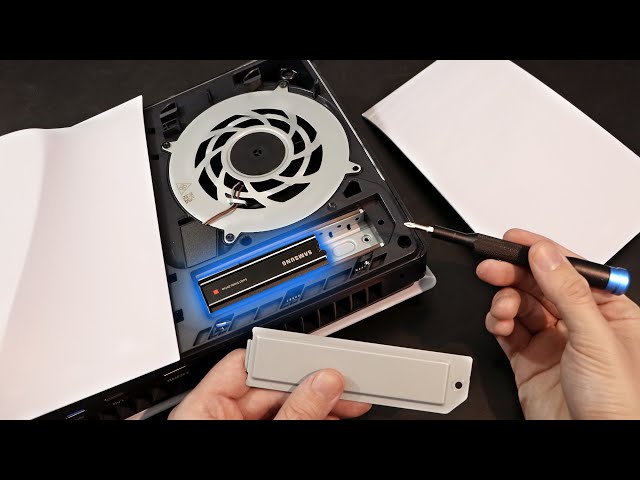
Under the cover, find the small rectangular metal expansion cover. It is secured with one screw.
Remove the screw and lift away the metal cover. Keep the screw nearby so it does not roll under furniture or become mixed with other parts.
Inside the bay, you will see a spacer and a screw post. The spacer may be positioned for a specific SSD length. Move it to the hole that matches your drive.
For an M.2 2280 SSD, place the spacer at the 80 mm position.
4. Insert the M.2 SSD
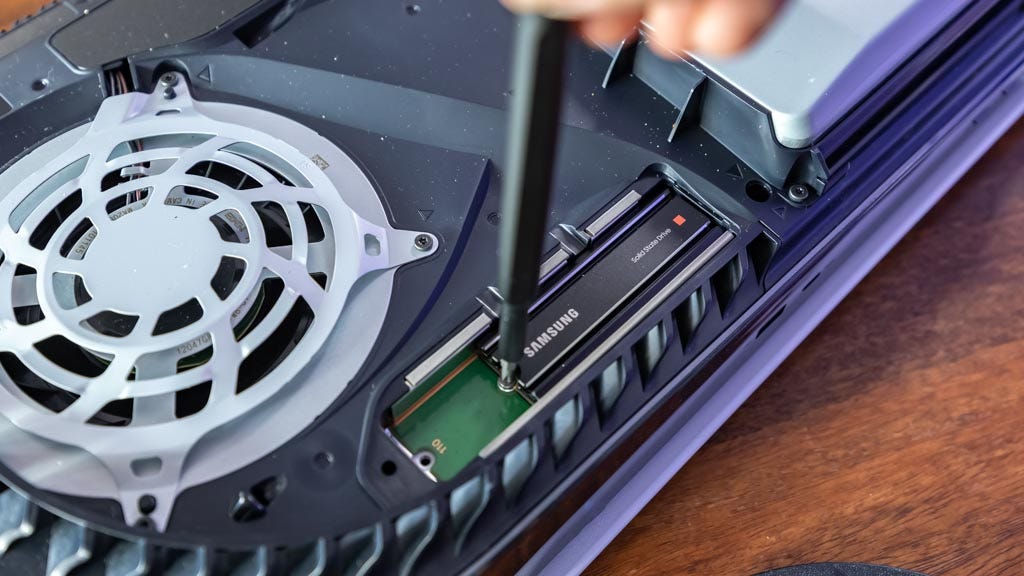
Hold the SSD by its edges. Avoid touching the gold connector pins or the chips on the circuit board.


Insert the connector end into the slot at about a 30-degree angle. The notch on the SSD must match the key inside the socket. Once the connector is fully seated, lower the free end toward the spacer.
Do not push the drive straight down into the slot. It should slide in first, then lower gently. If the SSD does not fit, stop and check its type and orientation.
5. Secure the SSD
Use the included screw to secure the SSD to the spacer. Tighten it until the drive is held flat and stable.
Do not overtighten the screw. The goal is to stop movement, not crush the circuit board. If your SSD has a heatsink, confirm that it does not block the screw hole or touch the metal cover.
6. Replace the expansion cover
Put the metal expansion cover back in place. Reinstall its screw and tighten it gently.
The cover should sit flat. If it does not, the heatsink may be too tall or incorrectly installed. Never force the cover closed because poor clearance can place pressure on the SSD.
7. Reattach the PS5 panel
Slide the white cover back into position until it clicks into place. Check all edges and confirm that the panel sits evenly.
Reconnect the stand and return the console to its normal position. Then reconnect the power, HDMI, and network cables.
8. Format the SSD through the PS5 menu
Turn on the console. If the SSD is detected, the PS5 will display a message asking you to format it.
Follow the on-screen instructions. Formatting erases all data on the drive and prepares it for PS5 game storage.
If no message appears, open:
Settings > Storage > M.2 SSD Storage
Choose the format option shown on the screen. Once complete, the PS5 will display the available capacity and performance information.
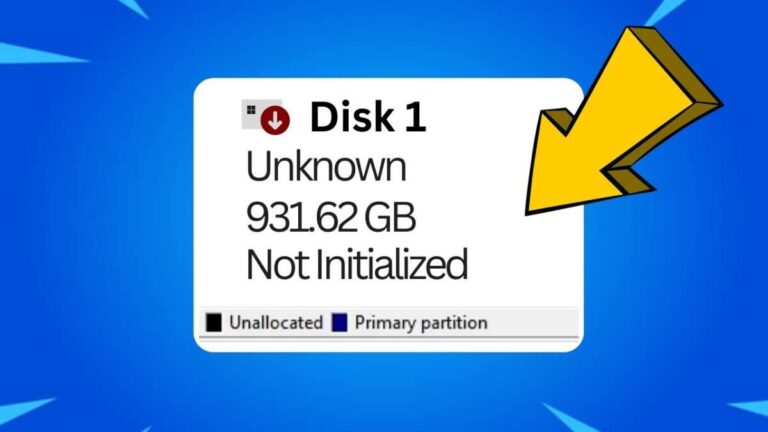
This formatting step is a required part of how to install SSD in PS5 disc version. A computer may recognize the drive, but the PS5 must format it before using it for games.

How to Check That the New SSD Works
After learning how to install SSD in PS5 disc version, test the drive before moving your entire game library. A short test can reveal a poor connection or an incompatible drive.
Check the following:
• The M.2 SSD appears under Settings > Storage
• The available capacity looks reasonable
• The PS5 reports a read speed
• You can move a small game to the drive
• The game launches from the M.2 SSD
To move a game, highlight it on the home screen, press the Options button, and select Move Games and Apps. Choose the internal M.2 SSD as the destination.
Start with a smaller game or application. After the move finishes, launch it and play for a few minutes. If everything works normally, you can move more of your library.
The displayed capacity will be lower than the number printed on the box. This is normal because storage manufacturers use decimal measurements, while the console reserves space for system functions and uses a different calculation method.
How to Move PS5 and PS4 Games to the SSD
The main benefit of how to install SSD in PS5 disc version is gaining more fast storage for games. The PS5 can use the M.2 SSD for both PS5 and PS4 titles.
To move games:
-
Open Settings.
-
Select Storage.
-
Choose Console Storage.
-
Select Move PS5 Games and Apps.
-
Choose the games you want to transfer.
-
Select Move.
You can also change the default installation location. Open Storage settings and select the M.2 SSD as the preferred location for new PS5 and PS4 game installations.
Disc-based games still require the disc to be inserted when you play. Installing the game to the M.2 SSD does not remove the disc license check.
Digital games work in the same way as before. The console uses your account license, while the M.2 SSD stores the game files.
An important limit remains: PS5 games cannot run directly from a USB extended-storage drive. If you already use an external drive, keep PS4 games there and reserve the M.2 SSD for PS5 games that need faster internal storage.

Common Problems When Installing an SSD
Most issues with how to install SSD in PS5 disc version come from fit, compatibility, or installation errors. The good news is that each problem has a logical check.
The PS5 does not detect the SSD
Turn the console off and unplug it. Remove the expansion cover and check that the SSD is fully inserted into the M.2 slot.
Also check these points:
• The drive is M.2 NVMe, not M.2 SATA
• The connector notch is aligned
• The securing screw holds the drive flat
• The expansion cover is not pressing on the heatsink
• The PS5 software is updated
The SSD format message does not appear
Open Settings > Storage > M.2 SSD Storage. The console may show the drive there even if the automatic setup message did not appear.
If the drive is not listed, power down the console and reseat it. Do not format the drive on a computer and assume that will solve the PS5 issue.
The expansion cover will not close
The heatsink is likely too tall or too wide. Remove it and measure the total height of the SSD and heatsink.
A thin, PS5-compatible heatsink is safer than a large PC heatsink. The metal bay cover must sit flat without pressure.
The PS5 reports a low read speed
The console’s speed test is an estimate. It can vary by drive model, firmware, temperature, and testing conditions.
A result slightly below the advertised number does not always mean the SSD is faulty. However, a major difference may indicate a slower drive, poor connection, or an incompatible interface.
Games show errors after being moved
Restart the PS5 and test another game. If the issue continues, move the affected title back to console storage and check for system software updates.
Persistent errors may point to an SSD fault or a cooling problem. Avoid repeatedly formatting the drive before checking the physical installation.

Mistakes to Avoid During the Installation
A smooth installation depends more on patience than advanced technical skill. These mistakes can cause damage or wasted time:
• Buying an M.2 SATA drive instead of an NVMe PCIe Gen4 model
• Using an SSD without a heatsink
• Installing a heatsink that exceeds the height limit
• Pulling the side cover upward instead of sliding it
• Touching the SSD connector pins
• Forcing the SSD into the slot
• Leaving the spacer in the wrong position
• Overtightening the retaining screw
• Forgetting to format the drive
• Disconnecting power while the PS5 is moving data
In my experience, the most preventable error is rushing the cover removal. The panel may feel tight, but steady pressure is better than a sudden pull. Another useful habit is taking a quick photo of the spacer position before moving it.
Keep the original screw and metal cover together. If you later replace the SSD, these small parts are easy to lose.
Is an SSD Upgrade Worth It for the PS5 Disc Version?
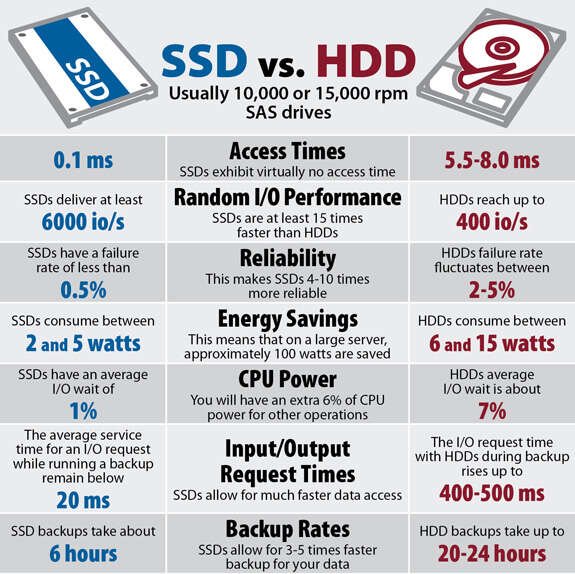
For many players, yes. The PS5’s built-in storage fills quickly, especially when large games, updates, and downloadable content share the same space.
An internal M.2 SSD offers these benefits:
• More room for PS5 games
• Fast game loading
• Easy game transfers
• No need to delete games as often
• A cleaner setup than using several external drives
The upgrade does not increase frame rates by itself. It also does not turn an older game into a next-generation version. Its main value is added capacity and fast access to stored games.
A 1TB SSD may provide a useful upgrade, but its usable space will be lower than 1TB. A 2TB model gives more breathing room for players with a large digital library or frequent game downloads.
Price is the main limitation. Compare the total cost of the drive and heatsink with the value of the extra space. Avoid choosing a suspiciously cheap drive with unclear specifications, as unreliable storage can lead to errors and replacement costs.

Frequently Asked Questions About How to Install SSD in PS5 Disc Version
Can I install any M.2 SSD in a PS5 disc version?
No. The drive must be an M.2 NVMe PCIe Gen4 x4 SSD that fits the PS5’s size and height limits. It should also meet the recommended read speed of at least 5,500 MB/s and use suitable cooling.
Does the PS5 disc version support an internal SSD upgrade?
Yes. The PS5 disc version includes an M.2 expansion slot for compatible internal storage. The disc drive does not prevent you from installing or using the SSD.
Do I need a heatsink for the PS5 SSD?
Yes. The SSD needs a compatible cooling heatsink to help manage heat during game downloads and long play sessions. Make sure the combined SSD and heatsink height stays within the PS5’s clearance limit.
Will installing an SSD delete my existing PS5 games?
No. Installing and formatting the new M.2 SSD does not normally delete games from console storage. Still, back up important saves and avoid selecting the wrong storage device during any format prompt.
Can PS5 games run from an external USB SSD?
No. PS5 games can be stored on a USB extended-storage drive, but they must be moved to console storage or the internal M.2 SSD before they can run. PS4 games can run directly from compatible USB extended storage.
What size SSD should I buy for a PS5 disc version?
A 1TB SSD suits casual players, while a 2TB model is better for large libraries. The PS5 supports compatible M.2 SSDs from 250GB up to 8TB, but your budget and game habits should guide the choice.
How long does it take to install an SSD in a PS5?
The physical installation often takes about 10 to 20 minutes when the correct tools and drive are ready. Moving games can take much longer because transfer time depends on the game size and storage speed.
Conclusion
Knowing how to install SSD in PS5 disc version makes it easy to expand your game library without replacing the console. Choose a compatible PCIe Gen4 NVMe drive, use a low-profile heatsink, install it gently, and format it through the PS5 storage menu.
Take your time with the side panel, check the drive fit before tightening the screw, and test one game before transferring everything. With these steps, your PS5 disc edition can gain fast, reliable storage for many more games.
Choose your SSD carefully, follow the installation process, and explore more PS5 storage guides to get the most from your console.

Everett Ashford is a tech reviewer at mytechgrid.com specializing in SSDs, cameras, TVs, earbuds, headphones, and other consumer electronics. He provides honest, data-driven reviews based on hands-on testing and real-world performance analysis. Everett simplifies complex tech details to help readers make smart, confident buying decisions.