Use an SSD by installing it correctly, formatting it, moving files or apps, and maintaining free space for steady speed.
Learning how to use an SSD drive can make an older computer feel new and help a modern PC start, load, and respond faster. The process is simple once you know the drive type, connection, file system, and safe setup steps. This guide explains how to use an SSD drive for a laptop, desktop, gaming system, backup device, or portable storage without risking your important files.

What Is an SSD Drive?
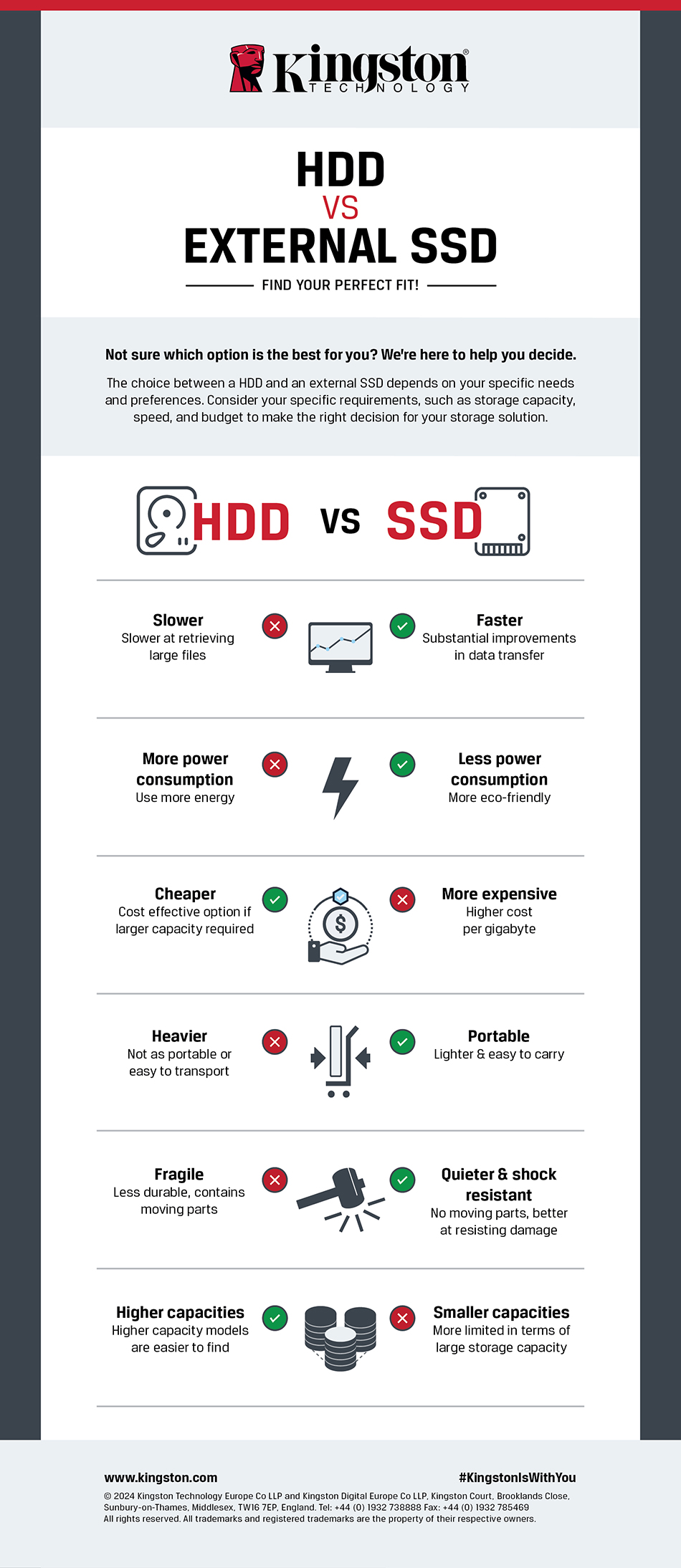
An SSD, or solid-state drive, stores data on flash memory chips. It has no spinning platters or moving read heads, unlike a traditional hard disk drive. Think of an HDD as a record player and an SSD as a digital library: the SSD can find information without waiting for a physical part to move.
SSDs are available in several forms:
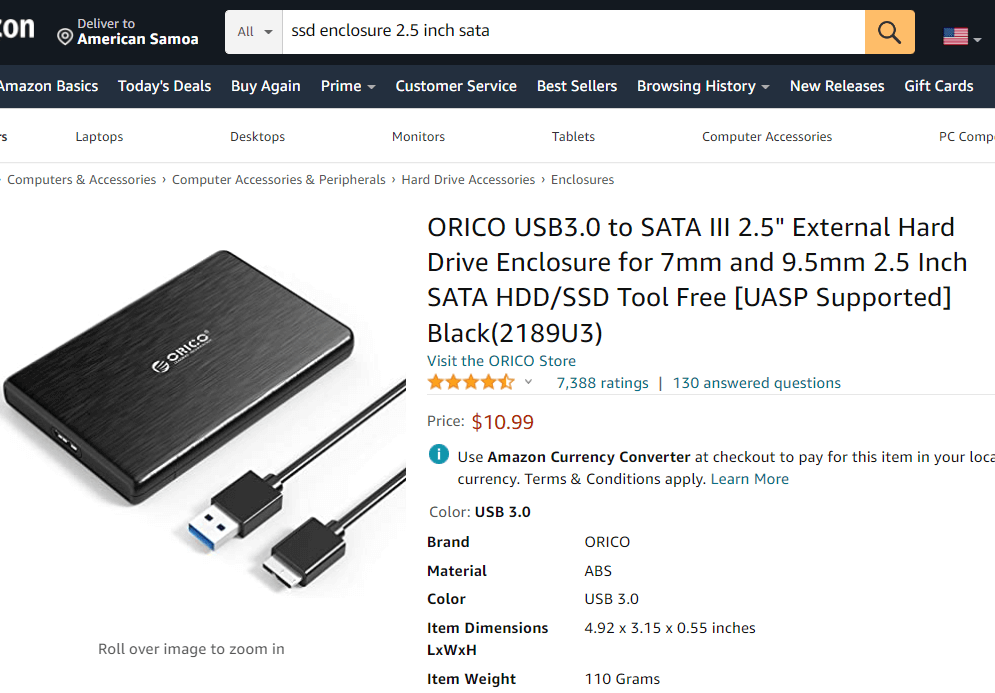
• A 2.5-inch SATA SSD uses a data cable and a power cable.
• An M.2 SATA SSD fits into a slim M.2 slot but uses the SATA protocol.
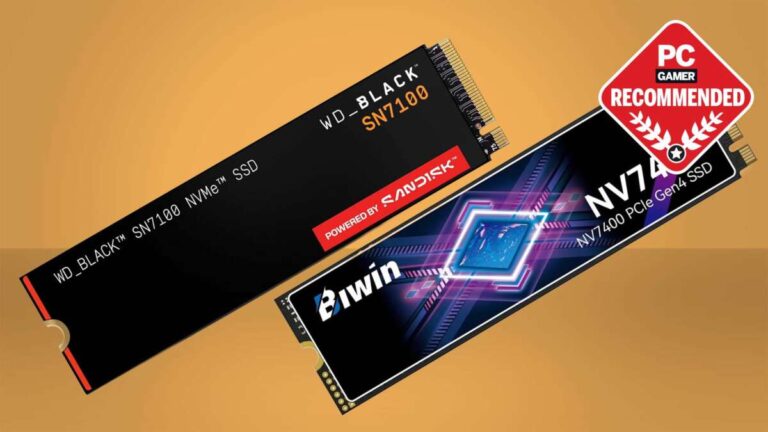
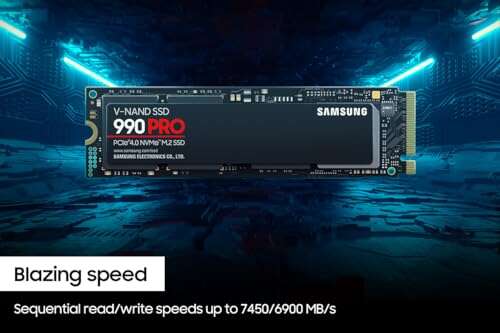
• An M.2 NVMe SSD fits into an M.2 slot and uses PCIe for much higher speed.
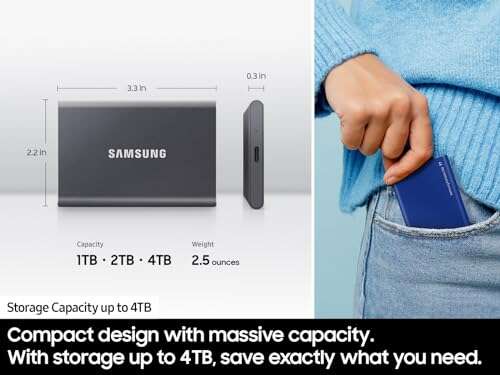
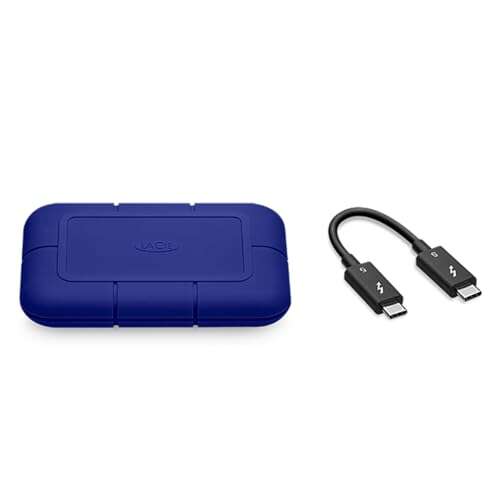
• An external SSD connects through USB, USB-C, or Thunderbolt.
The exact steps for how to use an SSD drive depend on its type. A SATA SSD needs the correct cables, while an M.2 drive needs a compatible slot and the right mounting screw.
An SSD can improve boot time, app loading, file transfers, and game loading. However, it will not fix every computer problem. A slow processor, low memory, weak internet connection, or overheating system may still limit performance.
Check SSD Compatibility Before Installation
Before learning how to use an SSD drive inside a computer, confirm that the drive matches your system. Installing the wrong type can waste time and, in rare cases, damage a connector.
Check these details:
• Drive size: Confirm whether your laptop or desktop supports 2.5-inch, M.2 2230, M.2 2242, M.2 2260, or M.2 2280 hardware.
• Interface: Check whether the slot supports SATA, NVMe, or both.
• PCIe generation: PCIe 3.0, 4.0, and 5.0 drives can differ in speed. Newer drives often work in older slots, but they may run at the older slot’s speed.
• Capacity: Choose enough space for your operating system, applications, games, and future files.
• Operating system support: Modern versions of Windows, macOS, and Linux support SSD storage, but older systems may need special drivers or firmware updates.
For a desktop, check the motherboard manual. For a laptop, check the manufacturer’s service guide. A small M.2 drive may look like a universal part, but not every M.2 slot supports every protocol.
A useful rule is to leave at least 10% to 20% of the SSD empty. This gives the drive room for background maintenance and can help preserve consistent write performance.
How to Install an Internal SSD
The safe installation process is simple, but patience matters. Before opening a computer, shut it down fully, unplug it, and disconnect the battery when the manufacturer allows it.
Installing a 2.5-Inch SATA SSD
Follow these steps:
-
Turn off the computer and unplug its power cable.
-
Touch a grounded metal surface or use an anti-static wrist strap.
-
Open the case or laptop access panel.
-
Place the SSD in the correct drive bay or mounting bracket.
-
Connect one SATA data cable to the motherboard.
-
Connect one SATA power cable from the power supply.
-
Close the case and start the computer.
A 2.5-inch SSD does not always include a mounting bracket or SATA cable. Check your computer parts before starting.
Installing an M.2 SSD
Use this process for most internal M.2 drives:
-
Turn off the computer and disconnect power.
-
Find the correct M.2 slot on the motherboard.
-
Remove the small retaining screw or heatsink.
-
Insert the SSD at a slight angle.
-
Push the drive down gently.
-
Secure it with the retaining screw.
-
Replace the heatsink if the motherboard includes one.
Never force an M.2 SSD into place. The notch on the connector must match the slot. If the drive does not sit flat, stop and check the slot, screw position, and drive length.
During hands-on computer upgrades, one common mistake is removing a motherboard heatsink without checking its thermal pad. If the pad sticks to the old drive, replace it before installing the new one. Good contact helps an NVMe SSD manage heat during long file transfers.

How to Use an SSD Drive as a New Storage Device
A new SSD may not appear in File Explorer immediately. Windows usually needs you to initialize, partition, and format the drive first.
Set Up an SSD in Windows
-
Press Windows key + X.
-
Select Disk Management.
-
Find the new SSD by checking its capacity.
-
If asked to initialize the disk, select GPT.
-
Right-click the unallocated space.
-
Choose New Simple Volume.
-
Select a drive letter.
-
Format the volume as NTFS for regular Windows use.
-
Give the drive a clear name, such as Games or Projects.
GPT is the best choice for most modern computers. It supports large drives and works with UEFI systems. MBR may be needed for some older computers, but it has more limits.
Be careful when using Disk Management. Always check the drive capacity and model before deleting a partition. Formatting the wrong disk can erase personal files.
Set Up an SSD on macOS
On a Mac, open Disk Utility and select View, then Show All Devices. Choose the physical SSD, click Erase, and select the correct format.
Use APFS for a modern Mac used mainly with macOS. Use exFAT if you need to move files between macOS and Windows. Avoid formatting the wrong device, especially when several drives are connected.
Set Up an SSD in Linux
Linux users can use tools such as GNOME Disks, KDE Partition Manager, or command-line utilities. For a data drive, common choices include ext4 for Linux-only use and exFAT for cross-platform sharing.
Partitioning tools are powerful. Confirm the device name with care before running a format or partition command.
How to Use an SSD Drive as a Boot Drive
Using an SSD as a boot drive means installing the operating system on it. This usually gives the biggest improvement because Windows or macOS can access system files much faster.
You have two main options:
• Perform a clean operating system installation.
• Clone your existing system to the new SSD.
A clean installation removes old files, unwanted software, and system clutter. It is often the best choice when the current computer has years of unused programs or repeated errors.
Cloning keeps your apps, settings, accounts, and files. It is more convenient, but it can copy problems to the new drive. Before cloning, remove unnecessary programs and run a malware scan.
Basic Cloning Process
-
Back up important files to a separate drive.
-
Connect the new SSD.
-
Install reliable disk-cloning software.
-
Select the old system drive as the source.
-
Select the SSD as the destination.
-
Confirm that the destination is correct.
-
Start the clone and avoid using the computer during the process.
-
Shut down after cloning.
-
Set the SSD as the first boot device in UEFI or BIOS.
-
Start the computer and test the new system.
If the new SSD has less capacity than the old drive, the used space on the old drive must fit. You may need to shrink the old system partition first.
After the system starts from the SSD, open Disk Management or Disk Utility and confirm that the boot partition is on the new drive. Do not erase the old drive until you have tested the new system for several days.

How to Move Files, Apps, and Games to an SSD
You can use an SSD for more than the operating system. Moving large programs and frequently used files can improve loading times.
Move Personal Files
Move active files such as videos, photo catalogs, design projects, and work folders to the SSD. Keep large archives on a hard drive or network storage if you need extra capacity.
Maintain at least two copies of important files. An SSD is fast, but it is not a backup. Flash memory can fail without much warning, just like any other storage device.
Move Games
Most game launchers let you move installed games:
-
Open the launcher’s storage or library settings.
-
Add the SSD as a library location.
-
Choose the game.
-
Select Move or Change Installation Location.
-
Choose the SSD.
Game loading may improve, but frame rates may not change much. Graphics performance depends mainly on the graphics processor, processor, memory, and game settings.
Move Apps
Some Windows apps can move through Settings, Apps, and Installed apps. Traditional desktop programs may need to be uninstalled and installed again on the SSD.
Do not move system folders by dragging them manually. This can break shortcuts, permissions, updates, or startup files.
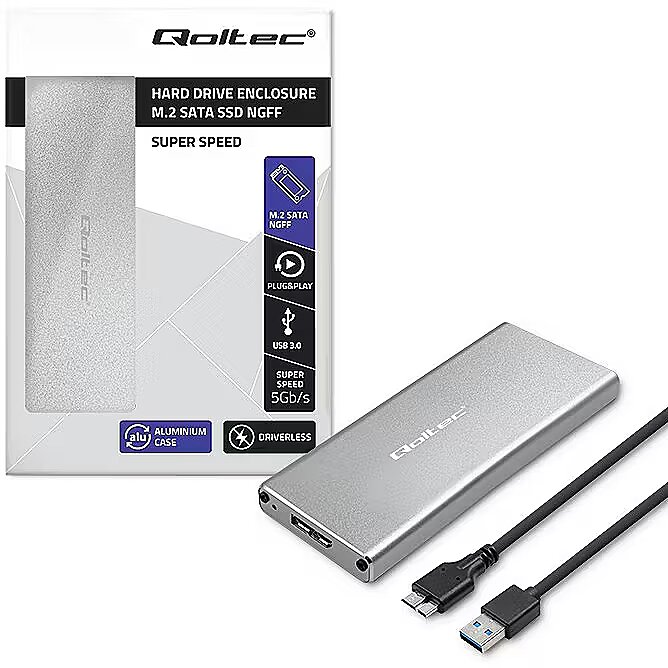
How to Use an External SSD
An external SSD is useful for backups, file transfers, video editing, and portable work. It is usually easier to use than an internal drive.
Connect the SSD to a compatible USB or Thunderbolt port. A USB-C connector does not always mean high speed, because the port may use a slower USB standard. Check the computer, cable, enclosure, and SSD specifications.
For Windows, format the drive as NTFS for Windows-only use or exFAT for Windows and Mac sharing. For Mac-only use, APFS is usually the better choice.
Always eject an external SSD before unplugging it:
-
Close files stored on the drive.
-
Close apps that use the drive.
-
Select Eject in File Explorer or Finder.
-
Wait for the safe removal message.
-
Disconnect the cable.
Removing the drive during a write can corrupt files. This is especially risky when copying videos, databases, or large folders.

SSD Maintenance and Performance Tips
Modern SSDs need less maintenance than hard drives, but they are not maintenance-free. These habits can help your SSD remain stable.
Keep the SSD Cool
High temperatures can reduce performance during long writes. Make sure the computer has good airflow. If an NVMe drive includes a heatsink, install it correctly and keep dust away from cooling fans.
Enable TRIM
TRIM helps the operating system tell the SSD which data blocks are no longer needed. This allows the drive to manage free space more efficiently.
Windows usually enables TRIM automatically. You can check it by opening Command Prompt as an administrator and running:
fsutil behavior query DisableDeleteNotify
A result of 0 generally means TRIM is enabled for supported storage.
Do not run traditional hard-drive defragmentation on an SSD as a routine task. Windows uses storage optimization tools that can send TRIM commands instead.
Update Firmware Carefully
SSD makers may release firmware updates that improve stability, compatibility, or performance. Back up your data before updating. Read the instructions carefully and avoid interrupting power during the update.
Monitor Drive Health
Storage tools may report temperature, total bytes written, estimated life, and SMART warnings. These values are useful, but they are estimates rather than guarantees.
A drive that shows good health can still fail. A drive that reports high wear may continue working for years. Use health reports as an early warning, not as a substitute for backups.
Avoid Filling the Drive Completely
A full SSD can become slower and harder to manage. Leave free space for temporary files, updates, and internal maintenance.
In practical upgrades, the biggest mistake is often buying a drive that is technically fast but too small. A slightly larger SSD with free space is usually more useful than a smaller model with impressive benchmark numbers.
SSD Benefits and Limitations
Understanding both sides helps you decide how to use an SSD drive in a realistic way.
Main Benefits
• Faster system startup.
• Quicker application launches.
• Faster game loading.
• Better response during multitasking.
• Lower noise because there are no moving parts.
• Lower power use in many laptops.
• Better resistance to movement than a spinning hard drive.
Important Limitations
• SSDs can cost more per gigabyte than hard drives.
• Flash memory has a limited write endurance rating.
• SSDs can fail suddenly.
• Performance may drop when the drive is nearly full.
• Cheap models may have slower sustained write speeds.
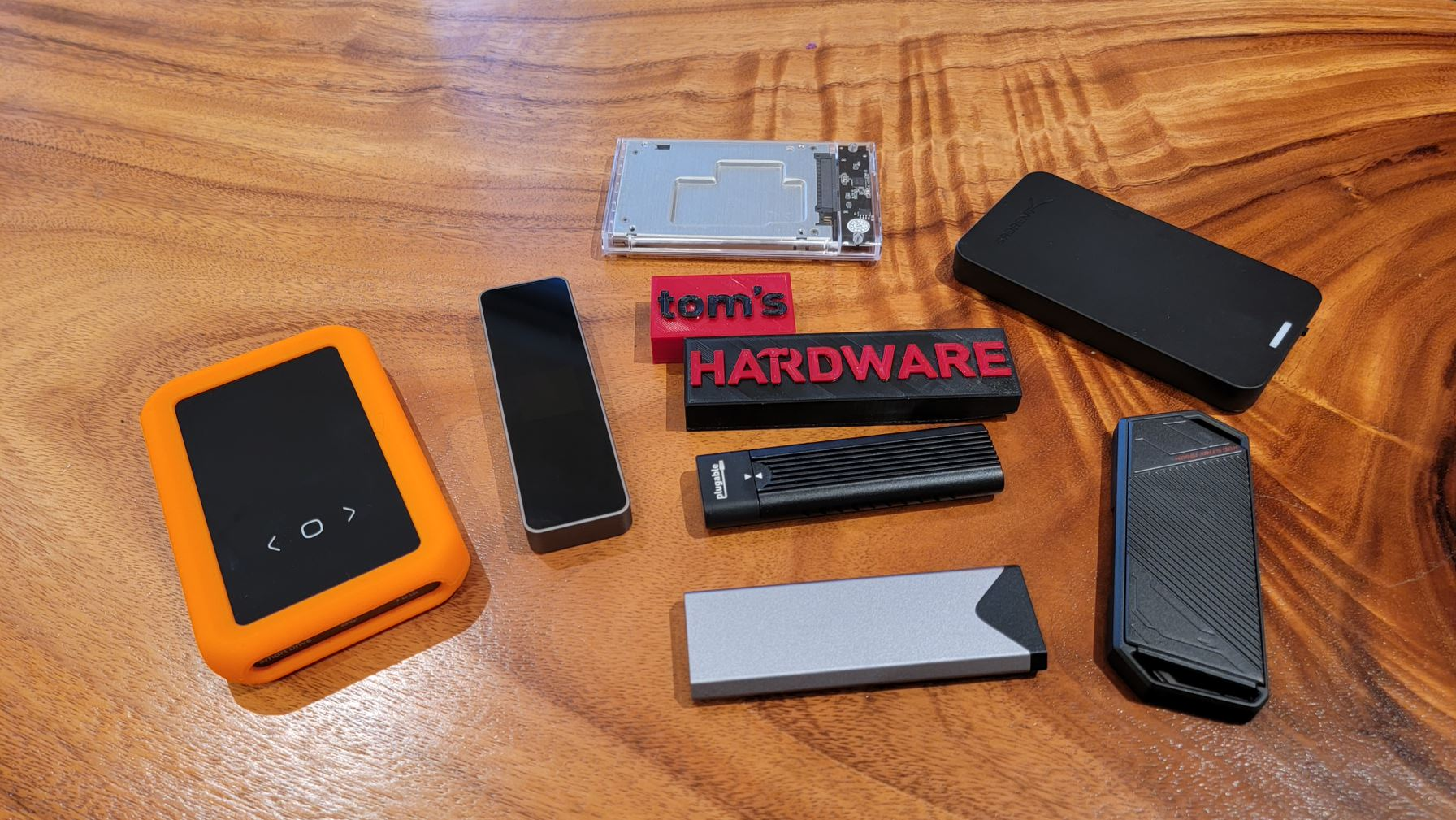
• Some external enclosures limit the speed of a fast NVMe SSD.
Drive endurance is often listed as TBW, or terabytes written. This rating describes how much data the manufacturer expects the drive to handle under its test conditions. It is not a promise that the drive will fail immediately after reaching that number.
For basic home use, office work, gaming, and normal photo storage, a quality SSD often provides years of service. Heavy video production, server workloads, and constant database writes require more careful model selection.
Common SSD Problems and Fixes
The SSD Does Not Appear
Check the cable, power connection, M.2 seating, and BIOS or UEFI settings. In Windows, look in Disk Management because the drive may be detected but not yet formatted.
The SSD Is Slower Than Expected
Check whether the drive is installed in the correct slot. An NVMe SSD in a slower PCIe slot cannot reach its advertised peak speed. Also check temperature, free space, cable quality, and whether the test measures short bursts or long transfers.
The Computer Will Not Boot After Cloning
Enter UEFI or BIOS and select the new SSD as the first boot device. If that fails, the clone may not include the required boot partition, or the system may be using a different boot mode.
Files Disappear or Become Corrupt
Stop writing to the drive and check your backup. Try a different cable or enclosure if it is external. Repeated corruption, SMART warnings, or disconnects may indicate a failing SSD.
The SSD Runs Hot
Improve airflow, reinstall the heatsink, and check whether the thermal pad touches the drive. Some high-speed NVMe models become warm during large transfers, but extreme or sustained heat needs attention.
Safety Tips for Using an SSD
Good storage habits protect both your data and your hardware.
• Back up important files before installing, cloning, or formatting.
• Verify the drive model and capacity before deleting partitions.
• Never force an M.2 connector.
• Use the correct power cables and adapters.
• Eject external SSDs before unplugging them.
• Keep operating system and firmware updates current.
• Use encryption when the drive contains private information.
• Store a backup away from the computer, such as in cloud storage or another physical location.
A simple backup plan is the 3-2-1 method: keep three copies of important data, use two different types of storage, and keep one copy in another place. This protects against drive failure, theft, accidental deletion, and ransomware.
Frequently Asked Questions About How to Use an SSD Drive
How do I use an SSD drive for the first time?
Connect the SSD, open your operating system’s disk management tool, initialize it if needed, create a partition, and format it. Choose GPT and NTFS for most Windows systems, or APFS for a Mac used only with macOS.
Can I use an SSD without installing an operating system?
Yes. You can format the SSD as a storage drive for documents, photos, games, backups, or media. It only needs an operating system if you want the computer to boot from it.
Should I use an SSD or HDD for backups?
An SSD is fast and portable, while an HDD usually offers more storage for less money. For important backups, the best approach is to use more than one drive and keep at least one copy separate from your computer.
How much free space should I leave on an SSD?
Try to keep about 10% to 20% of the drive free. This gives the SSD room for temporary data, updates, and background maintenance.
Can I move an SSD from one computer to another?
You can move a data SSD if the new computer supports its connection and file system. A boot SSD may need driver changes, activation checks, or a fresh operating system installation.
Does an SSD improve gaming performance?
An SSD can reduce game loading times and improve texture loading in some games. It usually does not produce a major increase in frame rate, which depends more on the processor and graphics card.
Is it safe to defragment an SSD?
Routine hard-drive defragmentation is not needed for an SSD. Use the operating system’s built-in storage optimization feature so it can apply the correct TRIM process.
Conclusion
Learning how to use an SSD drive comes down to four tasks: choose a compatible model, install or connect it correctly, format it for your system, and protect the data with backups. Keep free space available, monitor drive health, use TRIM, and avoid unsafe unplugging or formatting.
Start with a backup, confirm your computer’s connection type, and set up the SSD one step at a time. If this guide helped, explore more storage tutorials or share your SSD setup and questions in the comments.

Everett Ashford is a tech reviewer at mytechgrid.com specializing in SSDs, cameras, TVs, earbuds, headphones, and other consumer electronics. He provides honest, data-driven reviews based on hands-on testing and real-world performance analysis. Everett simplifies complex tech details to help readers make smart, confident buying decisions.