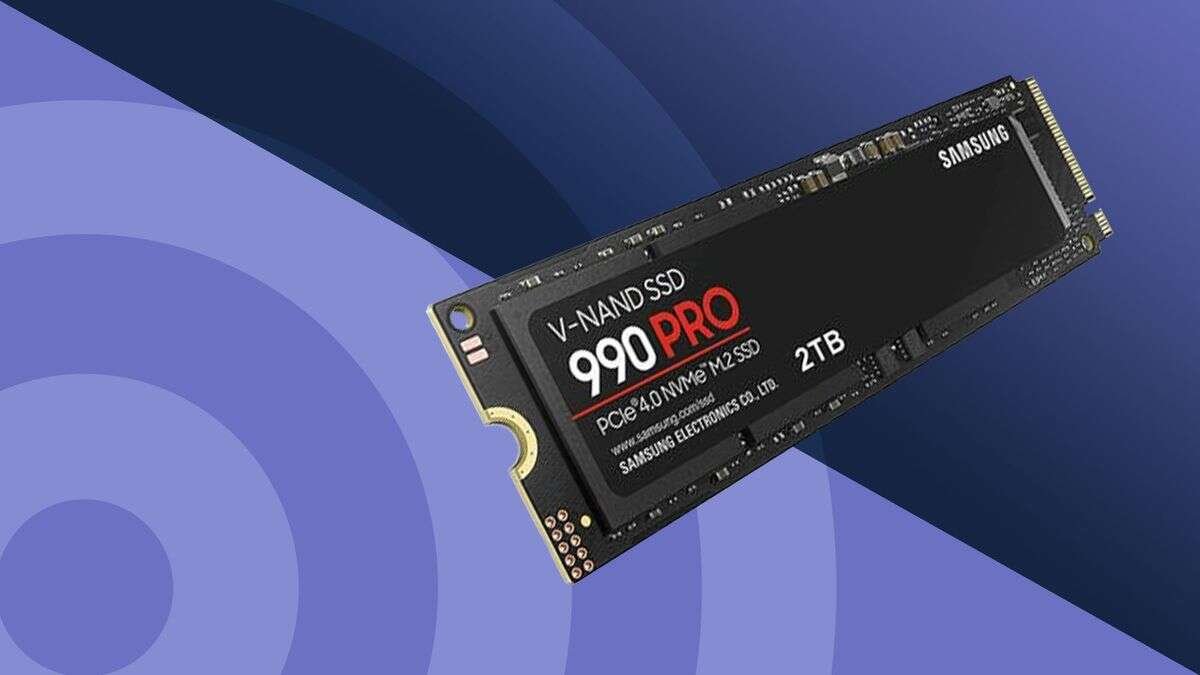
A good gaming SSD is a fast NVMe drive with enough space, strong endurance, and reliable cooling for your system.
Understanding what is a good SSD for gaming helps you spend money where it matters. The best choice depends on your console or PC, motherboard support, game library, budget, and need for speed. In most cases, a quality PCIe 4.0 NVMe SSD offers the best mix of price, performance, capacity, and long-term value.
What Is a Good SSD for Gaming?
A good SSD for gaming is a solid-state drive that loads games quickly, responds well during play, and remains reliable over years of use. It should offer fast random access, enough storage space, good thermal control, and compatibility with your gaming device.
For most modern gaming PCs, a 1TB or 2TB NVMe SSD with a PCIe 4.0 interface is the sweet spot. It gives you fast game installs and load times without paying a premium for performance that you may not notice during normal play.
The best SSD for gaming does not need the highest advertised speed. Game performance depends on many parts of your system, including your processor, graphics card, memory, game engine, and storage design.
A good drive should meet these basic standards:
- NVMe technology for fast communication with the system
- PCIe 4.0 support for strong value and broad compatibility
- At least 1TB of space for a modern game library
- A reliable controller and NAND flash memory
- A suitable heatsink or thermal pad
- Strong warranty and endurance ratings
- Good sustained write performance for large installs
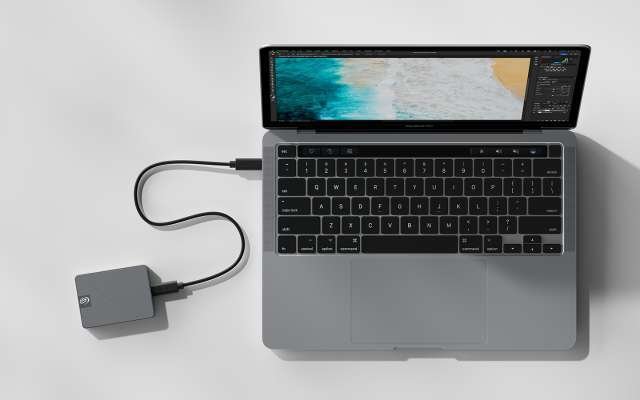
A SATA SSD is still much faster than a hard drive and remains useful for older PCs or large game libraries. However, NVMe drives usually provide better performance and cleaner cable management.
NVMe SSD vs. SATA SSD for Gaming
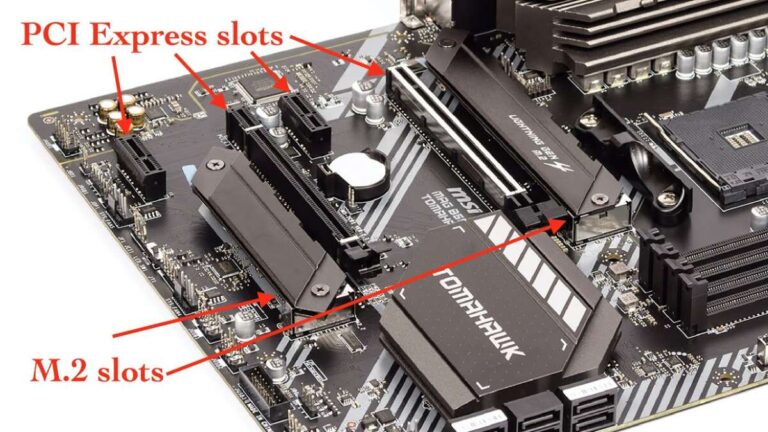
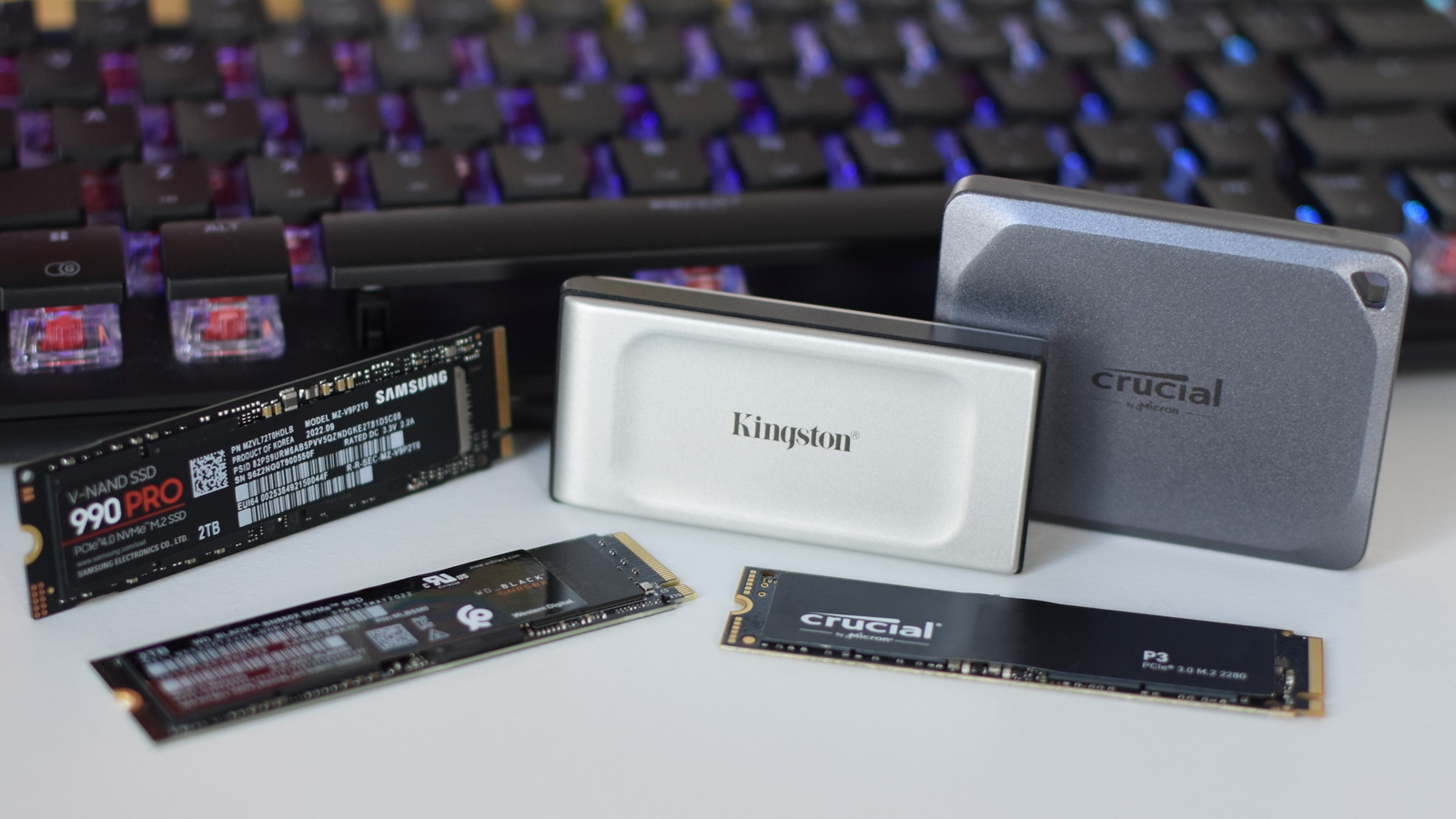
The main difference between NVMe and SATA SSDs is how they connect to your computer. SATA drives use the older SATA interface, while NVMe drives use PCIe lanes through an M.2 slot.
A typical SATA SSD can reach about 500 to 550 MB/s in sequential transfers. A PCIe 3.0 NVMe SSD can reach roughly 3,000 to 3,500 MB/s. A PCIe 4.0 model can often reach 5,000 to 7,400 MB/s, depending on the controller and NAND type.
These numbers look dramatic, but loading games is not the same as copying one large file. Many games use small files and complex data streams. As a result, the difference between a good SATA SSD and a good NVMe SSD may be modest in some games.
Still, NVMe is usually the better choice for a new gaming PC because:
- It offers higher bandwidth.
- It fits directly into the motherboard.
- It needs fewer cables.
- Prices are often close to SATA SSD prices.
- New technologies are designed around PCIe storage.
A SATA SSD makes sense when your motherboard lacks an M.2 slot, when you need inexpensive secondary storage, or when you are upgrading an older system. If you are building a new PC, an NVMe SSD is usually the smarter long-term choice.
PCIe 3.0, PCIe 4.0, or PCIe 5.0?
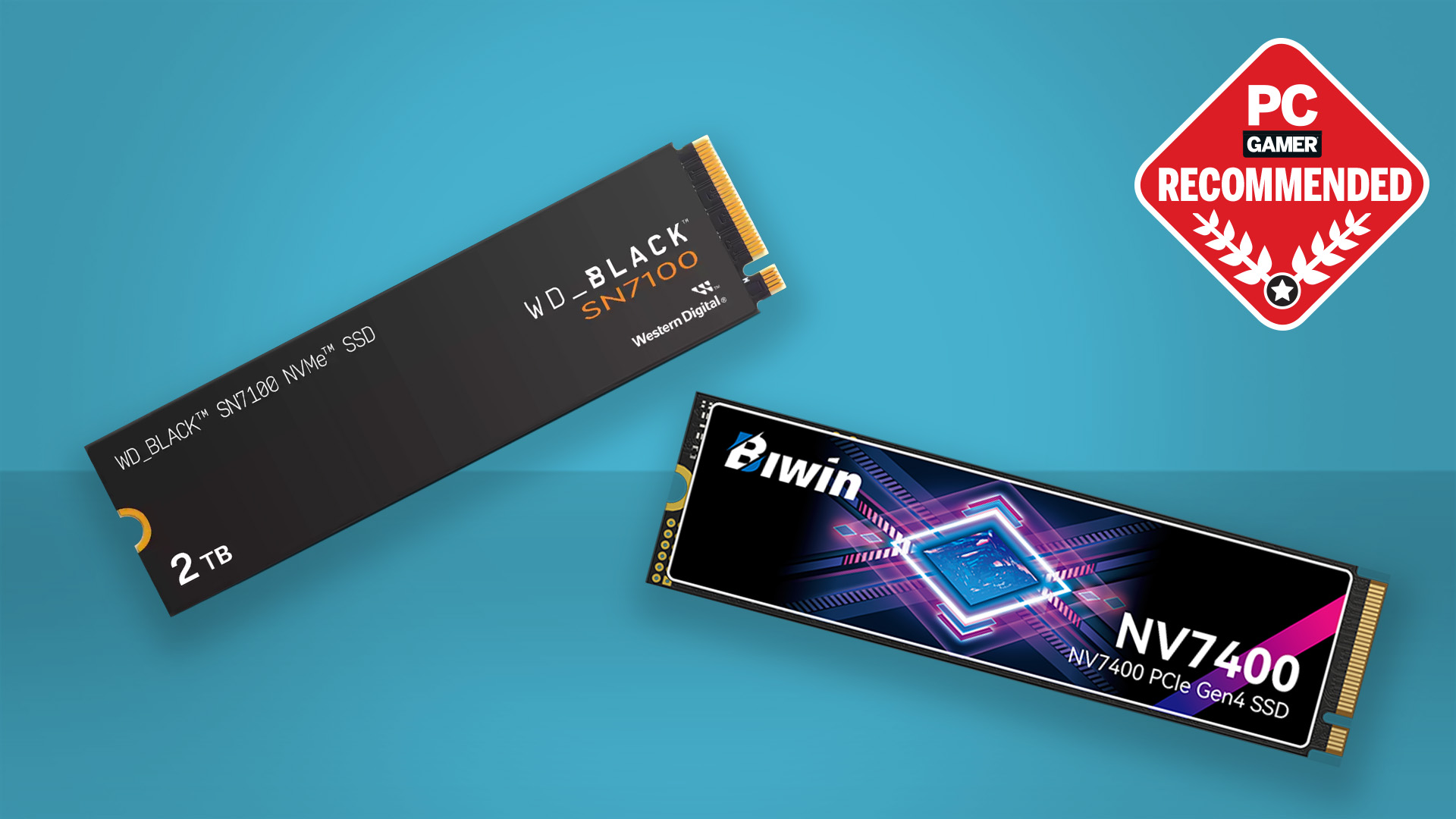
The PCIe generation determines the available storage bandwidth. Newer generations can move more data, but the drive and motherboard must support the same standard to gain the full benefit.
PCIe 3.0
PCIe 3.0 NVMe SSDs remain suitable for gaming. They offer high performance and often cost less than newer models. They are a good match for older AM4 systems, many budget computers, and laptops with PCIe 3.0 support.
PCIe 4.0
PCIe 4.0 is the best choice for most current gaming PCs. It offers excellent speed, broad motherboard support, and strong prices. A quality PCIe 4.0 drive can also handle large game installs, file transfers, and creative work with ease.
PCIe 5.0
PCIe 5.0 SSDs can offer very high sequential speeds, often above 10,000 MB/s. However, many games do not yet use that extra bandwidth in a meaningful way. PCIe 5.0 drives may also run hotter and cost more.
For most buyers, the answer to what is a good SSD for gaming is a dependable PCIe 4.0 model. PCIe 5.0 is more attractive for heavy file work, professional applications, or future-focused builds than for game loading alone.
How Much SSD Storage Do You Need?
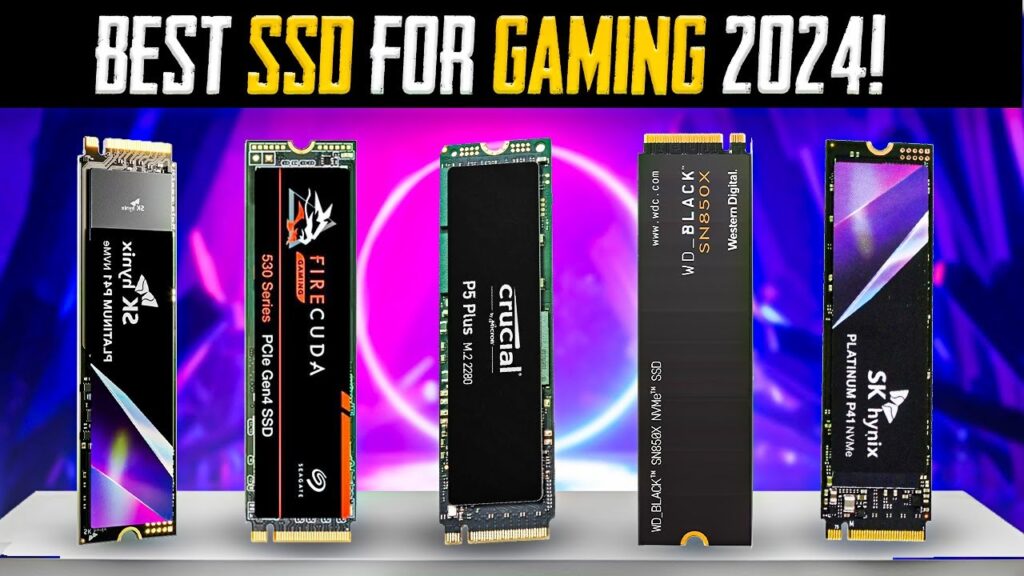
Storage capacity is one of the most important parts of choosing an SSD for gaming. Modern games can be large, and some major releases use more than 100GB after updates and downloadable content.
500GB
A 500GB SSD works for a budget PC or a small collection of games. After Windows, applications, and the drive’s reserved space, you may have closer to 400GB of usable space.
This capacity can fill quickly if you play large open-world games. It is best used as a boot drive or as a secondary drive for a few favorite titles.
1TB
A 1TB SSD is the minimum capacity I recommend for most gaming PCs. It gives you room for Windows, applications, and several large games without constant storage management.
It also offers a good balance between price and flexibility. For many players, a 1TB PCIe 4.0 NVMe SSD is exactly what is a good SSD for gaming should be.
2TB
A 2TB SSD is often the best overall choice for serious gamers. It provides enough space for a large game library and reduces the need to uninstall games between releases.
The price per gigabyte is often better on 2TB models than on smaller versions. If your budget allows it, a 2TB drive can be more practical than buying one 1TB drive now and another later.
4TB or more
Large SSDs are useful for game collectors, streamers, and people who keep many creative files on their PC. They cost more, but they can simplify storage planning.
You do not need to fill an SSD completely. Try to keep at least 10% to 20% of its capacity free. Free space helps the drive manage data and maintain performance.
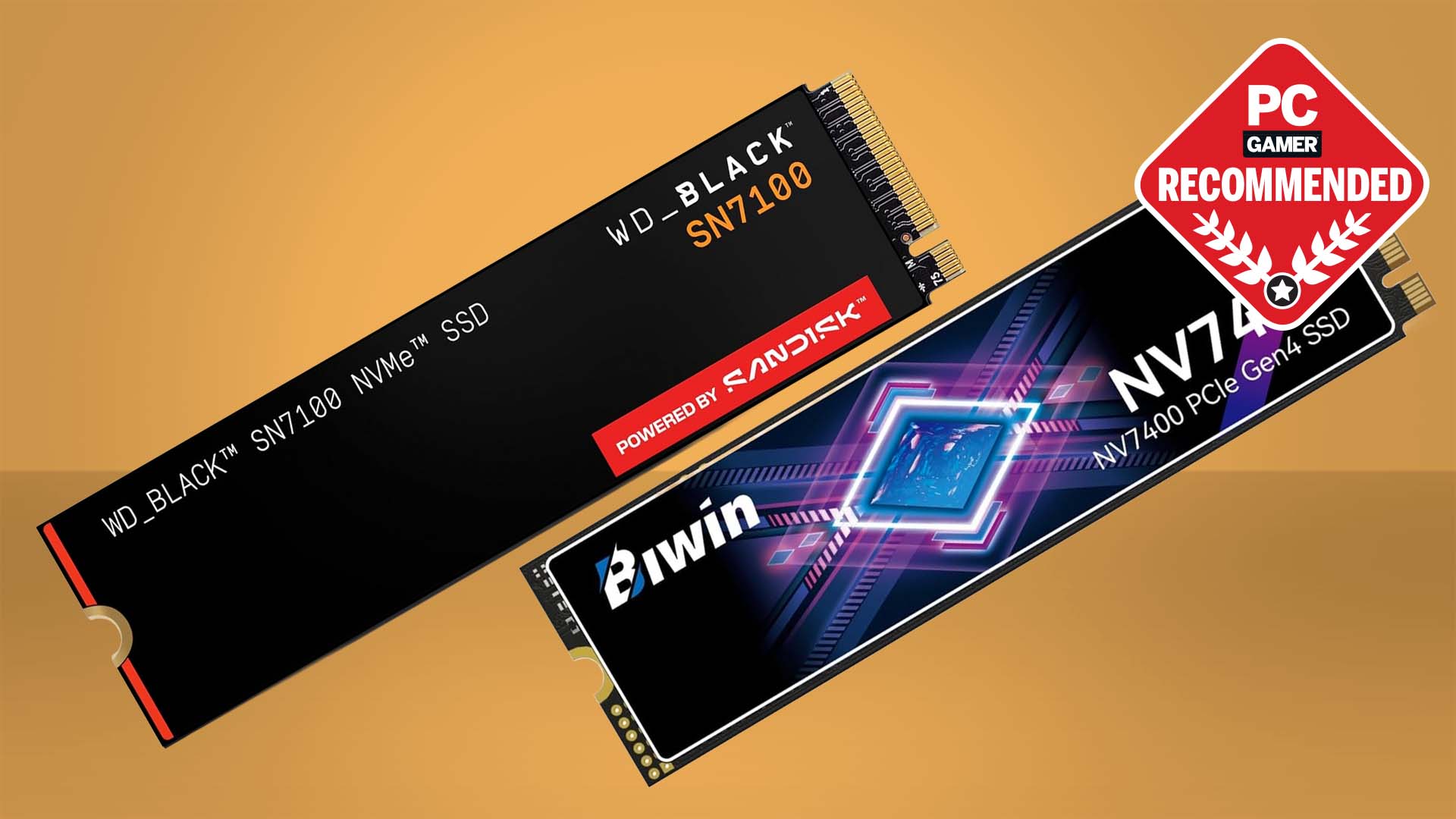
The SSD Specifications That Matter Most
SSD product pages contain many numbers. Some matter greatly for gaming, while others matter mainly during large file transfers.
Random read performance
Random read performance affects how quickly a drive can access scattered files. This is important because games often load many small assets, configuration files, textures, and system data.
Look for strong random read results in independent reviews. Manufacturer specifications often highlight sequential speeds because they are easier to market.
Sequential read and write speed
Sequential speed matters when copying large files, installing games, or moving video recordings. A fast drive can reduce transfer times, but it may not dramatically shorten every game’s loading screen.
A drive rated at 7,000 MB/s is not automatically better for gaming than one rated at 5,000 MB/s. The difference may be small in real play.
NAND type
NAND flash stores your data. Common types include TLC and QLC.
- TLC stores three bits per cell and usually offers better endurance and sustained write performance.
- QLC stores four bits per cell and can provide lower prices and higher capacities.
- TLC is generally the safer choice for a primary gaming drive.
- QLC can work well for a large game library if the price is attractive.
QLC drives are not automatically bad. They may slow down during very large writes after their cache is full. This is less important during normal gaming than during huge file transfers.
DRAM and HMB
Some SSDs include dedicated DRAM to track data locations. Other models use Host Memory Buffer, or HMB, to borrow a small amount of system memory.
A DRAM-equipped drive can offer stronger sustained performance, but a well-designed DRAM-less SSD can still work well for gaming. Consider the full review rather than judging the drive by one specification.
Endurance rating
Endurance is often listed as TBW, or terabytes written. It estimates how much data can be written before the drive reaches its rated limit.
Gaming usually creates less write activity than video editing or database work. Even so, a higher TBW rating can provide peace of mind. Also check the warranty length and the manufacturer’s support record.
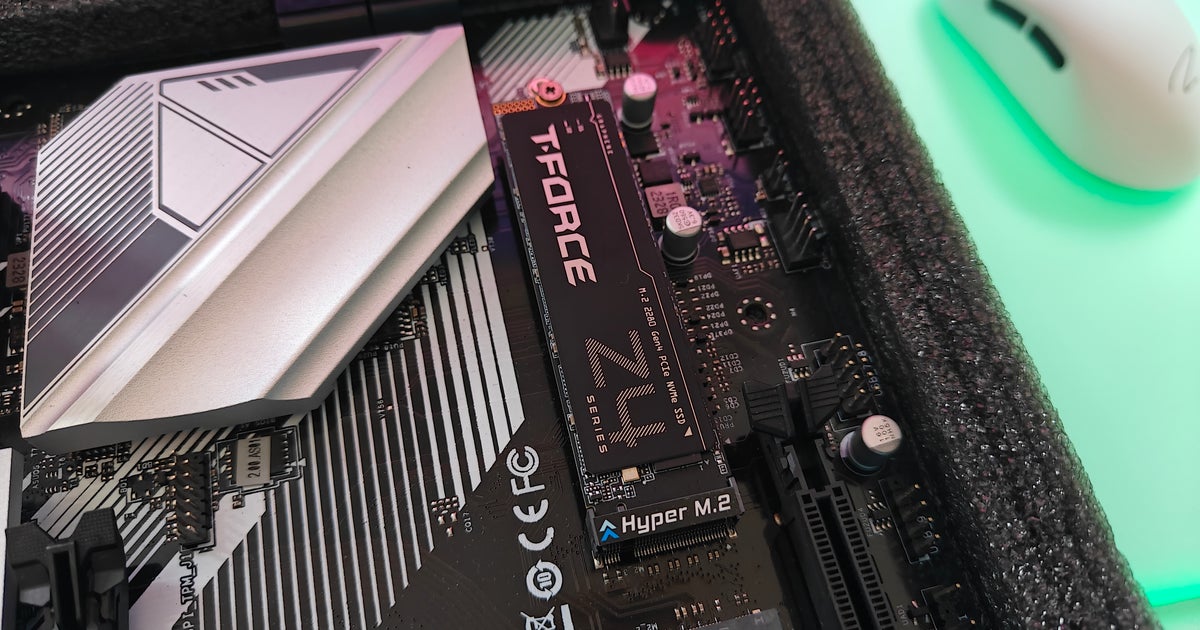
Recommended SSD Types for Different Gamers
There is no single best SSD for every person. The right choice depends on your hardware and how you use it.
Best value for most PC gamers
Choose a 1TB or 2TB PCIe 4.0 NVMe SSD with TLC NAND and a reputable controller. Models in this group often provide excellent real-world speed without extreme prices.
Best budget option
Choose a 1TB PCIe 3.0 or entry-level PCIe 4.0 NVMe SSD from a known brand. Avoid buying only because a drive has a low price or a high peak speed.
Read reviews that test thermal behavior, sustained writes, firmware stability, and performance after the cache is full.
Best high-end option
Choose a high-end PCIe 4.0 SSD with strong random performance, a capable controller, and a heatsink. This suits users who install many games, record gameplay, transfer large files, or use the PC for work.
A premium PCIe 5.0 drive can make sense for a new enthusiast build. For gaming alone, however, it is often a luxury rather than a necessity.
Best SSD for laptops
Check the laptop’s supported M.2 length, interface, and thermal space. Many laptops use an M.2 2280 drive, but some compact models use shorter formats.
Laptop cooling is limited, so a power-efficient PCIe 4.0 SSD may be better than a hotter high-end drive. Always back up your data before replacing the original drive.
Best SSD for PlayStation 5
The PlayStation 5 requires a compatible M.2 NVMe SSD with a heatsink. Sony recommends a PCIe 4.0 drive with a read speed of at least 5,500 MB/s and a supported size between 250GB and 4TB.
Check the current console requirements before buying. The drive must fit the physical size limit and include enough cooling clearance.
Best SSD for Xbox Series X and Series S
Xbox Series consoles use proprietary expansion cards for games that need the full internal storage architecture. A regular USB SSD can store and play backward-compatible games, but many optimized current-generation titles must run from internal storage or an approved expansion card.
This difference is important. The answer to what is a good SSD for gaming changes based on the platform you own.

Does an SSD Increase FPS?
An SSD usually does not create a major increase in average frames per second. Frame rate depends mainly on the graphics card, processor, game settings, and memory.
An SSD can still improve the overall experience by reducing:
- Game loading times
- Fast travel delays
- Level transition waits
- Texture streaming problems
- System boot time
- Game installation and update time
Some games may stream world data more smoothly from a fast SSD. This can reduce texture pop-in or brief pauses, but the result depends on the game engine and the rest of the system.
Think of an SSD as a fast road for game data. It helps data arrive quickly, but it does not make the car’s engine more powerful. That is why an SSD upgrade may feel faster without producing a large FPS increase.
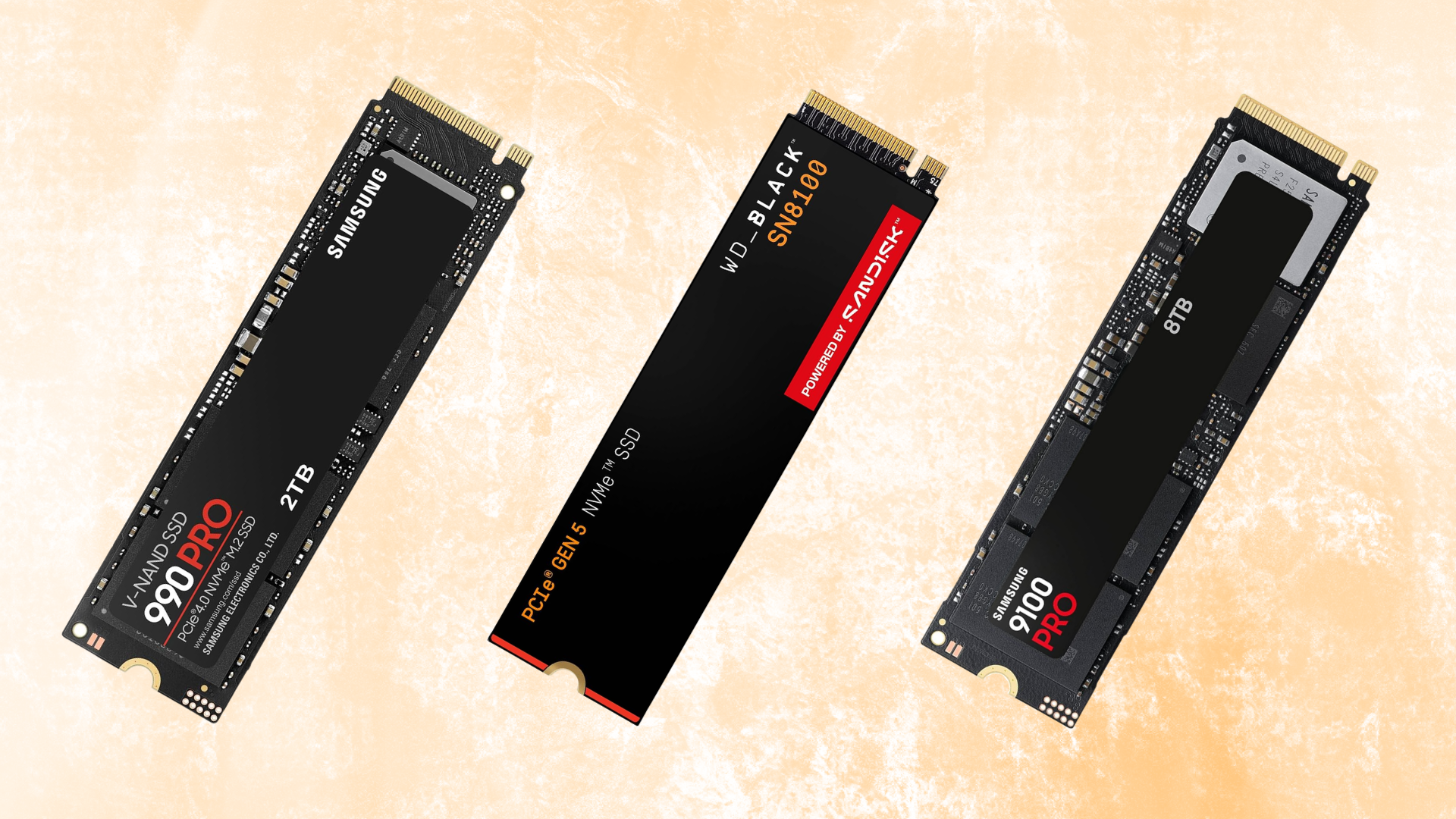
SSD Cooling and Thermal Throttling
Fast NVMe SSDs can produce heat, especially during long writes. When a drive becomes too hot, it may reduce its speed to protect the hardware. This behavior is called thermal throttling.
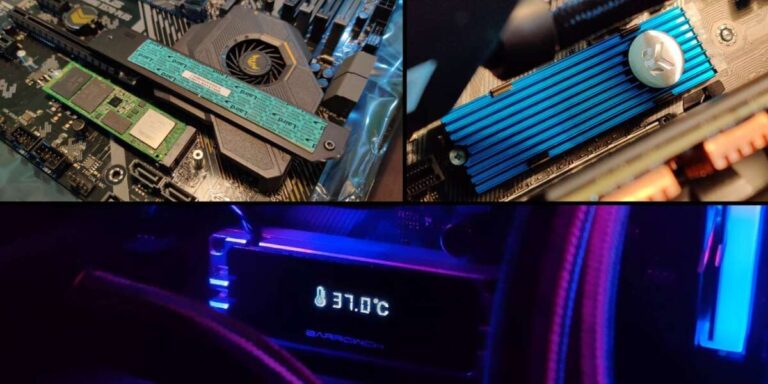
Gaming loads are usually short, but installing a large game, recording video, or moving hundreds of gigabytes can create sustained heat. A motherboard M.2 heatsink often provides enough cooling for a PCIe 4.0 drive.
Use these cooling tips:
- Install the SSD under the motherboard’s M.2 heatsink when possible.
- Remove the protective film from the thermal pad.
- Do not place the drive next to a hot graphics card if another slot is available.
- Improve case airflow with balanced intake and exhaust fans.
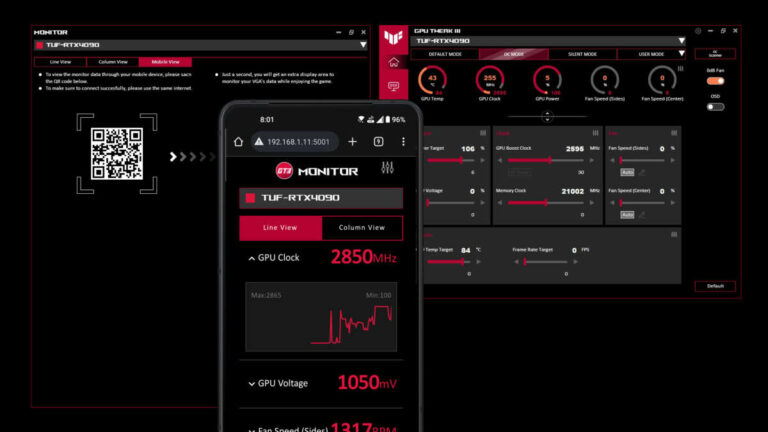
- Check SSD temperatures with a trusted monitoring tool.
A drive that runs a few degrees warmer during a short task is not automatically unsafe. Look for repeated high temperatures and noticeable speed drops during normal use.

Common SSD Buying Mistakes to Avoid
Choosing what is a good SSD for gaming becomes easier when you know which mistakes to avoid.
Buying based only on peak speed
Peak sequential speed is useful, but it does not describe every part of SSD performance. A drive with a lower rating may perform better in random workloads or maintain speed longer during large writes.
Choosing too little capacity
A cheap 500GB drive may seem attractive, but modern games can consume that space quickly. A 1TB model often offers better value and fewer storage headaches.
Ignoring compatibility
Check your motherboard manual before buying. Confirm the M.2 slot supports NVMe and check whether it uses PCIe 3.0, PCIe 4.0, or PCIe 5.0.
For consoles, follow the official size, speed, and heatsink requirements. Compatibility problems are more frustrating than a slightly slower benchmark.
Buying an unknown brand
A low price is not useful if the SSD has poor firmware, weak support, or inconsistent NAND changes. Choose a manufacturer with clear warranty terms and a reliable support history.
Filling the drive completely
An SSD that is nearly full may have less room for background management and cache behavior. Keep free space available and remove games you no longer play.
Forgetting backups
An SSD can fail without warning, just like any other storage device. Keep important files in a separate backup location. Cloud storage, an external drive, or a network backup can protect your saves and personal files.
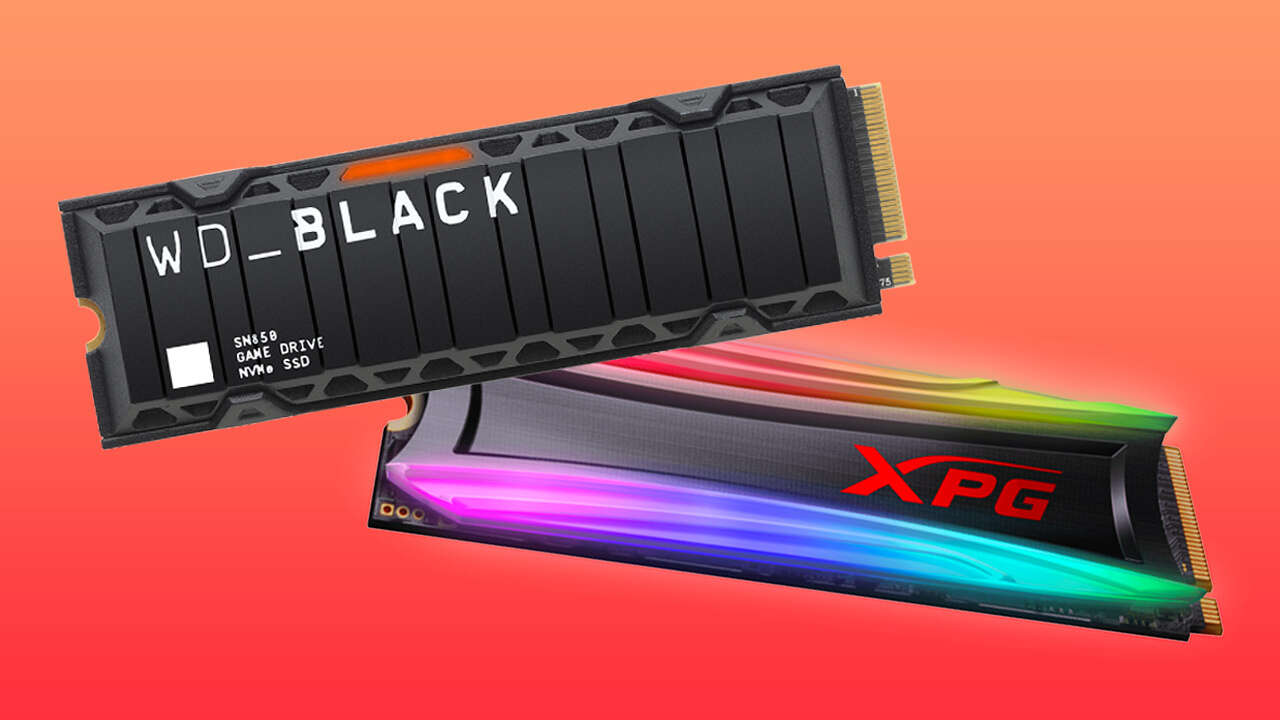
How to Install and Set Up a Gaming SSD
Installing an M.2 SSD is usually simple, but careful work prevents damage.
- Shut down the PC and unplug the power cable.
- Press the power button briefly to discharge remaining power.
- Find the correct M.2 slot on the motherboard.
- Remove the M.2 heatsink if one is installed.
- Insert the SSD at a slight angle.
- Press it down gently and secure it with the correct screw or latch.
- Reinstall the heatsink without damaging the thermal pad.
- Start the computer and check whether the BIOS detects the drive.
- Initialize and format the drive in Windows if it is new.
- Install games through your launcher and set the SSD as the library location.
Avoid touching the gold contacts. Do not force the drive into the slot. If the SSD is not detected, check the motherboard manual, BIOS storage settings, and whether the M.2 slot shares lanes with another device.
When I help with storage upgrades, the most common mistake is not installation. It is forgetting to move the game library after installing the drive. A new SSD cannot speed up games that remain on an old hard drive.
How to Compare SSD Prices
SSD prices change often, so compare value rather than relying on a fixed price target. Calculate the cost per usable terabyte and consider the warranty, endurance, and cooling needs.
A good buying process looks like this:
- Set a capacity target first.
- Confirm your device supports the drive.
- Compare PCIe generation and real review results.
- Check whether a heatsink is included.
- Review the warranty and TBW rating.
- Look for firmware or compatibility concerns.
- Buy from a seller with a clear return policy.
Sales can make a premium SSD a better deal than a budget model. However, do not pay a large premium for a speed rating that your games cannot use.
For most people asking what is a good SSD for gaming, a reliable 1TB or 2TB PCIe 4.0 drive offers the strongest balance. It is fast enough for current games and usually more affordable than the newest flagship products.
Frequently Asked Questions About What Is a Good SSD for Gaming
Is a 1TB SSD enough for gaming?
A 1TB SSD is enough for many gamers and can hold Windows plus several large games. Choose 2TB if you play many modern games or dislike uninstalling titles.
Is NVMe better than SATA for gaming?
NVMe SSDs are faster and usually the better choice for a new PC. SATA SSDs still provide fast loading and are useful for older systems or affordable secondary storage.
Does an SSD improve game graphics?
An SSD does not improve image quality or usually raise FPS. It can reduce loading times and may help some games stream textures and world data more smoothly.
Is PCIe 4.0 worth it for gaming?
PCIe 4.0 is worth choosing for most new gaming PCs because it offers strong speed and good prices. The improvement over PCIe 3.0 may be modest in some games, but PCIe 4.0 gives you a useful modern platform.
Do I need a heatsink for a gaming SSD?
A heatsink is helpful for high-speed NVMe drives, especially during long transfers. Many desktop motherboards include an M.2 heatsink, while PlayStation 5 SSDs must meet specific cooling requirements.
Is QLC NAND bad for gaming?
QLC NAND is not automatically bad and can offer affordable high capacity. TLC drives are usually preferred for heavier use because they often provide stronger sustained write performance and endurance.
What size SSD is best for a gaming PC?
A 1TB SSD is a practical starting point, while 2TB is often the best choice for a large game library. Your ideal size depends on how many games you keep installed.
Conclusion
The best answer to what is a good SSD for gaming is usually a reliable 1TB or 2TB PCIe 4.0 NVMe SSD with good cooling, strong reviews, and a solid warranty. Focus on capacity, compatibility, random performance, endurance, and real-world value instead of chasing the highest advertised speed.
SATA SSDs remain useful for older systems, while PCIe 5.0 drives are mainly for enthusiasts and demanding workloads. For most players, a quality PCIe 4.0 model will make game installs, system startup, and loading screens feel quick without wasting money.
Check your motherboard or console requirements, choose enough space for your library, and keep backups of important files. Explore more hardware guides, compare current SSD deals, and share your gaming storage setup in the comments.

Everett Ashford is a tech reviewer at mytechgrid.com specializing in SSDs, cameras, TVs, earbuds, headphones, and other consumer electronics. He provides honest, data-driven reviews based on hands-on testing and real-world performance analysis. Everett simplifies complex tech details to help readers make smart, confident buying decisions.