Most systems have one or two SSD slots, though exact counts depend on your motherboard or laptop.
I’ve built and upgraded dozens of PCs and laptops, so I know how confusing it can be to ask “how many SSD slots do I have.” This guide walks you through what SSD slots are, the types you’ll encounter, how to check your system step-by-step, and practical options to add or upgrade storage without guesswork. Read on to get clear, actionable answers and avoid common mistakes when expanding or replacing SSDs.

Understanding SSD slots: types and definitions
An SSD slot is a connector on a motherboard or device that accepts a solid-state drive. Different slots support different SSD formats and speeds. Knowing the slot type helps answer how many SSD slots do I have and what drives will work.
Common SSD slot types
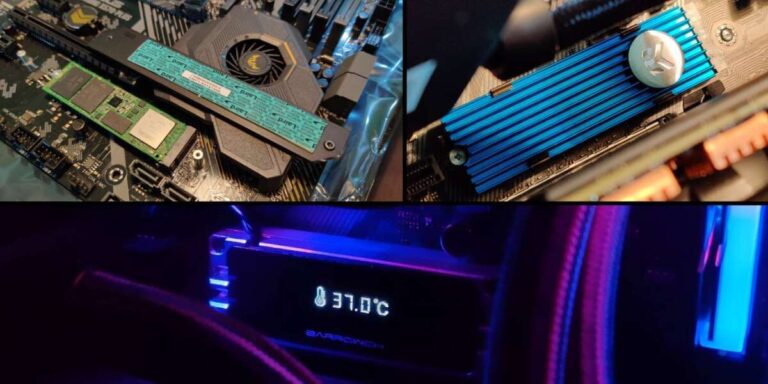
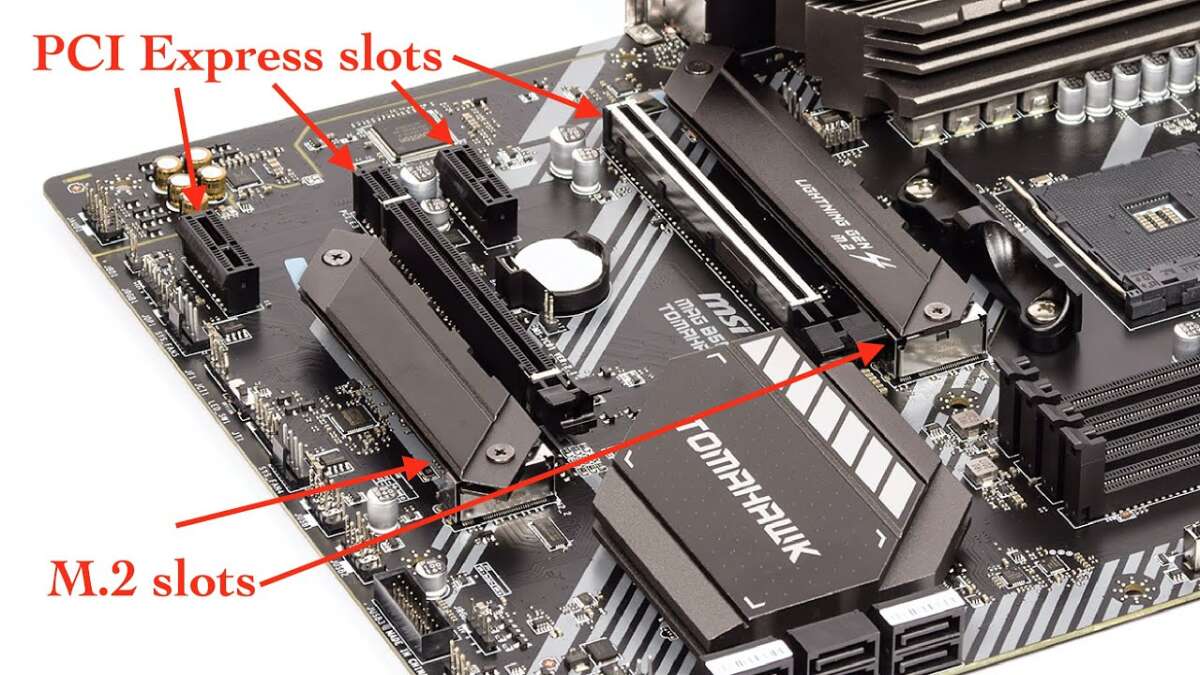
- M.2: Small rectangular slot on modern motherboards and many laptops. Supports SATA or NVMe (PCIe) SSDs.
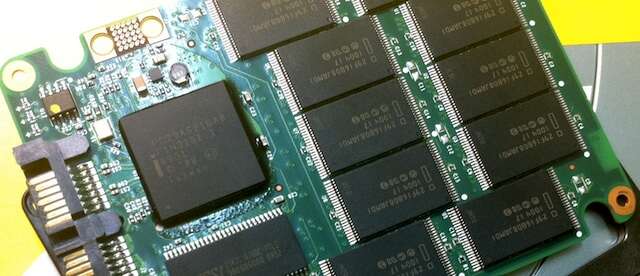
- SATA (3.5/2.5 bays and ports): Uses SATA data cables and power from the PSU. Many desktops have multiple drive bays and SATA ports.
- PCIe expansion: A full-size PCIe slot can host an adapter for NVMe M.2 SSDs or multiple SSDs.
- U.2 and mSATA: Less common today but still present in some workstations and older laptops.
Key terms you should know
- NVMe: Protocol for high-speed PCIe SSDs. Faster than SATA.
- SATA III: Older interface with lower speed limits (about 550 MB/s practical).
- PCIe lanes and versions: PCIe 3.0 vs 4.0 vs 5.0 affect NVMe speeds.
Why this matters for “how many ssd slots do i have”
- Slot type determines how many physical and logical drives you can add.
- A single M.2 slot may support one NVMe drive, while multiple M.2 slots or PCIe adapters increase capacity.
- Some laptops have space for only one storage device, while desktops often offer several expansion paths.

Typical counts: desktops, laptops, and compact PCs
How many SSD slots do I have varies by device type and model. Here are typical scenarios to set expectations.
Desktops
- ATX motherboards: Often 2 to 4 M.2 slots plus 4–8 SATA ports. Use cases vary by price and chipset.
- Micro-ATX and Mini-ITX: Usually 1–2 M.2 slots and fewer SATA ports. Small form-factor boards prioritize compactness.
- Workstation/server boards: Could offer many M.2 slots, U.2 connectors, and multiple PCIe lanes for NVMe expansion.
Laptops
- Ultrabooks: Usually 1 M.2 slot or a soldered SSD. Many modern thin laptops have only one user-replaceable slot.
- Gaming laptops: Often 2 M.2 slots and sometimes a 2.5-inch bay. Check your model’s specs.
- Older or budget laptops: May have a 2.5-inch SATA bay and no M.2 slot, or a single mSATA slot.
Compact PCs and consoles
- Mini-PCs: Frequently limited to one M.2 slot and maybe external storage via USB.
- Consoles: Custom storage solutions; many support NVMe upgrades but physically limited to one slot.
Practical takeaway
- If you ask “how many ssd slots do i have,” start by identifying your device model. Expect more expandability on desktops than laptops. Many users assume multiple slots; that’s not always true for slim laptops.

How to check how many SSD slots do I have — step-by-step
Follow these practical steps to find out exactly how many SSD slots your system has.
- Check the manual or manufacturer page
- Look up your motherboard or laptop model online. The spec sheet usually lists M.2 slots, SATA ports, and any onboard connectors.
- Open the case (desktop) or access the service panel (laptop)
- For desktops, visually inspect the board for M.2 sockets and drive bays.
- For laptops, remove the access panel if user-accessible. Note: follow safety steps and warranty rules.
- Use system tools and software
- Windows: Use Device Manager, Disk Management, or a hardware utility like HWiNFO to see installed drives and potential empty controllers.
- Linux: Use lspci, lsblk, and dmesg to list NVMe and SATA devices.
- Check BIOS/UEFI
- The UEFI interface often lists connected drives and enabled M.2 slots.
- Look for physical cues
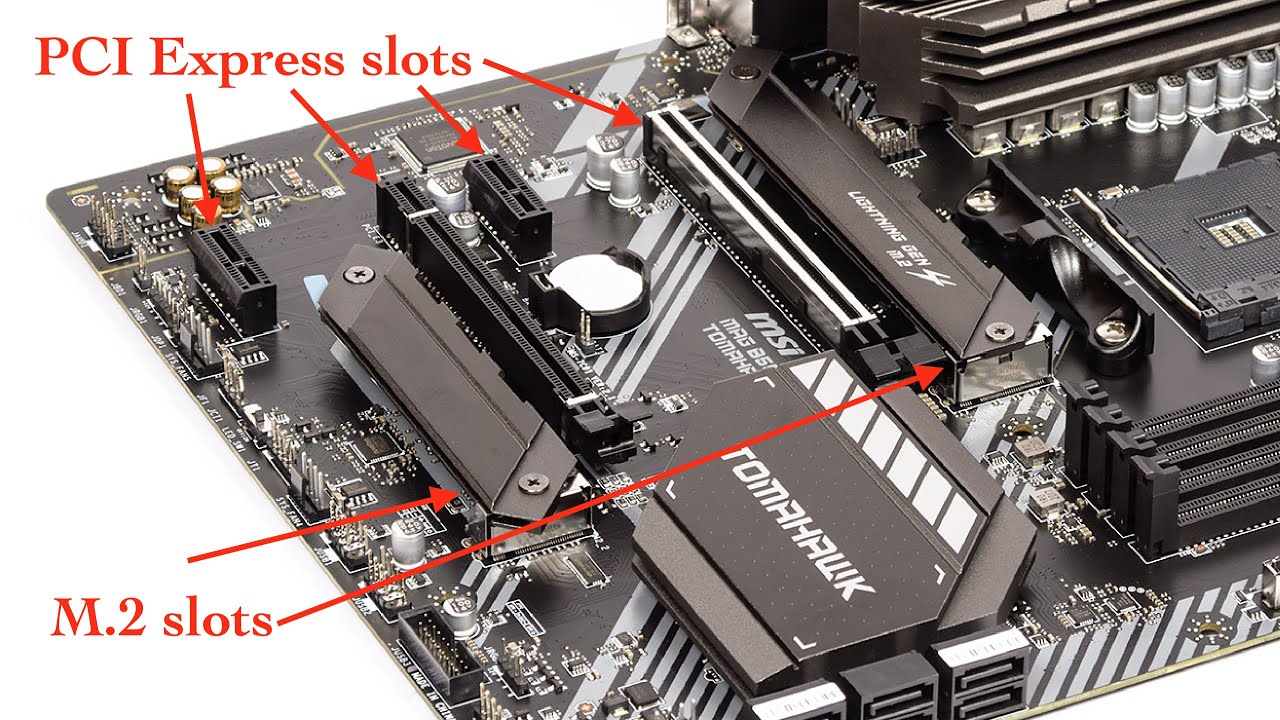
- M.2 slots are compact and secured by a single screw. SATA ports are grouped plastic connectors labeled SATA0, SATA1, etc.
- Count expansion options
- Count free PCIe slots if you plan to add NVMe adapters. Add the number of empty drive bays for 2.5/3.5-inch SSDs.
Quick checklist for a complete answer to “how many ssd slots do i have”
- Manufacturer specs: definitive source.
- Physical inspection: confirms empty slots and drive bays.
- BIOS and software: reveal controllers and logical limitations.
Expanding storage: practical options when slots are limited
If you find you have fewer slots than you want, there are proven ways to add SSDs.
M.2 to PCIe adapters
- Use a PCIe x4/x16 adapter to install one or more M.2 NVMe drives in a desktop PCIe slot. This is common and reliable.
2.5-inch drive bays and SATA controllers
- Add a SATA SSD in available 2.5-inch bays. If you lack SATA ports, use a SATA controller PCIe card.
External and hybrid solutions
- USB 3.2 or Thunderbolt NVMe enclosures give fast external storage without opening the case.
- NAS or external drives are helpful if you need many terabytes and network access.
Considerations before expanding
- Check available PCIe lanes and motherboard BIOS support.
- Watch thermal limits: NVMe drives can throttle; add heatsinks if needed.
- Power and cabling: ensure your PSU and cabling can support additional drives.

Performance and compatibility limits to watch
Adding SSDs is not just about physical slots. Performance and system limits matter a lot.
PCIe lane sharing and BIOS limits
- Some M.2 slots share lanes with SATA ports or PCIe slots. Installing a drive in one slot may disable another port.
- Consult your motherboard manual to avoid surprises.
PCIe version impacts speed
- A PCIe 4.0 NVMe drive runs slower on a PCIe 3.0 slot. Check version compatibility.
Thermal throttling
- NVMe SSDs get hot. Without airflow or heatsinks, sustained performance can drop.
Boot and OS constraints
- Older BIOS versions may not boot from certain NVMe drives. Update your firmware when necessary.
- Some OS installers need drivers for RAID or certain NVMe controllers.
Drive limits and addressability
- Consumer systems rarely hit a maximum drive count from an OS perspective, but motherboard and firmware create practical limits.

Personal experience, mistakes to avoid, and practical tips
From building many systems, I’ve learned what trips people up when asking “how many ssd slots do i have.”
What I learned
- I once upgraded a client’s laptop with a second M.2 but didn’t realize the slot shared SATA lanes. That disabled the 2.5-inch bay unexpectedly.
- On a small Mini-ITX build, I used an M.2-to-PCIe adapter only to find the single x16 slot was wired as x8; performance stayed good but was not optimal for multiple NVMe drives.
Tips to avoid problems
- Always read the manual before buying a drive. Specs save headaches.
- Update BIOS/UEFI before installing a new NVMe drive to avoid boot issues.
- If you value silence and low heat, choose NVMe drives with good thermal management or use heatsinks.
- If you’re unsure, take photos when opening a laptop or PC so reassembly is easy.
Practical buying advice
- Prioritize NVMe for OS and apps for speed. Use SATA SSDs for mass storage where cost per GB matters.
- If you have one M.2 slot but need more fast storage, a Thunderbolt 3/4 external NVMe enclosure is a practical and portable solution.

Frequently Asked Questions of how many ssd slots do i have
How can I quickly find how many SSD slots my laptop has?
Check the manufacturer’s support page for your laptop model or open the service panel to look for M.2 sockets and 2.5-inch bays. Software tools and BIOS often show installed drives but not empty slots.
Does every M.2 slot support NVMe?
No. Some M.2 slots support only SATA M.2 drives, while others support NVMe (PCIe). Consult your device specs to confirm which protocol each M.2 slot uses.
Can I add more SSDs using PCIe adapters?
Yes. You can use PCIe adapters to add M.2 NVMe drives or SATA controllers in desktops with available PCIe slots. Check lane allocation and BIOS support first.
Will adding an SSD slow down other drives?
Sometimes. Some motherboards share lanes between M.2 slots and SATA ports, which can disable or reduce performance on shared ports. Check the manual for lane-sharing details.
How do I know if my BIOS can boot from an NVMe SSD?
Most modern UEFI firmware supports NVMe booting. If your BIOS is older, update it or check the release notes to confirm NVMe boot support.
Conclusion
Knowing how many SSD slots do I have starts with your device model, manual, and a quick visual or BIOS check. Desktops generally offer more options than laptops, and adapters or external enclosures provide flexible ways to add fast storage. Use the steps in this guide to inspect your system, avoid lane-sharing pitfalls, and choose the right SSD type for your needs. Take action now: check your hardware manual, open your case or service panel safely, and plan your upgrade with the slot type and performance needs in mind. If this helped, leave a comment with your model and I’ll help you identify available SSD slots and the best upgrade path.

Everett Ashford is a tech reviewer at mytechgrid.com specializing in SSDs, cameras, TVs, earbuds, headphones, and other consumer electronics. He provides honest, data-driven reviews based on hands-on testing and real-world performance analysis. Everett simplifies complex tech details to help readers make smart, confident buying decisions.