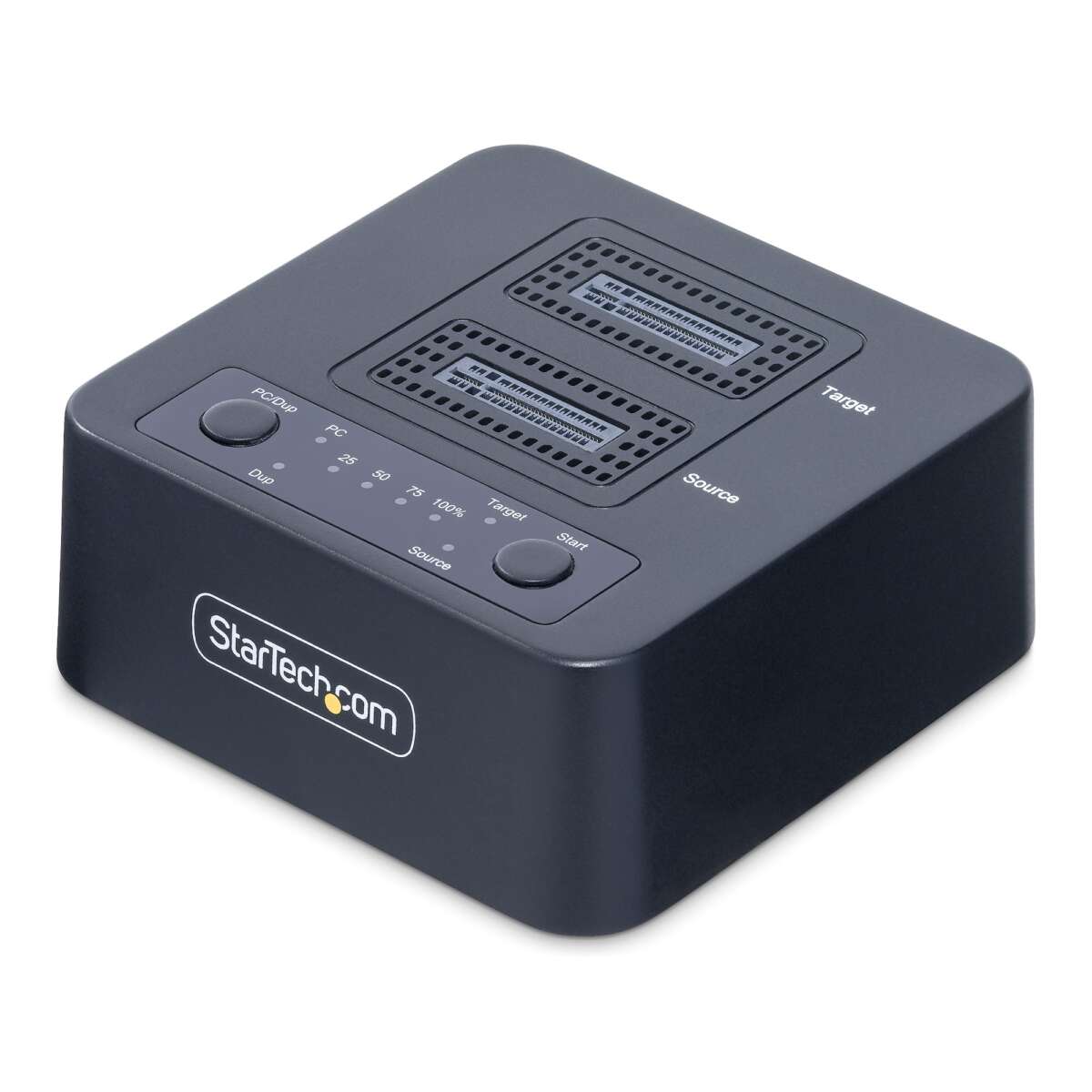
Use disk-cloning software to copy every partition from your old M.2 SSD to a compatible new drive.
Learning how to clone M.2 SSD storage lets you upgrade to a larger or faster drive without reinstalling Windows, programs, or personal files. The process is safe when you check drive compatibility, create a backup, use the right cloning mode, and confirm that the new SSD boots before you erase the old one. This guide explains how to clone an M.2 SSD in clear steps, with practical tips to prevent common mistakes.
What Is an M.2 SSD Clone?
An M.2 SSD clone is an exact copy of one drive transferred to another drive. The copy can include Windows, recovery tools, applications, user accounts, settings, and personal files.
Cloning differs from copying files manually. A normal file copy may miss boot data, hidden partitions, or system settings. A proper clone copies the drive structure so the destination SSD can start the computer like the original.
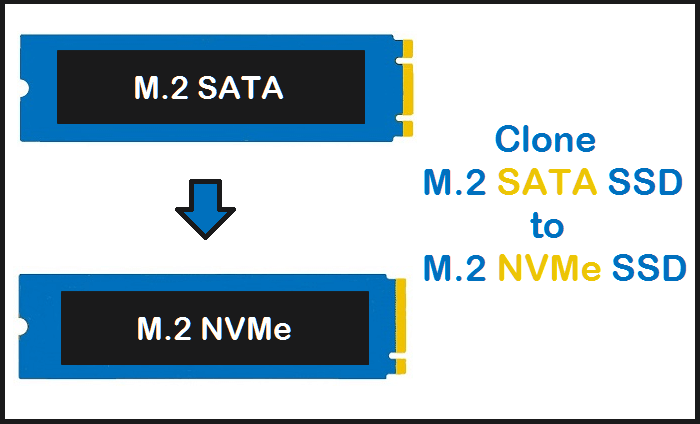
M.2 describes the physical shape and connector style. An M.2 SSD may use:
- SATA technology
- NVMe technology through PCIe
- Different lengths, such as 2242, 2260, or 2280
The M.2 shape alone does not confirm compatibility. Your computer must support the correct interface, key type, and drive length.

Why Clone an M.2 SSD?
The most common reason to clone an M.2 SSD is to upgrade storage. For example, you may replace a 256GB system drive with a 1TB NVMe SSD while keeping your current Windows setup.
Cloning can also help when:
- Your current SSD is nearly full
- You want faster storage
- You are moving Windows to a new computer drive
- Your old SSD shows health warnings
- You want to replace a smaller drive with a larger one
- You need a working system copy for migration
A clone saves time because you do not need to reinstall every application. It also preserves your familiar desktop, browser settings, game files, and work tools.
However, cloning is not the same as a backup. If ransomware or accidental deletion affects the original drive, the same problem may appear on the clone. Keep a separate backup on an external drive or cloud service.

What You Need Before Cloning an M.2 SSD
Good preparation makes the process simple. Before you learn how to clone an M.2 SSD, gather the right hardware and confirm that the new drive can hold the data.
A compatible destination SSD
The new SSD should have enough usable capacity for the data on the source drive. It does not always need to match the source drive’s total size.
For example, a 1TB source SSD with only 300GB of used space can often be cloned to a 500GB destination SSD. The cloning program must support shrinking the source partitions to fit.
Check these details:
- M.2 SATA or M.2 NVMe interface
- Physical drive length
- PCIe generation support
- Available M.2 slot
- BIOS or UEFI support
- Destination capacity
A PCIe 4.0 NVMe SSD usually works in a PCIe 3.0 slot, but it may run at the slower slot speed. Always check the computer or motherboard manual.
An M.2 USB enclosure or adapter
if your computer has only one M.2 slot, connect the new SSD with a USB enclosure. Choose an enclosure that matches the drive type.
An NVMe enclosure will not normally work with an M.2 SATA drive, and an M.2 SATA enclosure will not work with an NVMe drive. This is one of the most common causes of failed cloning attempts.
Reliable cloning software
Use a trusted cloning tool that supports your operating system and drive type. Popular options may include:
- Manufacturer migration software
- Rescue media included with backup applications
- Professional disk-cloning utilities
- System imaging tools built into some operating systems
Download software from the official developer or SSD manufacturer. Avoid unknown tools that ask for unnecessary permissions or display aggressive advertising.
A backup
Back up important files before starting. A clone normally does not harm the source drive, but power loss, wrong-drive selection, or a software error can cause data loss.
Save critical files to:
- An external hard drive
- A network location
- A reputable cloud backup service
Also record your BitLocker recovery key if device encryption is enabled. Microsoft recommends saving this key before making major storage changes.

How to Clone an M.2 SSD Step by Step
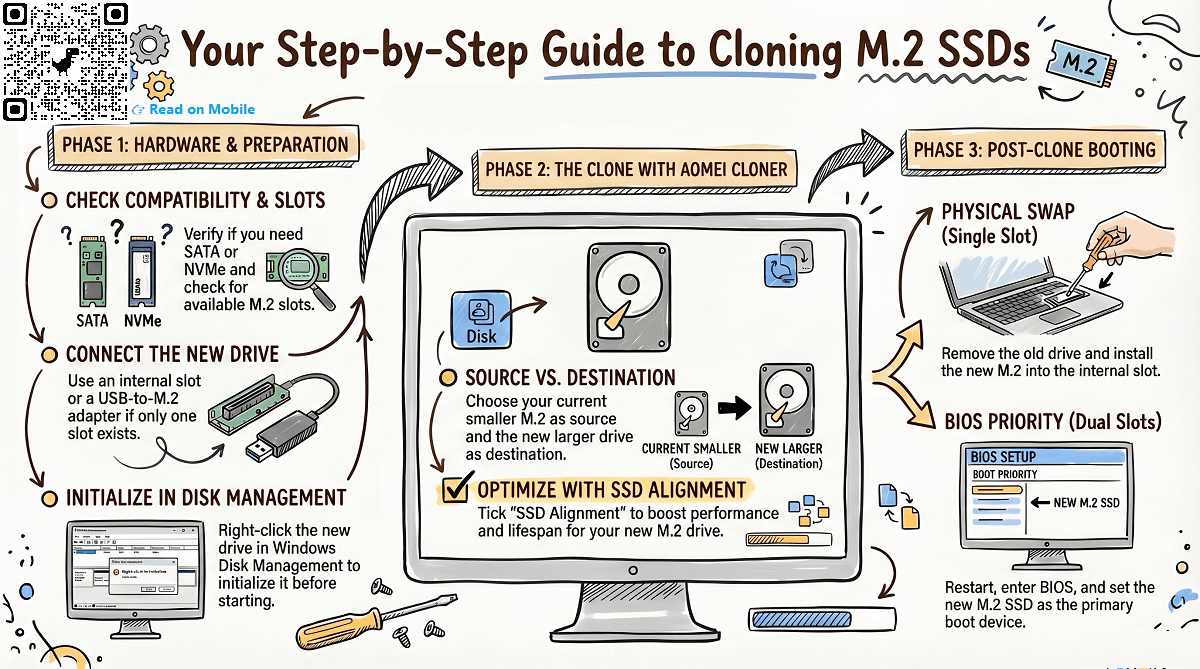
The following method explains how to clone an M.2 SSD from an old drive to a new one. The labels may differ between applications, but the general process remains similar.
1. Check the source drive
Open Windows Disk Management by right-clicking the Start button and selecting Disk Management. Identify the current system drive and review its partitions.
You may see partitions labeled:
- EFI System Partition
- Microsoft Reserved Partition
- Windows partition
- Recovery partition
Do not delete or format these partitions. They help Windows start and recover.
Next, check how much space the source drive uses. You can view this in File Explorer, but remember that hidden system partitions also require space on the destination drive.
2. Install or connect the new SSD
Turn off the computer if you are installing the SSD inside the machine. Disconnect the power cable on a desktop computer and use care when handling the drive.
For a laptop with one M.2 slot, place the new SSD in a compatible USB enclosure. Connect it directly to the computer rather than through an unpowered hub.
Allow Windows to detect the drive. If Windows asks to initialize it, choose the partition style that matches your system:
- GPT for modern UEFI computers
- MBR for older legacy BIOS systems
Many modern Windows 10 and Windows 11 computers use GPT. Selecting the wrong style can create boot problems, so check your current disk before choosing.
3. Start the cloning software
Open the cloning application and choose the option named Clone Disk, Migrate OS, or a similar command.
Select the old M.2 SSD as the source. Then select the new SSD as the destination. Slow down at this stage and verify the model number and capacity of both drives.
A useful habit is to unplug other external storage devices. This reduces the chance of selecting the wrong disk.
4. Choose the correct clone mode
Most tools offer one of two choices:
- Automatic cloning copies the source layout and adjusts it when possible.
- Manual cloning lets you resize partitions and choose which partitions to copy.
Use automatic cloning when the destination drive is the same size or larger. Use manual mode when the new SSD is smaller than the old one but still has enough space for the actual data.
Make sure the option to copy all required system partitions is enabled. Do not copy only the C: drive unless the software clearly handles the boot and recovery partitions for you.
5. Resize the main partition if needed
If the destination SSD is larger, expand the Windows partition so you can use the extra space. Some programs do this automatically, while others leave unallocated space at the end of the drive.
If the destination SSD is smaller, shrink the source Windows partition first. The used space must fit within the destination drive.
Do not shrink a partition below the amount of data it contains. If needed, remove temporary files, uninstall unused programs, and move large videos or games before cloning.
6. Begin the clone
Start the operation after checking the source and destination one more time. Cloning can take a few minutes or several hours, depending on the amount of data and the connection speed.
During the process:
- Keep the computer connected to power
- Do not disconnect the USB enclosure
- Close demanding applications
- Prevent the computer from sleeping
- Avoid restarting the system
A USB 3 connection is much faster than USB 2, but real speed depends on the enclosure, SSD, files, and computer port.
7. Shut down and change the boot drive
When cloning finishes, shut down the computer completely. If both SSDs are installed, enter the UEFI or BIOS setup and place the new SSD first in the boot order.
You may open firmware settings by pressing a key such as Delete, F2, F10, or Esc during startup. The correct key depends on the computer manufacturer.
If the computer boots from the old drive, temporarily remove the old SSD or disconnect it. This makes it easier to confirm that the new SSD can boot independently.
8. Verify Windows and your files
After Windows starts from the new SSD, check these items:
- Windows loads normally
- Your user account works
- Applications open
- Personal files are present
- The new SSD has the expected capacity
- Device Manager shows no storage errors
- Disk Management shows the correct partitions
Open Task Manager and check the Performance tab if you want to confirm which disk is active. You can also use Disk Management to verify the new drive’s partition layout.
This verification step is central to learning how to clone an M.2 SSD safely. Do not erase the old drive until the new one works through several restarts.
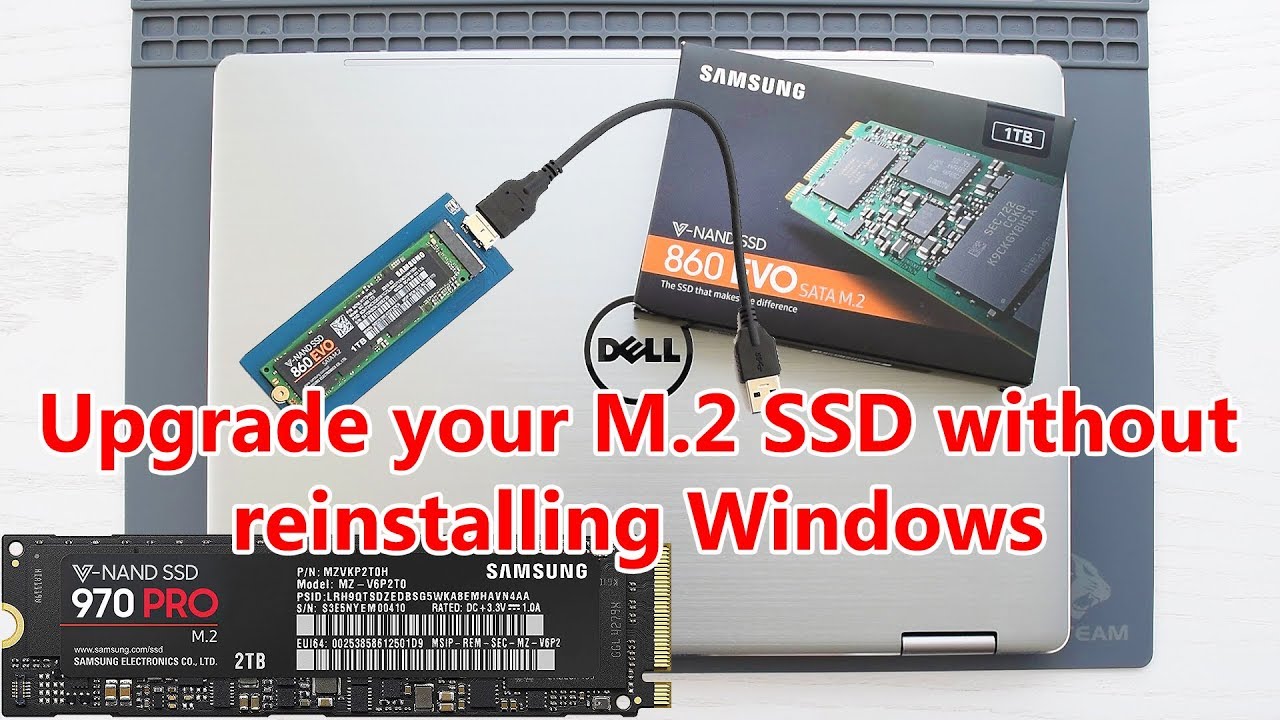
How to Clone an M.2 SSD With BitLocker Enabled
BitLocker can protect your data, but encryption adds an extra step. Before cloning, save the recovery key to your Microsoft account, a secure file, or another safe location.
Some cloning programs can copy an encrypted drive while Windows is running. Others work more reliably when BitLocker is temporarily suspended or decrypted. Read the software instructions before changing encryption settings.
You can usually suspend protection in Windows settings or through the Control Panel. Suspending BitLocker does not decrypt the entire drive, but it may prevent recovery prompts during hardware changes.
After the clone boots successfully:
- Confirm that Windows recognizes the new SSD
- Check BitLocker status
- Resume protection if you suspended it
- Store the recovery key safely
Never delete the original drive until you know you can access your data and recover the system if needed.
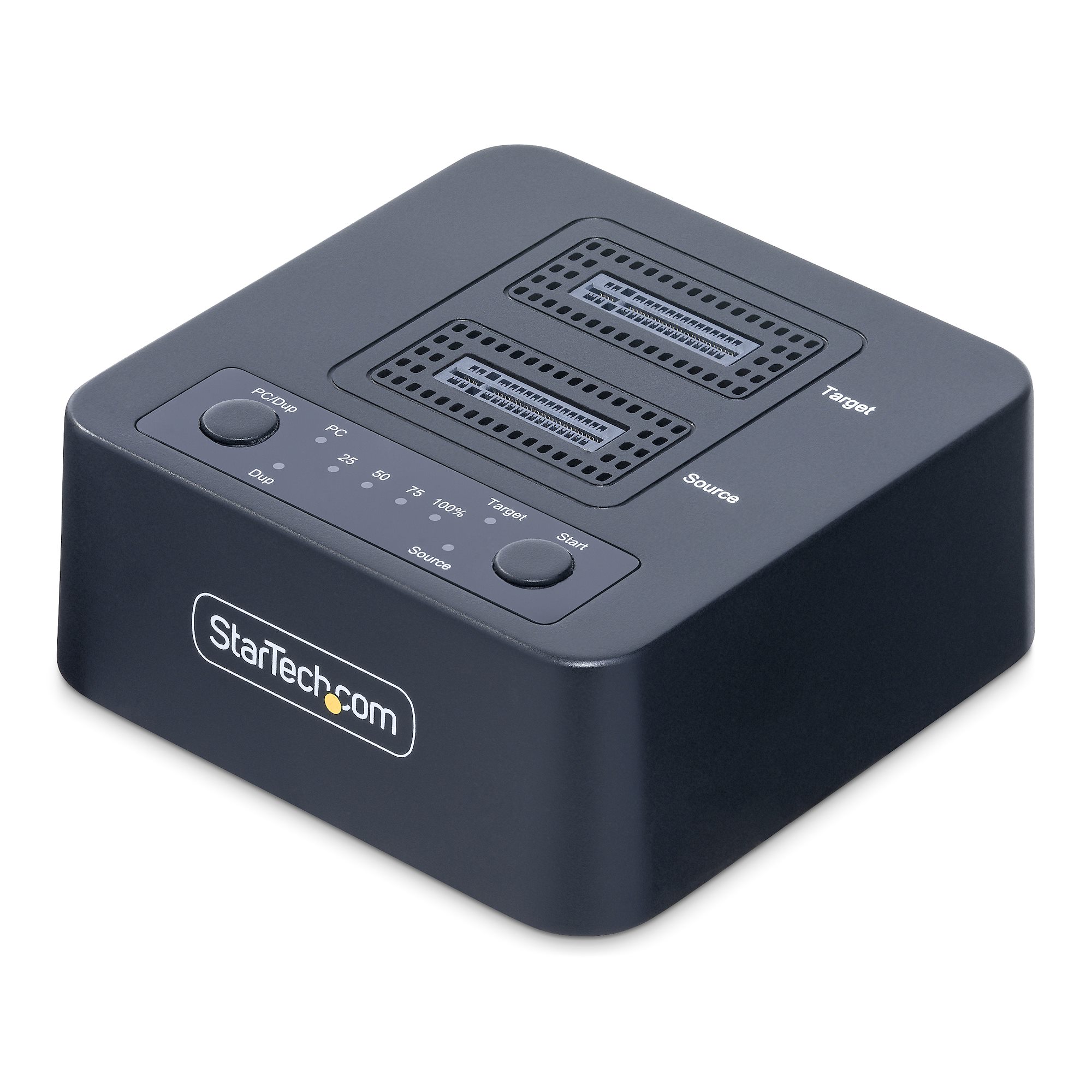
How to Clone an M.2 SSD on a Laptop With One Slot
Many laptops have only one internal M.2 slot. In this case, an M.2 USB enclosure is the easiest solution.
First, install the new SSD in the enclosure. Connect it to the laptop and clone the internal drive to the external SSD. Once the operation finishes, shut down the laptop and replace the internal SSD with the cloned drive.
The laptop may start normally without any extra steps. If it does not, enter UEFI settings and check the boot mode and boot order.
A common mistake is buying the wrong enclosure. Check whether the laptop uses NVMe or SATA before ordering. The two technologies can look almost identical, but their electrical connections differ.
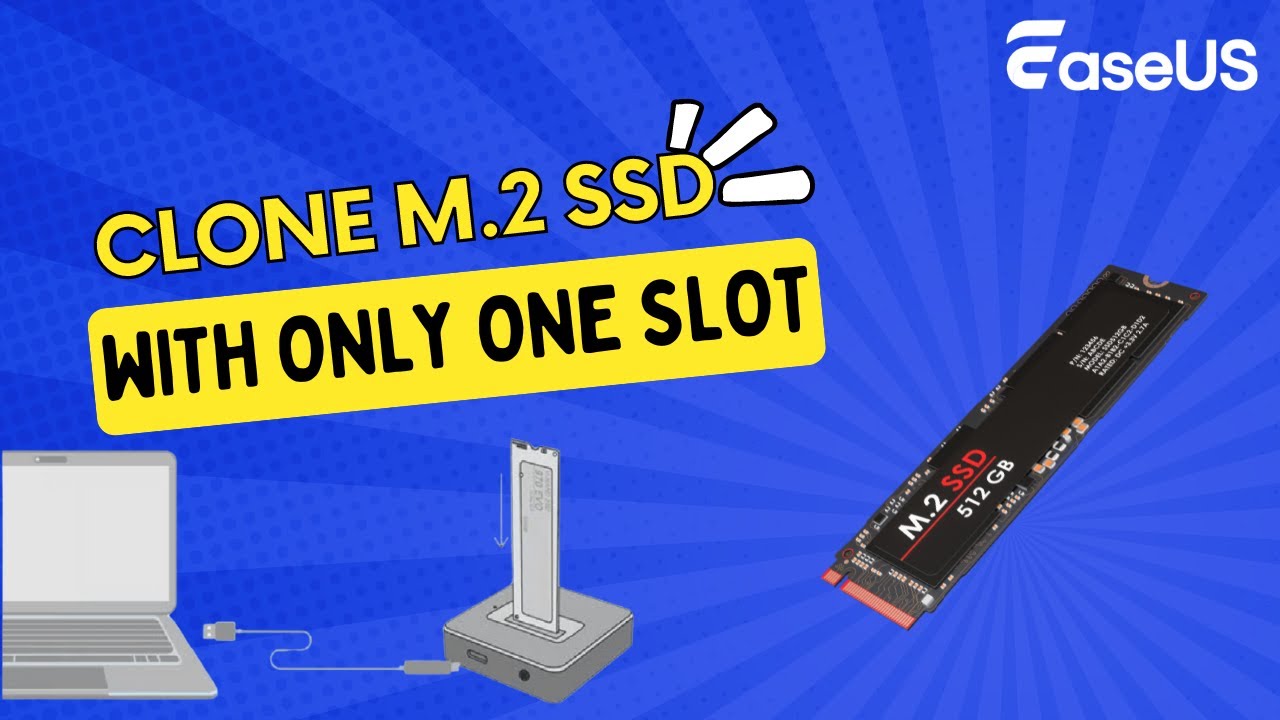
How to Clone an M.2 SSD on a Desktop PC
A desktop computer may have two or more M.2 slots. This makes the process easier because you can install both drives inside the system.
Before installation, check the motherboard manual. Some M.2 slots share bandwidth with SATA ports or PCIe expansion slots. Installing a drive in one slot may disable another storage port.
After installing both drives:
- Start Windows.
- Open the cloning program.
- Identify the old and new SSD by model and capacity.
- Choose the old SSD as the source.
- Choose the new SSD as the destination.
- Copy all required partitions.
- Shut down after the process finishes.
- Set the new SSD as the first boot device.
In hands-on upgrades, the most avoidable mistake is selecting a disk by position alone. Motherboard labels can be confusing, so always compare the drive model and capacity shown in the software.
What to Do if the Cloned SSD Will Not Boot
A cloned SSD that does not boot usually has a configuration problem rather than a failed clone. Start with simple checks.
Confirm the boot mode
A system installed in UEFI mode usually needs a GPT disk. A system installed in Legacy BIOS mode may use MBR.
If the source disk uses GPT, keep the computer in UEFI mode. Changing firmware settings without checking the partition style can stop Windows from loading.
Check the boot order
Enter UEFI settings and move the new SSD or Windows Boot Manager to the first position. Some firmware menus show the drive name, while others show only Windows Boot Manager.
Repair the boot files
Windows recovery tools may repair startup data. Start from a Windows installation USB or recovery drive and open Startup Repair.
Advanced users may use the command line to rebuild boot files, but incorrect commands can damage the boot configuration. Use official Microsoft guidance or professional help if you are unsure.
Disconnect the old drive
When two identical Windows installations are connected, the computer may boot from the wrong one. Disconnect the source SSD for the first test.
This simple step often reveals whether the clone itself works.

Common M.2 SSD Cloning Problems
Cloning errors often come from hardware limits, drive health, or incorrect settings.
The destination drive is too small
A destination SSD cannot hold more data than its usable capacity. Remove unnecessary files and shrink the source partition before trying again.
The SSD is not detected
Check the enclosure type, USB cable, M.2 slot, and firmware settings. An NVMe drive in a SATA-only slot will not work.
The clone stops or reports read errors
The source SSD may contain damaged sectors. Run a health check and back up important data immediately. Some tools offer a sector-by-sector mode, but it may take longer and cannot always recover badly damaged data.
Windows asks for a recovery key
This can happen after a hardware change or firmware change. Use the saved BitLocker recovery key rather than guessing passwords.
Extra space is missing
The clone may have copied the original partition size and left the rest as unallocated space. Use Disk Management or the cloning program’s partition tool to extend the Windows volume.
The new SSD runs slowly
Check whether it is operating through the correct interface. An NVMe drive connected through a slow enclosure or older PCIe slot may not reach its advertised speed.
Best Practices for a Safe SSD Clone
A careful process reduces risk. Use these habits whenever you clone an M.2 SSD:
- Back up important files first
- Check the source and destination model numbers
- Confirm the new SSD has enough space
- Use a reliable power source
- Keep laptops connected to their chargers
- Use the correct NVMe or SATA enclosure
- Close large applications before cloning
- Save your BitLocker recovery key
- Do not interrupt the cloning process
- Test the new SSD before erasing the old one
- Keep the old SSD untouched for several days
- Update SSD firmware only according to the manufacturer’s instructions
One practical lesson is to keep the original drive as a fallback. If the new SSD works well for a week, you can securely erase or reuse the old drive. Until then, it is your safety net.
Cloning an M.2 SSD Versus Fresh Windows Installation
Cloning is faster and preserves your current setup. A fresh installation can provide a cleaner system and may remove years of unused programs, old drivers, and unwanted files.
Choose cloning when:
- You want minimal downtime
- Your current Windows installation is healthy
- You need to preserve applications and settings
- You are comfortable checking the cloned drive
Choose a fresh installation when:
- Windows has serious errors
- The system contains malware
- You want a clean start
- You are changing major hardware
- You want to reorganize partitions from scratch
Neither method is always better. Cloning is like moving your entire room to a larger house. A fresh installation is like taking only what you need and starting again.
Is Cloning an M.2 SSD Safe?
Yes, cloning an M.2 SSD is generally safe when the destination drive is selected correctly and important files are backed up. The source drive is normally read during cloning, so the original data remains available.
The main risks are human errors, such as choosing the wrong destination, losing power, or deleting the original too soon. Damaged source sectors and incompatible hardware can also cause problems.
For the safest process, keep a separate backup and test the new SSD before making any permanent changes.
How Long Does It Take to Clone an M.2 SSD?
The time depends on the amount of data, the SSD speed, the USB enclosure, and the cloning software. A clone with 100GB of data may finish in under an hour, while several hundred gigabytes can take much longer.
The displayed transfer speed is not always constant. Many small files, encryption, compression, thermal limits, and background tasks can slow the process.
Do not judge success only by the progress bar. Wait for the software to confirm completion, then verify the destination drive.
Frequently Asked Questions About How to Clone an M.2 SSD
Can I clone an M.2 SSD to a larger SSD?
Yes. Most cloning tools can copy the old drive to a larger SSD and expand the main partition automatically. If they do not, you can extend the Windows partition after the clone finishes.
Can I clone an M.2 SSD without an enclosure?
Yes, if your computer has two compatible M.2 slots. If it has only one slot, you usually need an NVMe or SATA M.2 USB enclosure that matches the destination drive.
Will cloning an M.2 SSD copy Windows?
A proper disk clone copies Windows, boot files, system partitions, applications, and personal data. A file-only copy does not create a bootable replacement drive.
Can I clone to a smaller M.2 SSD?
Yes, as long as the destination SSD has enough usable space for all data and required partitions. You may need to delete files and shrink the source partition first.
Should I format the new SSD before cloning?
Usually, no. Many cloning tools prepare or overwrite the destination drive during the process. Formatting it first is unnecessary and does not replace the need to select the correct destination.
What should I do with the old M.2 SSD?
Keep it untouched until the new SSD boots and your files work correctly. After that, you can use the old drive as extra storage, create a backup drive, or securely erase it before disposal.
Conclusion
Learning how to clone an M.2 SSD is a practical way to upgrade storage without rebuilding your entire computer. Check the drive type, back up important files, use reliable cloning software, copy every required partition, and test the new SSD before removing the original.
The safest approach is slow and careful: verify each drive by model, protect your BitLocker key, and keep the old SSD as a backup until the upgrade proves reliable. If this guide helped, explore your SSD manufacturer’s support resources and share your cloning experience in the comments.

Everett Ashford is a tech reviewer at mytechgrid.com specializing in SSDs, cameras, TVs, earbuds, headphones, and other consumer electronics. He provides honest, data-driven reviews based on hands-on testing and real-world performance analysis. Everett simplifies complex tech details to help readers make smart, confident buying decisions.