Upgrading a laptop SSD can make it faster, quieter, and more useful without buying a new computer.
Learning how to upgrade SSD on laptop starts with one key rule: confirm the drive type, size, interface, and laptop support before opening the case. This guide explains the full process, from choosing a compatible SSD and backing up files to cloning Windows, installing the drive, and fixing common problems. The steps are simple, but careful preparation prevents lost data and costly mistakes.

Why upgrade the SSD in a laptop?
A solid-state drive, or SSD, stores your files and operating system on flash memory. Unlike an older hard disk drive, it has no spinning platters or moving heads. This makes an SSD faster, quieter, and more resistant to shocks.
A laptop SSD upgrade can improve several daily tasks:
• Faster startup and shutdown
• Quicker app loading
• Better file transfer speeds
• Less noise and heat
• More free storage for photos, games, and work files
• Better overall responsiveness
An SSD upgrade will not usually improve graphics performance or processor speed. If your laptop has an old CPU or limited RAM, those parts may still control performance in demanding apps. However, replacing a slow hard drive is often the most noticeable upgrade for an older laptop.
In my experience, many users think their laptop is “too old” when the real problem is a nearly full hard drive. Replacing that drive can make the computer feel fresh again, much like replacing a clogged road with a clear highway.

Check whether your laptop supports an SSD upgrade
Before learning how to upgrade SSD on laptop, identify the storage hardware already inside your computer. Laptop manufacturers use several SSD formats, and they are not always interchangeable.
Common laptop SSD types
The most common options are:
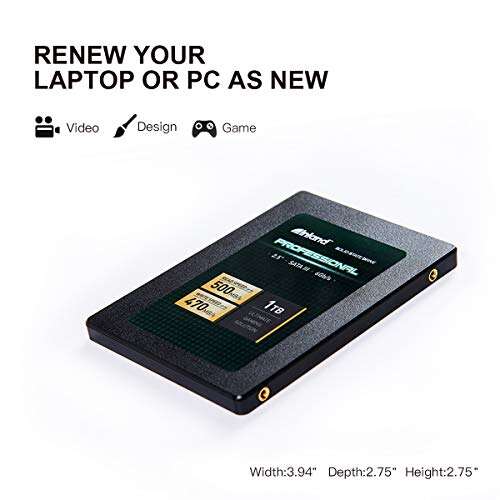
• 2.5-inch SATA SSD: This flat drive uses a SATA data and power connection. It is common in older laptops and usually offers speeds up to about 550 MB/s.
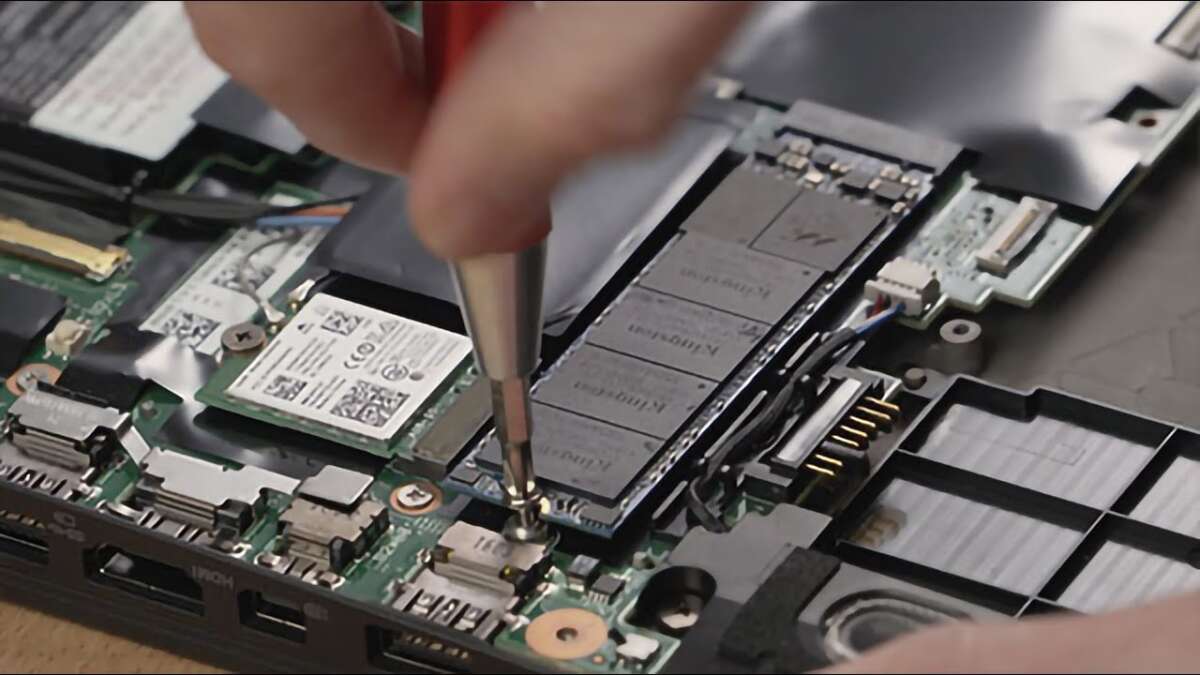
• M.2 SATA SSD: This small stick-shaped drive fits an M.2 slot but uses the SATA protocol. It looks similar to an NVMe drive, but it is not the same.
• M.2 NVMe SSD: This drive also uses the M.2 shape, but it connects through PCIe. It is much faster than SATA when the laptop supports it.
• PCIe expansion storage: Some specialized laptops use less common storage designs. Always check the exact model before buying a drive.
An M.2 SSD is not automatically an NVMe SSD. The slot, key type, supported protocol, and drive length all matter. An NVMe drive may not work in an M.2 slot designed only for SATA.
Find your laptop model
Use one or more of these methods:
-
Look for the model number on the bottom case.
-
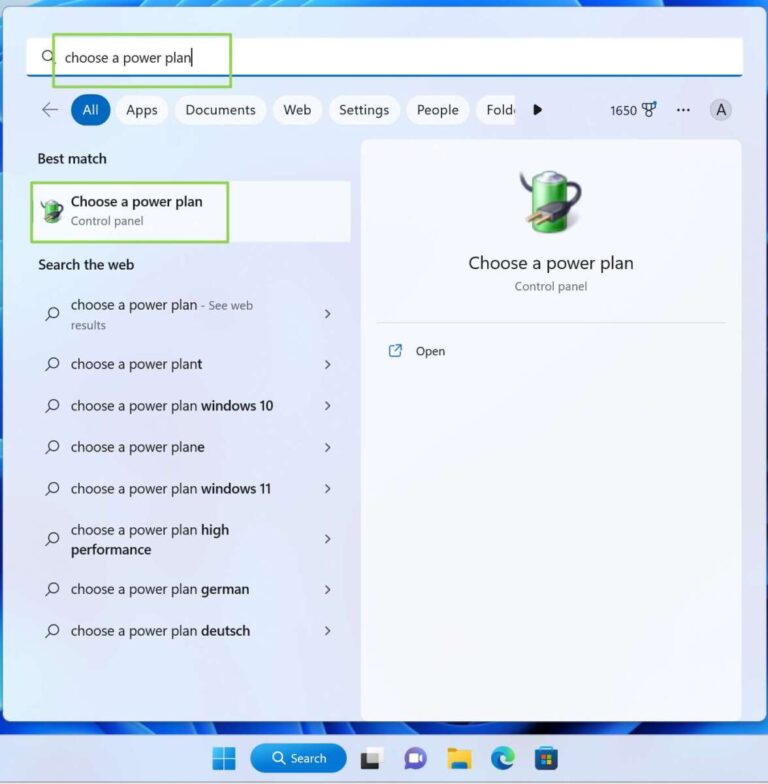
Open Windows Settings, select System, and choose About.
-
Search the manufacturer’s support page for the service manual.
-
Check the original specifications or maintenance guide.
-
Use a trusted hardware information tool to identify the current drive.
The service manual is especially useful because it may show whether the laptop has one storage bay, an empty M.2 slot, or a replaceable drive. Some thin laptops have storage soldered directly to the motherboard. In that case, a normal SSD replacement may not be possible.

Choose the right replacement SSD
Choosing the right drive is the most important part of how to upgrade SSD on laptop. A fast SSD that does not fit your laptop is still the wrong purchase.
Match the interface and form factor
Check these details before ordering:
• Drive type: SATA or NVMe
• Size: 2.5-inch or M.2
• M.2 length: 2230, 2242, 2260, or 2280
• Supported PCIe generation
• Storage capacity
• Physical thickness
The four-digit M.2 size describes the drive’s width and length. For example, 2280 means 22 millimeters wide and 80 millimeters long. Many laptops use M.2 2280 drives, but compact systems may need shorter models.
Select a practical capacity
A larger SSD gives you more room and may offer better value per gigabyte. Common choices include:
• 500 GB: Suitable for basic work, school, and web use
• 1 TB: A strong choice for most users
• 2 TB: Useful for games, video, design files, and large photo libraries
• 4 TB or more: Best for large media collections or professional workloads
Try to keep at least 10% to 20% of the drive free. SSDs need spare space for background maintenance, temporary files, and efficient performance.
Consider endurance and warranty
SSD endurance is often listed as TBW, or terabytes written. It estimates how much data the drive can write during its rated life. Most consumer SSDs last for many years under normal use, but heavy video editing and constant data logging create more wear.
Look for a drive with:
• A clear warranty
• Reliable firmware support