Most SSDs not showing up are due to connection, initialization, driver, or BIOS detection issues.
I’ve spent years building and repairing PCs, and I know how frustrating it is when your SSD doesn’t appear where it should. This guide explains why isn't my ssd showing up on my pc, step-by-step checks, clear fixes, and real-world tips I’ve learned from hands-on troubleshooting. Read on and you’ll get the confidence to find and fix the issue quickly.

Common reasons your SSD isn't showing up
There are a few common causes when you ask, why isn't my ssd showing up on my pc. Often the root is simple and fixable.
Short list of likely causes:
- Connection problems: loose SATA cable, bad M.2 seating, or faulty USB-to-SATA adapter.
- Drive not initialized: new SSDs may be unallocated or lack a drive letter.
- BIOS/UEFI not detecting the drive: wrong slot, disabled port, or outdated firmware.
- Driver or OS incompatibility: missing NVMe driver or Windows needing updates.
- Power issues: inadequate power from the PSU or missing power cable on 2.5-inch drives.
- Faulty hardware: dead SSD, bad motherboard port, or damaged enclosure.
- Partition/format problems: incorrect partition table (MBR vs GPT) or hidden partitions.
Each cause is a clear checkpoint you can test. Asking why isn't my ssd showing up on my pc usually means working through these areas in order. If you follow a methodical path, most problems resolve in minutes.
Step-by-step troubleshooting guide
Follow these steps one at a time. Keep notes so you can undo risky actions.
-
Physical checks
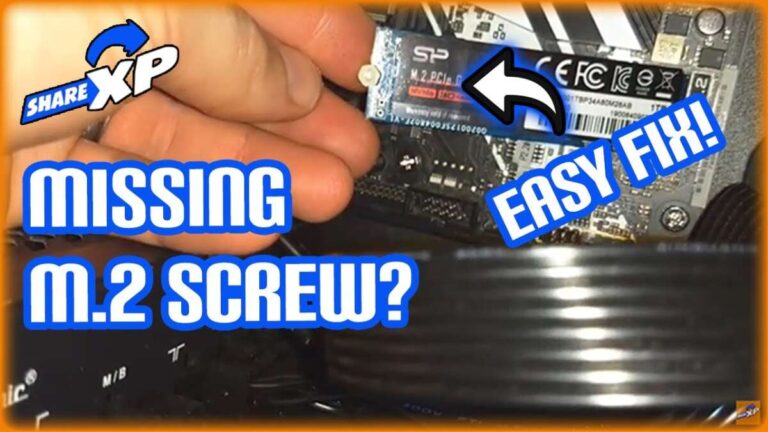
- Turn off the PC and unplug power. Reseat the SSD if it’s M.2, or reconnect SATA and power cables for 2.5-inch drives.
- Try a different SATA port and cable. If using an adapter or enclosure, swap it or plug the SSD directly into the motherboard.
- If external, test the SSD on another computer or use a different USB cable/port.
-
Check BIOS/UEFI
- Boot into BIOS and look for storage devices. If the SSD is absent, try a different M.2 slot or enable the SATA port.
- Ensure SATA mode (AHCI/IDE/RAID) is compatible with the SSD. Changing RAID to AHCI can affect detection, so note original settings.
-
Windows Disk Management
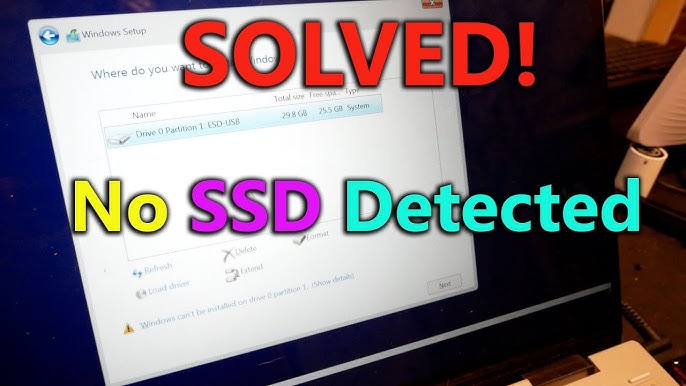
- Open Disk Management. New SSDs often show as uninitialized or unallocated. Initialize the disk and create a partition.
- If no drive letter exists, right-click the partition and assign one. This fixes many “invisible” drive issues.
-
Device Manager and drivers
- Check Device Manager for unknown devices or warnings. Update storage and chipset drivers.
- For NVMe SSDs, install the vendor driver if Windows does not natively detect the drive properly.
-
DiskPart and deeper checks
- Use diskpart list disk to see if Windows can detect the disk at a low level. If diskpart sees it, you can clean and create partitions, but this erases data.
- If diskpart doesn't see the drive, the issue is likely hardware or BIOS-level.
PAA-style questions:
How do I make Windows detect my SSD?
Often by initializing the drive in Disk Management or assigning a drive letter. If it still doesn’t show, check BIOS, cables, and drivers.
Can a new SSD be undetectable because it needs initialization?
Yes. New SSDs often appear as unallocated and require initialization and partitioning before Windows assigns a letter.
Will the BIOS detect an NVMe SSD without special drivers?
Most modern BIOS versions detect NVMe drives. However, older motherboards may need a firmware update or vendor NVMe driver for full support.
Personal note: I once fixed a desktop that would not show a brand-new NVMe SSD; the motherboard needed a BIOS update to add NVMe support. That solved the problem in under 20 minutes.

Advanced checks and fixes
If basic steps don’t work, try these advanced options carefully.
- Update firmware and BIOS
- Check SSD firmware and motherboard BIOS updates. Firmware fixes can resolve compatibility and detection bugs.
- Examine partition table and format
- Converting between MBR and GPT can be necessary if the OS or boot method expects one type. Back up data before converting.
- Use manufacturer tools
- Many SSD makers provide diagnostic utilities. Run health checks and secure erase features to restore drive responsiveness.
- Power and adapter troubleshooting
- External SSDs in cheap enclosures sometimes won’t enumerate. Use a powered USB hub or direct SATA connection for testing.
- Test for electrical or physical faults
- If possible, connect the SSD to a different computer. If the drive is consistently undetectable, it may be defective and need RMA.
Caution: DiskPart clean and secure erase will remove all data. If data is valuable, consider professional recovery before destructive steps.
Preventive tips and best practices
Prevent future headaches by following these rules.
- Use quality cables and ports
- Replace suspect SATA cables and use motherboard ports directly when possible.
- Keep firmware and drivers current
- Update SSD firmware and motherboard BIOS as recommended by the manufacturer.
- Initialize and format new drives immediately
- After installing, open Disk Management and set up partitions so the drive is visible to the OS.
- Back up important data
- Always maintain backups. SSD failure can be sudden and data recovery is costly.
- Check SMART and health periodically
- Use vendor tools or third-party utilities to monitor drive health and performance.
From experience, investing in a good cable and updating firmware saved me hours when diagnosing intermittent SSD detection issues.

When to seek professional help
If you’ve tried the steps above and your SSD still doesn’t show, consider these next moves.
- Warranty and RMA
- If the drive is new and consistently undetectable in multiple systems, contact the manufacturer for an RMA.
- Data recovery services
- For valuable data on a dead SSD, professional recovery is expensive but sometimes the only option.
- Local repair shops
- A reputable technician can test motherboard ports, power delivery, and run specialized tools to pinpoint the issue.
Be clear about what you tried when you contact support. Provide BIOS logs, system model, and the troubleshooting steps you completed.

Frequently Asked Questions of why isn't my ssd showing up on my pc
Why does my SSD not show in Windows but appears in BIOS?
If the SSD appears in BIOS but not in Windows, it likely needs initialization, partitioning, or a drive letter in Disk Management. Check Device Manager for driver issues as well.
Can a bad SATA cable prevent the SSD from showing up?
Yes. A faulty SATA cable or power cable can stop a drive from appearing. Swap cables and test different motherboard ports to confirm.
Will updating BIOS help if my SSD isn't detected?
Updating BIOS can add or improve SSD support, especially for older motherboards and NVMe drives. Ensure you follow the manufacturer’s update instructions precisely.
Is an external enclosure causing my SSD to be invisible?
Cheap or failing enclosures and adapters can prevent detection. Test the SSD by connecting it internally or using a different enclosure or cable.
How do I recover data if my SSD isn't detected by Windows?
If Windows doesn’t detect the SSD but it appears in BIOS, try vendor recovery tools or boot from a live OS to access files. If the SSD is truly undetectable, contact professional data recovery services.
Conclusion
Troubleshooting why isn't my ssd showing up on my pc becomes manageable when you follow a clear checklist: check connections, confirm BIOS detection, initialize or assign in Disk Management, update drivers and firmware, and test hardware on another system. Start with non-destructive steps, and only use drive-wiping tools when you’re ready to lose data or have backups. If the problem persists, leverage warranties or professional help.
Try the steps above, document what you test, and leave a comment describing your system if you want more targeted help. Subscribe for more practical PC repair guides and troubleshooting tips.

Everett Ashford is a tech reviewer at mytechgrid.com specializing in SSDs, cameras, TVs, earbuds, headphones, and other consumer electronics. He provides honest, data-driven reviews based on hands-on testing and real-world performance analysis. Everett simplifies complex tech details to help readers make smart, confident buying decisions.