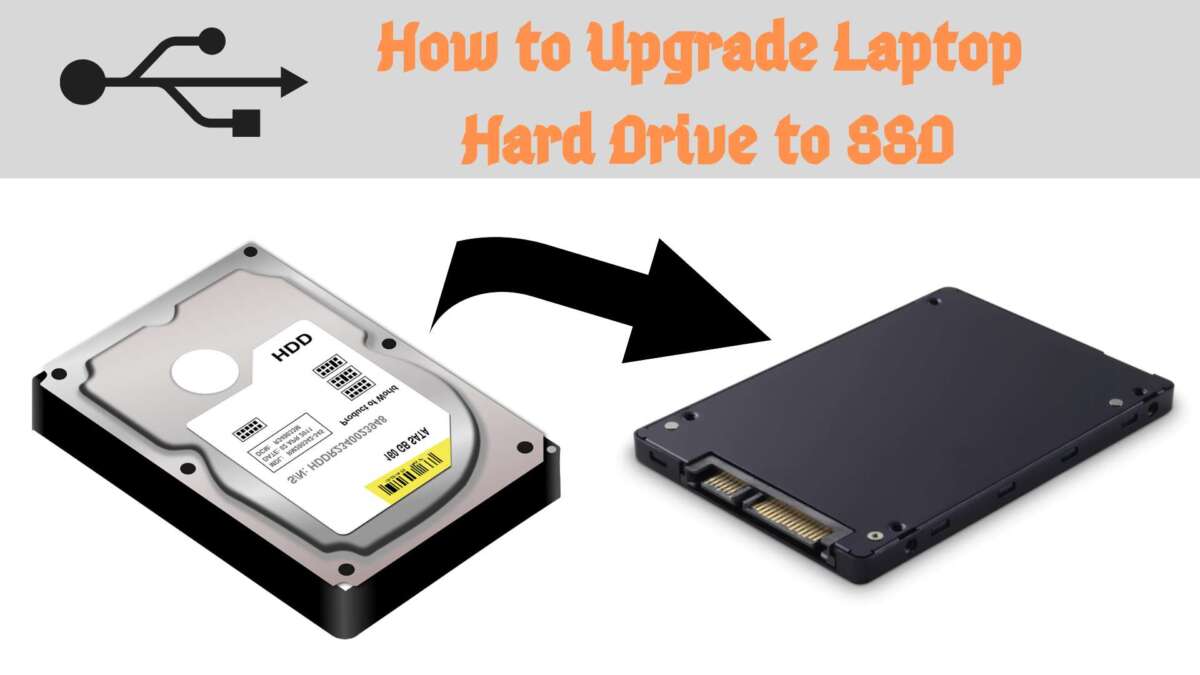
To swap an SSD in a PC, back up your data, install the new drive, and restore or clone Windows.
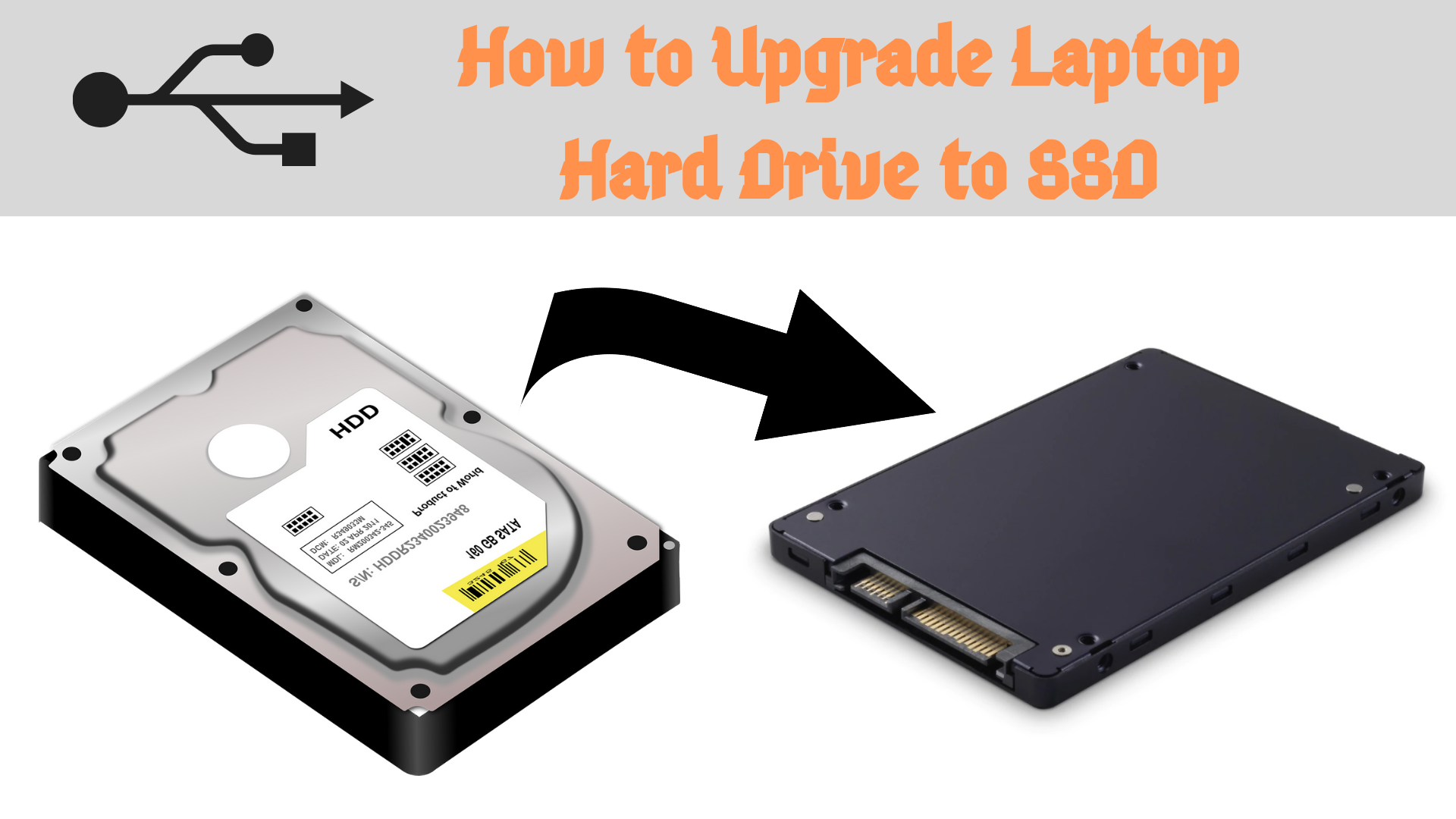
Learning how to swap SSD in PC systems is easier when you understand the drive type, backup plan, and boot process first. This guide explains each step for SATA and M.2 NVMe SSDs, including cloning Windows, installing a clean copy, checking BIOS settings, and avoiding common hardware mistakes.
Before You Swap an SSD in a PC
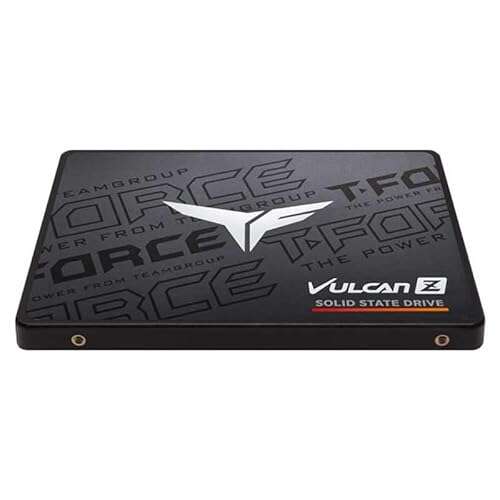
Before you swap an SSD in a PC, check what type of drive your computer uses. Most desktop PCs support either a 2.5-inch SATA SSD, an M.2 SATA SSD, or an M.2 NVMe SSD.
A 2.5-inch SATA SSD connects with a SATA data cable and a power cable. An M.2 SSD sits directly on the motherboard and uses one small screw. NVMe drives are usually faster, but your motherboard must support the correct M.2 interface.
Check these details before buying a replacement:
• Drive type: 2.5-inch SATA, M.2 SATA, or M.2 NVMe
• Storage size: Choose enough space for Windows, apps, games, and personal files
• M.2 length: Common sizes include 2280, 2260, and 2242
• Motherboard support: Confirm the slot supports SATA, NVMe, or both
• PCIe generation: A PCIe 4.0 drive can work in many PCIe 3.0 slots, but it may run at the older speed
• Desktop space: Make sure you have a mounting bracket and available cables for a 2.5-inch SSD
A quick look at your motherboard manual can prevent an expensive mistake. I once saw a PC owner buy an NVMe drive for an M.2 slot that supported SATA only. The drive fit physically but did not appear in the BIOS.

Choose Between Cloning and a Clean Windows Install
When you swap SSD in PC hardware, you have two main ways to move to the new drive. You can clone the old SSD, or you can install Windows from scratch.
Cloning copies your operating system, apps, settings, and files to the new SSD. It is the fastest option when the old drive still works properly. Your new drive should have enough usable space for all data on the old drive.
A clean Windows install starts with an empty drive. It removes old drivers, unwanted programs, and years of saved clutter. However, you must reinstall your apps and restore your files from a backup.
Choose cloning if:
• You want your PC to look and work the same after the upgrade
• The old SSD has no serious errors
• The new SSD is the same size or larger
• You want to avoid reinstalling many programs
Choose a clean install if:
• Your current Windows installation is slow or unstable
• The old drive has file system errors or malware
• You want a fresh start
• You are changing major hardware at the same time
A reliable disk cloning tool can copy the source drive to the destination drive. Always select the correct source and target disks. choosing the wrong direction can erase the original drive.

Back Up Your Files Before Starting
A backup is the most important safety step when you swap SSD in PC systems. Cloning is useful, but it is not a full backup. If the process fails or you select the wrong disk, your files may be at risk.
Copy important files to an external hard drive, USB SSD, or trusted cloud service. Include your documents, photos, videos, saved games, browser data, and work files.
Also prepare these items:
• Your Windows login details
• Product keys or license information for important software
• Recovery codes for accounts with two-factor authentication
• A Windows installation USB drive
• Your motherboard manual
• A small Phillips screwdriver
• An anti-static wrist strap, if available
Microsoft Windows can often reactivate automatically when you use the same computer. Still, link your digital license to your Microsoft account before changing the drive. You can check activation under Settings, System, and Activation.
Do not rely on a single copy of important files. The 3-2-1 backup approach is a strong habit: keep three copies of your data, on two types of storage, with one copy stored away from the PC.
Prepare the PC and Protect the Hardware
Shut down Windows fully before you swap SSD in PC hardware. Do not work inside a sleeping or hibernating computer.
Follow these safety steps:
- Shut down the computer.
- Turn off the power supply switch.
- Unplug the power cable.
- Press the PC power button for a few seconds.
- Move the computer to a clean, well-lit table.
- Touch the metal chassis before handling components.
- Remove the side panel.
Static electricity can damage sensitive parts. You do not need to panic, but avoid working on carpet and do not touch gold contacts or exposed chips. Hold the SSD by its edges.
Before removing the old drive, take a clear photo of the cables and drive position. This simple habit makes reassembly much easier, especially with SATA drives.
How to Remove a 2.5-Inch SATA SSD
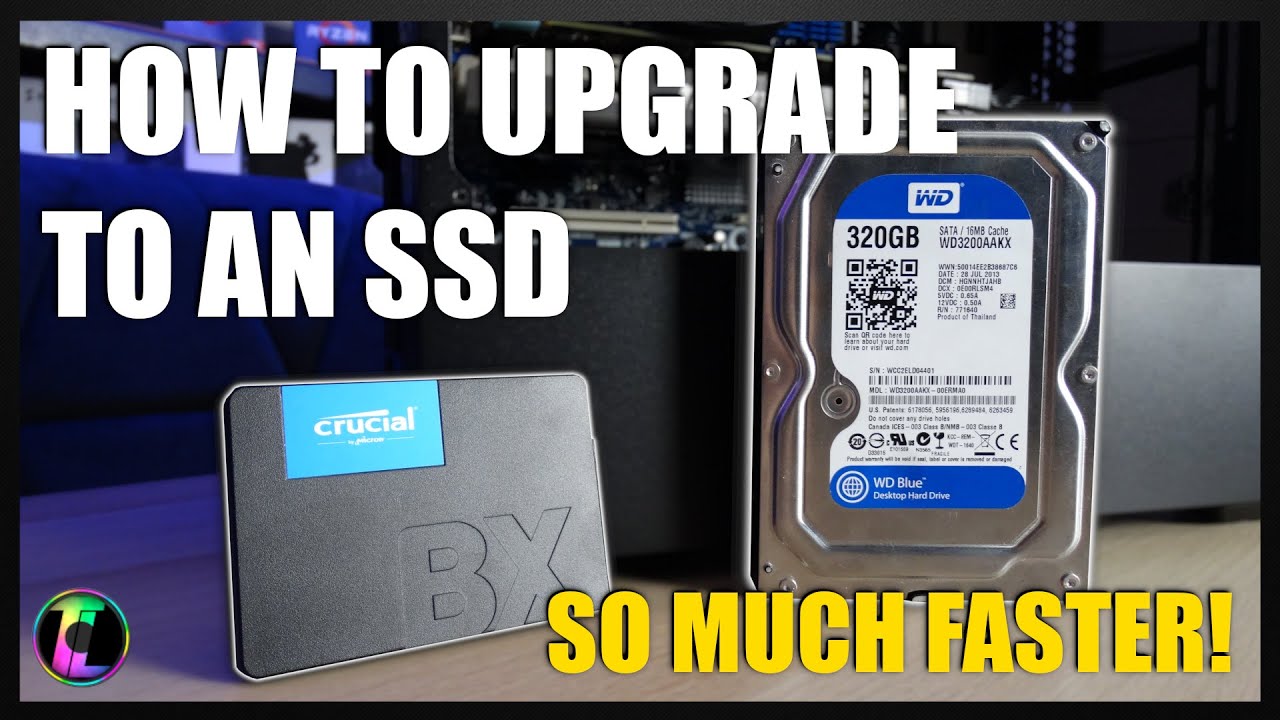
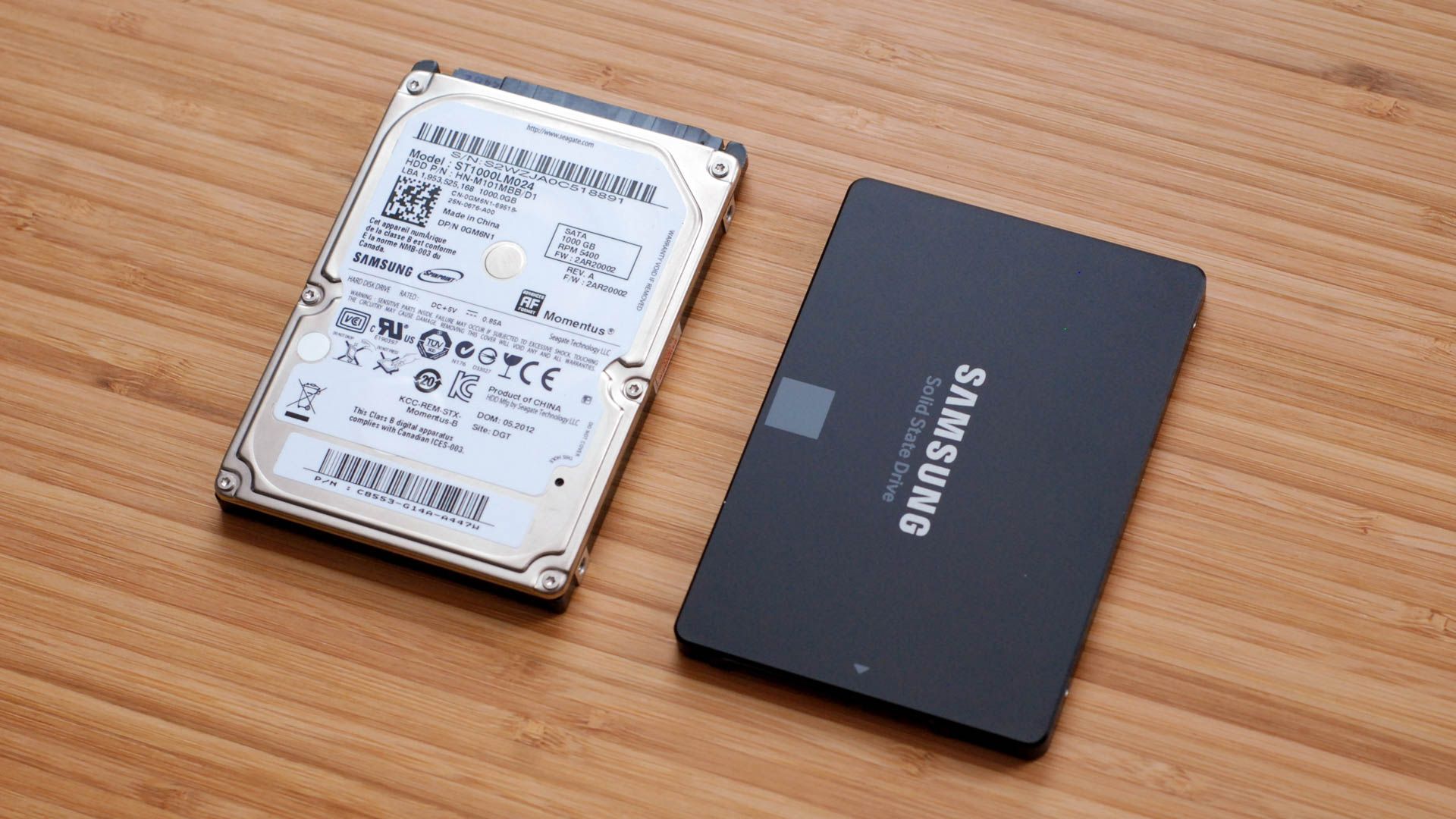
A 2.5-inch SATA SSD usually sits in a drive cage, bracket, or tray. It connects to the motherboard with a thin SATA data cable and to the power supply with a wider SATA power connector.
To remove it:
- Find the 2.5-inch SSD inside the case.
- Disconnect the SATA power cable.
- Disconnect the SATA data cable.
- Remove the mounting screws or release the drive tray.
- Place the old SSD in an anti-static bag.
Do not pull hard on the cables. Grip the plastic connectors and pull them straight out. SATA connectors can bend or break if you twist them sharply.
If you plan to clone the old drive, leave it connected for now. Install the new SSD in another bay or use a SATA-to-USB adapter. This lets the cloning software see both drives at the same time.
How to Install a 2.5-Inch SATA SSD
To swap SSD in PC cases with a 2.5-inch SATA drive, secure the new SSD in the same bracket or tray used by the old one. The drive should not hang loose inside the case.
Connect one end of the SATA data cable to the SSD and the other end to a motherboard SATA port. Then connect a SATA power plug from the power supply.
Use a motherboard port such as SATA 0 or SATA 1 when possible. Some ports may be disabled when certain M.2 slots are in use. Your motherboard manual will explain these shared connections.
Keep SATA cables away from case fans. Good cable management improves airflow and makes future upgrades less frustrating.
How to Remove and Install an M.2 NVMe SSD
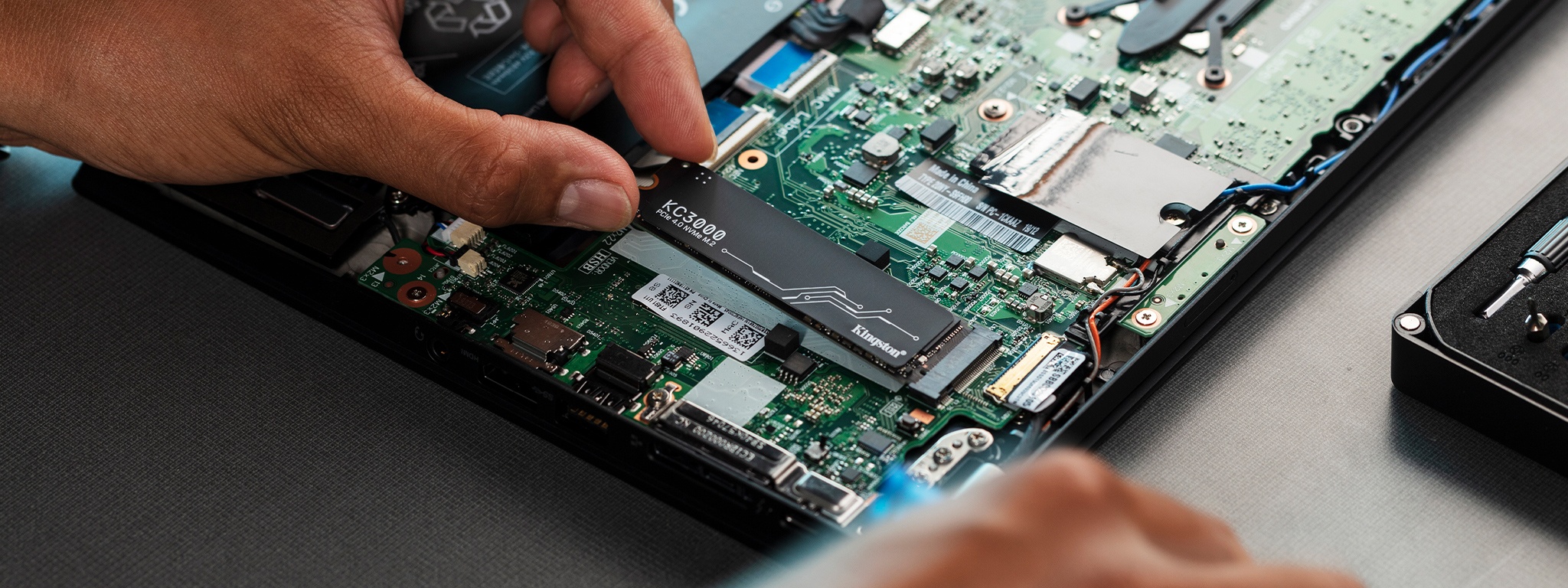
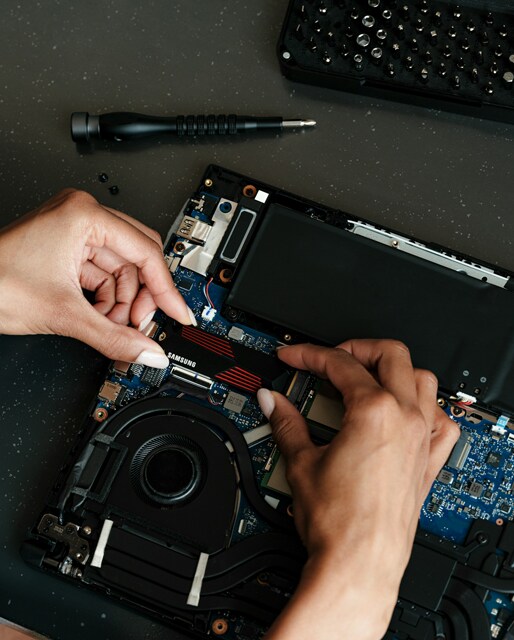
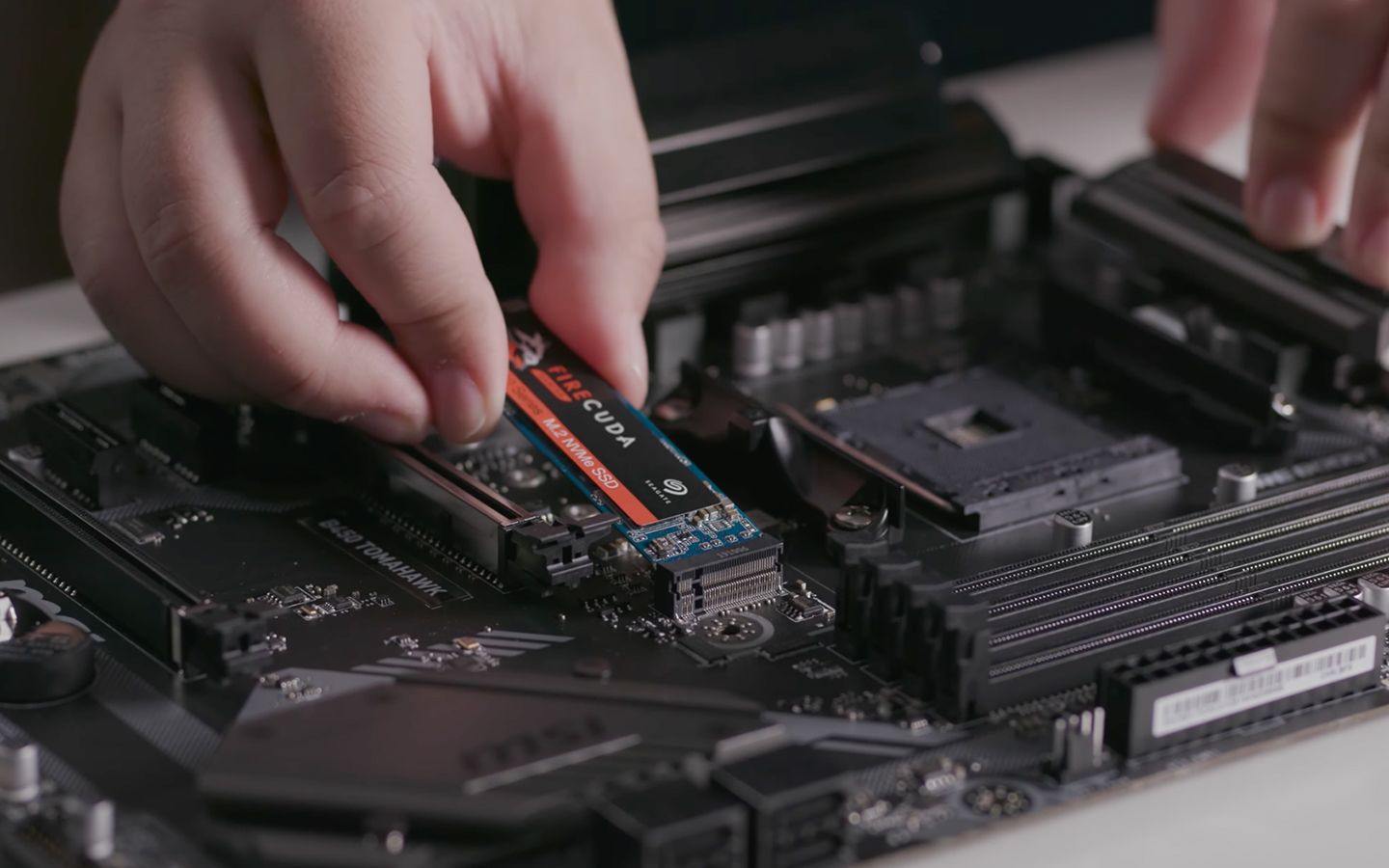
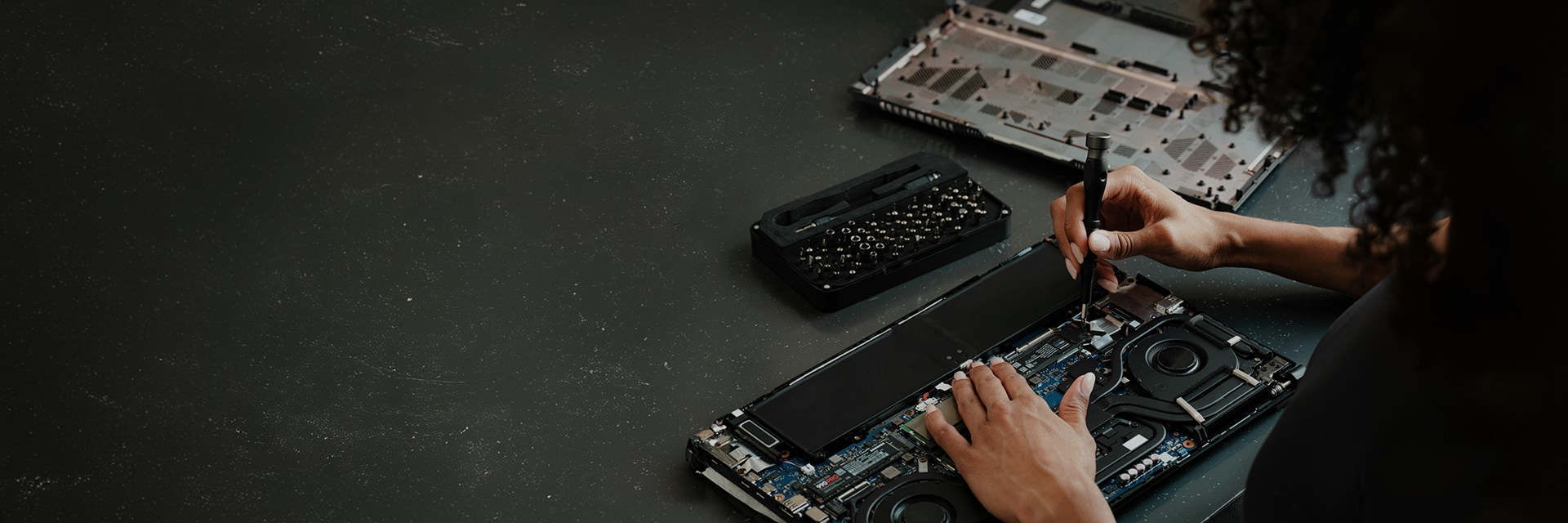
M.2 drives are small circuit boards that install flat against the motherboard. They do not use SATA data or power cables.
To remove an M.2 SSD:
- Find the M.2 slot on the motherboard.
- Remove the small retaining screw.
- Lift the end of the SSD slightly.
- Pull the drive out of the connector.
- Store it safely if you need its data.
To install the new M.2 SSD:
- Find the correct M.2 slot.
- Remove the heat spreader if your board has one.
- Insert the SSD at a slight angle, usually around 30 degrees.
- Push it fully into the connector.
- Press it down gently.
- Secure it with the retaining screw.
- Replace the heat spreader, if included.
Do not force the drive into the slot. The notch on the SSD must match the key inside the connector. Also remove any protective film from a thermal pad before reinstalling the heat spreader.
A common mistake is leaving the M.2 screw loose or using the wrong screw. The SSD should lie flat, but the screw should not be tightened so much that it bends the board.
Clone Windows to the New SSD
If you want to keep your current Windows setup, cloning is often the simplest way to swap SSD in PC systems.
First, connect both drives. A desktop can hold both drives internally, while a laptop or small PC may need a USB-to-NVMe or USB-to-SATA enclosure.
Then follow these general steps:
- Install a trusted disk cloning application.
- Open the tool and identify the old SSD.
- Select the old SSD as the source disk.
- Select the new SSD as the destination disk.
- Copy all required partitions, including the EFI, recovery, and Windows partitions.
- Expand the Windows partition if the new SSD is larger.
- Start the clone and wait for it to finish.
- Shut down the PC after the software confirms completion.
Never format or erase the old drive until the new SSD boots correctly. Keep the old drive untouched for several days. It serves as a safety net if you forget a file or discover a boot problem.
Some cloning tools offer a “system clone” option. This can be easier than manually selecting partitions. Still, review the destination disk carefully before starting.
Boot From the New SSD
After you swap SSD in PC hardware, the computer may still try to boot from the old drive. You can fix this through the BIOS or UEFI firmware menu.
Start the PC and press the setup key during startup. Common keys include Delete, F2, F10, and F12, but the correct key depends on the manufacturer.
In the boot menu:
• Confirm that the new SSD appears
• Set Windows Boot Manager on the new SSD as the first boot option
• Save the changes
• Restart the computer
If Windows starts normally, open File Explorer and check your files. You can also open Disk Management to confirm the partitions and drive capacity.
If the new SSD does not appear, shut down the PC and check the connection. For an M.2 drive, confirm that the slot supports the drive type. For a SATA SSD, check both the data and power cables.
Install Windows From Scratch
A clean installation is the best way to swap SSD in PC systems that have corrupted files, unwanted software, or years of accumulated clutter.
Create a bootable Windows USB drive using another computer or your current installation. Then install the new SSD and disconnect other storage drives if possible. Disconnecting extra drives reduces the risk of selecting the wrong disk during setup.
Start the PC from the Windows USB drive. At the disk selection screen, choose the new SSD. Delete old partitions on that target drive only, then select the unallocated space and continue.
After Windows starts:
- Connect to the internet.
- Run Windows Update.
- Install motherboard chipset drivers.
- Install graphics and network drivers if needed.
- Restore your personal files.
- Reinstall applications.
- Check activation settings.
- Create a fresh backup.
A clean install takes more time, but it often produces a smoother result. It is like moving into a clean room instead of carrying every old box into a new house.
Check SSD Health and Performance
After you swap SSD in PC systems, test the drive before trusting it with important work. First, confirm that Windows reports the correct capacity. A 1 TB drive will show less than 1,000 GB in Windows because manufacturers and operating systems measure storage differently.
Use the SSD maker’s utility, Windows tools, or a trusted health application to check:
• Drive temperature
• Firmware version
• Total written data
• Health status
• Available firmware updates
• Read and write performance
Do not judge a drive only by benchmark numbers. A drive may score lower than its advertised speed because of the motherboard slot, PCIe generation, thermal limits, or background tasks.
Keep at least 10 to 20 percent of the SSD free when possible. Solid-state drives need free space for maintenance and efficient operation. Avoid repeated full-drive benchmarks, since they add unnecessary write activity.
Common Problems After an SSD Upgrade
Some problems appear often when people swap SSD in PC systems. Most have simple causes.
The new SSD is not detected
Check the physical installation first. Reseat the M.2 drive or reconnect both SATA cables. Then review BIOS settings and confirm that the motherboard supports the SSD interface.
Some motherboards disable specific SATA ports when an M.2 slot is occupied. Move the SATA cable to another port if the manual lists shared lanes.
Windows shows a blue screen
This can happen when the clone did not copy the boot partitions correctly. It can also happen when the old installation used a different boot mode.
Check whether the system uses UEFI mode. A modern Windows installation usually works best with UEFI and a GPT partition layout. If the problem continues, run Windows Startup Repair from a Windows installation USB.
The PC boots from the old drive
Shut down and temporarily disconnect the old SSD. If the PC then boots from the new drive, reconnect the old drive and set the correct Windows Boot Manager entry as the first boot option.
The SSD is slower than expected
Check the M.2 slot specification, drive temperature, firmware, and benchmark conditions. A PCIe 3.0 slot cannot provide PCIe 4.0 speeds, and a hot SSD may reduce speed to protect itself.
The new drive has less space than expected
This often happens after cloning a smaller drive to a larger one. Open Disk Management and extend the main Windows partition into the unallocated space.
Mistakes to Avoid When You Swap an SSD
Knowing what not to do is just as useful as knowing how to swap SSD in PC hardware.
Avoid these mistakes:
• Skipping a backup because cloning “should” work
• Formatting the old drive before testing the new one
• Installing an NVMe drive in an M.2 SATA-only slot
• Forgetting to copy the EFI or recovery partitions
• Mixing up the source and destination disks
• Touching the gold contacts on the SSD
• Over-tightening the M.2 retaining screw
• Blocking fans with loose cables
• Ignoring BIOS boot order
• Reusing a damaged SATA cable
• Removing the old drive before checking your files
The safest process is slow and deliberate. A ten-minute backup and a careful photo of the original setup can save hours of troubleshooting.
Frequently Asked Questions About How to Swap SSD in PC
Can I swap an SSD without reinstalling Windows?
Yes. You can clone the old SSD to the new one and then boot from the cloned drive. The new SSD should have enough usable space for the data being copied.
Do I need to format the new SSD before cloning?
Usually, no. Most cloning tools prepare the destination drive during the cloning process. Always review the tool’s disk selection screen because formatting the wrong drive can erase your files.
Can I use an NVMe SSD in any M.2 slot?
No. M.2 slots can support SATA, NVMe, or both. Check your motherboard manual before buying or installing an M.2 SSD.
Will Windows remain activated after I replace the SSD?
In most cases, Windows remains activated when the motherboard stays the same. Linking your digital license to a Microsoft account before the upgrade provides extra protection.
Should I keep the old SSD after the upgrade?
Yes, keep it until the new SSD boots reliably and all important files are available. After that, you can securely erase the old drive before selling, recycling, or reusing it.
Why does my new SSD not appear in Windows?
The drive may be loose, unsupported by the slot, disabled in BIOS, or missing a partition. Check the connection, BIOS detection, and Disk Management before assuming the SSD is defective.
Conclusion
Learning how to swap SSD in PC systems is a practical upgrade that can improve storage, startup time, and everyday responsiveness. The key steps are checking compatibility, backing up files, choosing between cloning and a clean install, installing the drive carefully, and setting the correct boot option.
Take your time, keep the old drive untouched until testing is complete, and verify the new SSD in both BIOS and Windows. Once you finish, explore your motherboard manual and SSD utility for firmware updates and health checks, then share your upgrade experience or questions in the comments.

Everett Ashford is a tech reviewer at mytechgrid.com specializing in SSDs, cameras, TVs, earbuds, headphones, and other consumer electronics. He provides honest, data-driven reviews based on hands-on testing and real-world performance analysis. Everett simplifies complex tech details to help readers make smart, confident buying decisions.